Remember when you first turned on your new Mac? It was fast, smooth, and free from those frustrating spinning rainbow wheels.
Well, you can bring back that magic! Let’s explore 15 easy ways to refresh your system and boost your Mac’s speed. These simple adjustments mainly involve tweaking a few settings here and there.
These tips work great for Macs running the latest macOS Sonoma. If you’re using an older Mac, don’t worry—these tricks will still be helpful, though you might need to adjust the steps slightly, especially when navigating the System Settings app.
How To Know If Your MacBook Needs a Speed Boost?
You know it’s the best time to speed boost your Mac if you are here already. But still, we should know when it is the best time to do something with your Mac so that it runs smoothly.
Have you noticed last time, when last time your Mac was taking ages to start up? Well, with Windows laptops, it is normal, lol. But if your Mac has started to take ages, then you know you need to do something about it.
Suppose you are working and your lap feels a lot of heat; it means your laptop is running hot coz its CPU cannot handle the workload. And you know it is time to speed boost.
You know, web browsers like Google Chrome eat up all the resources on your Mac, whether it is RAM, hard disk, or CPU. But if normal browsers crash frequently, know you must speed-boost your browser.
Also, one of the most important issues I could have written on the top is that rainbow spinning wheel. It isn’t very pleasant. This is the main reason why one will decide to do something with their Mac despite the fact that you have a lot of data on the Mac.
Enough. Now, let’s decide what steps we can take to speed up our Mac.
How To Boost Your Mac’s Speed with These Proven Tips
1. Free Up RAM Using Terminal
You don’t need fancy apps to free up memory. Here’s a quick trick when your Mac feels slow or an app freezes:
- Open Terminal app from Spotlight or your Applications folder.
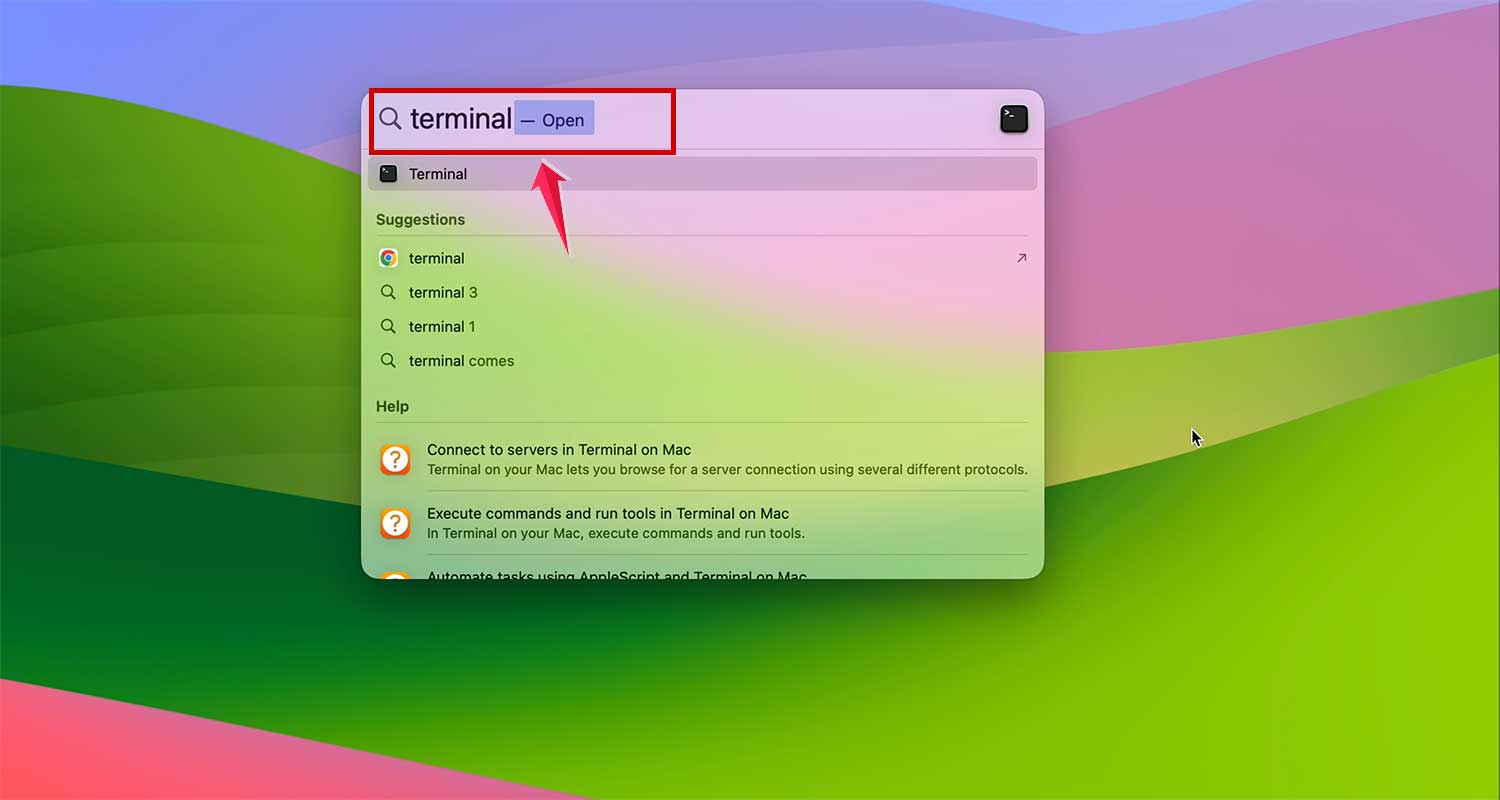
- Type in
sudo purgeand press Return. - Enter your system password when asked.

This command refreshes your memory right away.
2. Tackle With Resource-Hungry Processes
Some apps can slow your Mac down by using too much power.
You can find such apps in the Activity Monitor app, which is like a control center to see what’s running on your Mac.
Now, you can use Activity Monitor to track down such apps:
Check CPU Tab. Watch CPU when you are using big apps like video editors or games. Apps using a lot of CPU will be at the top. If one’s using too much, you can close it by simply tapping on “X” in top left corner.

Check Memory Tab. This shows how much memory each app is using. Look at the Memory Pressure graph at the bottom. Green is good, yellow or red means you’re low on RAM. Close apps you don’t need if it’s not green.

Check Energy Tab. This shows which apps use the most battery. Consider closing these to save power.

Also, you need to keep an eye on system processes. You can see these by selecting “System Processes” from the View menu in Activity Monitor.
3. Restart Your Mac Regularly
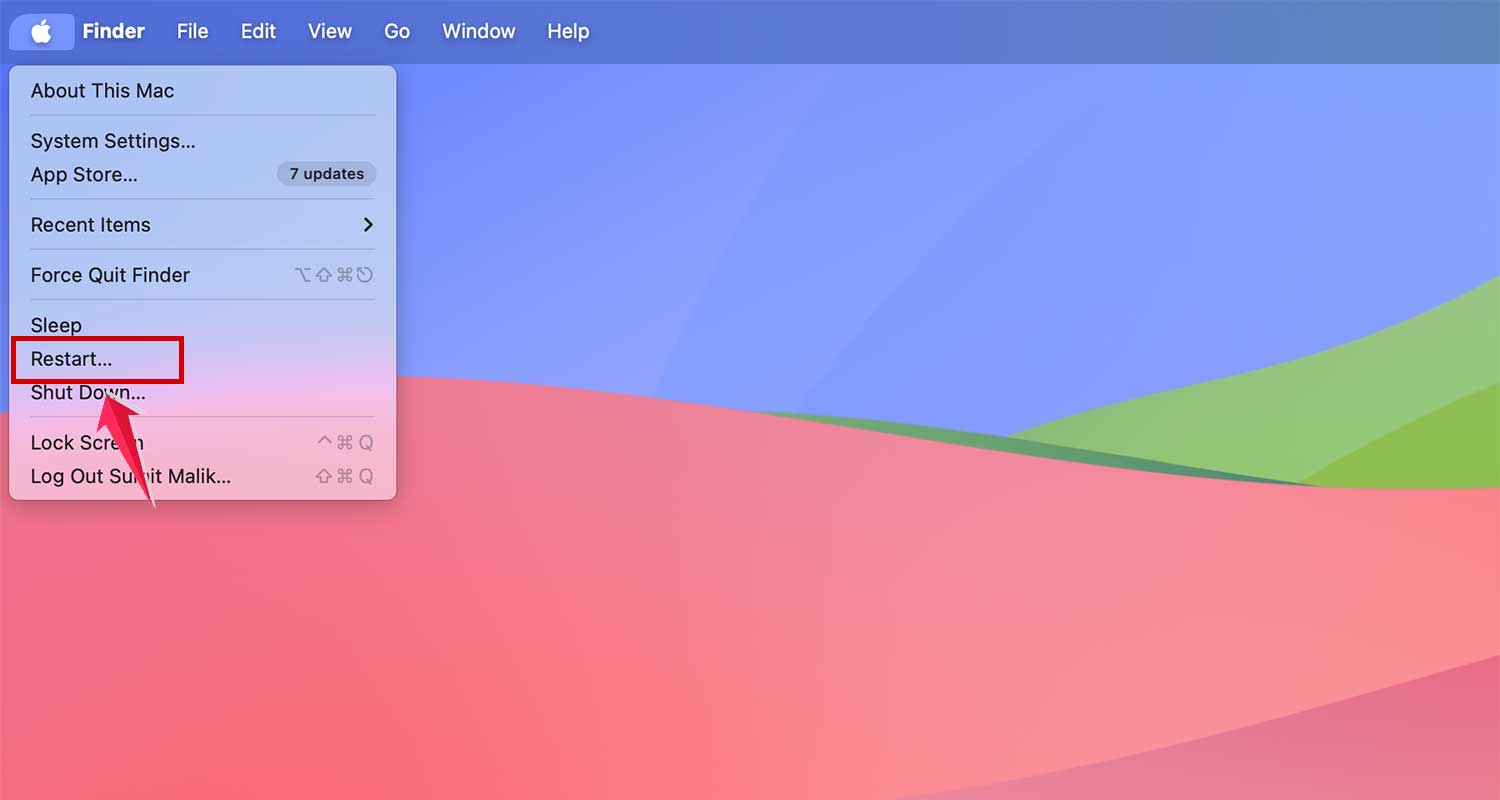
Restarting your Mac can really help. It frees up RAM, installs updates, and does important system checks. On newer Macs, it also resets some important system parts.
Try to restart your Mac once a week. It’s easy – just choose “Restart” from the Apple menu.
4. Manage Your Startup Items
You know how your Mac can feel a bit sluggish when you first turn it on? That’s often because of too many startup items. Let’s fix that:
- Go to System Settings > General and click Login Items
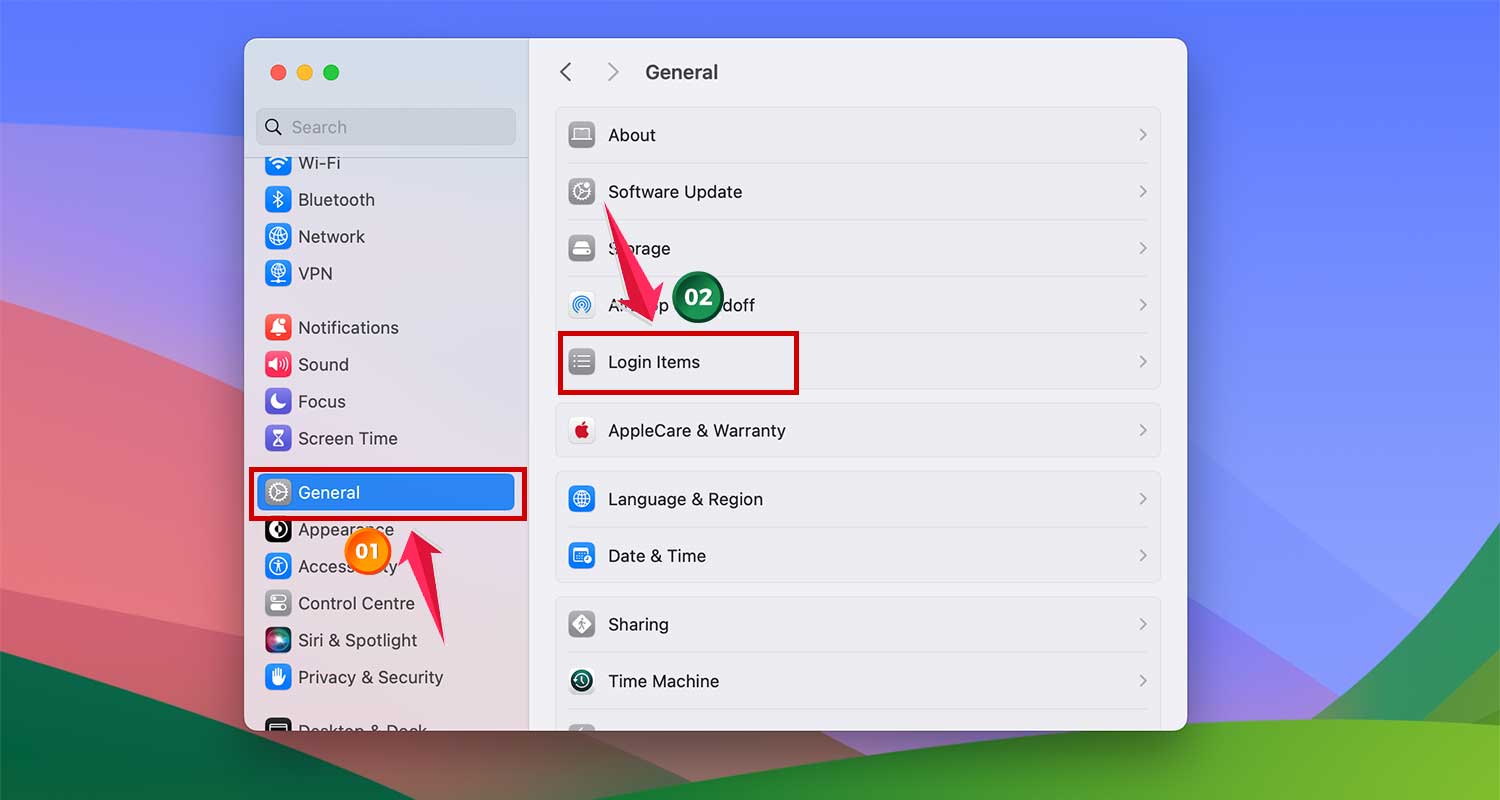
- Take a look at the list. Do you really need all these apps to launch right away?
- Disable any apps you don’t need immediately. Simply select and tap on “-” button. Don’t worry, you can still open them manually when you need them

Keep an eye out for hidden launch agents. These sneaky little programs can slow things down without you even knowing. You can find and disable these in the same Login Items section. Your Mac will thank you for it!
5. Remove System Junk
Over time, your Mac collects what we call system junk. It’s like digital dust, and cache files are a big part of this.
While caches are meant to speed things up, they can actually slow your Mac down when there’s too much. Here’s what you can do:
- You can manually clear out caches through your system settings. It takes a bit of time, but it’s free and effective
- Or, if you want to save time, use a third-party app to clear them quickly. These apps often catch things you might miss
Either way, clearing out this junk can give your Mac a noticeable speed boost. It’s like spring cleaning for your computer!
6. Uninstall Unused Apps
We all have those apps we downloaded once and never used again. They’re just taking up space and potentially slowing things down. Let’s get rid of them:
- First, a word of caution: just dragging an app to the Trash isn’t enough. It often leaves bits and pieces behind
- For a thorough clean, check out our guide on “How to uninstall apps on a Mac”. It’ll walk you through both manual and easy methods to completely remove an app
While you’re in a decluttering mood, why not clean up your Dock too? It’ll make your Mac feel more organized:
- Right-click on any app icon in the Dock that you don’t use often
- Select Options > Remove from Dock
- Don’t worry, this doesn’t uninstall the app. It just removes the shortcut from your Dock

7. Reindex Spotlight
Spotlight is great for finding things on your Mac, but sometimes it can slow down, especially after an OS update. If that happens, try reindexing:
- Go to System Settings > Siri & Spotlight
- At the bottom, you’ll see Spotlight Privacy. Click on that

- Now, here’s the trick: drag your hard drive from Finder into the Privacy List
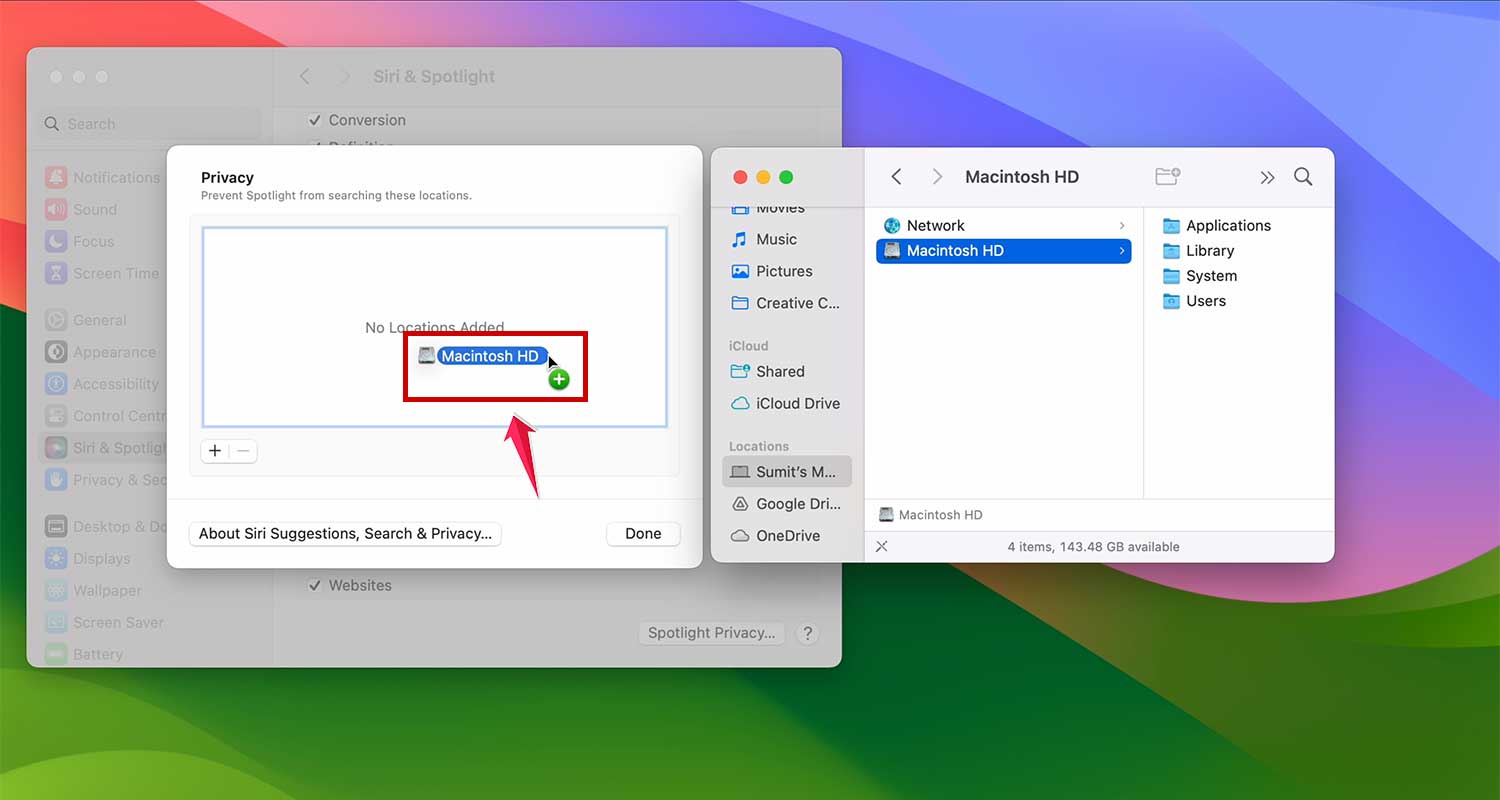
- Then, remove it by clicking the “-” sign

This tells your Mac to start fresh with indexing. It might take a few hours, but after that, you should notice Spotlight working much faster. It’s like giving your Mac’s search function a tune-up!
8. Update Your Mac (OS and Apps)
Keeping your Mac up-to-date is like giving it a regular health check. Here’s how to do it:
Check Your macOS Version:
- Click the Apple icon at the top left of your screen
- Select About This Mac

- Make sure you have the latest macOS installed

Updating macOS:
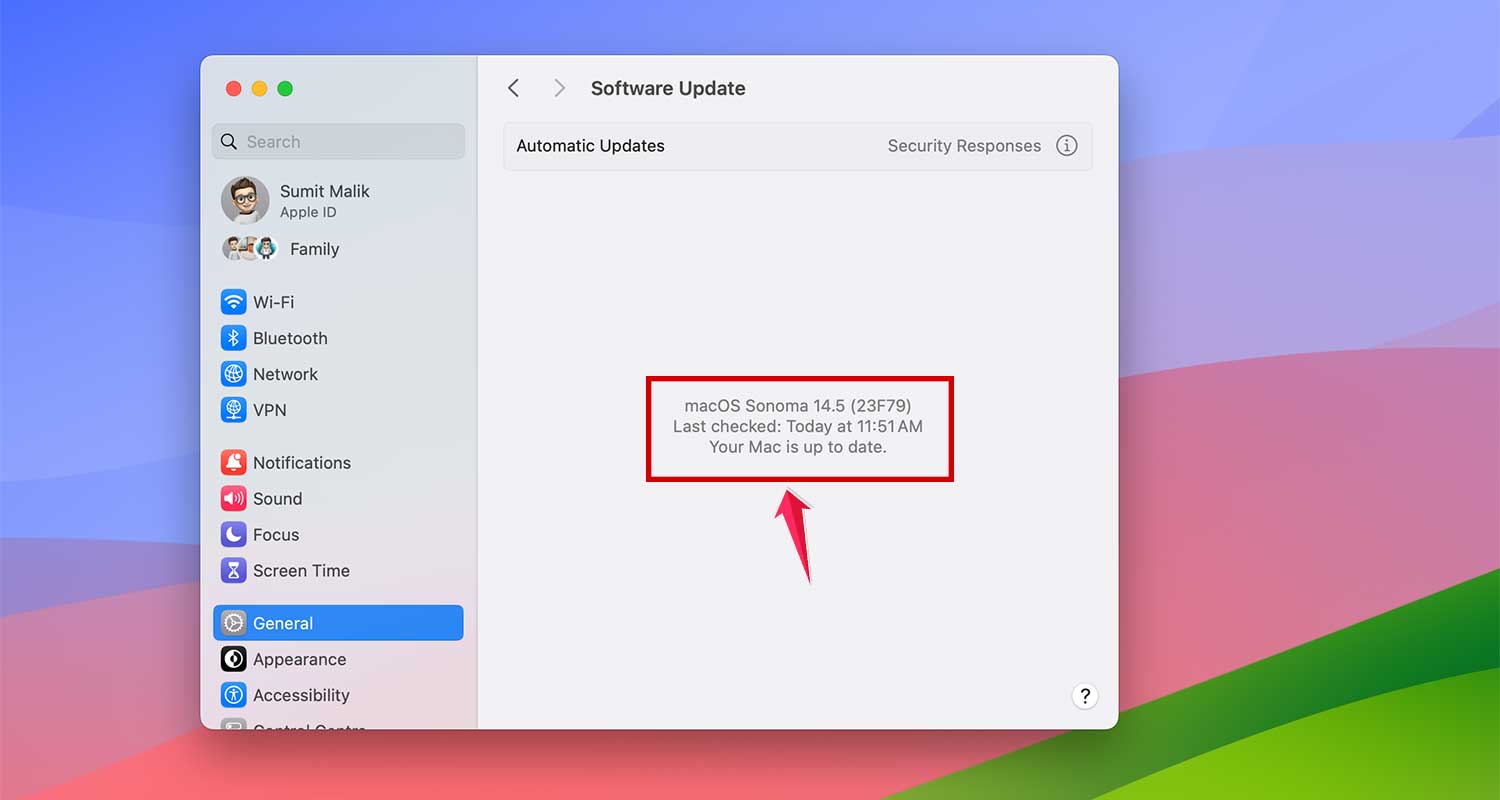
- Go to System Settings > General > Software Update

- If there’s an update available, click Update Now and follow the instructions. If not, it will show “Your Mac is up to date”
Updating Apps:
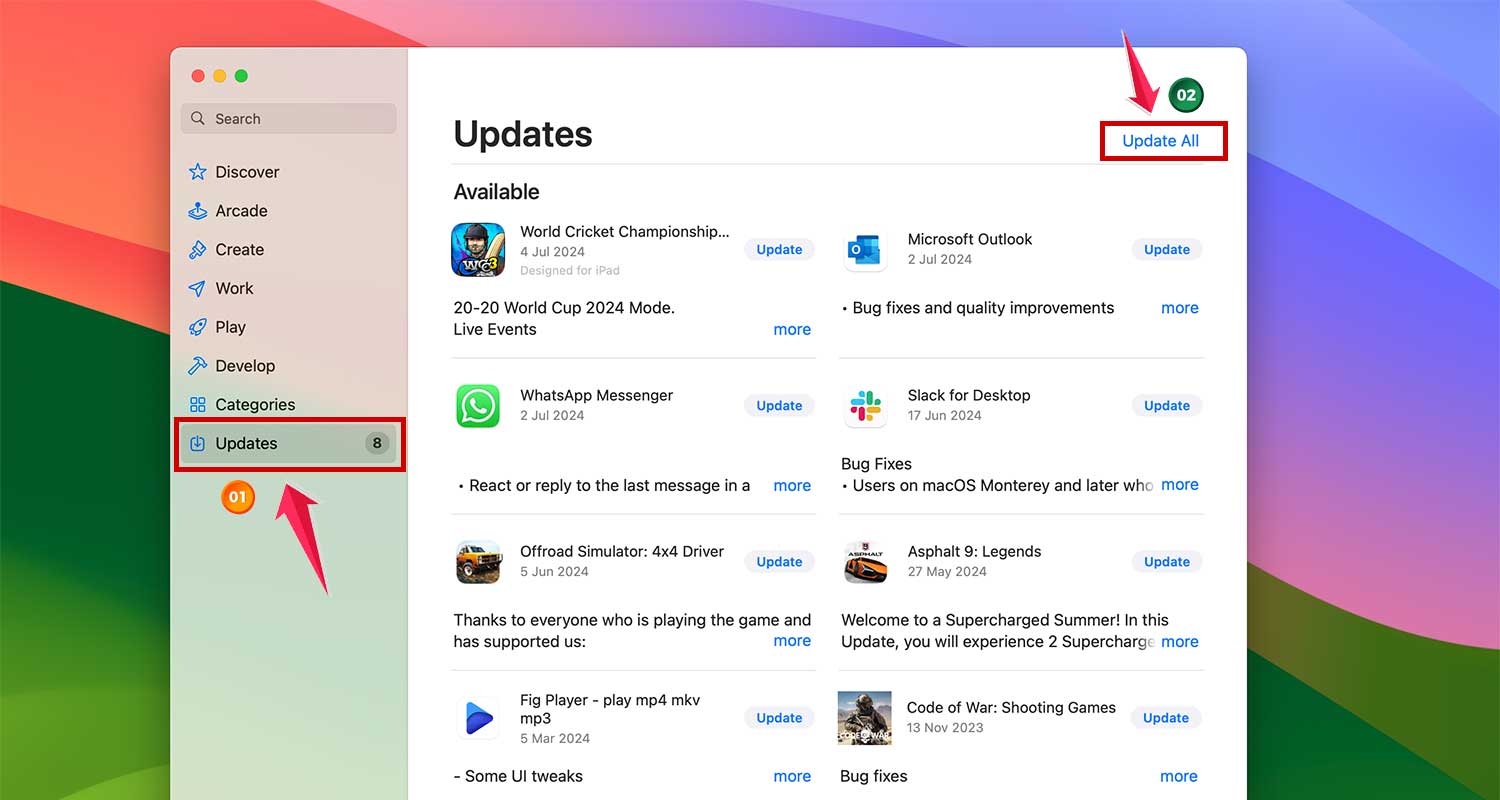
- For App Store apps: Open the App Store, click Updates in the sidebar, and choose Update All or update apps individually
- For other apps: Open the app, Go to Help in the menu bar, and look for a Check for Updates option

- Sometimes, you might need to visit the app developer’s website for the latest version
9. Disable iCloud Syncing
iCloud is great for keeping your files in sync, but it can slow down your Mac if it’s constantly working in the background. Here’s how to adjust these settings:
- Go to System Settings > Apple ID > iCloud
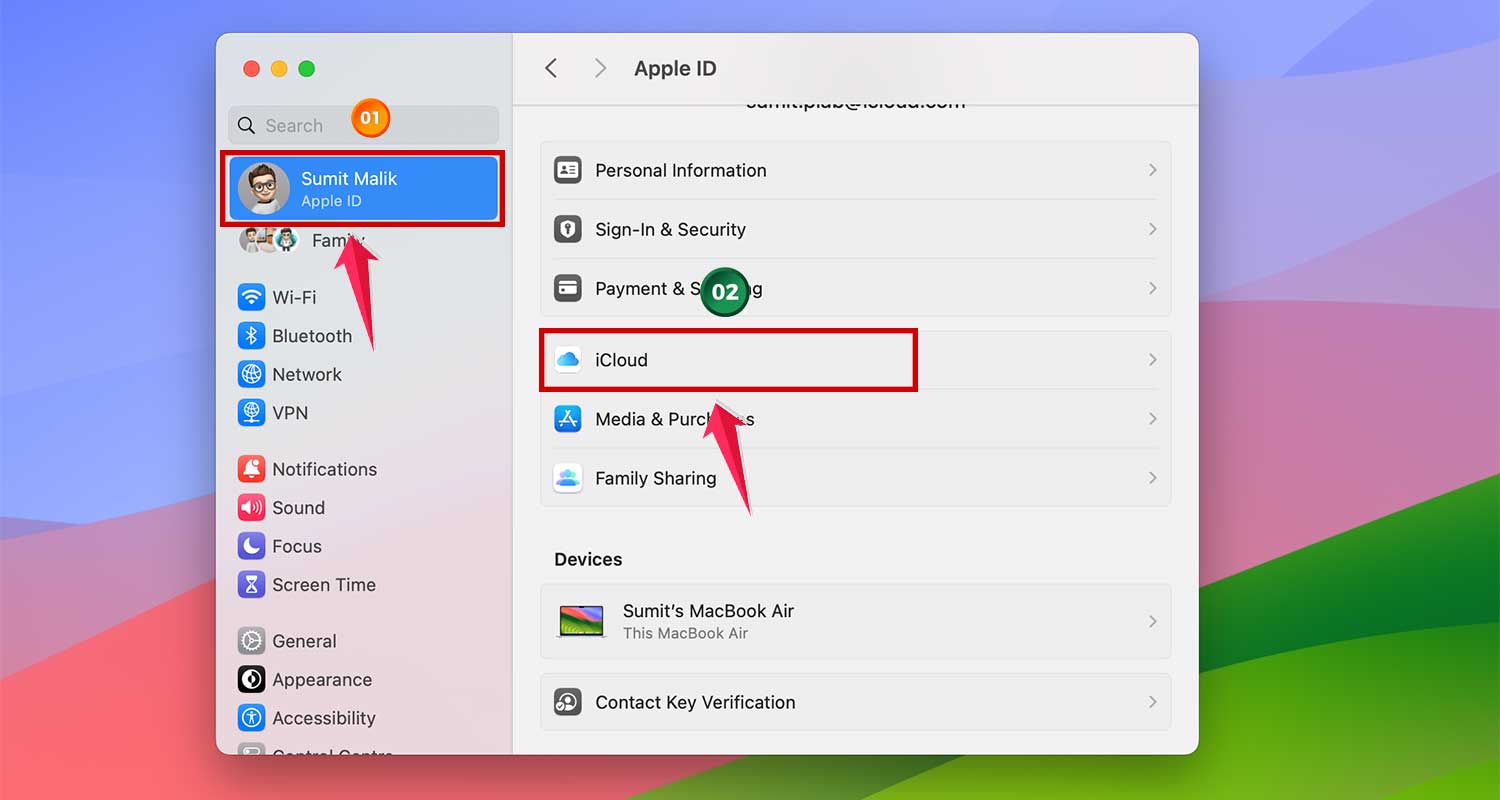
- Take a look at what’s being synced. Do you really need everything?
- Consider turning off syncing for data-heavy apps like iCloud Drive and Photos, especially if you have lots of large files

Also, check out the “Optimize Mac Storage” option. It sounds helpful, but it can actually cause your Mac to constantly shuffle files between your computer and the cloud. Turning this off might speed things up.

10. Run Maintenance Tasks
Think of this as giving your Mac a deep clean. Regular maintenance can prevent slowdowns before they start:
- Run Maintenance Scripts. These clean up system logs and temporary files that can slow your Mac down
- Repair Disk Permissions. This can fix issues related to incorrect file or folder permissions
- Remove Time Machine Snapshots. These backups can take up a lot of space without you realizing it
You can do these tasks manually, but there are also third-party tools that make it easier. It’s like having a digital handyman for your Mac!
11. Clean Up Your Mac’s Hard Drive
This is one of the quickest ways to speed up your Mac. Here’s what to focus on:
- Clear out Caches and Logs. These files build up over time and can slow things down. While you’re at it, don’t forget to delete temporary files too.
- Remove Unused Apps and Widgets. Be honest with yourself about what you actually use.
- Check for Hidden Trash and Large Files. Sometimes, files can hide in unexpected places.
Here’s an extra tip: Go to System Settings > General > Storage, and click the i icon next to Documents.
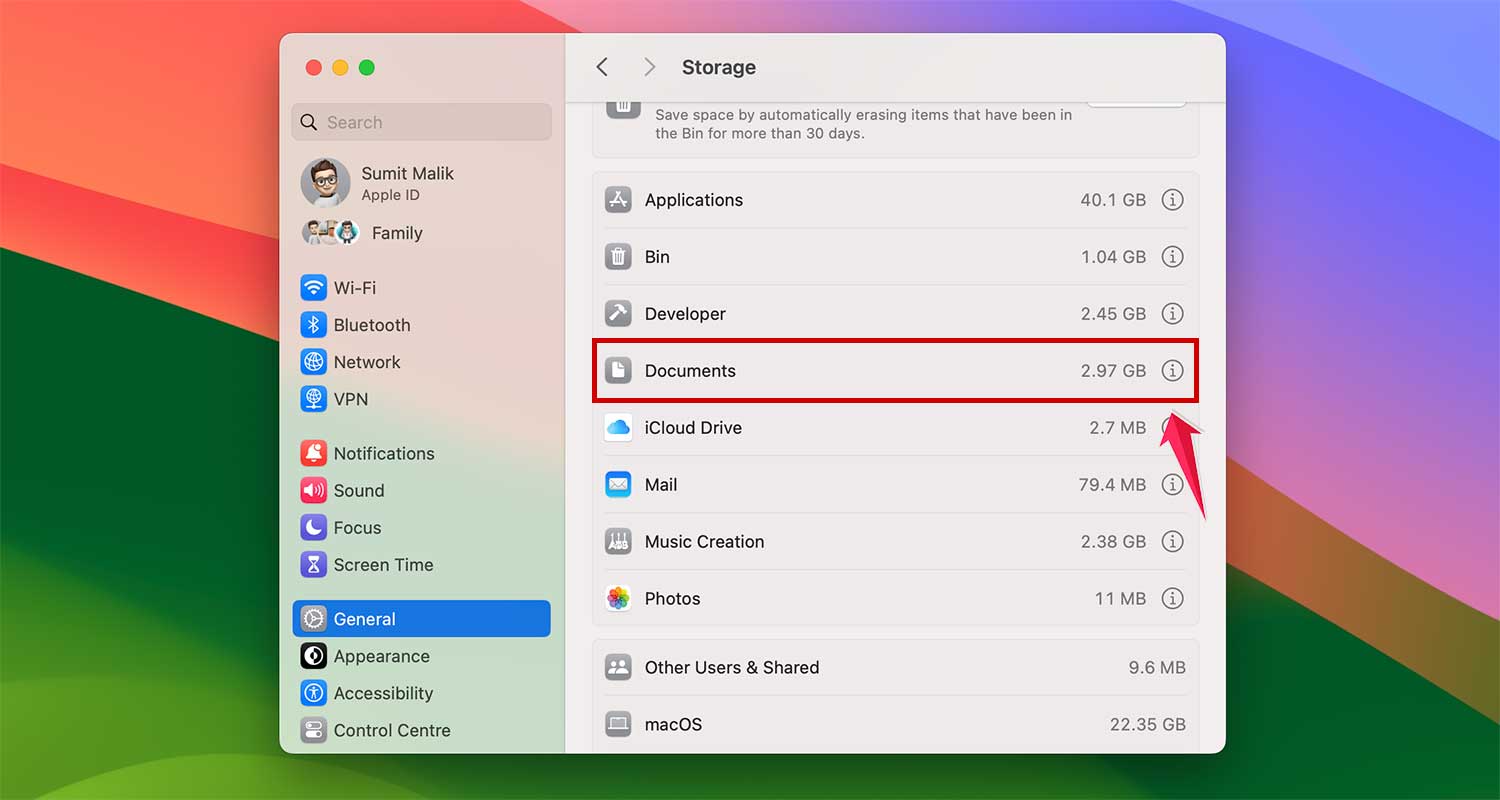
Look for large files, especially old movies or projects, and consider moving them to an external drive. Your Mac will run faster when it’s not weighed down by unnecessary files.

12. Upgrade Your RAM
Think of RAM as your Mac’s short-term memory. More RAM means your Mac can juggle more tasks at once. Here’s what you need to know:
- In 2023, 8GB of RAM is the bare minimum. If you can, aim for 16GB or more
- Adding RAM can cost around $30 for an extra 8GB, which is a small price for a big performance boost
- More RAM means you can have more apps and browser tabs open without slowdowns
To upgrade your RAM:
- Look up your specific Mac model online for guides
- If you’re not comfortable doing it yourself, consider taking it to an Apple Store or authorized repair shop
13. Turn Off Visual Effects
Your Mac’s fancy visuals look nice, but they can slow things down. Here’s how to streamline:
- Go to System Settings > Desktop & Dock
- Turn off “Animate opening applications” and “Automatically hide and show the Dock”

- Change “Minimize windows using” from Genie effect to Scale effect

These small changes can make your Mac feel much snappier, especially on older models.
14. Check Your Mac for Malware
Yes, Macs can get malware, and it can really slow things down. Here’s how to check:
- Look for unfamiliar apps in your Applications folder
- Check for strange browser extensions or homepage changes
- Use a trusted antivirus software to scan your Mac
If you find malware:
- Delete the suspicious app and all its associated files
- Remove any related browser extensions
- In severe cases, you might need to create a new user account or even erase your Mac
15. Run Apple Diagnostics
If you suspect a hardware issue, Apple Diagnostics can help.
- Start up your Mac and hold the power button until you see startup options
- Press Command-D to start Diagnostics.
After the test, you’ll see a report of any issues found. If you get any error codes, you can look them up on Apple’s support site for more info.
Remember, keeping your Mac in good shape is an ongoing process. Try to incorporate these tips into your regular routine.
Conclusion
There you have it – a bunch of simple ways to keep your Mac running like new. From clearing out digital clutter to giving your Mac a health check with Apple Diagnostics, these tips can make a real difference. Remember, a little regular maintenance goes a long way.
Don’t worry if your Mac still feels a bit sluggish after trying these tips. Sometimes, it might just need a hardware boost like more RAM. The key is to stay on top of things – update regularly, clean out junk files, and keep an eye on what’s slowing you down.
With these tricks up your sleeve, you’ll be able to keep your Mac zippy and reliable for years to come. And if you ever need a more thorough refresh, you can always consider doing a full clean-up of your Mac.