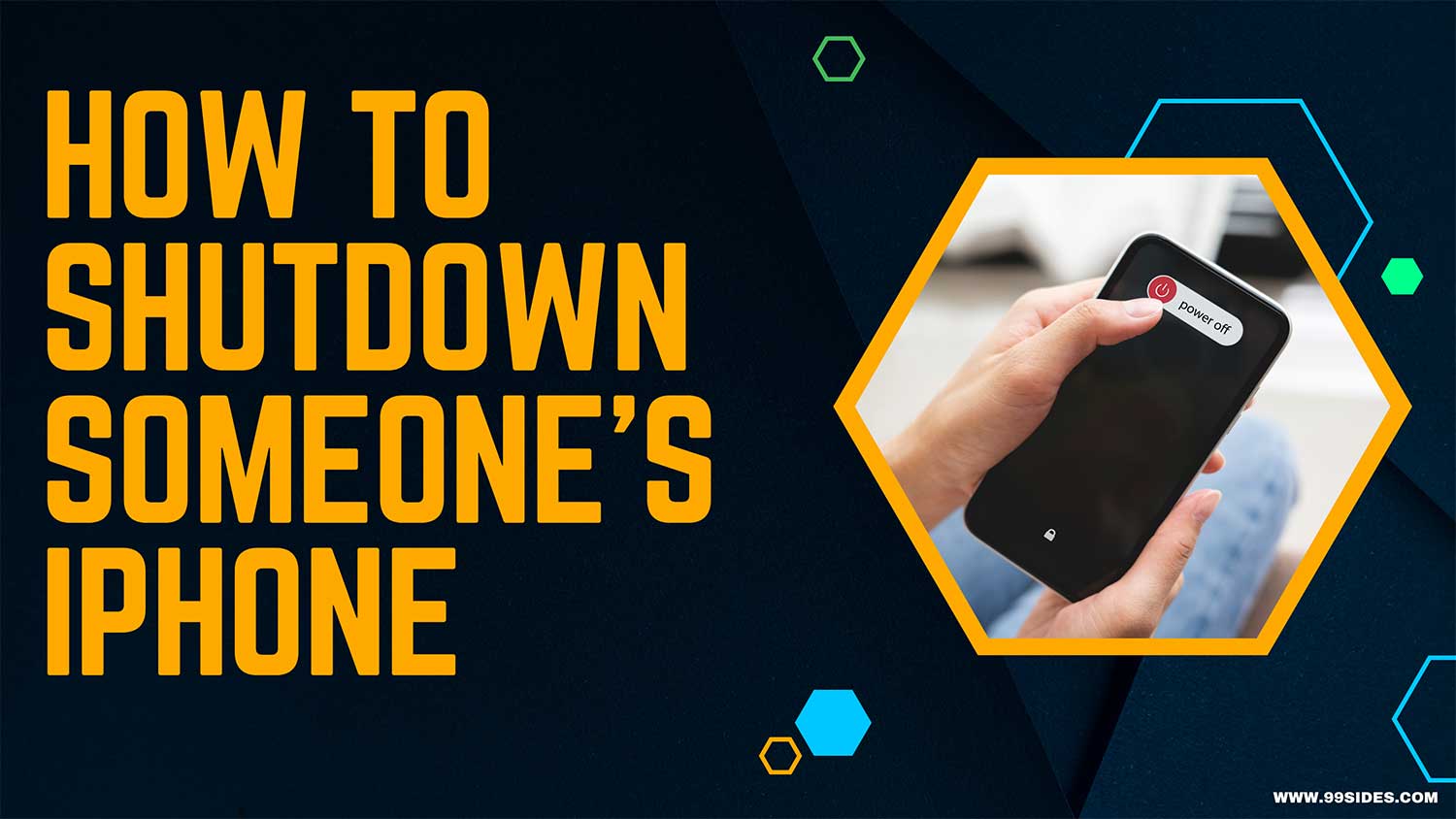
Ever wondered if you could turn off someone’s iPhone remotely?
Imagine just sending a text that says ‘Shutdown’ and the phone powers down as soon as it’s opened. Surprisingly, it’s possible!
This guide will show you not only how to use this text message trick but also other methods, like tweaking airplane mode to disable the SIM card or utilizing the ‘Find My’ app for more control.
Despite iPhones being highly secure, a small glitch in iOS allows for such unexpected shutdowns. If you’re concerned about security after using these methods, a factory reset can help safeguard the device.
How to Shut Down iPhone Using ‘Find My’ App?
Have you ever misplaced your iPhone and wished you could turn it off remotely? Well, you’re in luck!
With the ‘Find My’ app, you can shut down your iPhone even if it’s not in your hands. You can even find your lost iPhone even if it’s dead or offline, which adds an extra layer of control in urgent situations.
Here’s how to do it step-by-step.
Step 1: Open the ‘Find My’ App
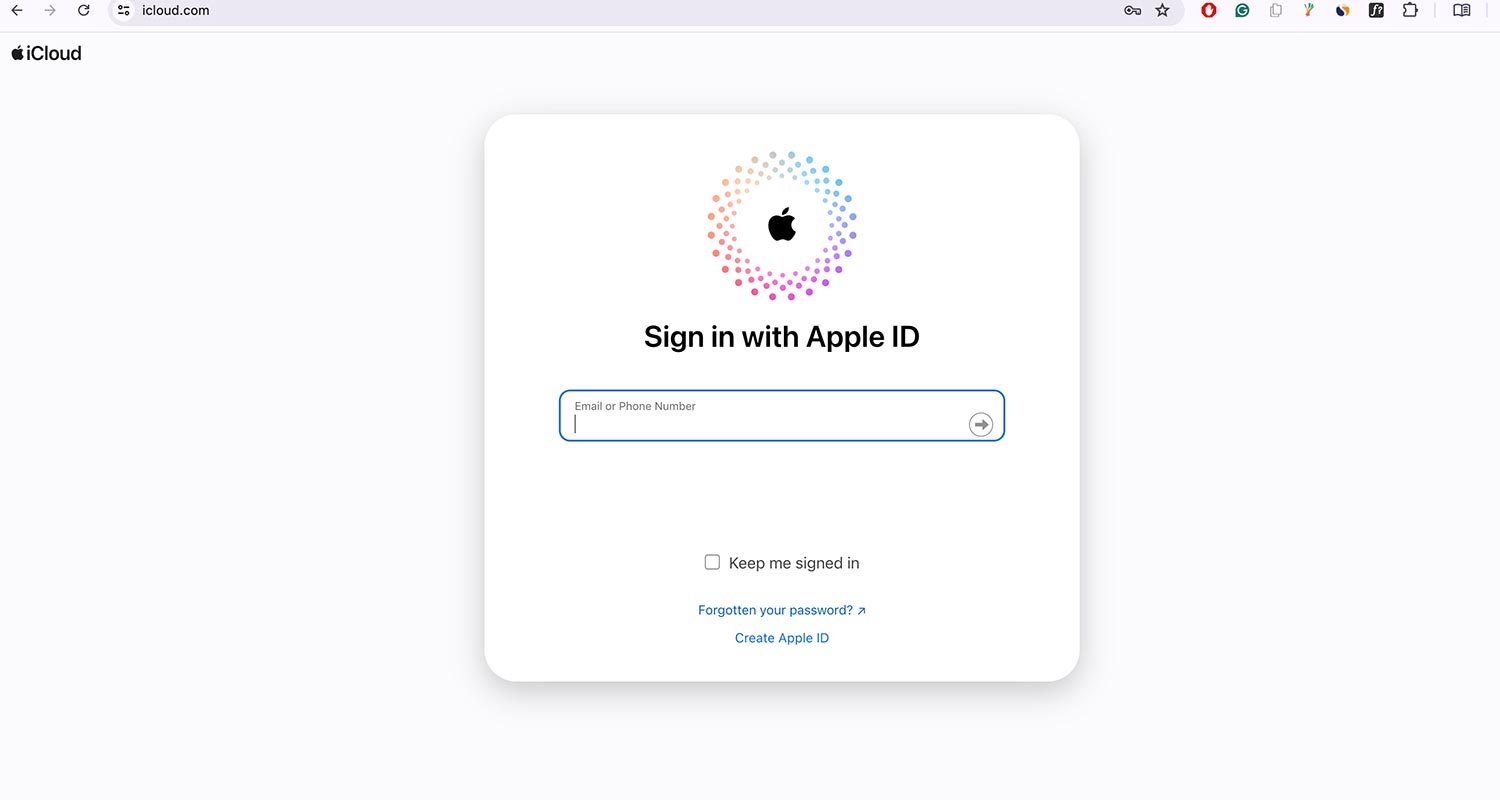
First, you need to open the ‘Find My’ app on another Apple device, like your iPad or a friend’s iPhone. If you don’t have access to another Apple device, you can use a web browser and go to iCloud.com.
Step 2: Sign In
Next, sign in with your Apple ID. This is the same ID you used on your lost iPhone. If you’re using a friend’s device, remember to sign out afterward to keep your account secure.
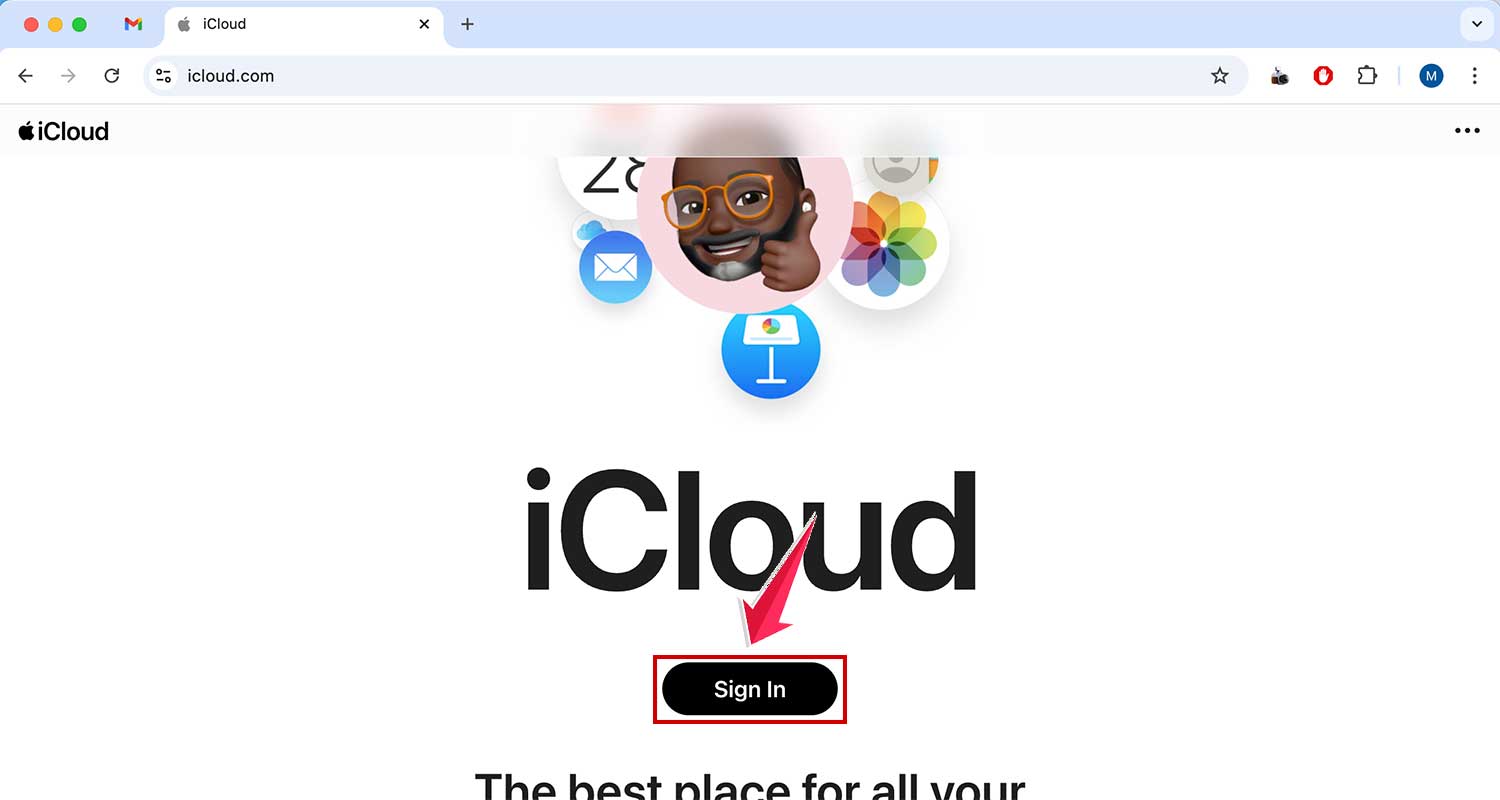
Step 3: Open FindMy
Find and click on the FindMy app.
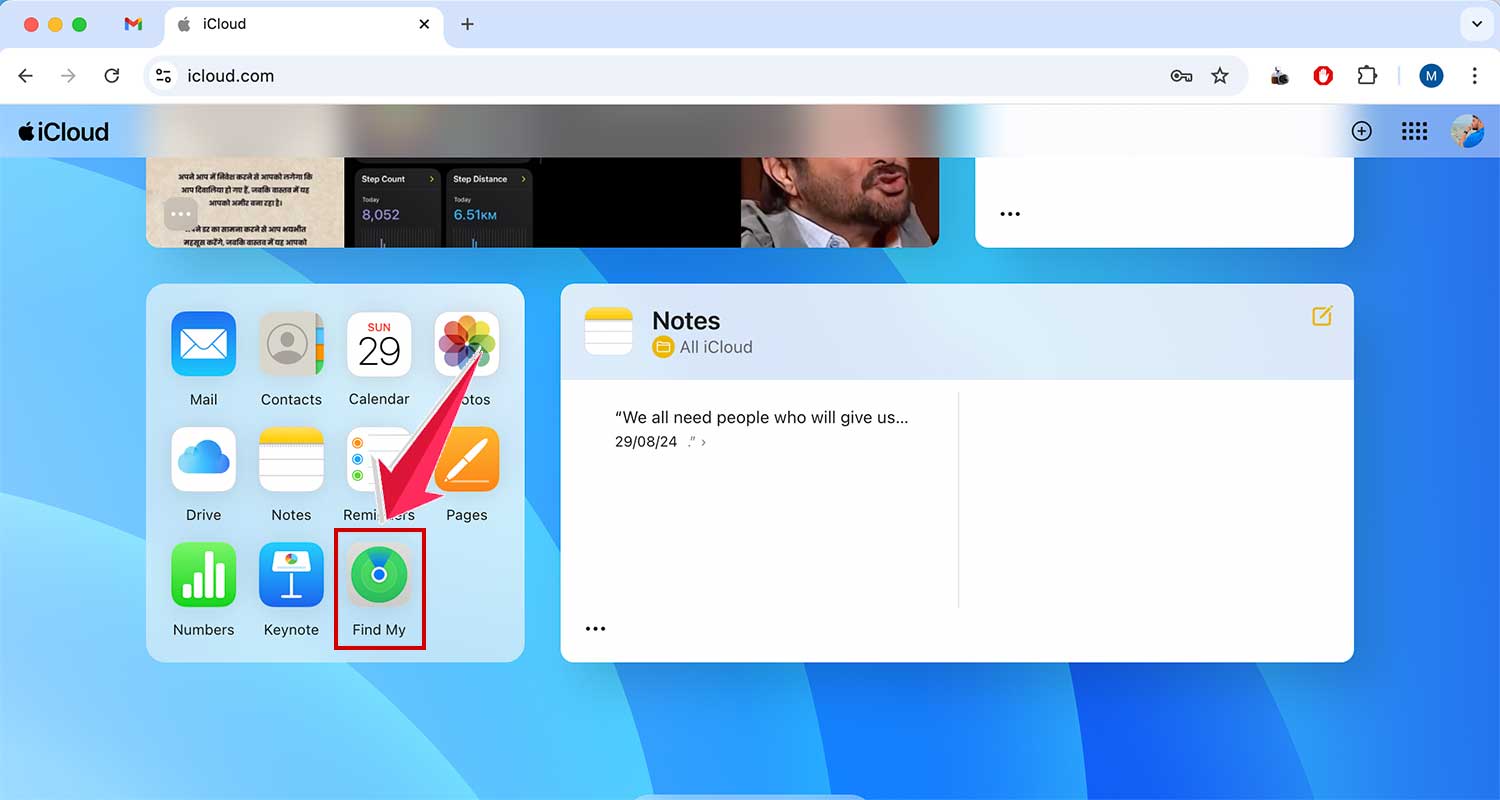
Step 4: Locate Your iPhone
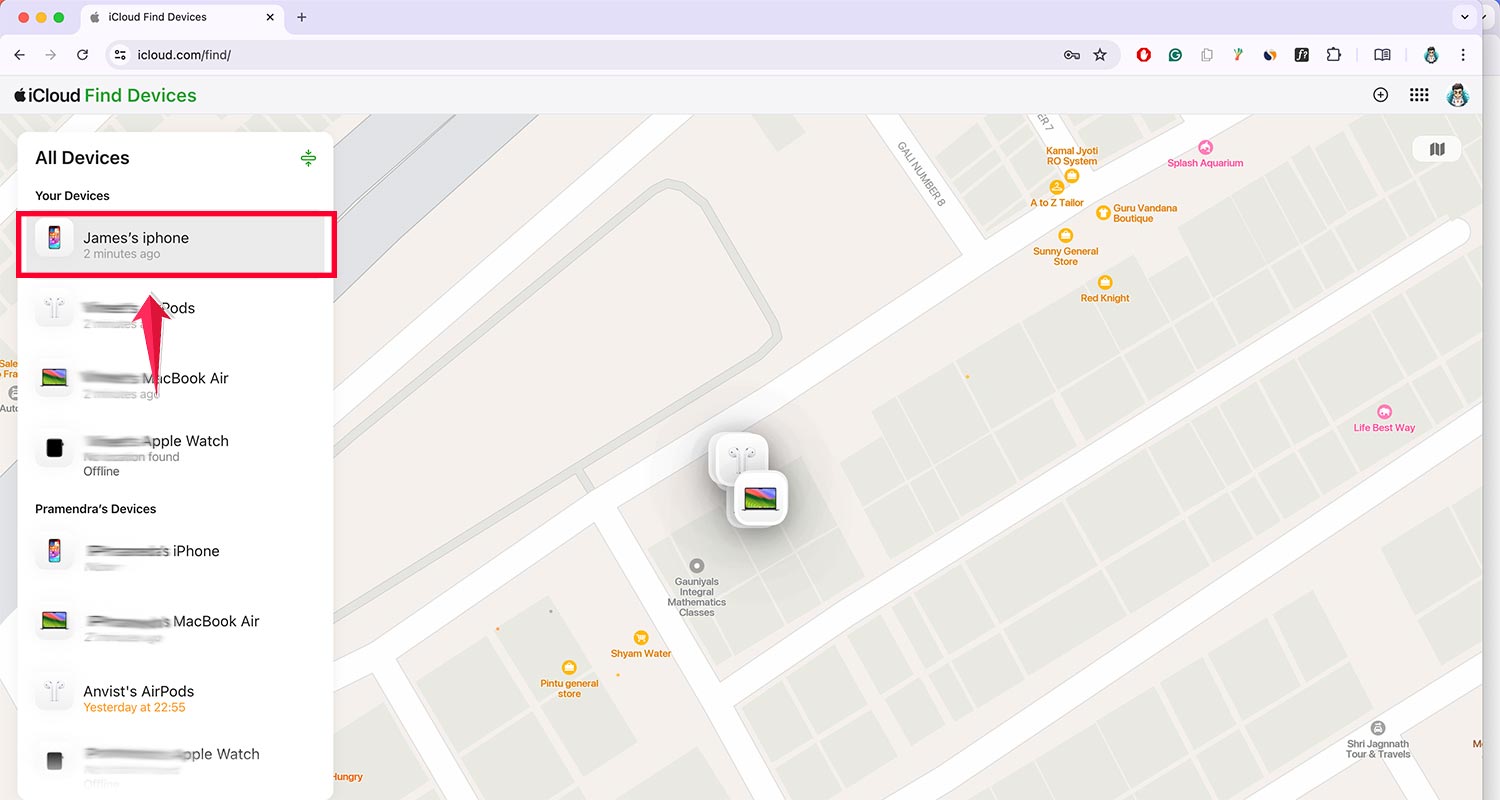
Once you’re signed in, you’ll see a map with the location of all your Apple devices. Find your iPhone on the map and select it.
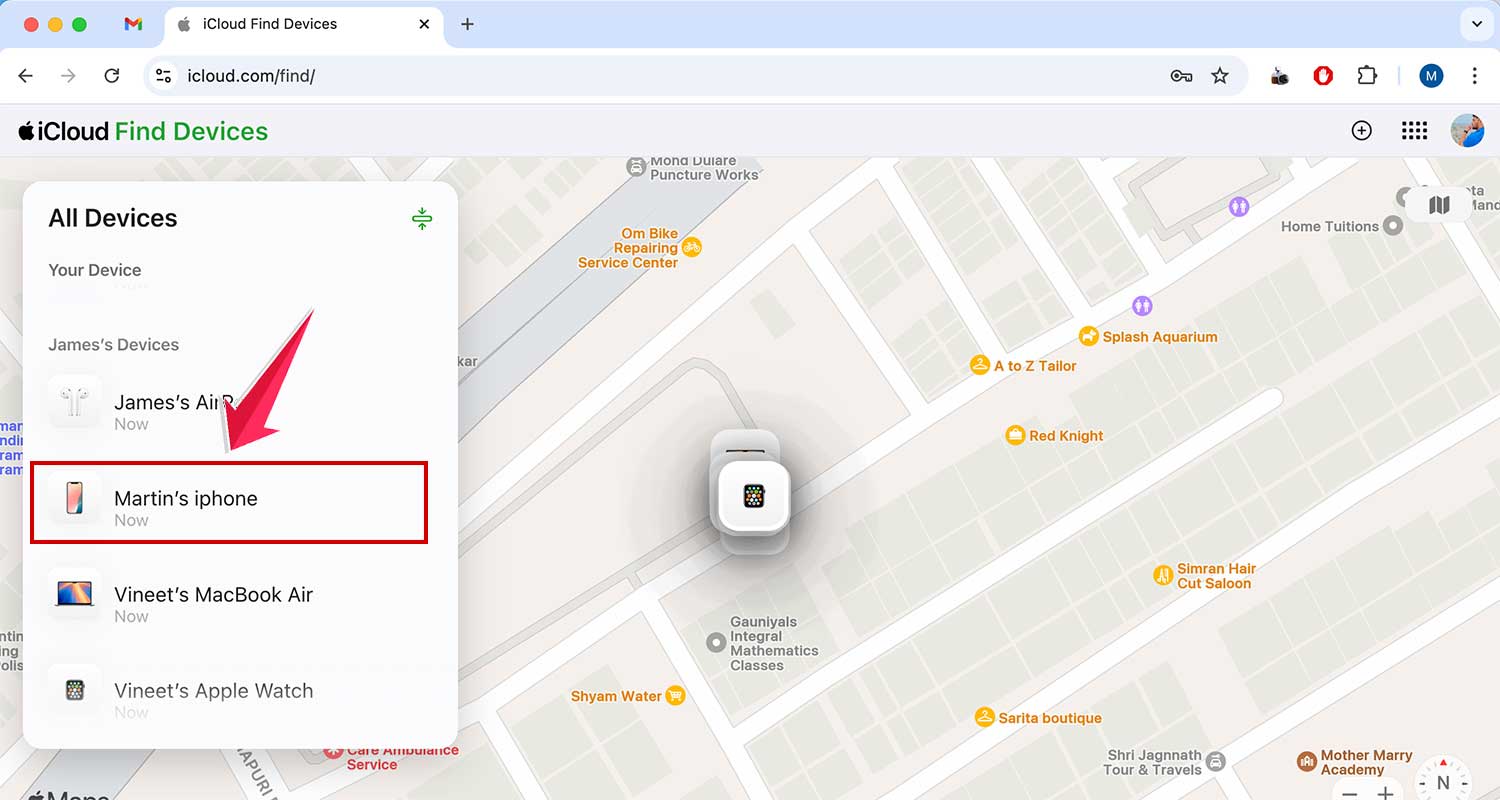
Step 5: Activate ‘Lost Mode’
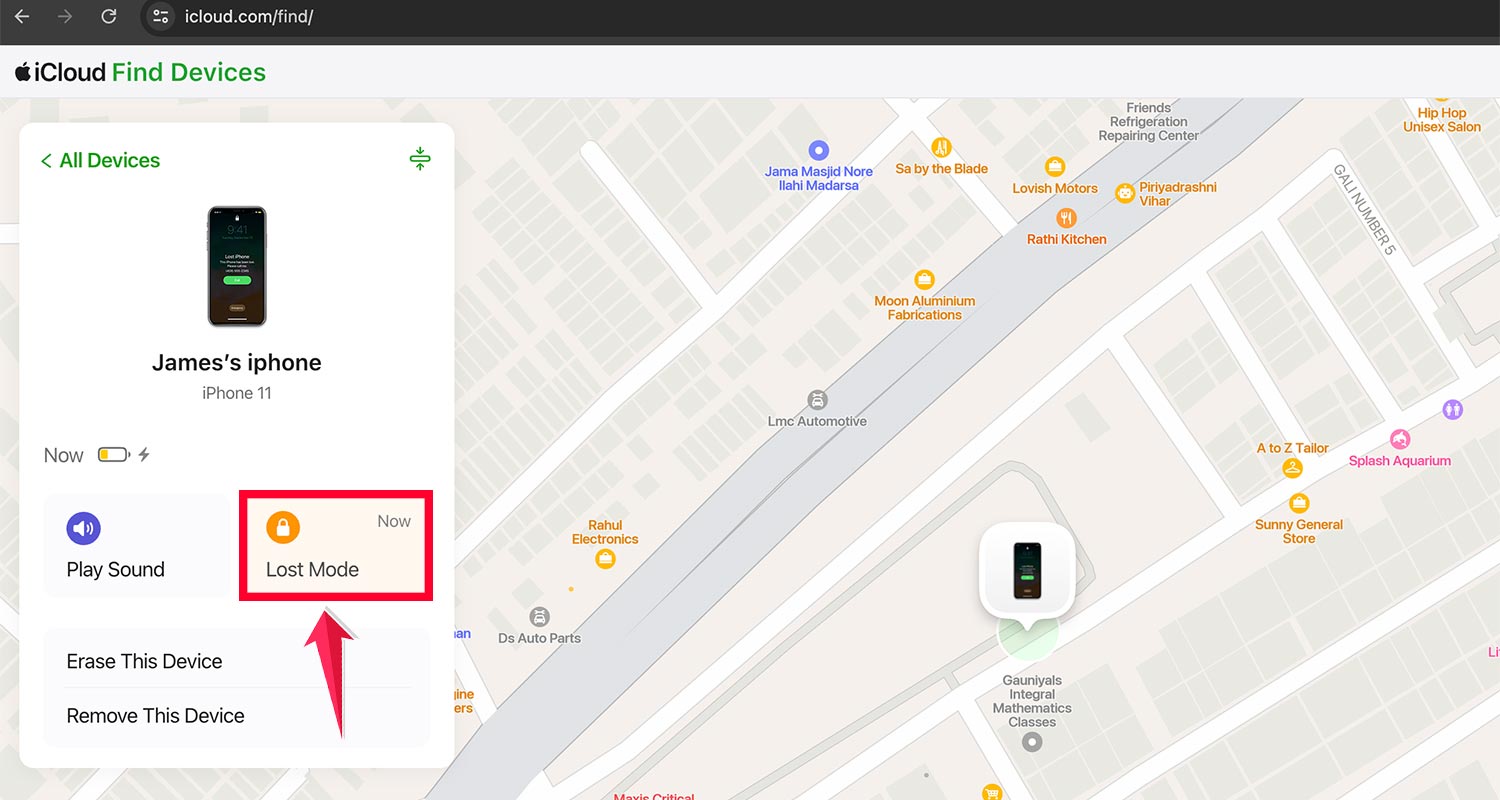
To shut down your iPhone, you need to activate ‘Lost‘. Tap on ‘Lost Mode’ and follow the on-screen instructions.

This will lock your device with a passcode and display a custom message on the screen, such as your contact number.
Step 6: Turn Off Your iPhone
Finally, after activating ‘Lost’, you will have the option to shut down your iPhone remotely. It’s a great trick when your phone is lost or you want to preserve the battery while keeping the device protected.
This is useful if you think your iPhone is in a location where it might be found by someone else, and you want to save battery or prevent unauthorized access.
How To Shut Down Any iPhone With A Text?
Did you know a simple text message can cause an iPhone to crash or even shut down? This phenomenon, often called a “text bomb,” stems from a bug in the iOS software.
Interestingly, this bug isn’t new. It was identified in versions as early as 2008 and 2013, and similar issues have occurred in popular apps like WhatsApp.
Here’s the text known as the “Effective Power” message:
EFFECTIVE.
POWER
لُلُصّبُلُلصّبُررً ॣ ॣH ॣ ॣ
冗
When this message is received and opened, it triggers a flaw that causes the app, and potentially the whole phone, to crash.
This specific string of characters, coded in a unique way, overwhelms the system, leading to what is sometimes called the “Word of Death.”
The only way to restore the iPhone to its normal function after such a crash is typically to reboot the device. In more severe cases, resetting your iPhone’s features or restoring settings can bring things back to normal.
This text demonstrates the surprising impact that seemingly innocuous inputs can have on complex systems like iOS.
Are There Any Other Ways to Shut Down iPhone Remotely?
Since you can’t shut down an iPhone with a text, here are some secure alternatives:
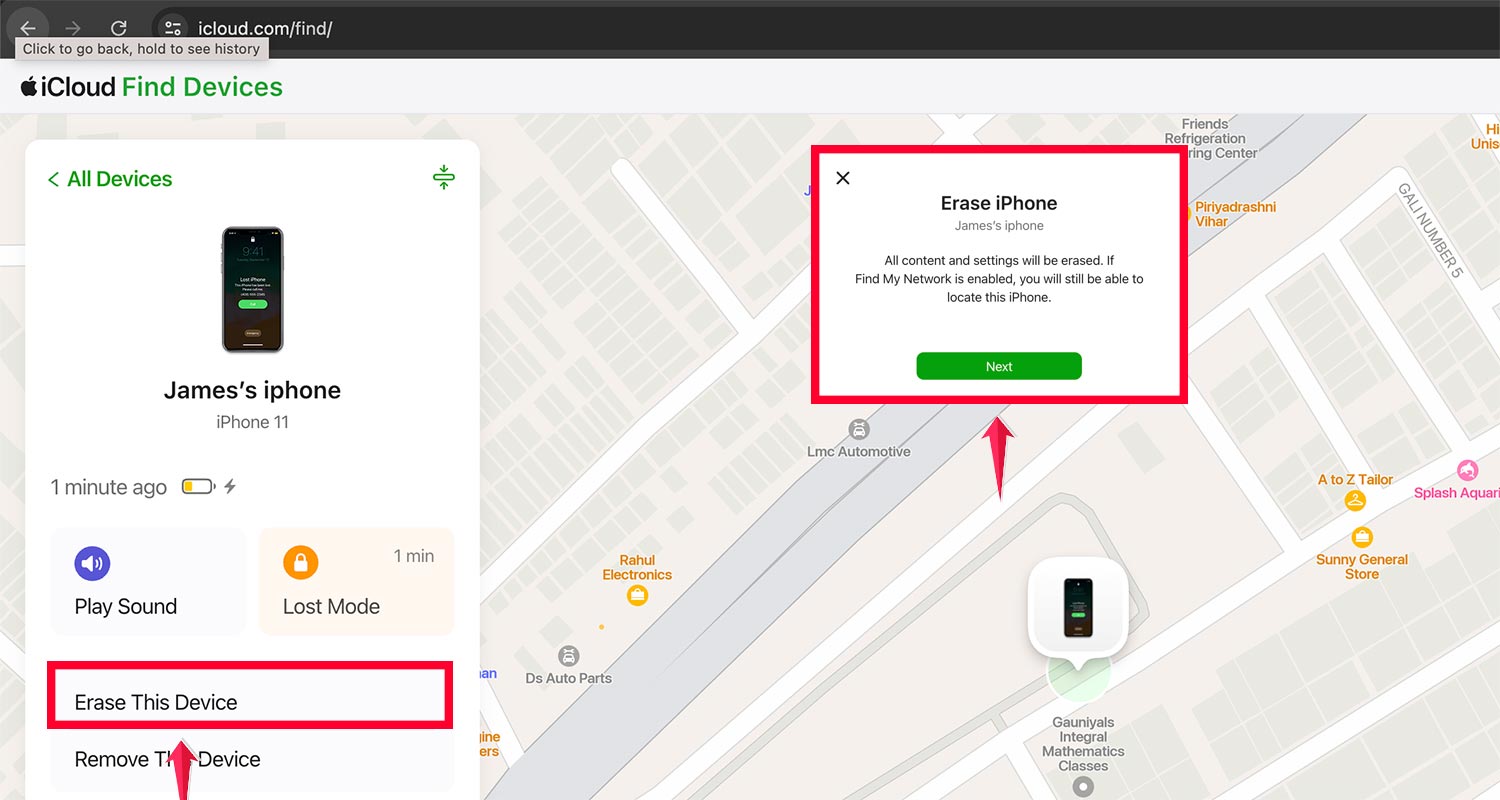
#1 Use the ‘Find My’ App:
- Open the ‘Find My’ app on another Apple device or go to iCloud.com.
- Sign in with your Apple ID.
- Locate your iPhone on the map and select it.
- Activate ‘Lost Mode’ to lock your device and display a custom message.
- Use the ‘Erase iPhone’ option to delete all your data if needed. You can also clear private content on your iPhone before doing a full wipe.
#2 Contact Your Carrier:
If your iPhone is lost or stolen, contact your mobile carrier. They can disable your SIM card to prevent any unauthorized use.
#3 Change Your Apple ID Password:
Quickly change your Apple ID password to prevent anyone from accessing your Apple services.
Can you Freeze Someone Else’s iPhone With Text?
Have you ever thought about freezing someone else’s iPhone as a prank? It turns out that sending a specific “evil message” can temporarily disable any iPhone or iPad.
This trick exploits a bug within the iOS software, where a particular string of text causes the device to crash or hang momentarily.
The bug in question arises when a string containing three specific symbols, which iOS struggles to interpret, is sent to the device.
The result is a temporary freeze, causing the iPhone to hang for a few minutes before it restores itself to normal functionality.
This can be a surprising way to play a harmless prank on someone with an Apple device.
Additionally, it’s possible to remotely freeze an iPhone using a password, adding another layer of control over the device.
Can you fix a power glitch on an iPhone?
Encountering a power glitch on your iPhone? Fortunately, there are straightforward remedies to address such issues, even if the glitch is on someone else’s device.
One effective method is sending a shutdown text message. This message forces the iPhone to reboot, which can resolve many minor glitches by restoring the phone’s normal operations once it powers back on.
Another safe and non-invasive approach is simply restarting the phone. This method does not risk the loss of any data, contacts, or content.
Often, power glitches stem from recent software updates, and a simple restart or reboot can rectify these issues, returning the iPhone to its optimal state.
Final Word
The most reliable method to remotely control an iPhone, especially for turning it off, is to utilize the ‘Find My‘ App.
This powerful tool ensures that even if you lose physical access to your device, you can still secure it.
However, if your iPhone isn’t up to date or if you’re looking for an alternative, the ‘shutdown’ text message is another option to consider.
We’ve explored various strategies to remotely turn off an iPhone in this article.
If you have any questions or need further clarification, feel free to leave a comment below, and we’ll do our best to assist you.