You’ve shared a photo. Or maybe someone just sent you a file. Now you’re thinking, “Can I check my AirDrop history?”
Let’s not waste time, and let me share the shocking truth with you.
Can you see your AirDrop history?
You can’t see your AirDrop history. Period.
Not on iPhone. Not on iPad. Not even on your Mac.
Apple didn’t build that feature. No history log. No list. No way to check what was sent or received before. It’s just not there.
So, why can’t you see AirDrop history?
Apple designed AirDrop for fast, private sharing. That means when you receive a file, it’s either accepted or declined. Once done, there’s no record. Nothing is saved in a log. It’s like a conversation that disappears once it’s over.
Sure, it sounds frustrating. You just want to find that image or document someone sent you yesterday. But if you didn’t save it right away, you might be out of luck.
But wait… where do AirDrop files go?
You don’t get a history, but the file itself still lands somewhere.
If you’re using an iPhone or iPad, the file goes straight into the app that handles that type of file.
Photos? You’ll find them in the Photos app.
PDFs or documents? They usually open in the Files app or whatever app handles that file type.
Music or audio? It could land in Voice Memos or another player.
And if you’re on a Mac, all AirDropped files go to one place: your Downloads folder.
To check it: Open Finder and click on “Downloads“. Now you need to scroll to see if your file is there.
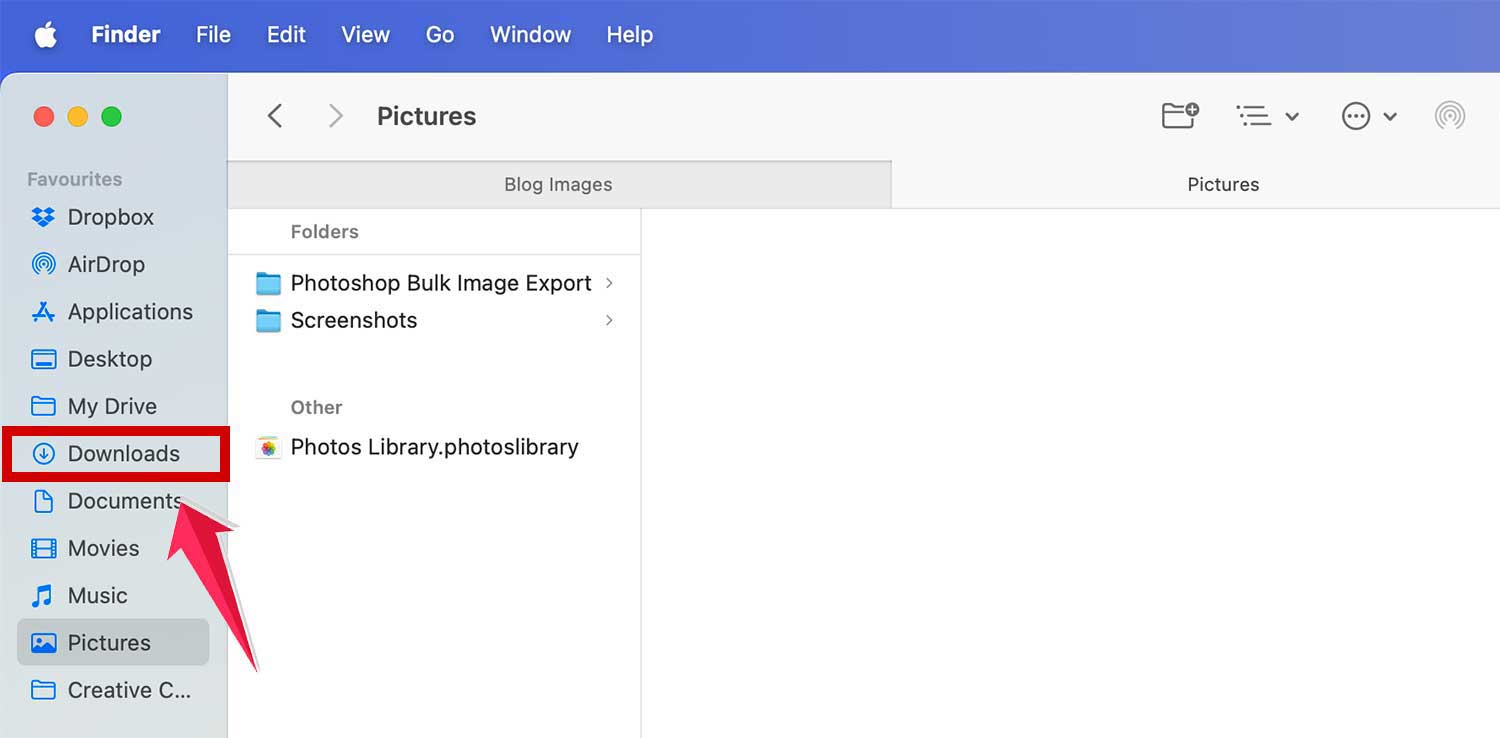
Simple. This only helps if you received the file. You still won’t see a history of what you sent.
Can you see what you sent via AirDrop?
Nope. That’s the catch.
If you shared a file with someone, and now you’re trying to confirm what you sent. You’re out of luck. There’s no “Sent” tab. No log. No trace.
You’ll need to go back to the original file in your gallery or documents and try to remember what you shared.
Is this a privacy thing?
Yes, in a way.
Think about it. If AirDrop stored a complete history of all transfers, anyone with your device could peek into it. That’s not what Apple wants. No digital trails. No logs. Just fast transfers, and then it’s done.
Even in schools or office setups where monitoring might help, Apple still doesn’t allow it. No logs for teachers. No logs for IT teams. No third-party app can access AirDrop history either. It’s fully private.
What if you received something and can’t find it now?
This happens. Someone says they AirDropped you a file. You accepted. But now it’s gone. You don’t see it.
Here’s what you can do:
Open the Photos app. If it were a picture or video.
Check the Files app. If it were a document. Search the app you used when the file arrived.
Sometimes, it opens in a preview. You need to manually save it.
And on Mac? Always check Downloads. It doesn’t land anywhere else unless you moved it.
So what about iPhone settings? Can you adjust AirDrop behavior?
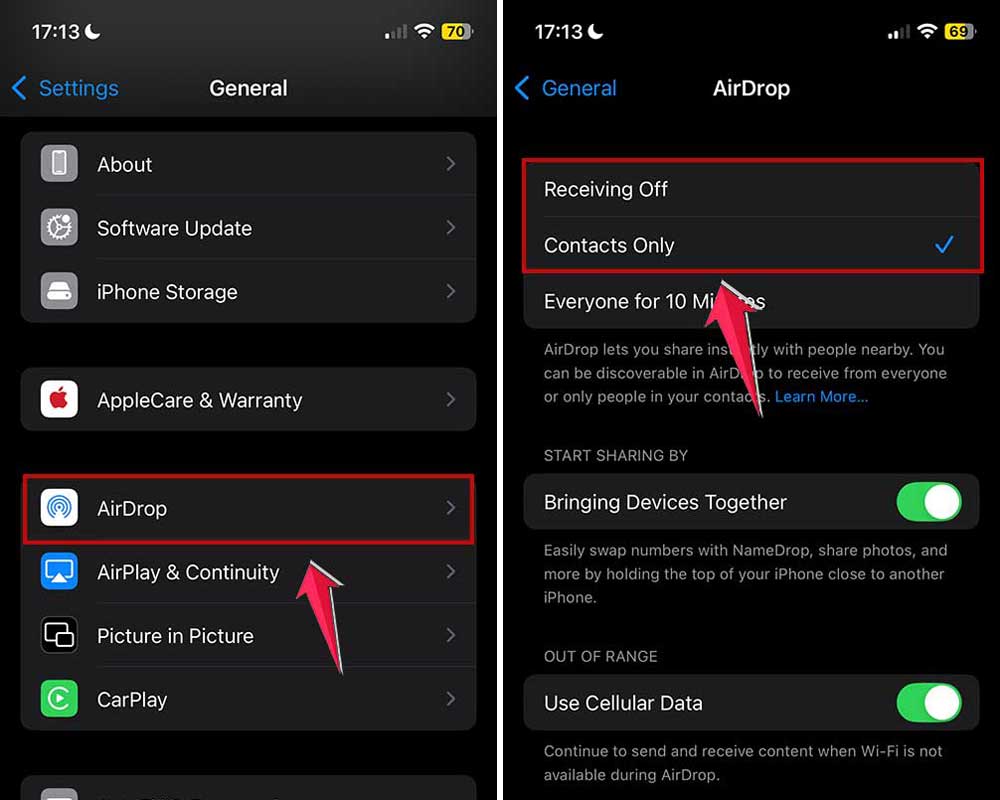
Yes. You can’t see history, but you can control who can send you files.
To do this:
Go to Settings. Tap on General. Tap AirDrop. Choose between “Receiving Off,” “Contacts Only,” or “Everyone”.
You can also do it from Control Center:
Swipe down from the top-right (on Face ID iPhones) or swipe up (on older iPhones). Tap and hold the network box. Tap on AirDrop. Choose your preferred setting

If AirDrop options are missing, check this:
Settings → Screen Time → Content & Privacy Restrictions → Allowed Apps Make sure AirDrop is turned on.
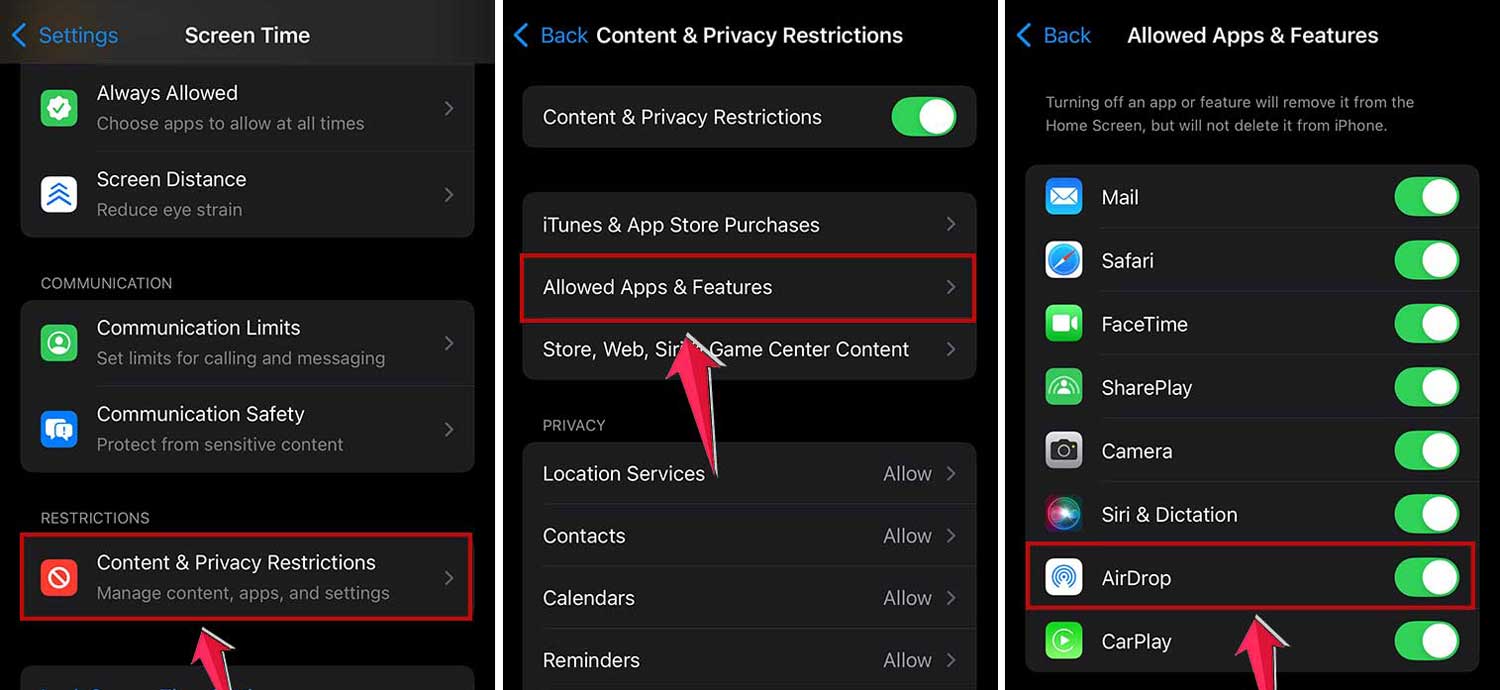
This won’t give you history. But it can protect you from unwanted files.
Can you use third-party apps to see history?
No.
Some apps claim they can show logs or history. They don’t work. AirDrop doesn’t store that kind of data. And Apple doesn’t give access to it.
Don’t waste time or storage downloading apps for this.
What if you’re worried someone is misusing AirDrop?
Maybe your kid is using AirDrop a little too freely. Or maybe you just want to monitor your own use.
Sadly, there’s no report or history to look back on. You can’t check what was sent or received earlier. The only way to limit misuse is by controlling the settings.
Turn AirDrop off when not in use. Or set it to “Contacts Only.” That way, strangers can’t send random files.
Why doesn’t Apple add an AirDrop history feature?
Privacy.
Apple’s strict about that. If they add a log, it could open the door for tracking and surveillance. That goes against everything Apple promotes.
Also, AirDrop was designed to be “in the moment.” Quick. Private. No strings attached. Once the transfer is done, it’s done. No lookbacks.
But I need to track transfers. What’s the alternative?
If tracking matters, use something else.
Try file-sharing apps like Dropbox or Google Drive. They show history. They log who shared what and when.
Those are better for work. AirDrop is more for quick personal sharing. like sending a meme to a friend or passing a file during a meeting.
Any tips to avoid losing AirDropped files in the future?
Yes. Here’s what you can do:
Whenever you receive something via AirDrop, don’t just preview it. Save it. Right away. Open the right app.
Photos, Files, or the one it launches. and tap Save or Download. Rename it if you need to, so it’s easy to search later.
If it’s important, move it to your iCloud or email it to yourself for backup. And on Mac, keep your Downloads folder clean. Otherwise, AirDropped files get buried.
In conclusion
So here’s the final answer: You can’t see your AirDrop history. Period.
Not on iPhone. Not on iPad. Not even on Mac. Apple doesn’t keep that data. You can’t bring it back. And no app or tool can show it to you.
You can only look at where the files land. not where they came from or where they went.
That might sound annoying. But it’s also secure. AirDrop is built for speed and privacy, not for logging.
If you need history, use something else. If you need privacy, AirDrop is perfect.
Now you know the truth. So next time you use AirDrop, just save the file right away. It’s because there’s no going back.