Have you ever looked at your iPhone and thought, “Wait, where’s my Phone app?” If you have, you’re not alone. Lots of people use their iPhones every day, and the Phone app is super important.
Sometimes, this little app icon can seem to disappear. Maybe you accidentally moved it, or perhaps your phone did an update that shuffled things around. Whatever the reason, it can be pretty annoying when you can’t find it.
Your Phone app does a lot. It’s not just for making calls. It’s where you check your voicemail, find your contacts, and even call for help if there’s an emergency.
You can also turn off incoming calls temporarily when you don’t want to be disturbed. So when you can’t see it on your screen, it can feel like a big problem.
But don’t worry! No matter what kind of iPhone you have. Brand new or a few years old. There are easy ways to get your Phone icon back.
In this article, you’ll learn how to find it again, why it might have gone missing, and how to keep it from disappearing in the future.
So, if you’re scratching your head, wondering where your Phone app went, you’re in the right place. Let’s get that icon back where you can see it!
How to get your phone icon back on your iPhone
Sometimes, your Phone app icon might play hide and seek on your iPhone. It’s easier to find than you might think. Let’s walk through some simple steps to bring it back.
1. Restart your iPhone and check for updates
First, let’s try the old “turn it off and on again” trick:
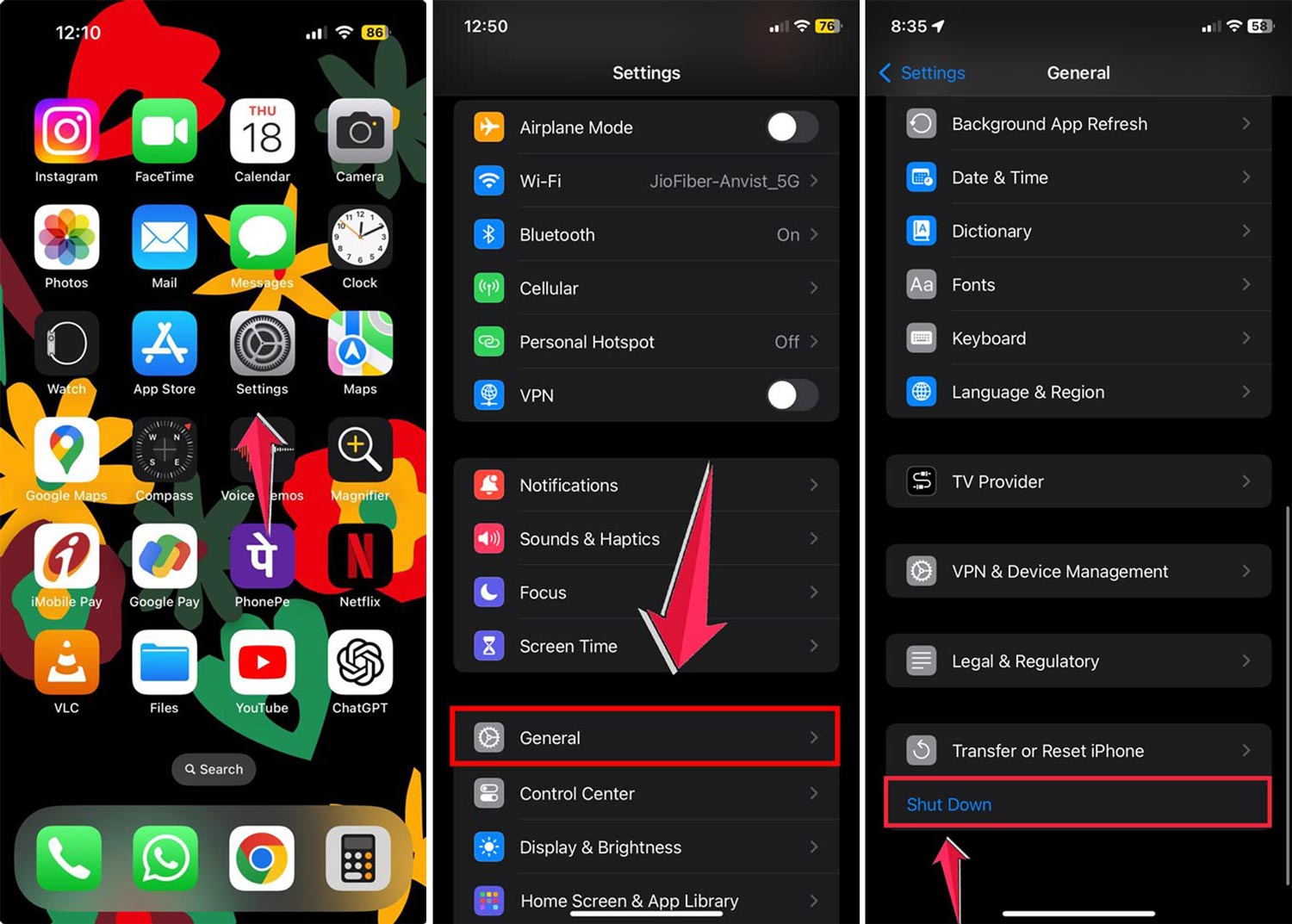
- Go to Settings > General > Shut Down.
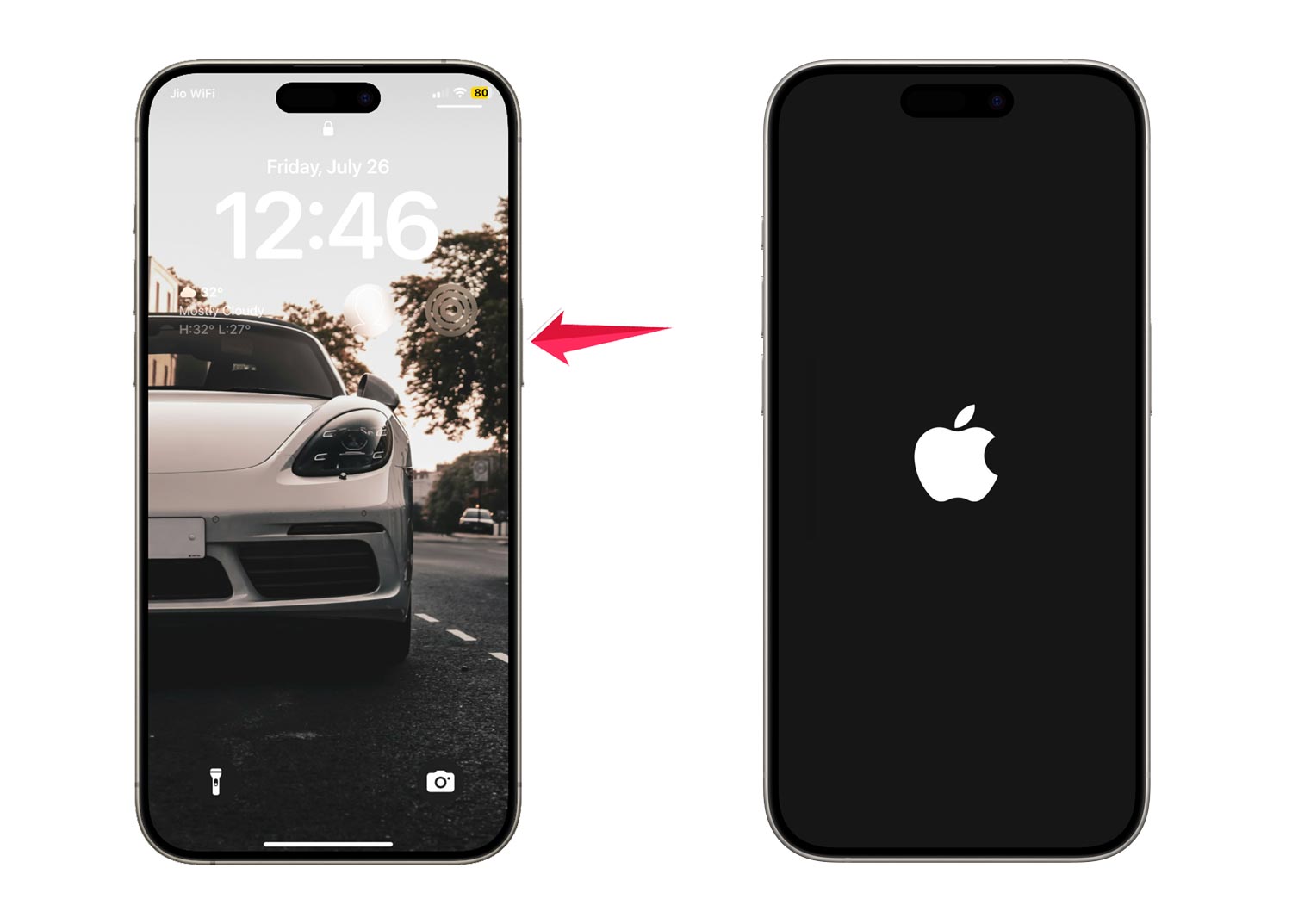
- After your iPhone turns off, press and hold the power button until you see the Apple logo.
- Once your iPhone restarts, check if the Phone icon has reappeared.
Restarting also helps fix common iPhone system glitches that might be causing app display issues.
While you’re at it, make sure your iPhone is up to date:
- Head to Settings > General > Software Update.
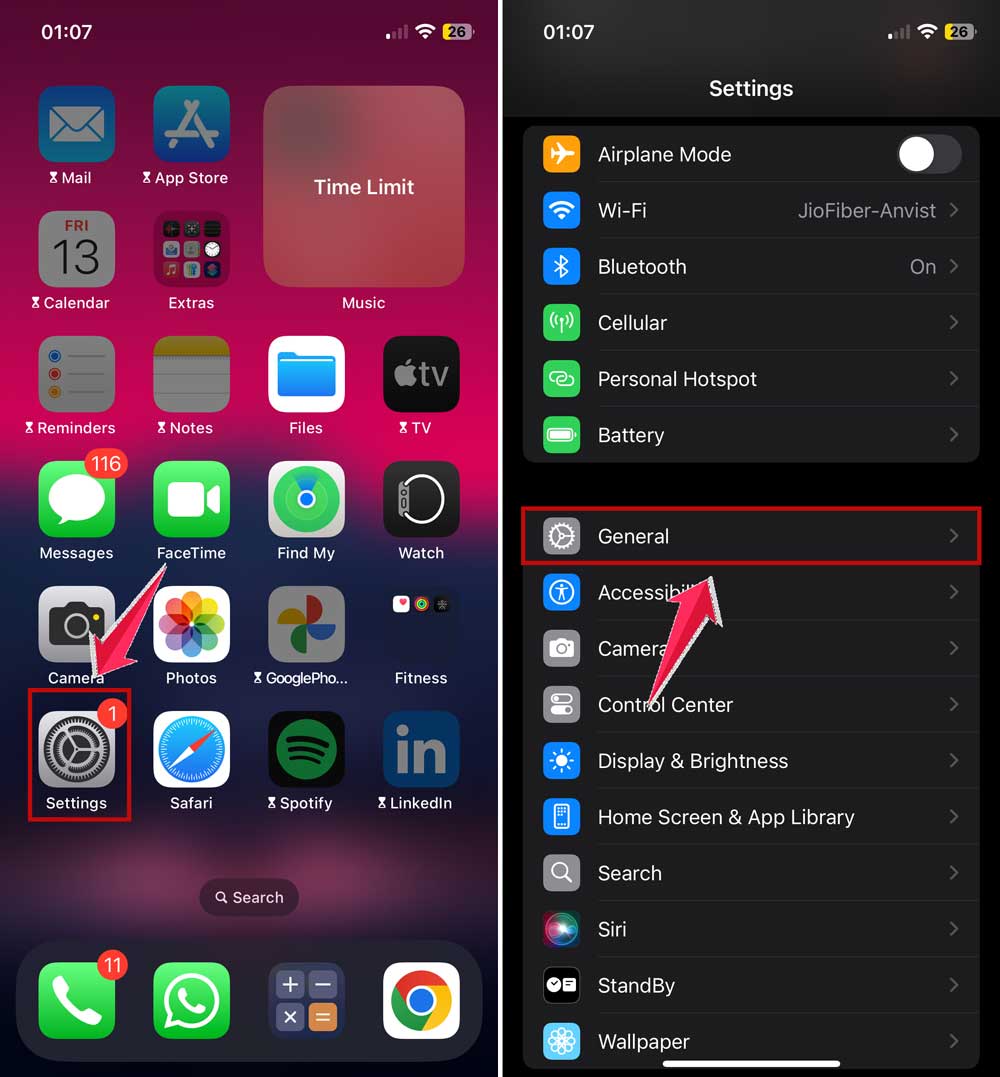
- If there’s an update available, follow the instructions to install it.

2. Use search or Siri to find the missing icon
If restarting didn’t work, your Phone app might just be hiding somewhere:
Using search
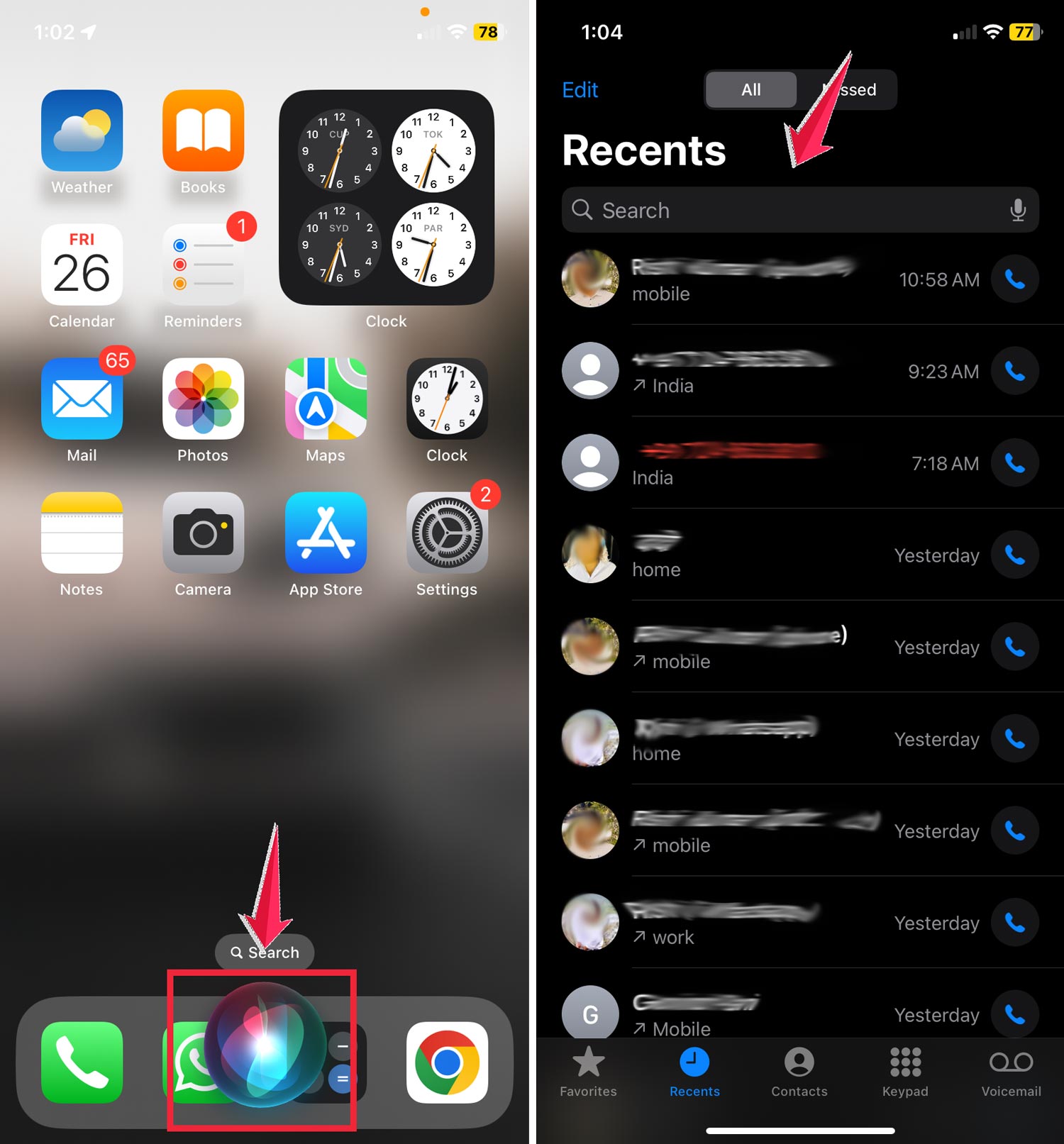
- Swipe down from the middle of your home screen to open Search.
- Type “phone” and see if it appears in the results.
- If you find it, you can open it directly or drag it back to where you want it.

Using Siri
- Just say, “Hey Siri, open the Phone app.” Siri will launch it for you, and then you can move the icon where you want.
3. Check your App Library
Remember, you can’t completely delete the Phone app from your iPhone. If it’s not on your home screen, it’s probably in your App Library:
- Swipe left on your home screen until you reach the App Library.
- Look for the Phone app in the categories or use the search bar at the top.
- Once you find it, press and hold the icon, then drag it back to your home screen.

4. Reset your home screen layout
If all else fails, you can reset your home screen to its original layout:
- Go to Settings > General > Transfer or Reset iPhone.

- Tap on the Reset then Choose “Reset Home Screen Layout” and follow the prompts.

This won’t delete any of your data, but it will put all your built-in apps back where they started, including your Phone app, in the dock.
5. Check for restrictions
If you still can’t find your Phone app, it might be hidden due to Content & Privacy Restrictions:
- Go to Settings > Screen Time > Content & Privacy Restrictions.
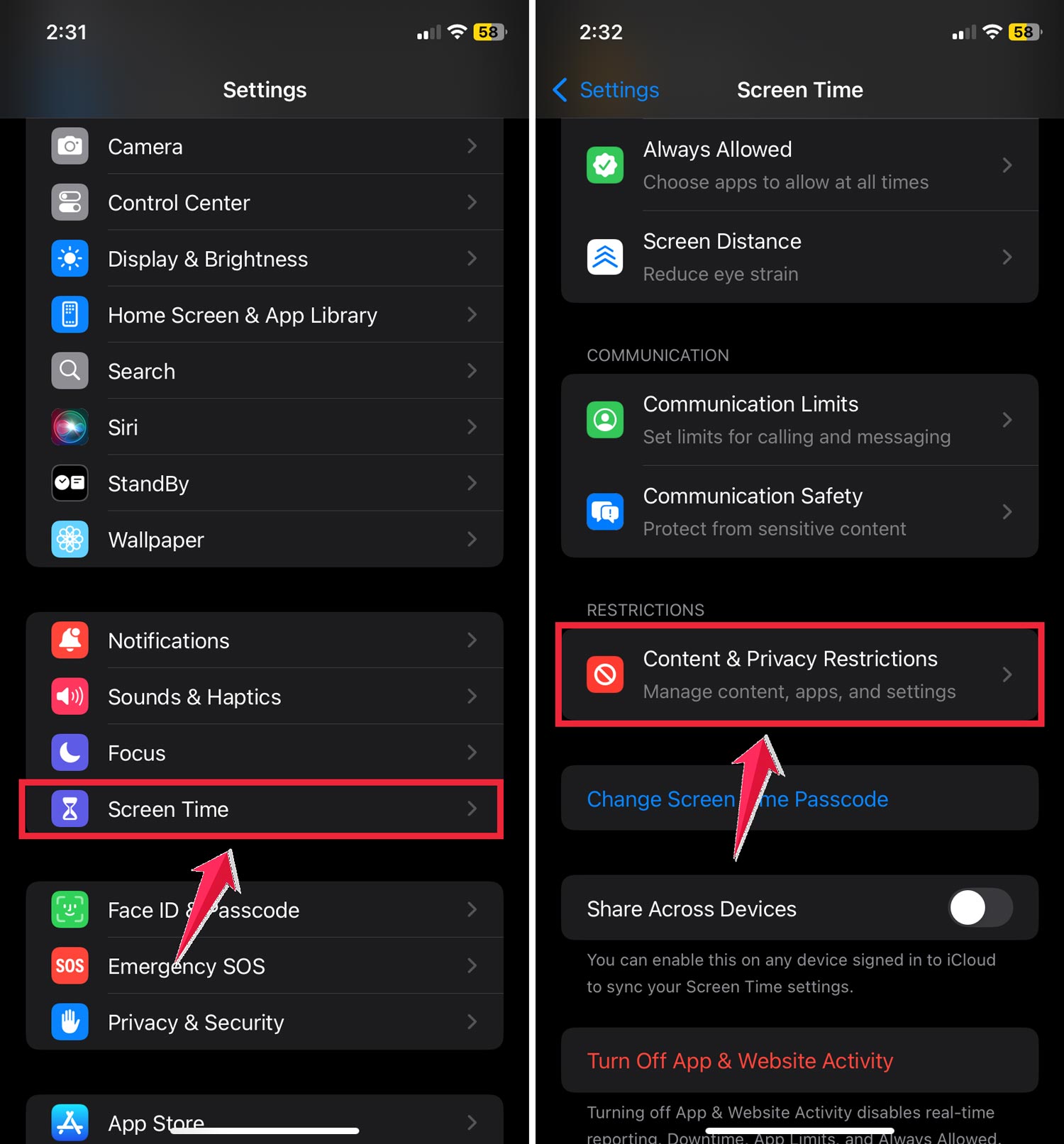
- Tap “Allowed Apps & Features“.
- Make sure the toggle next to “Phone” is turned on.
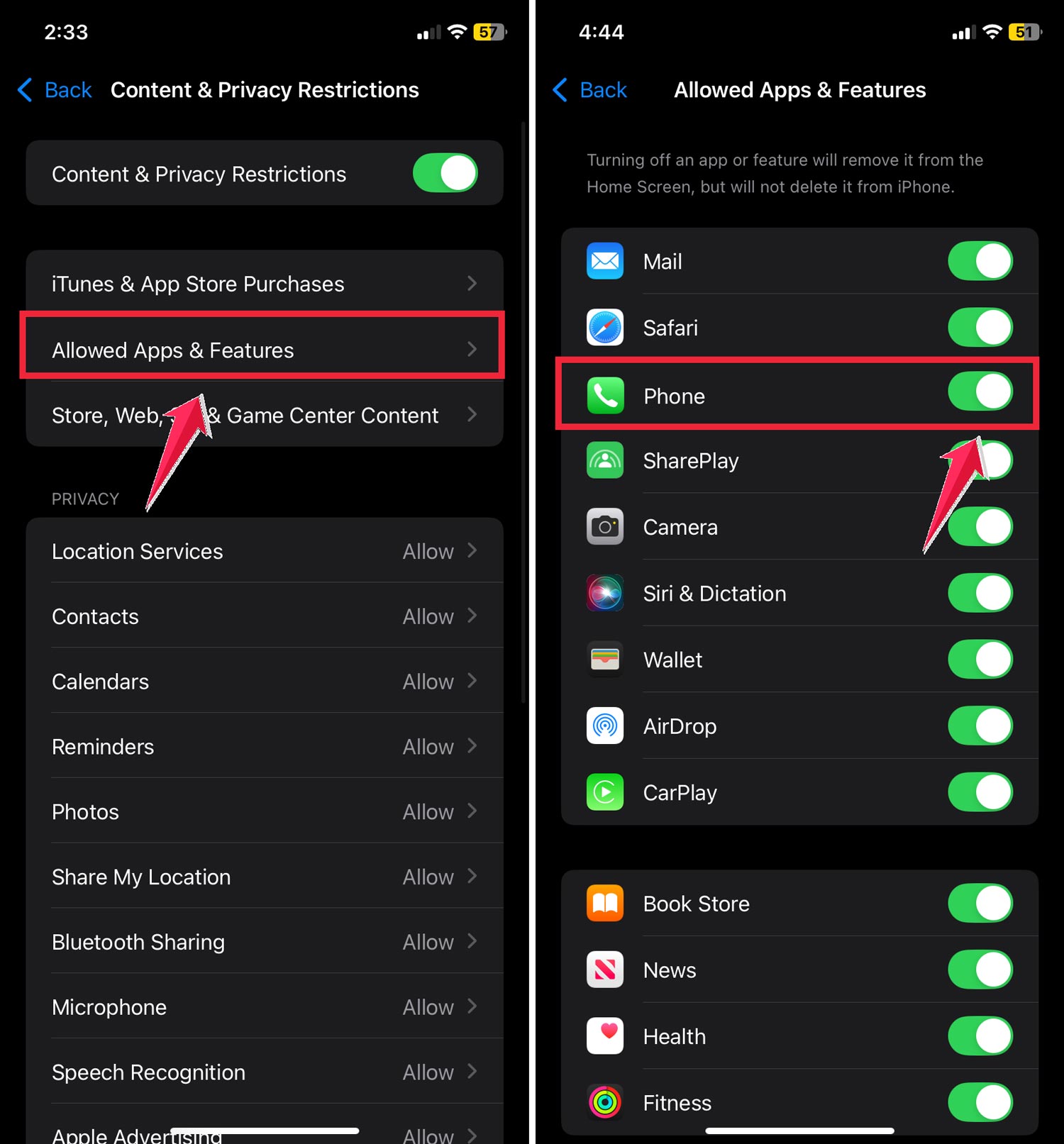
If it was off, turn it on, and your Phone app should reappear on your home screen.
6. Use iTunes or Finder to restore your iPhone
As a last resort, you can try restoring your iPhone using iTunes (on Windows) or Finder (on Mac):
- Connect your iPhone to your computer.
- Open iTunes or Finder and select your iPhone.
- Click “Restore iPhone“.
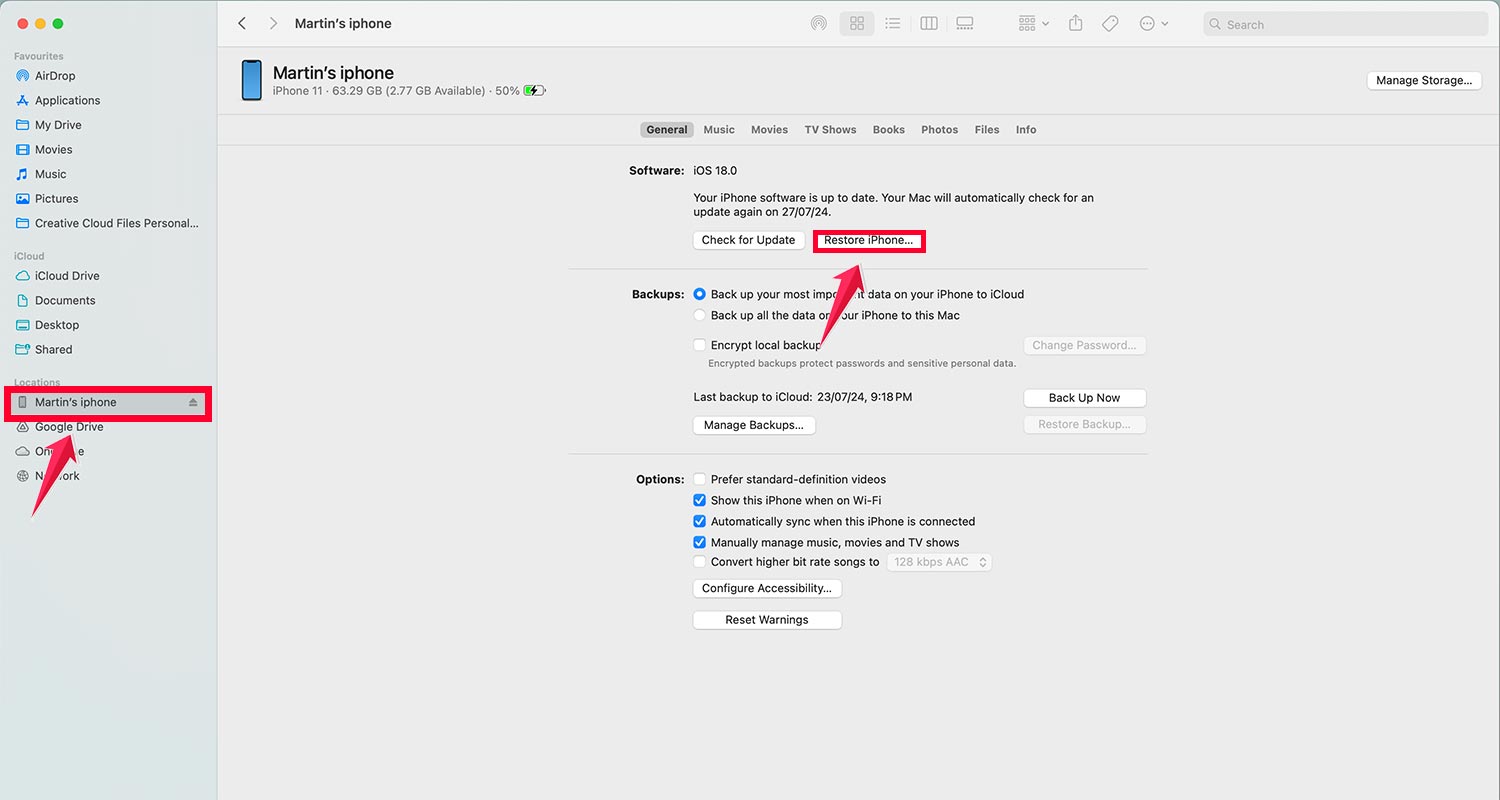
Remember, this will erase your iPhone, so make sure you have a backup before proceeding.
Your Phone app is always on your iPhone somewhere. With these steps, you’ll have it back in view in no time. If you’re still having trouble, it might be worth checking with Apple Support for more help.
The takeaway
Losing your Phone app icon can be frustrating, but it’s not a permanent problem. You’ve learned several easy ways to get it back.
Remember, you can try restarting your iPhone or using the search function to find the app.
If that doesn’t work, check your App Library or reset your home screen layout. Don’t forget about the Content & Privacy Restrictions. They might be hiding your Phone app.
Some people think the Phone app can be deleted completely, but that’s not true. It’s always on your iPhone somewhere, even if you can’t see it right away.
The most important thing to remember is that you have options. Don’t panic if you can’t find your Phone app.
Just try these steps one by one. With a little patience, you’ll have your Phone icon back where you can see it in no time.
We’d love to hear about your experience. Did these methods work for you? Let us know in a comment below!