Are you staring at your Mac right now, feeling frustrated because you can’t make the changes you want? If you’ve got a MacBook from school or work, you might be dealing with something called Jamf.
It’s kind of like when you’re trying to install apps from unidentified developers – sometimes your Mac just won’t let you do what you want.
Here’s the deal: Jamf is limiting what you can do on your own computer. You might not be able to install certain apps, change important settings, or even have admin rights. It’s like having a computer that’s not really yours.
But don’t worry – you’re not stuck. That’s why you’re here, right? You want to know how to remove Jamf and get full control of your Mac. Well, you’re in the right place. In this guide, we’ll walk you through the process step by step.
By the time you finish reading, you’ll know exactly what to do to free your Mac from Jamf’s control. You’ll be able to use your computer the way you want, without restrictions.
What is Jamf?
Jamf is a tool that big organizations use to control MacBooks and other Apple devices. If you’ve got a work or school MacBook, you might be dealing with Jamf right now. Here’s what you need to know:
When your company or school sets up a MacBook for you, they often install Jamf software on it. This gives their IT department a lot of control over your device. They can decide which apps you’re allowed to install, manage your access to company data, and even monitor some of your activities on the MacBook.
Jamf works closely with Apple, which means these controls are usually in place from the moment you first turn on your MacBook. This tight connection makes it tricky to remove Jamf if you’re not part of the IT team. It’s similar to how Active Directory works on Macs in corporate environments.
But don’t worry – if you’re looking to take back control of your MacBook, you’re in the right place. We are gonna solve this problem for you.
How to remove Jamf from your Mac
Let’s walk through how to remove it and get your Mac back to normal.
1. First things first, Contact your organization
Before we dive into the technical stuff, let’s try the simple approach.
Contact the organization that gave you the Mac. Ask them nicely to remove Jamf for you. They can do it quickly and easily from their end.
But what if that’s not an option? Don’t worry, we’ve got you covered.
2. Remove DIY Jamf yourself
Okay, so you can’t reach the organization or they won’t help. No problem! Here’s how you can take matters into your own hands:
Check for Jamf profiles
- Go to System Settings > Privacy & Security > Profiles.

- If you see nothing there, great!
- If you do see a profile, keep reading.
Enter Recovery Mode
- For newer Macs (with Apple Silicon): Hold the power button until you see “Startup Options“. Choose Options, then Continue.
- For older Macs (Intel-based): Restart and hold Command-R until the Apple logo shows up.
Disable System Integrity Protection
Once in Recovery Mode:
- Open Terminal.
- Type
csrutil disableand hit Return. - Restart your Mac normally.
Give Terminal full access to your disk
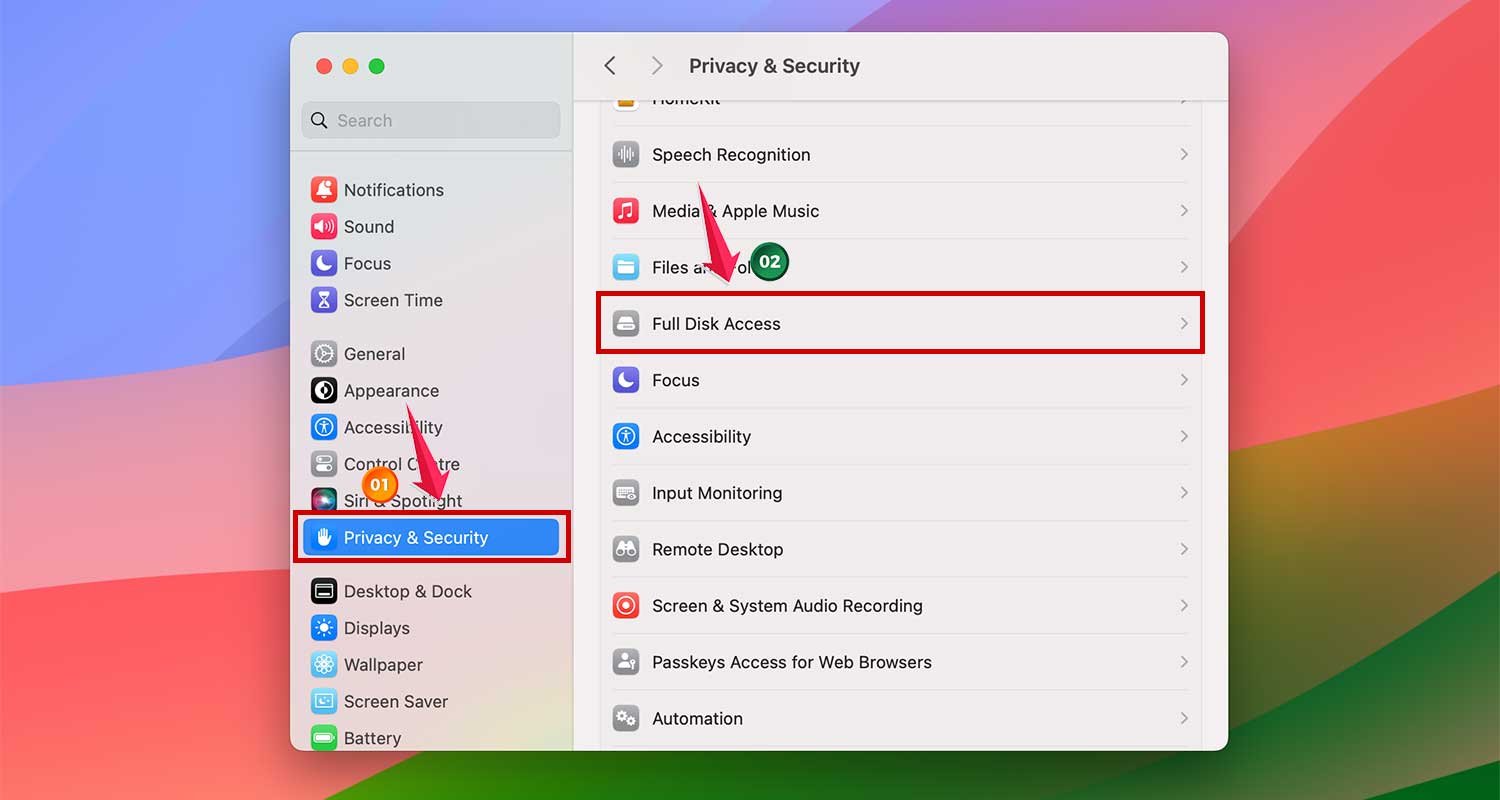
- Go to System Settings > Privacy & Security > Full Disk Access. If you’re having trouble accessing System Settings, you might need to troubleshoot that first.
- Click the ‘+’ and type your admin password.
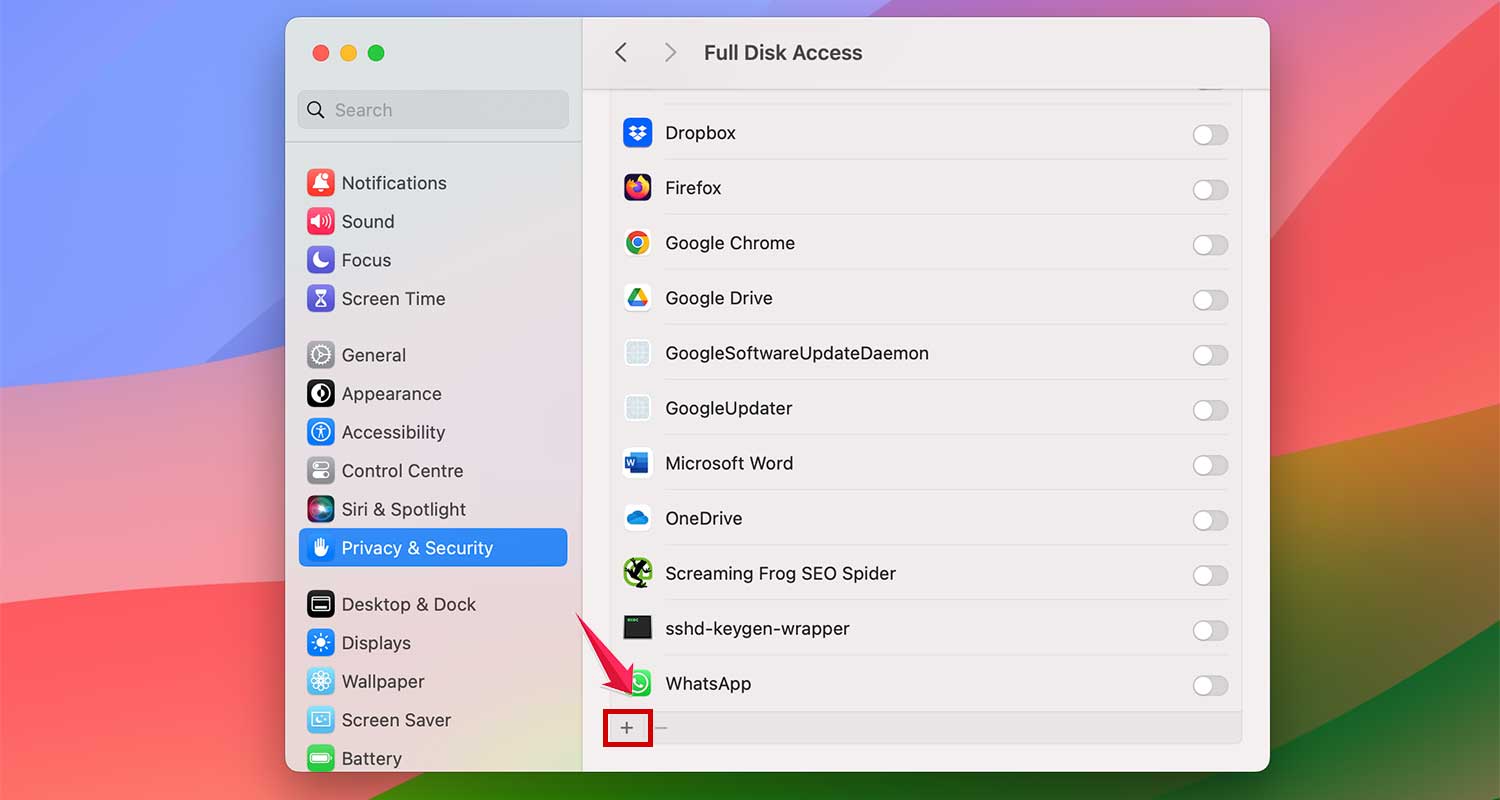
- Find and select Terminal under Applications > Utilities.

Remove Jamf software
Open Terminal and follow these steps:
- Type
sudo jamf -removeFrameworkand press Return. - Type
sudo -i, enter your password. - Type
cd /var/db/ - Type
mv ConfigurationProfiles ConfigurationProfilesOLD - Type
logout
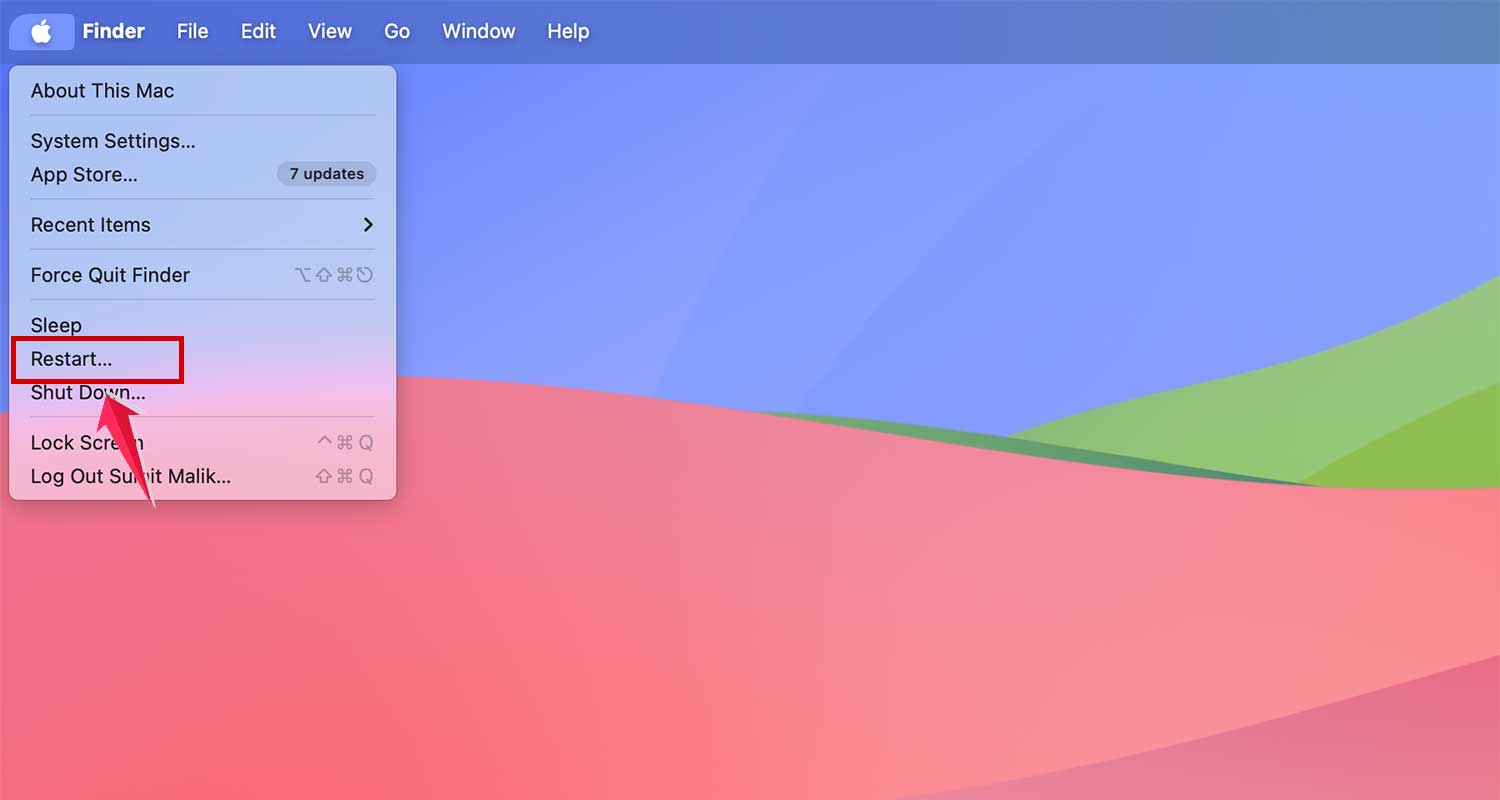
Restart your Mac to finish up
Now, you will need to restart your Mac to take these effects take place.
3. Securing your Mac after Jamf removal
Now that Jamf is gone let’s make sure your Mac is safe and sound:
Turn System Integrity Protection back on
- Boot into Recovery Mode again (just like before).
- Open Terminal and type
csrutil enable - Restart your Mac.
While you’re thinking about security, you might want to consider turning on FileVault too.
Check your login screen.
When your Mac restarts, you should see the normal macOS login window. If you still see a device management login, we’ve got a few more steps.
Remove any leftover bits.
Open Terminal and type these commands (hit Return after each):
sudo rm /usr/local/bin/authchanger sudo rm /usr/local/lib/pam/pam_saml.so.2 sudo rm -r /Library/Security/SecurityAgentPlugins/JamfConnectLogin.bundle
4. Uninstalling Jamf applications
Last but not least, let’s get rid of any Jamf apps:
1. Look for a Jamf uninstaller in your applications. If you find one, use it.
2. If there’s no uninstaller:
- Go to your Applications folder.
- Find any Jamf apps and drag them to the Trash.
- In Finder, go to
/Library/LaunchAgents. - Drag any “Jamf” files to the Trash.
3. Empty your Bin to finish the job
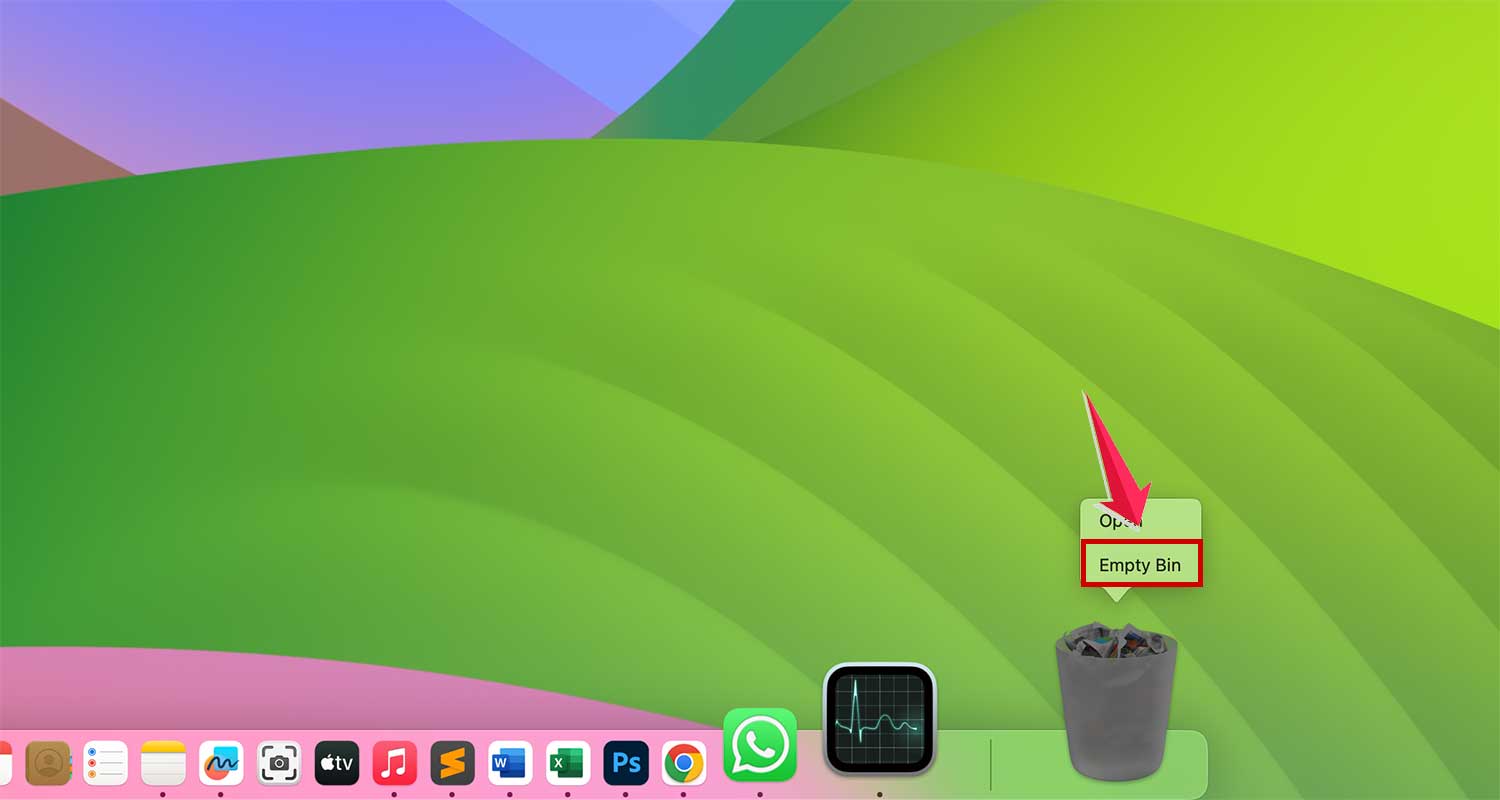
And there you have it! Your Mac should now be Jamf-free and back to normal.
The takeaway
So, you’ve made it through the Jamf removal process – well done! Let’s quickly recap what you’ve learned.
Removing Jamf might seem daunting, but you now know it’s totally doable. Whether you chose to contact your organization or tackle it yourself, you’ve taken a big step towards regaining control of your Mac.
Remember, the key steps were checking for profiles, using Recovery Mode, and carefully removing Jamf components. Don’t forget to re-enable your security features – that’s crucial for keeping your Mac safe. And now that you have full control, it might be a good time to clean up your Mac.
Here’s the most important takeaway: your Mac is yours to control. You’ve now got the knowledge to use it to its full potential, without restrictions.
How did it go for you? Did you run into any unexpected hurdles? Or was it smooth sailing? Your experience could really help others in the same boat, so feel free to share in the comments.