Did you know that over 80% of smartphone users are concerned about apps tracking their location? It’s a common worry, and for good reason. Your location data can reveal a lot about your daily life and habits.
Sometimes, you might want to pause or freeze your location on apps like Find My. Maybe you’re trying to save battery life, or you just want a bit more privacy. Whatever the reason, it’s good to know how to control your location sharing.
In this guide, you’ll learn some simple tricks to pause your location on your iPhone using the Find My app.
We’ll walk through the steps together, making it easy for you to take control of your location sharing. You’ll also find answers to common questions about location privacy.
Ready to learn how to keep your whereabouts under wraps when you need to? Let’s dive in and discover how you can take a break from constant location tracking.
Different clever ways to pause your location on the Find My app
Wondering how to stop sharing your location on the Find My app? Here are three easy methods you can try:
1. Turn off “Share My Location”
To do this:
- Open the Find My app.
- Go to the “Me” tab.
- Find the “Share My Location” switch and turn it off.
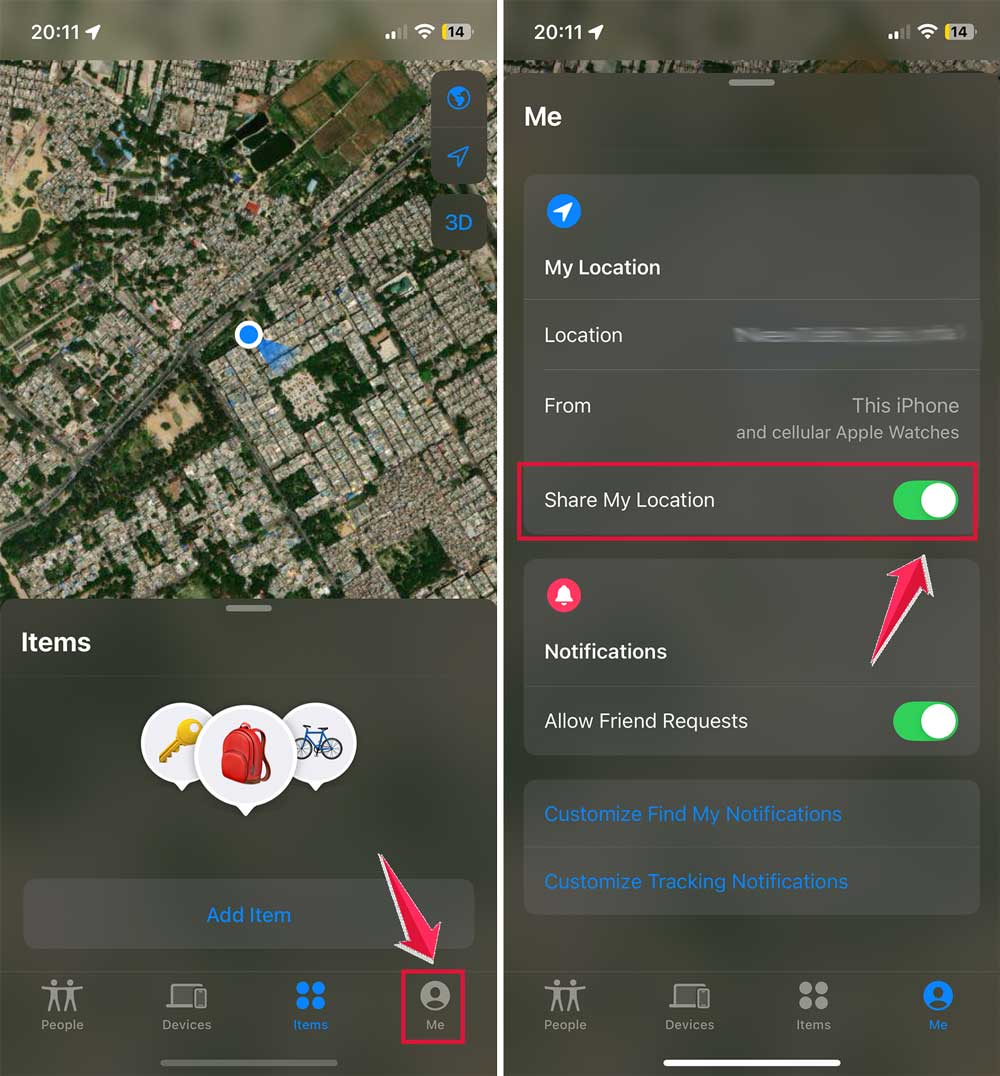
This stops your iPhone from sharing your location with your contacts. If you want to hide your location from specific friends, go to the “People” tab, select the person, and tap “Stop Sharing My Location.”
2. Use a different device to share your location
If you have another iPhone:
- Open Find My on that iPhone.
- Go to “Me”.
- Select “Use this iPhone as My Location”.
Now you can leave this phone at home, and it’ll look like you’re there even when you’re out and about. You can also name your location in Find My to make tracking even easier.
3. Use a VPN to mask your location
If you want to appear somewhere else, you can use a Virtual Private Network (VPN). A VPN can make it look like you’re in a different city or even country.
Just remember, this affects all location-based services on your phone, not just Find My.
4. Setup location-based automation
You can use the Shortcuts app on your iPhone to create automations that turn location sharing on or off based on where you are.
For example, you could set it to automatically stop sharing when you arrive at work and start sharing again when you leave.
If you’re switching devices, make sure to unpair and erase your Apple Watch properly before changing setups.
5. Use “Precise Location” settings
- Instead of turning off location sharing completely, you can make it less accurate. Go to Settings > Privacy & Security > Location Services.

- Find My, and turn off “Precise Location”. This will show your general area rather than your exact spot.

6. Create a fake location with third-party apps
There are apps available that can spoof your GPS location. These can make Find My think you’re somewhere you’re not.
7. Turn on Airplane Mode
This is a quick way to pause your location sharing. Just turn on Airplane mode on your iPhone. It stops your phone from connecting to networks, which freezes your location.
These methods work well for the Find My app. But what about other apps that share your location? Don’t worry, we’ll cover that next!
How to pause your location on other apps
Want to stop sharing your location on social media or family tracking apps? It’s easier than you might think. Here’s what you need to do:
- Go to the Settings app on your home screen.
- Tap on “Privacy & Security”.
- Then tap on “Location Services”.
- You’ll see a list of all apps that can track your location.
- Find the app you want to change and tap on it.
- Under “Allow Location Access,” select “Never”.
- This tells the app it can’t check your location anymore.
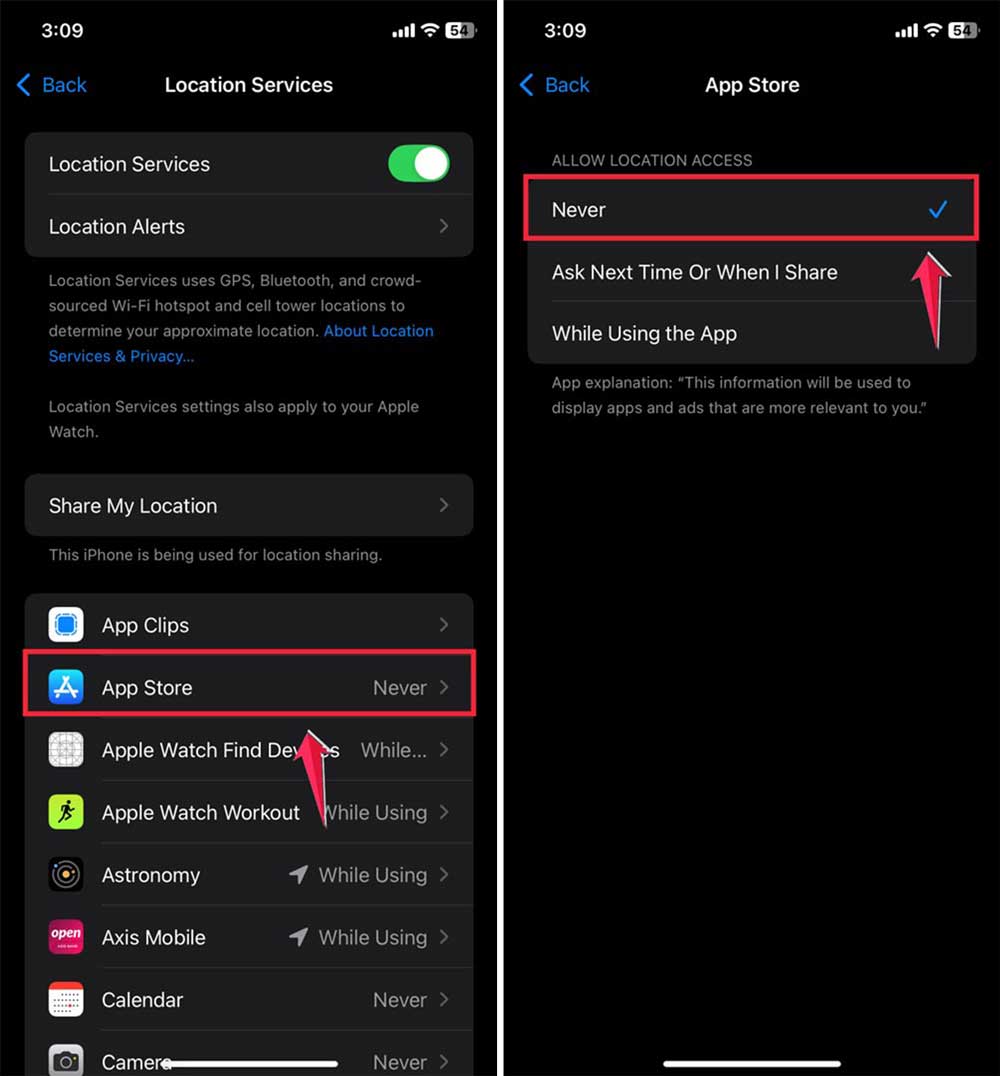
Remember, you can also turn off Location Services completely. It’s at the top of the Location Services page.
But be careful. This might affect other features on your phone. It’s usually better to adjust settings for each app individually.
The takeaway
Controlling your location sharing on your iPhone is simpler than you might think. Whether you’re using the Find My app or other apps, you have options to keep your whereabouts private when you need to.
For the Find My app, you can turn off “Share My Location,” use a different device to share your location, or turn on Airplane Mode.
These methods give you flexibility in managing who sees where you are. For other apps, you can go into your iPhone’s settings and turn off their access to your location.
Some people think that turning off location sharing is complicated or will break their phone. But it’s actually quite easy and won’t cause any problems. You can always turn it back on when you need to.
Remember, it’s okay to take control of your privacy. Whether you’re saving battery life or just want some time off the grid, these simple steps can help you manage your location sharing effectively. Why not give it a try next time you want a bit more privacy?
What do you think about these location-sharing tips? Feel free to share your thoughts in a comment below.