Did you know that over 2 billion people worldwide use iPhones? That’s a lot of folks who could benefit from a handy feature called Find My.
Have you ever been waiting for a friend who’s running late? Or trying to meet up with family in a crowded place? It can be frustrating when you don’t know where your loved ones are. That’s where the Find My app comes in handy.
Apple created Find My to help you keep track of your friends and family’s locations. But sometimes, those location pins on a map don’t tell you much. Wouldn’t it be great if you could give those spots meaningful names?
In this article, you’ll learn how to do just that. We’ll walk you through the process of naming locations in Find My, making it easier for you to know exactly where your friends and family are. It’s a simple trick that can make your life a whole lot easier and give you peace of mind.
What is the Find My app, and how do you use it?
The Find My app is your iPhone’s built-in location buddy. It’s like having a digital map that shows you where your friends and family are. Here’s what makes it special:
- It’s an iPhone thing. Both you and the people you want to locate need to have iPhones for this to work.
- It respects privacy. Don’t worry about being sneaky. The app only tracks people who’ve permitted you to see their location.
- It’s two-in-one. Apple combined their old “Find My Friends” and “Find My iPhone” apps into this single, more powerful Find My app in 2019.
If you’re wondering how to find someone else’s iPhone or even your own, Find My is your go-to tool.
How to name your location on the “Find My” app?
- Open the Find My app on your iPhone.
- Tap the “Me” tab at the bottom right of the screen.
- You’ll see your current location. Tap on it.
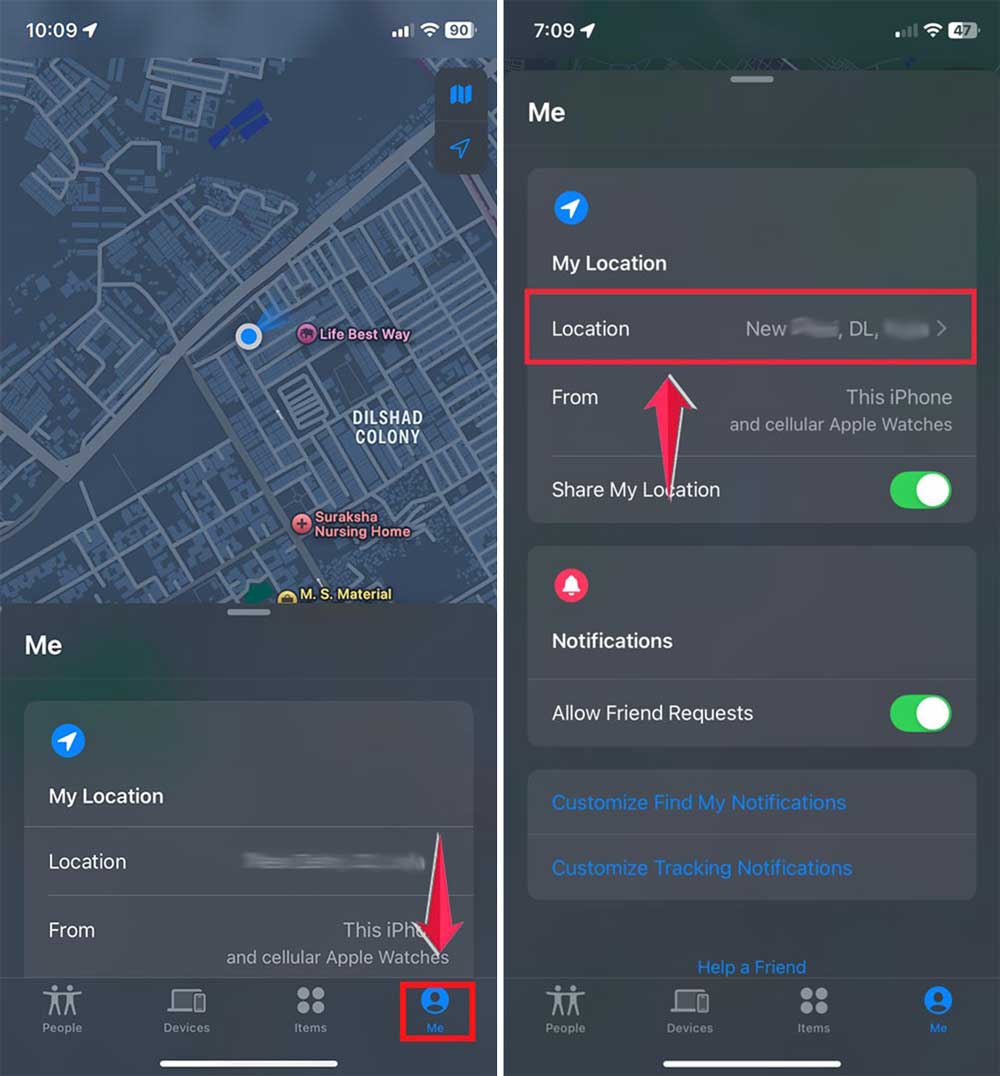
- Scroll down and tap “Add Custom Label.”
- Type in a name for your location, like “Home” or “Work.”
- Tap “Done” to save the label.

Now, when you or your friends look at your location, they’ll see the custom name you’ve given it instead of just an address. This makes it easier to understand where you are at a glance.
You can also use this feature alongside Precision Finding with AirTags if you’re trying to label frequent places.
Remember, you can change or remove these custom labels anytime by following the same steps and selecting “Edit Label” or “Remove Label.”
How to share your location with a friend using Find My
Want to let your buddy know where you are using your iPhone? It’s easy, and you’re in control. You can share your location for a short time, a whole day, or until you decide to stop.
Remember, while sharing, your friend can see your location as long as you have it turned on and have mobile data. Here’s how to do it:
- Make sure you both have iPhones. This only works between Apple devices.
- Find the Find My app on your iPhone. Look for the grey icon with a big green circle and a small blue dot.
- Open the app and tap the “People” tab at the bottom left.
- Tap the “+” sign to add a new person.
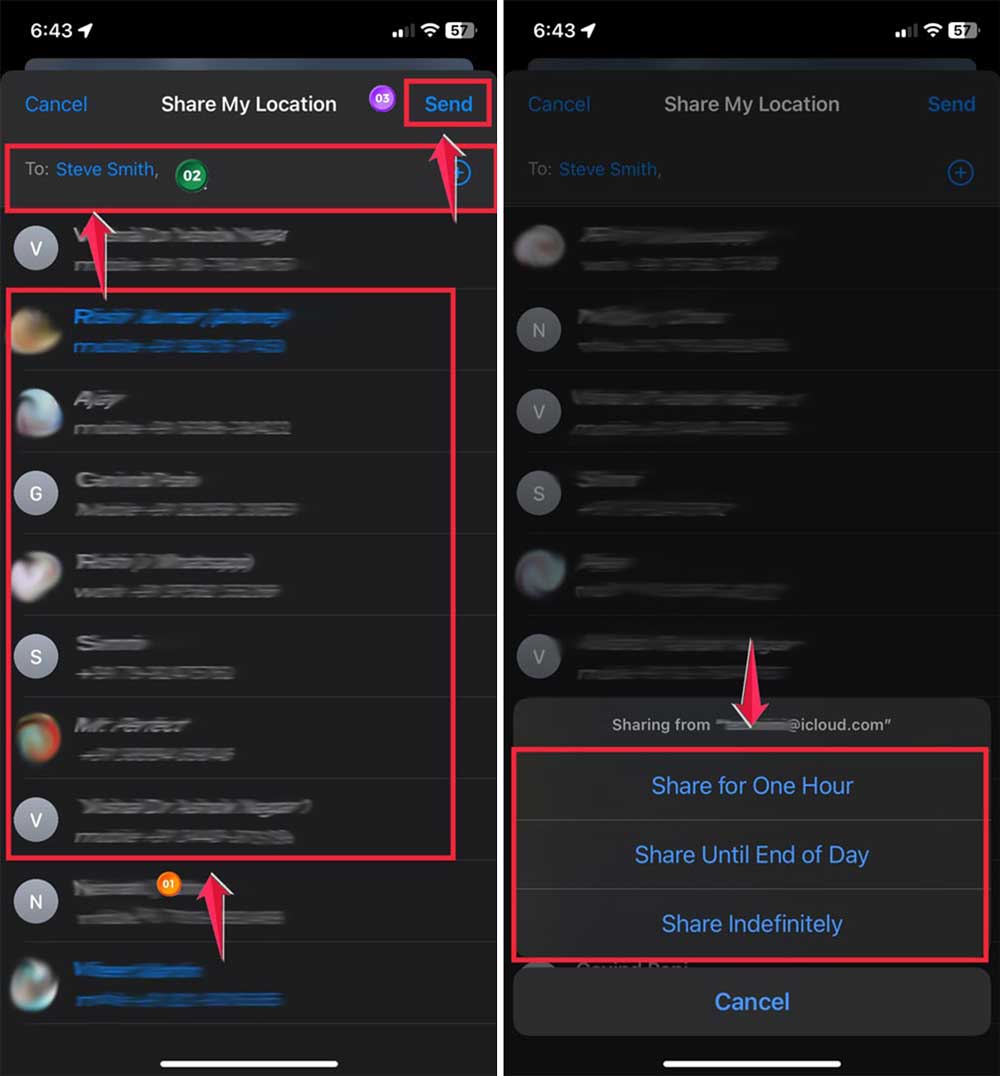
- Choose “Share My Location.”

- Search for your friend’s name. If it’s blue, they have an iPhone. If it’s grey, they don’t, and you can’t share with them.
- You can add more friends if you want.
- Tap “Send” in the top right corner.
- Choose how long to share: one hour, until the end of the day, or indefinitely.
After this, you’ll see your friends’ names in the “People” tab. It’ll say “Can see your location” under their name.
There’s also a cool feature called Precision Finding. If you both have iPhone 15s, you can see your friend’s exact location and get directions to them. It works like the feature for finding missing AirPods.
Remember, sharing your location is all about trust. Only share with people you’re comfortable with, and don’t forget you can stop sharing anytime.
How to track a friend’s iPhone location
Ever wondered where your friends are hanging out or if they’ve made it to the cafe yet? With Apple’s Find My app, you can do just that!
Remember, this isn’t about spying. Your friends need to permit you first. Here’s how you can see your friend’s iPhone location:
Before you start, make sure your friend has shared their location with you. If they’re part of your iPhone family group, you might even see other Apple devices they own.
Steps to track your friend’s iPhone:
1. Get their permission: Your friend needs to share their location with you using the steps we discussed earlier.
2. Ask them directly: If you’re already sharing your location with them:
- Go to the ‘People’ tab in the Find My app.
- Tap their name.
- Scroll down and tap “Ask to Follow Location”.

- They’ll get a message asking if you can see their location.
- They need to approve your request.

3. View their location: Once they’ve agreed:
- Their location will appear in the ‘People’ tab.
- You’ll see their city and country and how far they are from you.
- Tap their name for a detailed map.
- If you both have an iPhone 15, you’ll get even more precise tracking.
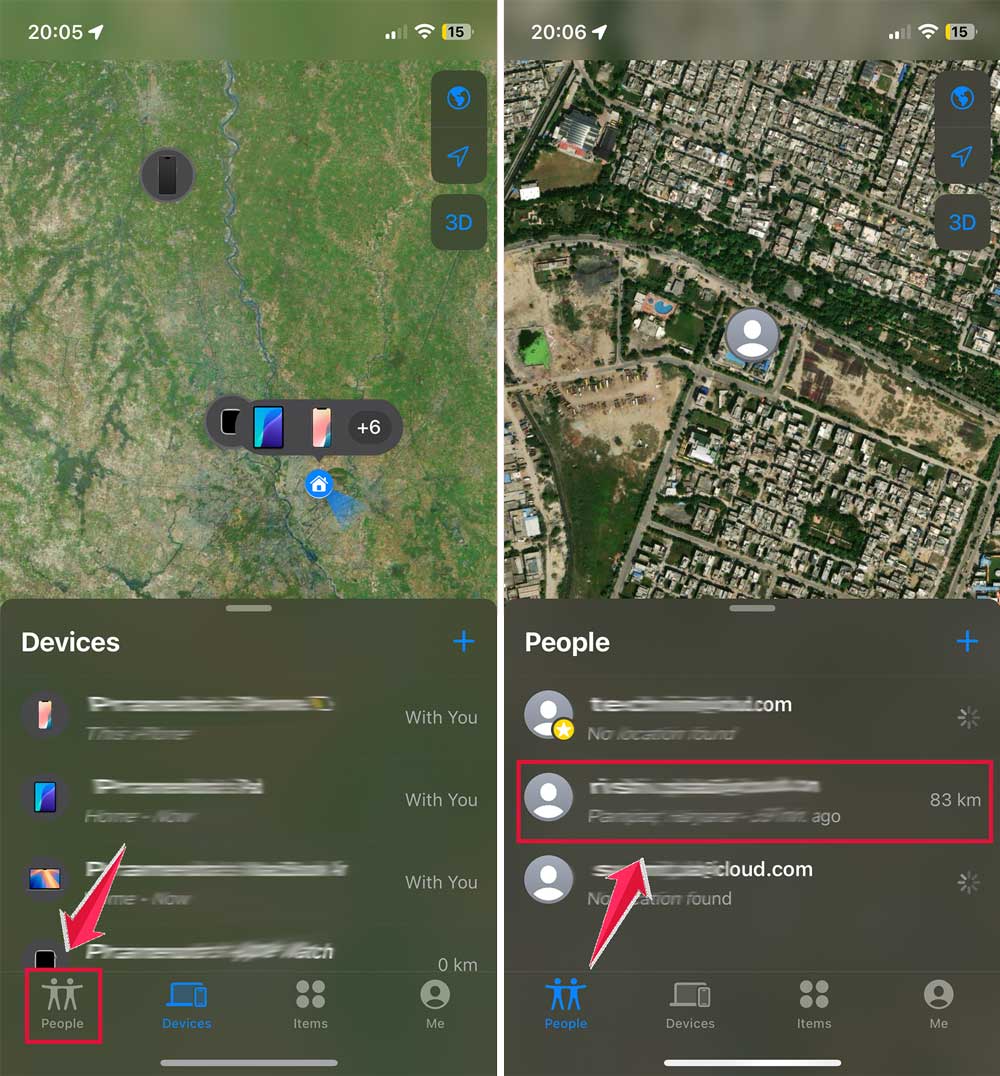
Remember, tracking should always be consensual and respectful. It’s a tool for convenience and safety, not for invading privacy.
Always use this feature responsibly and respect your friends’ wishes if they decide to stop sharing their location.
Using notifications in Find My
Did you know you can set up alerts in the Find My app? It’s not just for locating people. You can get notified about specific movements, too.
It’s like getting a friendly nudge when your friend leaves work or a ping when you get home.
This feature is different from the Check-In feature in iOS 17, but it’s incredibly useful. You can use notifications to get a heads-up when your child arrives home or if your friend leaves work. And yes, even if someone’s iPhone is dead or offline, Find My might still help.
Here’s how to set it up:
Steps to set up notifications:
- Open the app: Launch the Find My app on your iPhone.
- Go to People: Tap the “People” tab at the bottom left.
- Select a friend: Tap on the name of the friend you want to set notifications for.
- See more options: Swipe up on their location map to reveal more options.
- Add notification: Tap “Add” under Notifications. You’ll see “Notify Me” or “Notify [friend’s name].”
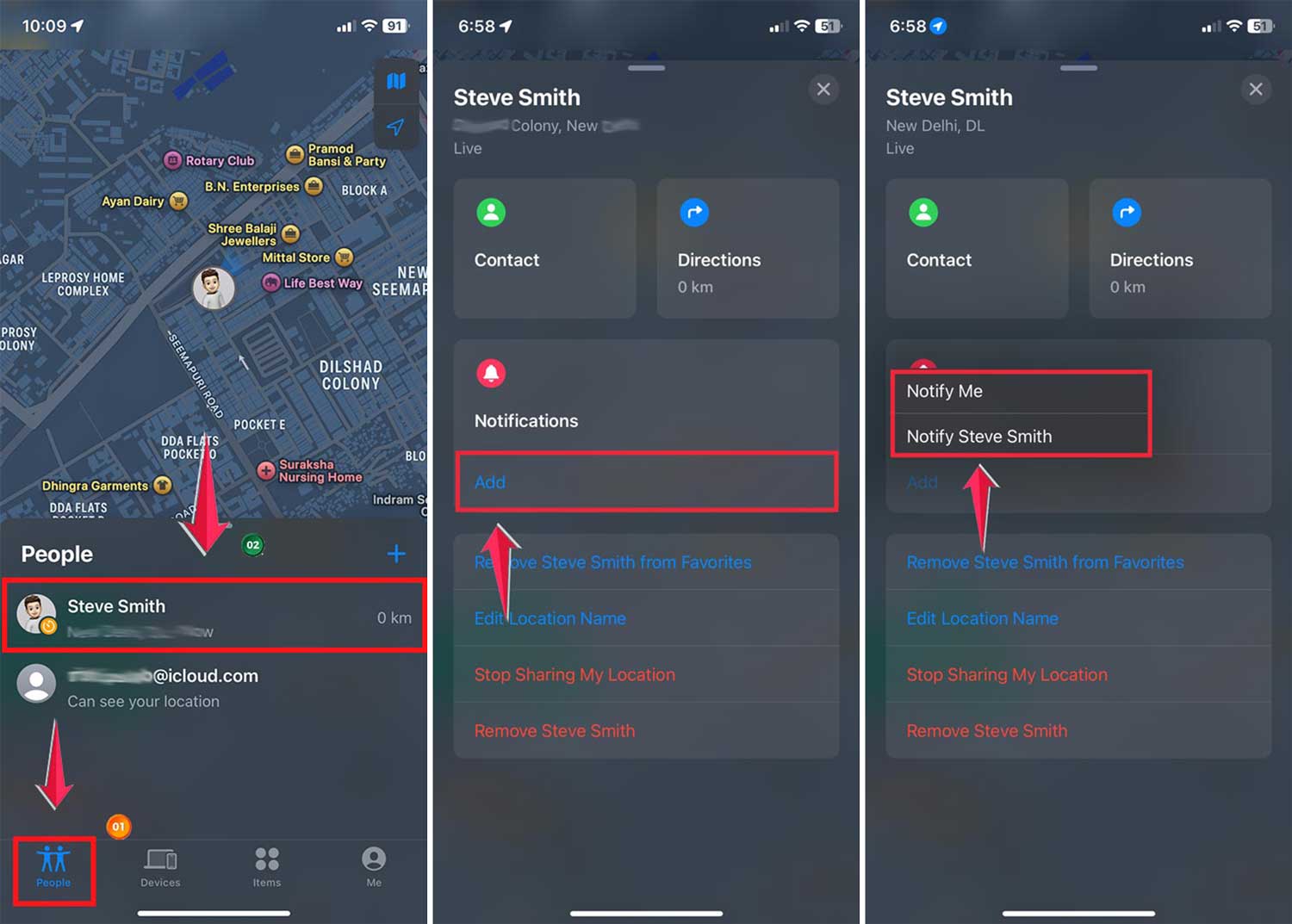
Types of notifications you can set:
If you choose “Notify Me“:
- You can be alerted when your friend arrives at, leaves, or is not at a specific place.
- Pick the location (their current spot, your location, or a new place).
- Decide if you want the alert once or every time it happens.
- For “Is Not At,” you can set specific times and days.
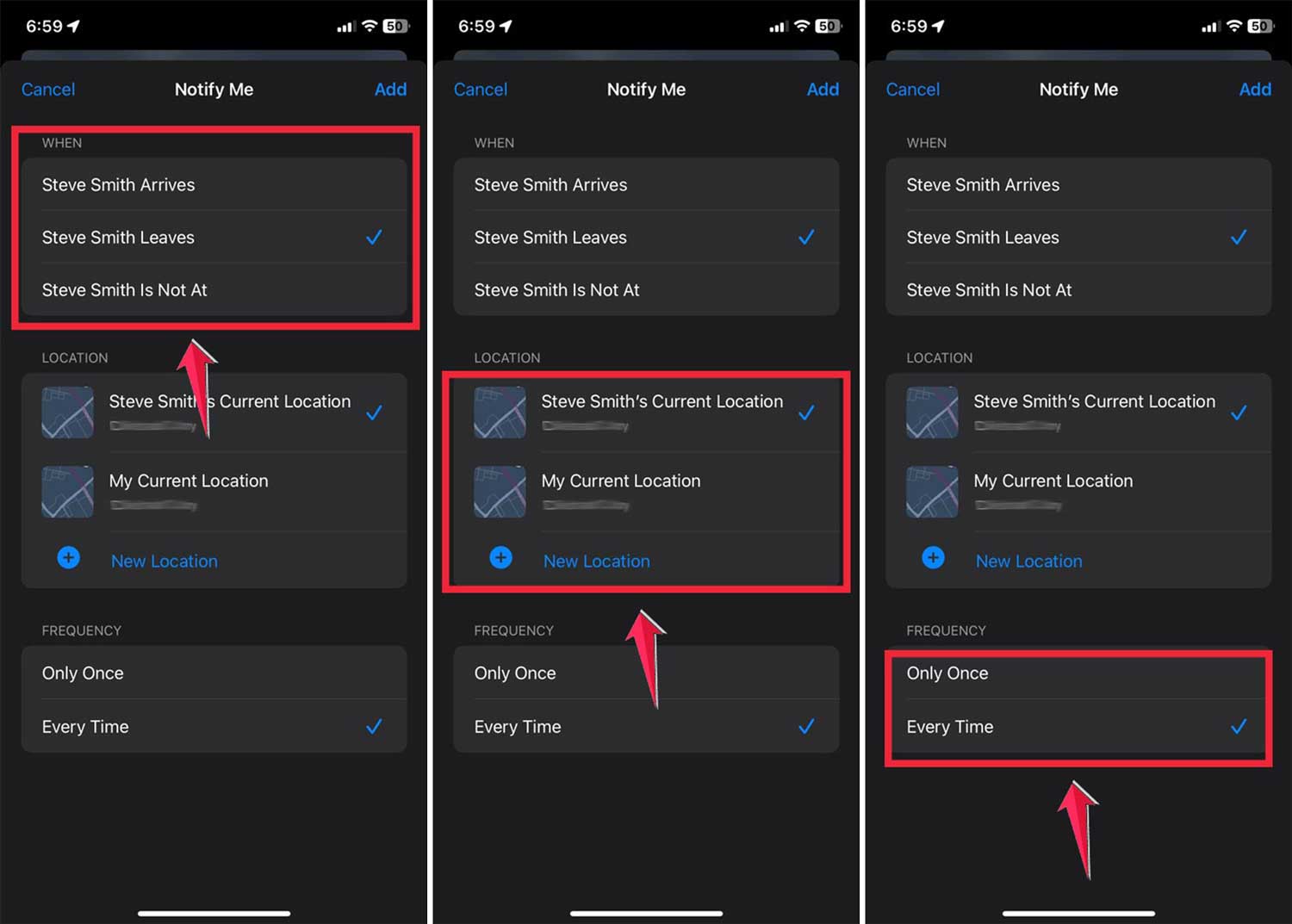
If you choose “Notify [friend’s name]“:
- Set alerts for when you arrive at or leave a place.
- Choose the location (where you are, where they are, or a new place).
- Decide if the alert should be once or recurring.

Remember, these notifications are a great way to stay connected and informed, but always use them responsibly and with respect for others’ privacy.
Make sure you have permission before setting up notifications for someone else’s movements.
The takeaway
Finding your friends and family just got easier with Apple’s Find My app. It’s like having a magic map on your iPhone that shows you where your loved ones are.
Setting up Find My is simple. You can share your location with friends, and they can share theirs with you. But remember, it only works if both of you agree. You can even set up notifications to know when someone arrives at or leaves a place.
Some people worry that Find My is about spying, but it’s not. It’s all about consent and helping each other stay connected and safe. You’re always in control of who sees your location and for how long.
So why not give Find My a try? It’s a great way to keep in touch with your friends and family. Whether you’re meeting up or just want to make sure everyone’s okay, Find My has got you covered.
Feel free to share your thoughts on using Find My in the comments below. We’d love to hear about your experiences!