Let’s talk about something that matters to us all. What? Well, you know, keeping our personal info safe on our phones.
Have you ever felt anxious when someone borrows your phone and wondered, “Oh no, what if they see my photos?” You’re definitely not alone in this concern.
In fact, around 73% of us share this worry about our phone data privacy.
Your iPhone or iPad is home to many cherished memories and personal items. You may have photos of a surprise birthday gift or special moments you wish to keep private.
And let’s not forget those work apps that contain sensitive information. We all have things we want to keep secure.
The good news is that Apple is here to help. They’ve introduced fantastic features to lock your photos using Face ID.
What’s even better is that iOS 18 allows you to hide apps from curious eyes. If you want to take extra steps, you can even hide apps on your iPhone. It’s a smart way to enhance your phone’s security!
Stay with me, and I’ll guide you through the setup process. By the end, you’ll know how to protect your private photos and apps.
This way, even if a friend borrows your unlocked phone, your personal items will remain safe. Let’s get started!
How to lock the Photos app with Face ID on iPhone and iPad?
Alright, let’s walk through how to lock your Photos app with Face ID on your iPhone. It’s pretty simple:
- Start by finding the Photos app on your home screen.
- Press and hold the Photos app icon until a menu pops up.
- In that menu, you’ll see an option that says “Require Face ID“. Tap on that.
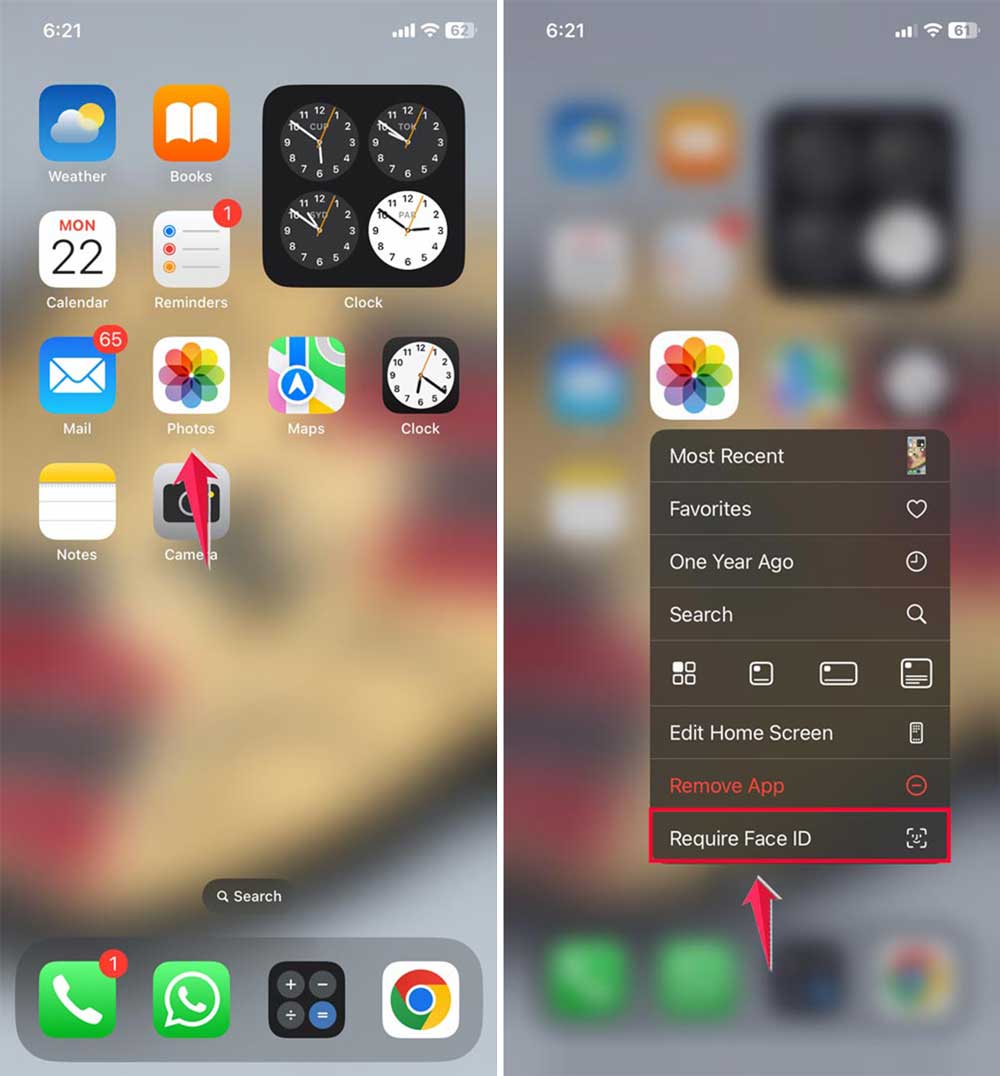
- A prompt will appear asking if you want to require Face ID for Photos. It’ll explain that Face ID will be needed to open the app or use Siri with it. Tap “Require Face ID” to confirm.
- That’s it! Your Photos app is now locked with Face ID.

From now on, whenever you try to open the Photos app, you’ll see a screen saying, “Face ID Required to open Photos“. Just look at your phone like you normally would to unlock it, and you’re in!
Remember, this doesn’t affect other apps that might have access to your photos. You can check which apps have photo access by going to Settings > Privacy > Photos.
You can hide photos within the Photos app after locking the Photos app
Even with Face ID set up on your Photos app, you might occasionally need to share your phone with someone you trust. It’s completely understandable if you wish to keep certain pictures private.
You do not need to worry because Apple has made it easy for you with the Hidden album feature. In the latest iOS version, hiding photos has become simpler than ever!
To hide a photo, you need to:
- Select the photo you want to hide.
- Tap on the three dots (…) in the right corner.
- Scroll down and tap “Hide“.

The photo will then move to this Hidden album.
And, now, to see those hidden photos within the Photos app, you need to:
- Open your Photos app.
- Scroll down to the “Utilities” section.
- You’ll see a “Hidden” album with a lock icon next to it.
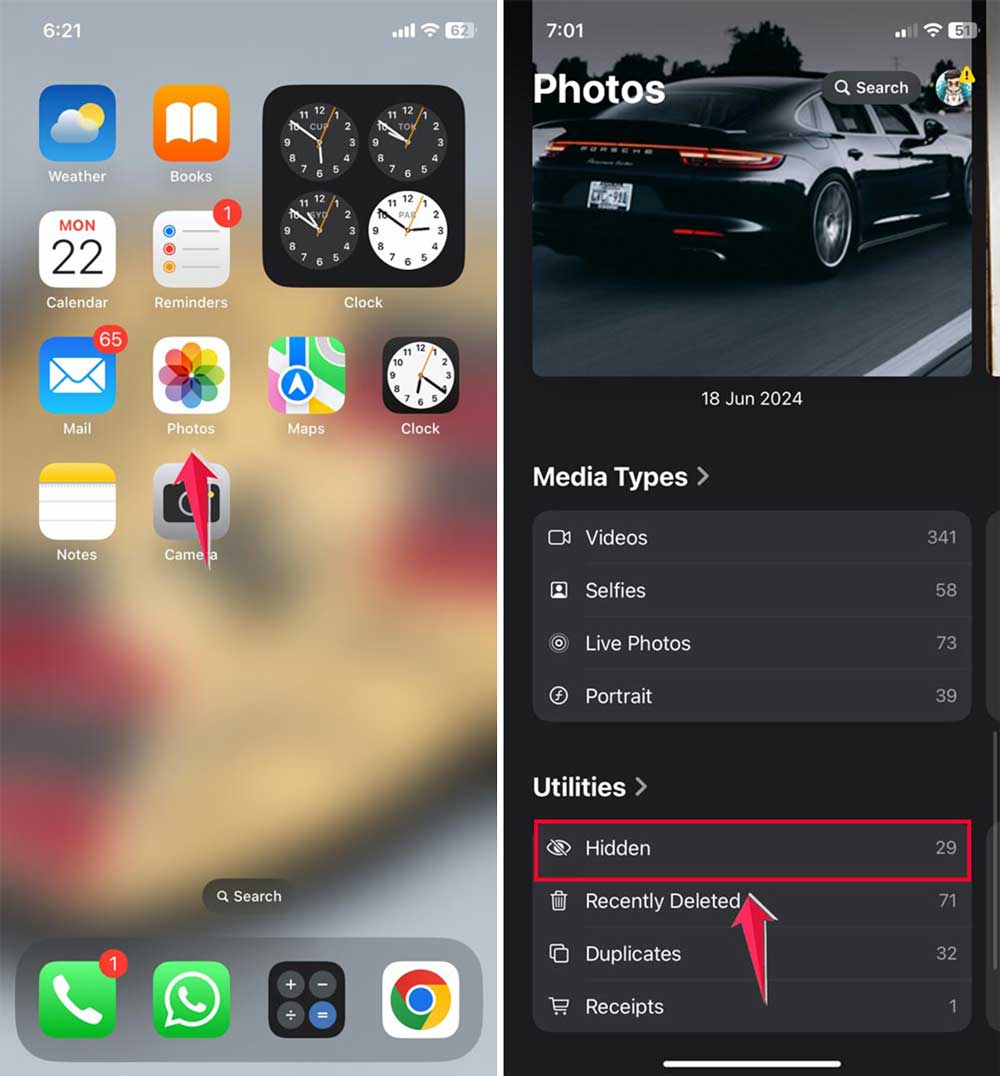
The Hidden album is the perfect place for your private photos when you choose to hide them.
This new setup is fantastic because the Hidden album locks automatically. It requires Face ID or your passcode to open, which gives you extra privacy without any extra effort.
What if Face ID doesn’t work?
If Face ID doesn’t recognize you right away, don’t worry! You might be wearing sunglasses, or your face could be at an unusual angle. After a few attempts, your iPhone will allow you to enter your passcode.
This is the same passcode you use to unlock your phone, so even if Face ID isn’t working, you can still access your photos.
Keep in mind that Face ID improves over time. It learns with each successful unlock, making it easier to use.
Can I still share photos easily?
Of course! Locking your Photos app doesn’t stop you from sharing pictures. Once you unlock the app with Face ID, sharing works just like it did before.
You can send photos through messages, post them on social media, or add them to shared albums.
The lock is only important when someone tries to open the Photos app. You have control over when and how your photos are shared.
To maintain your privacy, you can also clear Instagram search suggestions. This helps keep things organized beyond the Photos app.
The takeaway
Keeping your personal photos private on your iPhone is really easy. With just a few taps, you can use Face ID to lock your Photos app.
This gives you an extra layer of security for those moments you want to keep just for yourself. It protects your photos from nosy friends. It also keeps them safe if your device is lost or stolen.
Do keep in mind that this setting does not affect other apps that might access your photos. It’s a good idea to check your privacy settings to see which apps can view your images.
In the end, it’s all about feeling secure with your personal content. Your iPhone is perfect for planning surprise parties and storing your special memories.
So, go ahead and snap away! Enjoy knowing that your photos are for your eyes only. And until you decide to share them. And remember, you can also hide apps from prying eyes for even more privacy.
That’s it! You have a secret vault for your photos right on your iPhone. Isn’t that cool? I hope you feel more relaxed about your private pictures now!
If you have any thoughts or questions, feel free to drop a comment below. I’d love to chat!