Did you know that the average person checks their phone 58 times a day? With so many glimpses at your lock screen, you might be looking for a bit more control over what you see.
Many iPhone users find the date and time display a bit distracting. Is there a way to hide or reduce these elements?
Apple won’t let you fully hide the date and time on your lock screen. But there are smart tricks to get around this.
These tips can help you customize your lock screen for a cleaner, minimalist look.
In this article, we’ll share an easy method to make the date and time less noticeable on your iPhone lock screen.
We’ll help you make a custom background. This will make the clock blend in and give your phone a sleeker look.
Whether you want a distraction-free lock screen or just a fresh change, we’re here to help!
Can you really hide the date and time on your iPhone lock screen?
Let’s be honest. You can’t completely hide the date and time on your iPhone lock screen. It might be a little disappointing if you hoped for a totally clean look.
Apple designed the lock screen to always show this information, and there isn’t a built-in way to turn it off.
But don’t worry! You’re not alone in wanting more control over your lock screen. Many iPhone users, myself included, have looked for ways to personalize this feature.
While we can’t make the clock disappear, we can certainly make it less noticeable.
Think about why you want to hide the clock. Is it distracting for you?
The trick we’ll discuss involves using a solid black background. This doesn’t remove the clock, but it helps the white text blend in, creating a subtler look.
It may not be perfect, but it’s the best option without jailbreaking your iPhone.
So, while we can’t completely hide the date and time, we can definitely minimize their presence. Are you ready to give it a try?
How to hide the date and time on your iPhone lock screen
Alright, let’s dive into the trick that can help you make the date and time less noticeable on your lock screen.
It’s pretty simple, and you don’t need any special apps or technical skills. Here’s how you can do it:
- Start by going to your iPhone’s home screen and long-pressing on an empty area.
- You’ll see a “+” icon in the top left corner. Tap on it.
- Choose “Add New Wallpaper” from the options that appear.
- Look for “Color” at the top of the screen and select it.
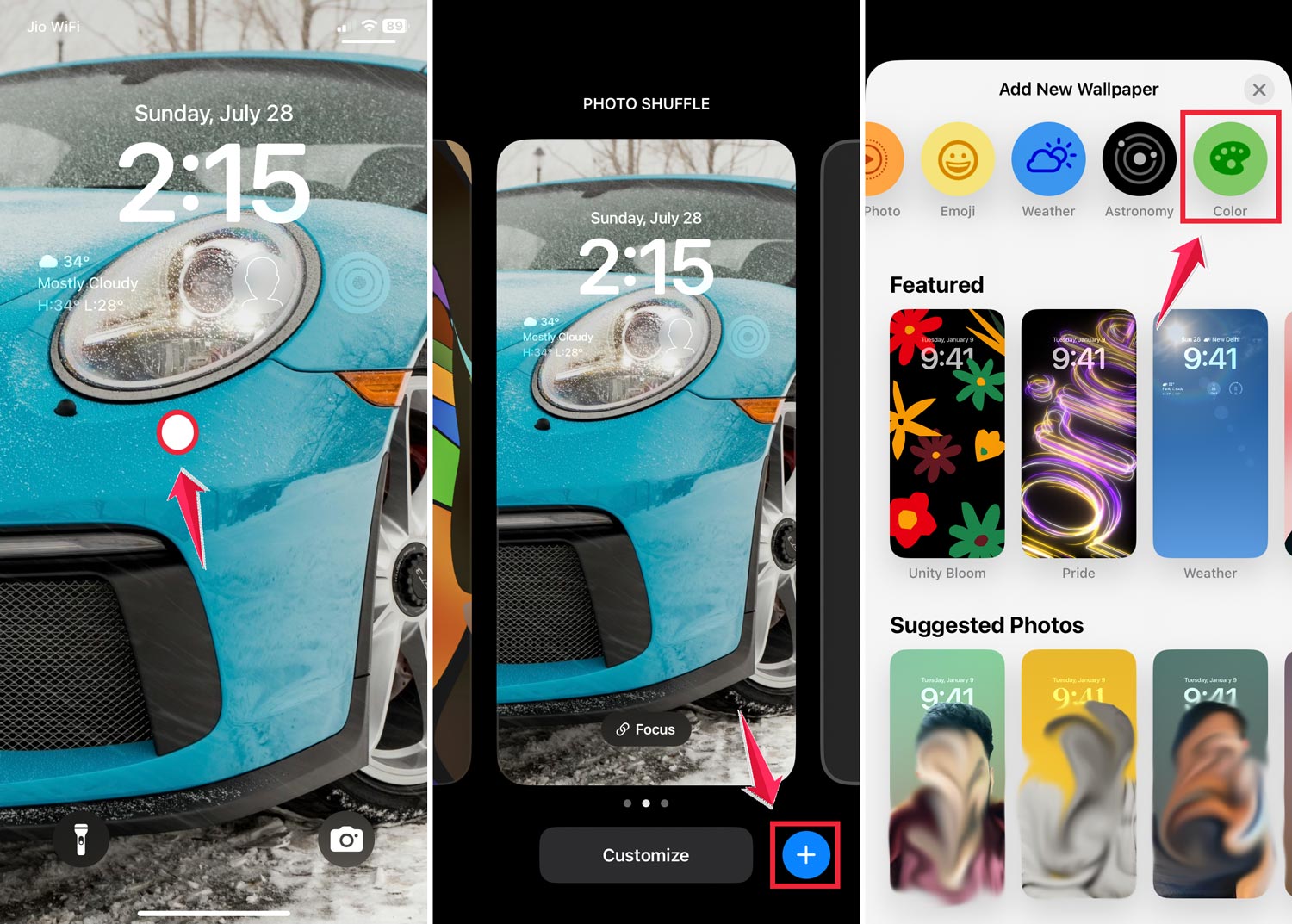
- Now, here’s the key part: slide the color bar all the way to the left. This will give you a solid black background.
- Once you’ve got your black background, tap “Add” in the top right corner.
- You’ll be asked if you want to “Set as Wallpaper Pair” or “Customize Home Screen“.
- Finally, tap “Done” to apply your new wallpaper.

What this does is create a nice, solid black background for your lock screen.
The date and time will still show up, but they’ll appear in white text. This makes them blend in with the dark background, kind of like camouflage for your clock.
Check your solid black image if your wallpaper looks broken or isn’t displaying right.
Do keep in mind, this doesn’t remove the date and time completely. They will still be visible if you take a closer look. But at first glance, your lock screen will look much cleaner and more minimalist.
Have you tried this method before? If not, why not give it a try and see how you like the results?
The takeaway
Customizing your iPhone’s lock screen can be tricky. This is especially true for the date and time display.
Apple doesn’t let us hide these elements completely, but we found an easy way to make them less noticeable.
Using a solid black background gives your lock screen a more minimalist look. This trick doesn’t remove the clock, but it helps the white text blend in with the dark background.
It’s an easy way to achieve a cleaner style without needing complicated settings or extra apps.
Remember, this method is about minimizing, not hiding. You can still see the date and time if you look closely.
This helps when you want to check the time quickly. It’s all about balancing functionality and your personal style.
Your iPhone should reflect what you like. It doesn’t matter if you try this trick or use the default display.
What’s important is that your lock screen meets your needs. Why not give this method a go and see if it enhances your iPhone experience?
We’d love to hear your thoughts on this trick. Have you tried it? How did it work for you? Please share your experience in a single-line comment below!