Let’s be honest. Sometimes, you just don’t want certain apps to be seen. Maybe you’re hiding something personal like a secret chat or a dating app.
Maybe it’s an app your partner, friend, or even parents might ask about, and you’d rather not explain. Or maybe you just want a cleaner screen without all the clutter. Whatever your reason, it’s your phone, and you should have control.
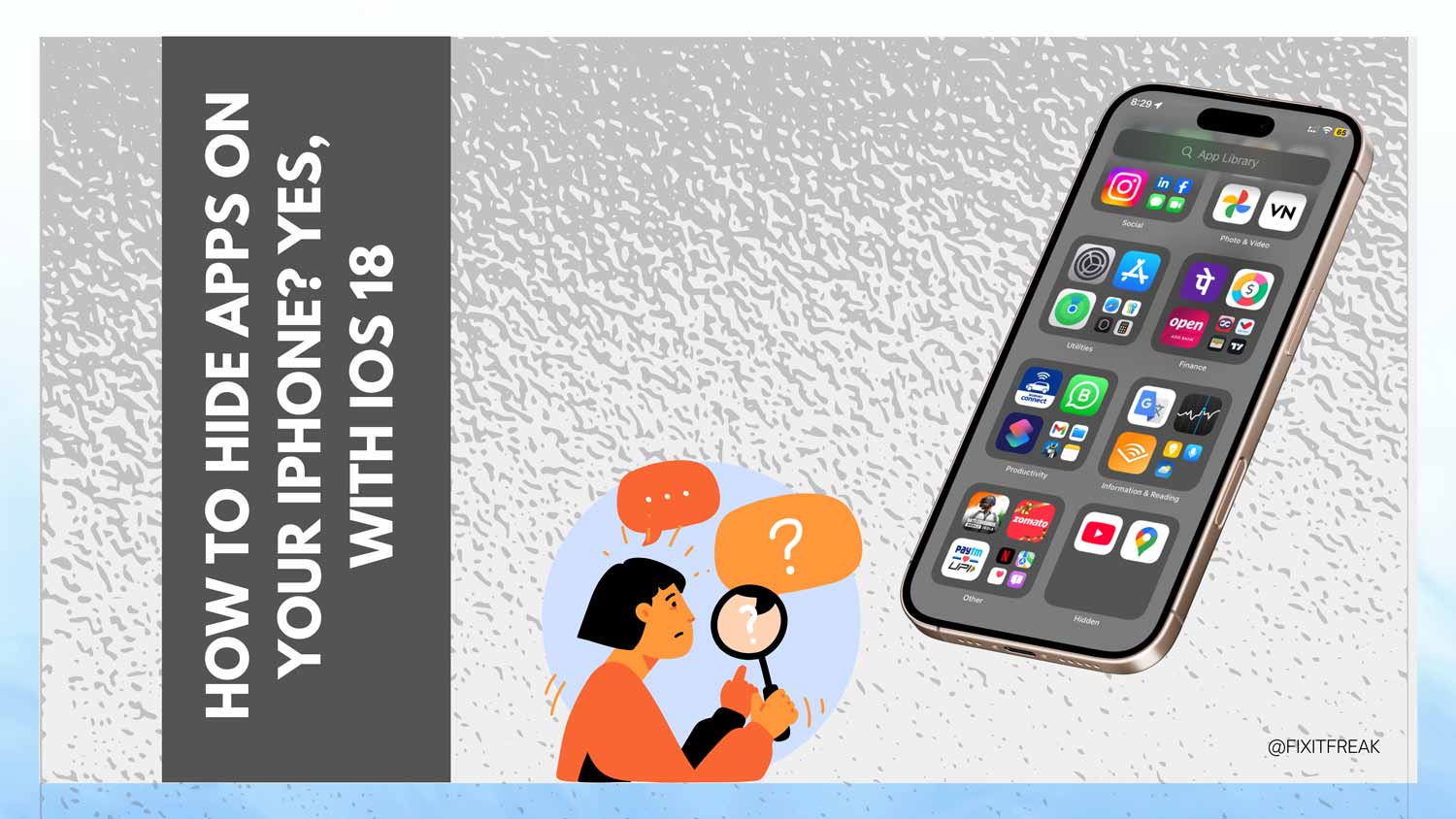
With iOS 18, hiding apps is easier than ever. You can use tools like Face ID or Touch ID to lock apps. Plus, there’s a hidden folder where you can tuck them away safely. Those hidden apps won’t send notifications, so no one gets curious.
In this guide, I’ll show you simple steps to hide apps and protect your privacy. It’s quick, easy, and helps you stay in control of what others can see on your phone. Let’s get started.
Can you hide apps on your iPhone? Absolutely. With iOS 18.
Yes, you can hide apps on your iPhone, and it’s easier than ever with iOS 18. Do you want to keep your personal chats private?
Or maybe you’re tired of explaining why you have that app to your partner or friend. Whatever the reason, you have the tools to take control.
Hiding apps keeps them out of sight. With Face ID or Touch ID, you can lock apps securely. They won’t appear on your home screen. Plus, hidden apps stay quiet. No notifications are popping up to grab attention.
Whether it’s for privacy, avoiding distractions, or managing what your kids see, hiding apps is simple.
You can even move them to a Hidden Folder for extra security. It’s your phone, your choice. Let me show you how to do it step by step.
How to hide apps on your iPhone with iOS 18?
#1: How to hide an app directly on iOS 18
Hiding a single app is easy with iOS 18. Here’s how:
- Press and hold the app icon you want to hide. A menu will pop up.
- Select “Require Face ID” from the options.

- Click on Hide and Require Face ID.
- Confirm by tapping “Hide App.”
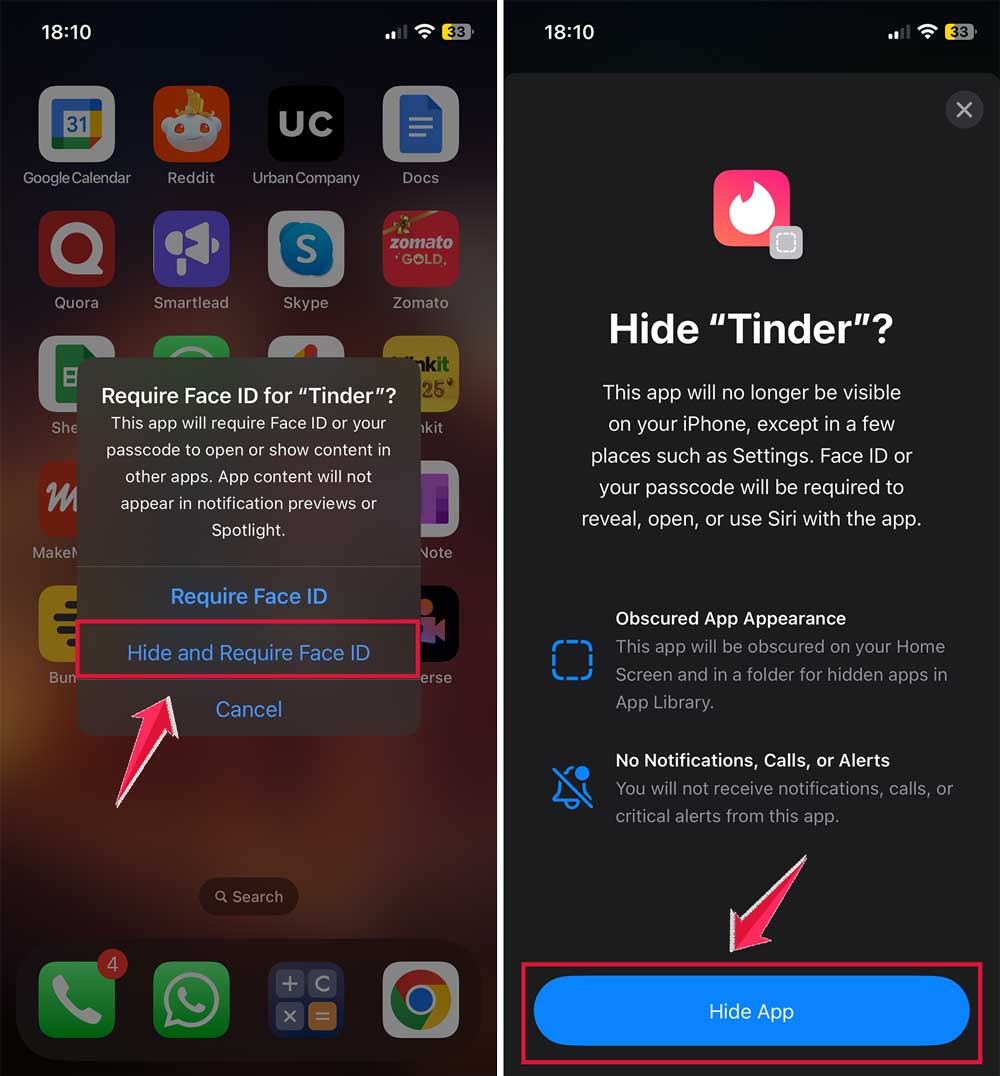
That’s it! The app will move to the Hidden Folder. It won’t show on your home screen anymore. Plus, it won’t send notifications, so no one will know it’s there.
But don’t worry, the app isn’t gone. You can always find it in the App Library. Just swipe to the library, search for the app, and open it whenever you need.
#2: How to hide an entire page of apps
Want to hide more than one app? You can hide a whole page. Here’s how:
- Long press the dots at the bottom of your home screen.
- All your home screen pages will appear.
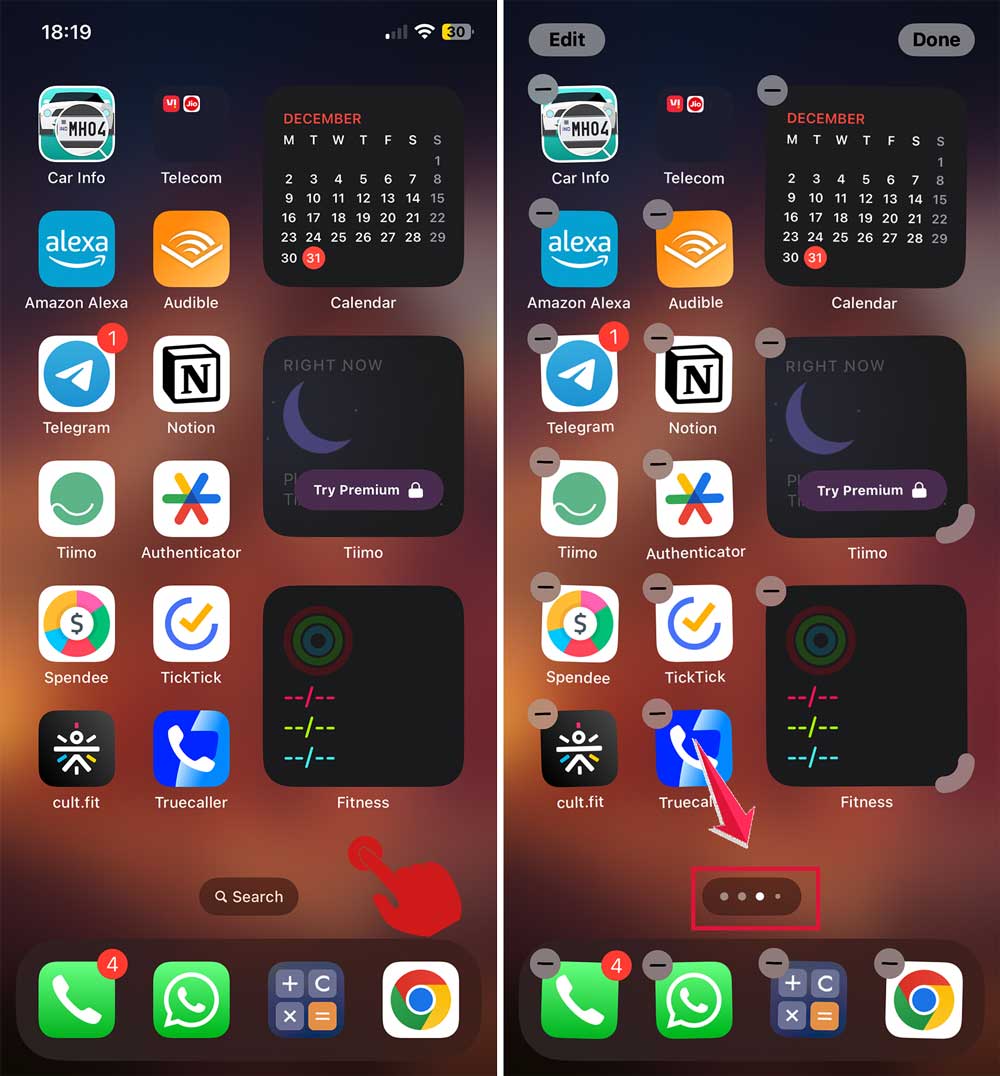
- Uncheck the page you want to hide by tapping the circle below it.
- Tap “Done” to save your changes.
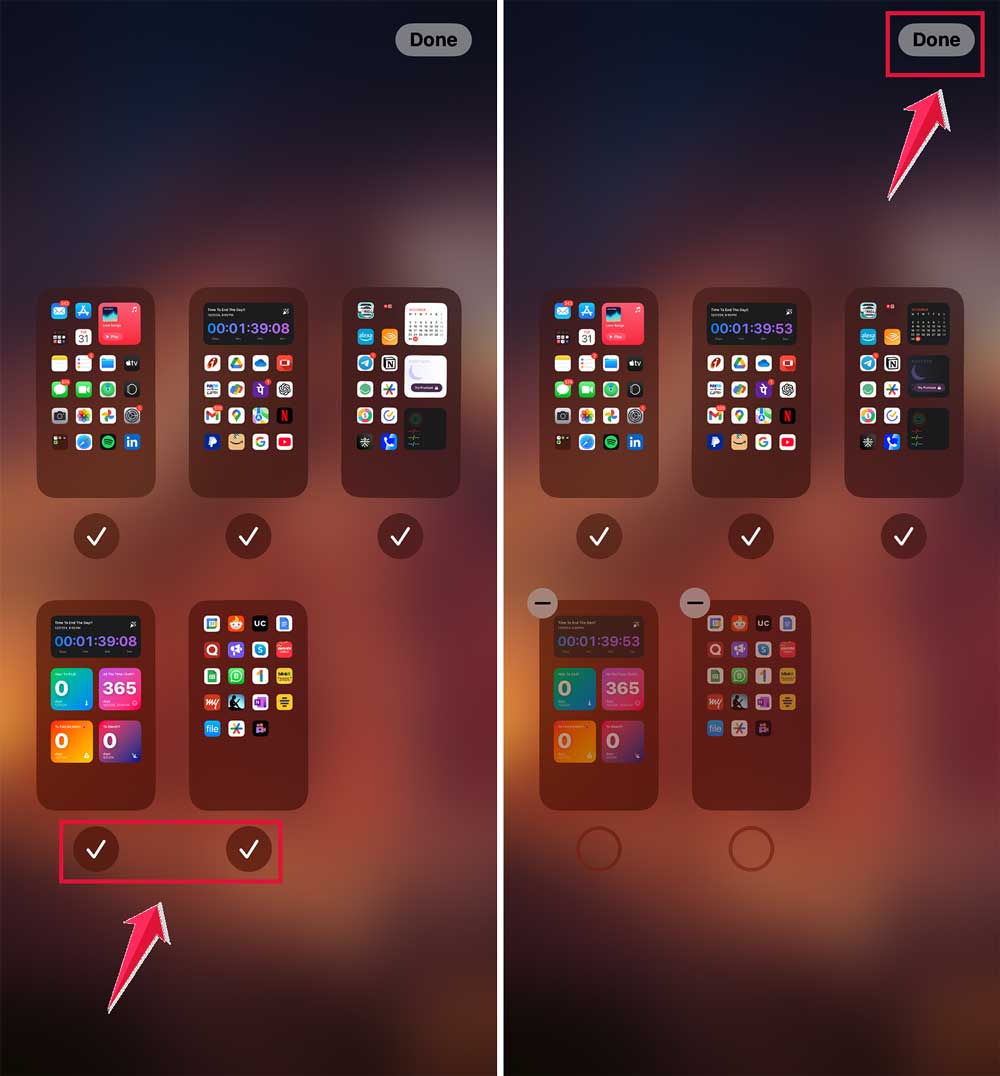
Now, the entire page is hidden. It’s perfect for grouping and tucking away apps you don’t use often. And when you want them back? Repeat the steps and recheck the page.
This feature is great for decluttering. Keep your home screen clean while still keeping all your apps within reach.
#3: How to prevent hidden apps from showing up in search
Hiding an app isn’t always enough. You might also want to keep it out of Spotlight Search. This adds an extra layer of privacy. Here’s how to do it:
- Open Settings on your iPhone.
- Tap Siri.

- Scroll down and Click on Apps.
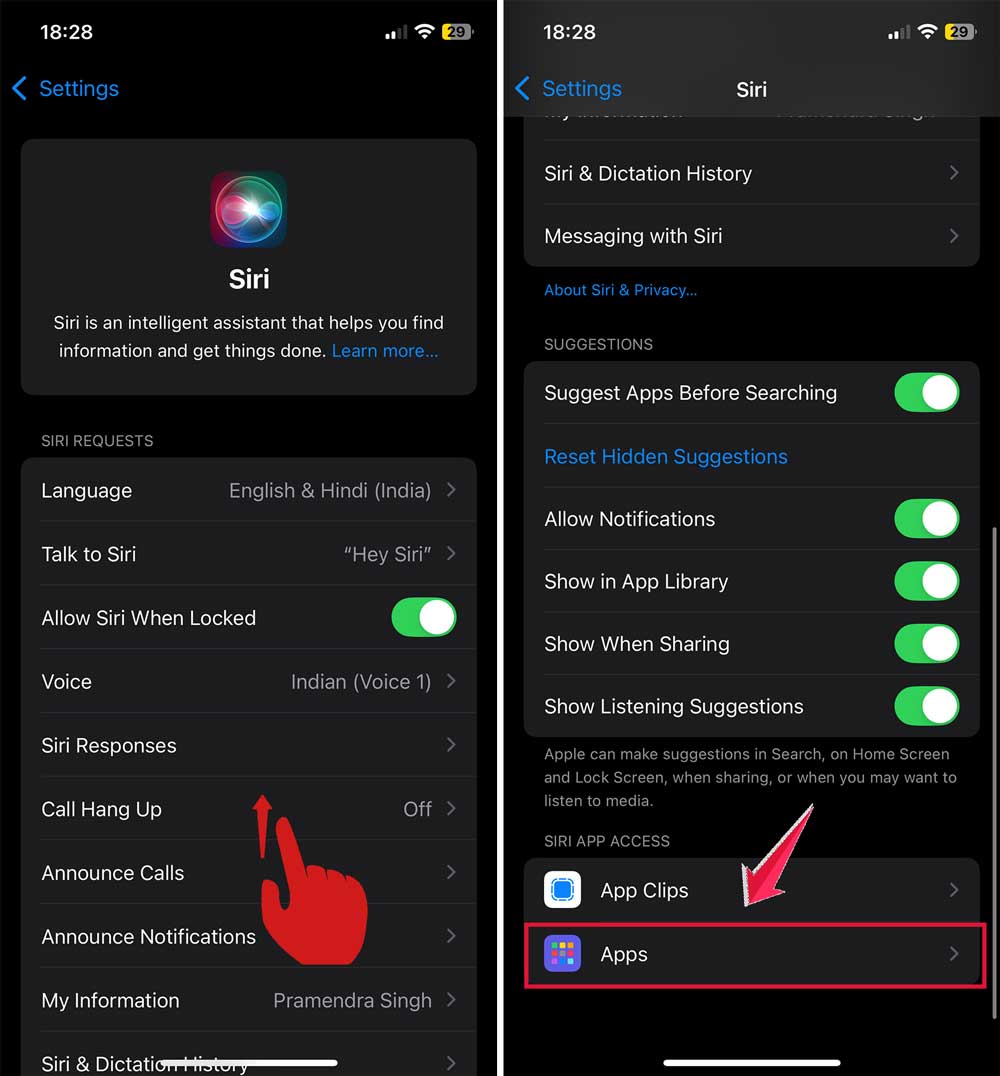
- Select the app you want to hide from the search.
- Toggle off “Show On Home screen.”
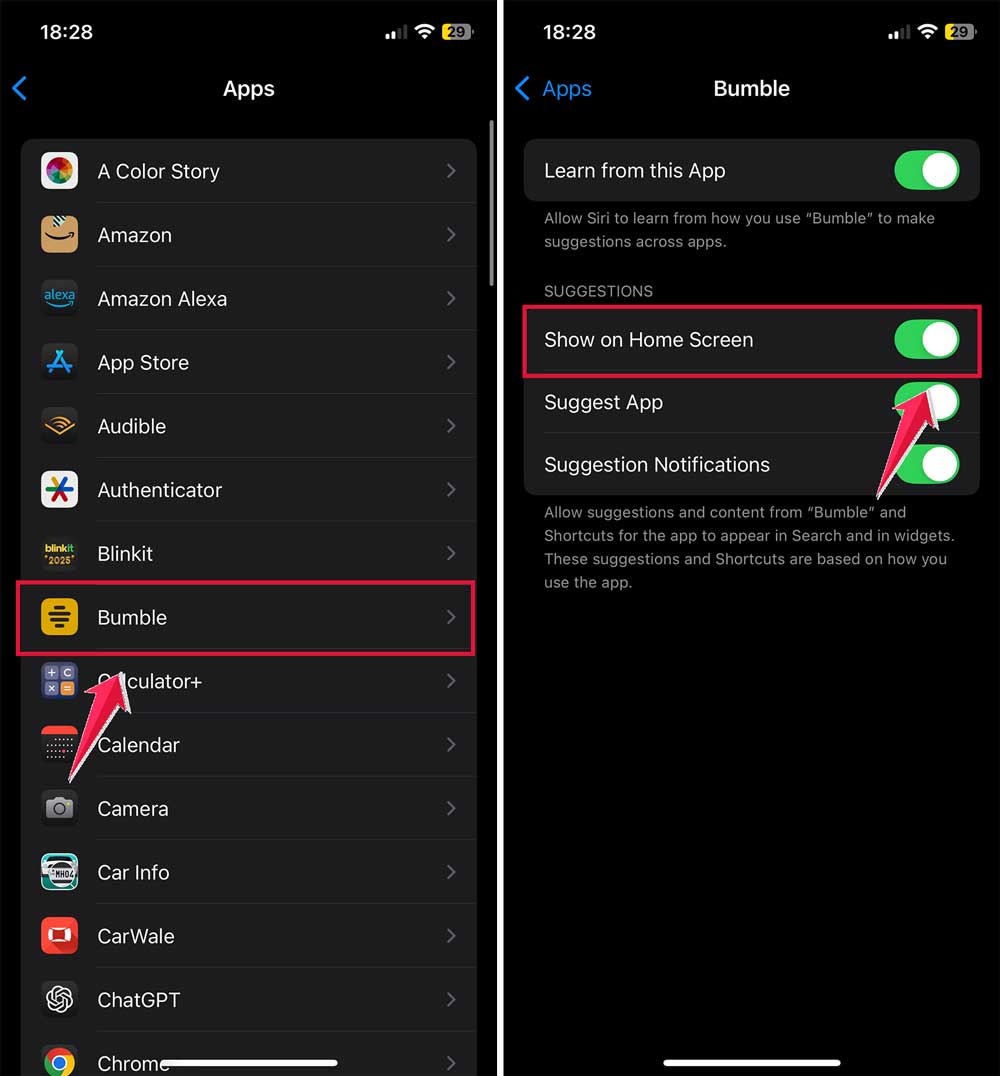
Now, even if someone searches for the app, it won’t show up in the results. This ensures no one accidentally finds your hidden apps, keeping them completely private.
#4: Using folders to hide apps in plain sight
Sometimes, you don’t need to fully hide an app. Instead, you can use folders to keep it out of sight but still easy to access. Here’s how:
- Create a folder by dragging one app onto another.
- Add the apps you want to hide into this folder.
- Move the folder to a less visible page of your home screen.
For extra stealth, rename the folder to something boring, like “Utilities” or “Tools.”
#5: How to hide apps using Shortcuts (Bonus Tip)
Here’s a clever trick: You can use the Shortcuts app to hide apps while keeping a decoy visible. This method is creative and gives you extra customization options.
- Open the Shortcuts app on your iPhone.
- Tap the “+” in the top right corner to create a new shortcut.
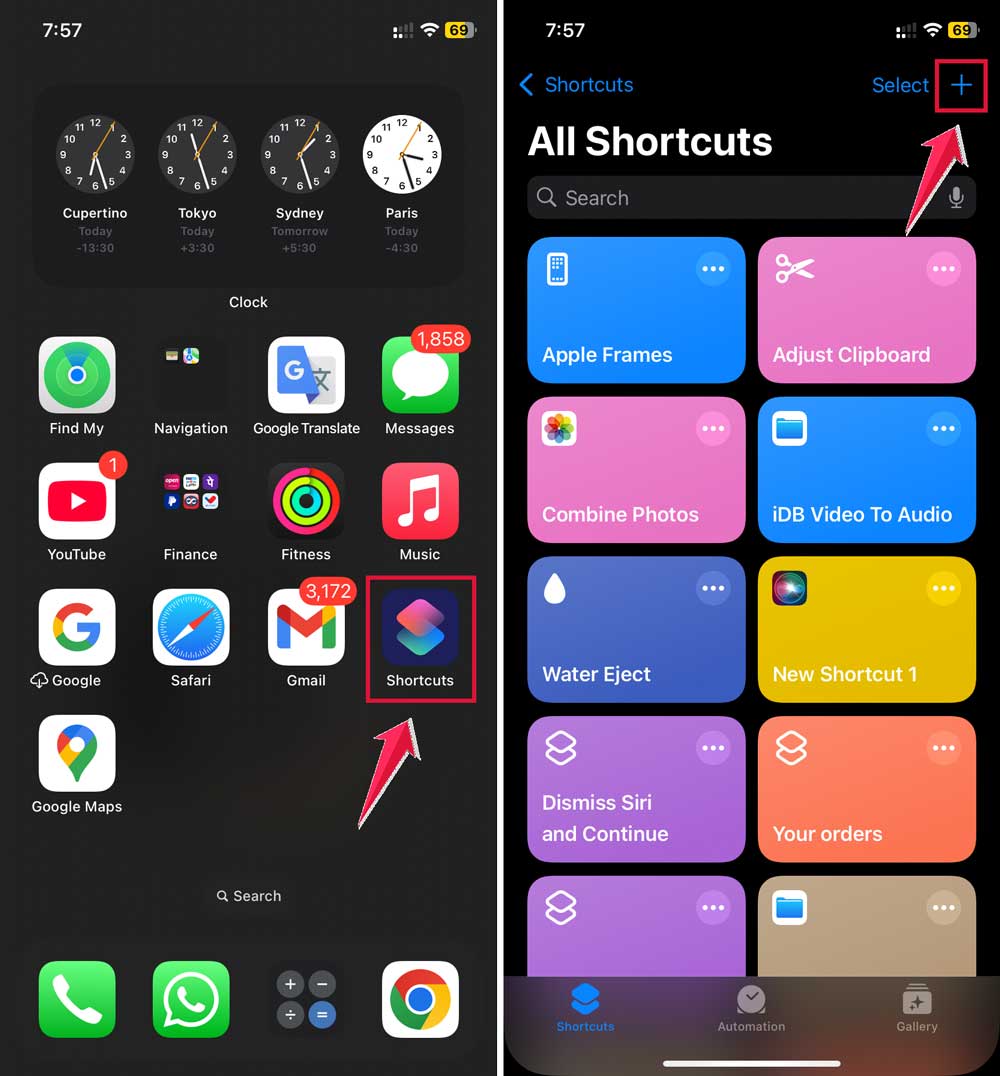
- Select “Open App” then Click on App.

- Pick the app you want to hide. This will link the shortcut to that app.
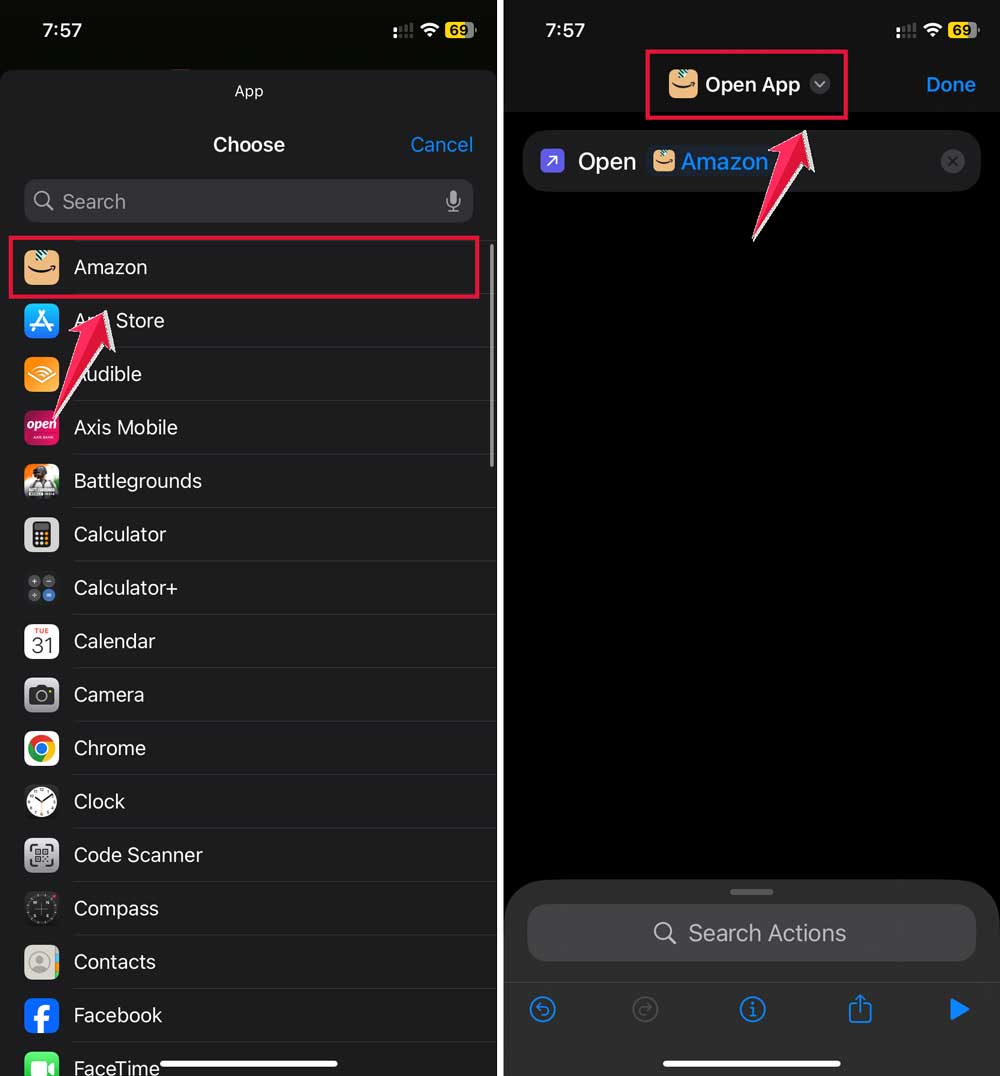
- Customize the shortcut.
- Rename it to something less obvious (e.g., “Notes” or “Tools”).
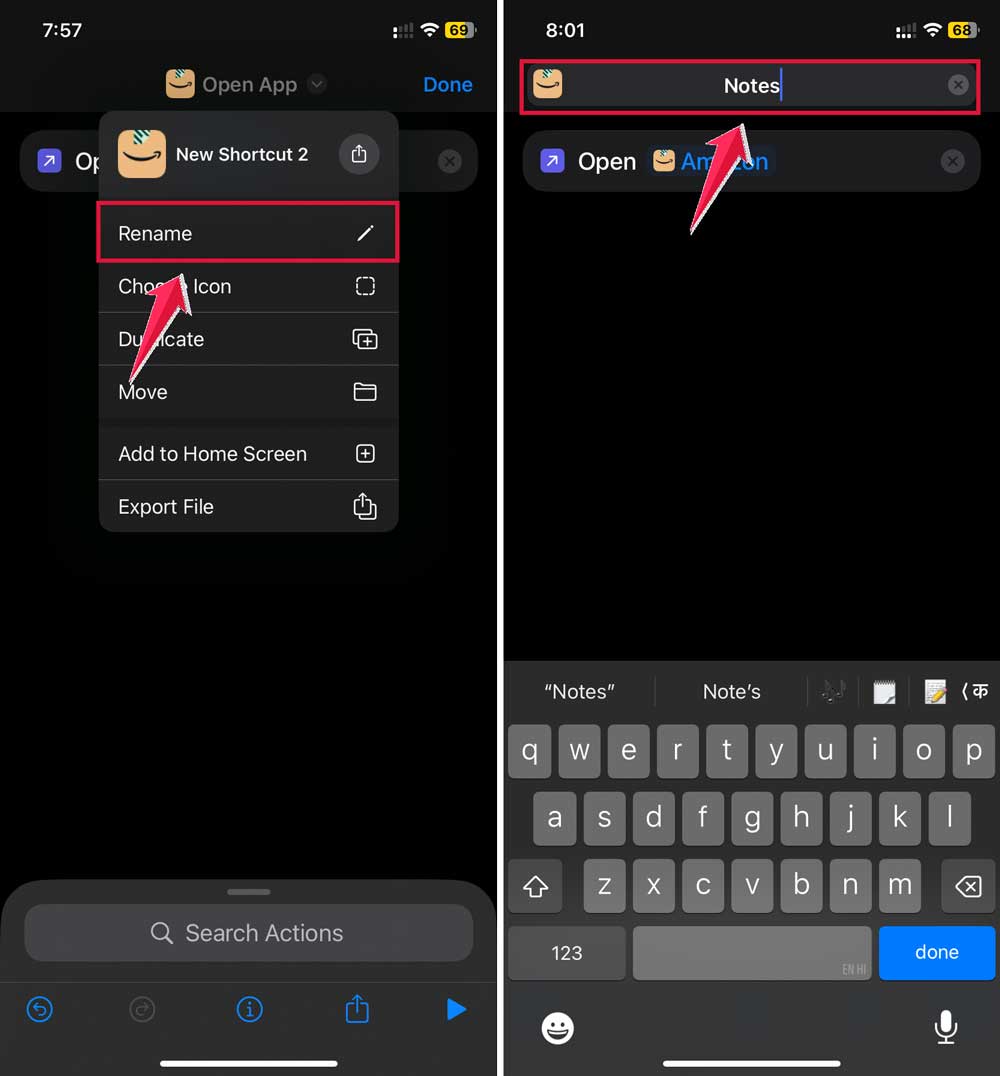
- Click on the down arrow button then tap on the Choose icon.

-
- Change the icon to match your decoy name.

Once your shortcut is ready, add it to your home screen. Then, hide the original app using one of the methods we’ve covered.
Now, you have a hidden app that’s only accessible through the Shortcut.
It’s simple, sneaky, and perfect for keeping your apps private. Plus, it looks like any other app on your home screen.
How to unhide hidden apps on your iPhone
Hiding an app doesn’t mean it’s gone. So, don’t be afraid at all. You can find and unhide it anytime. Let me walk you through it.
- Open Settings > Siri.
- Scroll down and Click on Apps.
- Find the app and toggle on “Show On Home Screen.”
- If you want it back on your home screen, go to the App Library. Drag the app out of the library and drop it onto the home screen.
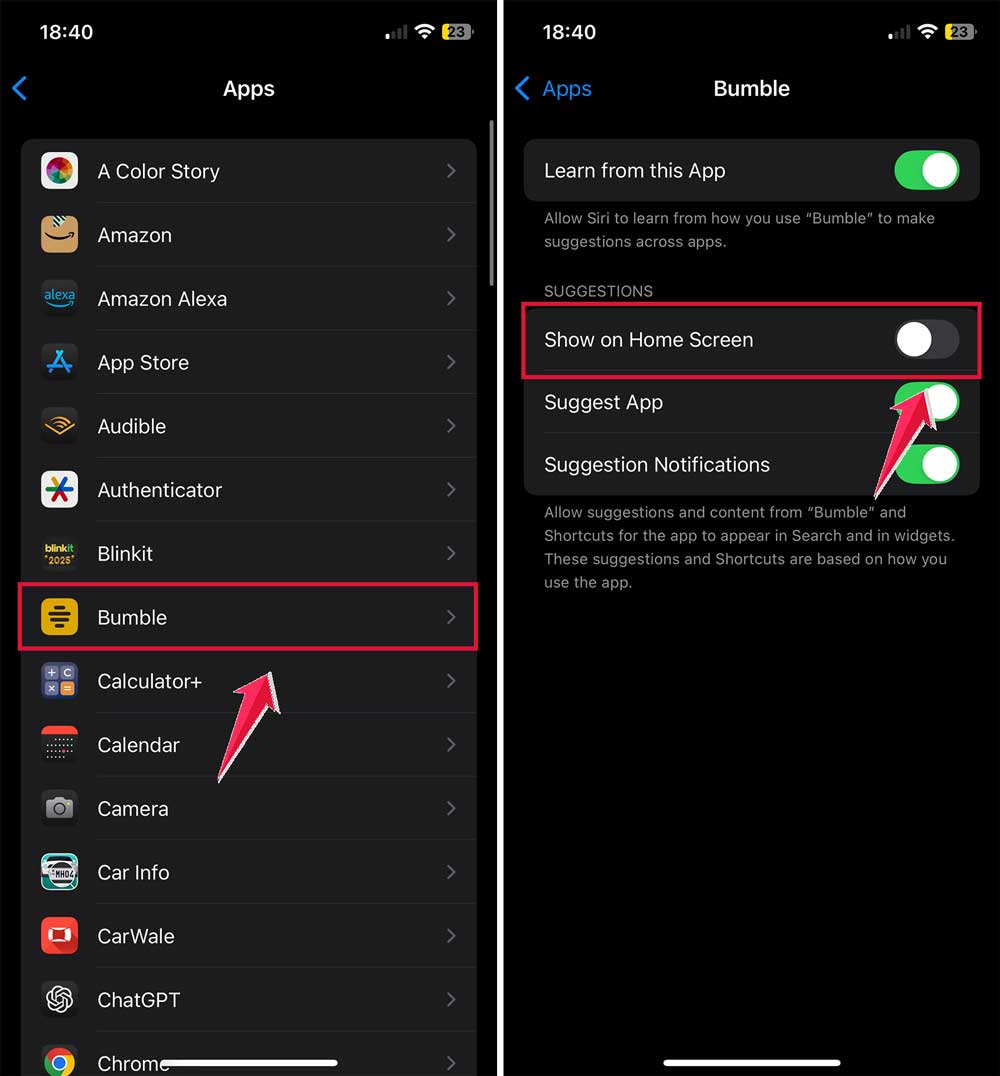
That’s it! Your app is no longer hidden. It’s back where you can see and use it easily.
How to access hidden apps
Finding hidden apps is simple. First,
- Swipe left on your home screen to open the App Library.
- Scroll to the Hidden Folder or type the app’s name into the search bar at the top.
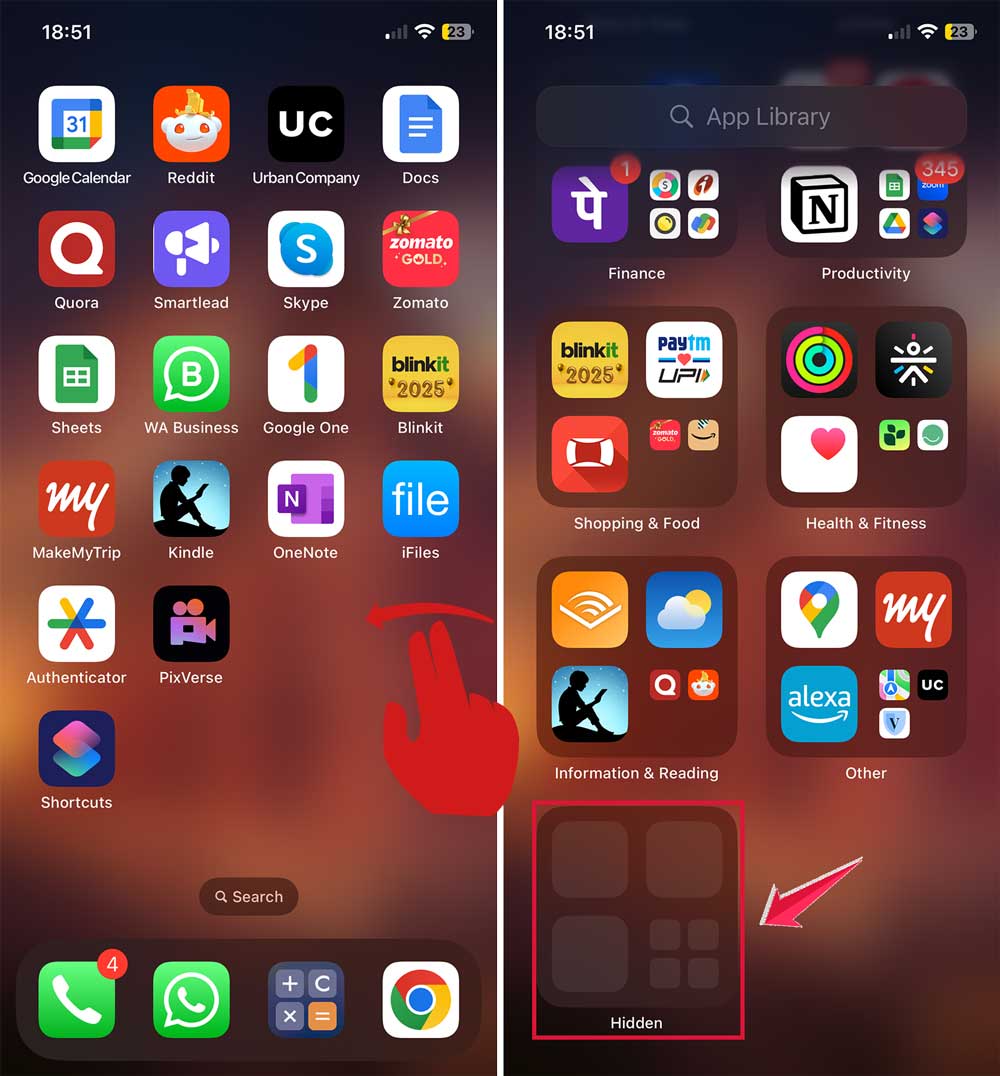
- Tap the app to open it.
- If it’s locked, you’ll need to authenticate with Face ID or Touch ID.

Another way? Open the App Store. Tap your profile icon, then go to Purchased Apps. Find the hidden app and tap Open.
If you’ve hidden the app using Shortcuts, just tap the shortcut on your home screen to launch it.
These steps make it easy to access your hidden apps whenever you need them.
Tips for optimizing your app management
Managing your apps isn’t just about hiding them. It’s also about keeping your iPhone running smoothly. Let’s go over a few quick tips.
1. Use Optimized Battery Charging
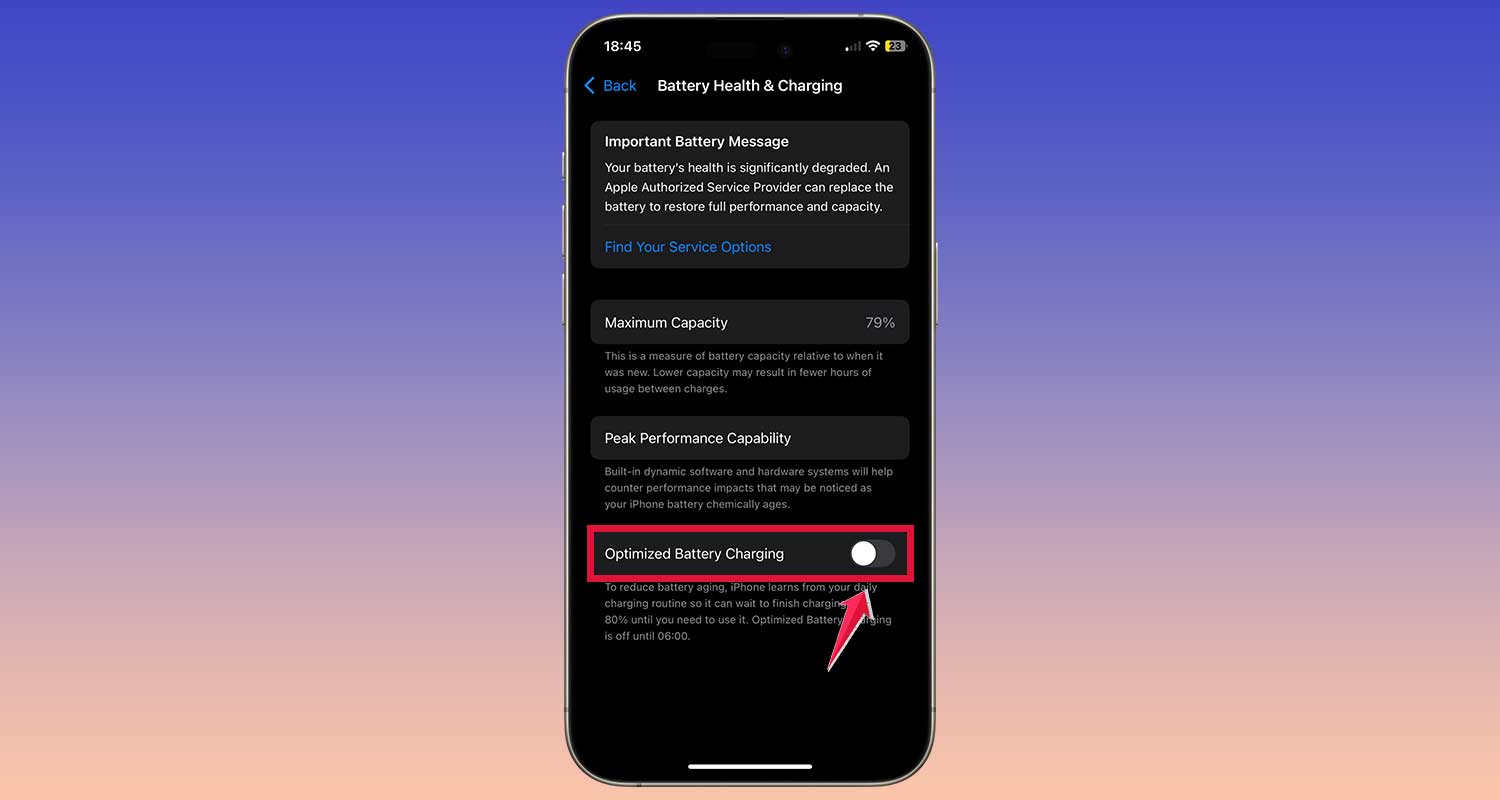
This feature helps your battery last longer. It slows down charging when your phone doesn’t need to be at 100%. To turn it on:
- Go to Settings.

- Tap on Battery.
- Click on Battery Health & Charging.

- Toggle on “Optimized Battery Charging.”
2. Keep apps updated
Outdated apps can cause problems. Updates ensure compatibility with the latest iOS 18 features and fix bugs.
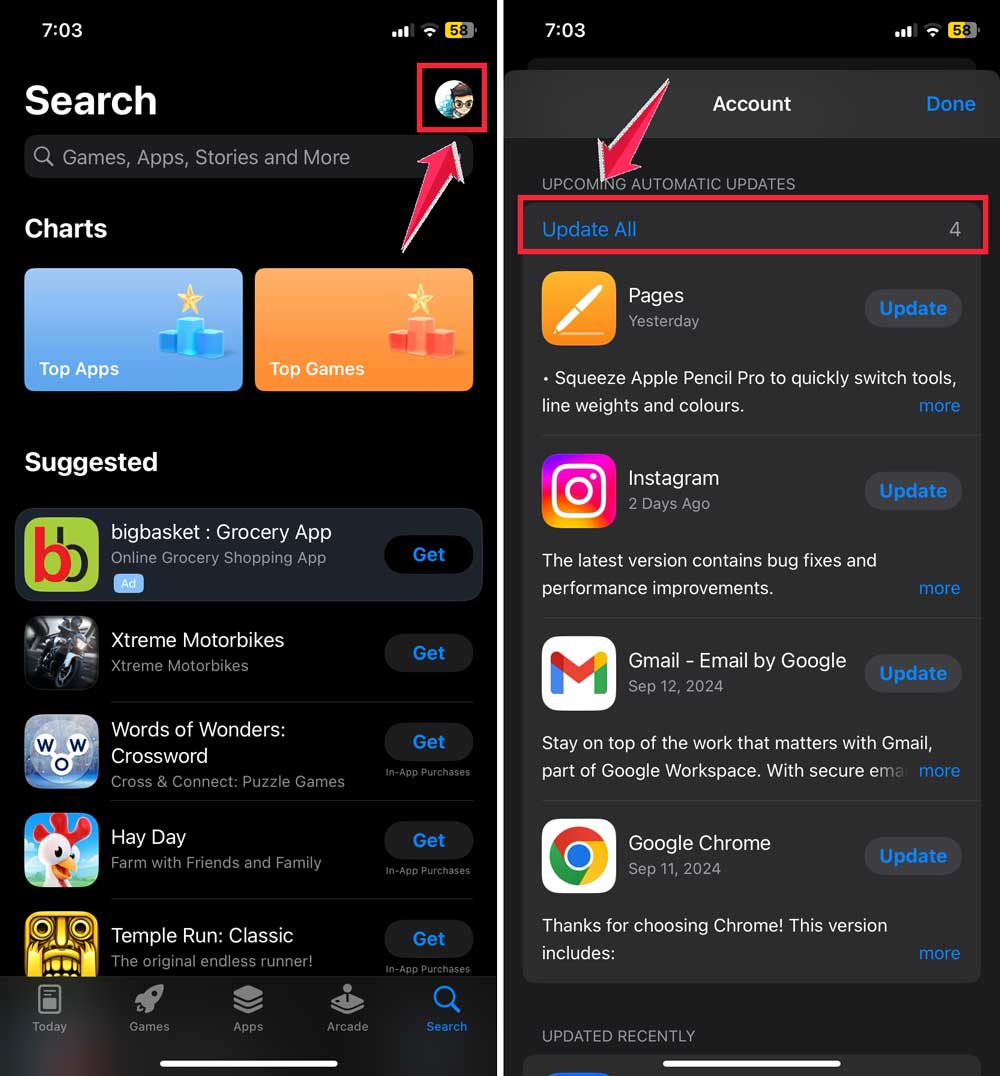
- Open the App Store.
- Tap your profile icon.
- Scroll down and tap “Update All” if updates are available.
3. Reset settings if needed
If your apps behave strangely, a settings reset can help. Don’t worry, this won’t delete your data. It just restores system settings.
- Open Settings > General > Transfer or Reset iPhone.

- Tap “Reset”, then choose “Reset All Settings.”

By following these tips, you’ll keep your iPhone efficient, apps functional, and everything running smoothly.
The takeaway
Hiding apps with iOS 18 is easier than ever. It’s practical, quick, and gives you full control over your phone’s privacy and organization.
I remember the days when we used to miss this feature coz Android users had this feature for years. And, even apps on the Play Store used to provide this feature. Now, it’s on the iPhone as well.
Well, you’ve learned several methods to hide apps. You can directly hide an app with Face ID. You can hide entire pages to declutter. Or use folders and Shortcuts for clever, personalized options. Each method is simple and works for different needs.
Now, it’s your turn. Take control of your phone’s organization and privacy today. Your digital space should work for you—not against you. With these tools, you’ve got everything you need.