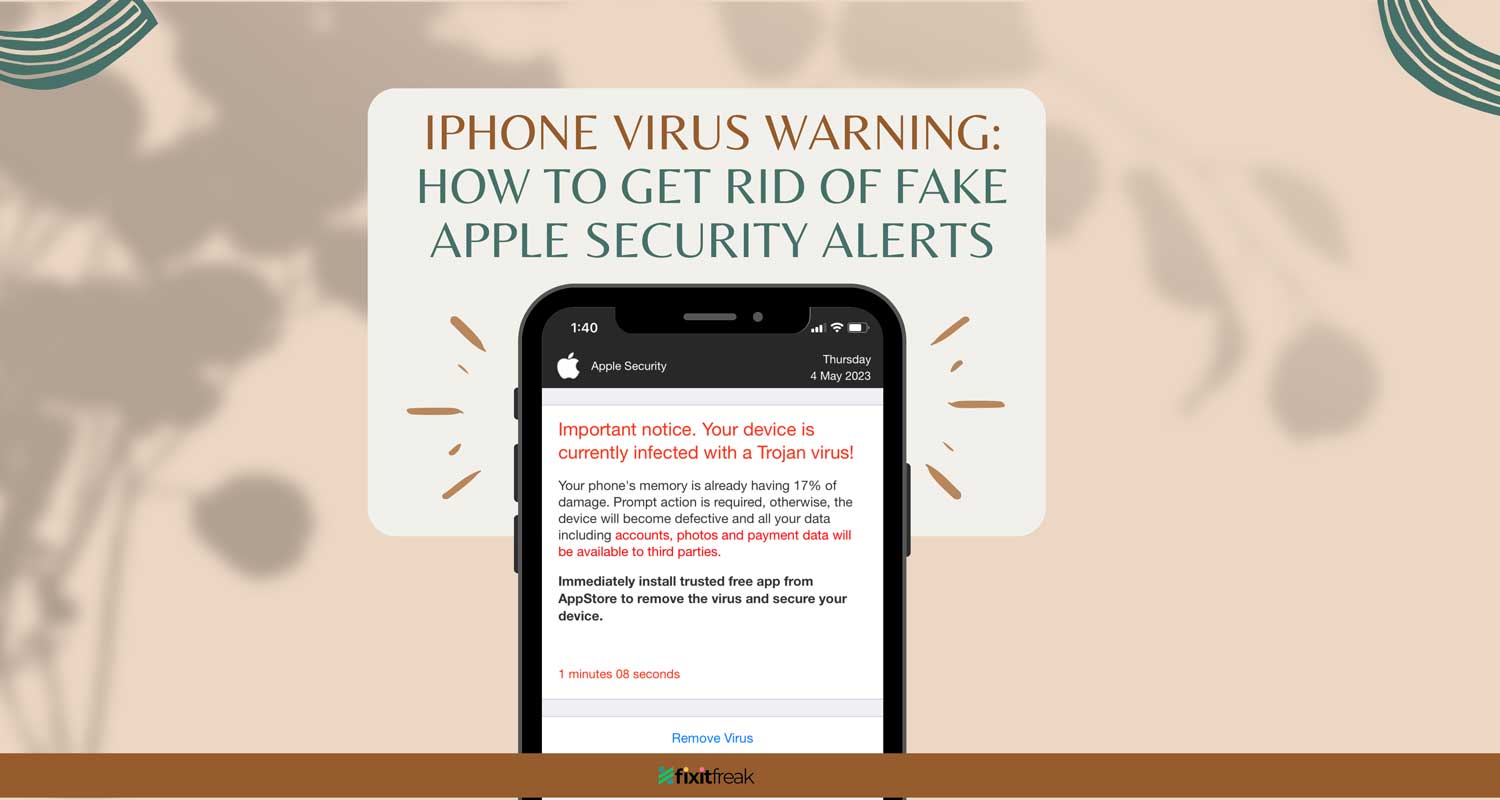
Ever been browsing on your iPhone when a scary pop-up appears, claiming your device is at risk?
These “Apple virus warnings” are often scams trying to trick you into clicking a link or making a call. But don’t worry.
You can protect yourself from these deceptive alerts.
These fake warnings aren’t just annoying. They can be dangerous. Falling for these scams could put your personal information at risk.
The good news is that you can easily defend against these pop-ups by turning on your iPhone’s built-in pop-up blocker.
This simple step can go a long way in keeping your browsing experience safe and worry-free.
By following these steps, you’ll be better protected against fake virus warnings and can enjoy a safer online experience on your iPhone.
How to Get Rid of Fake iPhone Virus Warnings
If you see a pop-up claiming “Apple Security Warning on iPhone, Virus Detected,” remember this: Apple doesn’t send security alerts like these on iPhones or iPads.
These are fake warnings designed to trick you. Here’s what you should do:
Avoid tapping on it, calling any numbers, or trying to close it using options within the pop-up. These could lead you to harmful websites.
- Step 1: Avoid touching anywhere on the pop-up. Instead, go for the tab icon.
- Step 2: Close the tab by hitting the X button or swiping up to exit safely.
- Step 3: Open the Settings app on your iPhone.
- Step 4: Switch on Airplane Mode. This cuts off internet access temporarily, allowing you to clean up your browser without interference.
- Step 5: Scroll to and tap on Safari.
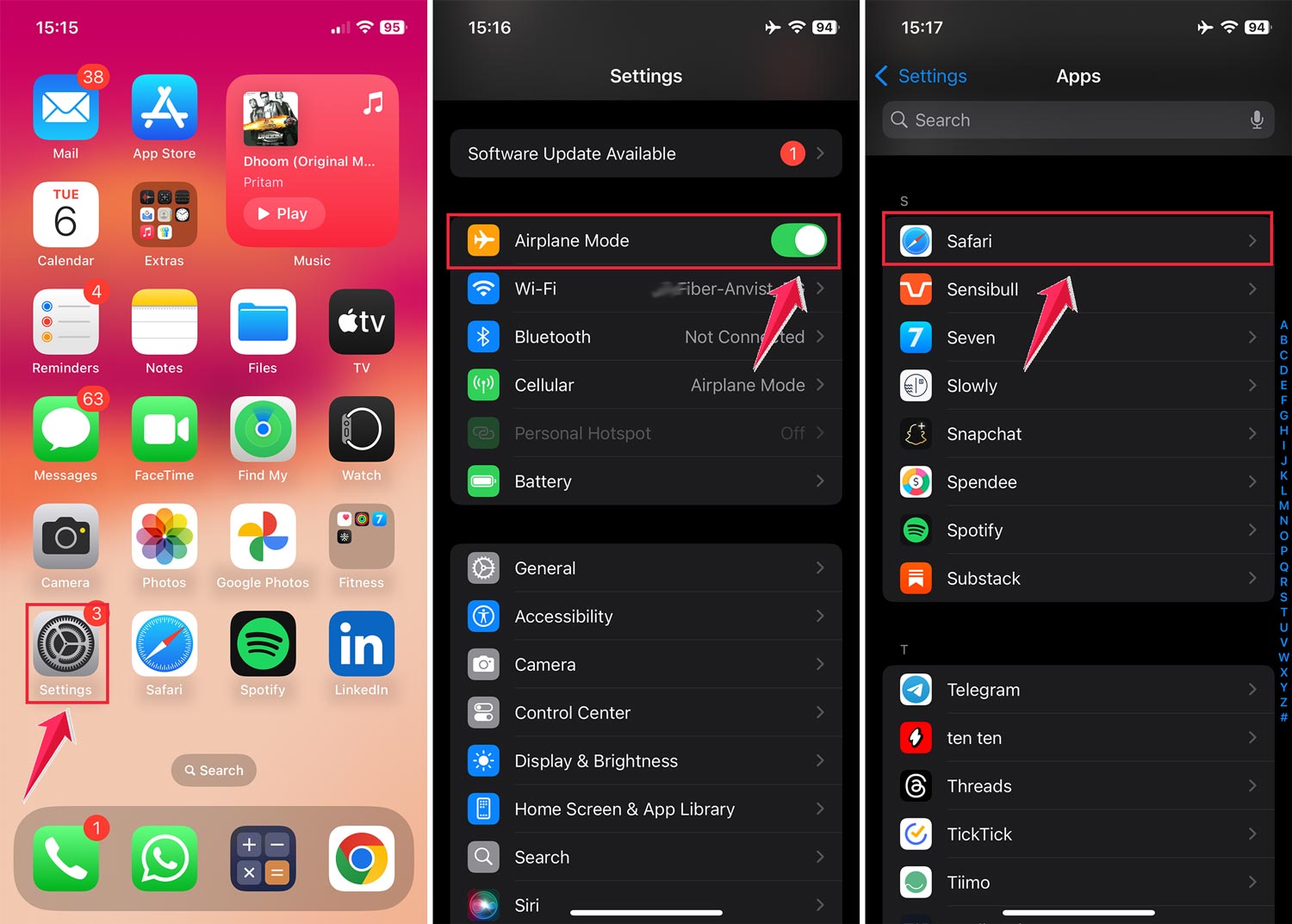
- Step 6: Choose Clear History and Website Data to erase traces of the scam. If issues persist, you can also reset Safari to clear out issues and start fresh.
- Step 7: While in Safari settings, enable Fraudulent Website Warning.
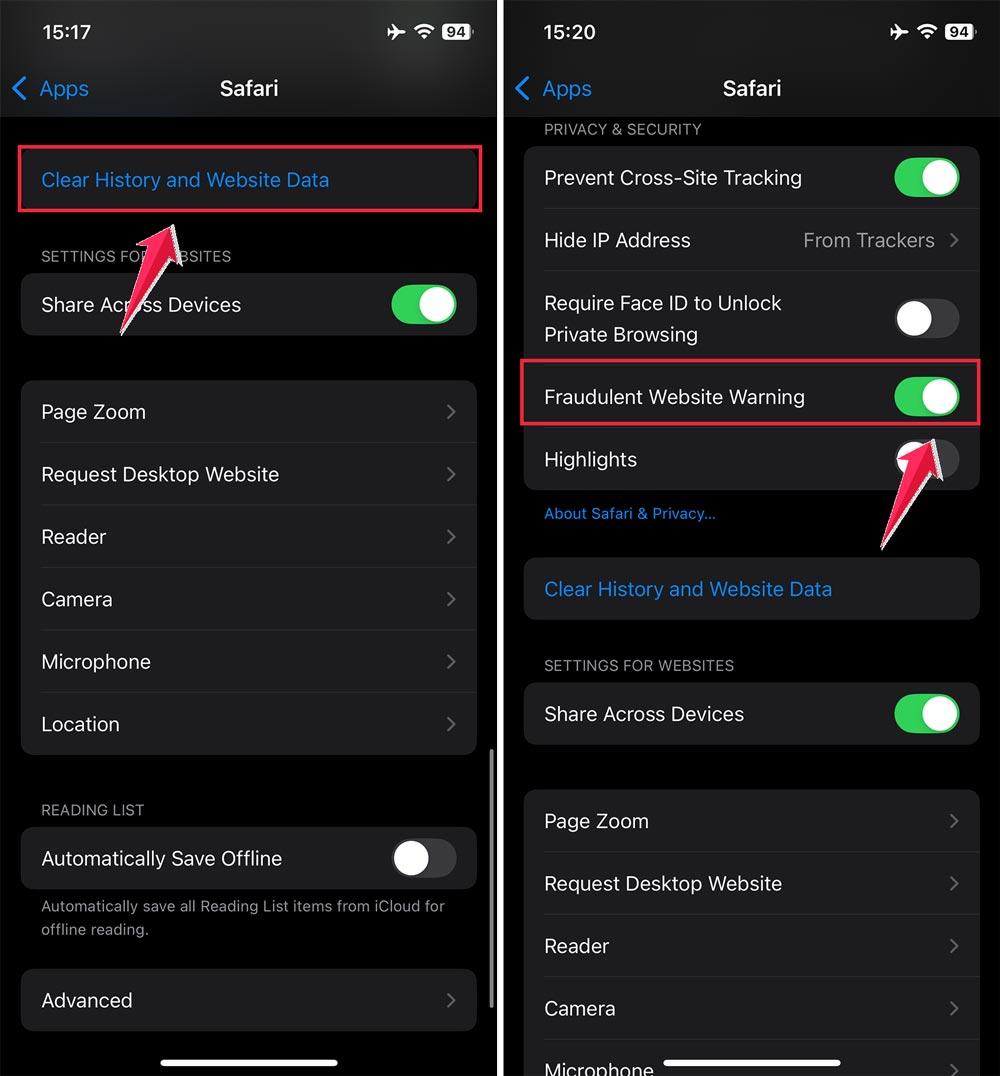
- Step 8: Turn on Block Pop-ups to enhance security.
- Step 9: Head back to Settings and turn Airplane Mode off.

When you reopen Safari, those fake Apple virus warnings should be gone. If you didn’t interact with the fake warning, your iPhone should be safe.
Conclusion
In conclusion, always stay vigilant when you encounter unexpected pop-ups while browsing on your iPhone. Remember, genuine Apple security alerts don’t pop up in your browser.
By not interacting with these deceitful warnings and following the step-by-step guide above, you can effectively block these scams and protect your device.
You can also take extra steps to block intrusive ads on iPhone that often disguise themselves as warnings.
Empower yourself by taking control of your iPhone’s settings to ward off these threats.
Turn on the features like Block Pop-ups and Fraudulent Website Warning to keep your browsing safe.
Remember, knowledge is power. Staying informed about common scams can help you avoid them.