Have you ever opened your Mac and seen a message saying, “Your screen is being observed“? If so, you’re not alone.
This message often appears on the lock screen, right where you type in your password. You might also spot it at the top of your screen, next to an icon that looks like two squares overlapping.
Don’t worry – this message isn’t as scary as it sounds. In this guide, you’ll learn why this message shows up and what you can do about it.
We’ll walk you through some simple steps to address this issue and make sure your Mac is secure. Let’s get started.
What Does “Your Screen Is Being Observed” Mean?
Before we look at how to fix this issue, it’s important to understand why you might see this message on your Mac. Here are some common reasons:
You might be sharing your screen. You might see this message when you’re sharing your Mac’s screen with someone else. This could be for work, helping a friend, or during a presentation.
Apps That Can See Your Screen. Some apps on your Mac might have permission to see what’s on your screen, similar to how certain apps from unidentified developers need special permissions. If you’ve allowed an app to do this, it could trigger this message.
Using AirPlay. If you’re using AirPlay to show videos or mirror your screen to another device, you might see this message.
Recording Your Screen. When you’re recording what’s happening on your screen, perhaps for a tutorial or to capture something important, this message will appear.
Possible Security Issue. In rare cases, this message could mean that someone is looking at your screen without your permission. This isn’t common, but it’s worth considering if you can’t figure out another reason for the message.
How to Fix “Your Screen Is Being Observed” Message?
Now that you’re familiar with the potential causes of the “your screen is being observed” message, let’s explore practical solutions to secure your screen:
1. Check Your Sharing Settings
Screen sharing on your Mac could be intentional or accidental. Here’s how to ensure it’s not exposing your screen:
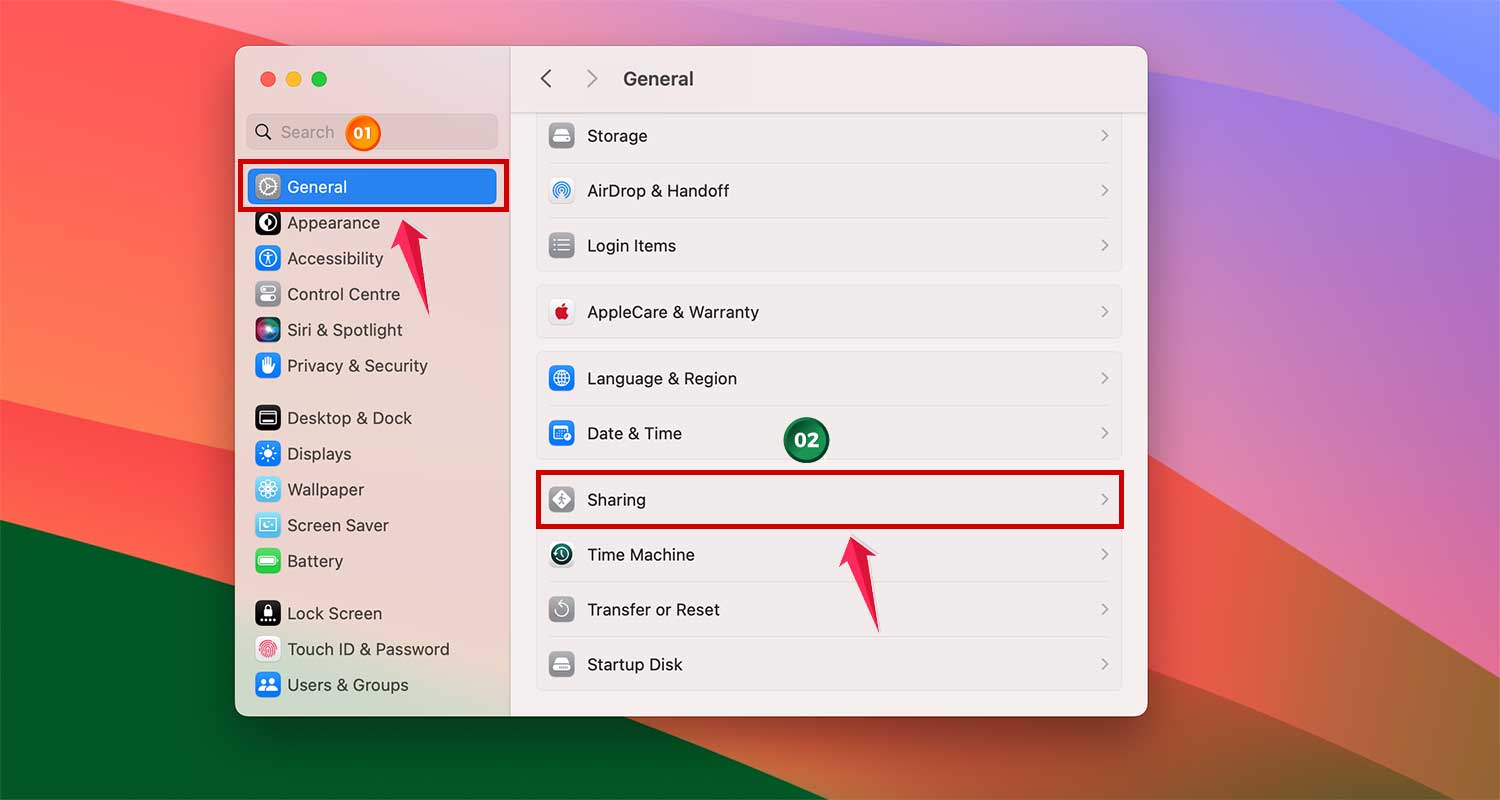
- Open the Apple menu and Navigate to System Settings.
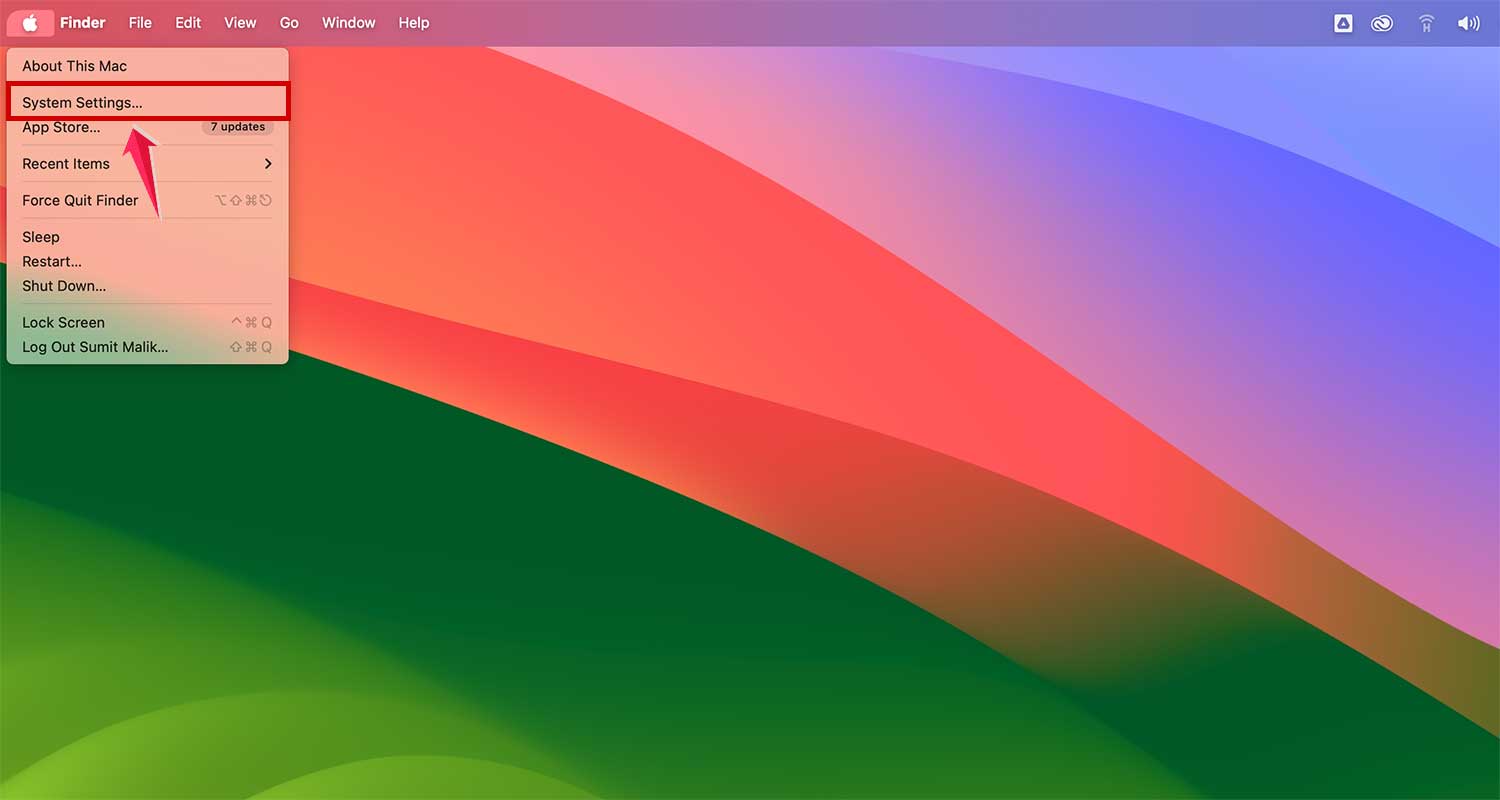
- Go to General > Sharing.
- Ensure that both Screen Sharing and Remote Management are turned off.
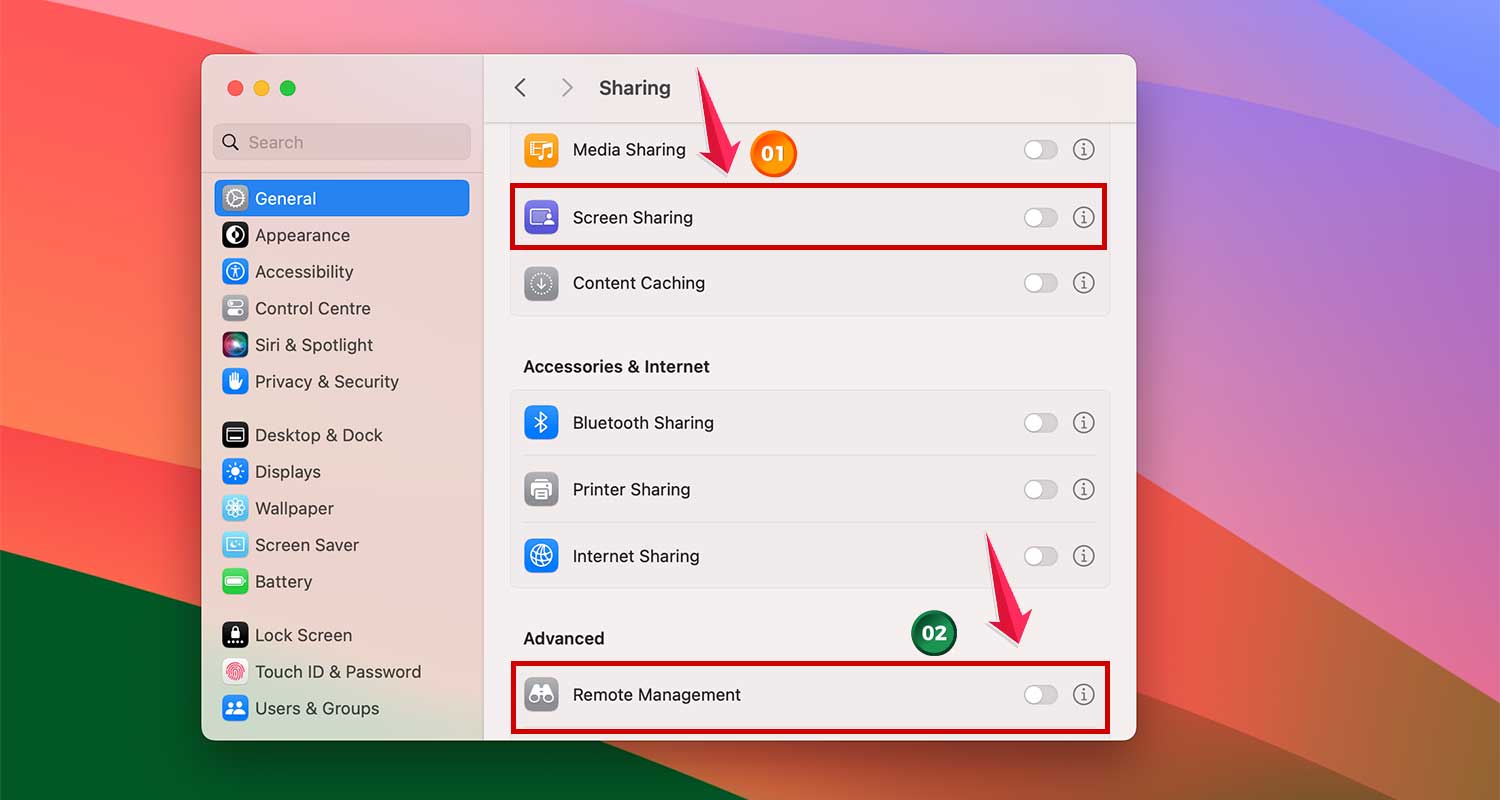
This should resolve the issue if it’s related to sharing settings. But if the message persists, read on.
2. Review App Access to Your Screen
The alert may also appear if certain apps have permission to observe your screen, raising privacy concerns. Here’s how to review and adjust these permissions:
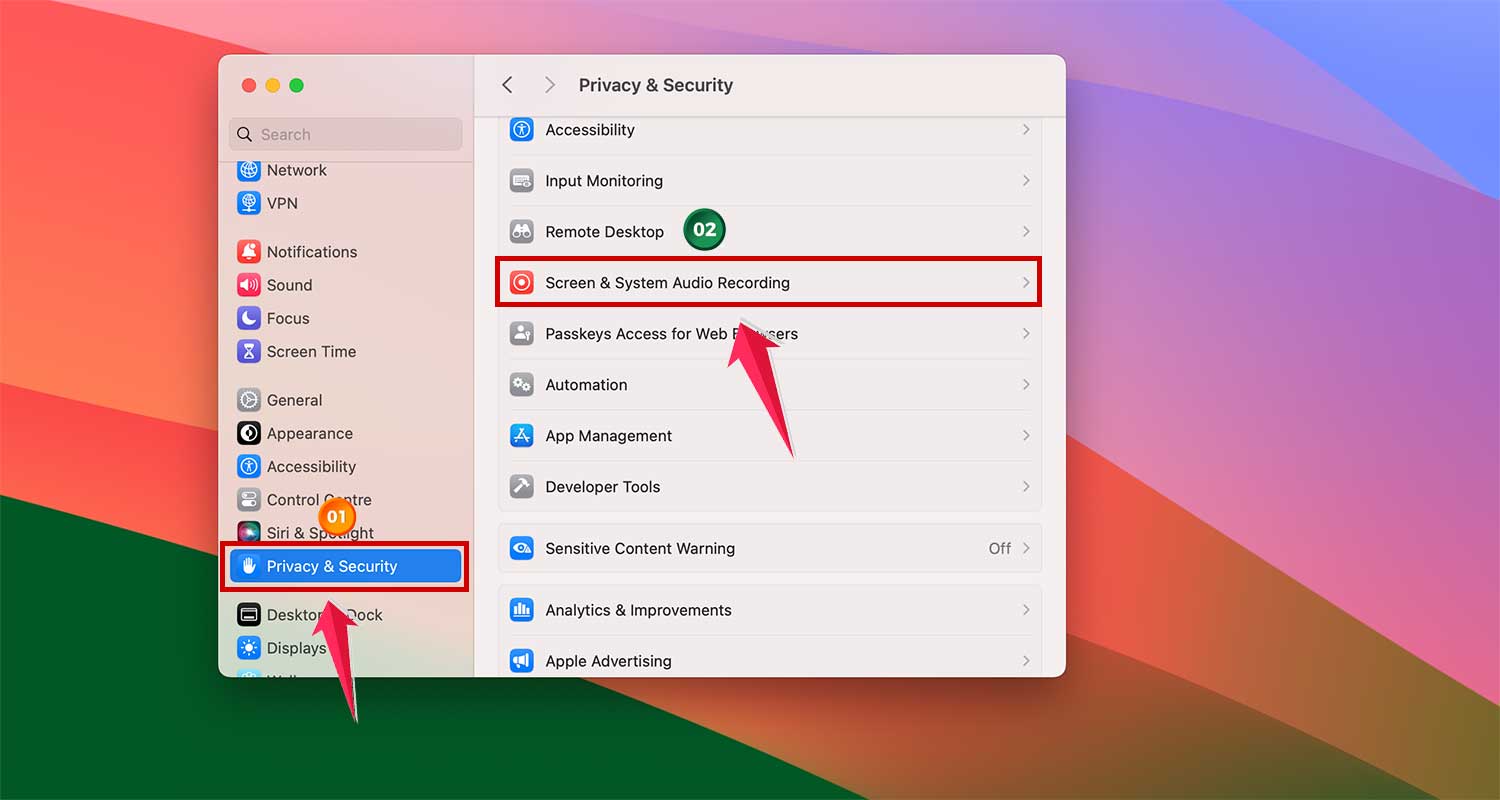
- Go to Apple menu > System Settings > Privacy & Security > Screen & System Audio Recording.
- Review the list of apps. If you find any that shouldn’t have access, select them and click the minus (-) button to revoke access.
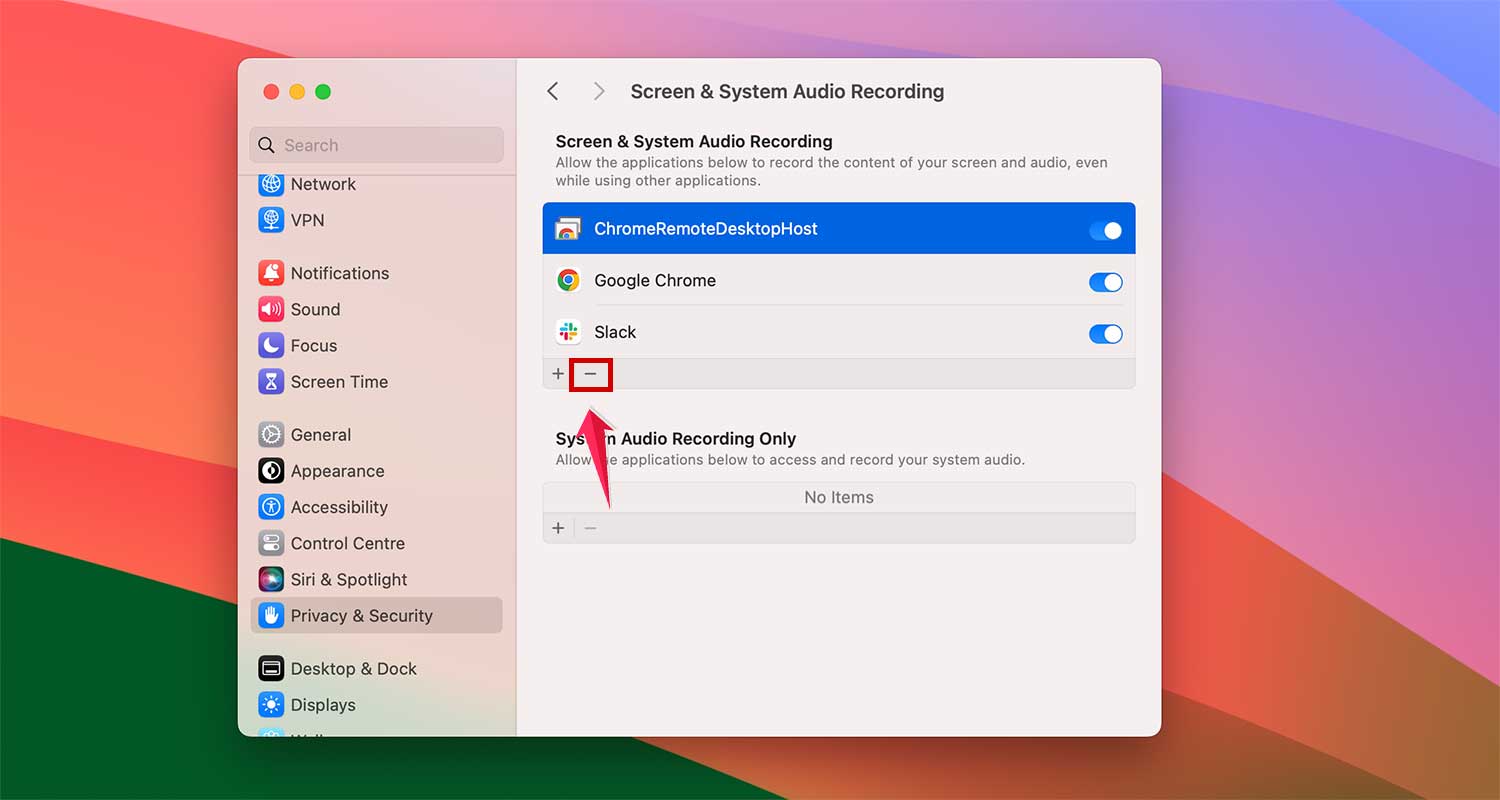
For added privacy, consider reviewing other permissions in the Privacy settings to ensure no unwanted apps have access to sensitive information. While you’re at it, it’s a good idea to check for any potential malware that might be compromising your privacy.
3. Turn Off AirPlay and Screen Mirroring
Sometimes, the “your screen is being observed” message may linger even after you’ve stopped using AirPlay or screen mirroring.
Here’s how to make sure these features are completely turned off:
- Access Control Center: Look for the icon with switches in your menu bar.
- Click on Screen Mirroring: Ensure that no devices are connected. If any are, disconnect them.
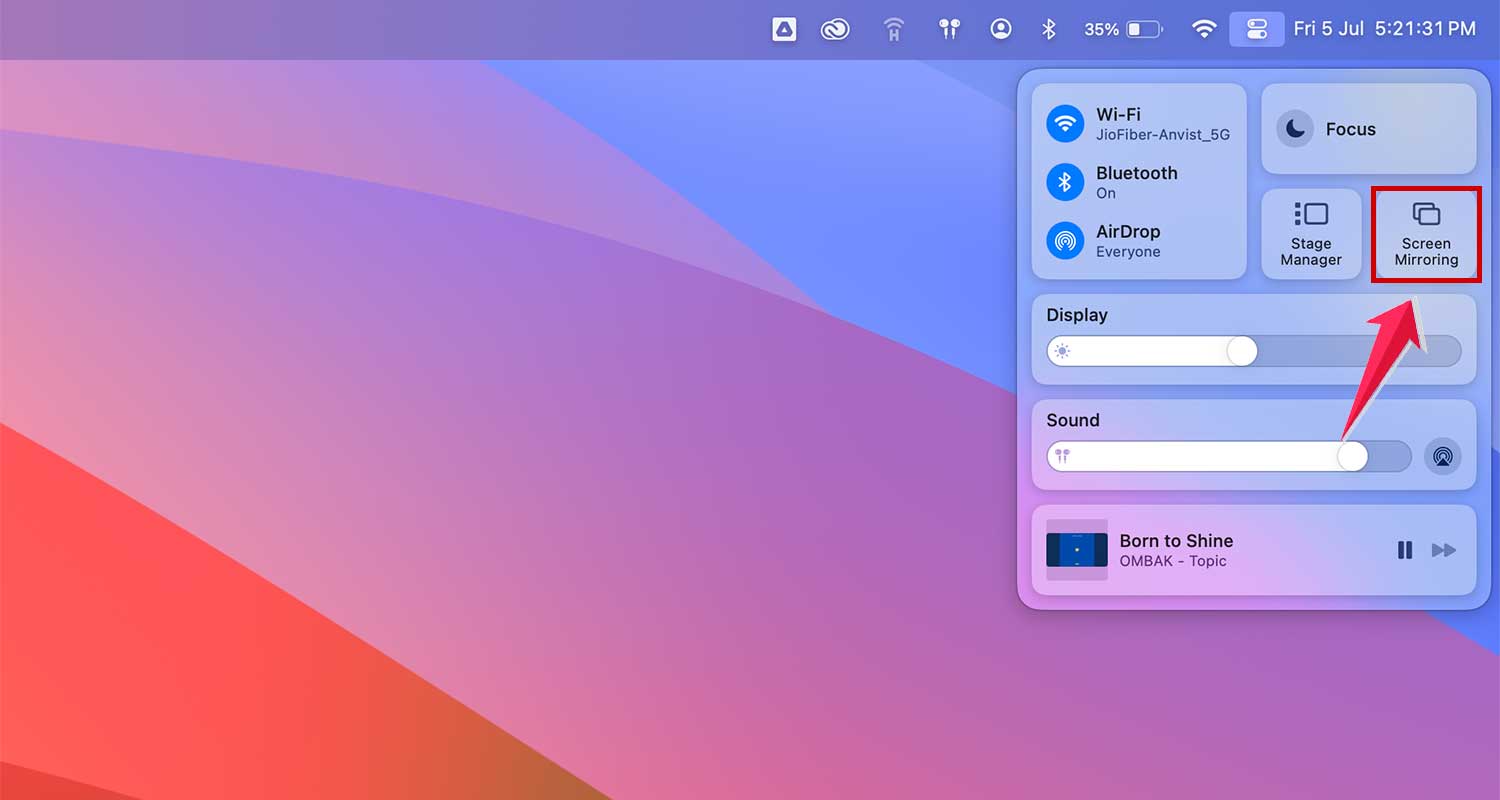
Next, to disable AirPlay:
- Navigate to System Settings: Open from the main Apple menu.
- Go to General > AirDrop & Handoff: Here, turn off the AirPlay Receiver if you’re not planning to use it soon. You’ll need to enter your password to confirm this action.

By following these steps, you should eliminate any lingering notifications about screen observation. If the message still appears, there may be other issues to address.
4. Ensure You Are Not Recording the Screen
Recording your screen can be incredibly useful, whether for tutorials, presentations, or capturing live events. macOS offers easy screen recording options through the Screenshot utility or QuickTime Player.
However, it’s crucial to remember that these recordings don’t stop automatically—you must end them manually.
If you suspect a forgotten recording might be causing the “your screen is being observed” message stop the recording. Simply press Command-Control-Esc. This should immediately stop any active screen recording, and the notification should vanish.
If the shortcut doesn’t work for you, you can check the Menu Bar. Look for a recording icon (it resembles a small camera or a dot). Click on it to stop the recording manually.
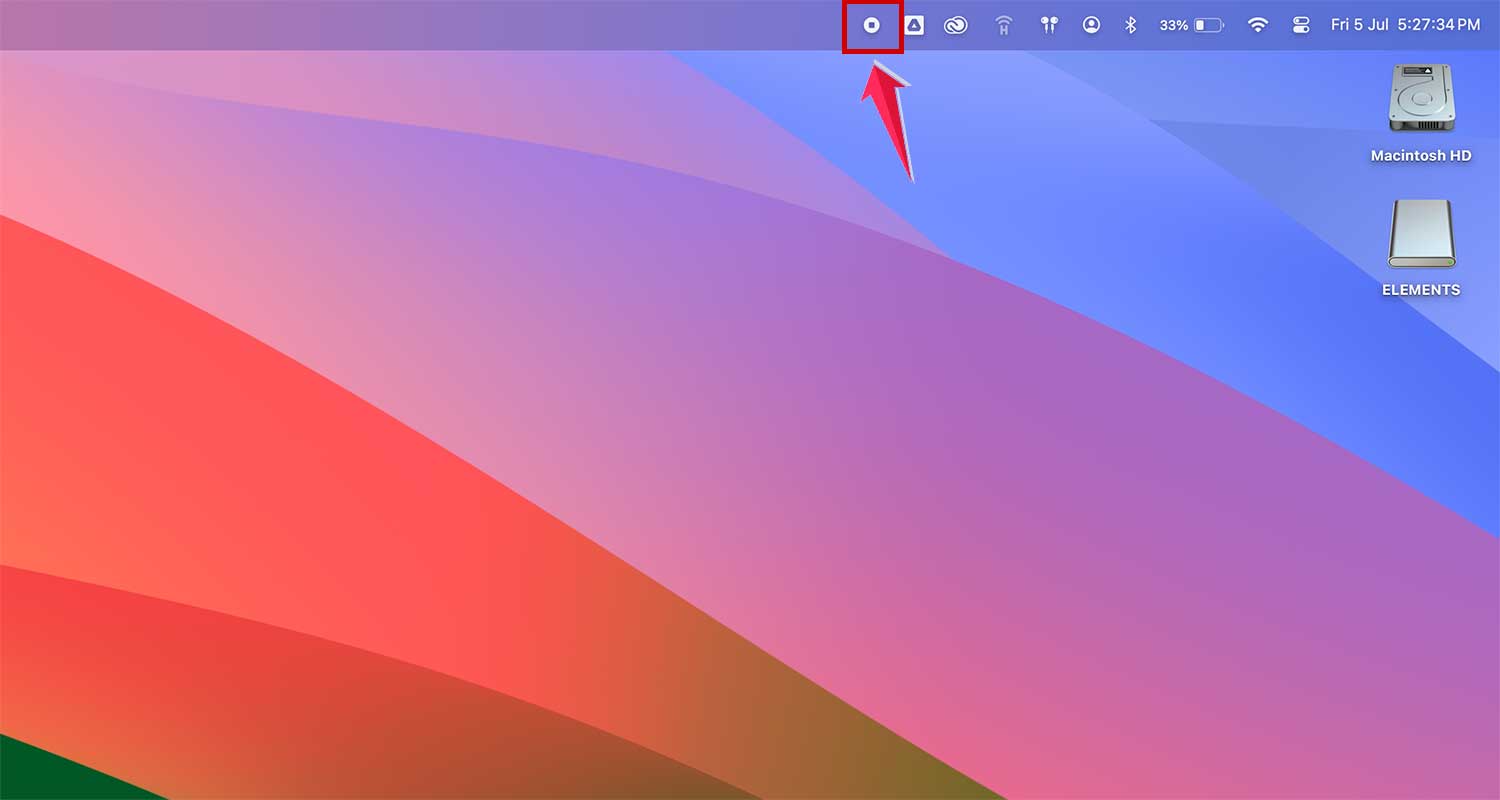
This step should clear any issues related to screen recording. If you’re still seeing the message, it’s time to explore our final tip.
In Conclusion To
Seeing the “your screen is being observed” message on your Mac might seem worrying at first, but now you know it’s usually not a big problem.
Most of the time, this message appears because of something you’re doing, like sharing your screen or using an app that can see what’s on your display.
By checking your sharing settings, looking at which apps have permission to see your screen, turning off AirPlay, and making sure you’re not accidentally recording your screen, you can usually solve the issue quickly.
These simple steps should take care of the problem for most people. But if you’ve tried everything we’ve talked about and you’re still seeing the message, it might be a good idea to get in touch with Apple Support. They can help you look into any possible security issues that might be harder to spot.
Remember, keeping an eye on what your Mac is doing and which apps have permission to do what is a great way to keep your information safe. It’s part of maintaining a clean and secure Mac environment.
By staying aware and using the tips we’ve discussed, you can make sure your Mac stays private and secure.