You probably know that losing an iPhone can cause panic. But when it happens to someone close to you, you want to help them get it back fast.
It’s not just about the phone itself. It’s about the photos, contacts, and personal information stored on it. Losing all that can be far worse than losing the device.
The good news is, you can help track down someone else’s iPhone. As long as they give you permission and the right information.
Apple has built-in tools that make this possible, and if they’ve set them up in advance, you can locate their device in just a few minutes.
Use the Find My app to help a friend
The easiest way to help someone find their missing iPhone is by using Apple’s Find My feature. This comes pre-installed on every iPhone.
Here’s what you do:
Open the Find My app on your own iPhone or iPad. At the bottom, tap Me. Scroll and tap Help a Friend.

This will open iCloud in your browser. Hand the phone to your friend and have them sign in with their Apple ID and password.
Once they’re signed in, they’ll see all their Apple devices. They just need to tap on the missing iPhone.
If it’s online, they can tap Play Sound. The phone will make a loud noise. even if it’s on silent.
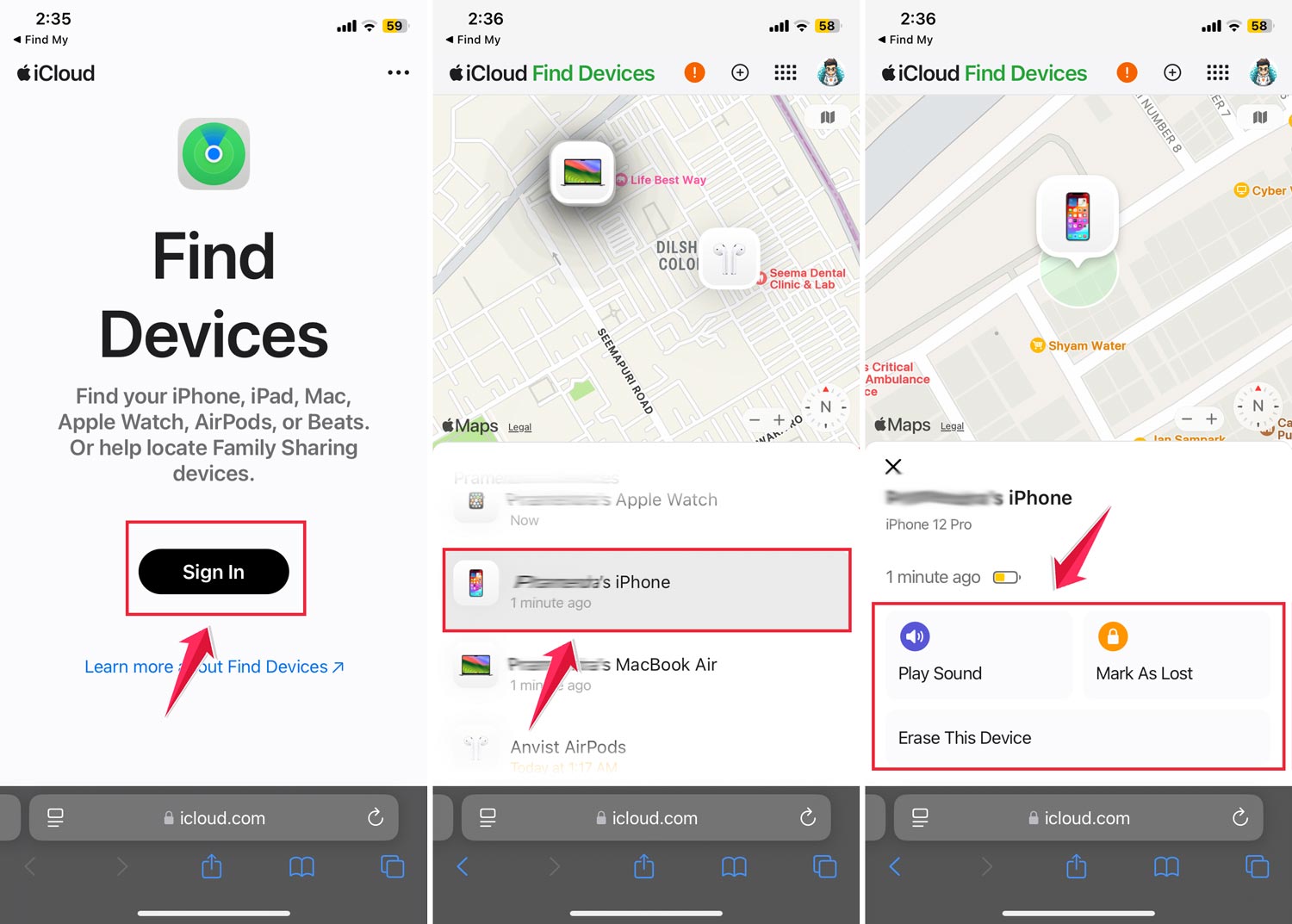
If they think it’s lost somewhere outside, they can turn on Lost Mode. This will lock the phone, display a custom message, and give a contact number to whoever finds it.
If they believe it’s stolen or they can’t get it back, they also have the option to erase it remotely. This protects all their personal information.
Turn on Find My before anything goes wrong
You can only track an iPhone with Find My if it’s turned on before it’s lost. If it’s off, you can’t suddenly enable it.
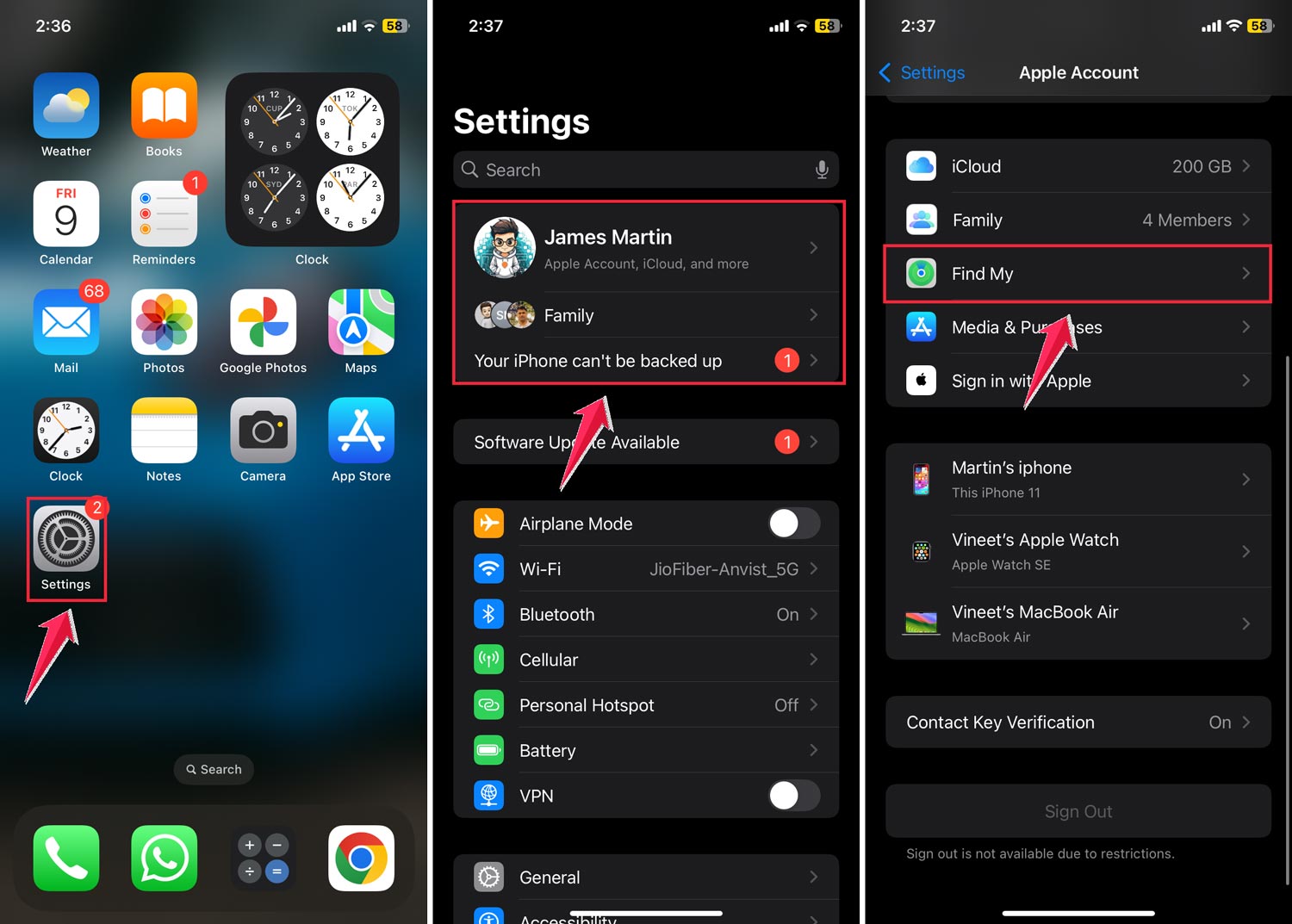
Here’s how to check and turn it on:
Open Settings on the iPhone. Tap the person’s name (Apple ID) at the top. Tap Find My. Tap Find My iPhone and make sure it’s switched on.
Also, turn on Find My network so the phone can still be located even if it’s offline. And enable Send Last Location so the iPhone automatically sends its position to Apple when the battery is very low.
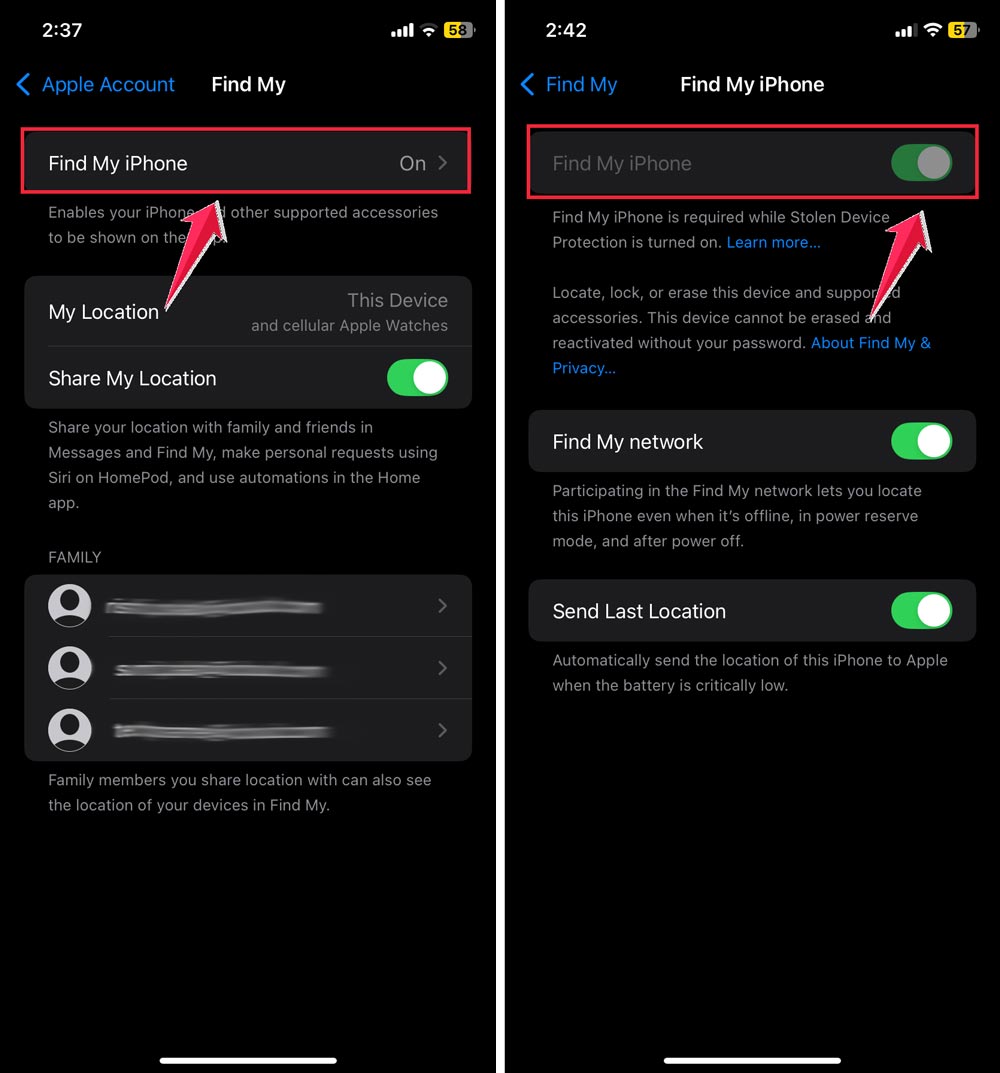
Once that’s done, the phone will show up in the Find My app on any device they sign in from.
How to use iCloud on a computer
If your friend doesn’t have another Apple device to use, they can still track their phone from any computer.
They just need to go to iCloud.com and sign in with their Apple ID. After logging in, click Find iPhone. Choose the missing device from the list, and you’ll see its location on a map.
From there, they can also play a sound, turn on Lost Mode, or erase the phone just like in the app.
What to do if the iPhone is offline
If the iPhone is turned off, in airplane mode, or has no internet connection, you won’t see its live location.
But if Find My network is turned on, other Apple devices can help pinpoint it when they come near it.
And if Send Last Location was enabled, you’ll still see the last place it was before it went offline.
Even without live tracking, this gives you a starting point for where to look.
Using Family Sharing to find each other’s devices
If you and your friend are part of Family Sharing, you can skip the sign-in process.
Open Find My on your device, and you’ll see their iPhone listed under their name. You can tap it and locate it instantly without needing their Apple ID password.
Family Sharing is worth setting up with trusted family members because it makes finding each other’s devices faster.
Other tracking options
While Apple’s built-in system is the best option, there are also third-party apps that allow location sharing. But these have to be set up beforehand.
Apps like Google Maps (with location sharing turned on) or certain parental control apps can also help find a missing phone.
Still, nothing beats having Find My iPhone already set up. It’s secure, accurate, and works directly with Apple’s servers.
Keep privacy in mind
Helping someone track their phone is different from tracking someone without their permission. Always make sure you have consent before signing into their Apple account or accessing their device location.
If privacy is a concern, they can pause sharing or turn off Find My after the phone is recovered.
What to do if you find the location
If the phone is nearby, use Play Sound to help locate it by ear.
If it’s farther away and the map shows a public place, you can go there to look.
If the location points to someone’s home or private property, don’t try to retrieve it yourself. Instead, contact the police and provide them with the information.
If Lost Mode is on, the phone will display a message with your friend’s contact details. making it easier for someone who finds it to return it.
Encourage setting up Find My now
The most common mistake people make is waiting until after their phone is lost to think about tracking. By then, it’s too late to turn on Find My.
Encourage your friends and family to check right now if Find My iPhone is enabled on their devices.
It takes less than a minute to set up, and it can be the difference between getting the phone back or losing it for good.
The takeaway
If someone loses their iPhone, you can help them find it. but only if the right settings were turned on before it went missing.
The quickest way is through Find My, either in the app or on iCloud.com. You can make the phone play a sound, lock it with Lost Mode, or erase it if needed.
Find My iPhone is free, secure, and already built into the device. But it only works if it’s enabled ahead of time.
So do a quick check now, and make sure everyone you care about has it turned on. That one small step can save hours of stress and possibly hundreds of dollars.
If you’ve ever helped someone recover their iPhone, you know how valuable these tools can be. And if you haven’t, setting them up now ensures you’ll be ready when it counts.