Ever found yourself needing to tidy up your messages on your Apple devices? Whether you’re aiming for privacy or just a cleaner inbox, understanding how to manage your messages is important.
Here’s what you need to know: Your Apple Watch doesn’t allow deleting multiple messages at once. Plus, removing messages from your Watch doesn’t always mean they’re gone from your iPhone, and vice versa.
But don’t worry! While your Watch has limitations, your iPhone can handle bulk deletions easily. On your Watch, you can still remove messages one at a time.
Let’s explore how you can effectively manage your messages on both devices.
How to Delete Many Text Messages on Apple Watch at Once
You might be wondering if you can delete multiple text messages at once on your Apple Watch.
Unfortunately, that’s not possible. Your Watch only allows you to remove messages one at a time. To delete your message, you need to remove them from iPhone itself.
When you delete a message from your Watch, it usually disappears from your iPhone too, and vice versa. Just keep in mind that this syncing might not happen right away.
There’s a way to clear multiple messages at once using your iPhone, which will then update on your Watch.
Here’s how you can do it:
- Open the Messages app on your iPhone.
- Tap “Three dots” at the top of your screen.

- Choose “Select Messages” to pick multiple conversations.
- Tap on the messages you want to remove.

- Hit the “Delete” button (it’s red, so you can’t miss it).
- Confirm your choice when prompted.
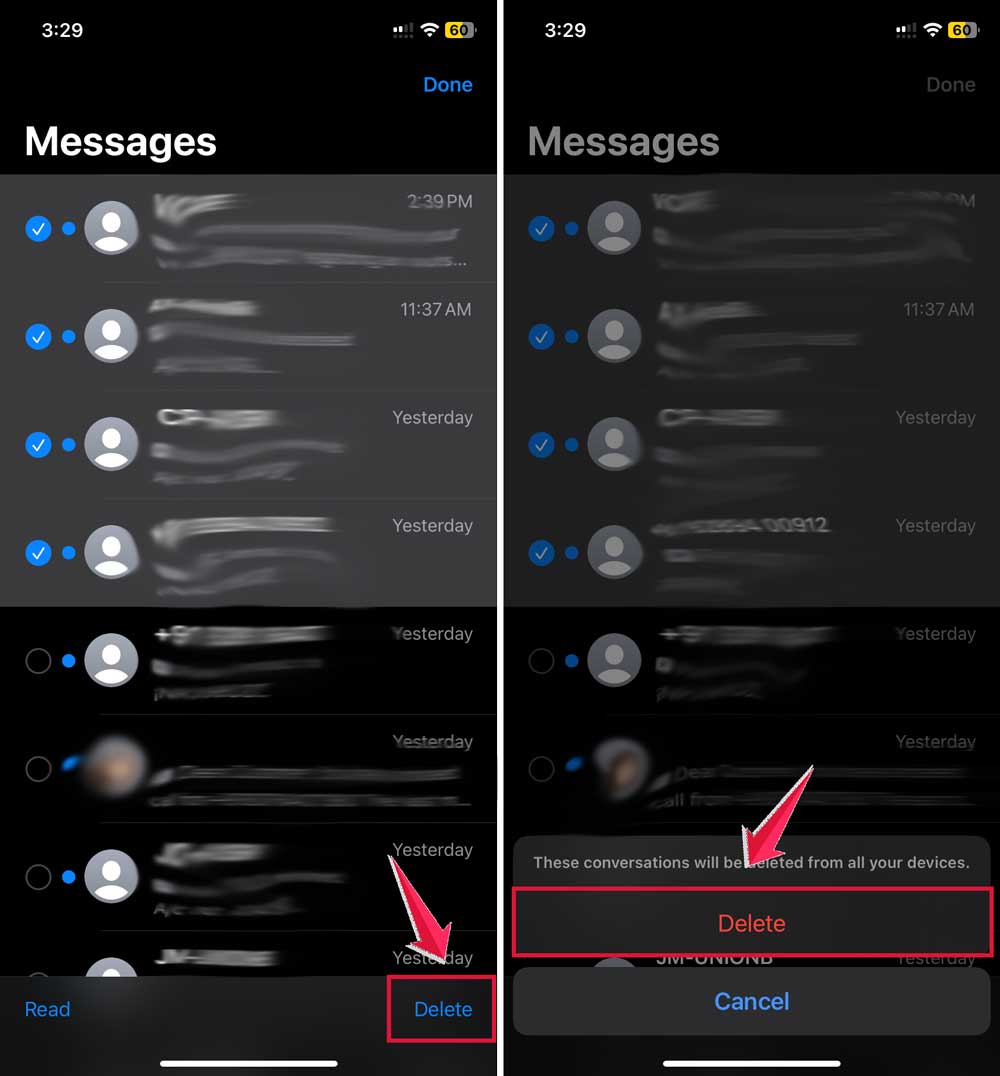
By following these steps, you’ll clear messages from both your iPhone and Apple Watch in one go.
It’s a handy way to keep your conversations tidy across both devices.
How to Clear Apple Watch Message Threads Individually
Start at your watch face and open the Messages app. You’ll see all your conversations listed there.
To delete a specific thread:
- Find the conversation you want to remove by scrolling through your messages.
- Swipe left on the conversation you want to delete.
- Tap the trash icon that appears.
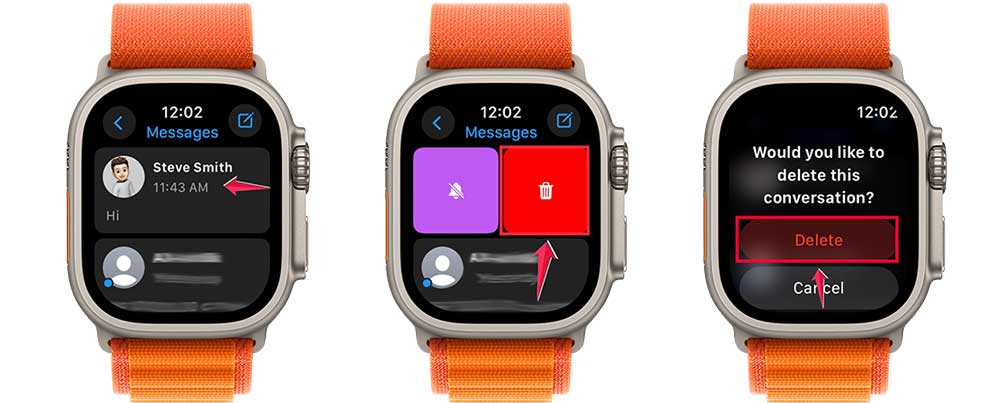
That’s all there is to it! With these quick steps, you’ve decluttered your Apple Watch messages.
Remember, this only removes the conversation from your Watch. You’ll still have it on your iPhone if you need to refer back to it later.
How to Mute a Messages Conversation on Your Apple Watch
You can mute individual conversations while still receiving other important alerts. Here’s how to do it:
- Start at your watch face
- Open the Messages app
- Find the conversation you want to mute
- Swipe left on that conversation
- Tap the Mute icon
And if you change your mind, you can unmute the conversation using the same steps. You’ll know which chats are muted by the little bell icon with a slash through it next to the contact’s name.
Now you’ve got the tools to manage your Apple Watch messages effectively. You can clear them in bulk from your iPhone, delete them one by one on your Watch, or mute specific conversations.
Remember, when you remove messages on your Watch, they’ll also disappear from your iPhone.
In Conclusion To
We’ve covered quite a bit about handling messages on your Apple Watch and iPhone.
Remember, you can’t delete multiple messages at once on your Watch, but you can on your iPhone. It’s a great way to clean up your inbox quickly.
For your Watch, you can still remove individual threads. Just swipe and tap. Easy, right?
And don’t forget about muting conversations. It’s super helpful when you need to focus but still want to catch other important notifications.
The cool thing is, when you make changes on one device, they usually show up on the other. Keeps everything in sync.
Oh, and here’s a neat trick: you can use your Watch to find your iPhone if you’ve misplaced it.
Using these tips will help you keep your messages organized and your devices running smoothly. It’s all about making your tech work for you, not the other way around.
What do you think? Have you tried any of these methods? Let me know in the comments below. I’d love to hear how they work for you!