You’ve probably heard about Wi-Fi Direct. Maybe you saw it in your TV’s settings.
Or a friend with an Android told you how they use it to send files instantly without internet. Now you’re wondering. Can your iPhone do that?
The short answer? Not exactly. iPhones don’t have a native Wi-Fi Direct switch like some Android phones.
But don’t worry. You still have ways to do the same thing, and in most cases, you’ll get something even better. Let’s break it down.
Why your iPhone doesn’t have Wi-Fi Direct
Wi-Fi Direct is basically a way for two devices to connect directly to each other without a router. Think of it like creating a private Wi-Fi link between two gadgets.
On iPhones, Apple decided not to give you a “Wi-Fi Direct” button. Instead, they built something called AirDrop.
And trust me, for sharing between Apple devices, AirDrop is not just similar. It’s faster, more stable, and way easier to use.
So if you’re trying to send photos, videos, contacts, or documents to another iPhone, iPad, or Mac, AirDrop is your tool.
It uses both Wi-Fi and Bluetooth in the background to make that direct connection for you. You don’t even need to think about the tech part. You just tap and send.
What if you have an older iPhone?
If your iPhone is older than the iPhone 5, you probably don’t have AirDrop. That’s when you might want Wi-Fi Direct for file sharing.
The good news? You can still connect to devices that are using Wi-Fi Direct.
For instance, if you want to get a file from an Android device or a Wi-Fi Direct printer, you can connect to their network just like any other Wi-Fi. Just:
- Go to Settings.
- Tap Wi-Fi.

- Look for the network name shown on the other device’s screen.
- Tap it, enter the password if there is one, and connect.
Once you’re connected, the two devices can talk directly. The only catch? You’ll usually need a specific app to actually send or receive files this way.
How to use AirDrop instead
If you’ve got a newer iPhone, AirDrop is the easiest way to share files without the internet. Here’s all you do:
- Swipe down from the top-right corner of your screen to open Control Center.
- Press and hold the little network box (the one with Wi-Fi, Bluetooth, and airplane mode).
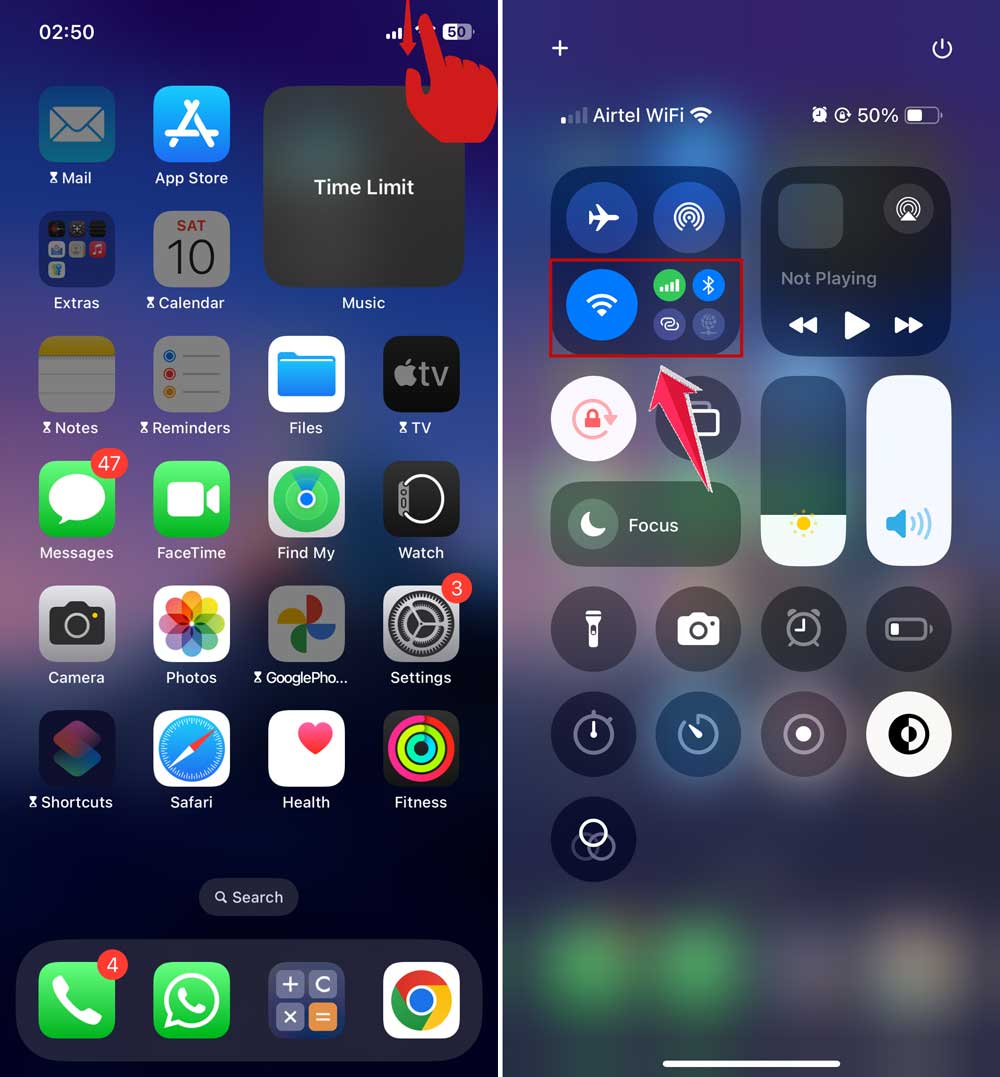
- Tap AirDrop.
- Choose “Contacts Only” if you just want friends to find you, or “Everyone” if you don’t mind anyone nearby sending files.
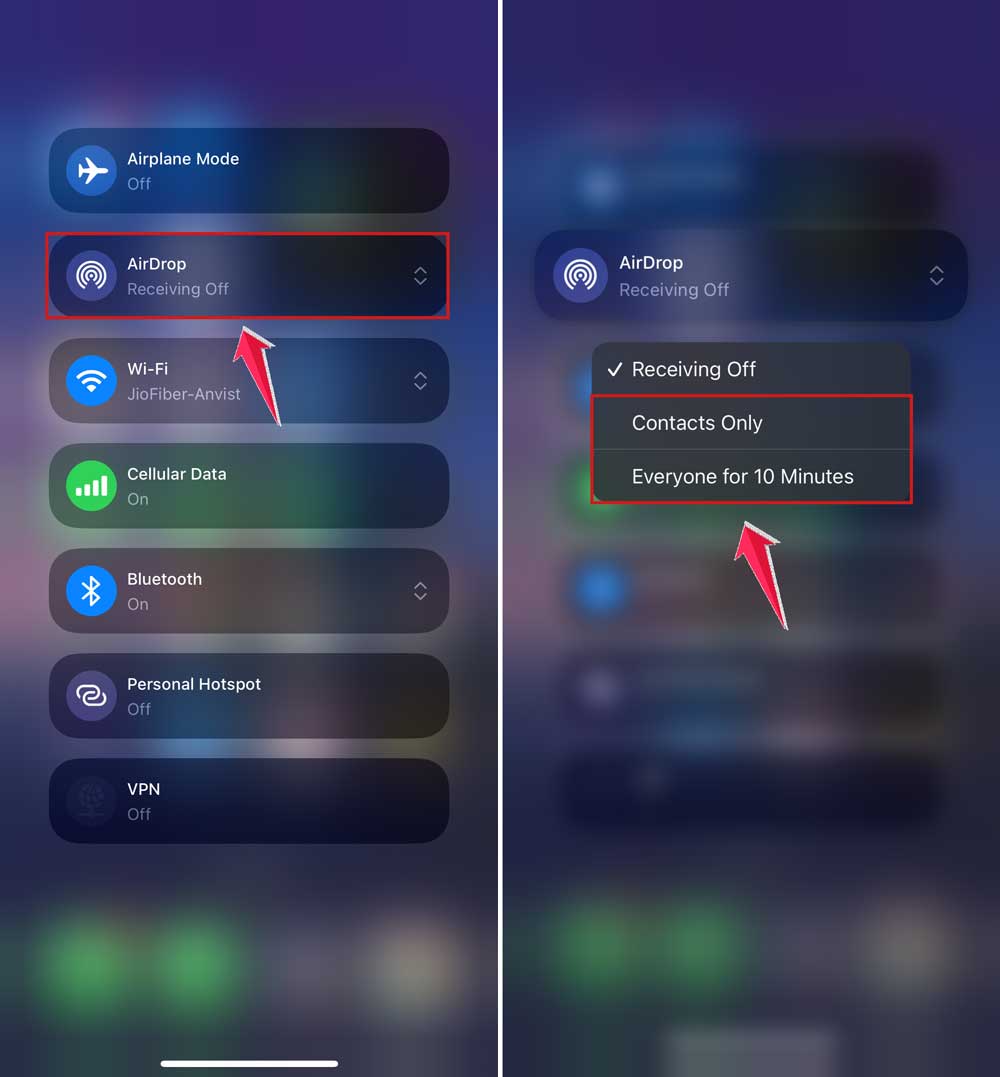
Now, when you want to share something. a photo, video, or even a note. Tap the Share icon and choose the person’s device from the list.
They’ll get a pop-up to accept, and the file will appear instantly on their end.
It’s basically Apple’s upgraded version of Wi-Fi Direct.
Sharing with non-Apple devices
If you need to send something to an Android phone or Windows laptop, AirDrop won’t help you. But you still have options.
One easy way is to use third-party apps like Send Anywhere, Feem, or SHAREit. These can create a direct link between devices, even without an internet connection.
Here’s how it usually works:
- Install the same app on both devices.
- Open the app on both.
- One device sends, the other accepts.
- The app creates its own Wi-Fi connection for the transfer.
Another way is Bluetooth. It’s slower and better for small files, but it works without Wi-Fi. Just pair your devices in Bluetooth settings and send the file.
Using your iPhone with smart TVs
If you want to share your screen with a smart TV, you don’t need Wi-Fi Direct either. You can use Screen Mirroring.
Here’s what you do:
- Make sure your iPhone and TV are on the same Wi-Fi network.
- Swipe down from the top-right corner to open Control Center.
- Tap Screen Mirroring.
- Select your TV from the list.
- If a code appears on your TV, type it into your iPhone.

That’s it. Your iPhone screen will show up on your TV. Great for photos, videos, or even games.
What to do if you really need Wi-Fi Direct
If you’re working with a printer, camera, or Android that uses Wi-Fi Direct and you can’t AirDrop, here’s the trick:
- Turn on Wi-Fi Direct on the other device.
- On your iPhone, go to Settings > Wi-Fi.
- Look for the device’s network name and join it.
- Open the app that works with that device (like a printer app or file sharing app).
That app will send or receive over a direct Wi-Fi connection. It’s not as smooth as AirDrop, but it works.
The takeaway
You might not have a Wi-Fi Direct switch on your iPhone, but you don’t actually need one most of the time. Apple’s AirDrop gives you the same. and often better. results for sharing between Apple devices.
If you’re connecting to something that’s not made by Apple, you can use third-party apps, Bluetooth for small stuff, or just join their Wi-Fi Direct network manually.
And if you’re trying to show your screen on a TV, Screen Mirroring makes it simple. No cables. No mess.
So next time someone says, “Does your iPhone even have Wi-Fi Direct?” you can tell them. Not exactly, but I can still share anything, anytime, with anyone.