Let’s be honest—this is one of those things that can drive you a little crazy. You’re in a hurry, you tap on an app, and boom—it asks for your password again. Every single time. Annoying, right?
Now, you’re not alone in this. A lot of people face the same issue. And while it may seem like a small thing, it can really slow you down when all you want is to install that new app or update something quickly.
The reason this happens is pretty simple. Your iPhone or iPad is set to ask for your password every time you download or update an app.
It’s part of Apple’s default security settings. It’s meant to keep your account safe. But let’s be real—it can feel more like a speed bump than a safety feature.
The good news? You don’t have to live with it. With just a few changes in your settings, you can stop your device from asking for your password every single time. And no, it’s not complicated. I’ll walk you through everything step by step, in plain English.
So, if you’re ready to make things easier, let’s fix this together.
Why does your iPhone keep asking for a password?
Alright, let’s break this down. You tap to download an app and your phone immediately asks for your password. Again. And again. Let’s talk about what’s really going on here.
1. App Store’s Default Behavior
First things first—the App Store is built to be cautious. By default, it wants a password every time you try to download or update an app. It’s not trying to annoy you. It’s just trying to keep your account safe.
That’s why even when you’re downloading a free app, it might still ask you to type in your Apple ID password or use Face ID or Touch ID.
2. Apple’s Focus on Security
Apple takes your security seriously. So even if it feels like a hassle, those password prompts are meant to protect your personal info, purchases, and payment details. They want to make sure it’s really you.
But yes, this can be a bit much when you’re just trying to download a free game or a to-do list app.
3. Family Sharing Settings
If you’re part of a Family Sharing group, that could be another reason. These groups often have restrictions, especially when it comes to downloading apps.
Someone else in your group—like a parent or organizer—might have set rules that require passwords before anything gets downloaded.
So, even if you’re okay with skipping the password, the Family Sharing settings might still block that.
Now that you know why this happens, let’s move on to how we fix it.
How to Download Apps From App Store Without a Password
We’re about to make your life a lot easier. By changing a few things in your iPhone settings, you can stop the App Store from asking for your password every time. Let’s go step by step.
#1 Adjust your password settings
This is the first thing you should try. It’s simple and works for most people.
Here’s how to do it:
- Open the Settings app on your iPhone or iPad.
- Tap your name at the top to open Apple ID settings.
- Go to Media & Purchases and then tap Password Settings.
- Under Free Downloads, turn off the option that says Require Password.
- For purchases, you can choose Always Require or Require After 15 Minutes, depending on what you prefer.
Once you turn off the password for free downloads, you won’t be asked for it every time you grab a free app. Easy win, right?
#2 Change Screen Time settings
Screen Time is helpful, but sometimes it gets in the way. If it’s turned on with restrictions, it might be forcing your phone to ask for a password.
Let’s fix that:
- Go to Settings and tap Screen Time.
- Tap Content & Privacy Restrictions.
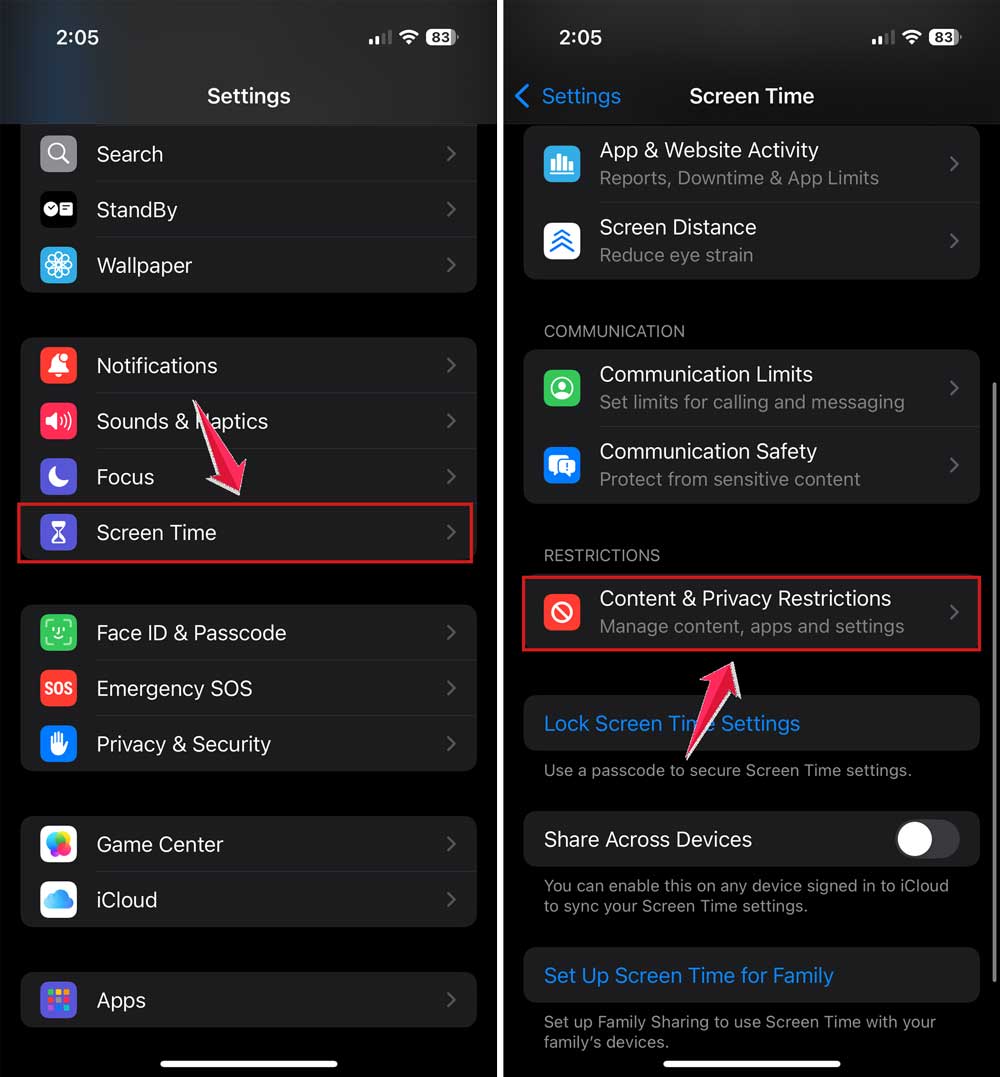
- If it’s on, enter your Screen Time passcode to make changes.
- Tap iTunes & App Store Purchases.
- Under Require Password, choose Don’t Require.
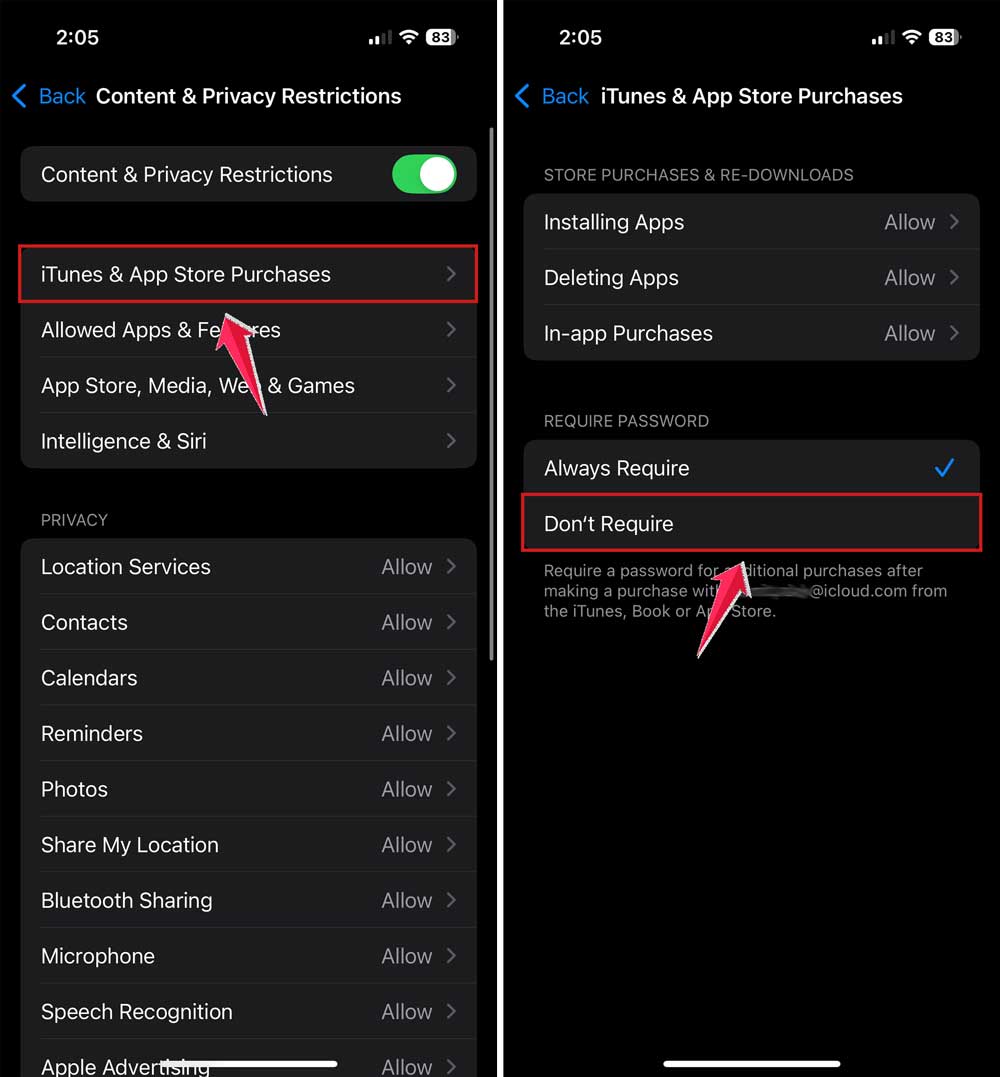
That’s it. Now your phone won’t ask for a password every time you try to download something.
#3 Turn off Face ID or Touch ID for purchases
Face ID or Touch ID is super convenient—but it can also be the reason you’re still getting asked for confirmation.
To stop it from asking:
- Open Settings and scroll down to Face ID & Passcode or Touch ID & Passcode.
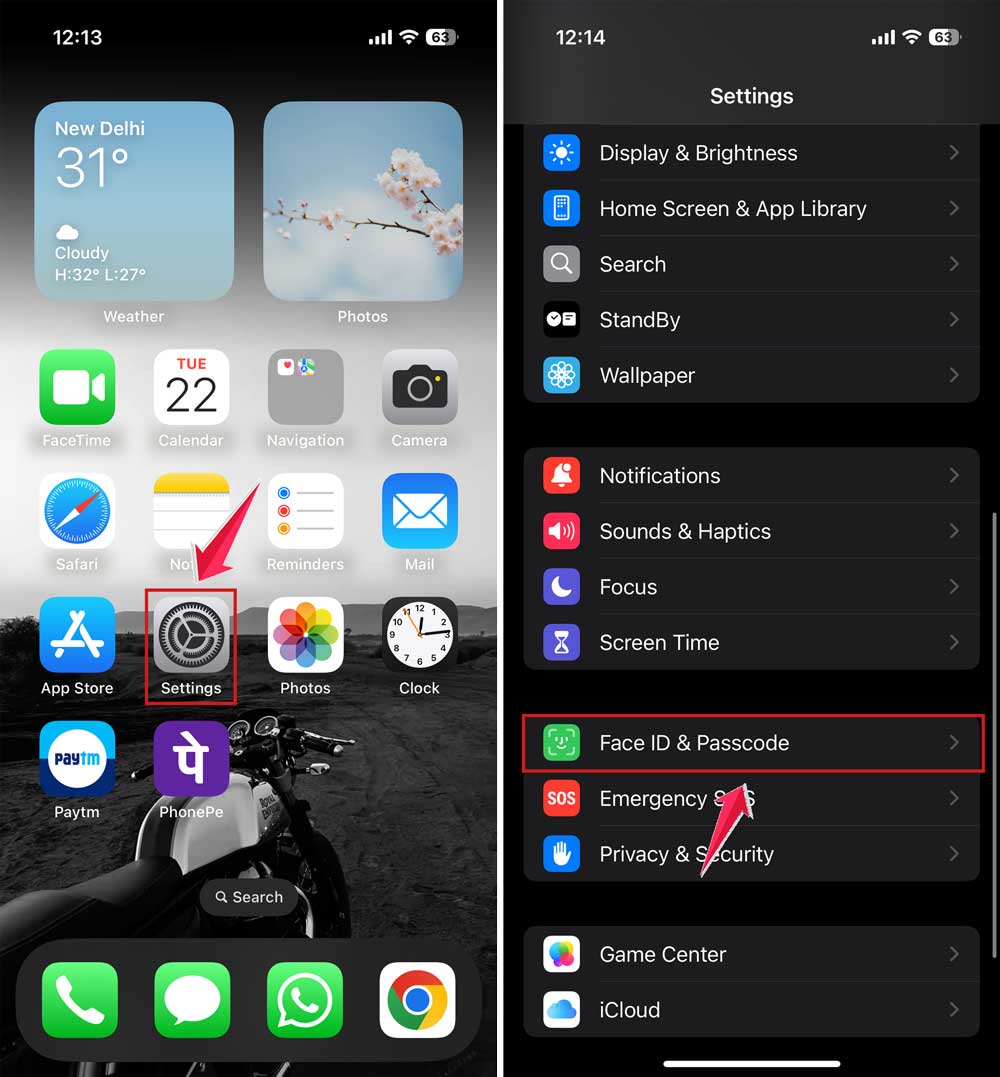
- Enter your passcode.
- Find the option that says iTunes & App Store and turn it off.
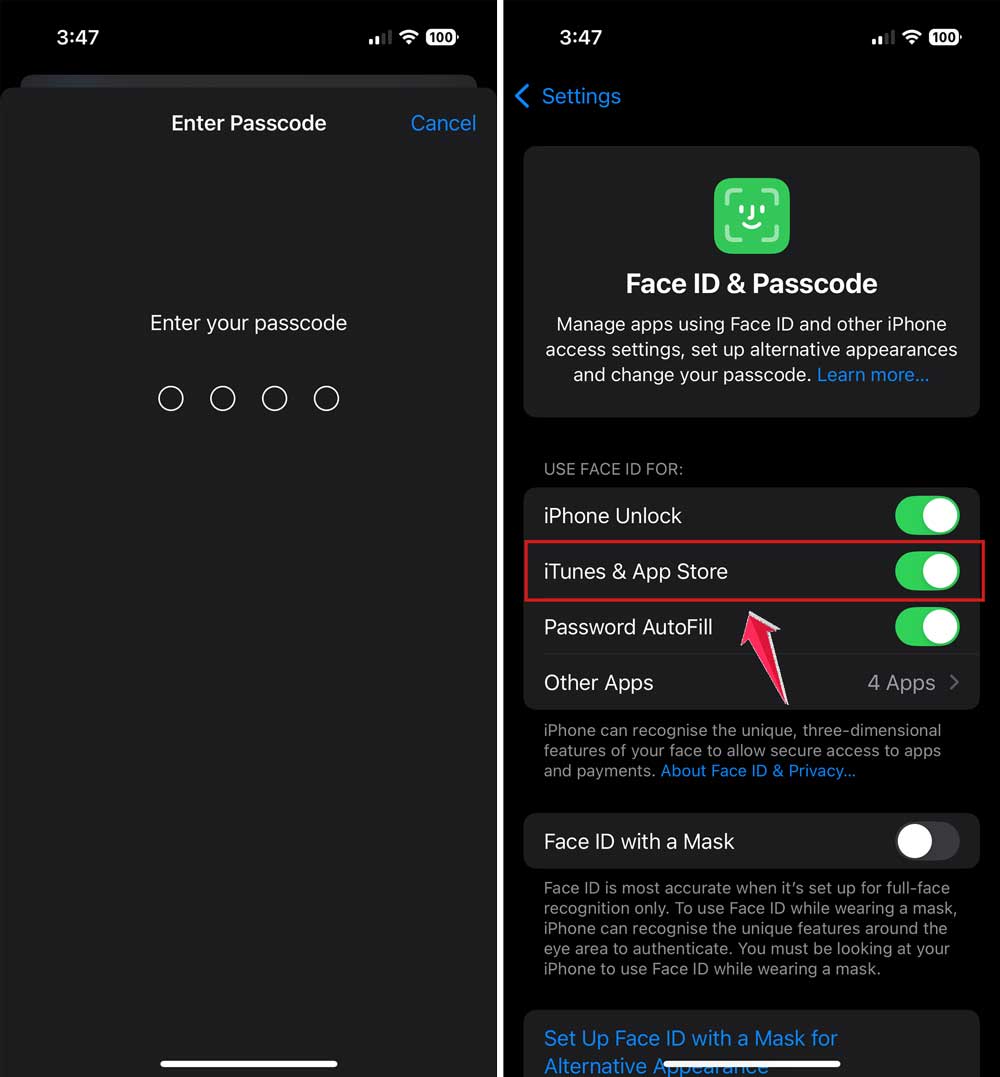
This won’t affect unlocking your phone. It just means you won’t need to use Face ID or Touch ID for app downloads anymore.
#4 Sign out and sign back in to Apple ID
Sometimes, your settings don’t update properly. Signing out and back in can refresh everything.
Here’s how:
- Go to Settings and tap your name at the top.
- Scroll down and tap Sign Out.

- Enter your Apple ID password to confirm.
- Restart your device, then sign back in.
This resets your settings and can help remove any glitches.
Extra Tips to Make Things Smoother
Now that we’ve handled the main stuff, here are a few bonus tips to keep things running smoothly.
#1 Keep your device updated
An outdated iOS can sometimes cause weird bugs, including password prompts that shouldn’t be there.
- Open Settings and tap General.

- Tap Software Update.
- If an update is available, go ahead and install it.

#2 Check your Apple ID balance
If you have a balance on your Apple ID, your device might still ask for a password even for free apps.
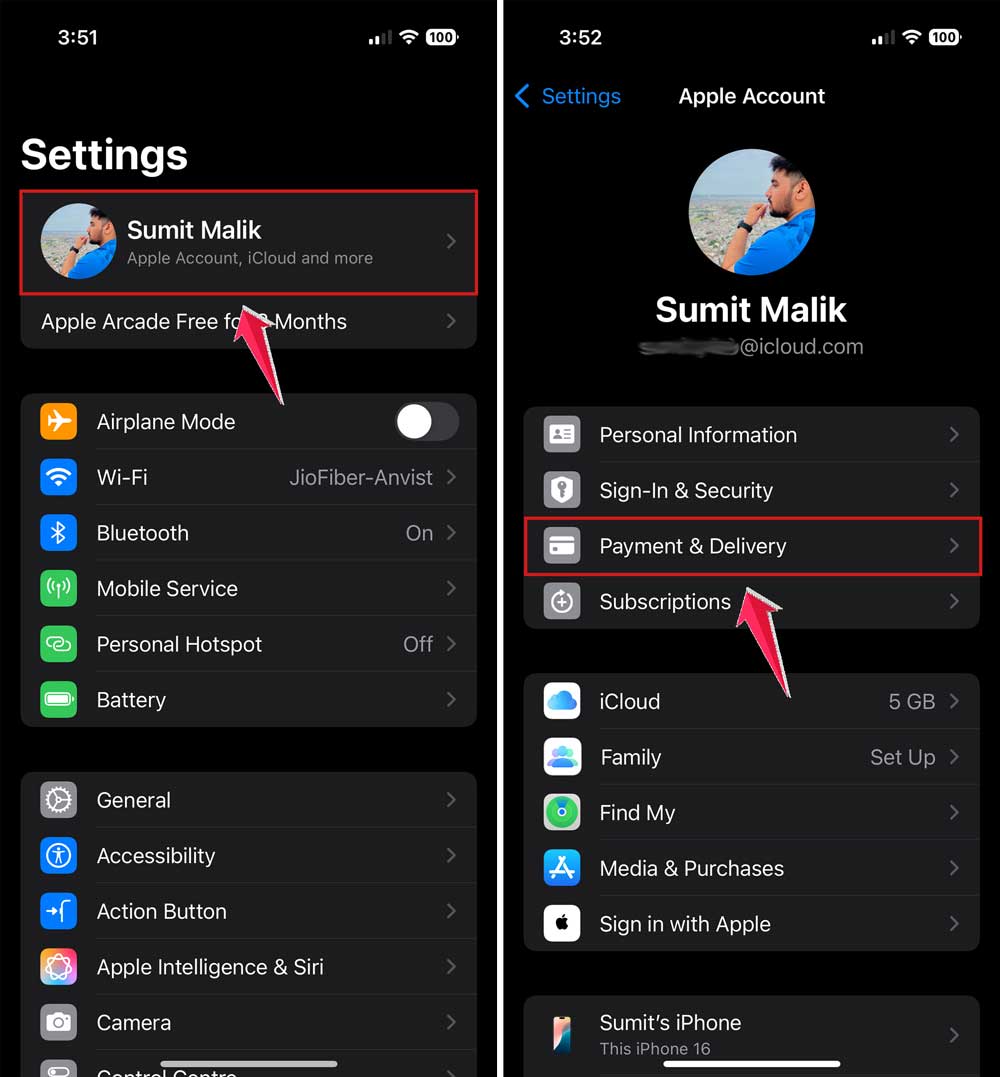
- Go to Settings and tap your name.
- Tap Payment & Shipping to view your balance.
#3 Watch your internet connection
A shaky Wi-Fi or mobile data connection can mess up downloads. And when that happens, your phone might ask for a password again.
Just make sure you’re connected to a strong and stable network before downloading apps.
#4 Review Family Sharing settings
If you’re in a Family Sharing group, check the permissions from time to time. Someone else might be managing the settings, and you may not even know it.
#5 Keep an eye on app limits
If you’ve set app limits using Screen Time, they might be blocking downloads or triggering password prompts. You can adjust those under the Screen Time section in Settings.
The Takeaway
So here we are. You were tired of typing your password every time, and now you’ve got all the tools to stop that from happening. We’ve gone through the why, the how, and even tossed in some extra tips to make your app experience smoother.
Just remember—those password prompts aren’t there to annoy you. They’re there to protect your account. But if you’re okay with skipping them for free downloads or routine apps, now you know exactly how to do it.
Take a moment to go through these steps and set things up the way you want. You’ll save time, avoid frustration, and make your iPhone feel just a little smarter.
Did this help you out? Got your own tip to share? Drop a comment below—I’d love to hear what worked for you!