Taking the perfect photo isn’t always easy. You might find yourself snapping multiple shots of the same scene, trying to get it just right.
But what do you do with all those extra photos? Many of us only think about cleaning up our photo libraries when our iPhones start running low on storage space.
If the idea of manually sorting through your photos sounds tedious, don’t worry. This article will guide you through some simple methods to tidy up your photo collection.
You’ll learn how to use built-in iOS tools and some helpful third-party apps to streamline your digital photo storage.
Ready to free up some space on your iPhone? Let’s get started with these easy-to-follow tips for removing duplicate photos.
How to Find and Remove Duplicate Photos on Your iPhone?
If you’re ready to tackle your duplicate photos, you can use the built-in features of your iPhone’s Photos app.
Here are two simple methods to help you clean up your photo library:
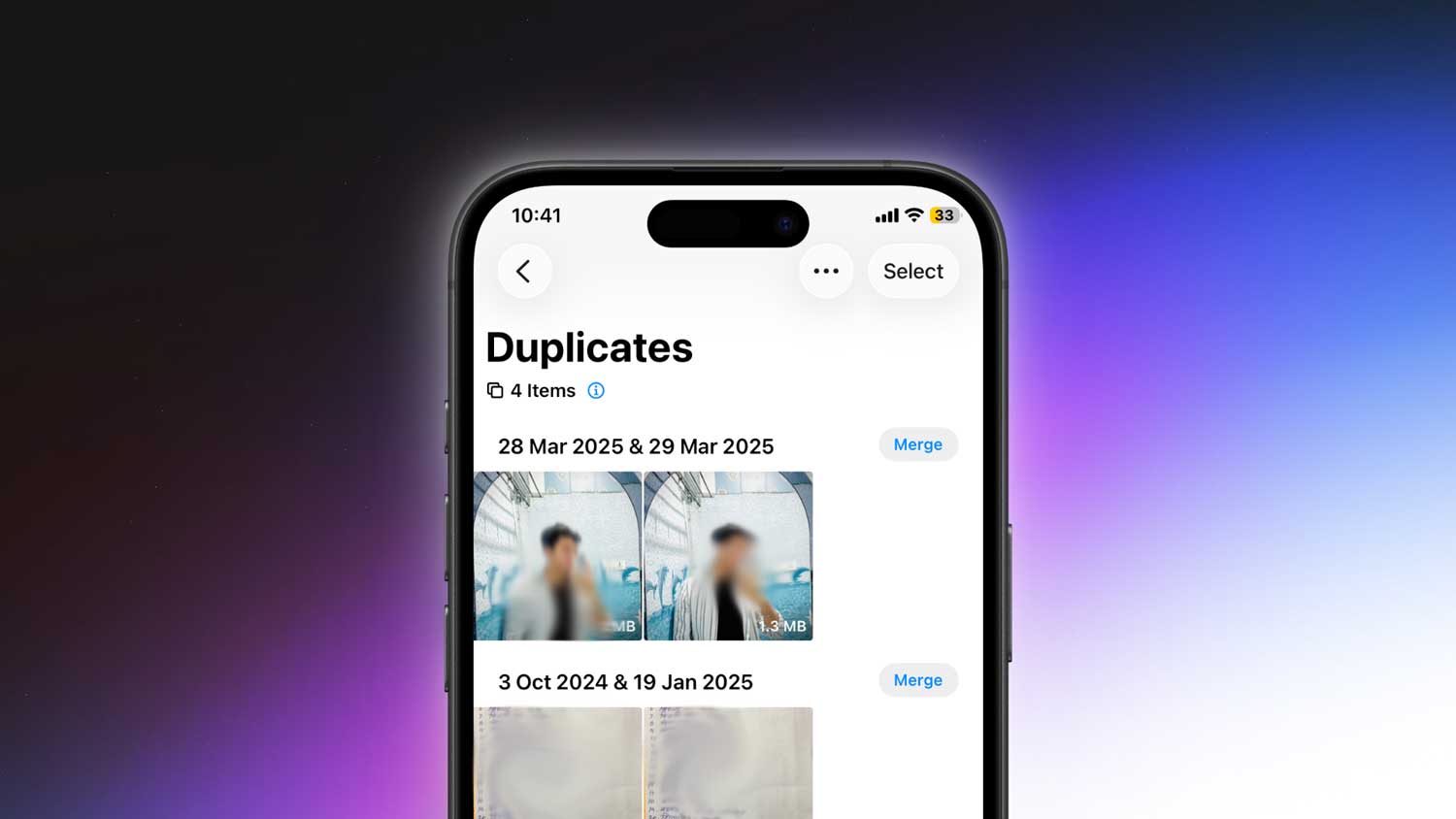
#1 Using the Duplicates Album
Your iPhone has a handy feature that automatically identifies duplicate photos. Here’s how to use it:
- Open the Photos app on your iPhone
- Look for “Duplicates” under the Utilities category
- Tap “Select” at the top of the screen
- Choose the duplicates you want to remove, or use “Select All” for a complete cleanup
- Tap “Merge” at the bottom of the screen
When you merge duplicates, your iPhone combines them into one high-quality version. The extra copies move to the “Recently Deleted” album, so you can still retrieve them if needed.
#2 Using the Search Tool
Another way to find duplicates is by using the Search tool in the Photos app. This method helps you find similar photos based on specific criteria:
- Tap “Search” in the top-right corner of the Photos app
- Type keywords in the search bar (like a person’s name or a location)
- Tap “See All” to view all the search results
- Look through the grouped photos to spot duplicates
- Tap “Select” in the top right corner and choose the duplicates you want to remove
This method can help you quickly identify and remove duplicate photos, giving you more storage space and a tidier photo library.
How to Remove Duplicate Photos in Google Photos on Your iPhone
While Google Photos doesn’t automatically detect duplicates on your iPhone, you can still use its powerful search feature to help manage them. Here’s how you can use Google Photos to find and remove duplicate images:
- Open the Google Photos app on your iPhone
- Tap “Search” at the top right corner of the screen
- Enter keywords that describe your photos, like “beach” or “birthday party”
- Scroll through the search results to spot any duplicates
- Press and hold on a photo you think is a duplicate
- Tap the trash can icon to delete the duplicate
Google Photos automatically labels your photos based on what’s in them, so you don’t need to add tags yourself. This makes searching for specific types of photos much easier.
This method lets you manually go through potential duplicates by using Google Photos’ smart categorization. It might take a bit more time, but it helps keep your photo library organized and free of clutter.
Why You Might Have Duplicate Photos on Your iPhone
Finding duplicate photos on your iPhone can be frustrating, especially if you’re not sure why they keep appearing.
Let’s look at some common reasons for duplicates and how you can prevent them:
#1 Using Multiple Cloud Services
If you’re using more than one cloud service, like iCloud and Google Photos, you might end up with duplicates. Each service can save the same photos independently, creating multiple copies.
To avoid this:
- Try to stick to one cloud service for automatic backups
- If you need a second service, only upload photos to it manually
- Consider using the second service only on your computer, not your phone
This approach can help keep your photo library more organized and reduce duplicates.
#2 HDR Setting is Turned On
HDR (High Dynamic Range) is a feature that improves photo quality by taking multiple shots and combining them.
On some older iPhones, this can create duplicates because it saves both the HDR photo and the original.
To manage this:
- Go to “Settings” then “Camera”
- Turn off “Smart HDR” or “Auto HDR” depending on your iPhone model
- For older models, you can turn off “Keep Normal Photo” to only save the HDR version
These adjustments can help reduce unnecessary duplicate photos.
#3 Using Third-Party Editing Apps
When you edit photos using apps like VSCO, they often save a new, edited version alongside your original. This can double the number of similar images on your phone.
To avoid this:
- Try using the editing tools in your iPhone’s Photos app
- Open Photos, select a photo, and tap on three horizontal line icon.
- Make your changes and tap “Done”
This method saves changes to the original photo without creating a duplicate. And don’t worry. You can always undo these edits if you want to go back to the original.
In Conclusion To
Taking care of duplicate photos on your iPhone might seem like a hassle, but it’s worth the effort. When you keep your photo library tidy, you’ll have more space for new memories and an easier time finding your favorite pictures.
Remember, you can prevent many duplicates by using just one cloud service for automatic backups and using your iPhone’s built-in editing tools instead of third-party apps.
By following these simple tips, you’ll spend less time cleaning up your photo library and more time enjoying your pictures. Plus, you’ll free up valuable storage space on your iPhone.
Managing your photos doesn’t have to be a chore. With a little attention now and then, you can keep your digital memories neatly organized. This way, when you want to relive a special moment or share a favorite photo, you’ll know exactly where to find it.
So why not take a few minutes today to start organizing your photos? Your future self will thank you when you can quickly find that perfect shot without scrolling through dozens of duplicates.