Is your Mac not running as smoothly as it used to? You might be wondering if it’s time for a cleanup.
If your computer crashes when you’re using multiple apps, runs slower than usual, or shows “out of storage” alerts, it’s probably time to give your Mac some attention.
Don’t worry – keeping your Mac in top shape is easier than you might think. Let’s explore some simple ways to clean up your Mac and get it running like new again.
What Takes Up Space on Your Mac?
Have you ever wondered what’s filling up your Mac’s storage? Let’s take a look at the main space-hoggers, starting with the biggest culprits:
- Large and old files often take up more space than you might think. These could be movies, big software installers, or old documents you’ve forgotten about.
- System junk includes unnecessary files that your Mac keeps around, even though you don’t need them anymore.
- App leftovers are bits and pieces of programs you’ve deleted that didn’t fully clean up after themselves.
- Old backups can eat up a lot of space. These are copies of your data that you probably don’t need anymore.
- Photo clutter like duplicate or similar images can add up quickly if you take a lot of pictures.
- Your Trash bin might be holding onto files you thought you’d gotten rid of.
- Finally, mail attachments can take up space without you realizing it.
How to Clean and Optimize Your Mac?
If you’ve never cleaned up your system before, your Mac has probably gathered a lot of unnecessary stuff over time. Let’s go through some simple steps to tidy up, starting with the most effective ones. For the best results, try to follow all these steps!
1. Update Your Software
Cleaning is just the start – keeping your software up-to-date is key for a smooth-running Mac. Here’s how to do it:
For your Mac:
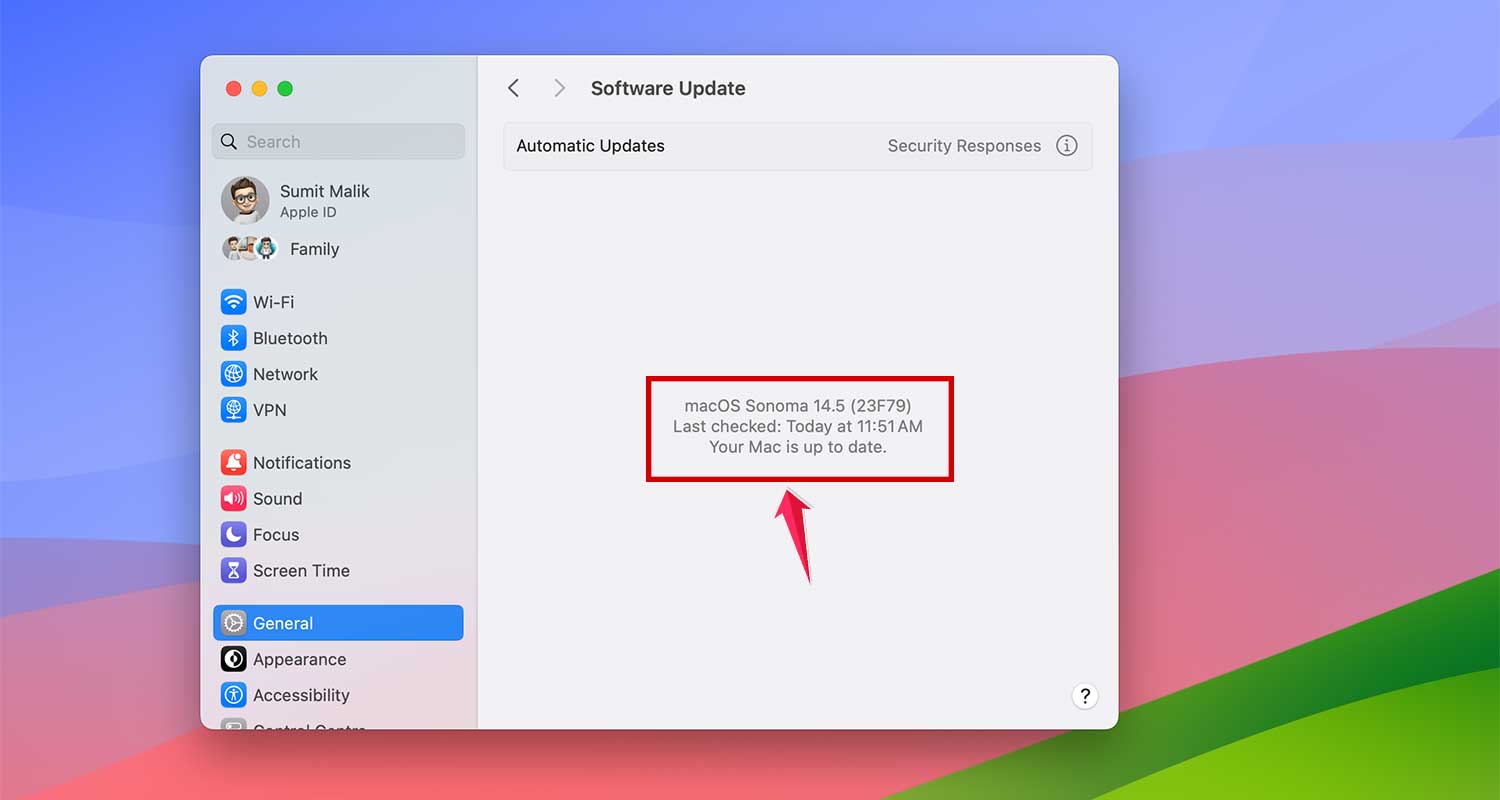
- Go to System Settings
- Click on General, then Software Update

- If there’s an update, follow the steps to install it. If not, it will show “Your Mac is up to Date”
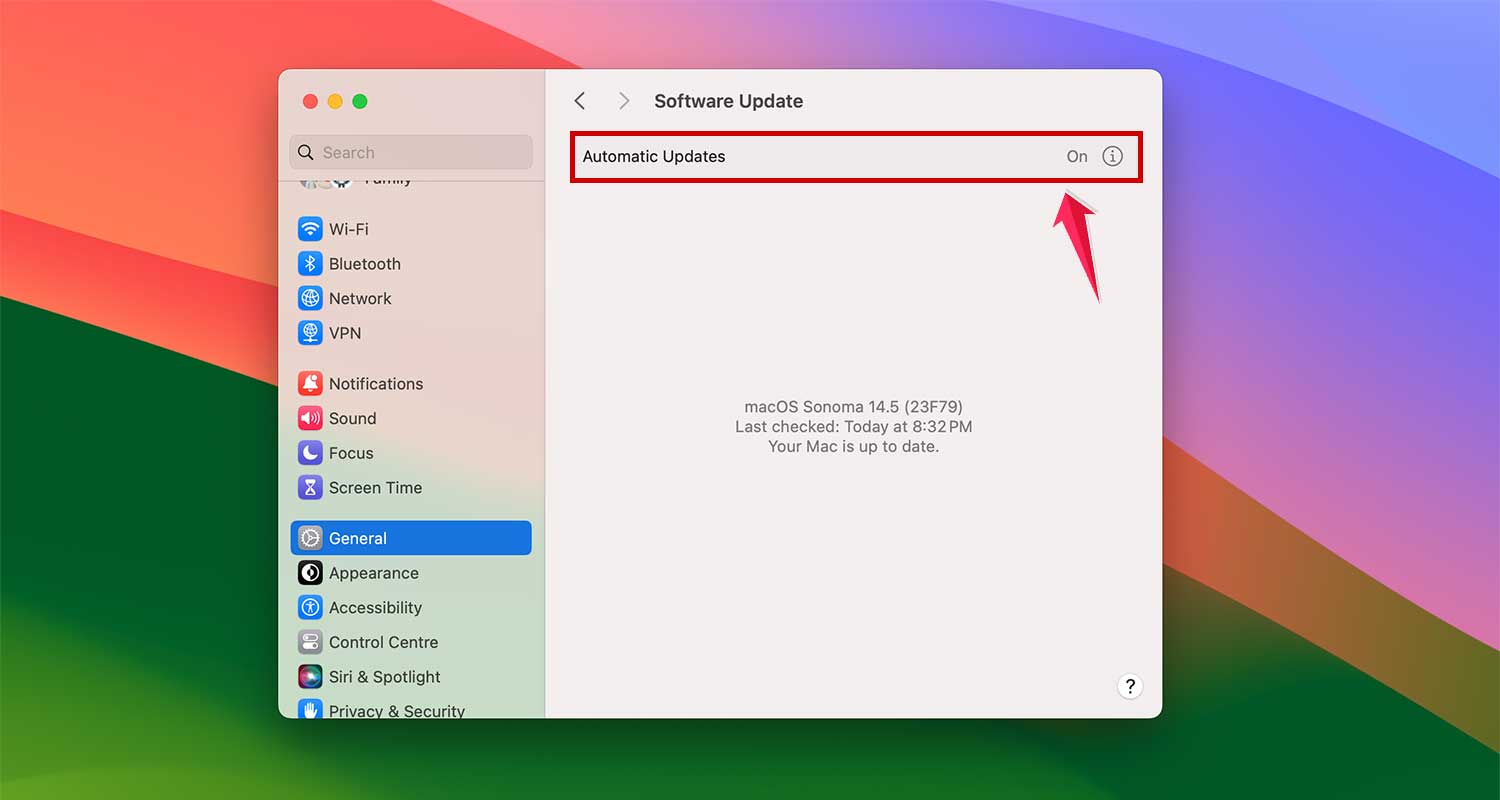
- Turn on Automatic updates to stay current
For your apps:
- Open the App Store and click Updates in the sidebar
- Click Update All
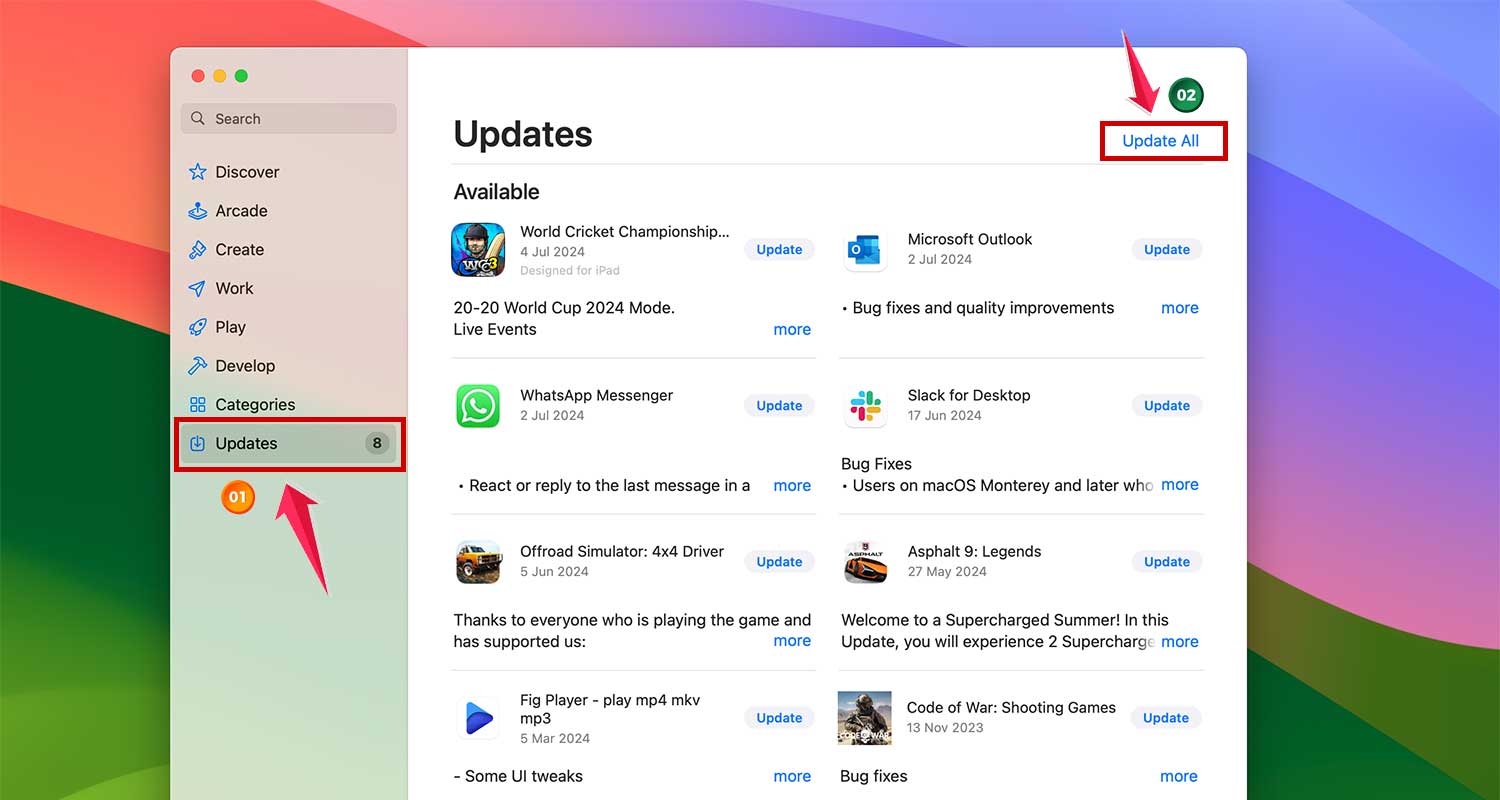
- For apps not from the App Store, open each app and look for Check for Updates in the menu
- If you can’t find updates this way, check the app’s website
2. Remove Apps You Don’t Use
The more apps you have, the slower your Mac might run. It’s important to get rid of apps you’re not using anymore. Here’s how:
- Right-click on the app
- Choose Move to Bin
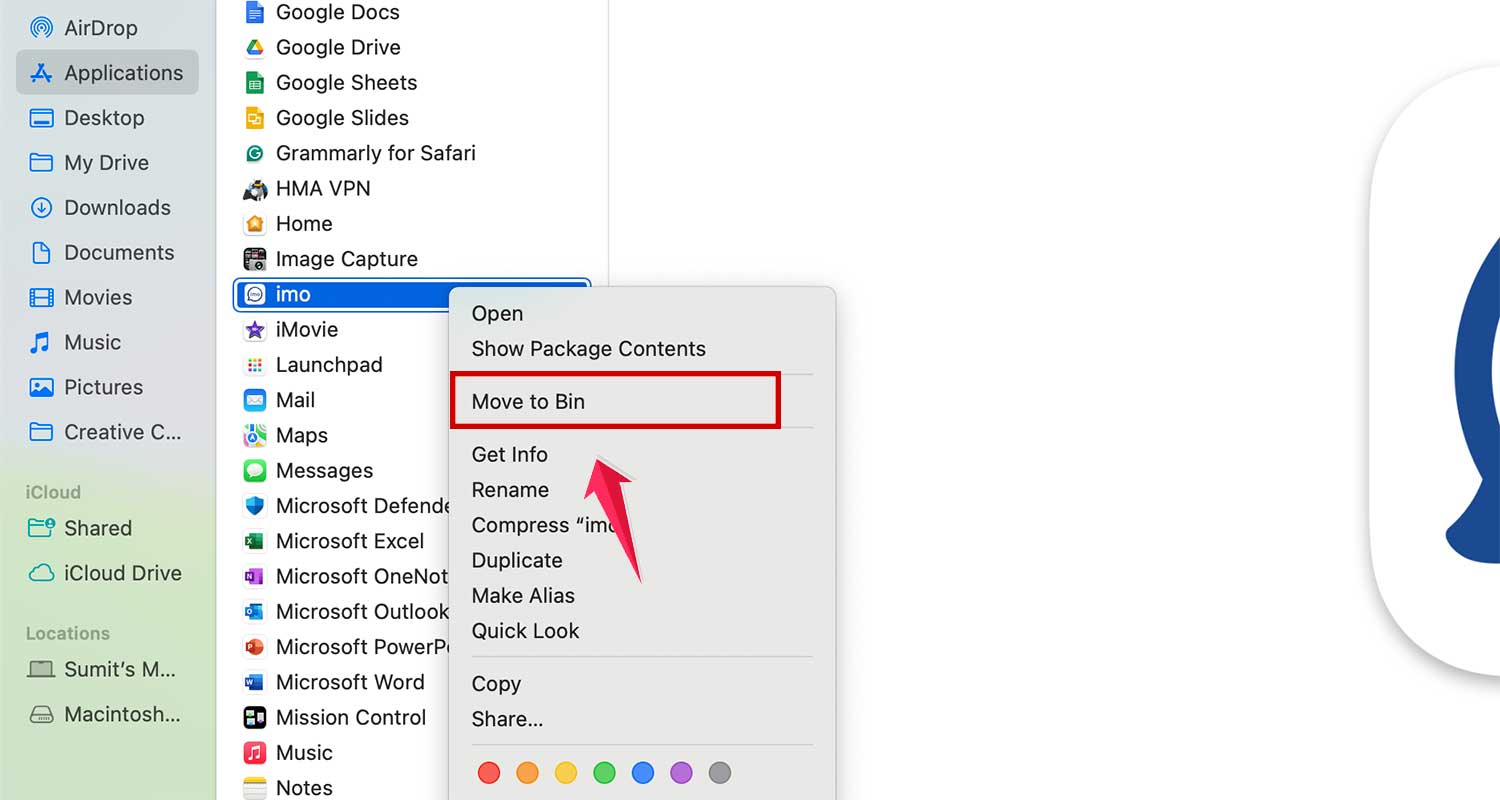
But be careful! Just moving an app to the Trash doesn’t fully remove it. To completely clean up:
- Use a special uninstaller tool or system tools to remove any leftover files
3. Get Rid of Large and Old Files
Keeping your hard drive clean isn’t just about being tidy – it’s necessary for your Mac to run well. Finding and removing large files can make a big difference.
Try to keep at least 15-20% of your hard drive free. Tests show that having more free space can make your Mac up to 35% faster, which is great if you work with big files like videos or graphics!
4. Empty Your Trash
Deleted files aren’t really gone until you empty the Trash. They’re just sitting there, taking up space. Here’s how to truly get rid of them:
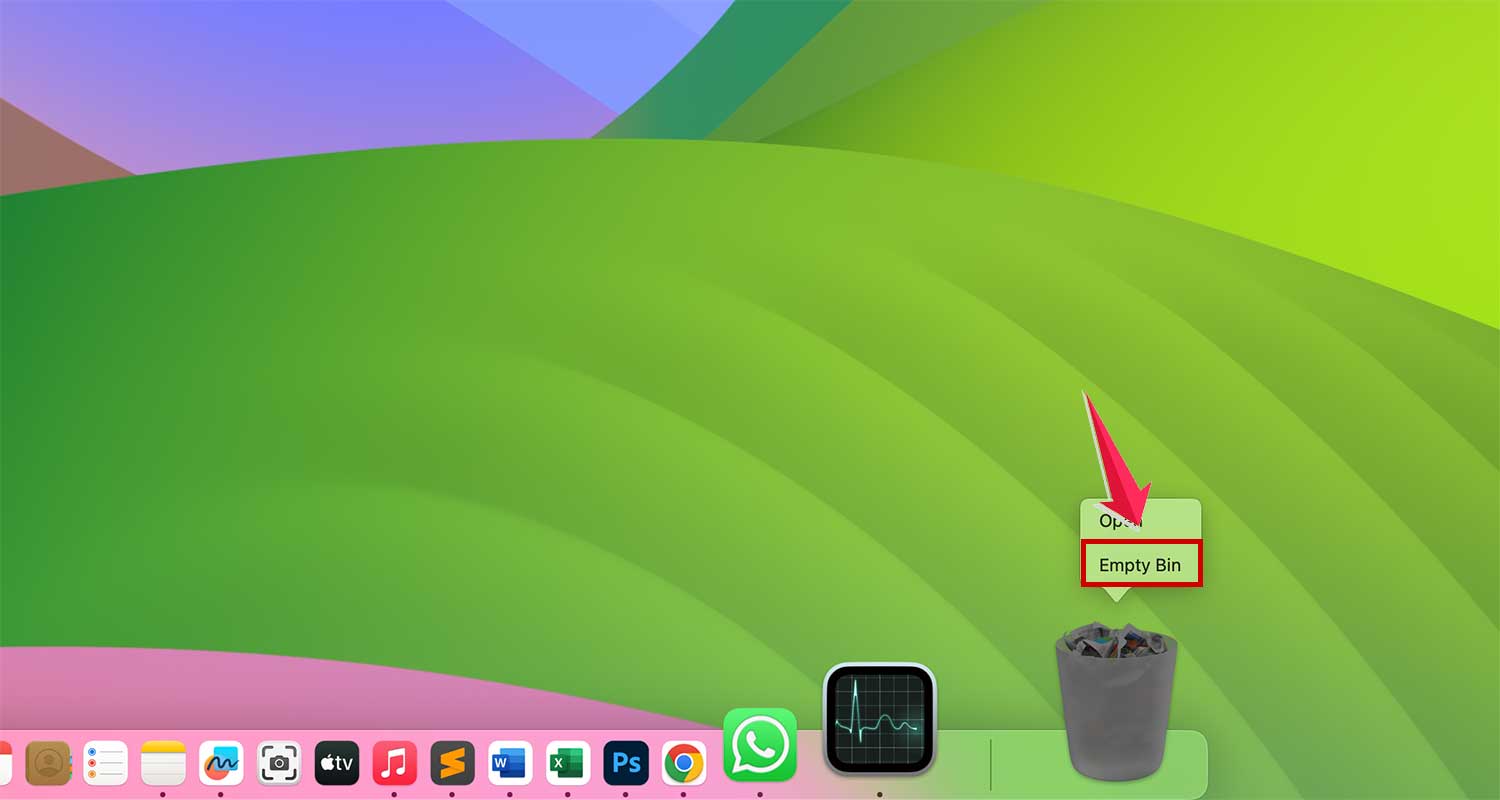
- Click and hold the Trash icon in the Dock
- Choose Empty Bin
5. Use Apple’s Storage Tools
Apple has built-in tools to help keep your Mac running smoothly. Here’s how to use them:
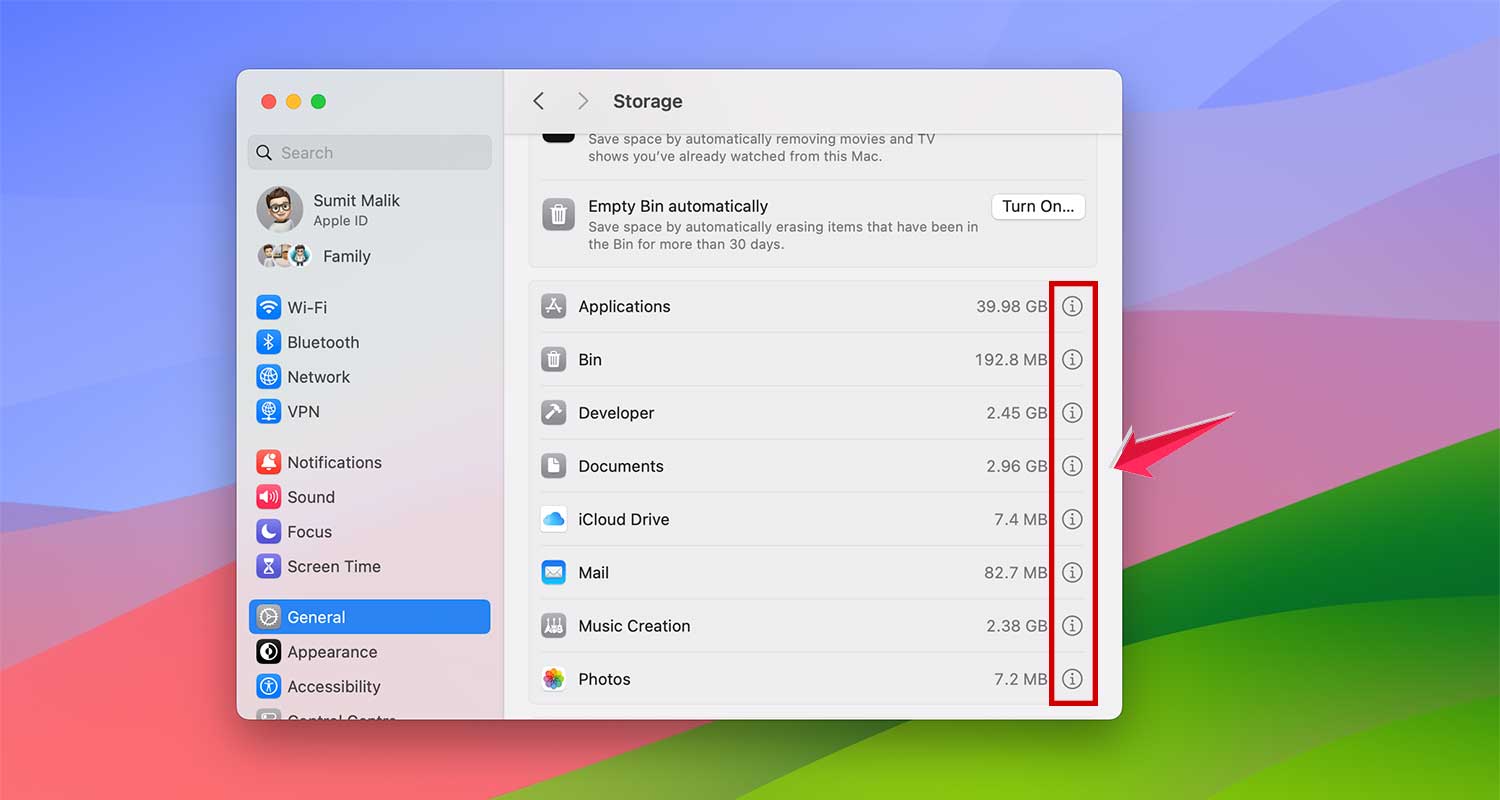
- Open System Settings
- Click General, then Storage
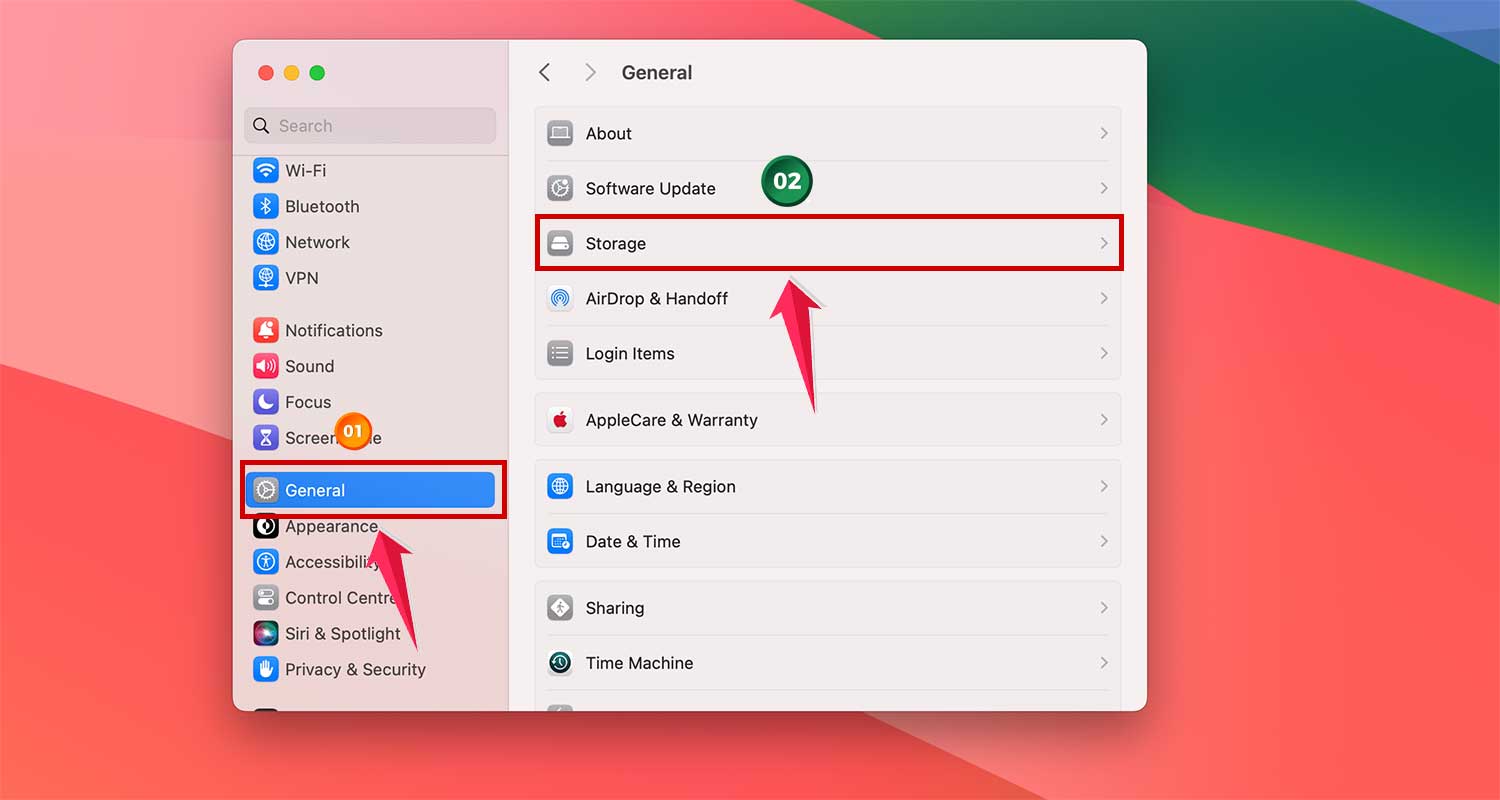
You’ll see options like:
- Store in iCloud: Moves your files to the cloud to free up space on your Mac
- Optimize Storage: Gets rid of large files you don’t need anymore

You can also manually remove files:
- Click the “i” button next to any category (like Applications or Documents)
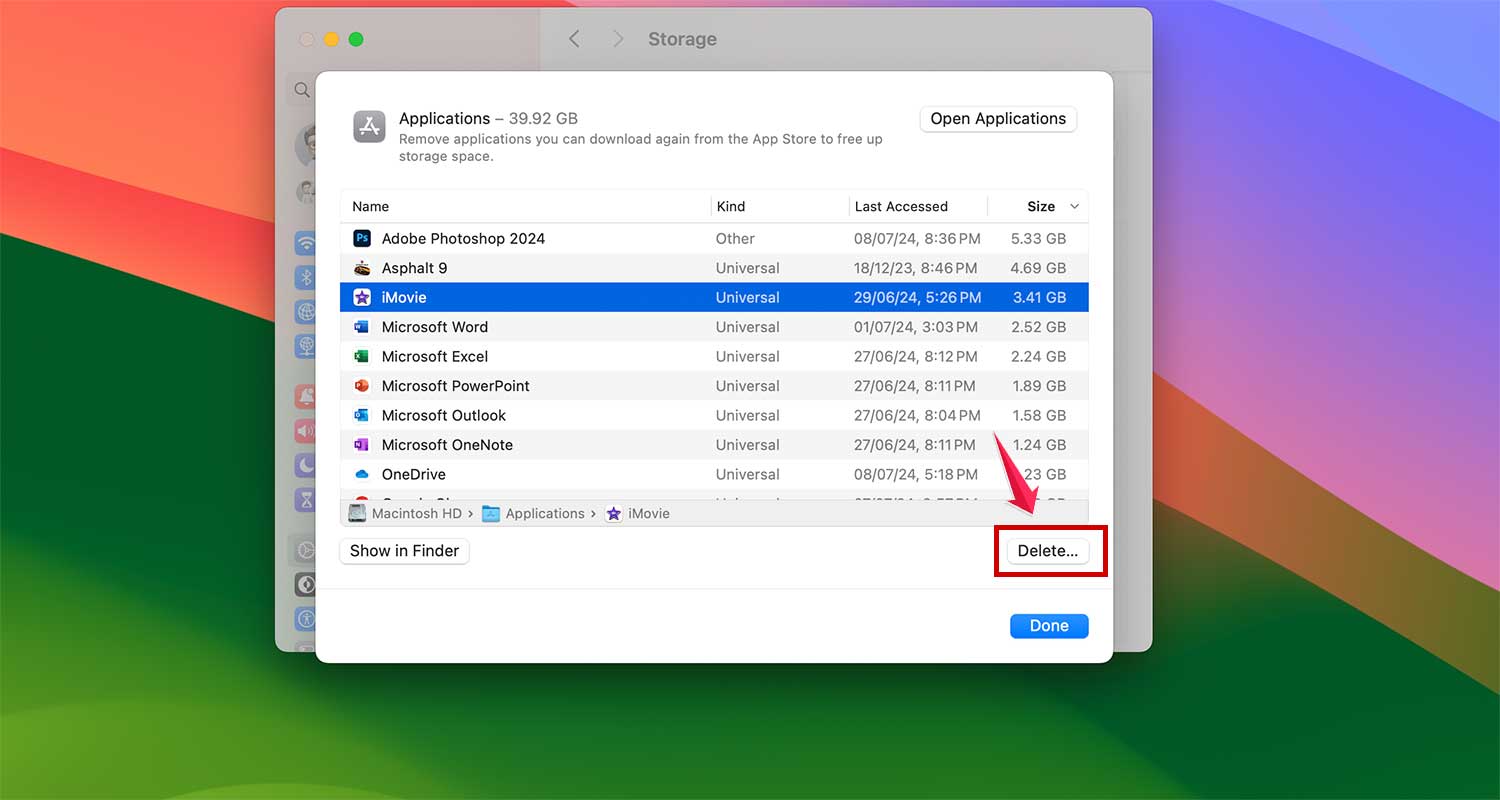
- Select an item and click Delete to free up space
6. Clean Up Your Cache
Cache files are supposed to make things faster, but too many can slow your Mac down. Clearing your cache regularly can help keep things running smoothly.
Here’s how to clean them:
- Go to your system or browser settings
- Find the cache settings
- Choose to clear cache files
This will help free up space and might make your Mac faster.
7. Clean Out Your Downloads Folder
Is your Downloads folder full of old files? Organizing your downloads is an easy way to clean it up:
- Open your Downloads folder
- Sort the files by date added
- Look at the oldest files at the bottom
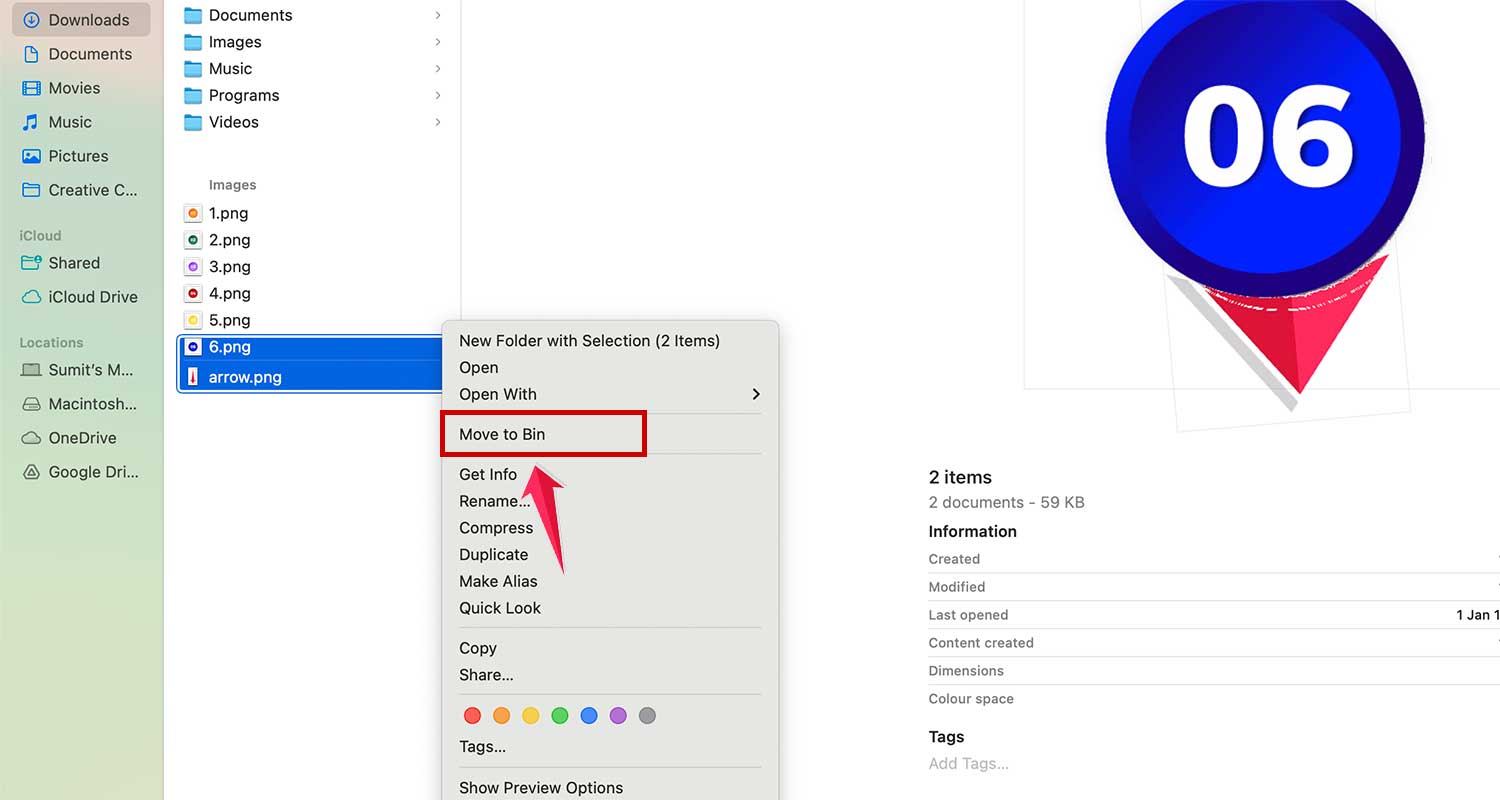
- Use Command-click to select multiple files you don’t need
- Move them to the Bin
8. Clean Out Old Backups
Backups are important, but old ones can take up a lot of space. Here’s how to remove old iOS backups:
- Click the Apple menu and go to System Settings
- Click General, then Storage
- Click the “i” icon next to iOS Files
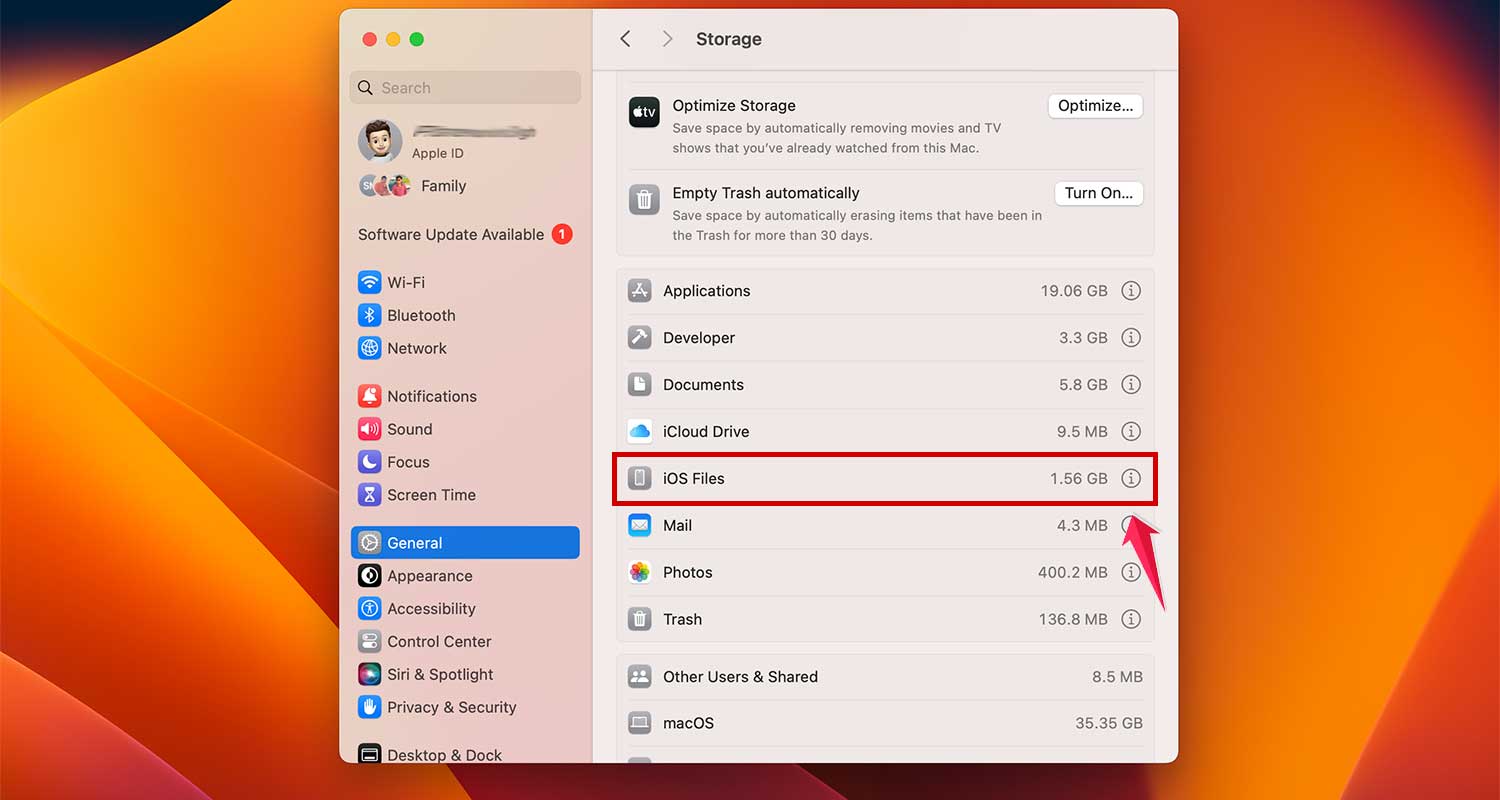
- Choose the backup you want to delete and click Delete
- Click Done when you’re finished
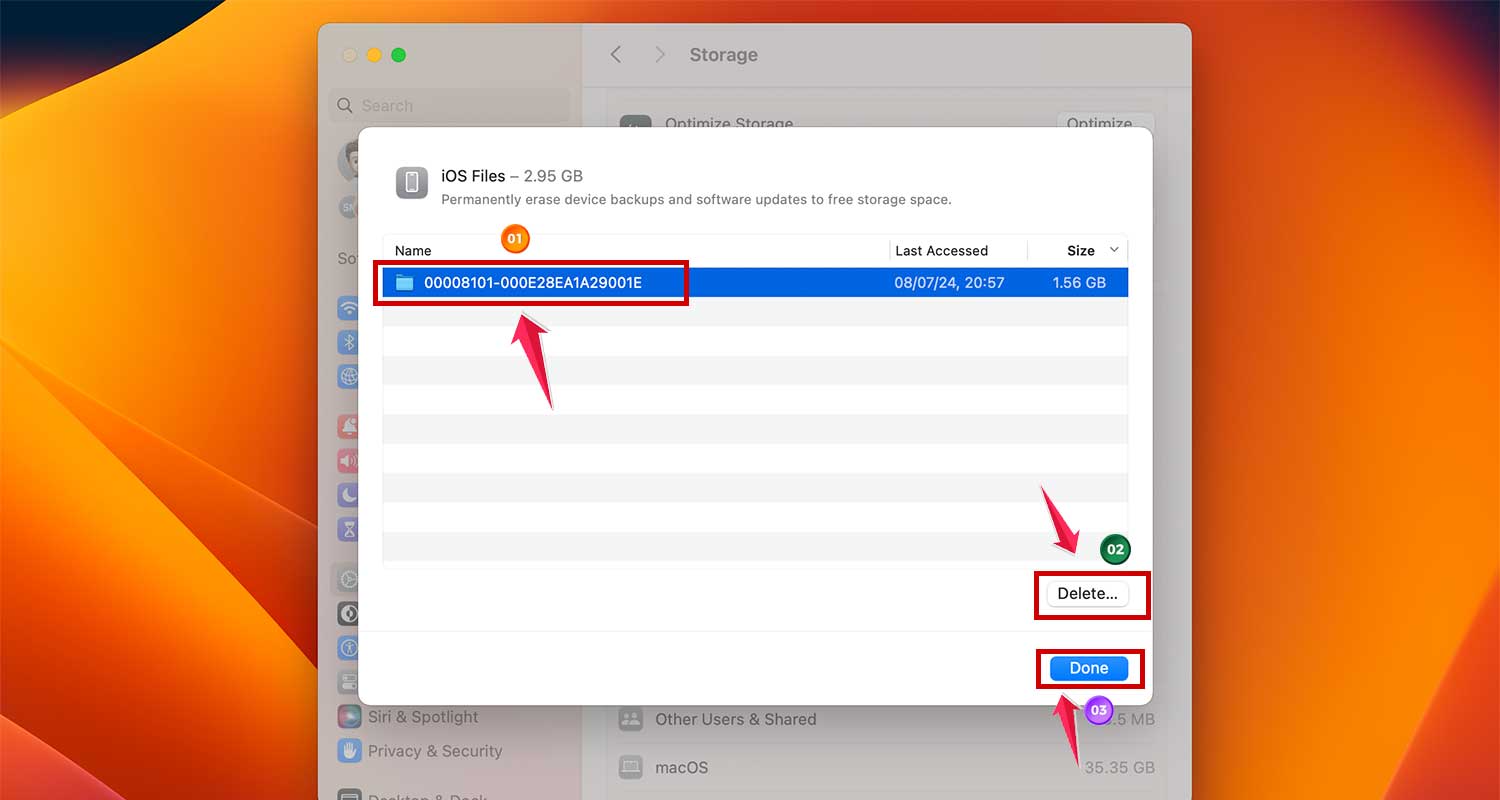
This will free up space on your Mac by getting rid of backups you don’t need anymore.
9. Get Rid of Old DMG Files
DMG files (disk images) can take up a lot of space. Here’s how to clear them out:
- Open Finder and type “.dmg” in the search bar
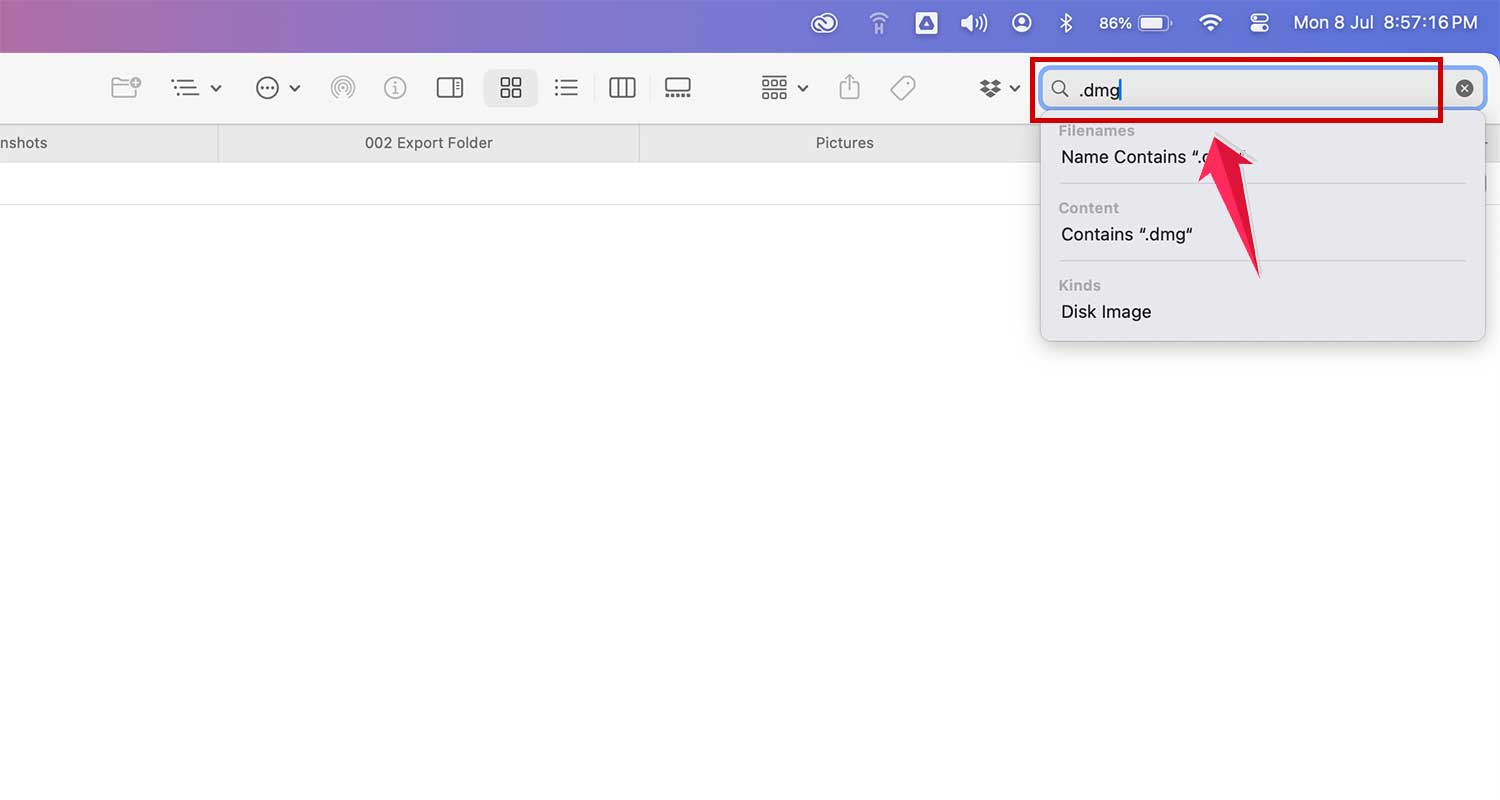
- Delete all the .dmg files you find
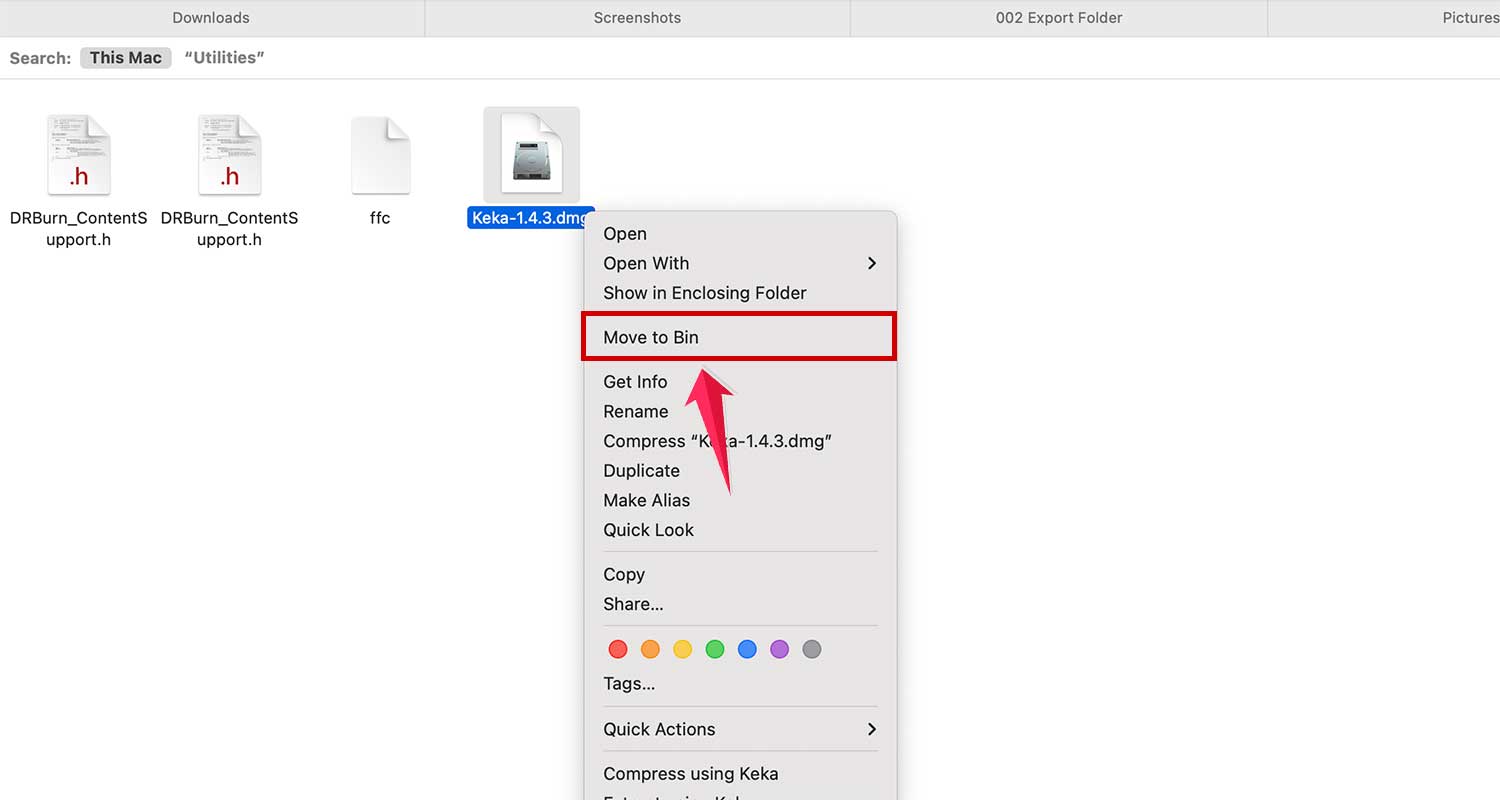
- Remember to empty your Bin afterward to really free up the space
10. Remove Unused Language Files
Your Mac apps often come with files for many languages you might not use. To remove these:
- Go to Finder, then Applications
- Right-click an app and select Show Package Contents
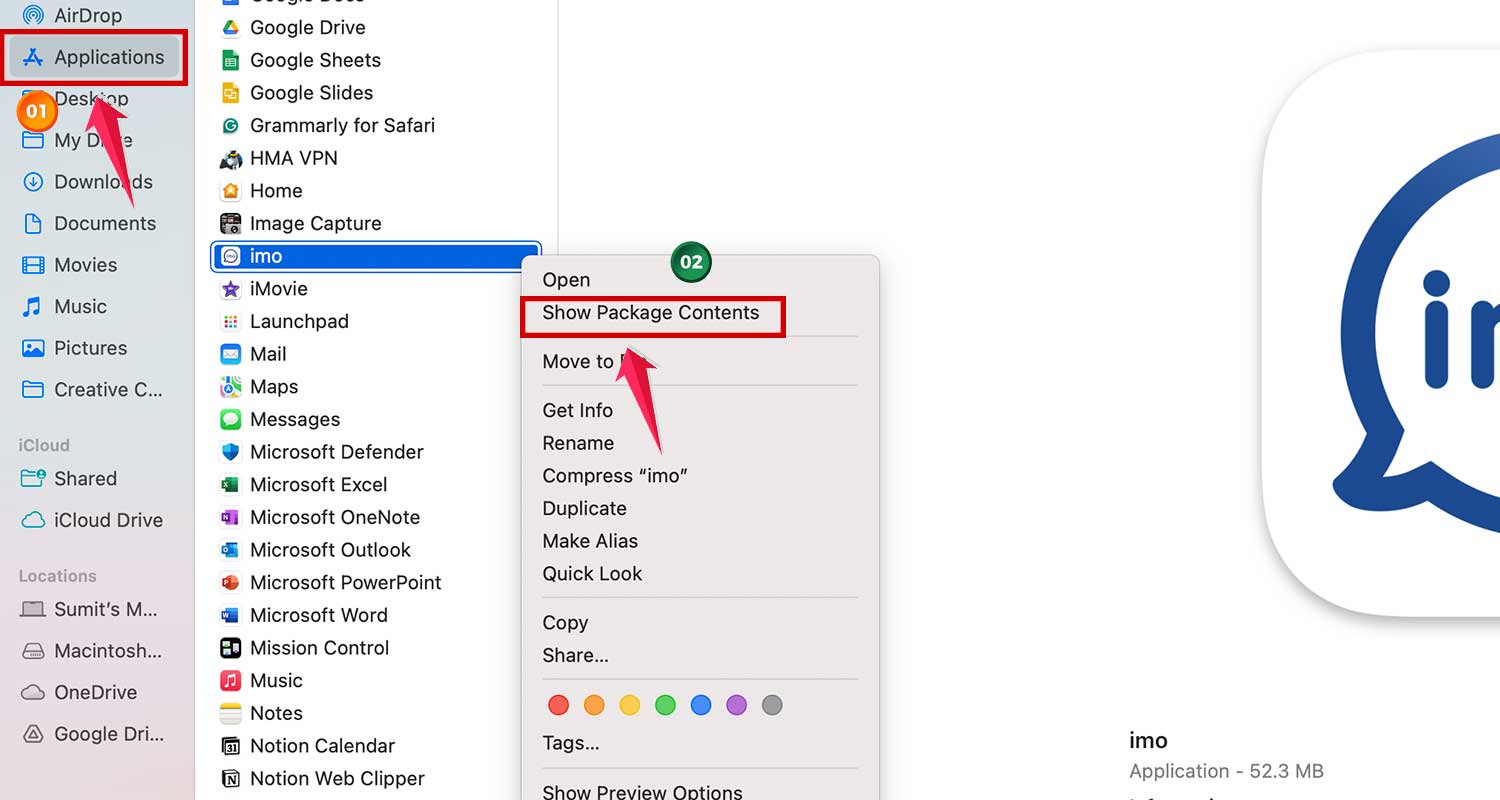
- Look in the Resources folder for folders ending in “.lproj”

- Delete the ones for languages you don’t use
This can save you some space, especially if you have lots of apps.
11. Clean Up Your Desktop
A cluttered desktop can slow down your Mac. Try these tips:
- Use Stacks: Right-click on your desktop and choose Use Stacks. This groups your files neatly.

- Use cloud storage or an external drive to keep your desktop tidy
12. Manage Your Startup Programs
Some apps start automatically when you turn on your Mac. Too many of these can slow things down. Here’s how to control them:
- Open System Settings
- Go to General, then Login Items
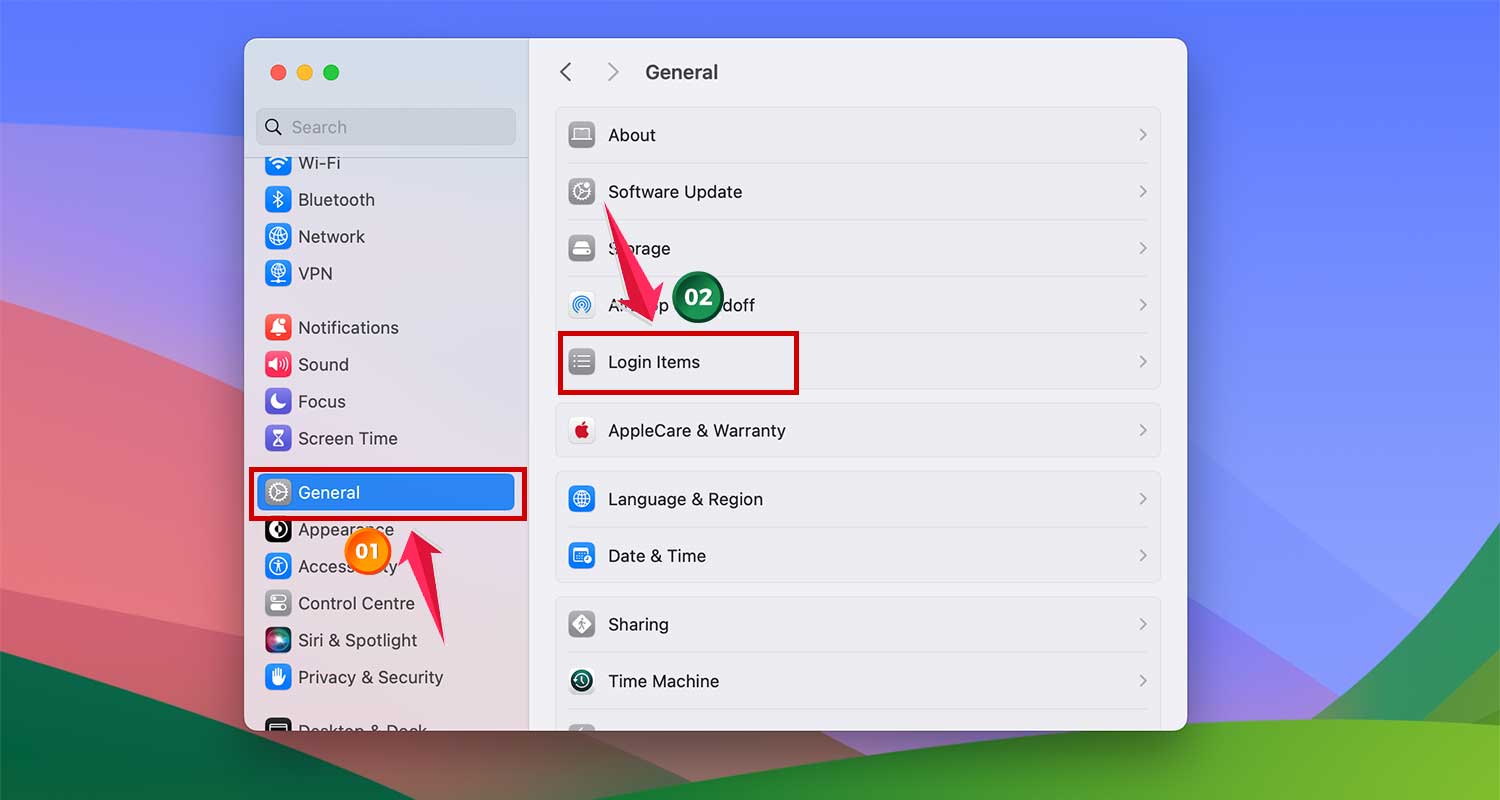
- Turn off any programs you don’t need to start right away
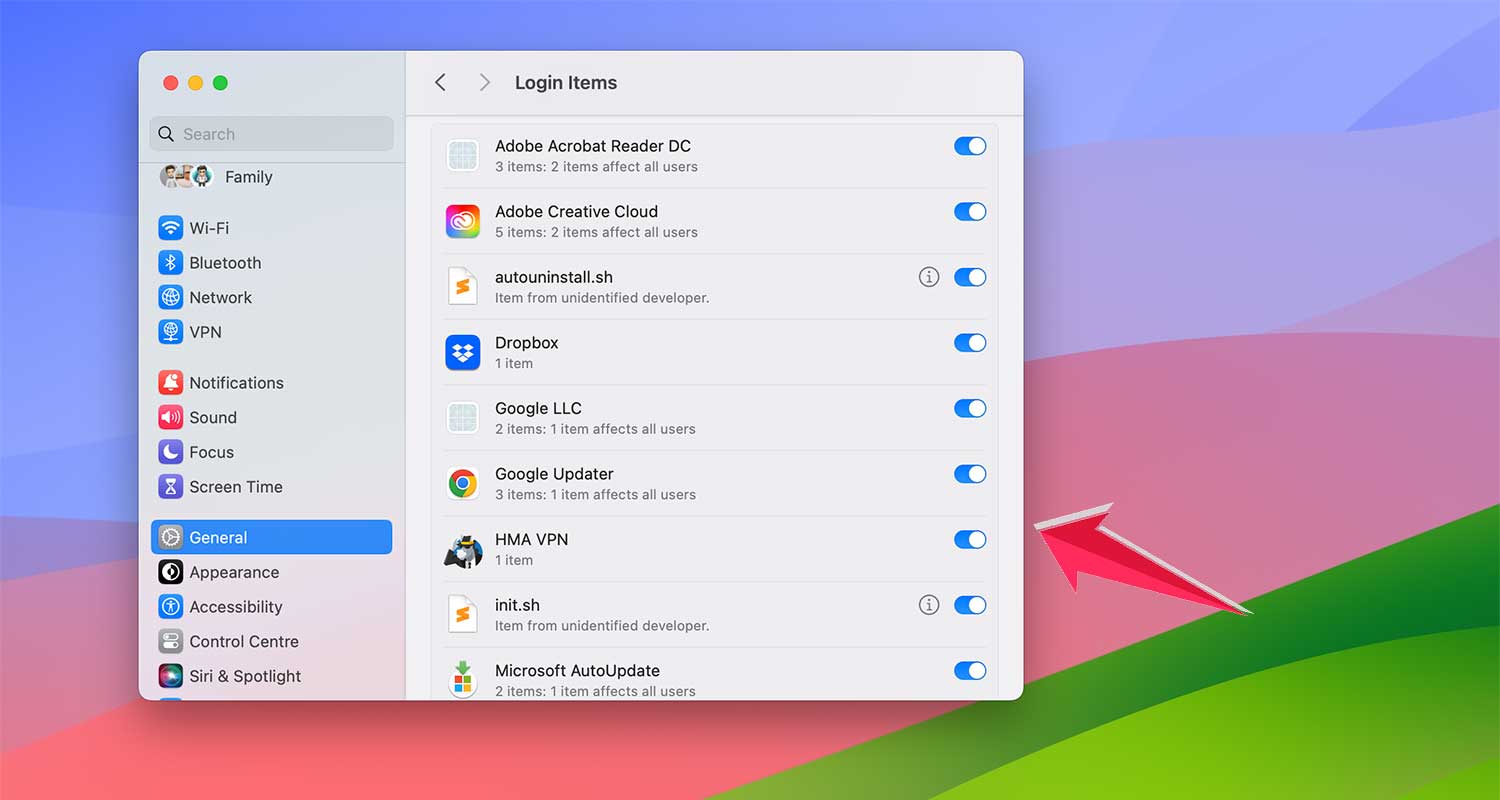
This can help your Mac start up faster and run better.
In Conclusion To
Maintaining your Mac doesn’t have to be complicated. By regularly following these simple steps, you can keep your computer running smoothly and efficiently. From updating your software to clearing out old files and managing your storage, each action contributes to your Mac’s overall performance.
Remember, a clean Mac is a happy Mac! Whether it’s organizing your desktop, removing unnecessary login items, or cleaning up your Downloads folder, these small actions can make a big difference. By taking care of your Mac, you’re ensuring it’s always ready to handle your digital needs.
Have you tried any of these methods? Which one made the biggest difference for you? Share your experiences in the comments below – your insights could help other Mac users too!