Ever wonder how often people look at their phones? It’s about 96 times a day! That’s like checking your phone every 10 minutes when you’re awake.
Since you look at your iPhone so much, you probably want it to look nice, right?
Good news! Apple has added some cool new ways to make your Home Screen look just how you want it. Before, your Home Screen might have seemed a bit boring. You could only see your wallpaper or a plain color behind your apps.
But now, you can do so much more! If you’re interested in more tweaks, you can also further personalize your iPhone with a few more settings adjustments.
With the new iPhone updates, you can make your Home Screen look softer by adding a bit of blur. It’s like looking through frosted glass. Pretty neat, right?
You can also pick any color you like for the space between your apps. Want blue? Red? Green? You got it! Your Home Screen can now show off your favorite colors.
In this guide, we’ll show you how to use these new features. We’ll explain everything step by step, so it’s easy to follow.
By the end, you’ll know how to make your iPhone Home Screen look just the way you want. Ready to make your iPhone screen look awesome? Let’s get started!
How to change your iPhone Home Screen background color
Your iPhone’s Home Screen is like your digital living room. Now you can make it look just how you want by changing its background color. Here’s how to do it:
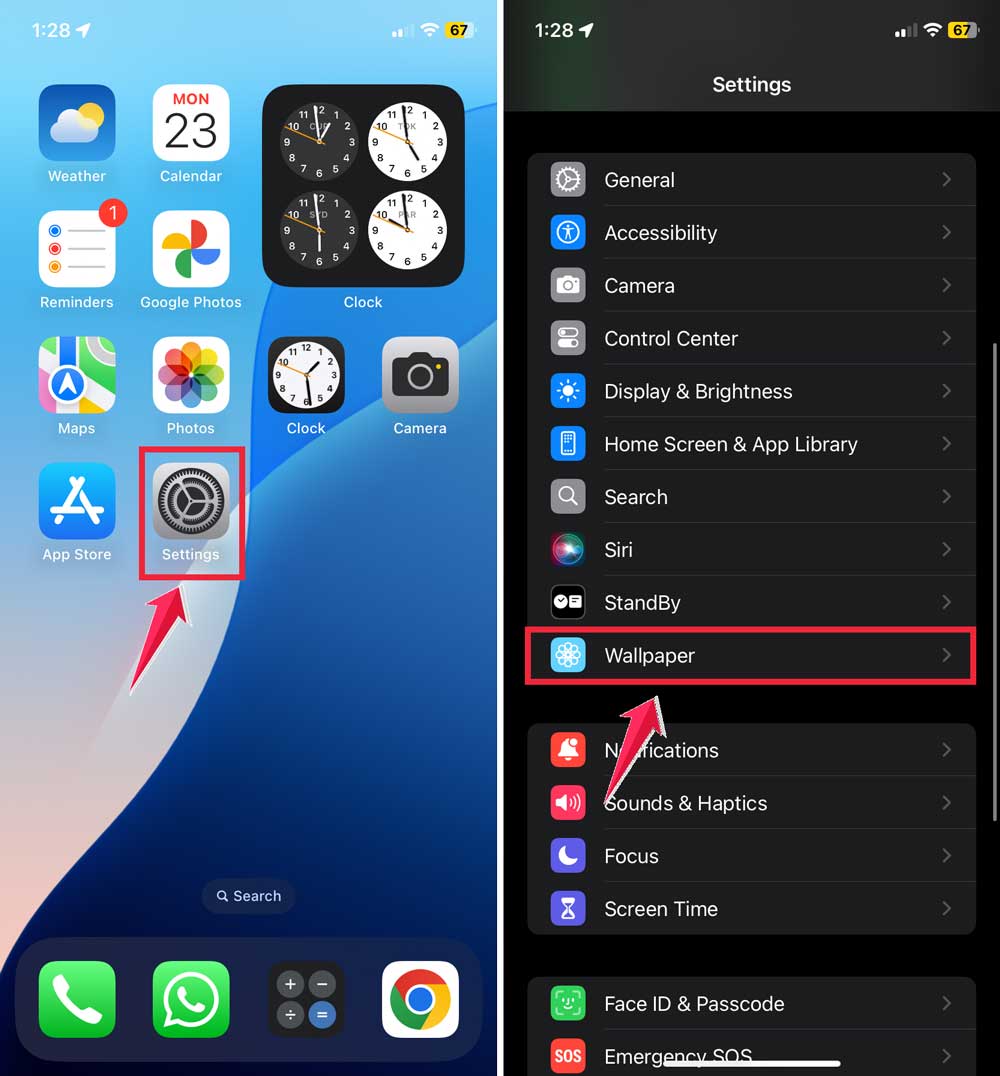
- Tap the “Settings” app on your iPhone. It looks like a gray gear.
- Scroll down until you see “Wallpaper”. Tap on it.
- You’ll see previews of your Lock Screen and Home Screen. Tap “Customize” under the Home Screen preview.
- At the bottom of the screen, you’ll see several options. Tap on the circle icon labeled “Color”.
- A color palette will appear. You can:
- Choose from the preset color circles.
- Use the slider at the bottom to fine-tune your color.
- Tap the circle in the top left corner to use the color picker for more options.
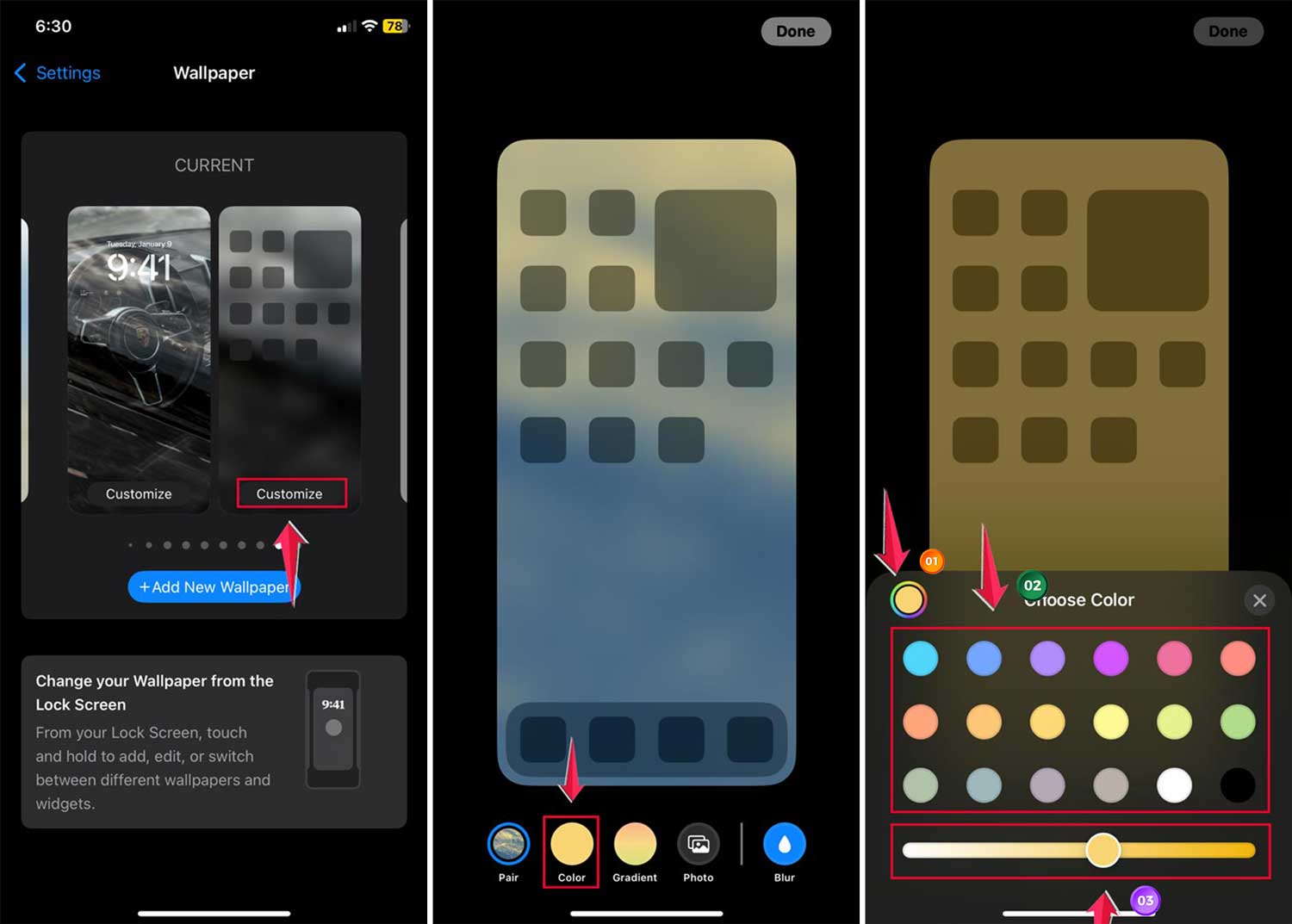
- If you want a softer look, tap the water droplet icon at the bottom right to add a blur effect. Adjust the slider to increase or decrease the blur.
- Once you’re happy with how it looks, tap “Done” in the top right corner of the screen.

That’s it! Your Home Screen now has a fresh new look with the color you chose. If you ever want to change it again, just follow these same steps.
The takeaway
Let’s wrap up what we’ve learned about changing your iPhone’s Home Screen color. It’s a simple way to make your phone look just how you want it.
Here’s what you need to remember: Go to Settings, then Wallpaper, and pick a color for your Home Screen. You can choose any shade you like and even make it a bit blurry if you want. It’s that easy!
Some people think you can’t do much to change how an iPhone looks. But that’s not true! You can even keep your iPhone organized and tidy while personalizing the look and feel.
Your phone is something you use all the time. So why not make it look nice? Try changing your Home Screen color and see how it makes you feel. If you ever lose essential apps while customizing, here’s how to restore essential apps if needed quickly.
We’d love to know what color you chose for your Home Screen. Tell us about it in the comments!