In today’s world of social media, photo editing apps have become essential tools for enhancing your pictures.
Facetune is a popular choice for many, but you might find yourself wanting to cancel your subscription and explore other options.
Whether you’re using an iPhone or Android device, this guide will walk you through the process of canceling your Facetune subscription.
You’ll learn how to smoothly end your subscription, uninstall the app, and understand the refund policy.
Plus, we’ll introduce you to some other great photo editing apps you might want to try.
Let’s get started with everything you need to know about canceling your FaceTune subscription and moving on to new photo editing adventures.
How to Cancel Your Facetune Subscription on iPhone
If you’re using an iPhone and want to stop your Facetune subscription to avoid extra charges, here’s what you need to do:
- Open the “Settings” app on your iPhone
- Tap on your profile icon at the top

- Select “Subscriptions”

- Find Facetune in your list of subscriptions and tap it for more details
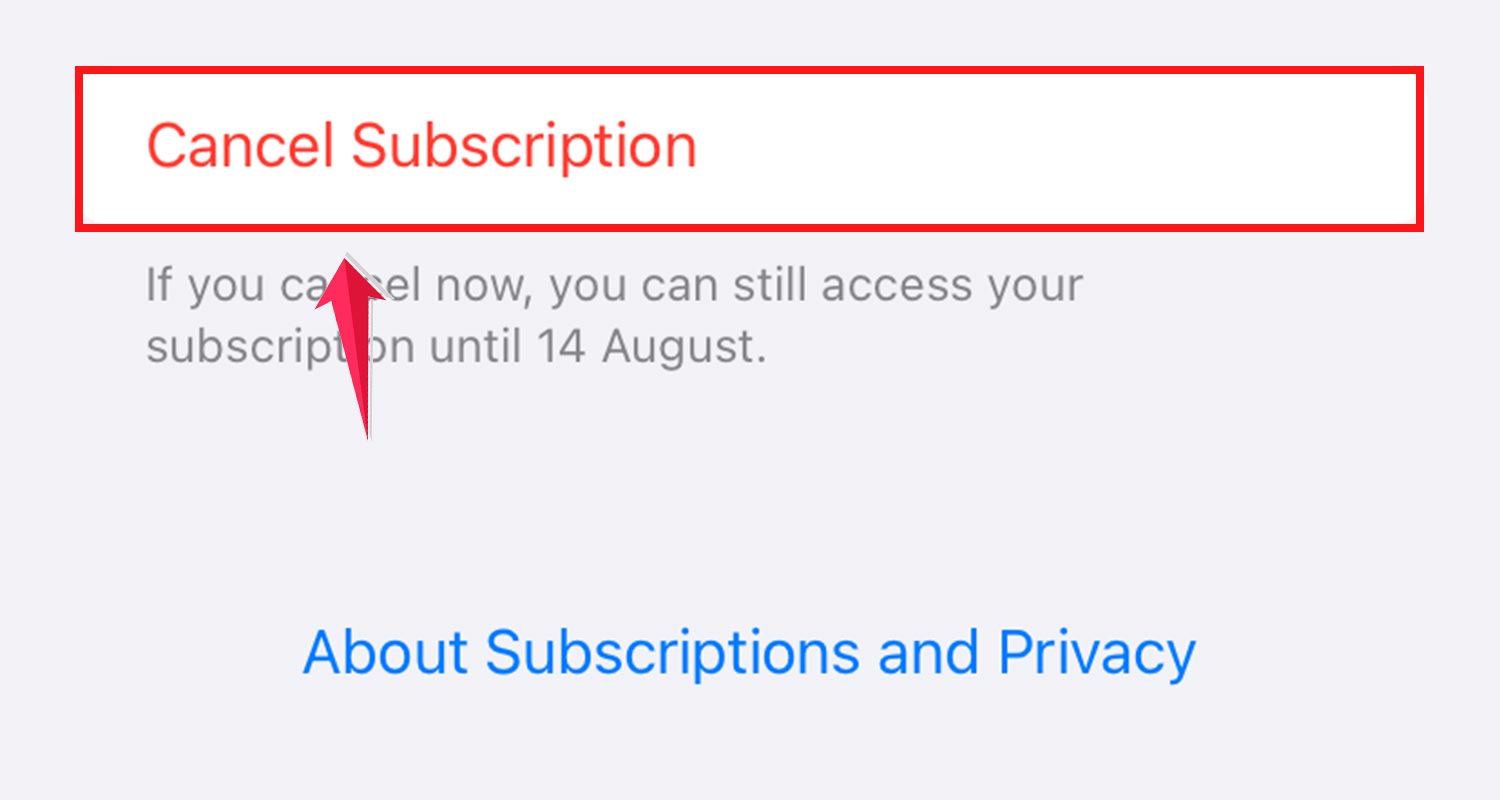
After canceling, you’ll still have access to Facetune’s free features, but the premium editing tools will be locked.
Keep in mind that the subscription costs $8 per month. If you cancel before your next payment date, you can continue using the premium features until the end of your current billing period.
Remember, just deleting the Facetune app from your iPhone won’t stop the charges. You need to cancel using the steps above to avoid any unexpected fees.
How to Cancel Your Facetune Subscription on Android
If you’re using an Android device and want to cancel your Facetune subscription, follow these steps:
- Open the Google Play Store App: Launch the Google Play Store app on your Android device.

- Access Your Profile: Tap on the profile icon in the upper right corner.

- Navigate to Payments & Subscriptions: Go to “Payments & Subscriptions.”

- Cancel Your Subscription: Select “Cancel Subscriptions” from the available options.
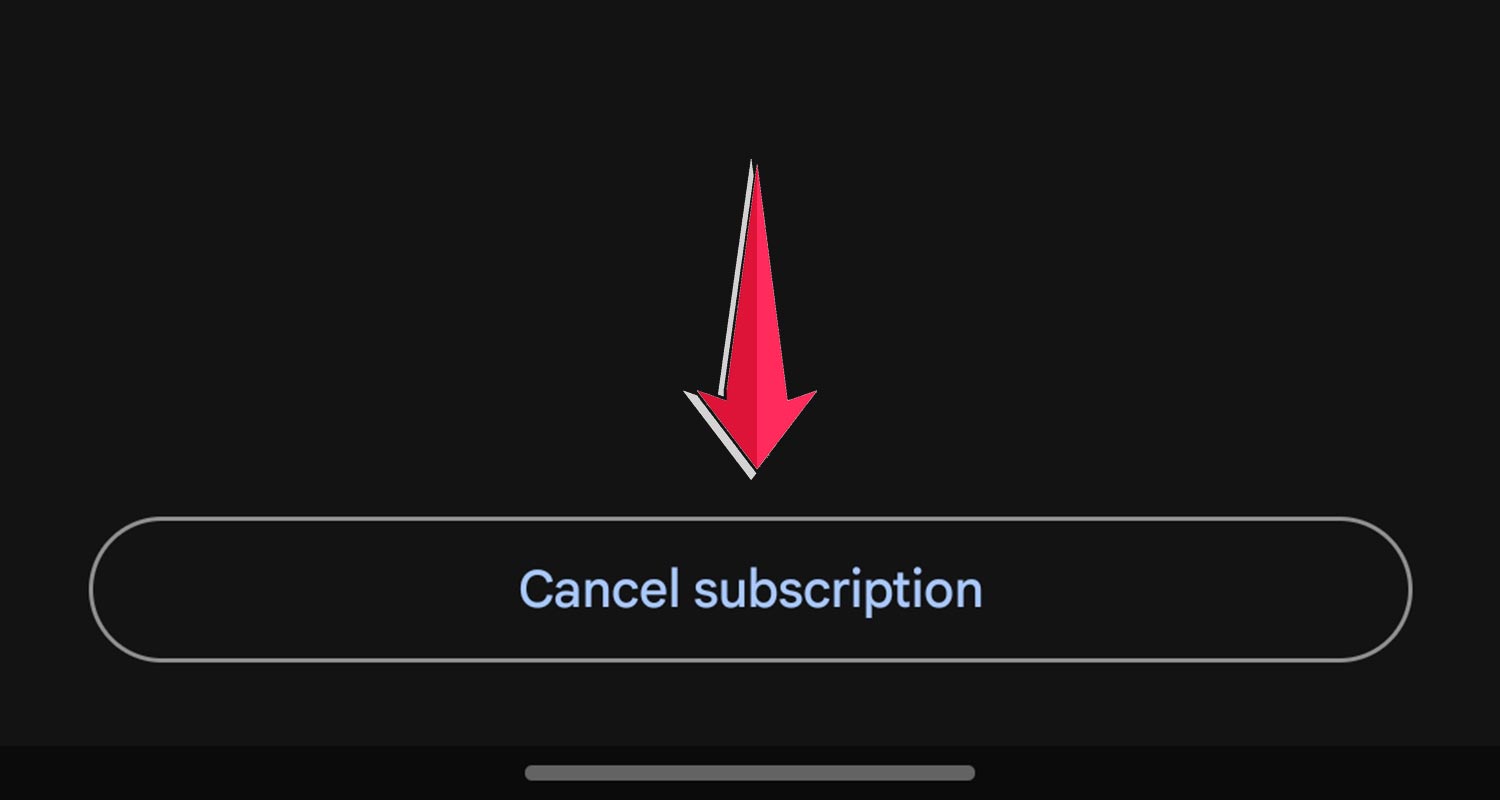
If you cancel before the end of your billing cycle, you can still use the subscription features until that cycle ends.
Make sure to follow all the prompts carefully, especially if you’re ending a free trial of Facetune.
How To Deactivate Facetune Subscription via PayPal
Deactivating your Facetune subscription through PayPal is a smart way to manage your expenses. Follow these straightforward steps to cancel:
- Log in to your PayPal account.
- Navigate to the Payments section.
- Click on Manage Automatic Payments to find your subscriptions.
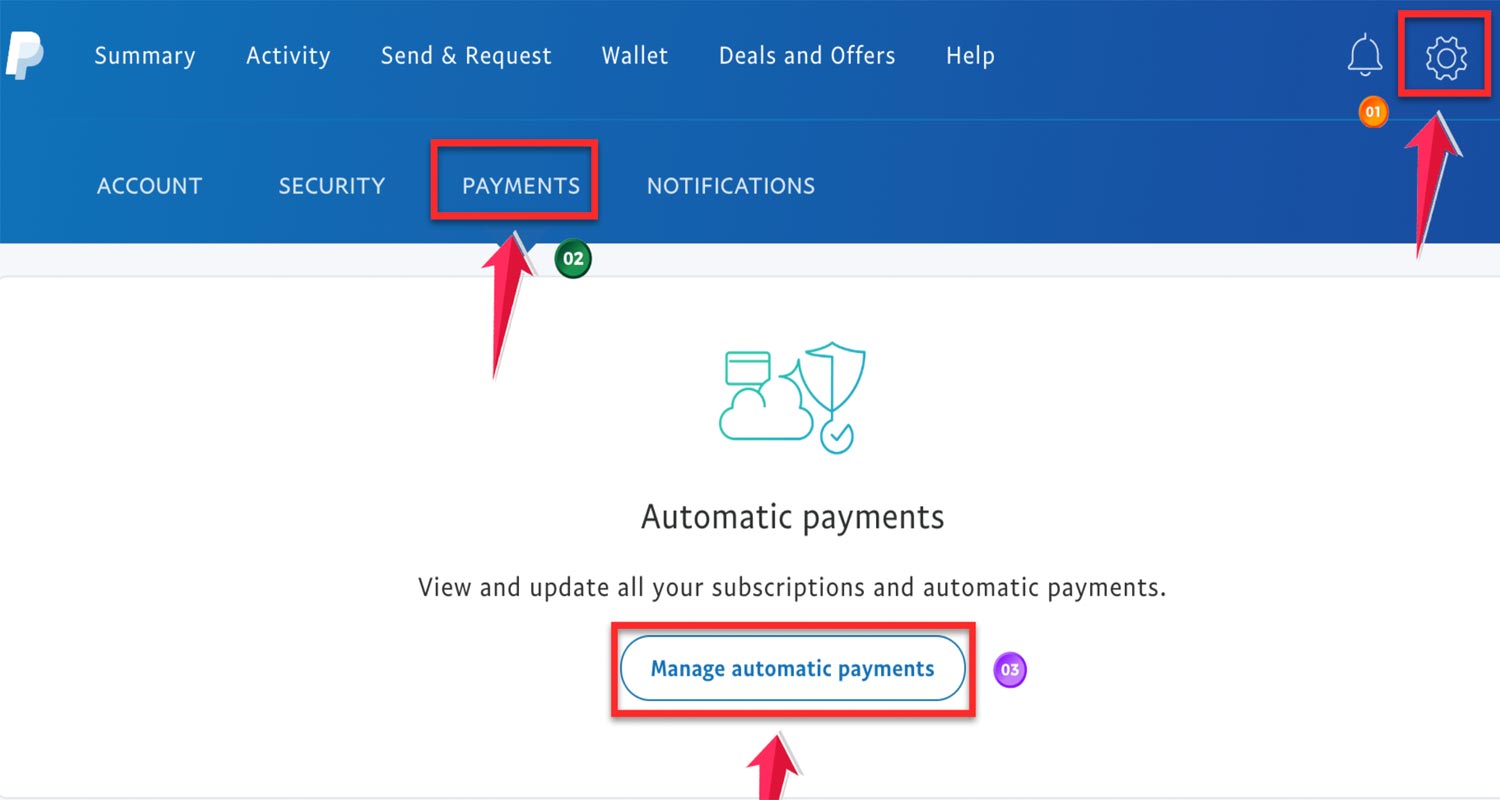
- Use the search or filter tools to locate ‘Facetune.’
- Once you find the Facetune transaction, select ‘Deactivate quicker checkout.‘
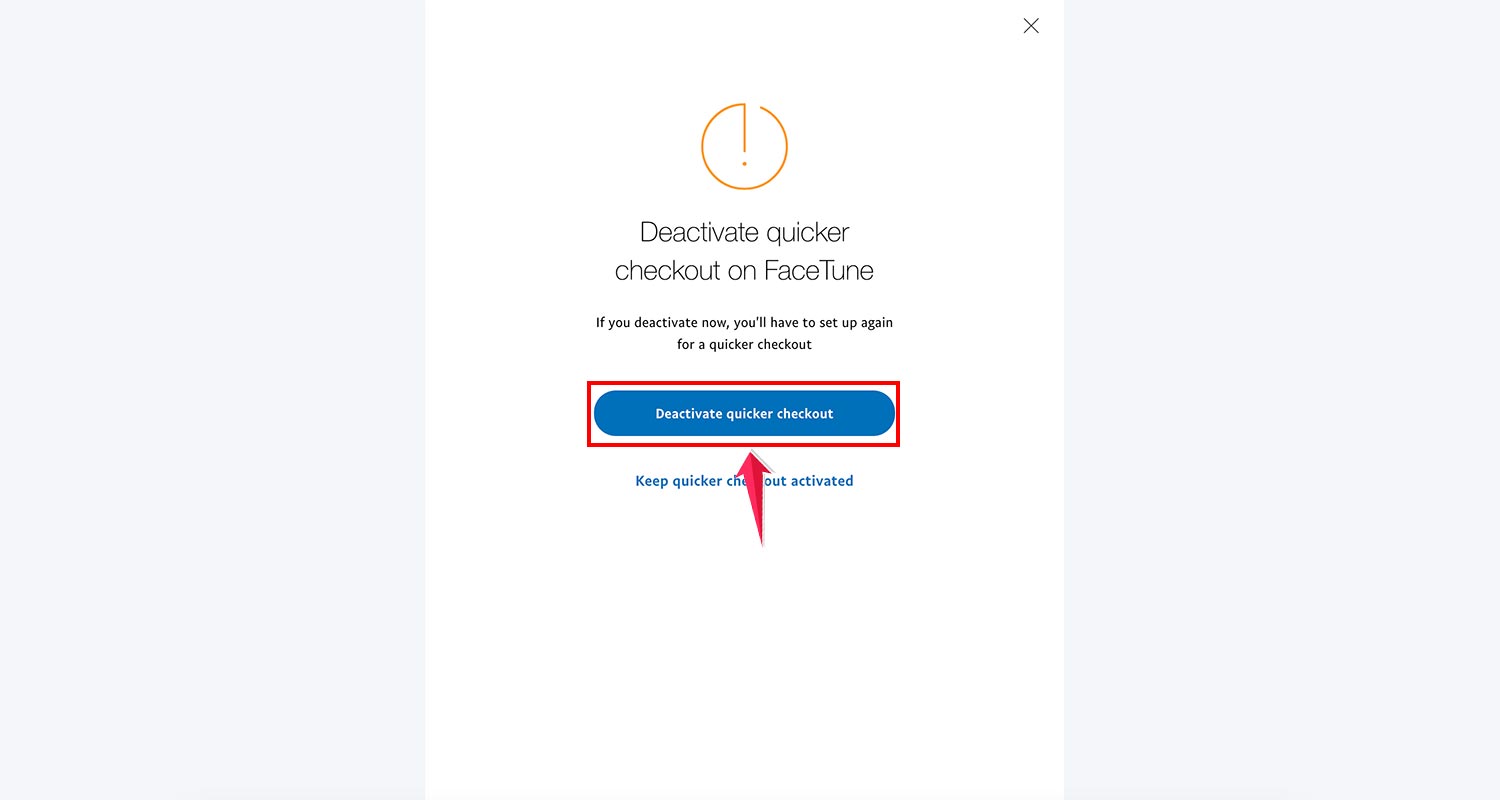
This action will end your paid subscription but allow you to continue using the free features of the app.
Canceling through PayPal ensures you control your subscriptions and avoid automatic charges.
Wrapping Up
Managing your Facetune subscription is an important part of using the app effectively.
Whether you’re on iPhone or Android, knowing how to set up, cancel, or get refunds for your subscription helps you avoid unwanted charges and make the most of Facetune’s features.
If you’ve decided Facetune isn’t for you anymore, don’t worry. There are plenty of other great photo editing apps out there, like Photoscape and Adobe Lightroom.
Remember, the key to great digital creativity is finding the right tools for you.
What do you think about your experience with Facetune? Have you tried any other photo editing apps? We’d love to hear your thoughts in the comments below!