

Are you lying in bed right now, scrolling through your iPhone and wondering why you can’t fall asleep? You’re not alone. Many people struggle with sleep because of their nighttime phone habits.
You’ve probably heard that the blue light from your screen is bad for sleep. That’s true, but it’s not the whole story. Your iPhone can affect your sleep in several ways, and blue light is just one piece of the puzzle.
In this article, you’ll learn how to make your iPhone more sleep-friendly tonight and in the future.
We’ll cover simple steps to reduce blue light and other tweaks that can help you drift off more easily. Whether you’re a night owl or an early bird, these tips will help you use your device more wisely.
By the time you finish reading, you’ll have practical strategies to try right away. You’ll be able to enjoy your iPhone without sacrificing your sleep. Let’s get started on your path to better rest!
How to block blue light on iPhone plus other ways to get to sleep?
Are you having trouble falling asleep after using your iPhone? Let’s look at some easy ways to make your device less disruptive to your sleep.
1. The best way to get better sleep
Reducing bright light at night is key to better sleep. Dr. Huberman, a sleep expert, suggests you start doing this as soon as the sun sets.
Other experts say you should avoid blue light and bright screens for at least an hour before bed.
Can’t put your iPhone down completely? Try these simple tricks:
- Try lowering the brightness on your iPhone.
- You can use grayscale mode. This will turn your iPhone to black and white. Simply say, “Hey Siri, turn on grayscale“.
- You can also try blocking blue light.
- Try Night Shift and Dark Mode.
- If you use the internet on a mobile browser, you might notice that most of the websites are always white in the background, which can hurt your eyes.
2. Make your iPhone less appealing with grayscale
Want to make your iPhone less tempting at night? Try turning it to grayscale. This makes the screen less colorful and exciting. Here’s how:
- Say “Hey Siri, turn on grayscale“.

- Or go to Settings > Accessibility.

- Click on Display & Text Size.
- Tap on Color Filters.
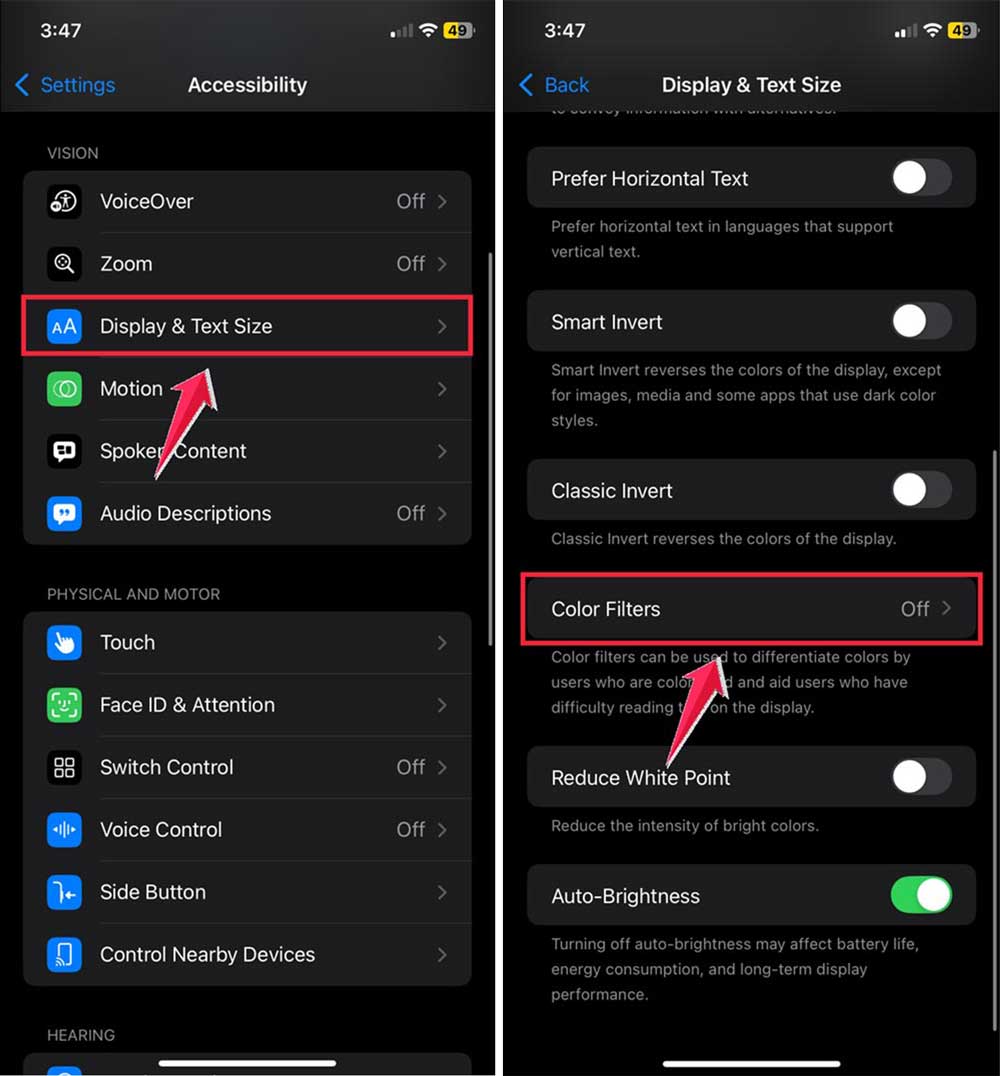
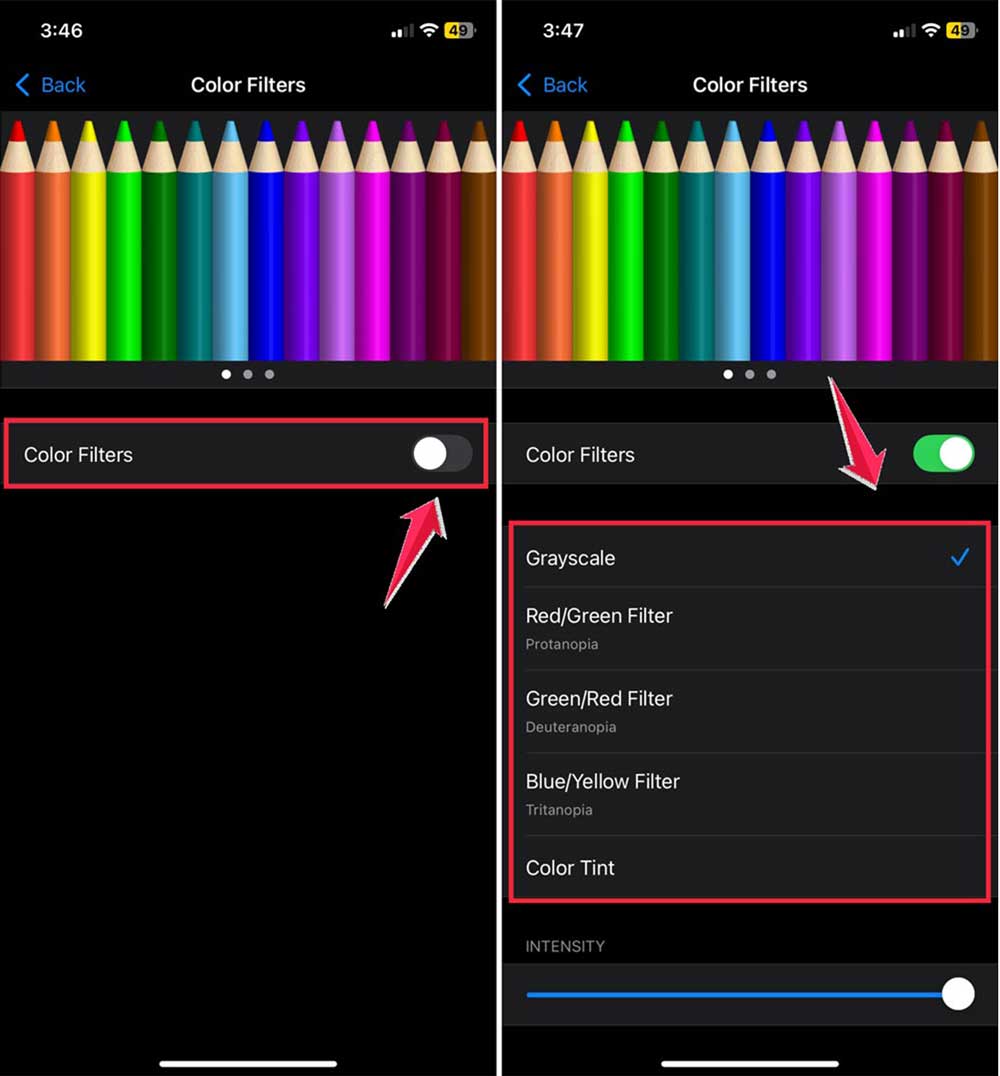
- Turn on Color Filters.
- Click on Grayscale.
You can also lower the brightness by saying “Hey Siri, turn down my brightness” or using the sun icon in the Control Center.
Remember, you’ll need to do this manually each night as iPhones can’t schedule these changes automatically yet.
3. Block the blue light on your iPhone
If you’re worried about blue light keeping you awake, try using a color filter:
- Go to Settings > Accessibility > Display & Text Size > Color Filters.
- Turn on Color Filters.

- Choose Color Tint.
- Move the intensity slider all the way right and the hue slider all the way left for a red filter.

This red filter blocks blue light and makes your phone less interesting to use at night. You can set up a shortcut to turn this on quickly by going to Accessibility > Accessibility Shortcut.
4. Use Night Shift and Dark Mode
Two more features can help make your iPhone easier on your eyes at night:
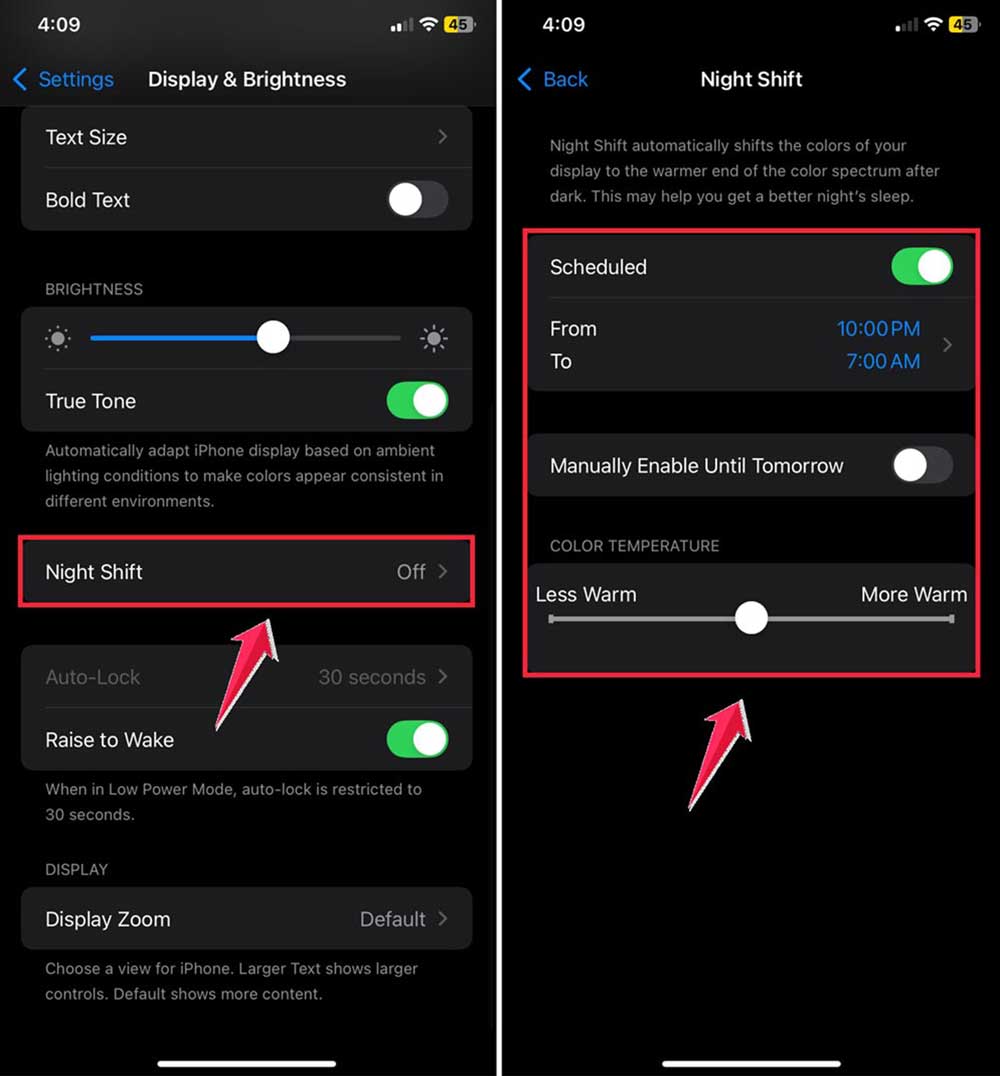
Night Shift
This makes your screen colors warmer and less harsh. To set it up:
- Go to Settings > Display & Brightness.
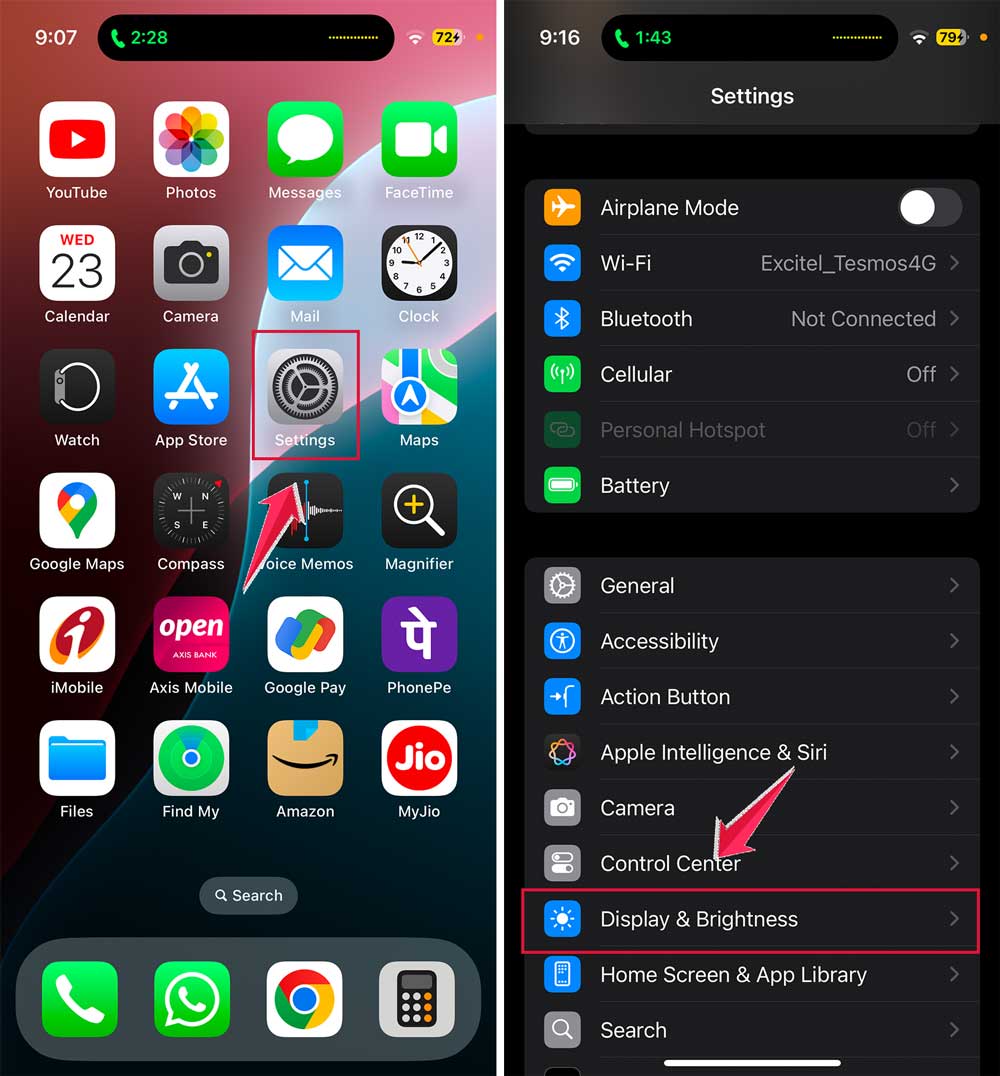
- Click on Night Shift.
- Set a schedule and adjust how warm you want the colors.
Dark Mode
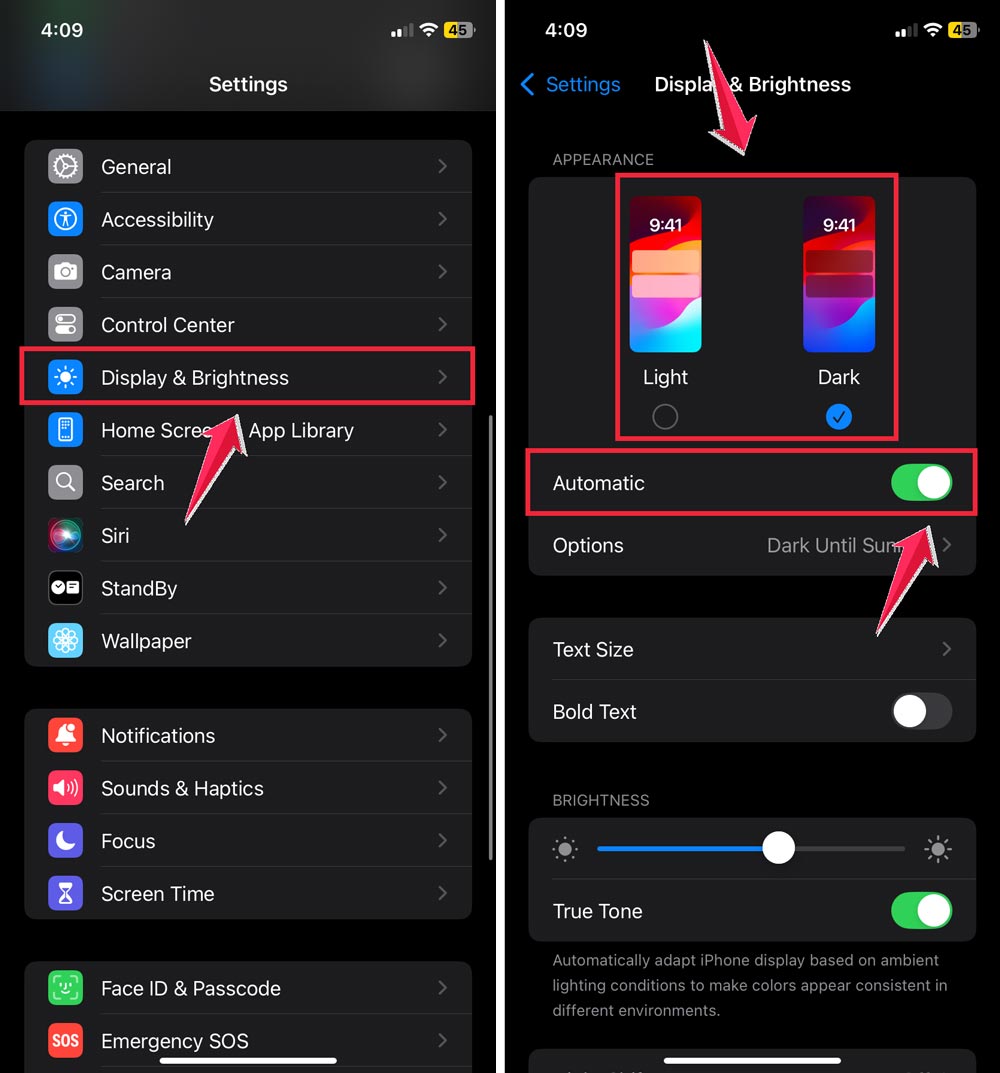
This changes your screen background to black, reducing the light your phone gives off. To use it:
- Go to Settings > Display & Brightness > Light/Dark.
- Choose Automatic to switch between light and dark based on the time of day.
These options are great if you find grayscale or color filters too much of a change.
By using these settings, you can still use your iPhone while preparing your mind and body for a good night’s sleep.
The takeaway
Let’s wrap this up, shall we? You’ve learned some simple tricks to make your iPhone less of a sleep thief. Remember, it’s all about reducing bright light at night, especially that pesky blue light.
You don’t have to ditch your phone completely before bed (though that would be ideal).
Instead, try using grayscale mode, a red color filter, or Night Shift and Dark Mode. These features can make your late-night scrolling less disruptive to your sleep.
Here’s a pro tip: consistency is key. Pick a method that works for you and stick with it. Your brain will thank you for the regular routine.
Tonight, why not give one of these settings a try? You might be surprised at how much easier it is to drift off. Sweet dreams are just a few taps away!
So, which feature are you excited to try first? Your future, well-rested self is rooting for you!








