Did you know that over a billion people use Apple devices? That’s a lot! And many of these folks want to show what’s on their small screens on a bigger TV screen.
Here’s the thing: when you’re browsing the internet on your iPhone, iPad, or Mac using Safari, you might want to see it on your TV.
But there’s a catch. Apple TV doesn’t have Safari built into it. So, how do you get around this? That’s where AirPlay comes in handy.
AirPlay is like an invisible cable that connects your Apple device to your TV. It lets you send what’s on your small screen to the big screen.
While Safari doesn’t have a special AirPlay button, you can still show it on your TV by sharing your whole screen.
In this article, you’ll learn how to use AirPlay to show Safari from your iPhone, iPad, or Mac on your Apple TV.
And if you have a newer Smart TV that works with AirPlay, this guide will help you, too. So, let’s get started and turn your TV into a giant web browser!
How to show Safari on your TV from your iPhone or iPad
Want to see your Safari browser from your iPhone or iPad on your big TV screen? It’s easier than you might think! Here’s how you can do it:
- Get ready First, make sure AirPlay is turned on in your Apple TV or AirPlay-compatible TV. Go to your TV’s settings and look for “AirPlay & HomeKit Settings.” Turn AirPlay on.
- Connect to WiFi. Your TV and your iPhone or iPad need to be on the same WiFi network. This is how they’ll talk to each other.
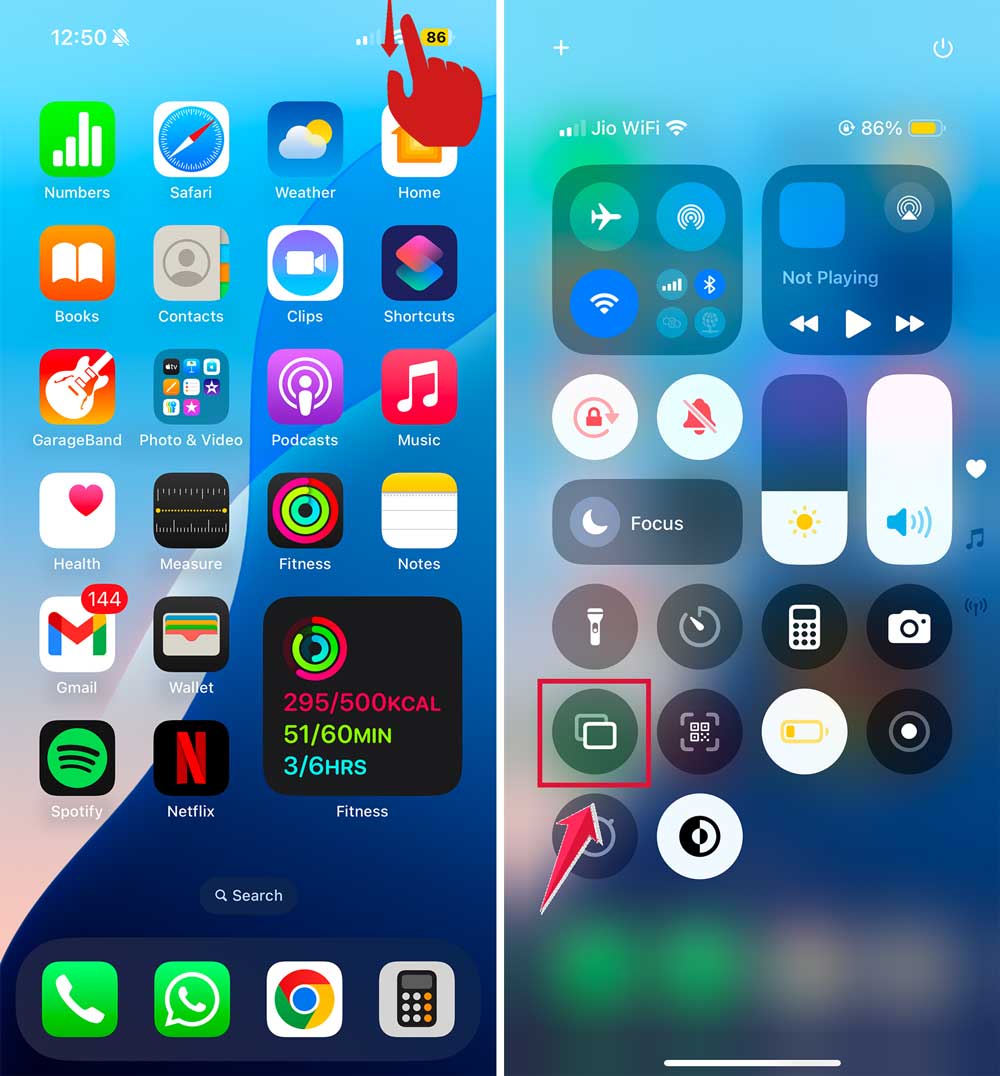
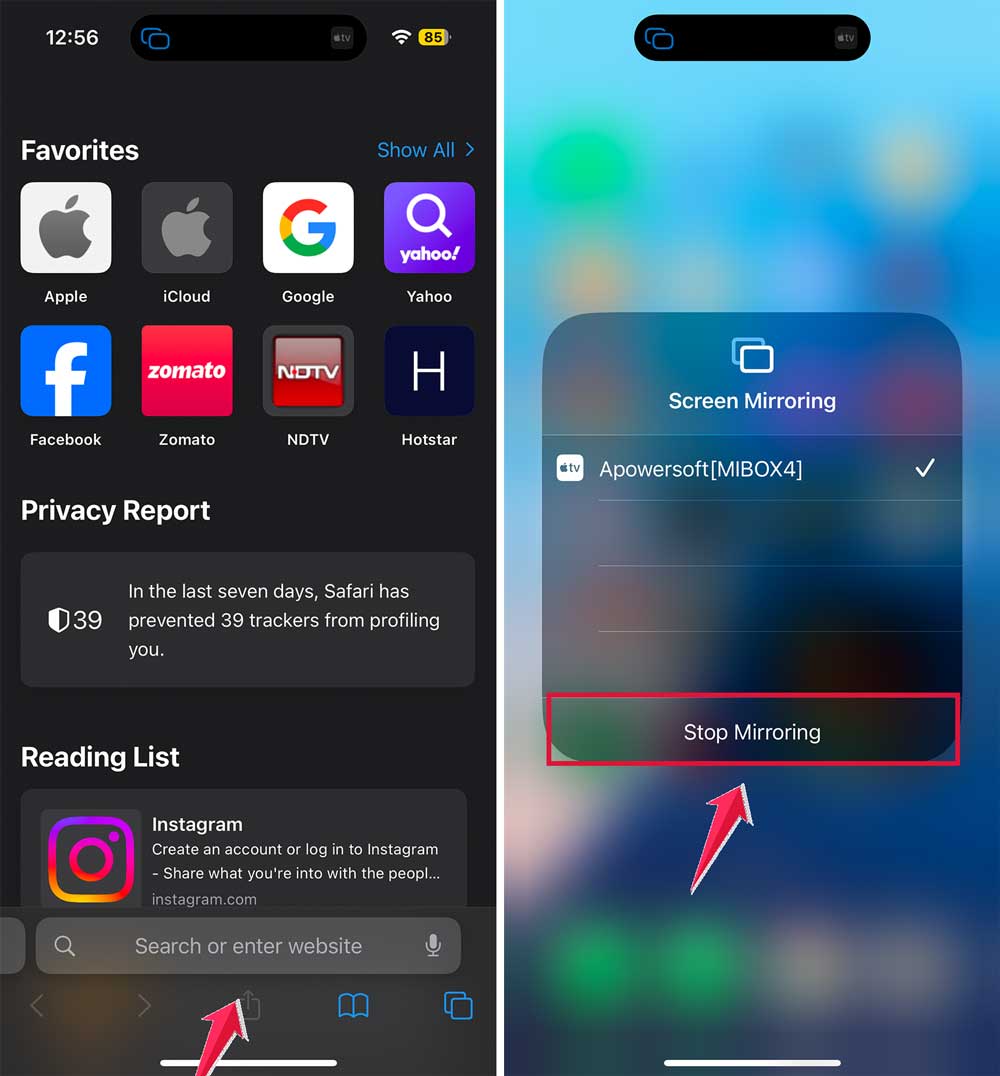
- Open Control Center. On your iPhone or iPad, swipe down from the top-right corner (or up from the bottom on older models) to open the Control Center.
- Start mirroring your screen. Tap on “Screen Mirroring.” This tells your device you want to show its screen somewhere else.
- Choose your TV. You’ll see a list of devices. Pick your TV from this list.
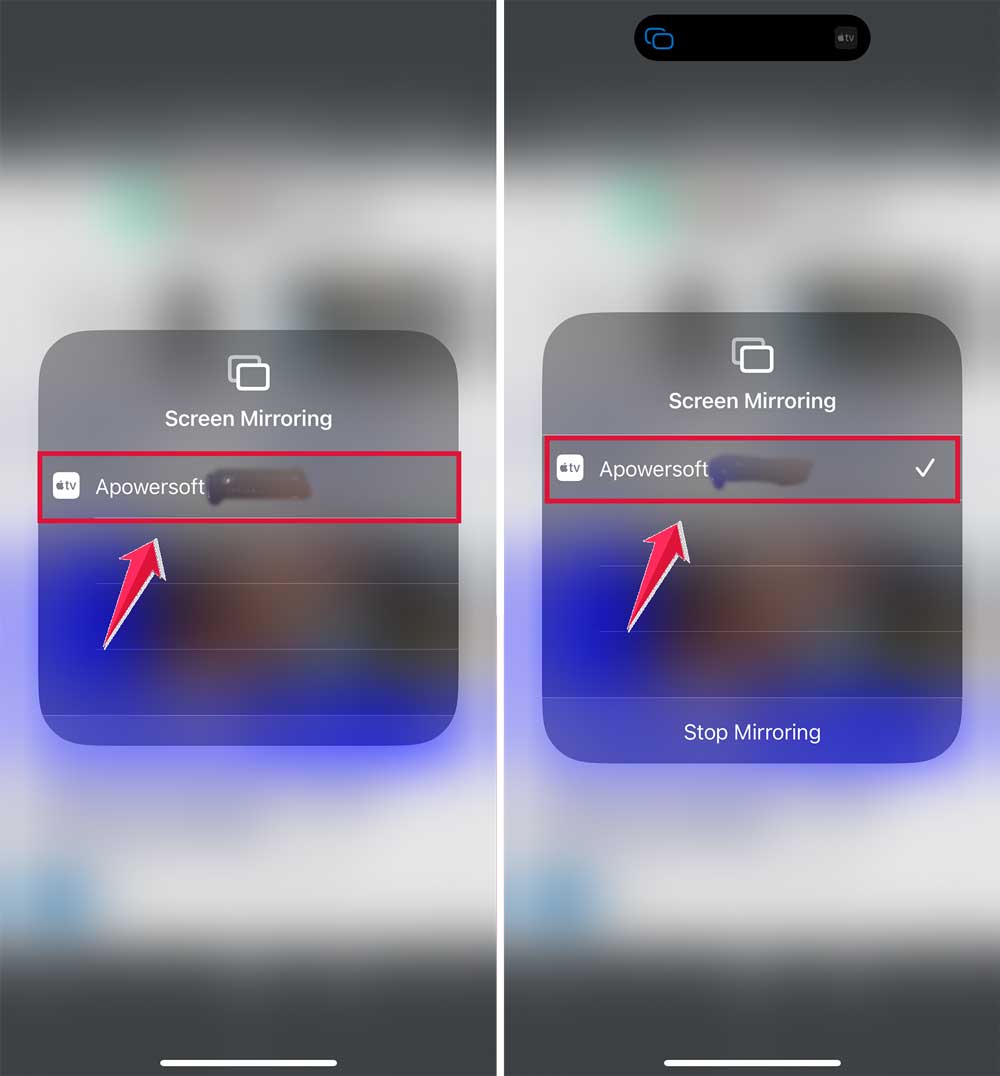
- Enter the code. A code will appear on your TV screen. Type this code into your iPhone or iPad to connect them.
- See your device on the TV. Your iPhone or iPad screen will now show up on your TV.

- Open Safari and start browsing. Now, just open Safari on your device and use it like normal. Everything you do will show up on the TV.
- Turn it off when you’re done. When you’re finished, remember to turn off the Screen Mirroring in the Control Center.
How to show Safari from your Mac on your TV
Want to see your Mac’s Safari browser on your TV? Here’s how you can do it:
- Connect to WiFi. Make sure your Mac and your TV are on the same WiFi network.
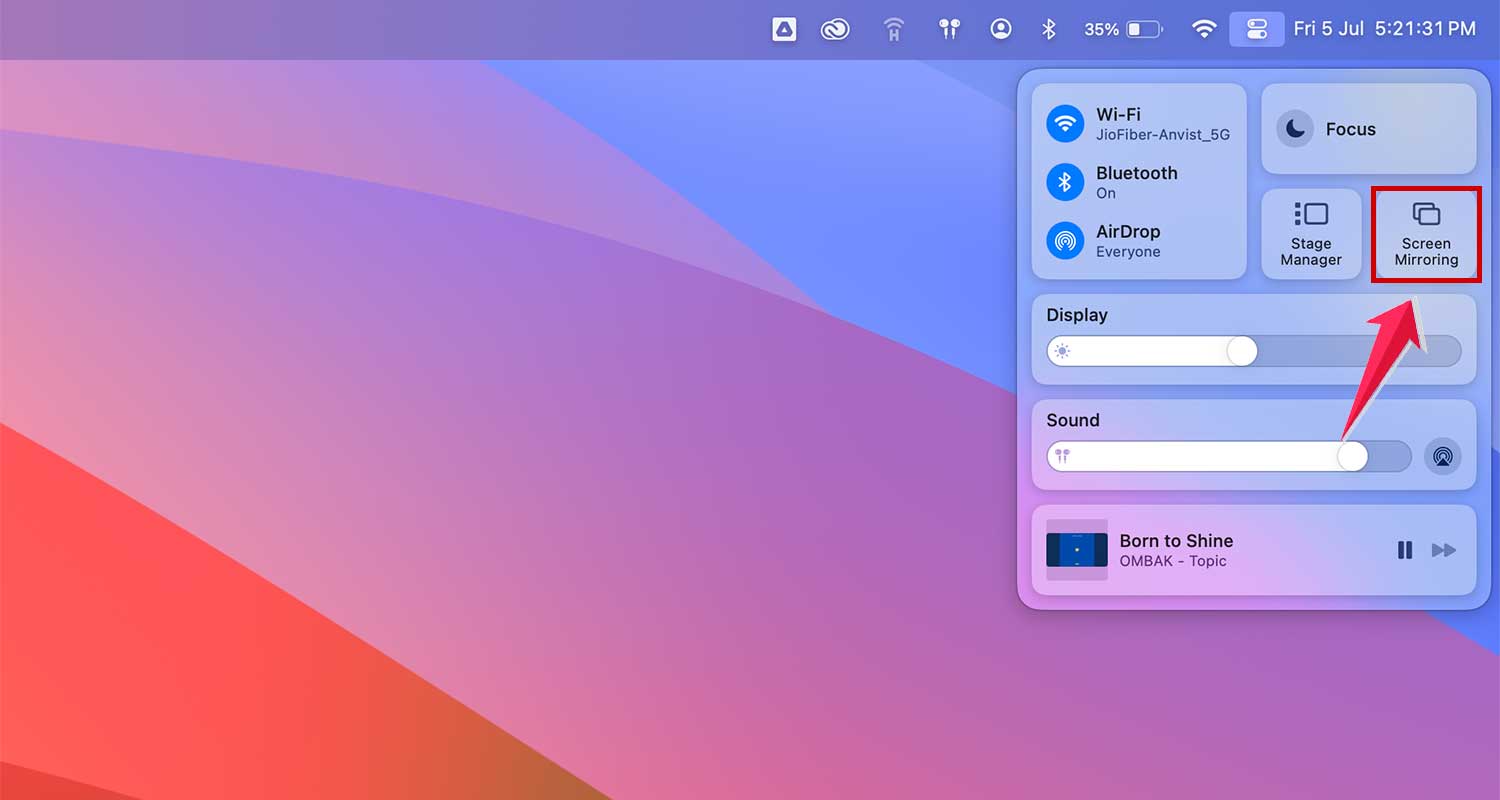
- Find the Control Center. Look for the Control Center icon at the top of your Mac’s screen and click it.

- Choose Screen Mirroring. In the Control Center, click on “Screen Mirroring.”
- Pick your TV. Choose your TV from the list that appears.
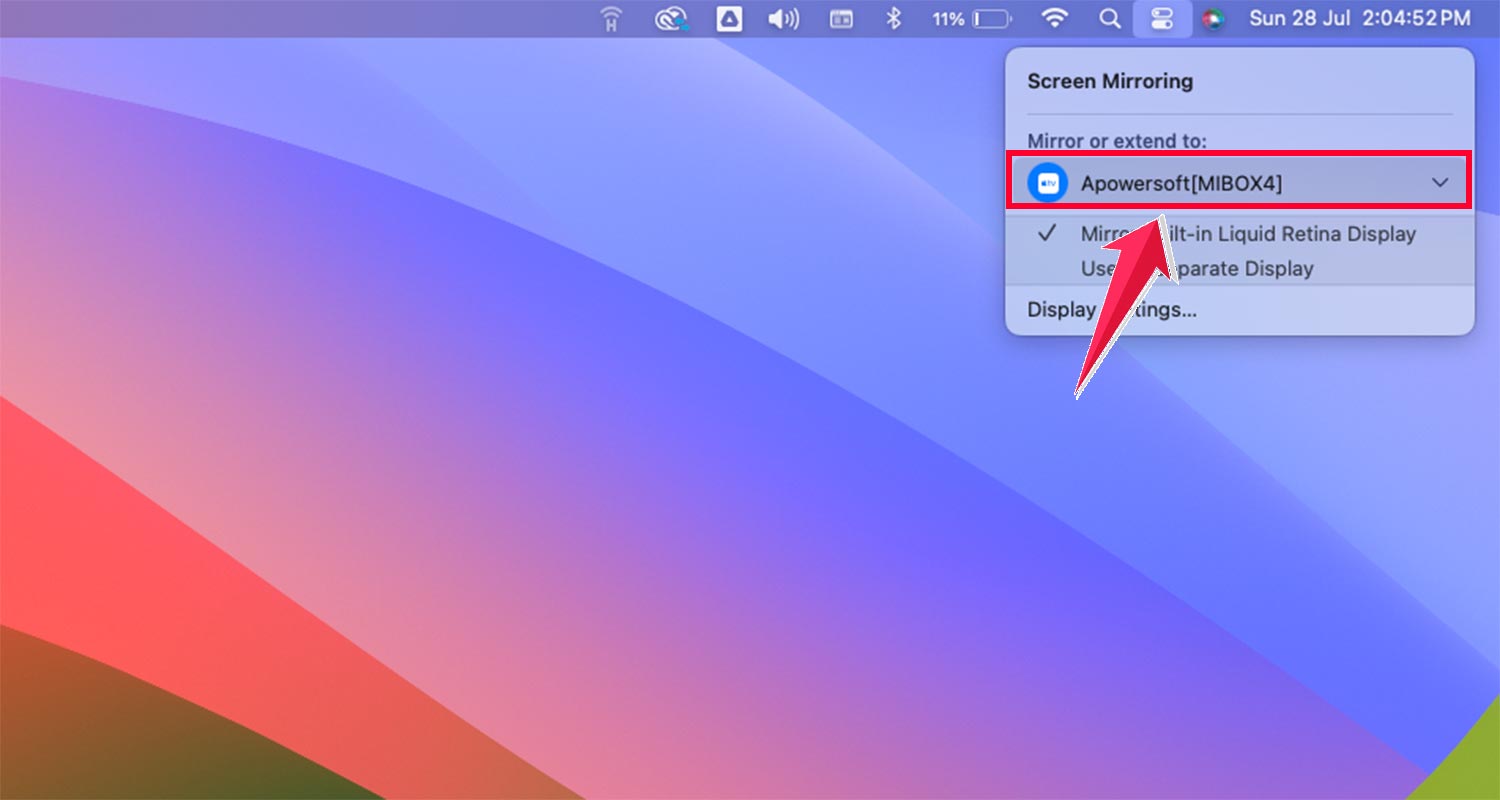
- Enter the code. Your TV will show a code. Type this into your Mac to connect them.
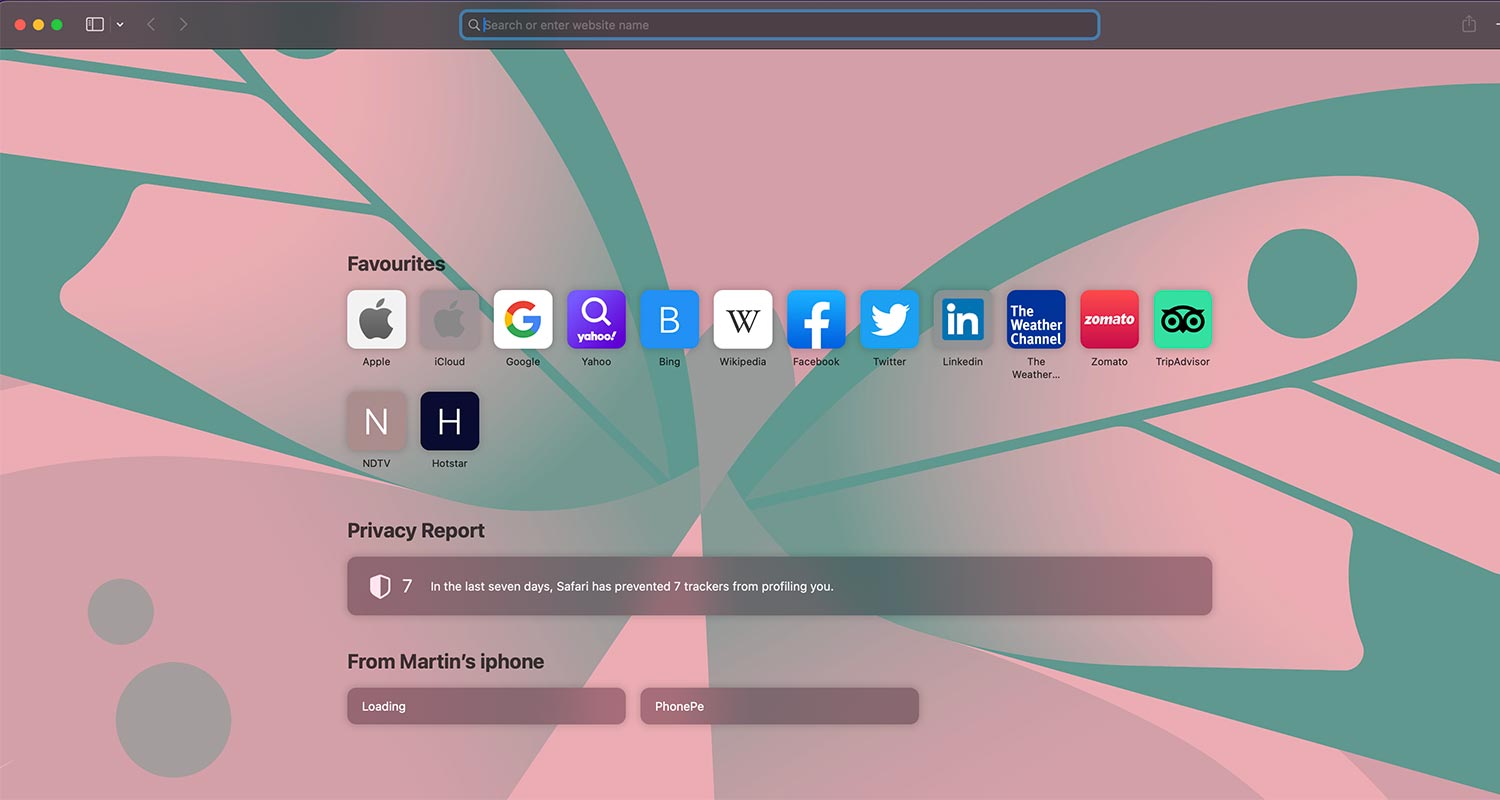
- See your Mac on the TV. Your Mac’s screen will now appear on your TV.

- Open Safari and start browsing. Just open Safari on your Mac and use it like normal. Everything will show up on the TV.
- Turn it off when you’re done. Remember to turn off Screen Mirroring in the Control Center when you’re finished.
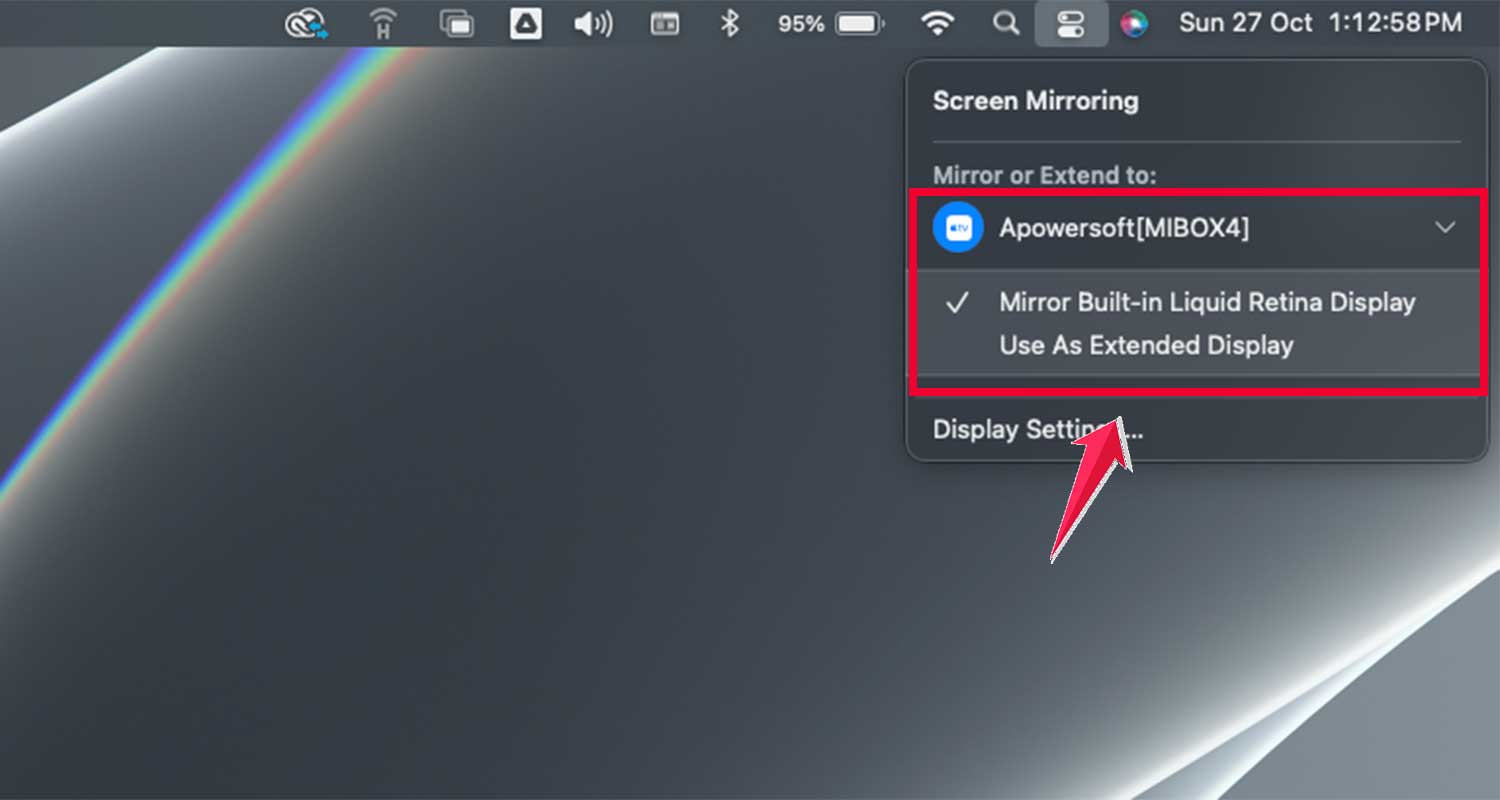
A quick tip: Sometimes, if you’re watching a video in Safari, you might see an AirPlay icon right in the video player. You can use this to send just the video to your TV instead of your whole screen.
Now you know how to show Safari on your TV from all your Apple devices. It’s a great way to share websites, videos, or presentations with others on a bigger screen.
How to fix AirPlay not working with the Safari browser
Have trouble using AirPlay with Safari on your TV? Don’t worry, it’s a common issue. AirPlay can be tricky due to network problems, device compatibility, outdated software, or random glitches. Here are some simple fixes you can try:
Check your WiFi connection
Make sure your Apple device and your Smart TV are connected to the same WiFi network. This is crucial for AirPlay to work properly.
Ensure stable internet
If your WiFi is unstable, it might cause problems like buffering or no sound issues on AirPlay.
Verify AirPlay compatibility
Double-check that your Smart TV supports AirPlay. Not all TVs do, so it’s worth confirming.
Turn off Airplane mode
If Airplane mode is on your Apple device, turn it off. AirPlay can’t function when your device is in Airplane mode.
Disable VPN or Firewall on Mac
If you’re using Safari on your Mac, a VPN or Firewall might interfere with AirPlay. Try temporarily turning these off.
Restart your devices
Sometimes, a simple reboot can solve the problem. Try restarting your Apple devices and your Smart TV.
Update your devices
Check for updates on your Apple devices and Smart TV. Outdated software can cause issues with AirPlay.
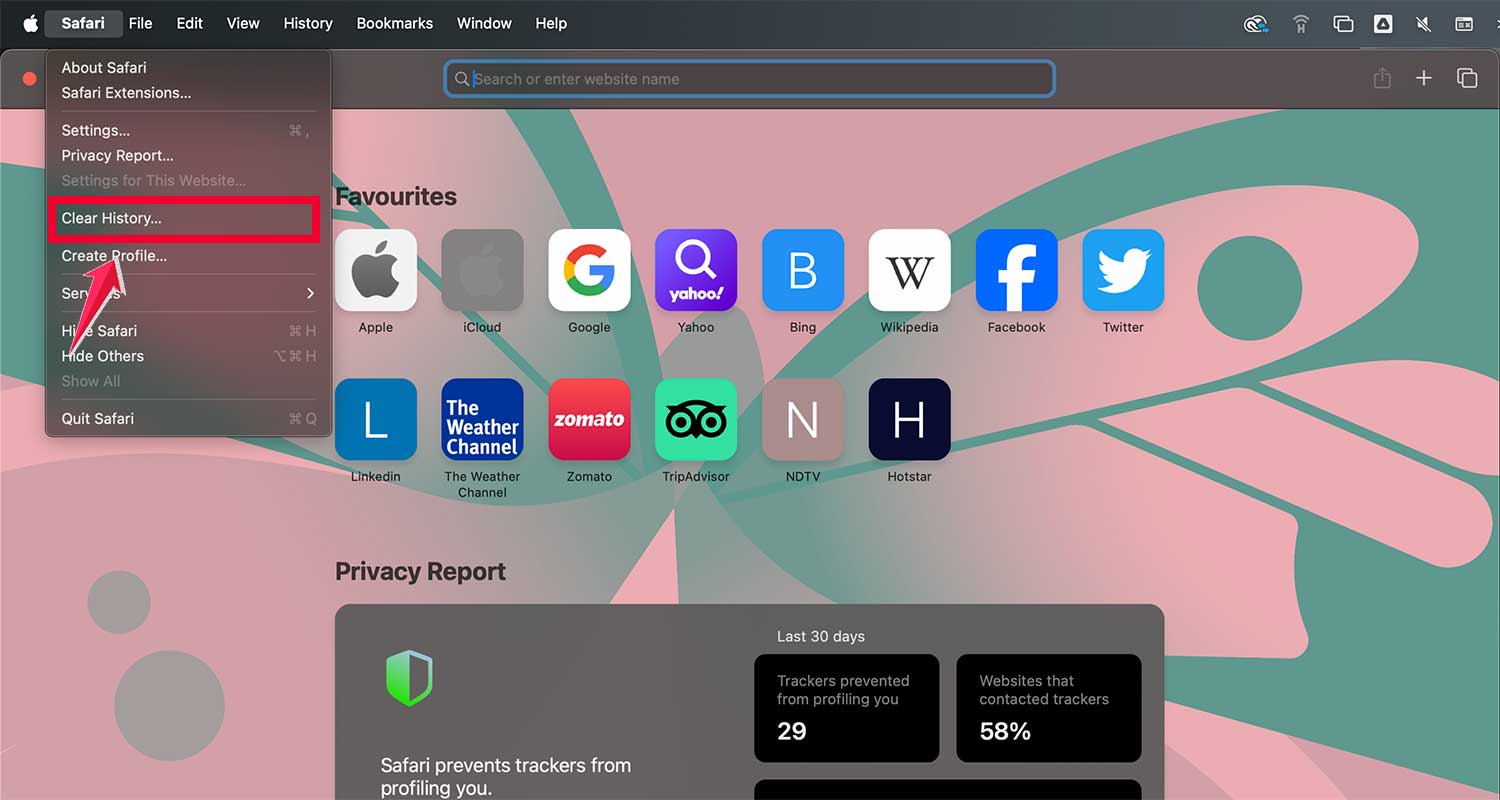
Clear Safari cache. On your iPhone or iPad, go to Settings > Safari > Clear History and Website Data.

On Mac, in Safari, click Safari > Clear History and select “all history“.
Check the AirPlay settings on your TV
Make sure AirPlay is enabled on your TV. The setting might be under “AirPlay & HomeKit Settings” or a similar name.
Reset network settings
If all else fails, try resetting your network settings.
- Go to Settings.

- Click on General > Transfer or Reset iPhone (or iPad).

- Reset > Reset Network Settings

Remember, AirPlay technology is constantly evolving. Apple regularly releases updates that can improve AirPlay functionality, so keeping your devices up-to-date is important.
If you’re still having trouble after trying these steps, check Apple’s support website for the most recent troubleshooting advice.
The takeaway
AirPlaying Safari to your TV can be really handy, but sometimes it doesn’t work as smoothly as you’d like. The main issue is often getting your Apple device to connect properly with your TV through AirPlay.
To fix this, you can try a few simple things. First, make sure both your Apple device and TV are on the same WiFi network.
It’s also important to keep your devices updated and restart them if needed. If you’re still having trouble, try clearing your Safari cache or resetting your network settings.
Some people think AirPlay only works with Apple TVs, but that’s not true. Many smart TVs now support AirPlay 2, so you have more options than you might realize.
The most important thing to remember is not to give up if it doesn’t work right away.
With a little troubleshooting, you can usually get AirPlay working and enjoy your Safari content on the big screen. Give it a try. You might be surprised at how easy and useful it can be!
What do you think about this conclusion? Feel free to share your thoughts in a single line.