Did you know that over 60% of internet users browse the web using Google Chrome? It’s one of the most popular browsers out there. But what if you want to share what you’re seeing on Chrome with others or just enjoy it on a bigger screen?
You might have noticed that Google Chrome doesn’t have a built-in way to stream directly to your TV. This can be frustrating when you want to show a website, watch a video, or give a presentation using your TV as a display.
The good news is that there’s a simple solution: screen mirroring. This lets you display everything on your iPhone or Mac screen, including Google Chrome, right on your TV. It’s a great way to share content with friends and family or just enjoy web browsing on a larger scale.
In this guide, you’ll learn how to stream Google Chrome from your iPhone or Mac to your TV. If you use Chromecast, you can also AirPlay iPhone and Mac to Chromecast without much hassle.
We’ll walk through the process step by step so you can easily set it up and start enjoying Chrome on the big screen. All you need is your device, your TV, and a shared Wi-Fi network. Ready to transform your TV into a giant web browser?
How to stream Google Chrome from your iPhone or iPad to your TV
First, let’s get your TV ready for streaming. If you have an Apple TV or a TV that supports AirPlay 2, here’s what you need to do:
- Open your TV’s settings and look for “AirPlay & HomeKit Settings.”
- Make sure AirPlay is turned on.
Now, let’s walk through the steps to stream Google Chrome from your iPhone or iPad:
- Connect to Wi-Fi: Make sure your iPhone or iPad is on the same Wi-Fi network as your TV.
- Open Google Chrome: Launch the Chrome app on your device. If you don’t have it, you can download it from the App Store.
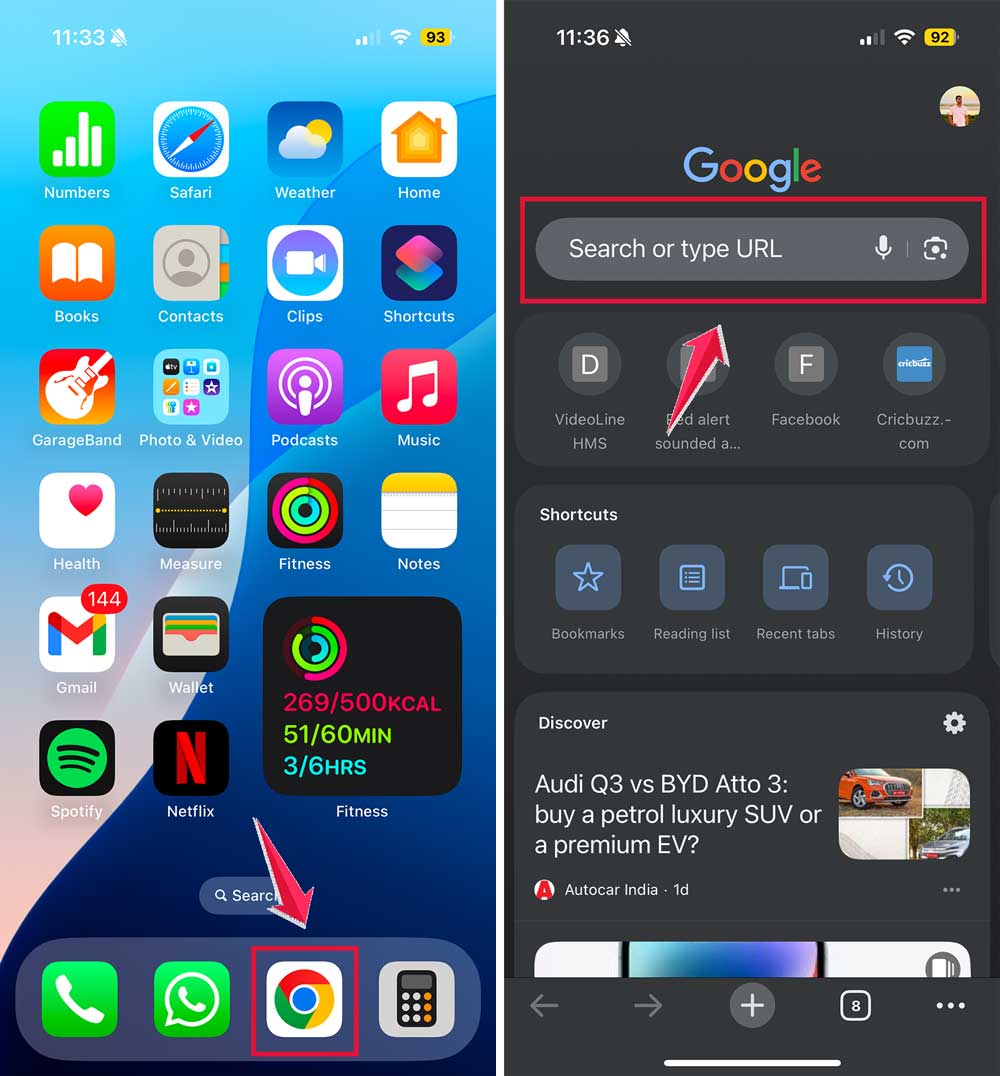
- Choose your website: Navigate to the site you want to see on your TV.
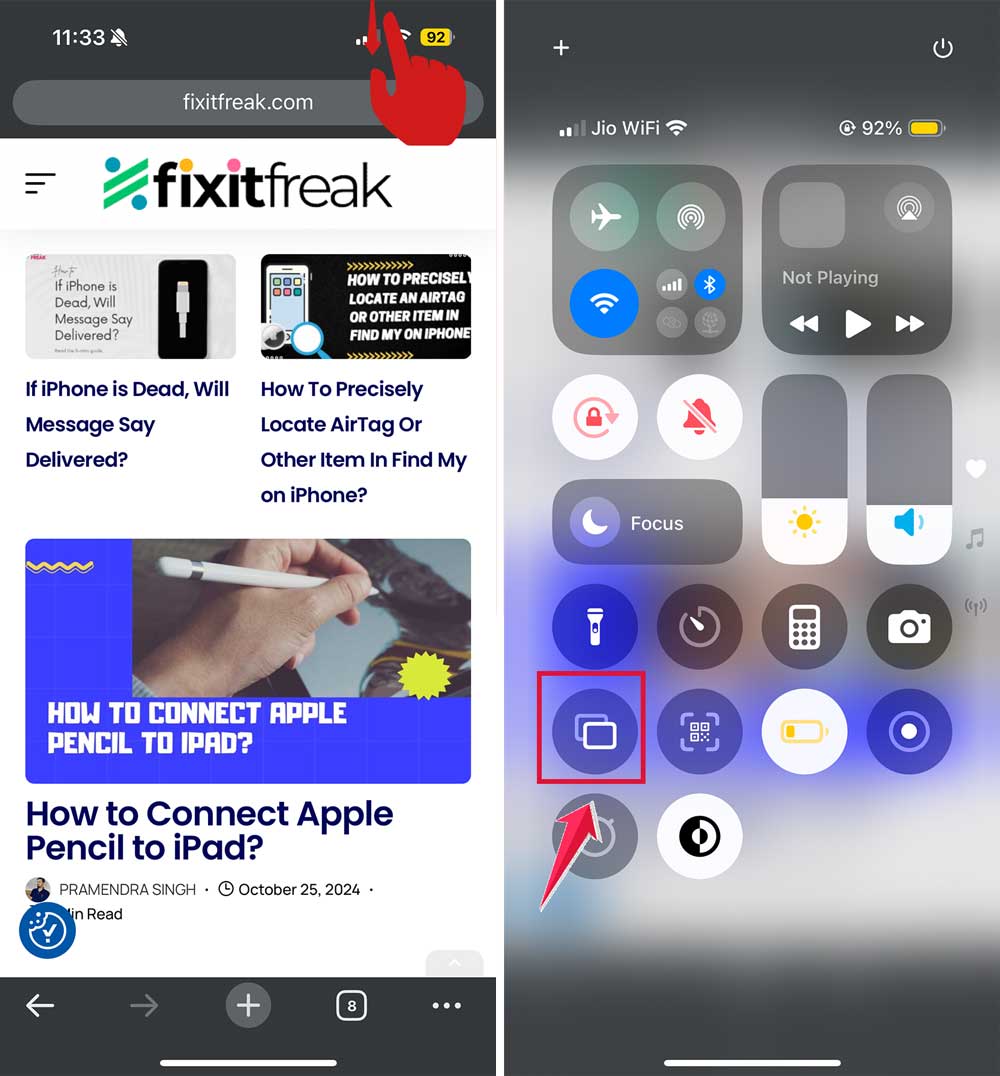
- Open Control Center: Swipe down from the top-right corner of your screen (or up from the bottom on older devices) to open Control Center.
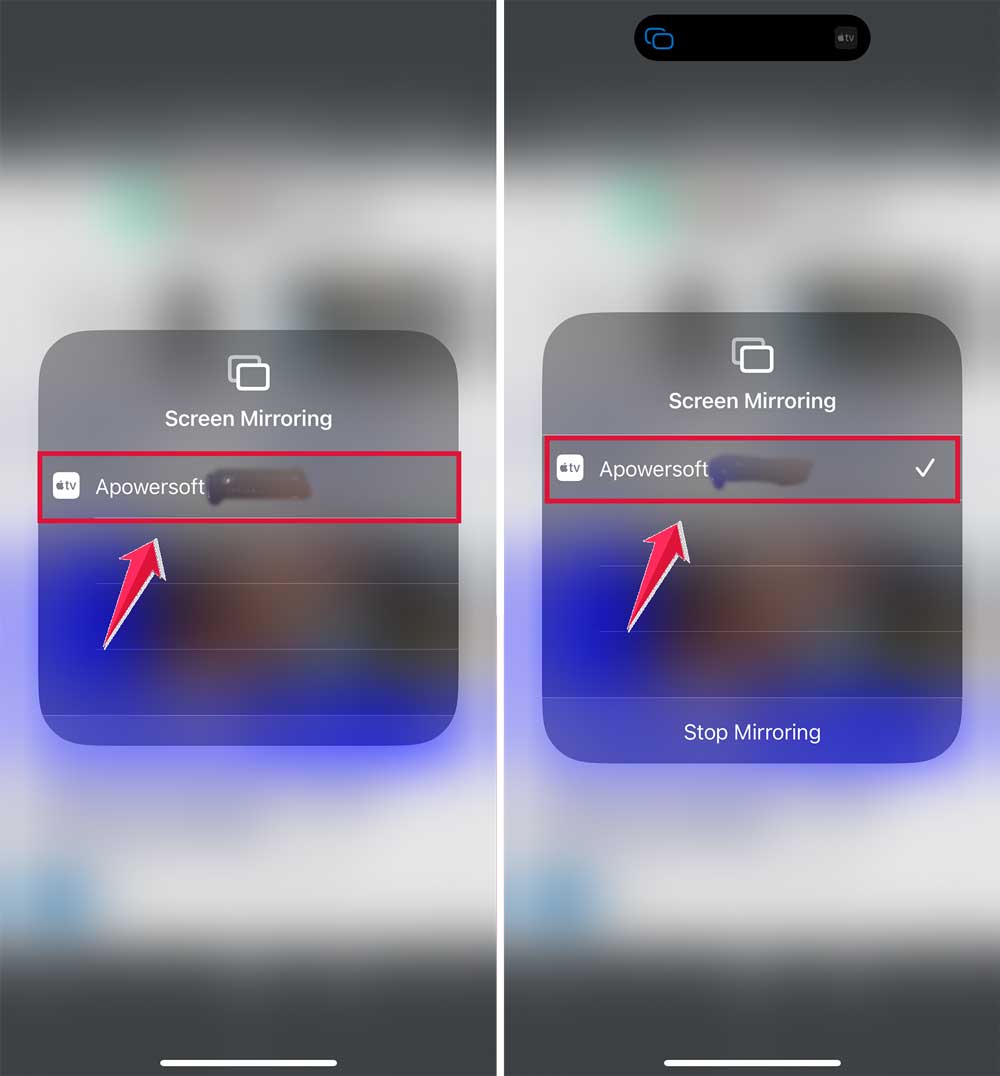
- Tap “Screen Mirroring“: Look for the “Screen Mirroring” option in the Control Center.
- Select your TV: Choose your Apple TV or AirPlay-compatible TV from the list. If you face any audio-only issues, here’s how to fix AirPlay only playing audio.
- Enter the code: If prompted, type in the AirPlay code shown on your TV screen.
- Enjoy on the big screen: You should now see your iPhone or iPad screen, including Chrome, on your TV!
How to stream Google Chrome from your Mac to your TV
Before we start, let’s set up your devices:
- Turn on both your Mac and your AirPlay-compatible device (like your Apple TV).
- Enable AirPlay on your TV through its settings.
- Connect both your Mac and TV to the same Wi-Fi network.
Now, let’s mirror Google Chrome to your TV:
- Open Google Chrome on your Mac.
- Navigate to the website you want to display on your TV.
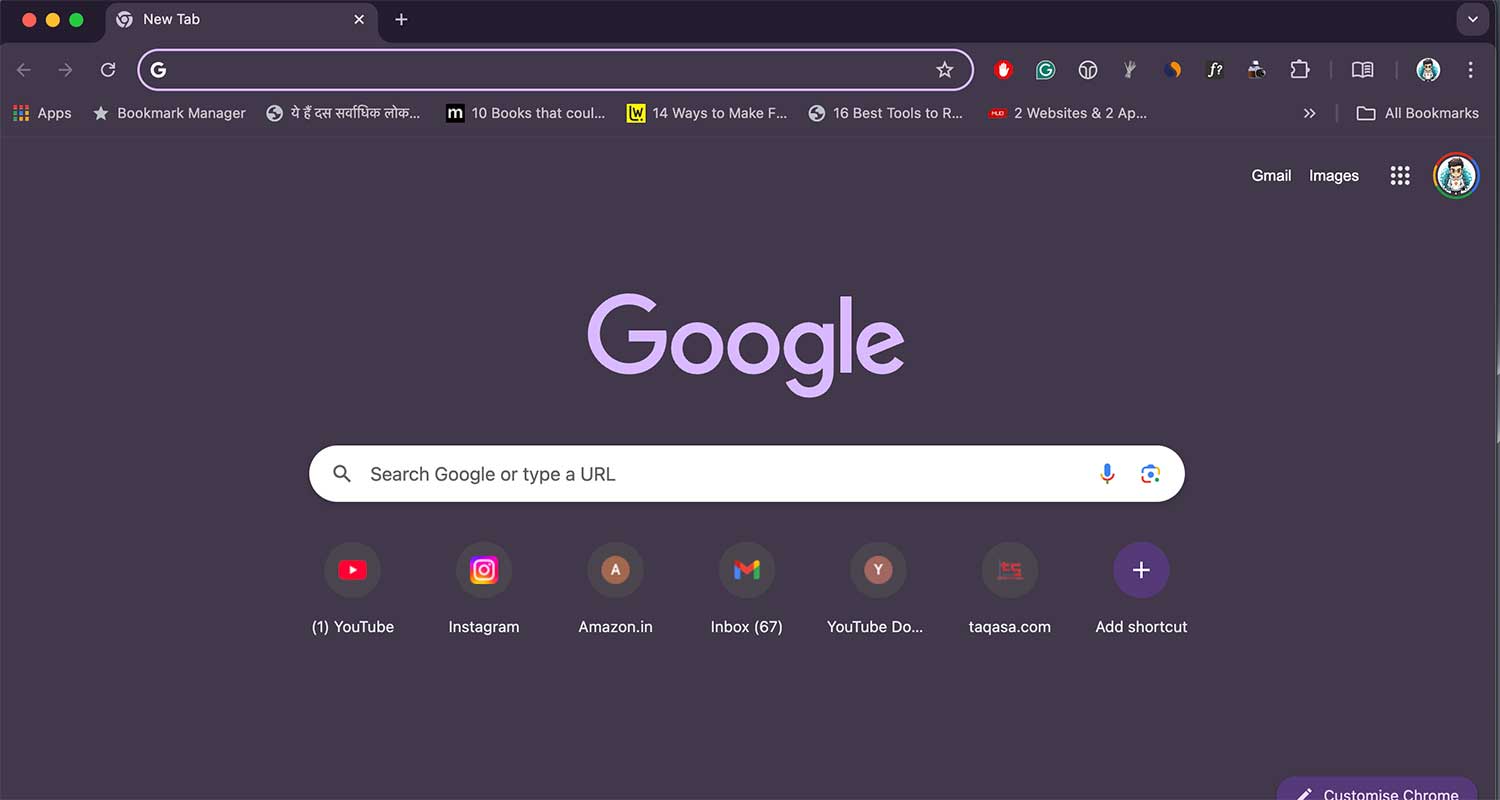
- Click the Control Center icon in the menu bar at the top of your screen.
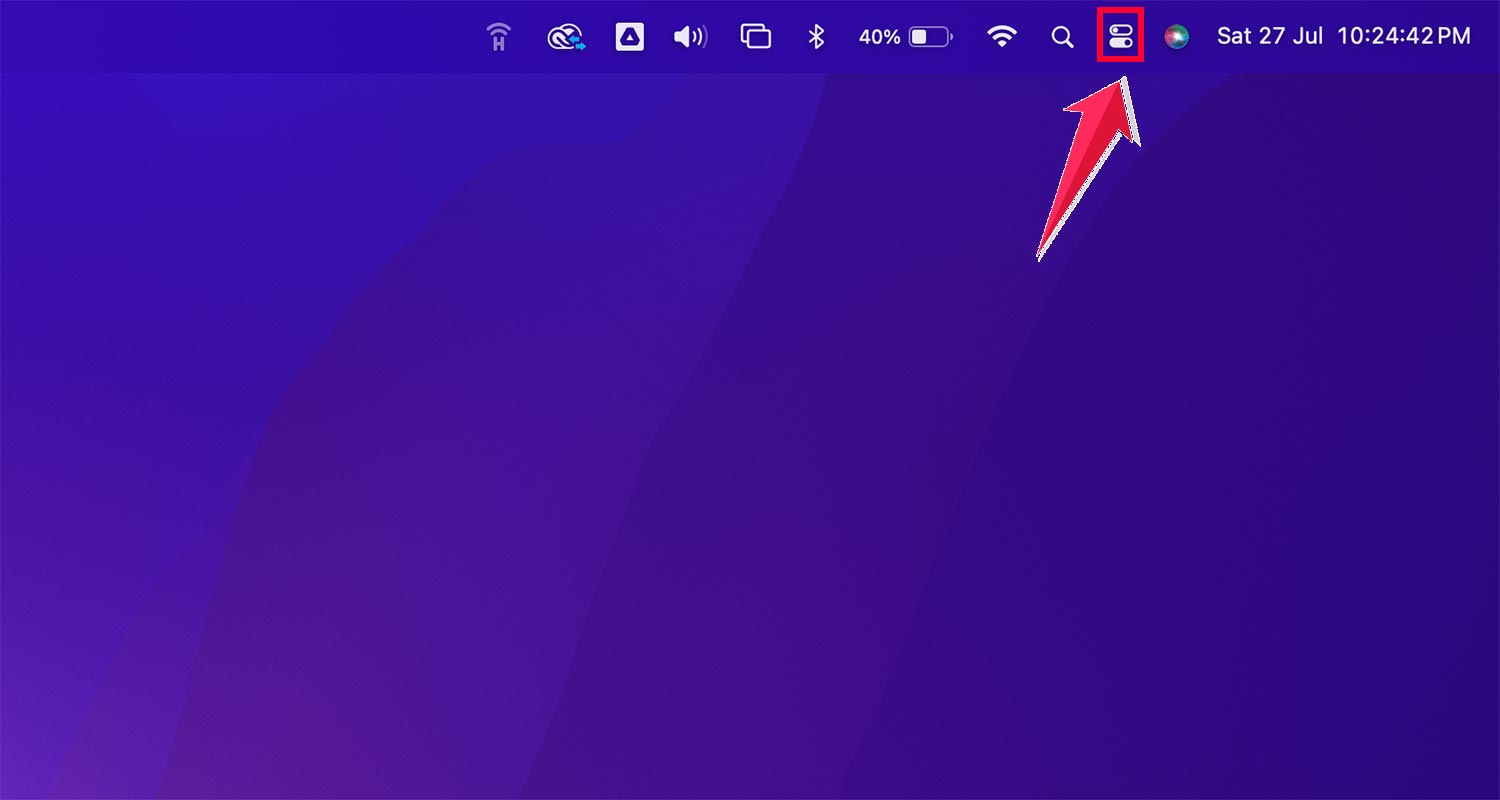
- Select “Screen Mirroring” from the Control Center options.
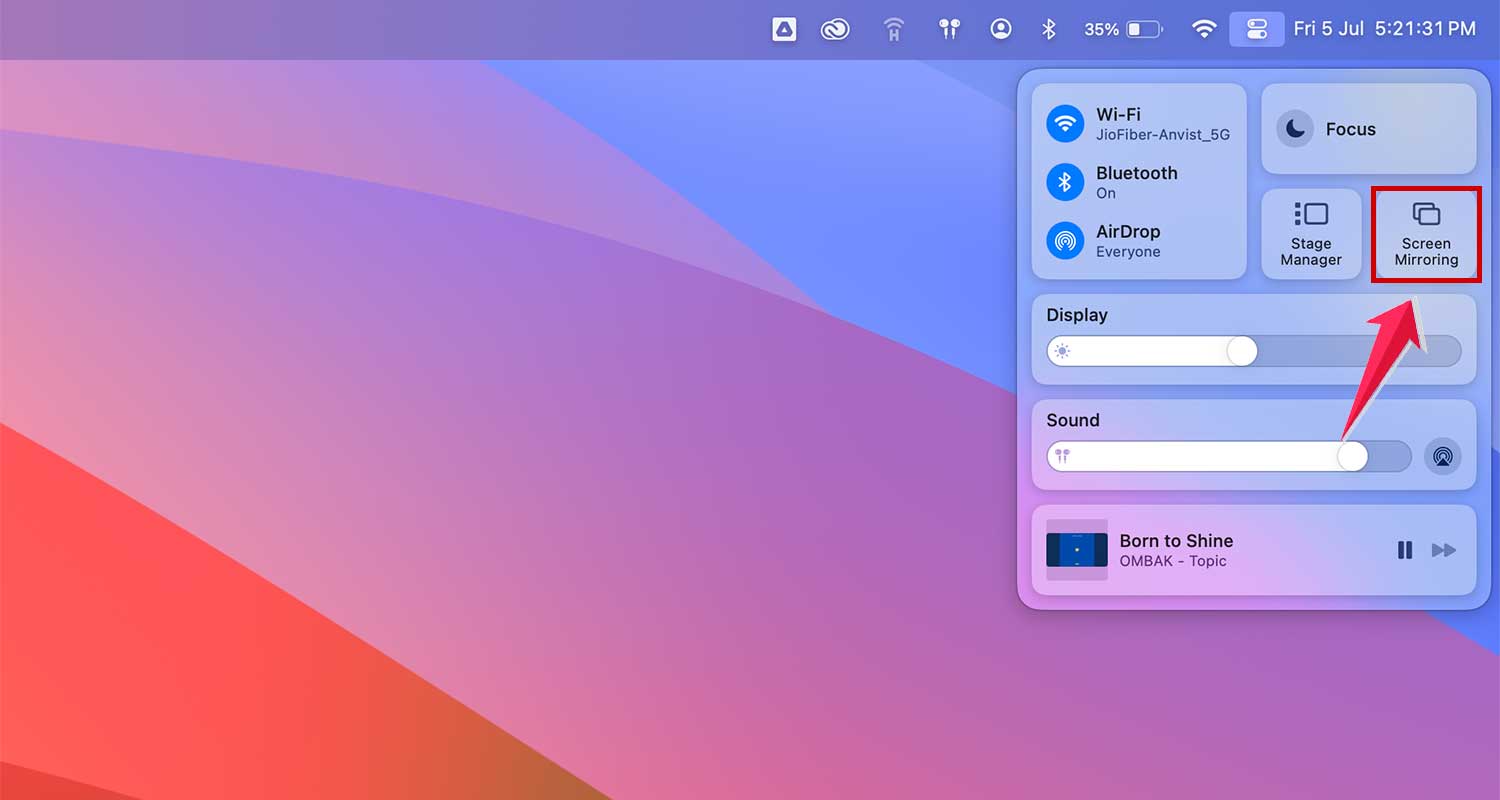
- Choose your AirPlay-supported device from the list. If you experience delay issues, you may want to troubleshoot AirPlay lagging.
- If prompted, enter the AirPlay passcode shown on your TV.
- Your Mac’s screen, including Google Chrome, should now appear on your TV.
Remember to disconnect when you’re done: Turn off AirPlay on your Mac through the Control Center to stop sharing your screen.
With these simple steps, you can easily enjoy Google Chrome on your big TV screen, whether you’re using an iPhone, iPad, or Mac.
The takeaway
Streaming Google Chrome to your TV can seem tricky, but it’s actually quite simple. You’ve learned how to share your browsing experience from your iPhone, iPad, or Mac onto your big-screen TV.
The main steps are straightforward: make sure your devices are on the same Wi-Fi network, turn on AirPlay on your TV, and use Screen Mirroring on your device.
Some people think you need special equipment for this, but that’s not true. If you have an Apple TV or an AirPlay 2-compatible TV, you’re all set. Remember, this isn’t just for videos. You can share any website or app you’re using in Chrome.
So why not give it a try? Whether you want to show photos to family, watch videos together, or just enjoy browsing on a bigger screen, you now have the know-how to make it happen. Happy streaming!
We’d love to hear about your experience using these tips. Feel free to leave a comment below with just one line about how it went for you.