Ever been on your iPad, doing your thing, and suddenly — bam! — It’s completely frozen? So frustrating, right? It’s like your iPad just decided to take a nap without telling you.
You’re not alone. Sometimes an iPad freezes because it’s juggling too many apps at once. Maybe you’re running an outdated iOS. Or maybe your storage is almost full.
Sometimes, it’s just a random glitch. Knowing what’s going on and how to fix it can save you a lot of stress.
And why does this even matter? Well, when your iPad freezes, you can’t use your favorite apps, watch your shows, or even browse the web. It’s like hitting a wall out of nowhere. Annoying, right?
Don’t worry. I’m here to walk you through everything you need to know. I’ll show you how to force restart your iPad — no matter which model you have — and get you back to what you were doing. Let’s dive in!
Why Does My iPad Freeze?
Alright, let’s talk about what’s really going on when your iPad decides to freeze. Here’s the scoop:
1. Too Many Apps Open
Sometimes, we get a little carried away. Jumping from one app to another, keeping tons of them running in the background. I get it — we all do it.
But when too many apps are open, your iPad can get overwhelmed. It’s like it’s trying to do too much at once and just… stops.
2. Outdated iOS
Your iPad might be running on old software. Updates aren’t just about new features — they fix bugs and help your device run smoother.
If you’re skipping updates, glitches can pop up and freeze your iPad when you least expect it.
3. Low Storage
Running out of space? That’s a big one. When your storage is nearly full, your iPad can’t work properly.
It needs a little breathing room to run apps and process tasks. Clearing out old files you don’t need can make a huge difference.
4. Random Software Bugs
Sometimes, it’s honestly just bad luck. A random bug sneaks in and messes things up.
Luckily, these are usually easy fixes — a quick restart often does the trick.
5. Hardware Hiccups
If your iPad keeps freezing no matter what you do, it might be a hardware issue. Maybe it’s been dropped one too many times.
Maybe something inside isn’t working right. If that’s the case, it’s best to get a professional to check it out.
Now that you know what might be causing the freeze, let’s move on to the good stuff — fixing it!
How to Force Restart a Frozen iPad (All Models)
Alright, time to roll up our sleeves and fix that frozen iPad. Don’t worry, it’s easier than you think.
Here’s how you can force restart your iPad, depending on the model you have.
#1. Force Restart iPad with a Home Button
Got an iPad with a Home button? Here’s what you need to do:
- Press and hold the Home button and the Top (or Side) button at the same time.
- Keep holding both buttons until the Apple logo shows up. Don’t let go too soon — wait for that logo!
Once you see the logo, you’re good to let go. Your iPad should start working normally again. Easy, right?
#2. Force Restart iPad Without a Home Button
If your iPad doesn’t have a Home button, the steps are a little different. But don’t worry, I’ve got you.
- Quickly press and release the Volume Up button.
- Quickly press and release the Volume Down button.

- Press and hold the Top button until you see the Apple logo.

It’s like a little dance for your fingers. Might take a try or two, but it works like magic once you get it.
#3. Restart Using AssistiveTouch
Maybe your buttons aren’t working, or you just prefer tapping on the screen. No problem. Let’s use AssistiveTouch!
First, turn it on:
- Open Settings.

- Go to Accessibility.
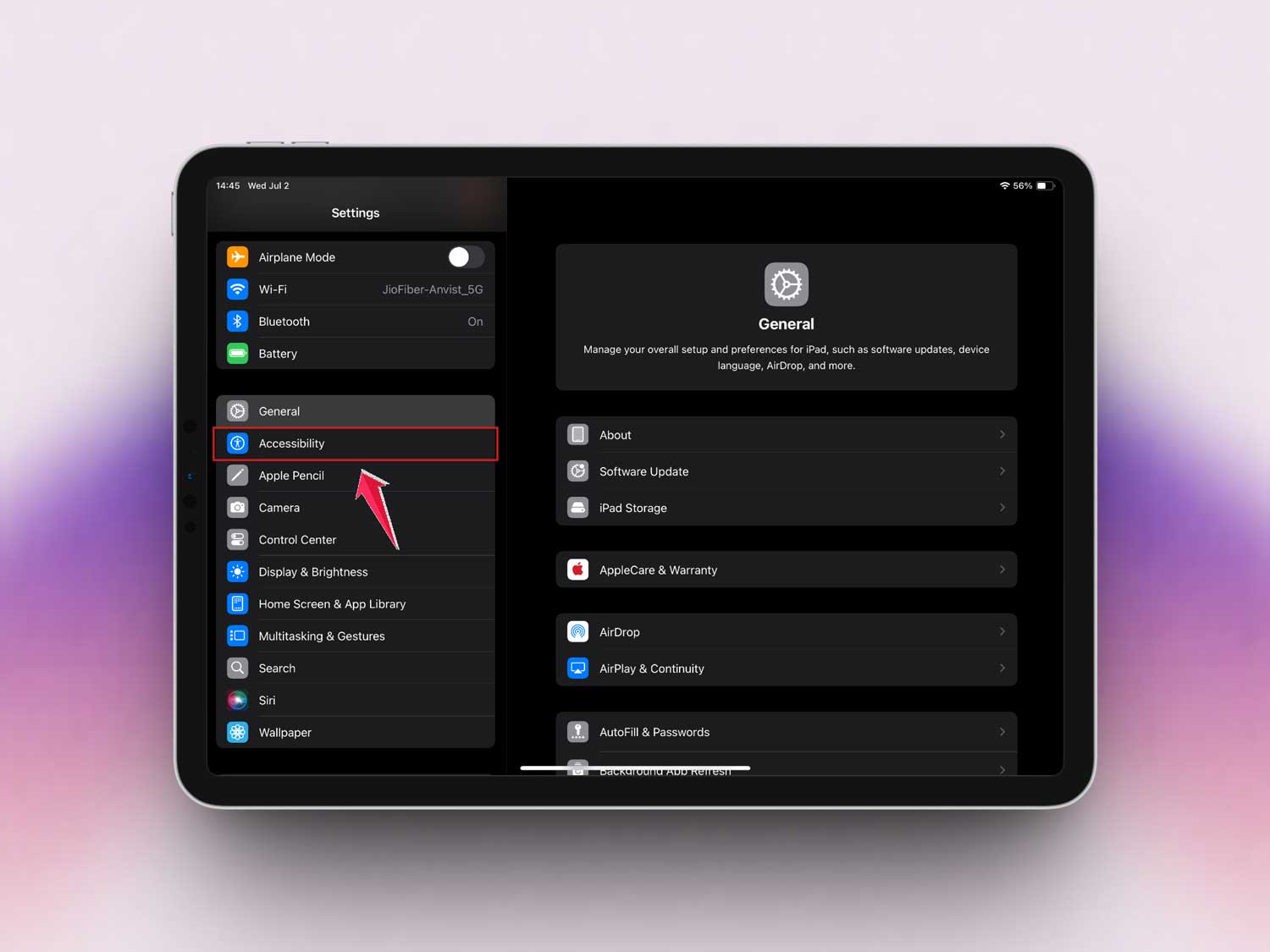
- Then tap on Touch.

- Turn AssistiveTouch on.

You’ll see a little floating button on your screen. Here’s how to restart:
- Tap the floating menu.
- Tap Device.

- Tap More.

- Tap Restart.

And just like that, your iPad will restart without using any physical buttons!
Some Extra Tips to Keep Your iPad Running Smoothly
Fixing a frozen iPad is great, but what about stopping it from happening again? Let’s talk about a few simple habits that can help.
1. Keep Your iOS Updated
Always, always update your iOS. Updates fix bugs that could cause freezing. You can even set updates to happen automatically so you don’t have to remember.
2. Declutter Your iPad
When’s the last time you cleaned up your iPad? Deleting unused apps, old photos, and files can make a huge difference. Give your iPad some breathing room!
3. Check for App Updates
Old apps can cause problems if they don’t match the iOS version. Go to the App Store and tap “Update All” to keep your apps running smoothly.
4. Give Your iPad a Break
Using your iPad for hours non-stop can make it overheat. Take a break once in a while. Let it cool down. It’ll thank you.
5. Try Safe Mode Booting
If you think a specific app is causing trouble, try restarting in Safe Mode:
- Turn your iPad off.

- Turn it back on, and hold the Power button until the Apple logo appears.
Safe Mode loads only the essential apps, making it easier to find the troublemaker.
The Takeaway
There you go. Your iPad freezing up doesn’t have to ruin your day. Knowing how to force restart it — whether by button combo or AssistiveTouch — can save you a lot of stress.
Keeping your iOS and apps updated, clearing out junk, and giving your iPad some downtime can go a long way in keeping it happy.
Remember, most freezes are just little hiccups, not serious problems. So next time it happens, stay calm, follow these steps, and you’ll be back up and running in minutes.
Tried these tips? Share your thoughts in the comments!