
Have you ever seen a message on your Mac saying “Your system has run out of application memory”? If so, you’re not alone.
This common issue can slow down your computer and interrupt your work. But don’t worry – it’s usually fixable with a few simple steps.
In this guide, you’ll learn what application memory is, why your Mac might run out of it, and how to solve this problem.
Whether you’re using your Mac for work, creativity, or just browsing the web, these tips will help keep your computer running smoothly.
Let’s start by understanding what’s happening when you see this message, and then we’ll walk through some easy fixes you can try at home. Ready to get your Mac back up to speed? Let’s dive in!
What Does “Your System Has Run Out Of Application Memory” Mean?
When your Mac tells you it’s “run out of application memory,” it’s essentially saying it’s overwhelmed. This happens when your computer’s RAM (Random Access Memory) is full and can’t handle any more tasks.
Your Mac uses RAM to manage active processes. When RAM gets full, it turns to your main hard drive for extra space, using something called “virtual memory.” But if your hard drive is also nearly full, your Mac starts to struggle.
Several things can cause this error:
- Low disk space on your mac. Your Mac needs some free space to work properly.
- Too many open apps. Running lots of programs at once can use up memory quickly.
- Lots of browser tabs. Each tab uses a bit of memory, and it adds up.
- Memory-hungry apps. Some programs use more memory than others.
How can you check your Mac’s memory use?
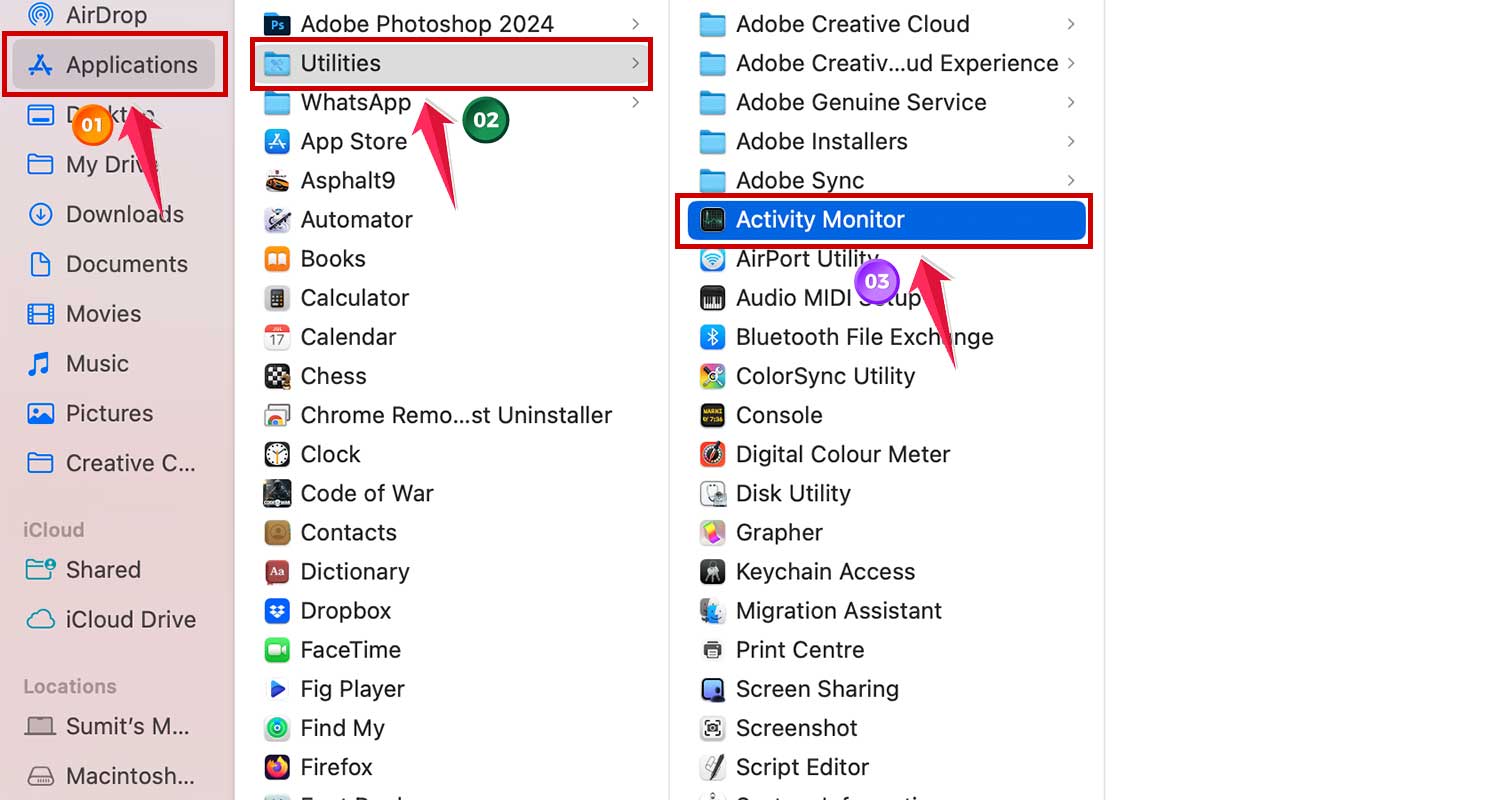
You can easily keep an eye on your Mac’s memory with a tool called Activity Monitor. Here’s how to use it:
- Go to “Applications,” then “Utilities.”
- Open “Activity Monitor.”
- Click the “Memory” tab.
- Look at “App Memory” to see how much memory your apps are using.
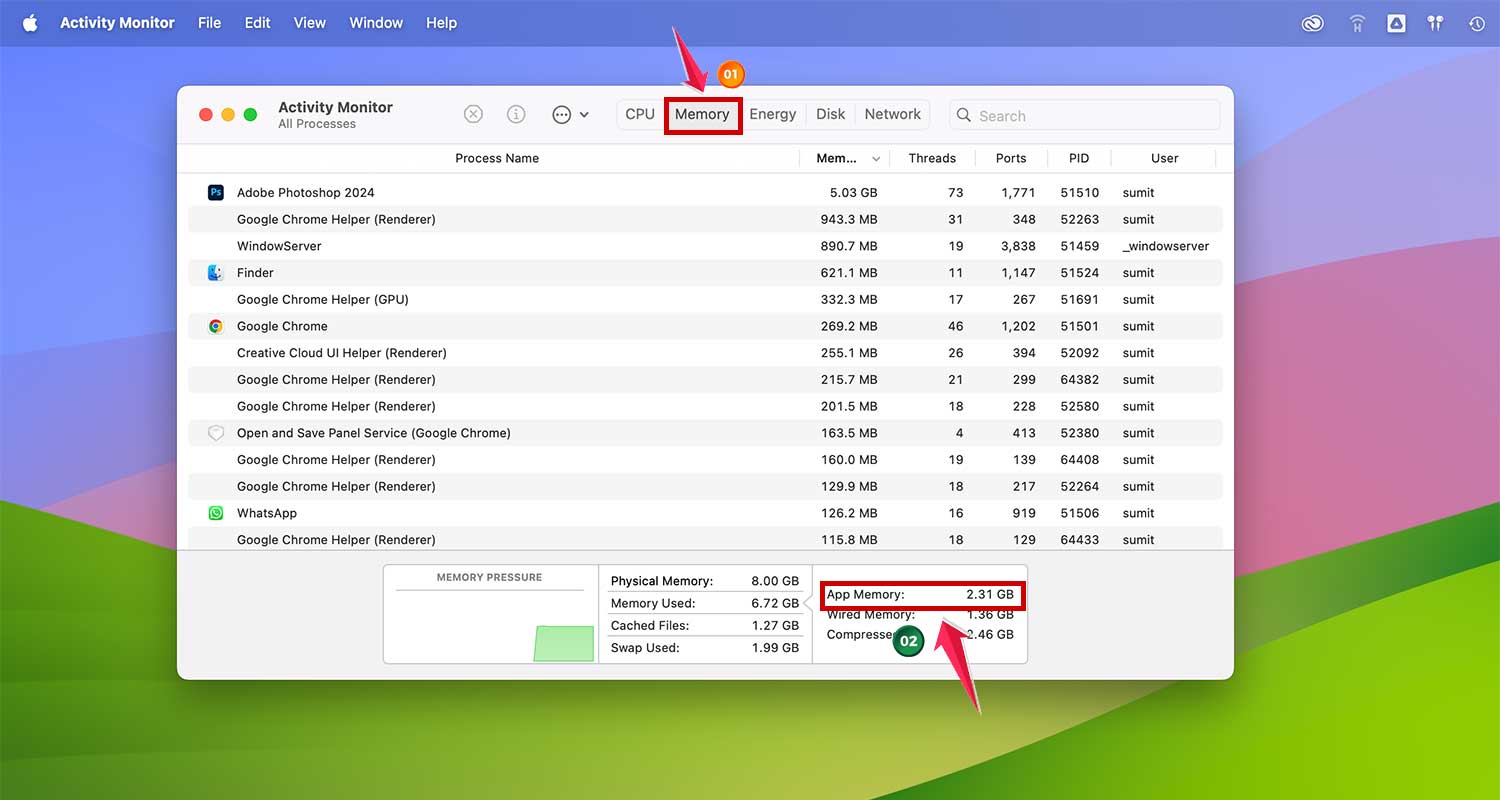
Using Activity Monitor regularly can help you spot memory issues before they become problems.
How To Fix The “Your System Has Run Out Of Application Memory” Error?
Encountering this error can be frustrating, but there are several straightforward methods to resolve it:
1. Restart Your Mac
The simplest first step is to restart your Mac. This clears the cache and other temporary files, freeing up the disk space utilized as virtual memory. To restart, simply go to the Apple menu and select Restart.

2. Update macOS
It’s crucial to keep your macOS updated. Updates often include bug fixes that may resolve memory management issues. Check for updates by:
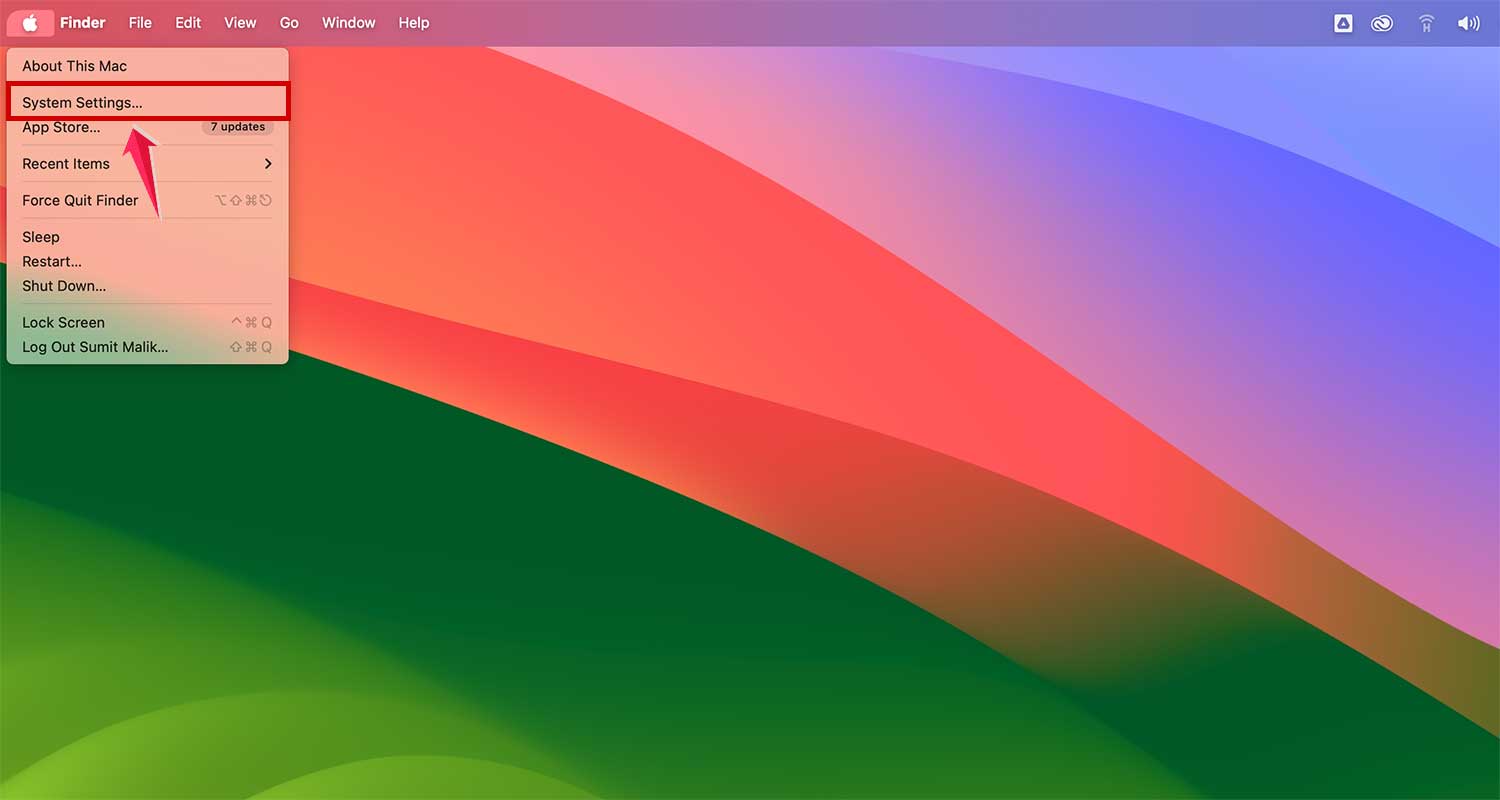
- Going to the Apple menu.
- Choosing System Settings.
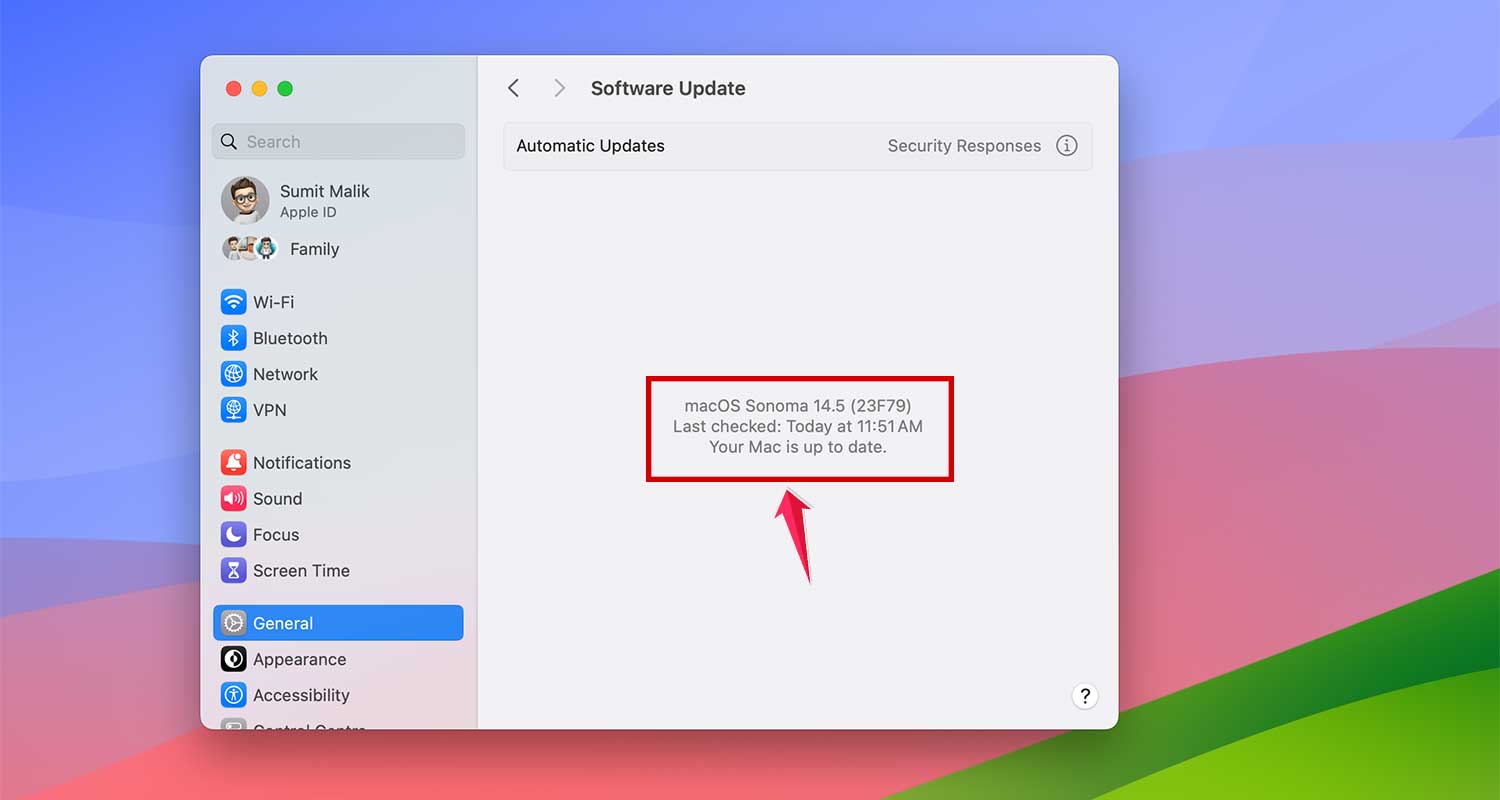
- Navigating to General > Software Update.

- If an update is available, follow the on-screen instructions to install it. If not, it will show “Your Mac is up to date”
3. Close Unused Apps
Apps running in the background can significantly consume virtual memory. It’s a good practice to close apps that you are not actively using. To do this:
- Press Option-Command-Esc to open the Force Quit menu.
- Quit any programs that you are not currently using.
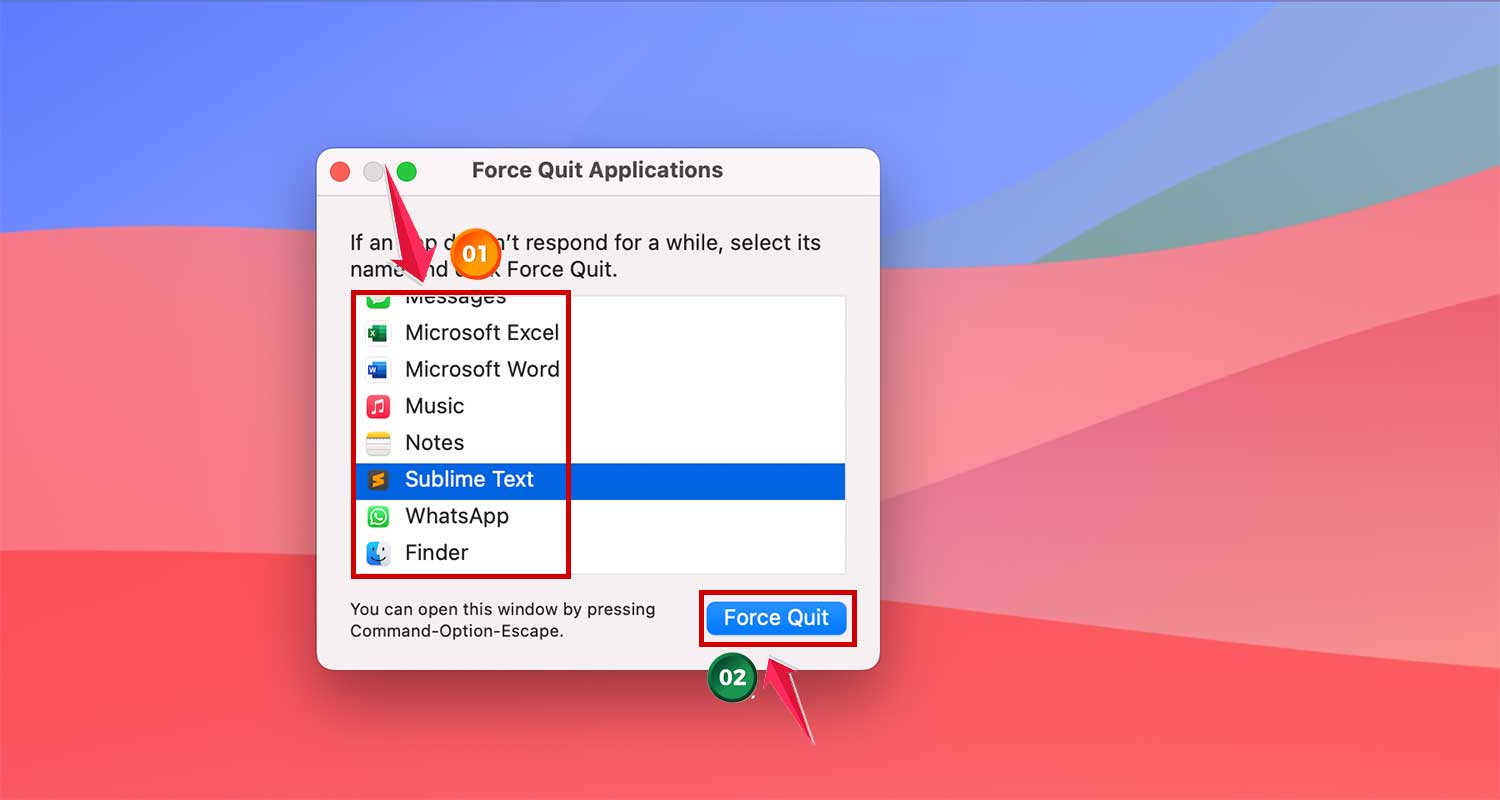
These steps not only help resolve the error but also improve the overall performance of your Mac. By managing your applications and system updates, you can ensure smoother and more efficient operation.
4. Uninstall Unnecessary Applications
Freeing up space on your Mac can help with memory issues. Did you know some apps, like Microsoft Word, can take up to 2GB of space? If you’re not using an app often, consider removing it. Here’s how:
- For App Store and other apps: Go to Finder > Applications. Find the application you want to delete, right-click on it and then click “Move to Bin”
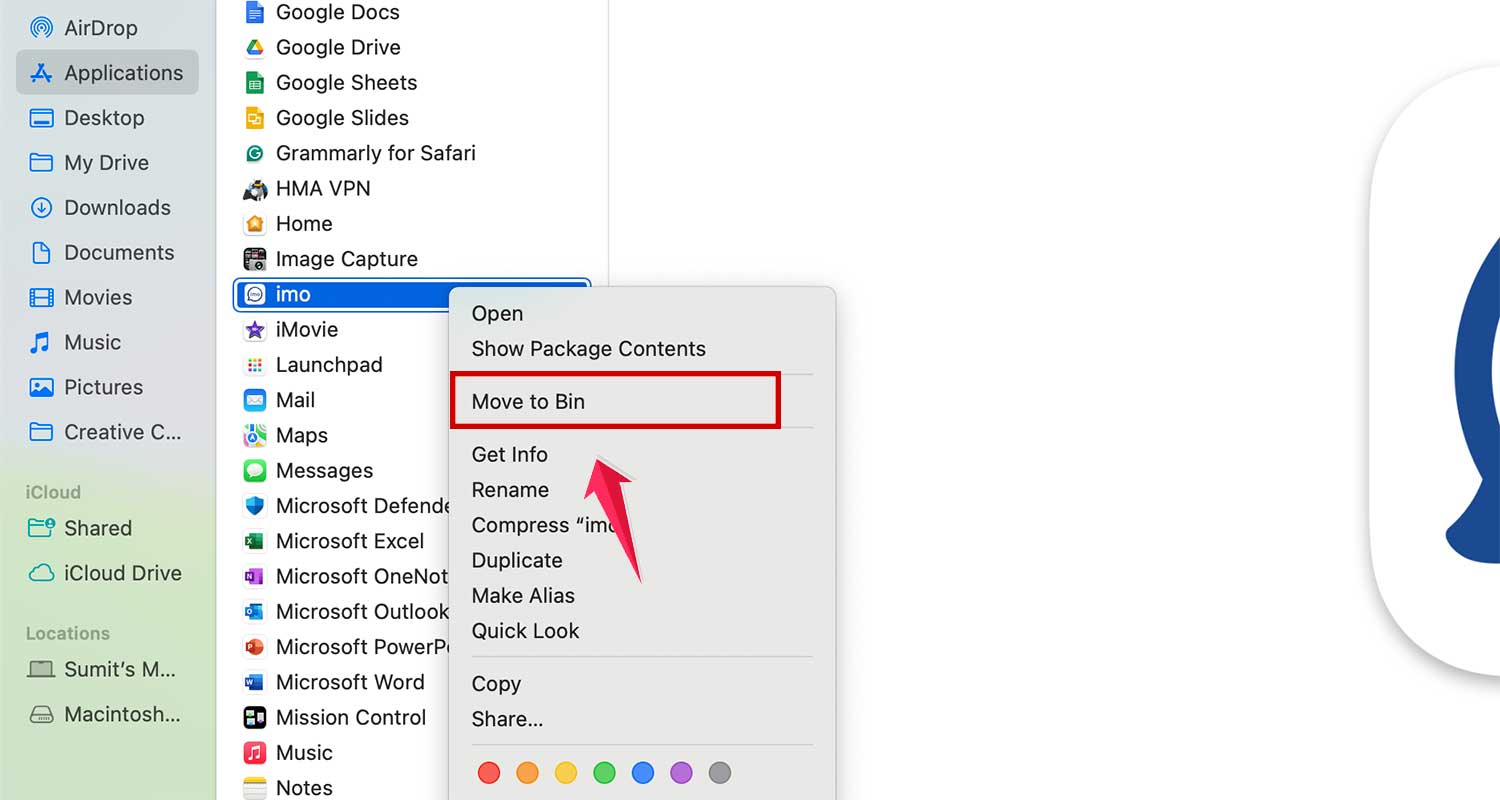
- Using Launchpad: Open Launchpad, hold the app icon until it wiggles, then click the “X”.

- Some apps have their own uninstaller in the Applications folder
5. Update Apps
Updated apps often run better and use less memory. Here’s how to update:
- App Store apps: Open the App Store and click “Updates” and then “Update All”
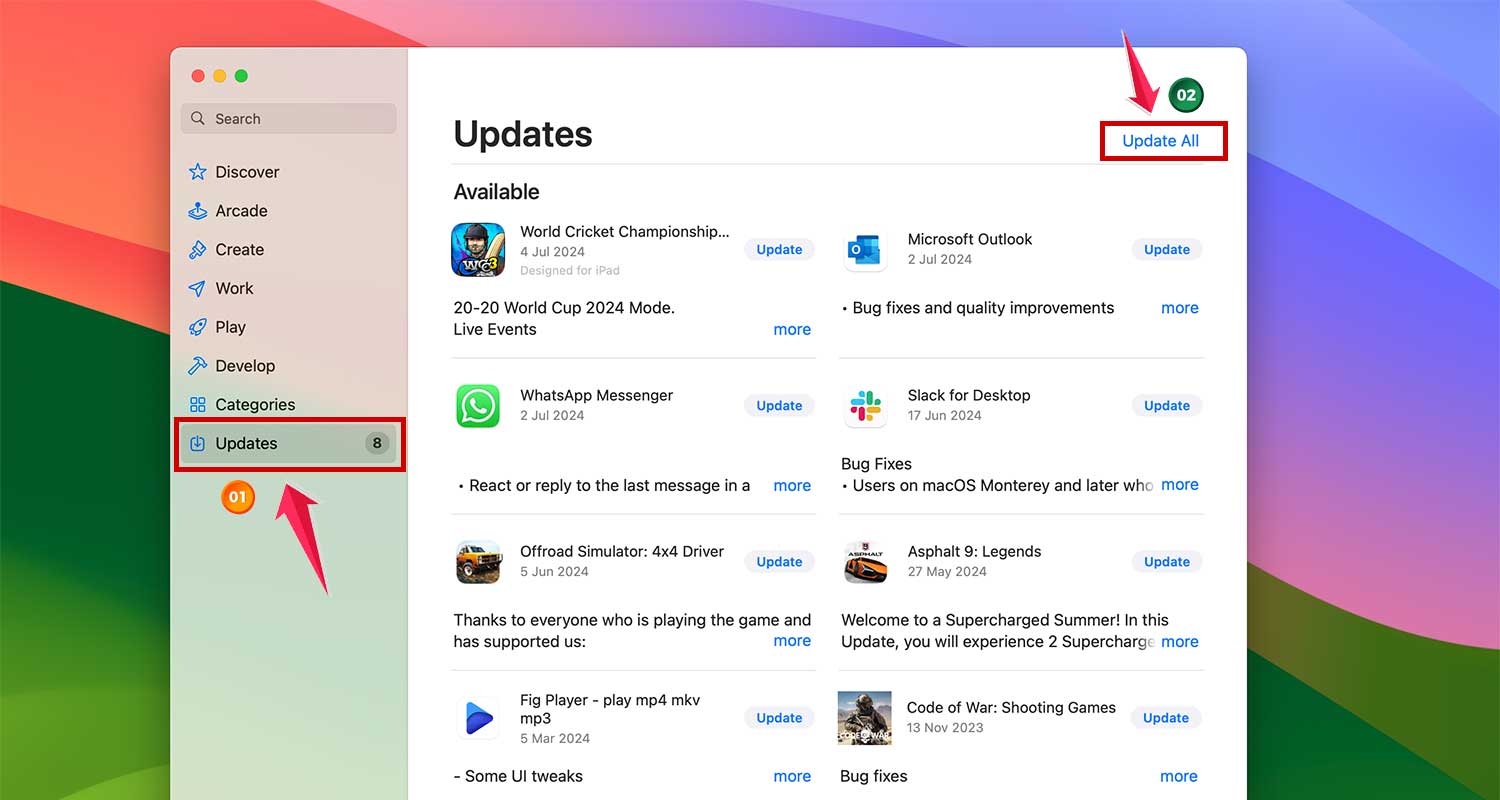
- Other apps: Look for “Check for Updates” in the app’s Help menu.

Keeping your apps current not only helps with memory but also keeps your Mac running smoothly and securely. Regular updates can prevent many common problems before they start.
6. Close Unnecessary Browser Tabs
It’s easy to lose track of how many browser tabs we keep open. Each tab, however, consumes memory by updating in the background and using system resources.
To improve your Mac’s performance, bookmark the tabs you frequently use and close them when not needed. This simple habit can significantly reduce memory usage and speed up your system.
7. Review and Manage Browser Extensions
Browser extensions can be useful, but they can also be a hidden source of memory issues, especially if they’re outdated or buggy. Regularly review your extensions and remove those you no longer use or need:
- In Safari: Go to Settings > Extensions.
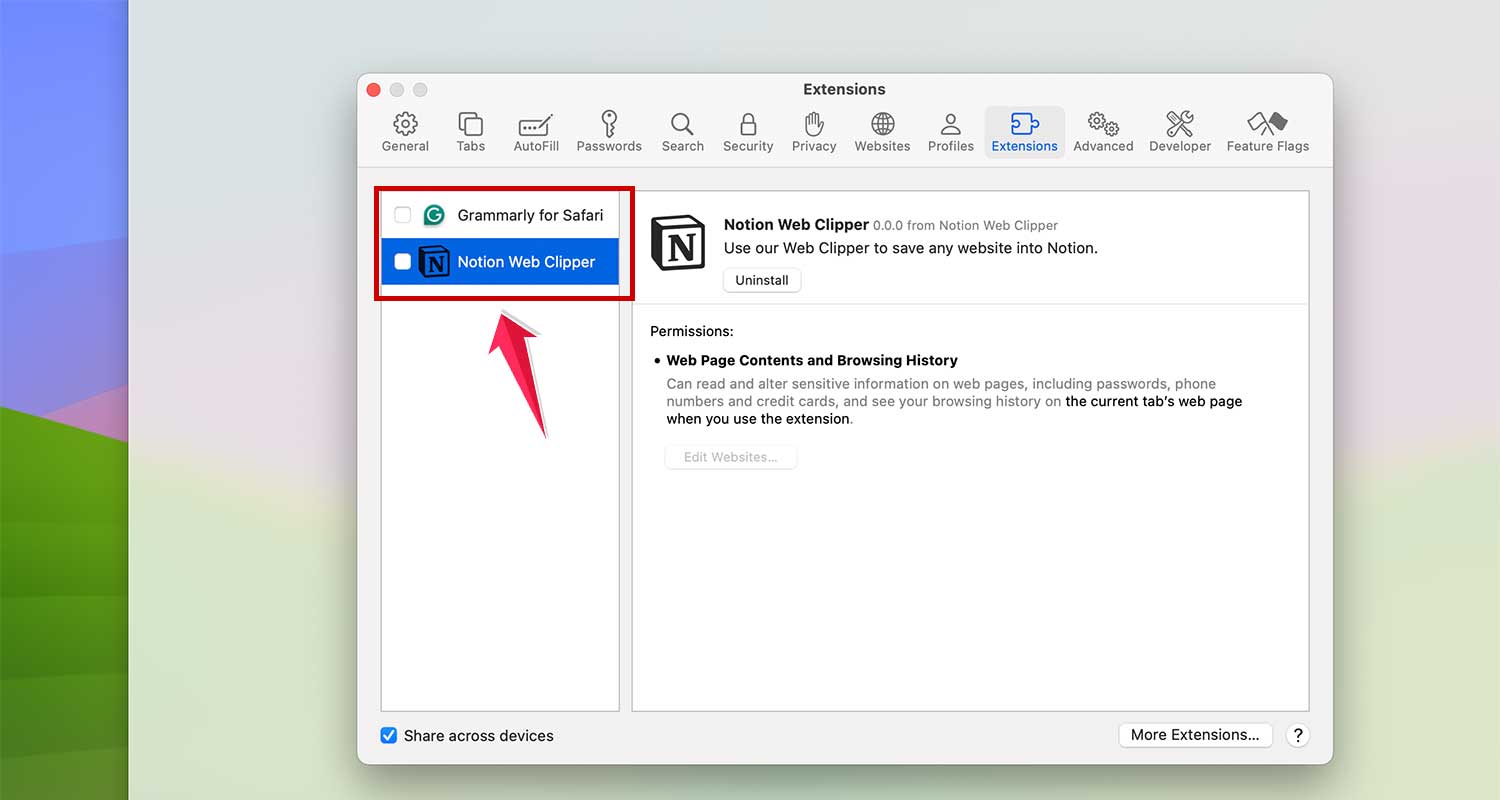
- In Chrome: Enter
chrome://extensionsin the address bar.
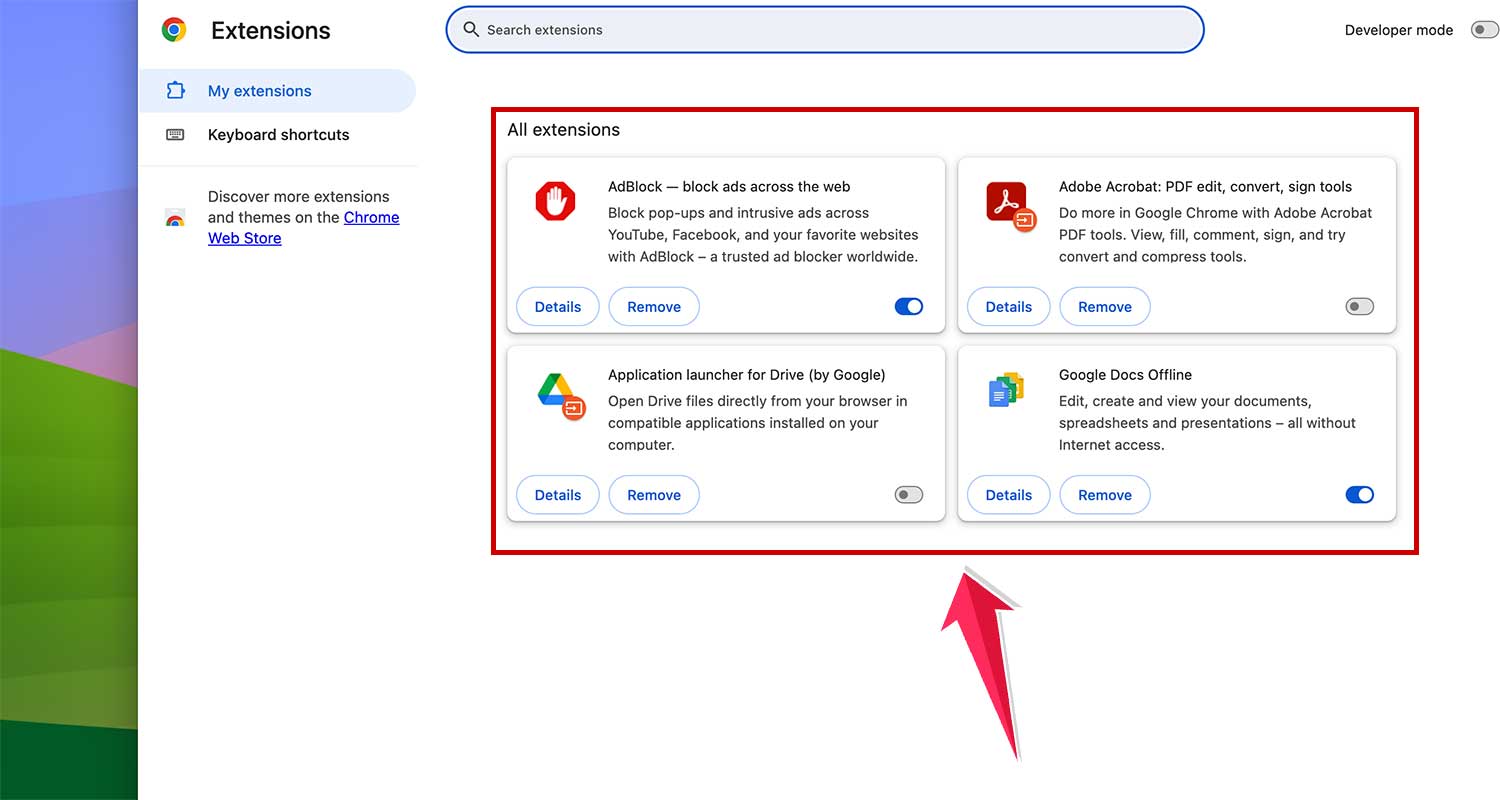
Disabling unnecessary extensions can free up resources and potentially eliminate memory errors.
8. Optimize Finder’s Memory Usage
The Finder application, while essential, can also use a considerable amount of RAM, especially when displaying extensive file lists like “Recents” or “All My Files”. To reduce its memory footprint:
- Open a new Finder window.
- Navigate to Finder > Settings from the menu bar.
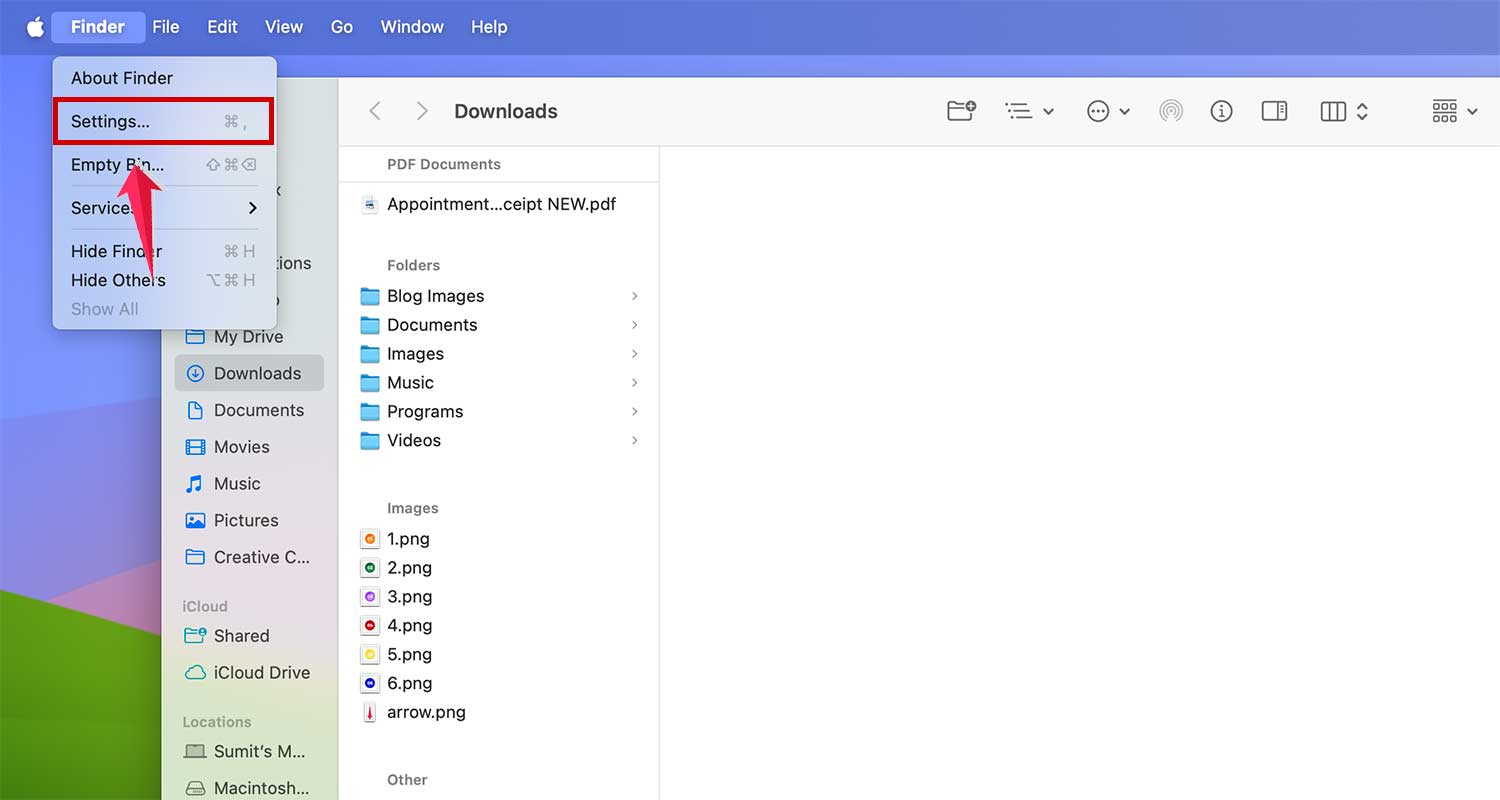
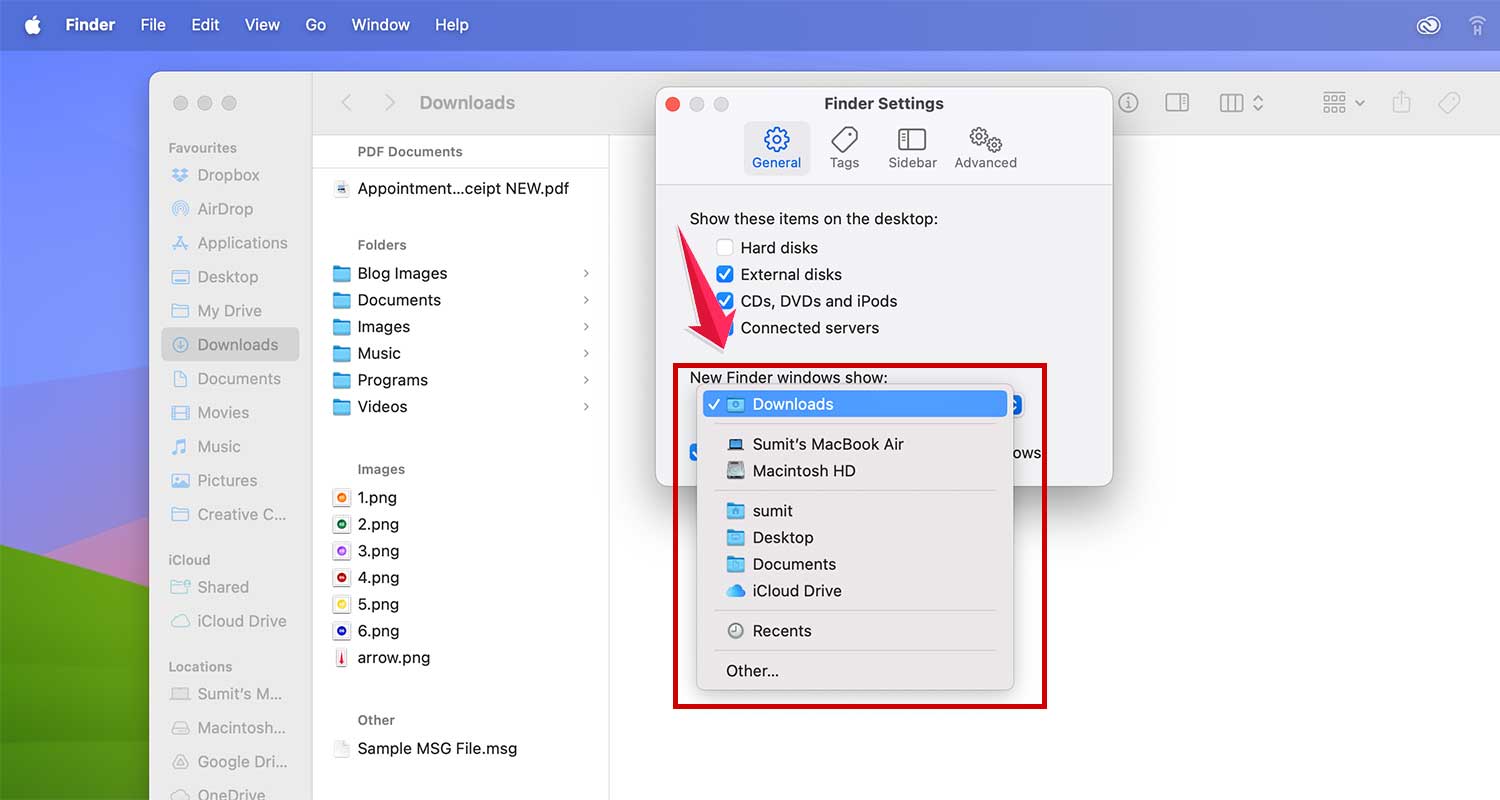
- Under the General tab, change the ‘New Finder windows show:’ setting to a less intensive folder.
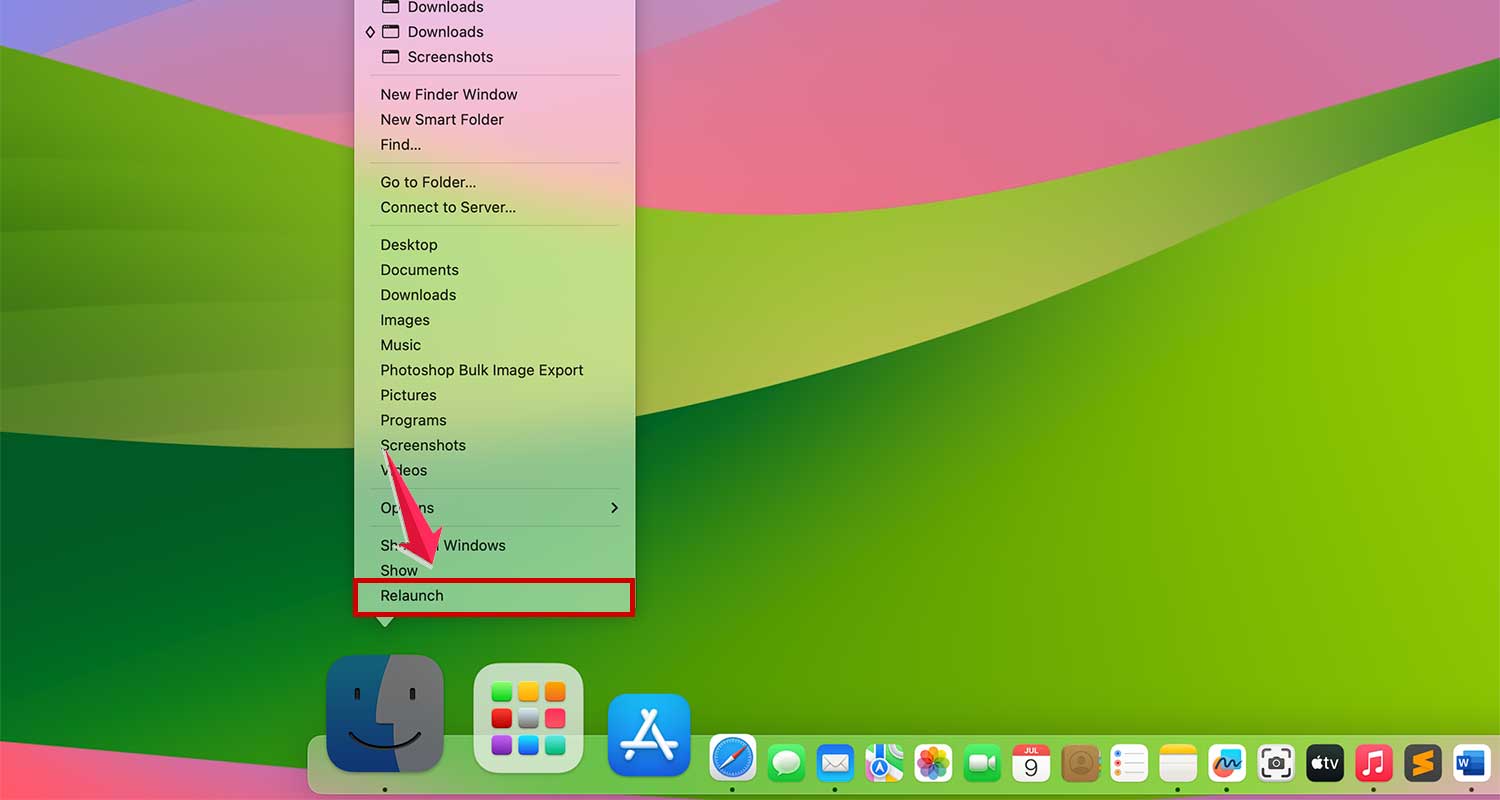
- To apply changes and refresh Finder, press and hold the Option key, right-click the Finder icon in the Dock, and select Relaunch.
By implementing these practices, you can help ensure your Mac runs more efficiently and stays free from the dreaded “system has run out of application memory” error.
9. Utilize Apple’s Storage Management Tools
Apple offers built-in tools to help efficiently manage your Mac’s storage:
- Go to the Apple menu and select About This Mac

- Then click on “More Info” in the next window
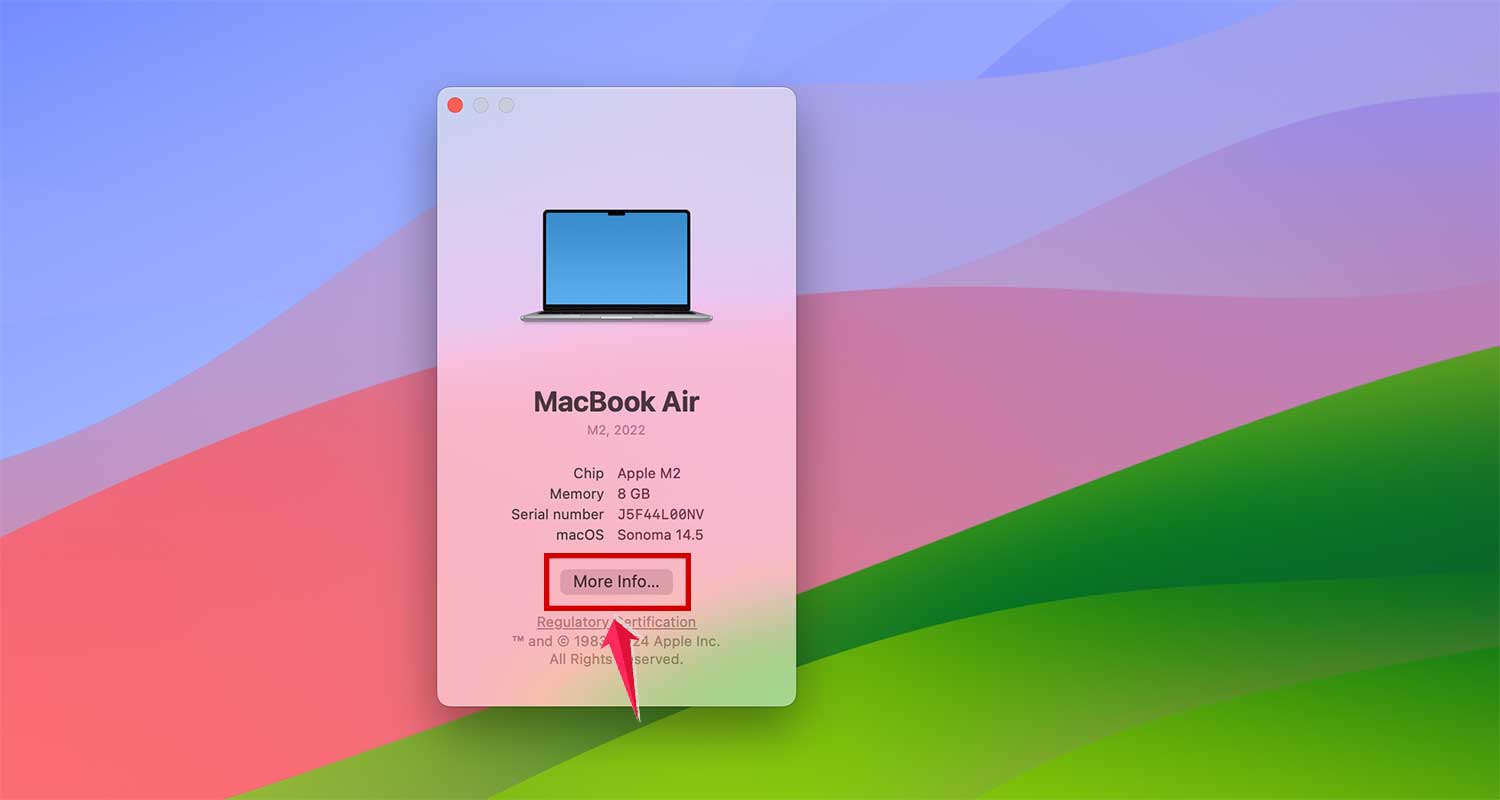
- Scroll down and Click on Storage Settings.

- Under Recommendations, you’ll find Apple’s suggestions for freeing up disk space. Review these recommendations and follow the steps to optimize your storage.

10. Consider Installing More RAM
If you frequently run into memory issues, upgrading your RAM could be a solution. More RAM means less reliance on your boot drive for creating swap files, which speeds up your Mac.
However, keep in mind that not all Mac models allow for RAM upgrades after purchase. For those that do, this usually requires a visit to an Apple Store or an authorized service center.
How to Reduce Memory Usage Using Activity Monitor
If you’ve tried the above steps and still see the “system has run out of application memory” error, use the Activity Monitor to pinpoint memory-hogging processes:
- Navigate to Applications > Utilities and open Activity Monitor.
- Click the Memory tab to view all processes consuming memory, including applications and browser tabs.
- To close a process, select it and click the “X” sign.
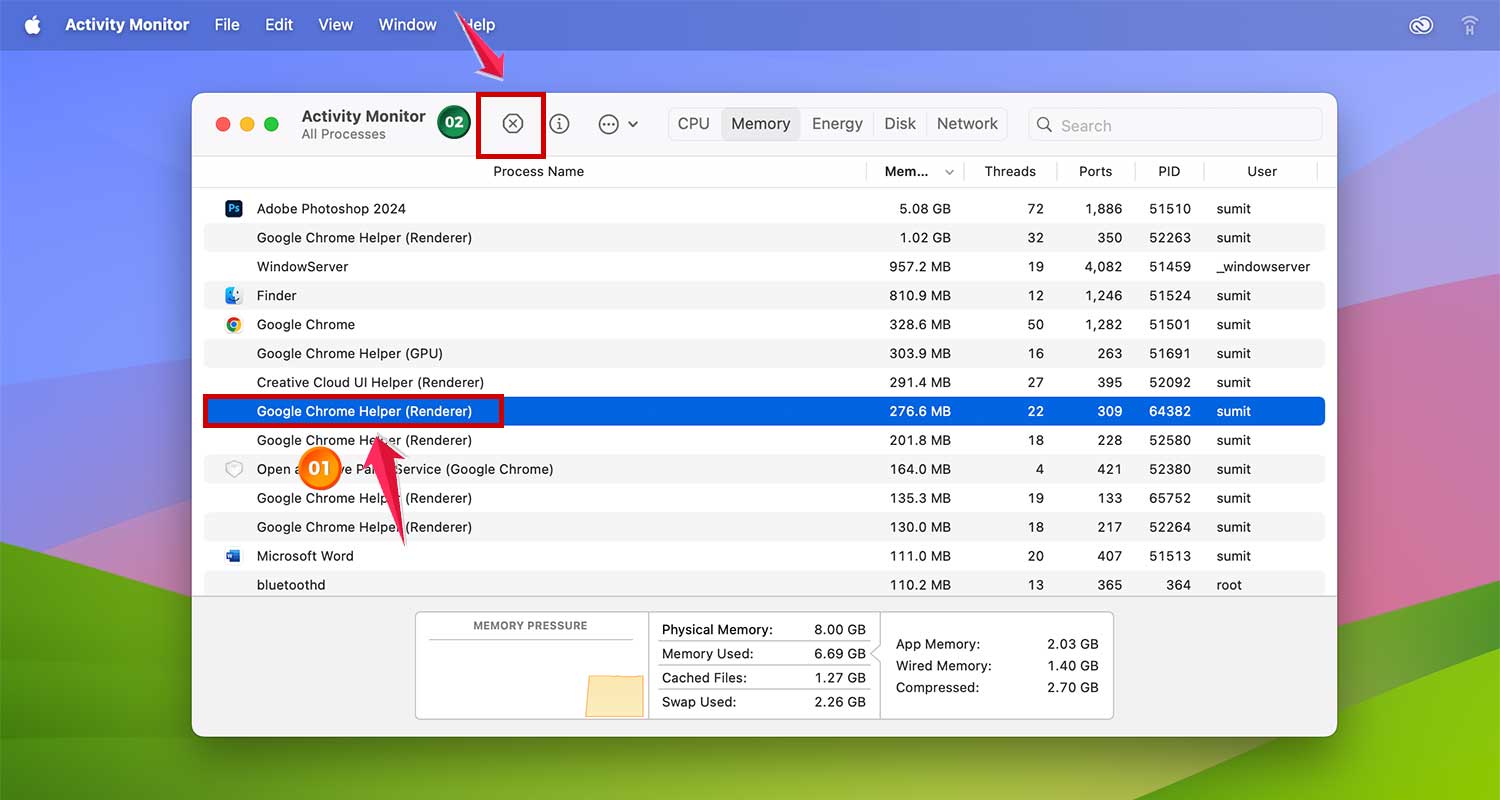
These steps are aimed at helping you manage and potentially resolve memory-related issues on your Mac, whether by making better use of storage management tools, upgrading hardware, or shutting down resource-intensive processes.
Wrapping Up
Managing your Mac’s memory doesn’t have to be complicated. By following the tips we’ve discussed – from closing unused apps to regular updates and uninstalling unnecessary programs – you can keep your Mac running smoothly and avoid that pesky “out of memory” message.
Remember, your Mac’s performance is like a well-oiled machine. Regular maintenance, such as clearing cache files and keeping your desktop tidy, can make a big difference.
And don’t forget about external solutions – sometimes, adding an external SSD or upgrading your RAM (if your Mac model allows) can give your computer a significant boost.
Have you tried any of these methods? Did they work for you? Or do you have your own tricks for keeping your Mac’s memory in check? Share your experiences in the comments below.