I know how annoying this can be. You’re trying to back up your photos, sync your contacts, or just keep your stuff safe. And boom, that message pops up: “This iPhone Can’t Be Used With iCloud.” Ugh, right?
So, what’s really going on here? Well, your iPhone is basically telling you that something doesn’t match up.
It could be a few things. Maybe you’re running an old iOS version, or there’s a problem with your Apple ID. Sometimes, it’s even caused by restrictions or settings you didn’t realize were on.
Why is this a big deal? Because when iCloud isn’t working, you lose access to automatic backups, shared photos, synced notes, and more. That’s your digital safety net. And without it, you’re kinda flying blind.
But don’t worry. I’ve got your back. We’re going to walk through this together. Step by step.
I’ll explain the most common reasons this happens and how you can fix each one. You don’t need to be a tech expert. Just follow along, and we’ll get your iCloud working again.
Let’s get started.
What’s causing this iCloud problem?
#1 Your iPhone might be running an outdated iOS
Sometimes, we skip updates because they take time or we just forget. But running an old version of iOS can mess with iCloud.
New features in iCloud may not work well with older software.
Here’s how to check if your iPhone needs an update:
- Open Settings.
- Tap General.

- Tap Software Update.
- If you see an update available, go ahead and install it. This might fix the issue right away.

#2 You could be logged into the wrong Apple ID
It happens more than you’d think. Maybe you’re using a different Apple ID than the one linked to iCloud. That can cause this error to show up.
To double-check:
- Open Settings.
- Tap your name at the top.
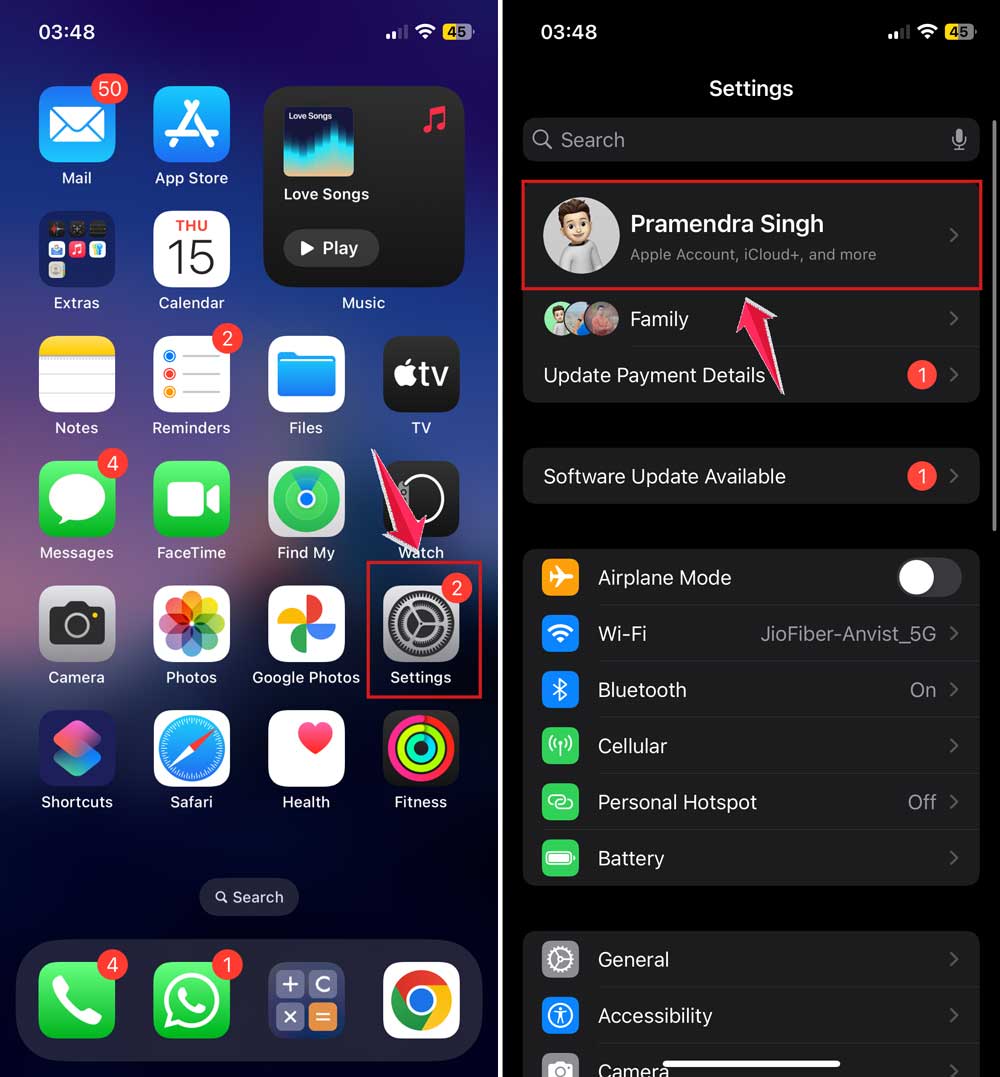
Make sure the Apple ID shown here is the one you use for iCloud. If not, sign out and sign in with the correct one.
#3 Your iCloud account might just be acting weird
Sometimes, your iCloud settings get out of sync. Logging out and back in can reset things and clear up the problem.
Here’s how:
- Go to Settings.
- Tap your name.
- Scroll down and tap Sign Out.

- Wait a minute, then sign back in.
That quick reset can do wonders.
#4 Restrictions might be blocking iCloud
Have you set up any Screen Time restrictions? Or maybe someone else did, like a parent or family member? These settings can stop iCloud from working correctly.
To check:
- Open Settings.
- Tap Screen Time.
- Tap Content & Privacy Restrictions.
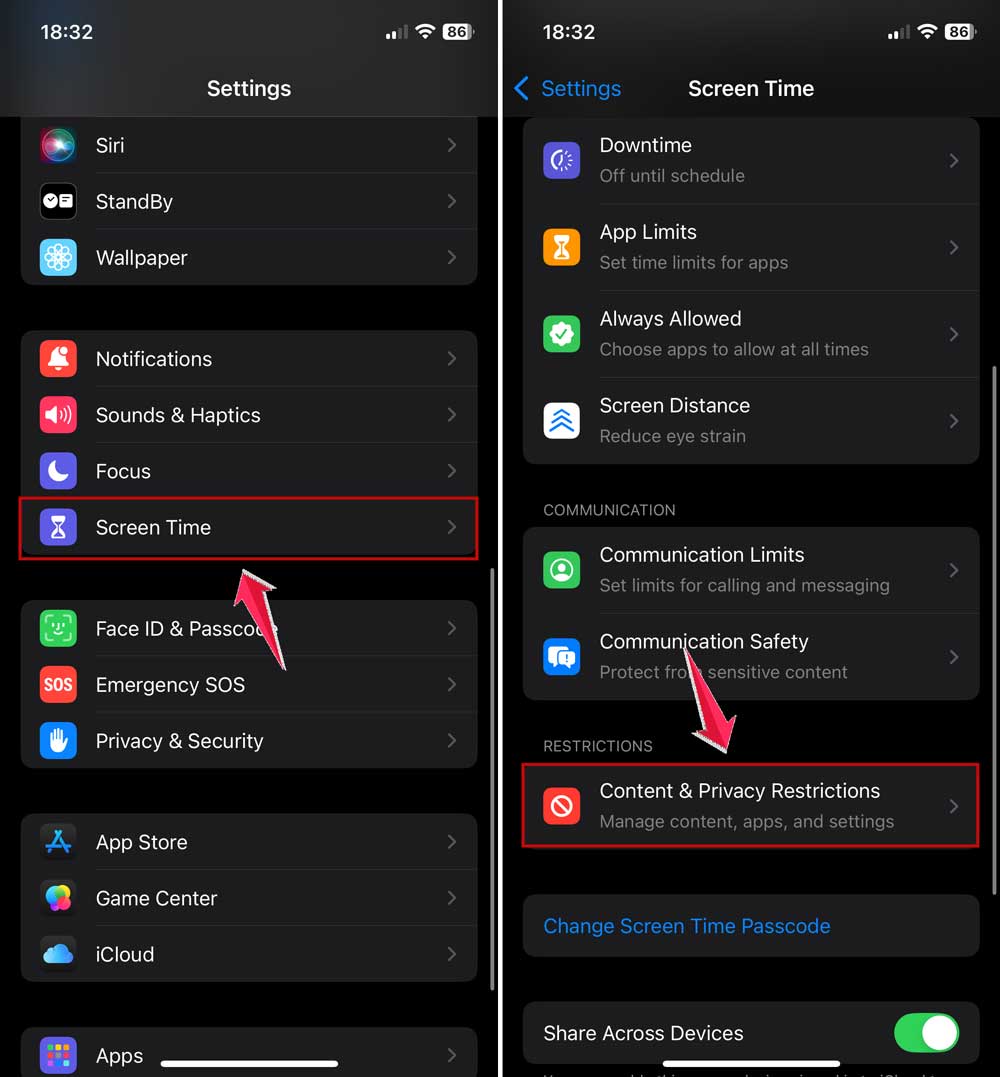
If these are turned on, they might be limiting iCloud. You can disable them or adjust the settings so iCloud can work again.
How to Fix the “This iPhone Can’t Be Used With iCloud” Message
Alright, now that we know what might be going wrong, let’s fix it. I’ll guide you through each step, and we’ll do this together. You don’t need to rush. Just try one thing at a time.
#1 Keep your iOS updated
Let’s start with the easiest fix. Updating your iPhone can solve a lot of problems, including this one. If your software is outdated, it might not talk to iCloud properly.
Here’s how to do it:
- Open Settings.
- Tap General.
- Tap Software Update.
- If an update is available, tap Update Now.

After the update, try connecting to iCloud again. Sometimes, that’s all it takes.
#2 Make sure you’re using the right Apple ID
This one’s simple but important. If your Apple ID is wrong, iCloud won’t work the way it should. Maybe you’ve used a different ID on another device, or switched accounts before.
Here’s how to check:
- Open Settings.
- Tap your name at the top.
If the Apple ID doesn’t look right, scroll down and tap Sign Out. Then sign in with the correct one. This keeps everything synced properly.
#3 Restart your iPhone
I know it sounds silly, but trust me. Restarting your phone can fix all kinds of weird glitches. It gives your device a fresh start.
To restart:
- Hold the power button and volume up button until you see “Slide to power off”.
- Slide it.
- Wait a few seconds and turn it back on.
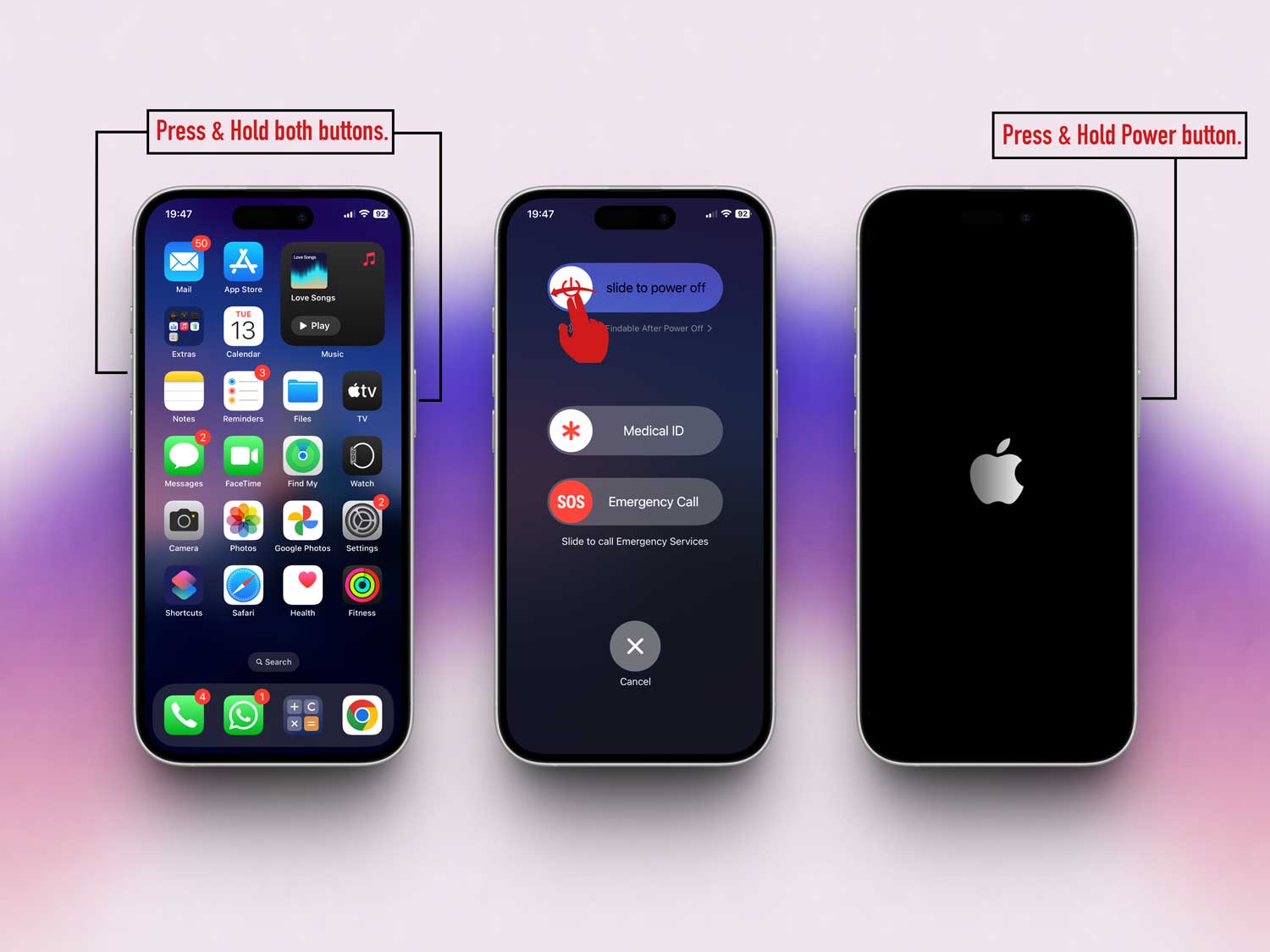
Now check if the iCloud error is still there. If it’s gone, great! If not, let’s keep going.
#4 Sign out and back into iCloud
Sometimes, iCloud just needs a little reset. Signing out and back in can refresh the connection and clear up issues.
Here’s how:
- Open Settings.
- Tap your name.
- Scroll down and tap Sign Out.
- Enter your password if asked.
- Wait a minute, then sign back in.
Give it a few moments to sync. This often clears up the iCloud issue.
#5 Disable restrictions that block iCloud
Restrictions can silently block iCloud and you might not even know it. These are found in Screen Time settings and can be turned off pretty easily.
Here’s what to do:
- Go to Settings.
- Tap Screen Time.
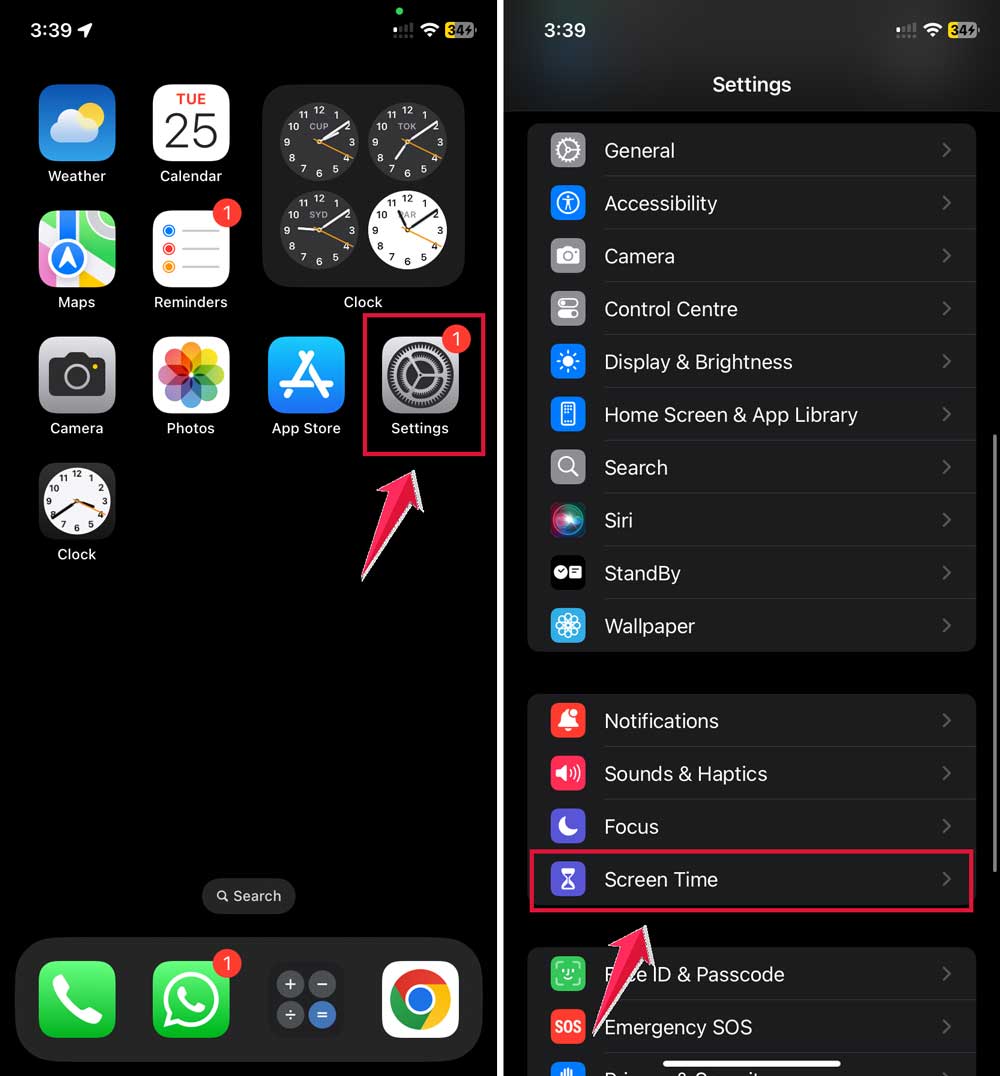
- Tap Content & Privacy Restrictions.
- Turn off any restriction that might affect iCloud.

If you don’t want to turn them off completely, just allow iCloud-related features.
#6 Reset network settings
Sometimes, it’s your internet connection causing the issue. Resetting your network settings can help without deleting your data.
Here’s how:
- Open Settings.
- Tap General.
- Scroll down and tap Transfer or Reset iPhone.

- Tap Reset, then Reset Network Settings.

This will restart your Wi-Fi and mobile settings. Reconnect to your network and try iCloud again.
#7 Restart your router
If your internet connection is acting up, it could mess with iCloud. A quick router restart might help.
Just unplug your router, wait 10 seconds, and plug it back in. Wait for it to reconnect, then check your iPhone again.
#8 Free up some iCloud storage
If your iCloud is full, it won’t work properly. Let’s clean it up a bit.
- Open Settings.
- Tap your name.
- Tap iCloud.
- Tap Manage Storage.
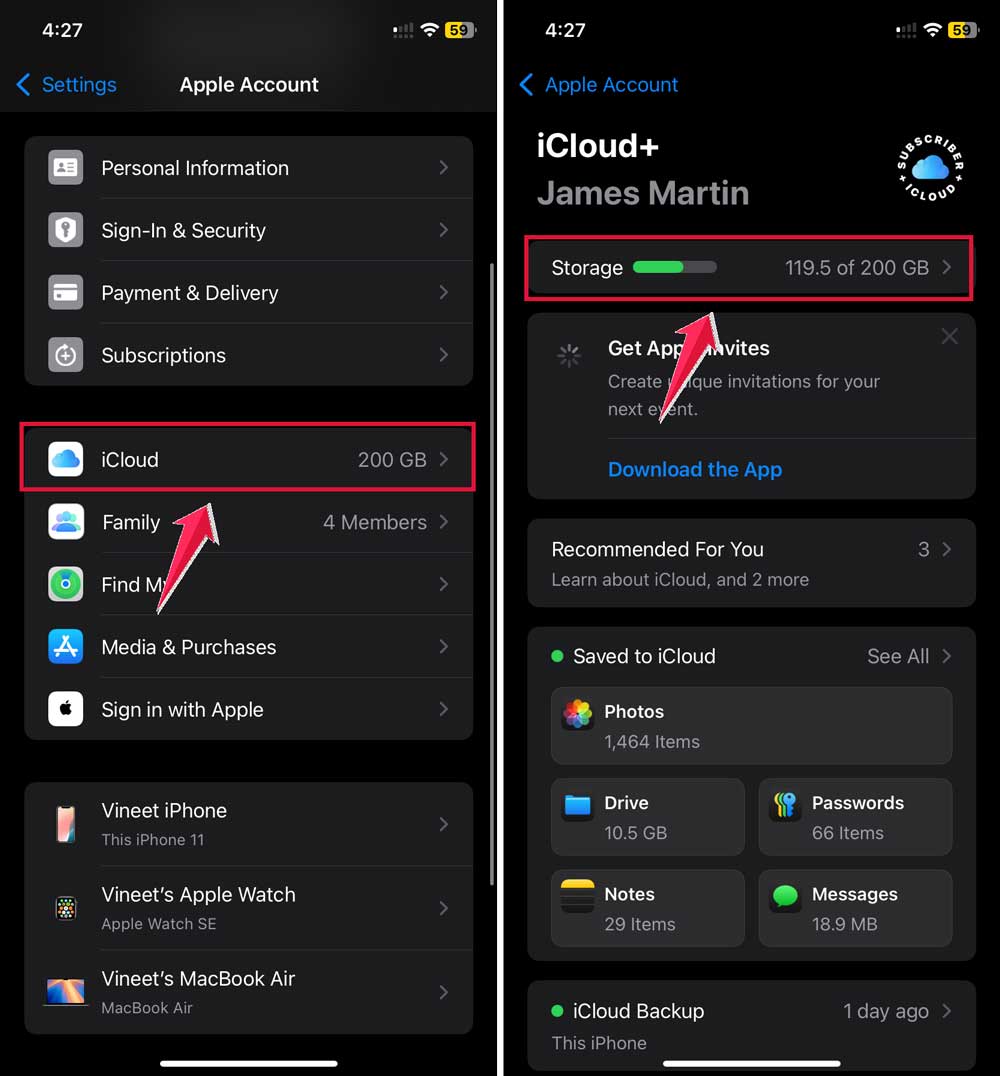
Delete old backups or unused files to make space. It’ll help your iCloud run smoother.
#9 Turn on two-factor authentication
If iCloud still gives you trouble, enabling two-factor authentication can help secure your account and fix login issues.
- Go to Settings.
- Tap your name.
- Tap Sign-in & Security.
- Turn on Two-Factor Authentication.
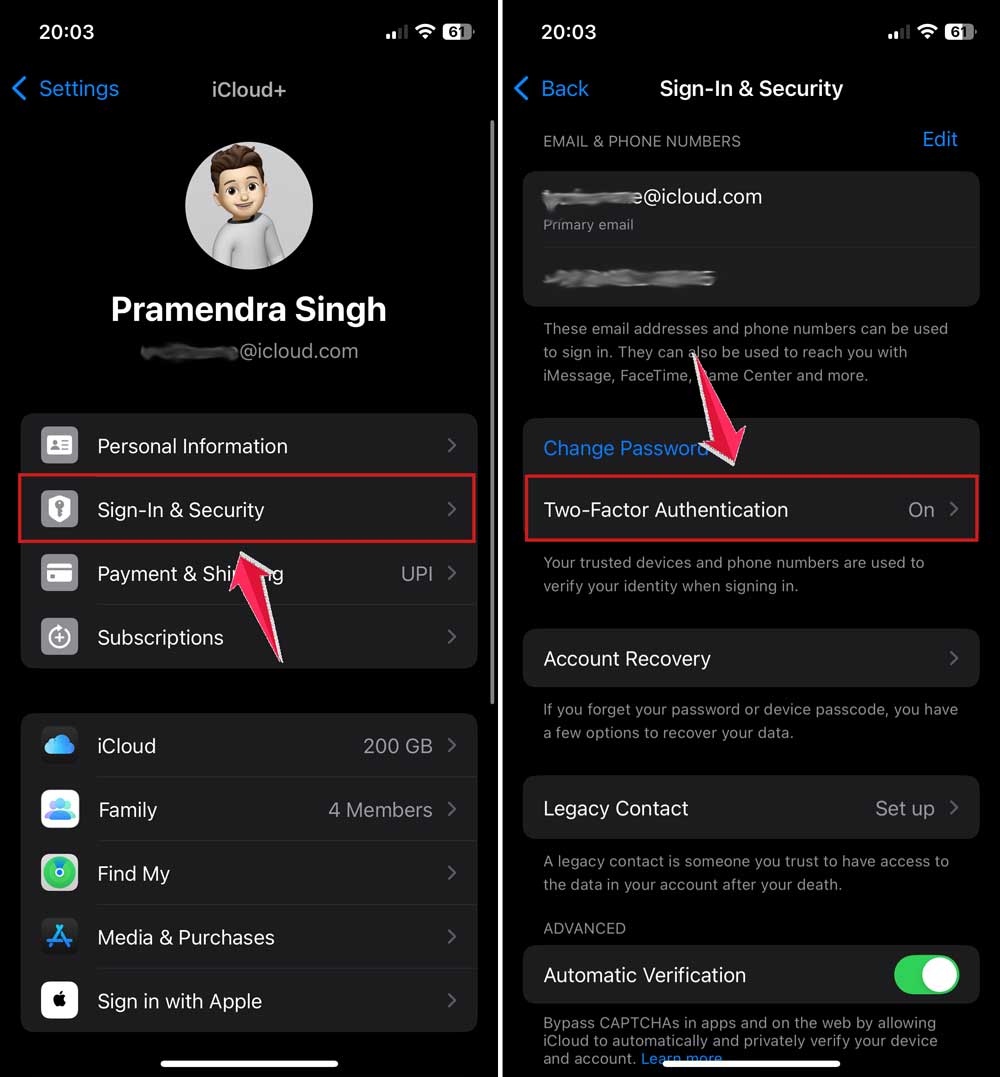
This adds extra protection and can solve some iCloud access problems.
#10 Back up your data regularly
Once everything’s working, don’t forget to keep regular backups. This protects your photos, messages, and everything else.
- Go to Settings.
- Tap iCloud.
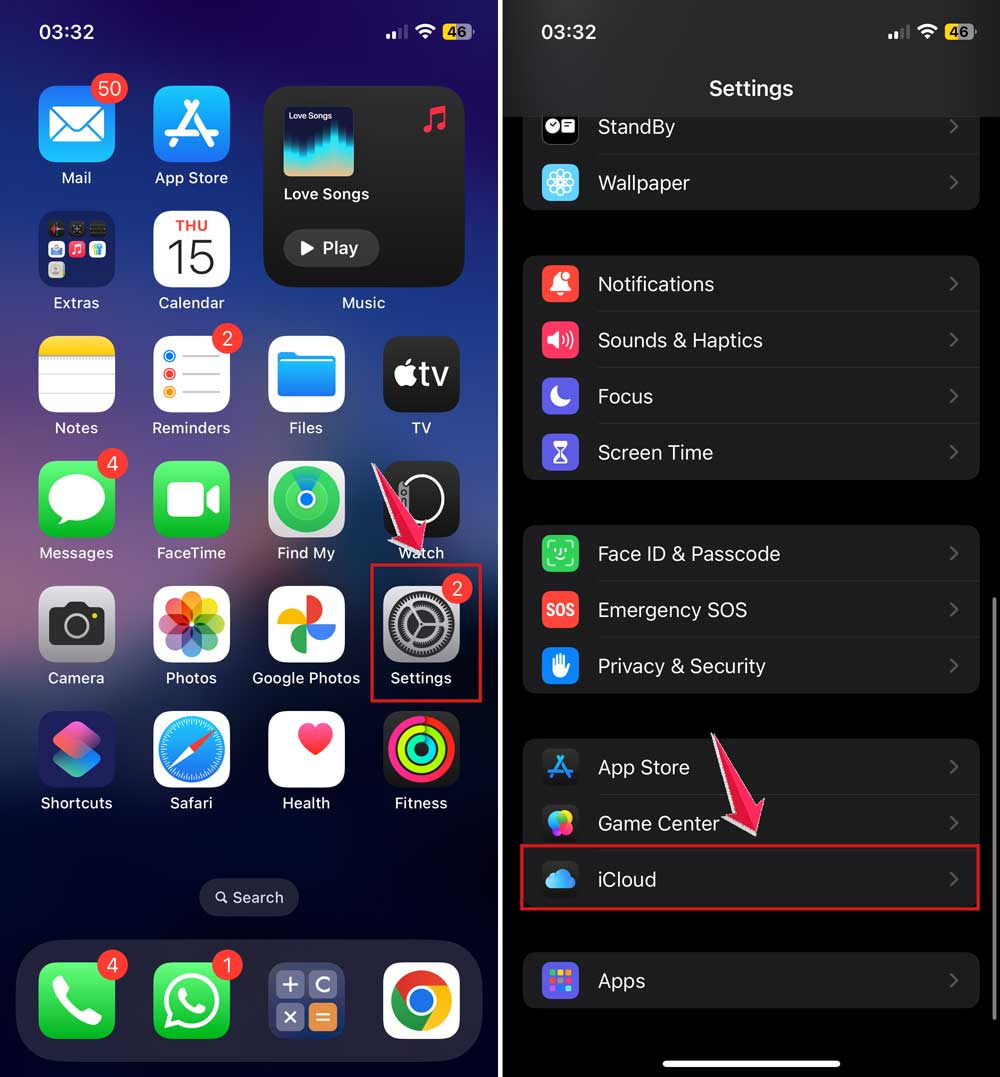
- Tap iCloud Backup and turn it on.

Now your stuff is always safe, even if something goes wrong later.
The Takeaway
That annoying message. “This iPhone Can’t Be Used With iCloud”. It doesn’t have to ruin your day.
Most of the time, it’s caused by something simple like an outdated iOS, a mismatched Apple ID, or a small setting you didn’t even notice.
You don’t need to be a tech wizard to fix it. Just go through these steps one by one.
Start by updating your iPhone, then check your Apple ID, and move on from there. It’s all about eliminating what could be causing the issue.
And don’t stress. These fixes are safe and easy to do. If one doesn’t work, try the next. You’ll likely have your iCloud up and running again in no time.
Still stuck? Drop a comment below and let me know what’s going on. I’m here to help.