Did you know that over 6 billion text messages are sent every day in the United States alone? With so many messages flying around, it’s no wonder that sometimes things don’t work quite right.
If you’ve noticed that your text messages aren’t forwarding to your other Apple devices, you’re not alone.
This common issue can be frustrating, especially when you’re used to seamlessly switching between your iPhone and iPad to stay connected.
Text message forwarding is supposed to make your life easier by letting you send and receive messages on any of your Apple devices. But when it stops working, it can throw a wrench in your communication.
In this guide, you’ll learn why this problem happens and how to fix it. We’ll walk through some simple steps to get your messages flowing again between your devices.
Whether you’re tech-savvy or not, don’t worry. These solutions are easy to follow and won’t take long to implement.
Why does my iPhone not show text message forwarding?
Text message forwarding can sometimes stop working on your iPhone, and it can be frustrating when you can’t figure out why.
Let’s look at some common reasons this happens and how you can fix them.
1. Is text message forwarding turned on?
First, check if text message forwarding is actually turned on. Here’s how you can do that:
- Open your “Settings” app.
- Click on Apps.
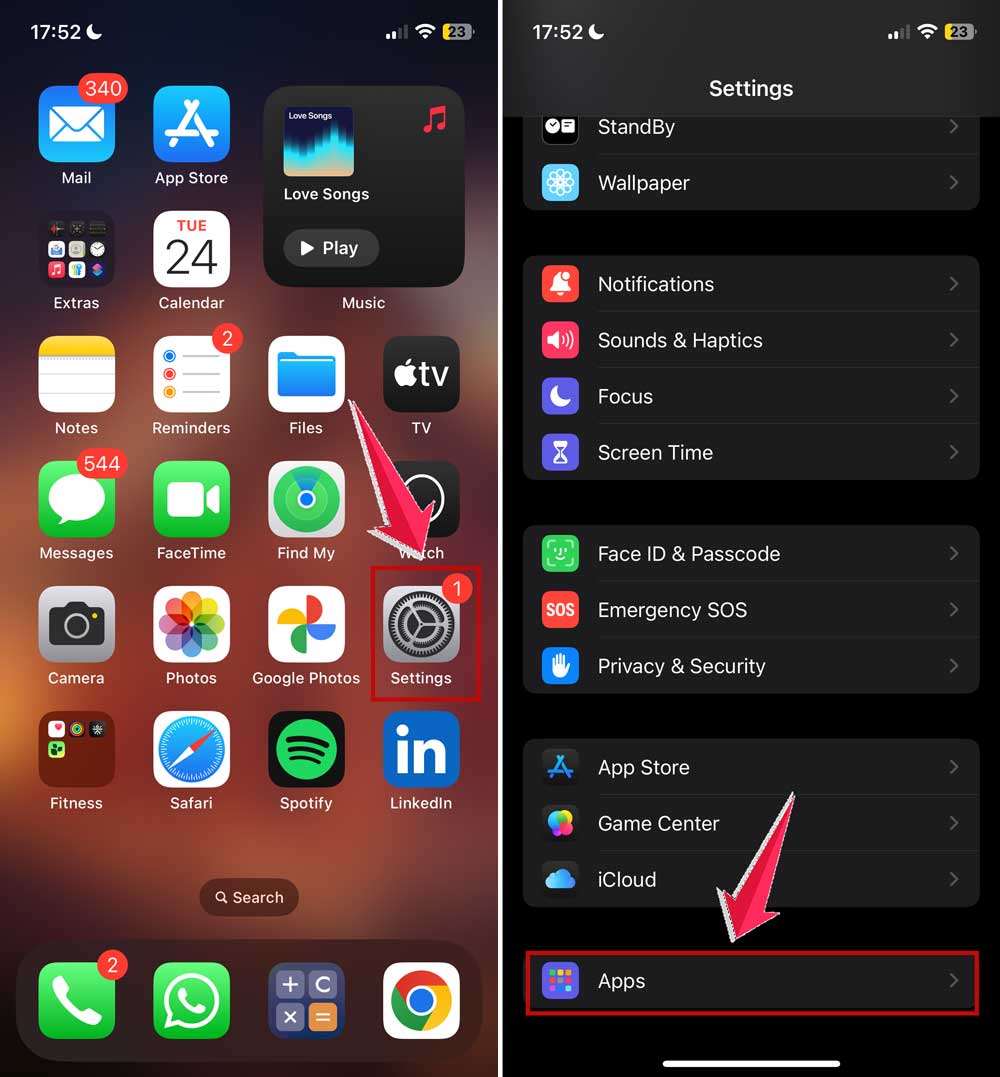
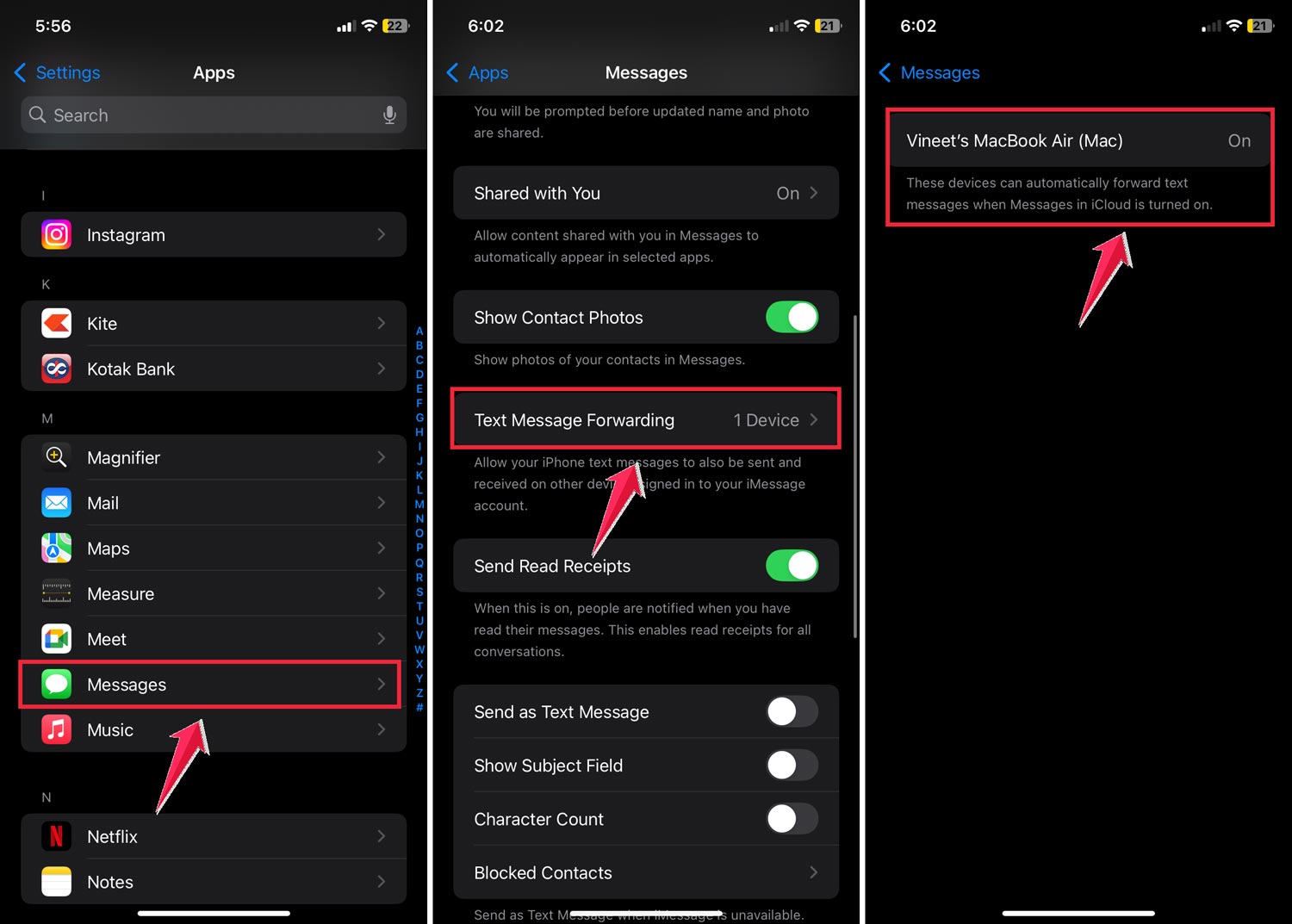
- Tap on “Messages“.
- Select “Text Message Forwarding“.
- Make sure the switch next to the device you want to forward messages to is turned on.
2. Is your iPhone compatible?
Not all iPhone models support text message forwarding. To check if yours does:
- Go to “Settings“.
- Tap “General“.

- Select “About“.
- Look for the “Model” section.

If your iPhone model isn’t listed as compatible with text message forwarding, that’s likely why you’re not seeing the option.
3. Are your devices using the same Apple ID?
For text message forwarding to work, all your devices need to be signed in with the same Apple ID. Double-check this on each device you want to use for messaging.
Sometimes, problems with iMessages not syncing between iPhone and Mac can also cause forwarding issues.
4. Could it be a connectivity issue?
Sometimes, poor internet or cellular service can cause problems. Try resetting your Wi-Fi connection. If that doesn’t help, you might want to contact your cellular service provider for assistance.
5. Is it available in your region?
Keep in mind that text message forwarding isn’t available everywhere. If you’re in a region where this feature isn’t supported, that could explain why you’re not seeing it.
By checking these potential issues, you should be able to figure out why text message forwarding isn’t showing up on your iPhone and hopefully get it working again.
How to fix text message forwarding when it’s not working on your iPhone or iPad
Text message forwarding can be really useful, but it can also be frustrating when it’s not working properly.
Don’t worry, though. I’m here to help you get it sorted out. Let’s go through some steps to fix this issue.
1. Check your text message forwarding settings
First, let’s make sure your settings are correct:
- Open the “Settings” app on your iPhone.
- Scroll down and tap “Messages“.
- Select “Text Message Forwarding“.
Once you’re in the Text Message Forwarding menu:
- Check if the switch is turned on (it should be green).
- If it’s not on, tap the switch to turn it on.
You should see a list of devices that can receive your forwarded messages. If you don’t see the device you want to forward messages to, look for an “Add Device” button and tap it to add any missing devices.
2. Restart your phone
Sometimes, a simple restart can solve the problem:
- Turn off your phone.
- Wait for about 30 seconds.
- Turn it back on.
- Check if message forwarding is working now.

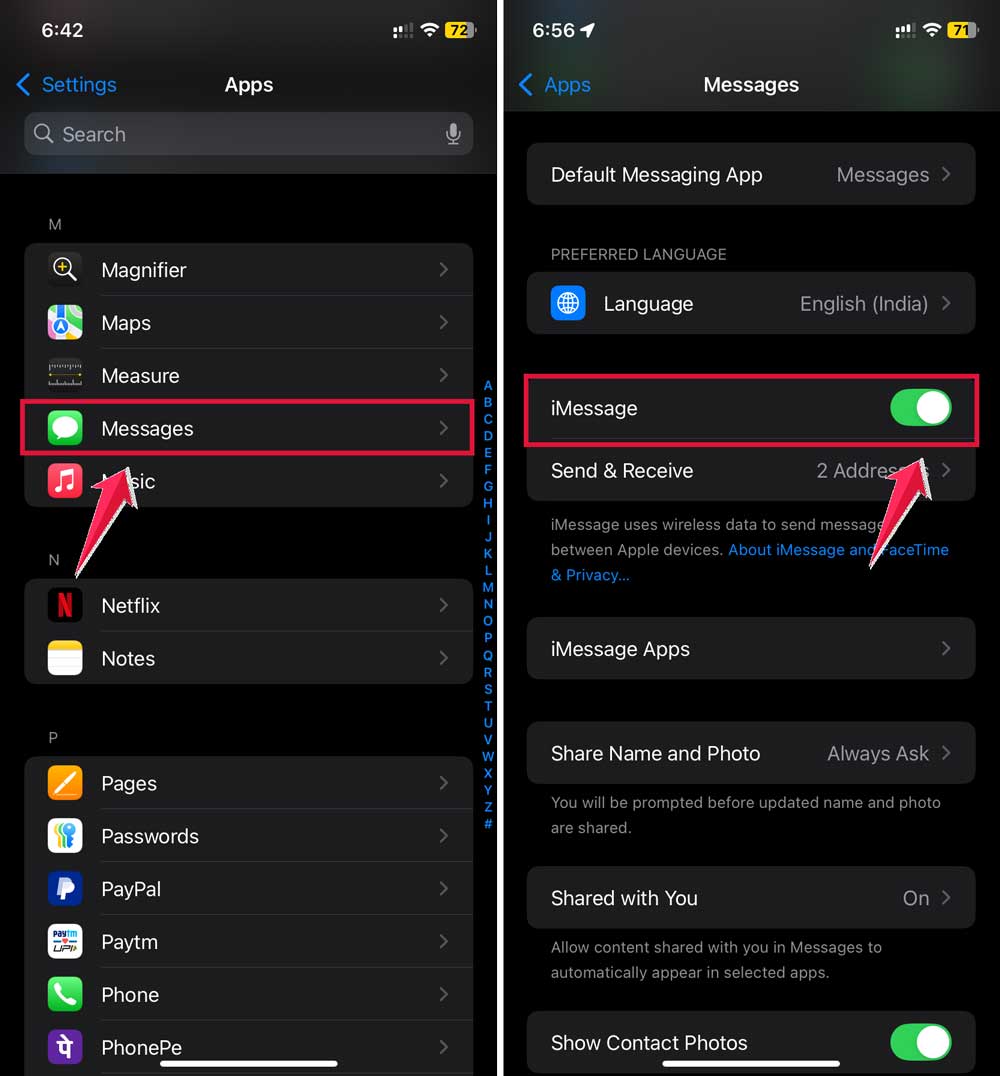
3. Check your iMessage settings
If you’re using an iPhone, make sure iMessage is set up correctly. Double-check that you can also sync messages from iPhone to Mac properly, as syncing problems can block text forwarding too.
- Go to “Settings“.
- Click on Apps.

- Tap “Messages“.
- Make sure the “iMessage” switch is turned on.
- Check that your phone number is listed and set up correctly.
4. Update your phone’s software
Keeping your phone’s software up to date can help resolve many issues:
- Go to “Settings“.
- Tap “General“.
- Select “Software Update“.
- If an update is available, install it.

5. Check your internet connection
Your connection needs to be strong for message forwarding to work. Weak internet can cause your iPhone to behave strangely, leading to issues like missing messages or sync errors. You might also experience problems similar to when users fix common syncing issues on iPhone.
- If you’re using Wi-Fi, make sure you’re close to your router and the signal is strong.
- For cellular data, check that it’s turned on and you have a good signal.
If none of these steps work, you might want to contact your phone carrier. They can check if there are any known issues with text forwarding.
6. Reset your network settings
If you’re still having trouble, you might need to reset your network settings:
- Go to “Settings“.
- Tap “General“.
- Go to “Transfer or Reset iPhone”

- Scroll down to “Reset“.
- Choose “Reset Network Settings“.

Remember, this will make your phone forget all saved Wi-Fi passwords, so be prepared to re-enter them.
7. Factory reset your phone
As a last resort, you can try a factory reset. This will erase everything on your phone, so make sure to back up your data first:
- Go to “Settings“.
- Tap “General“.
- Go to “Transfer or Reset iPhone”

- Scroll to “Reset“.
- Choose “Erase All Content and Settings“.

This will return your phone to its original state, like when it was new. Make sure you’ve backed up all your important data before doing this.
By following these steps, you should be able to get your text message forwarding working again.
If you’re still having issues, it might be best to reach out to Apple Support for more specialized help.
The takeaway
Text message forwarding can be a bit tricky sometimes, but it’s usually something you can fix yourself. The main problem is often just a small setting that needs to be adjusted or a quick restart of your phone.
We’ve covered several ways to get your messages flowing again. First, always check your settings to make sure text forwarding is turned on and set up correctly.
If that doesn’t work, try restarting your phone or updating your software. These simple steps often solve the problem.
Many people think they need to be tech experts to fix these issues, but that’s not true. Most of the time, you can solve the problem with a few taps on your screen.
Remember, if you’ve tried everything and it’s still not working, don’t hesitate to contact your phone carrier or Apple Support. They’re there to help you.
The most important thing is to stay calm and go through the steps one by one. With a little patience, you’ll have your text messages forwarding smoothly again in no time.
We’d love to hear how these tips worked for you. Feel free to leave a comment below with your experience or any other tips you’d like to share.