When you’re browsing the internet, your safety is important. Over the past decade, there’s been a big change in how websites protect your information.
This change involves something called HTTPS. It’s a secure way for your browser to connect to websites.
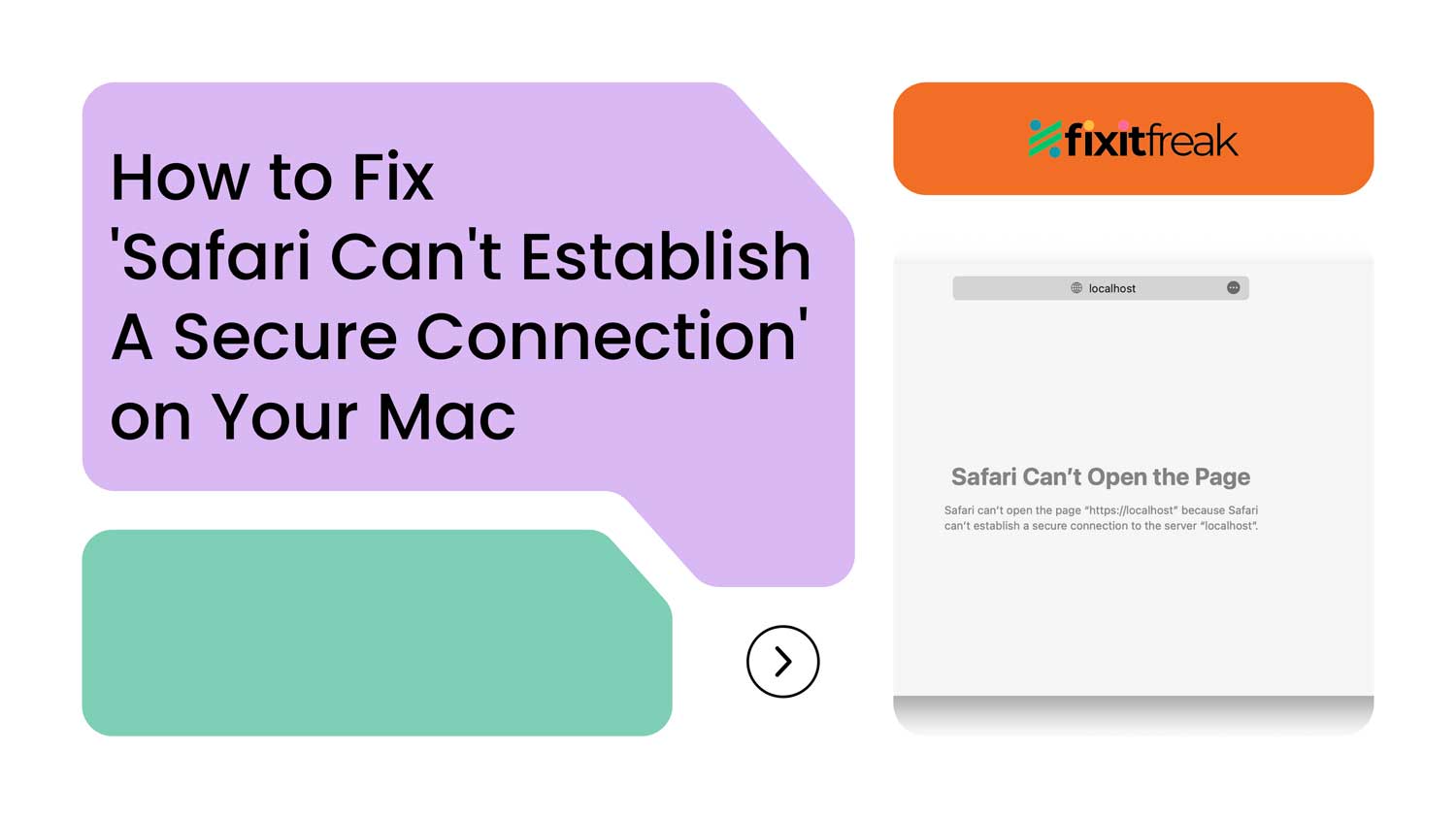
If you use Safari on your Mac, you might sometimes see a message saying “Safari can’t establish a secure connection to the server.”
This usually happens when a website doesn’t have proper security measures in place.
But don’t worry! This article will help you understand why this happens and what you can do about it.
We’ll walk you through some simple steps to fix this issue and get you back to safe browsing.
Why Does Safari Say It ‘Can’t Establish a Secure Connection’?
When you see this message, it means Safari is concerned about the website’s safety. There are a few reasons why this might happen:
- The website might be missing a security certificate. This is like an ID card that proves the site is safe.
- The website’s security certificate might be out of date. Just like your driver’s license, these certificates need to be renewed.
- There could be a problem with how your Mac is connecting to the internet. This is called a DNS issue.
- Your Mac might have old information stored that’s confusing Safari. This is called cache data.
- There might be other security issues that Safari doesn’t like.
Safari is very careful about your safety. If it thinks a website isn’t secure, it won’t let you visit it.
Sometimes, the problem might not be with the website at all, but with Safari itself, similar to how Safari not working on iPhone shows up on mobile devices too.
In the next sections, we’ll show you how to check for these issues and fix them.
Remember, just like you take care of your car or your home, it’s good to take care of your Mac too. This includes doing things like cleaning up old files and making sure everything is up to date.
How To Fix “Safari can’t establish a secure connection” on Mac?
Step 1: Try a Different Browser
First off, give another web browser a shot. If it connects without issues, the problem might be specific to Safari.
This could indicate that while the website meets the security standards of other browsers, Safari disagrees.
If no browser can connect, this might signal a problem with the website’s security itself, possibly making it unsafe.
If you believe the website should be secure, consider reaching out to the website’s owner to notify them about the accessibility issue.
Step 2: Verify the Web Address
Double-check the URL you’re trying to visit. A common trick by malicious sites is to use URLs that mimic legitimate sites, only slightly altered.
Make sure the URL you entered or clicked is accurate to avoid such traps.
Step 3: Check Your Mac’s Date and Time
Incorrect date and time settings on your Mac can lead to various online connectivity issues. This mismatch can lead Safari to suspect a problem with the server’s security.
Navigate to System Settings > General > Date and Time to verify these settings.
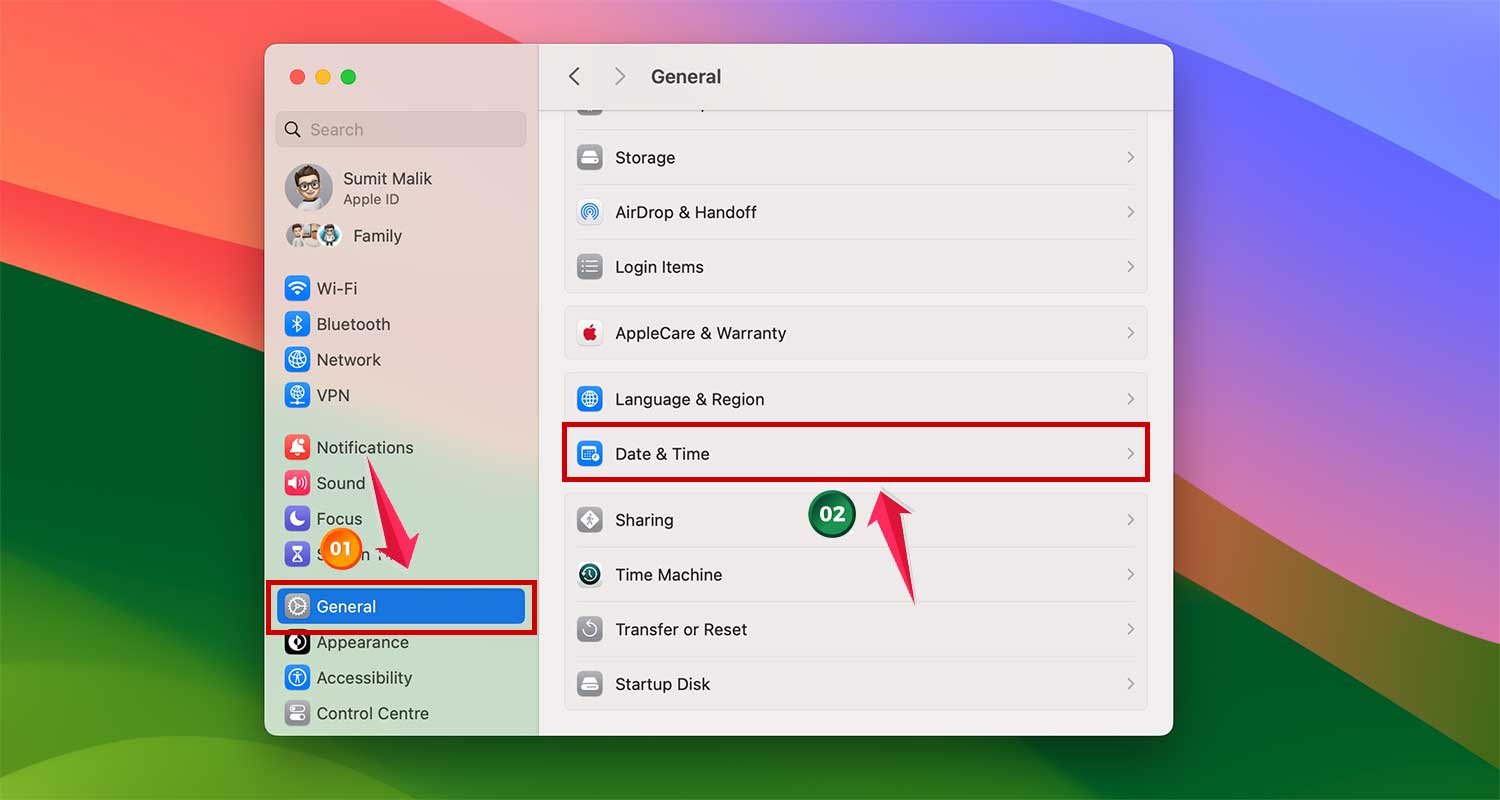
For best results, enable Set Time and Date Automatically with Apple as the source, unless you have a specific reason to set it manually.

Step 4: Clear Your Browser Cache
Sometimes, old cache files may trick Safari into thinking a site is insecure. Clearing these files can help:
- Open the Safari menu and select Settings.

- Go to the Privacy tab.
- Click on Manage Website Data and wait for the data to load.
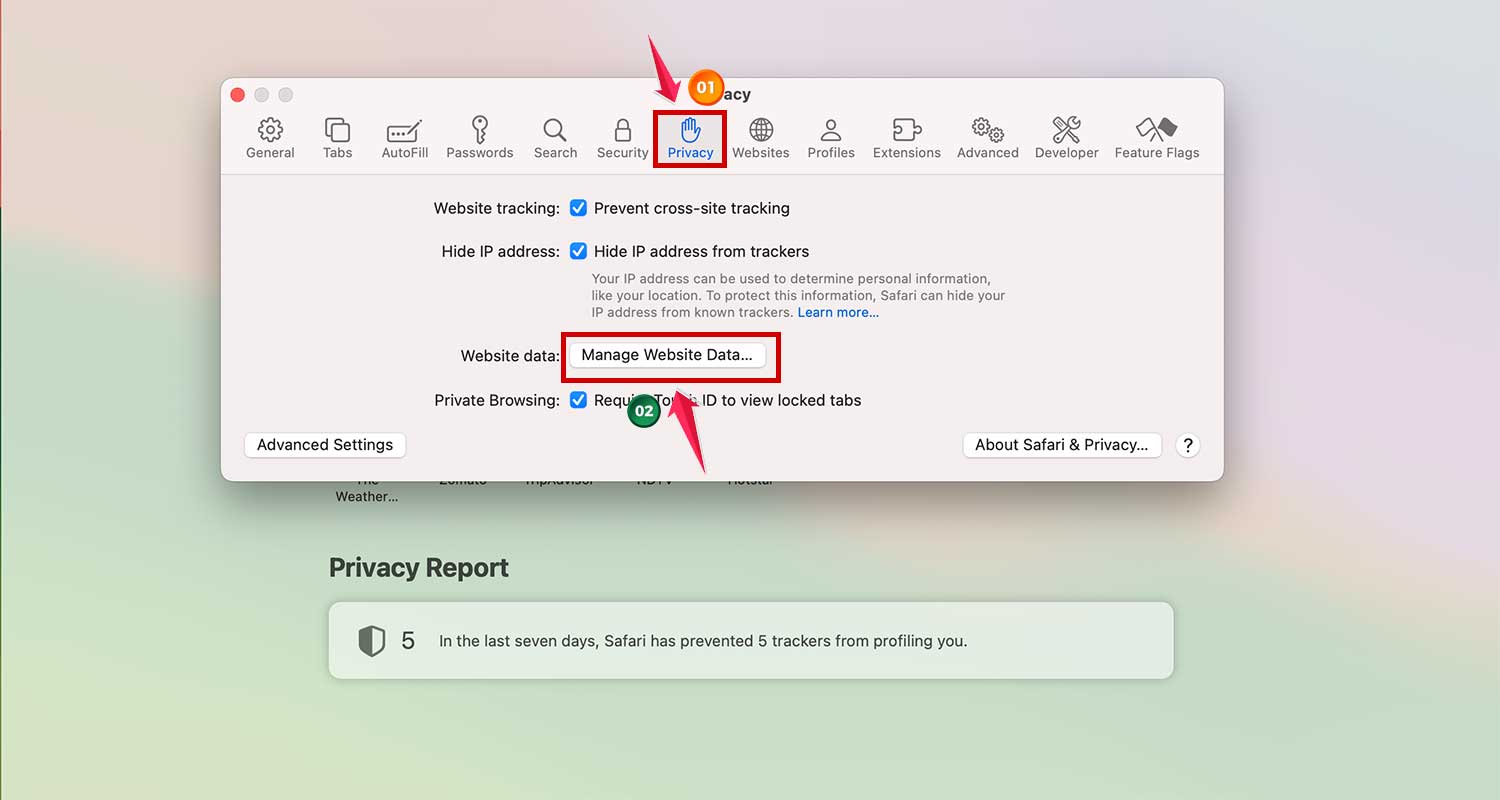
- Select Remove All to clear the cache.

Step 5: Switch DNS Servers
Your Mac uses DNS servers to translate website URLs into IP addresses. If there’s an issue with your default DNS server, it might cause connection problems:
- Click the Apple menu, go to System Settings > Network.
- Then tap on “WiFi”
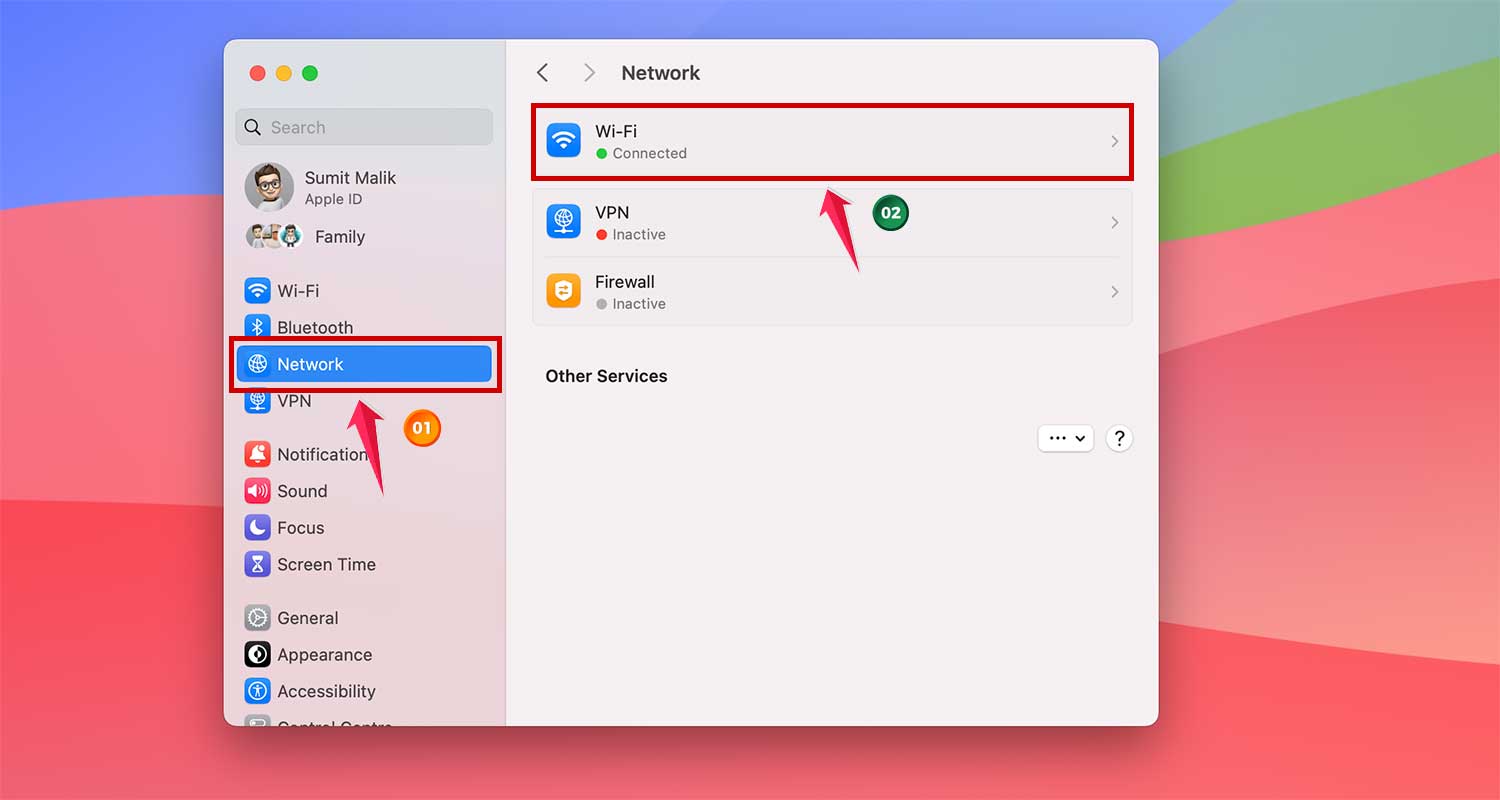
- Select your Wi-Fi network and click Details.

- In the DNS section, highlight the existing DNS server and click the ‘-’ to remove it.
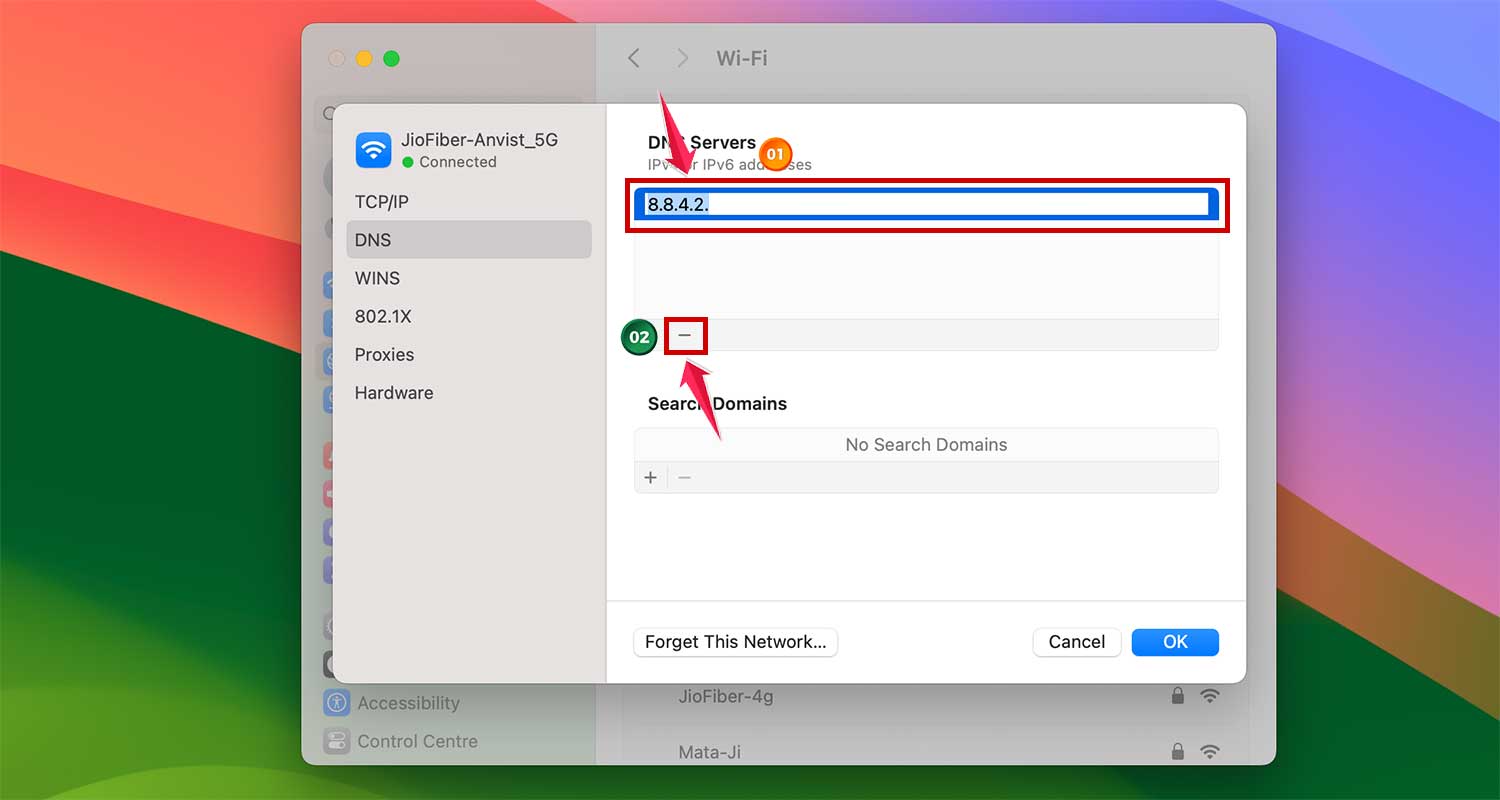
- Then, click the ‘+’ to add a new DNS server.
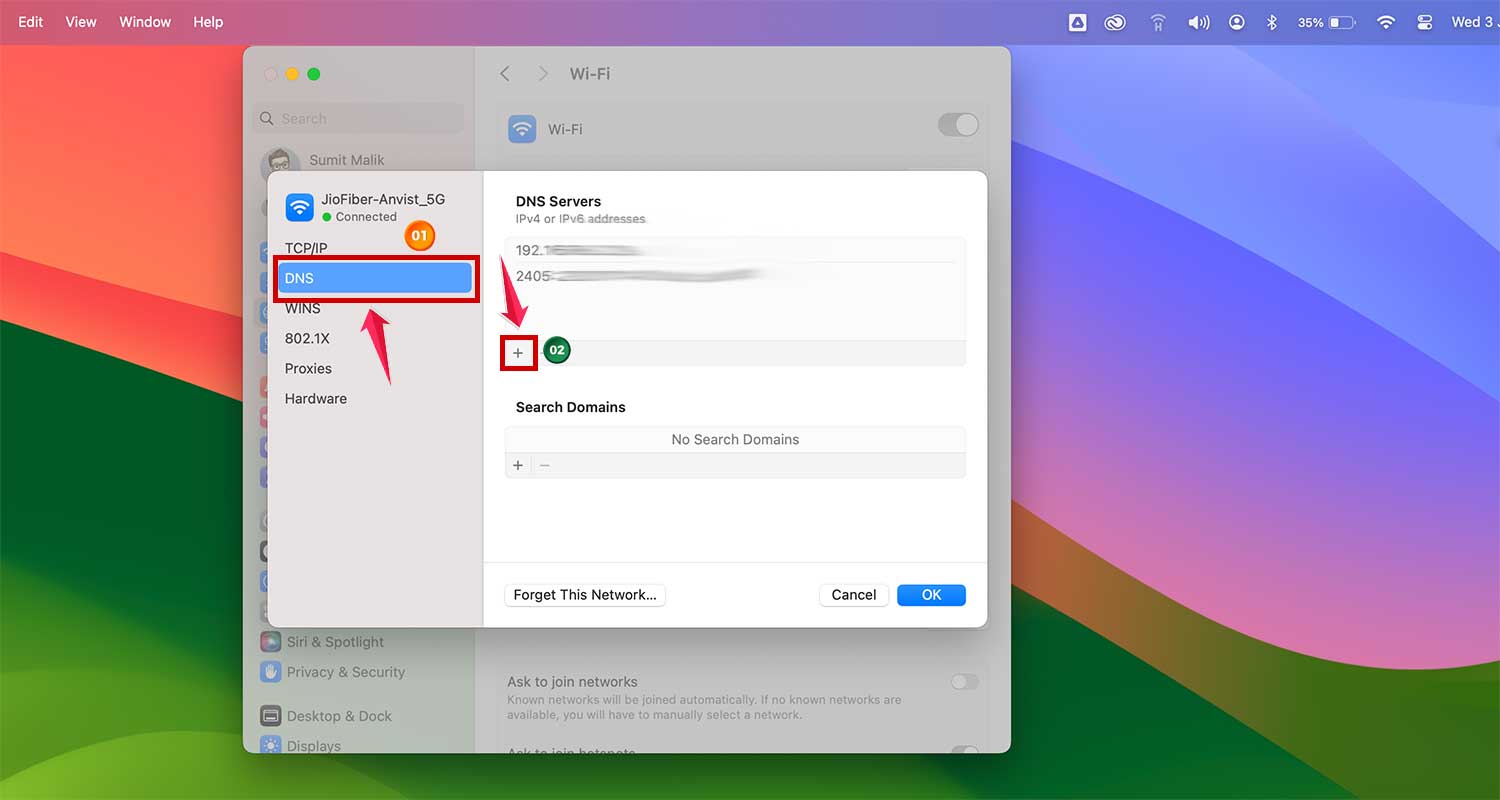
- Type: 8.8.8.8 (Google’s DNS) and click “OK”
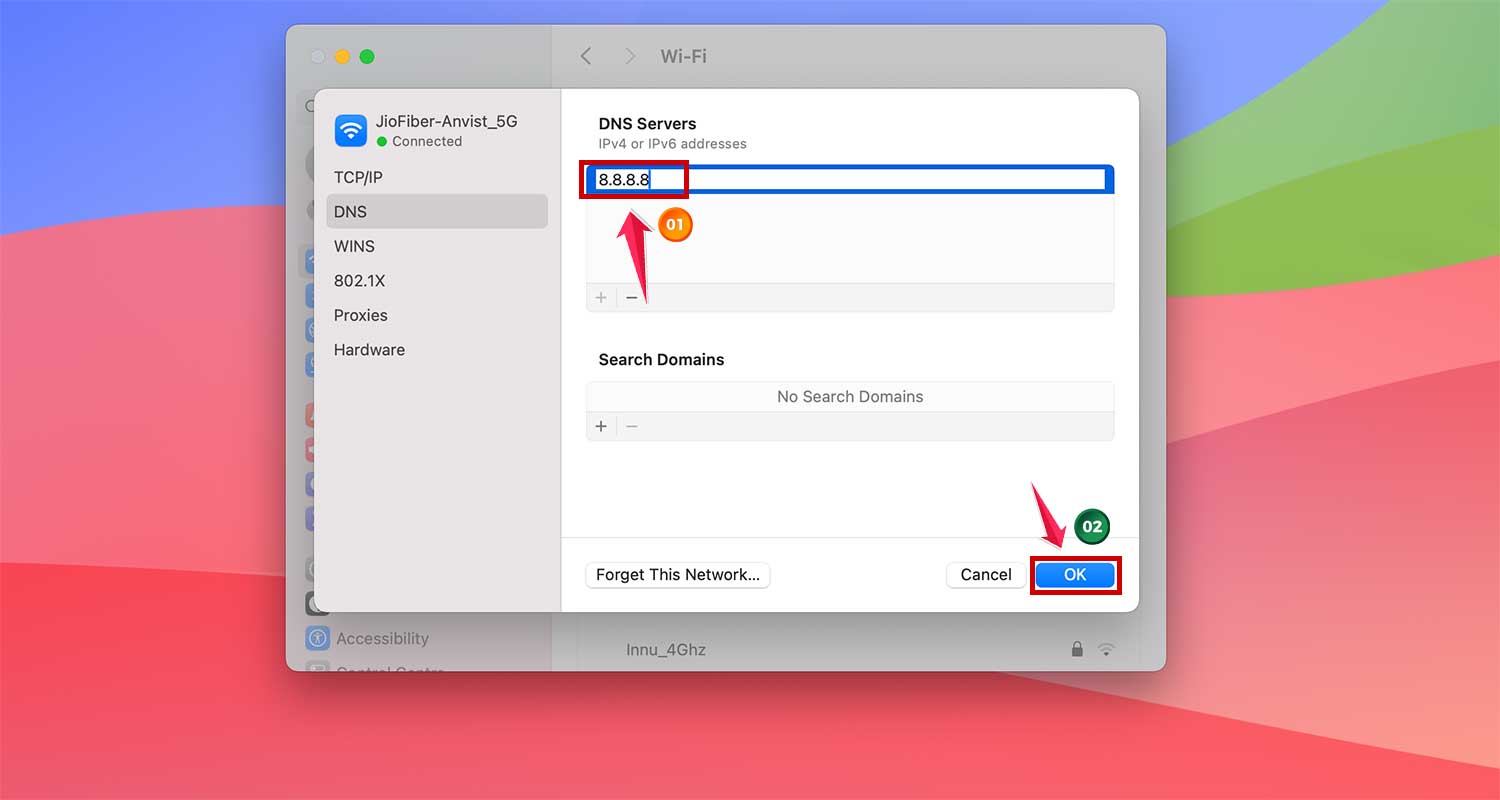
- Click the ‘+’ again and type another Google DNS: 8.8.4.4.
- Confirm by clicking OK and exit the System Settings.

By switching to Google’s DNS servers, your Mac will have a fresh reference to verify website IPs and possibly solve the security warning issue. Give it a try and see if Safari can now establish a secure connection.
Step 6: Manage Browser Extensions
Browser extensions enhance functionality but can sometimes interfere with website security or even cause Safari keeps crashing unexpectedly. To check if an extension is the culprit:
- Open the Safari menu, select Settings.
- Click on Extensions at the top.
- Disable each extension by unchecking its box.
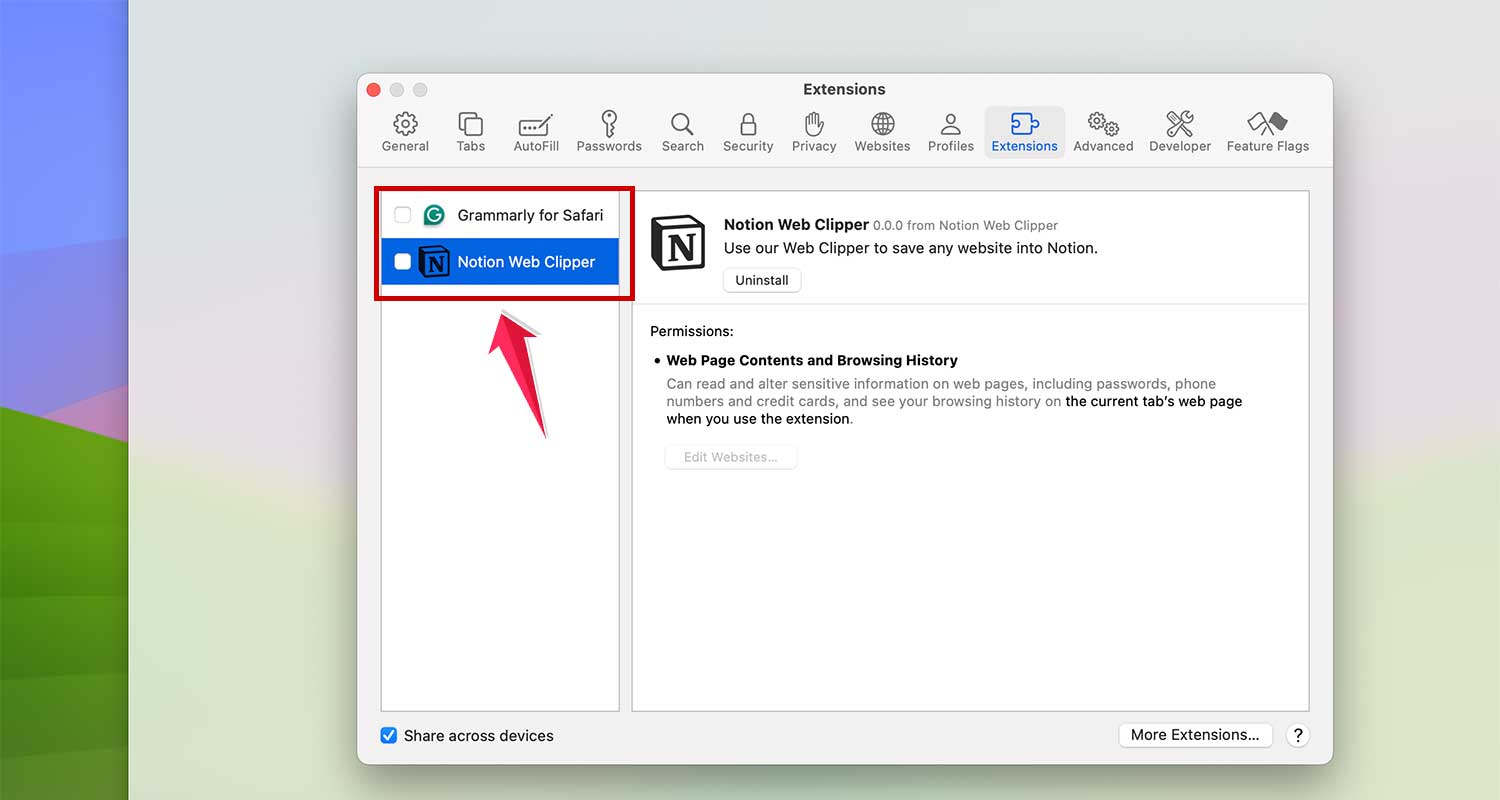
- Restart Safari and try accessing the website again.
Step 7: Adjust Keychain Settings to Trust the Website
If the issue is related to a security certificate that Safari doesn’t recognize or trusts:
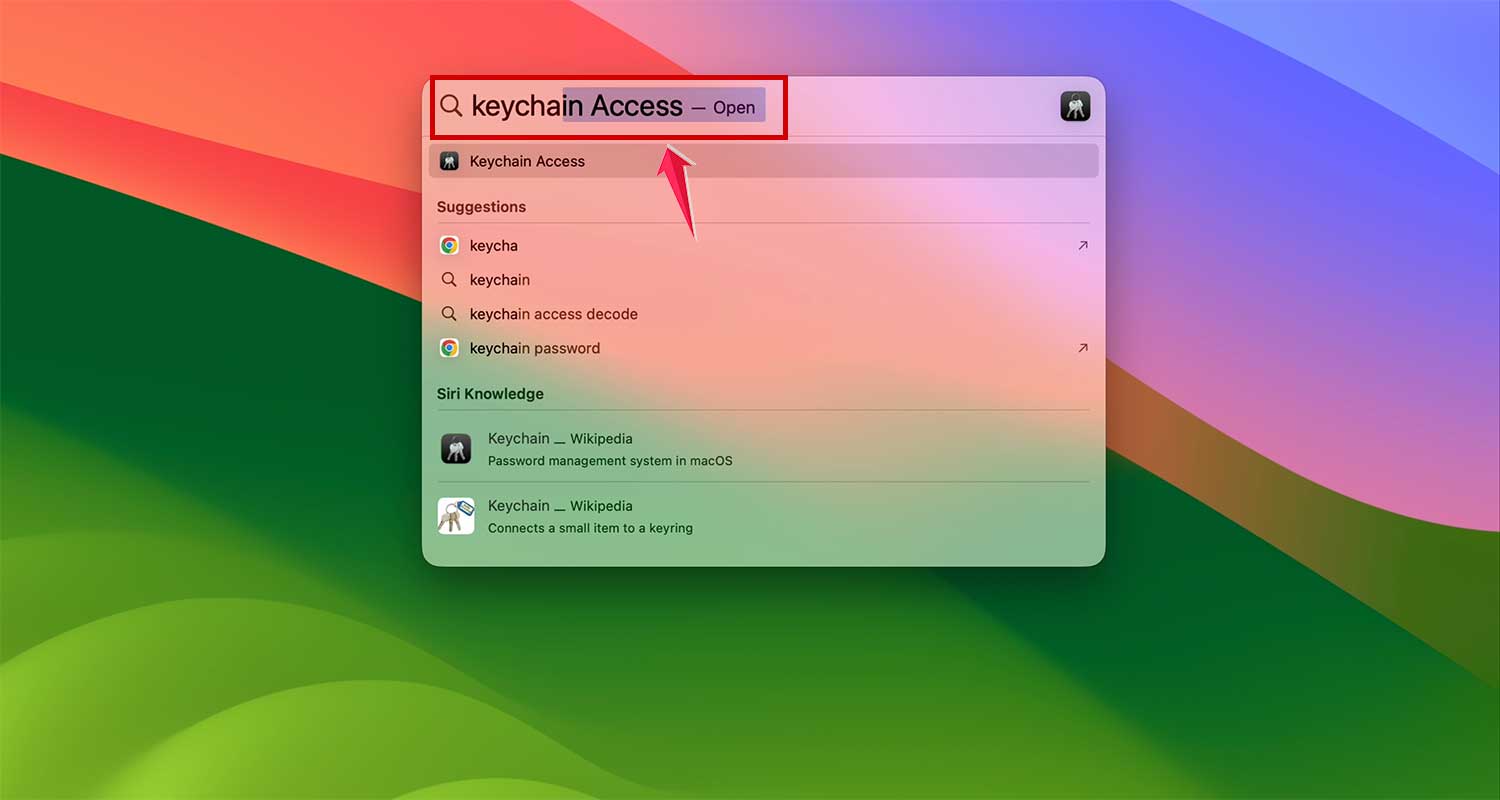
- Press Command + Space, search and open Keychain Access.
- Select System in the sidebar and All Items in the toolbar.
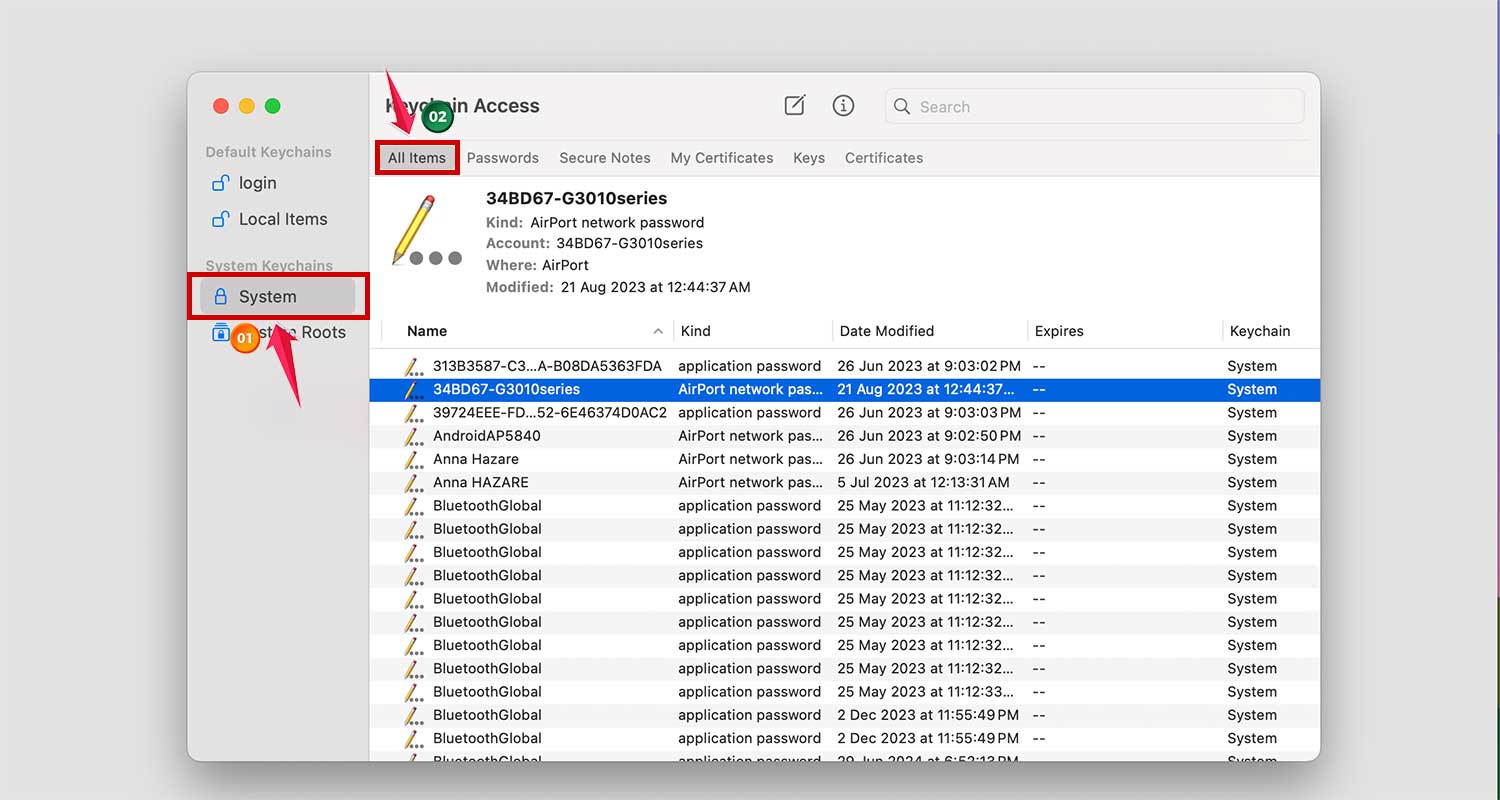
- Search for the website’s certificate. If it’s not visible, filter by clicking Certificates.

- Double-click on the certificate to open its settings.
- Expand the Trust section by clicking the down arrow.
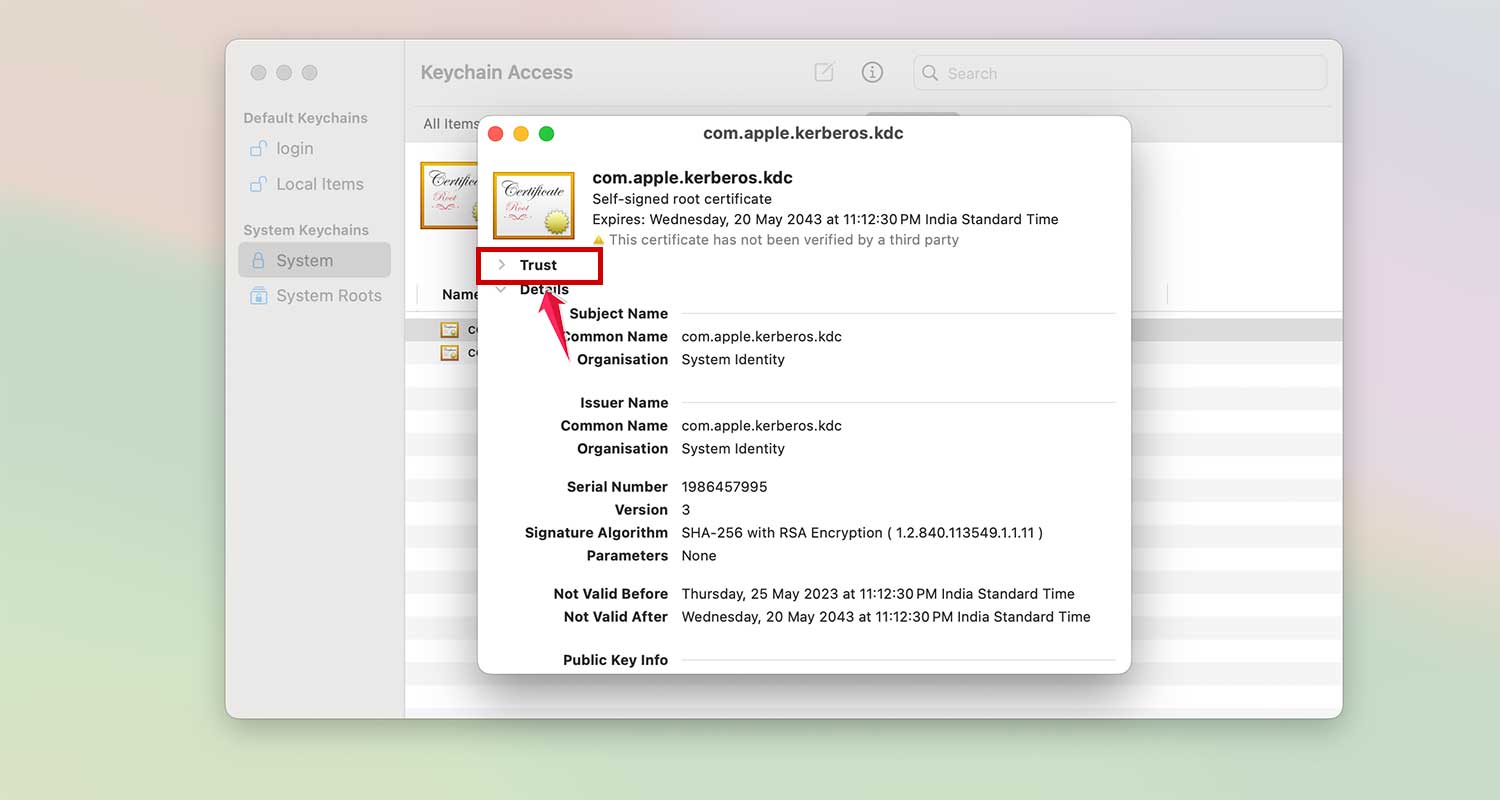
- Set Always Trust in the ‘When using this certificate’ menu.
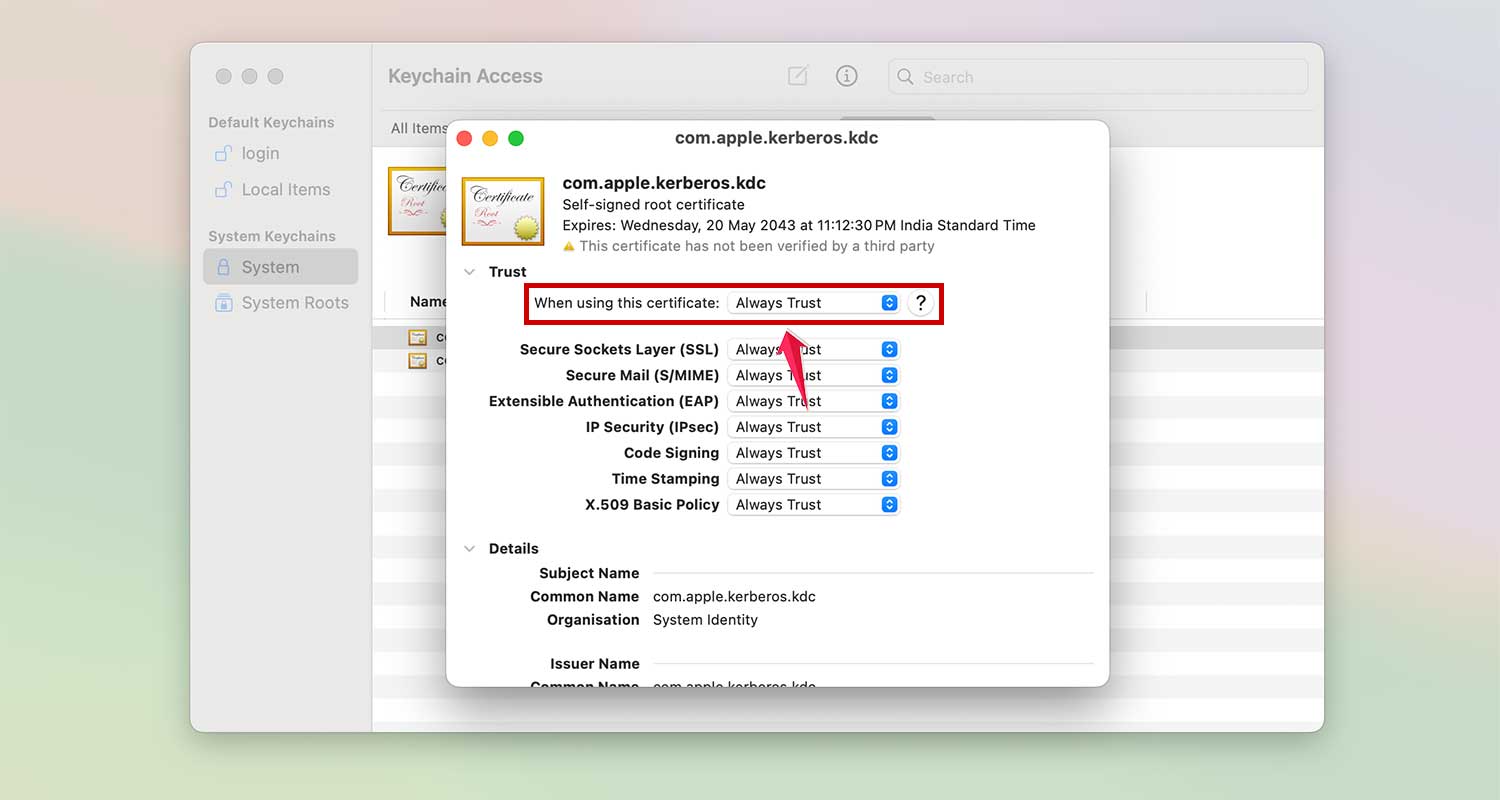
- Close Keychain Access and try loading the website again.
Step 8: Reset Safari
If you’ve tried other solutions and you’re still having trouble, you might need to reset Safari. This means starting fresh with Safari, just like when you first got your Mac.
Back up your important information. Before you reset Safari, make sure to save any important bookmarks or passwords. You don’t want to lose these!
Clear out Safari’s data. You’ll need to remove Safari’s settings and other data from your Mac. This includes your browsing history, any add-ons you’ve installed, and information from websites you’ve visited.
Start Safari again. After you’ve cleared everything out, restart Safari. This will set it up with fresh, default settings.
Resetting Safari is also a great step during general MacBook running slow issues to keep your system fast and clean.
Remember, Safari is very careful about keeping you safe online. Sometimes, starting over like this can fix the “can’t establish a secure connection” problem if nothing else has worked.
Wrapping Up
Keeping your online browsing safe is really important, and that’s why Safari sometimes shows you that “can’t establish a secure connection” message.
It’s just trying to protect you. But don’t worry. There are ways to fix this issue and get back to safe browsing.
We’ve talked about several things you can try, from checking your browser add-ons to adjusting some settings on your Mac. Each of these steps can help with different problems that might be causing the issue.
If all else fails, sometimes a fresh start helps. You might even want to reinstall the Safari browser if things don’t get better.
Remember, it’s a good idea to keep your Mac and Safari up to date. This helps prevent a lot of problems before they even start.
And don’t forget to do some regular computer maintenance. It’s like giving your Mac a little tune-up.
If you’ve tried everything we’ve suggested and you’re still having trouble, it might be time to ask for some expert help. Apple Support can give you more specific advice for your situation.
What do you think about these solutions? Have you ever run into this problem before? Let me know in the comments below.
Your experiences might help other readers who are facing similar issues.