Ever saved a page on your iPhone, only to check your Mac later and… nothing’s there?
Yeah, that’s frustrating. You expect your Safari bookmarks to just show up across all your Apple devices, right?
That’s kind of the whole point of iCloud syncing. But when it doesn’t work, it feels like your devices are ignoring each other and you.
This usually happens when something breaks the connection between Safari and iCloud.
Maybe it’s a small setting that got turned off, or your internet is being flaky.
Sometimes, it’s just a software hiccup. But the good news? You can fix it. Most of the time, it’s not even that hard.
In this guide, I’ll walk you through why your Safari bookmarks aren’t syncing and what you can do to fix it. Step by step.
No tech jargon. Just clear, simple instructions. So, if you’re tired of jumping between devices and not seeing your saved pages, let’s fix that together.
What causes Safari bookmark sync problems?
Before we jump into fixing things, let’s understand what might be going wrong. Knowing the cause helps you pick the right solution faster.
1. iCloud might be acting up
Sometimes, iCloud just has a moment. If your bookmarks rely on iCloud to sync, and it’s not working right, things will get out of sync.
You need to make sure you’re signed in with the same Apple ID on all your devices. If you’re not, syncing won’t happen.
2. Software bugs can get in the way
Even the best apps have issues now and then. A small bug in Safari or iOS can mess with syncing.
It doesn’t happen often, but when it does, it can be annoying. A quick update usually fixes it.
3. Outdated software causes trouble
Running an old version of iOS, iPadOS, or macOS? That might be the problem.
Updates fix bugs and improve features, including syncing. So, if you haven’t updated in a while, now’s the time.
4. Weak or unstable internet connection
iCloud needs a strong internet connection to sync properly. If your Wi-Fi is acting up, your bookmarks might not make it across. A quick switch to another network or resetting your router can help.
5. Your settings might be off
It’s easy to overlook a small switch in your settings. If Safari syncing is turned off, your bookmarks won’t sync. Double-check everything to make sure it’s set up the right way.
Now that you know what could be causing the issue, let’s fix it step by step.
How to fix Safari bookmark changes not syncing
Alright, let’s roll up our sleeves. These fixes are simple, and I’ll walk you through each one. You don’t need to be tech-savvy, just follow along.
#1: Check your iCloud settings
This is the first thing you need to look at. If iCloud isn’t set up properly, nothing else will work.
Here’s what to do:
- Open Settings on your iPhone or iPad.
- Tap your Apple ID name at the top.
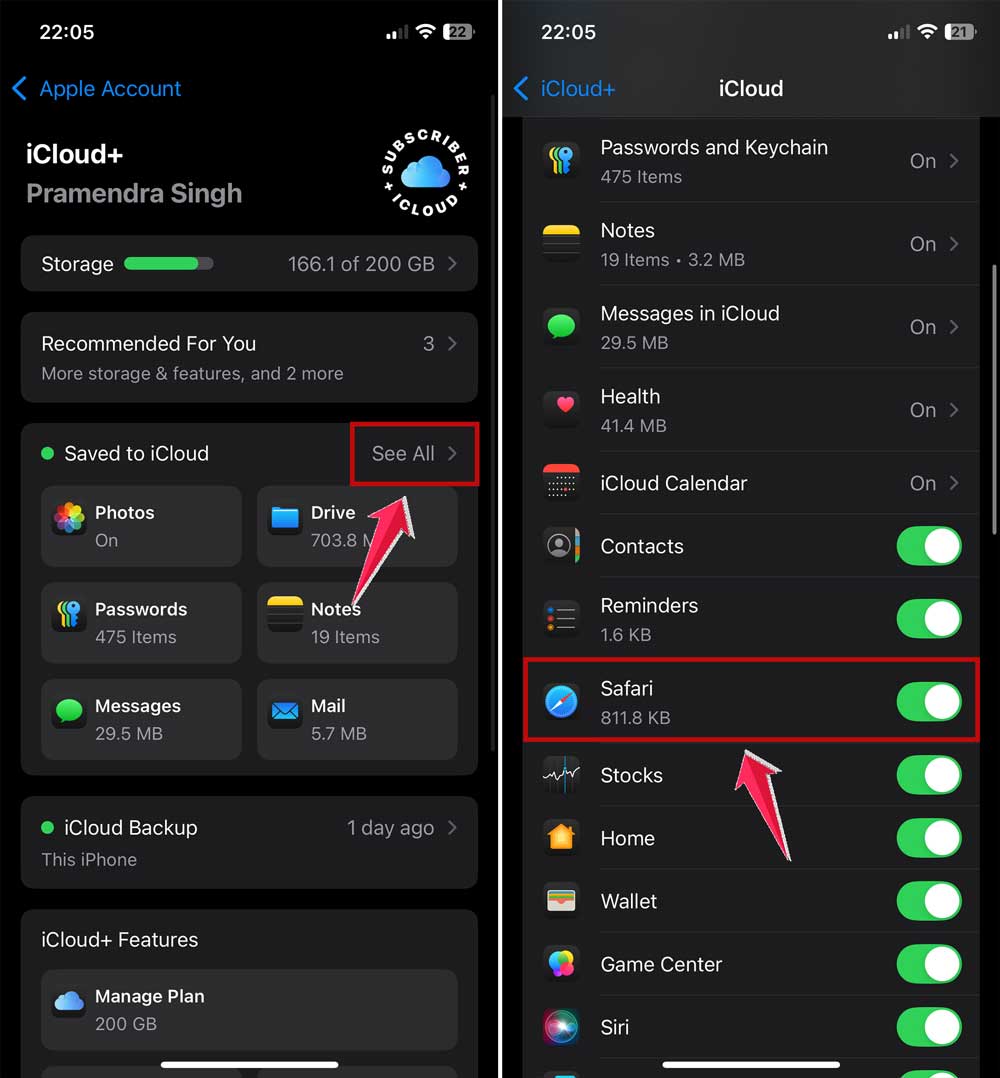
- Go to iCloud.
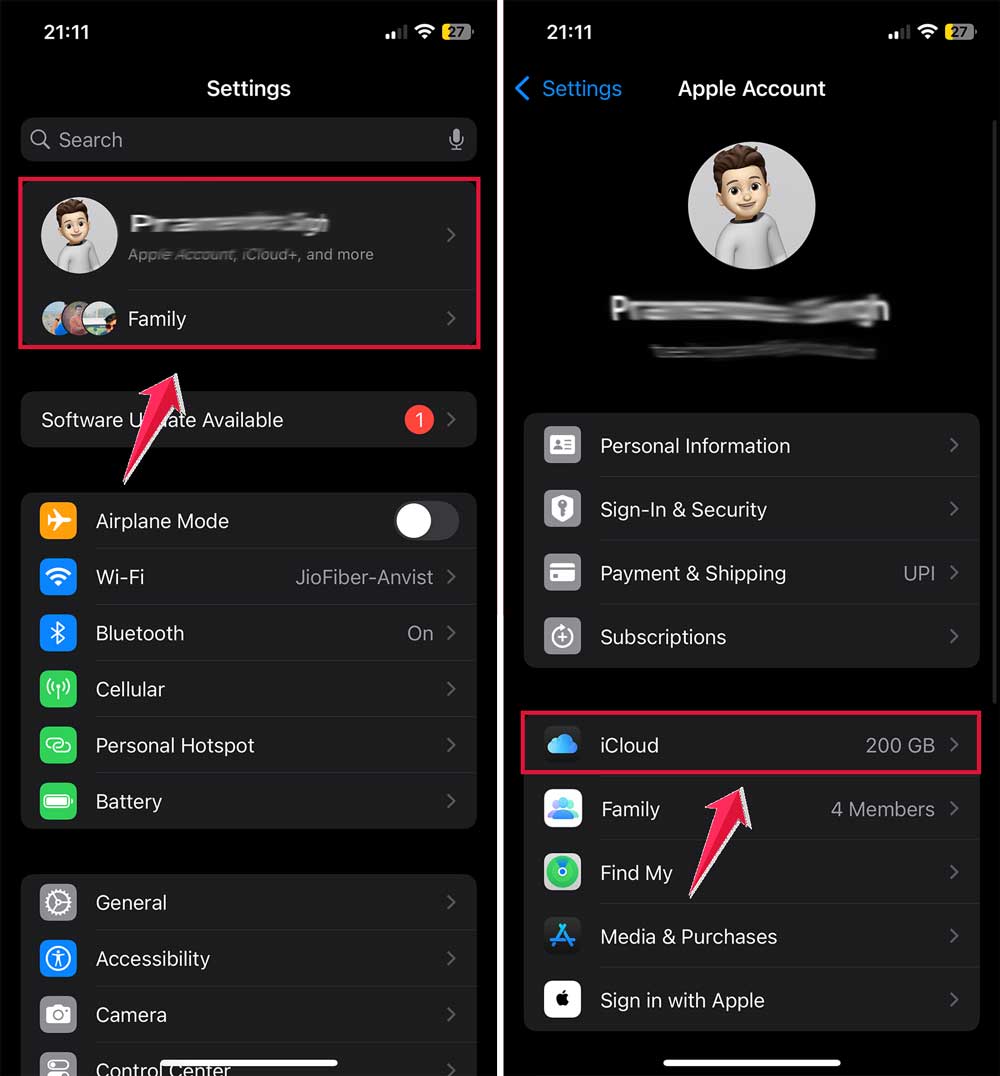
- Make sure Safari is turned on.
- If it’s already on, try toggling it off and then back on after a few seconds.
Also, make sure you’re logged into the same iCloud account on all devices. If even one device is using a different account, syncing won’t happen.
#2: Update your software
Outdated software can cause more problems than you think. Let’s get your devices up to date.
On iPhone or iPad:
- Go to Settings.
- Tap General.

- Tap Software Update.
- If there’s an update, tap Download and Install.

On Mac:
- Open System Settings.

- Go to General > Software Update.

- Install any available updates for macOS.

Once everything’s updated, try syncing your bookmarks again.
#3: Restart your devices
You’d be surprised how often this works. A quick restart can clear up small glitches.
To restart your iPhone or iPad:
- Press and hold the power button and volume down button.
- Slide to power off.
- Wait a few seconds, then press the power button to turn it back on.

To restart your Mac:
- Click the Apple menu in the top-left corner.
- Choose Restart.
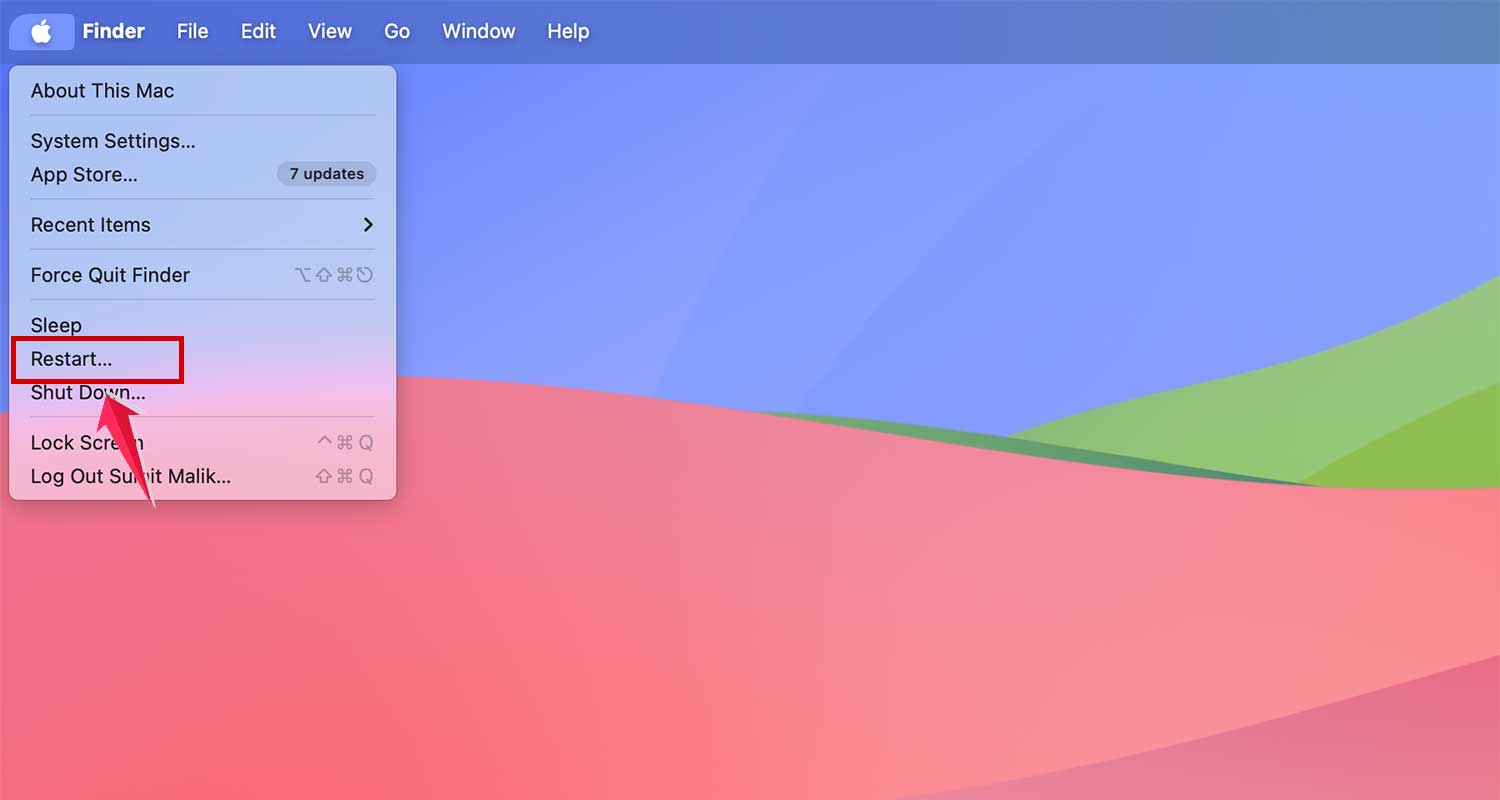
After restarting, give Safari a moment and check if your bookmarks show up.
#4: Check your internet connection
A weak or unstable connection can block syncing. Let’s make sure your internet is solid.
Here’s what you can do:
- Make sure your Wi-Fi is on and connected.
- Try opening a few web pages to see if they load smoothly.
- If things are slow, switch to another Wi-Fi network or restart your router.
A fast and stable connection is key for syncing via iCloud.
#5: Reset Safari sync
Still having trouble? Let’s refresh Safari’s sync settings. This often helps when nothing else does.
Here’s how:
- Go to Settings on your iPhone or iPad.
- Tap your Apple ID > iCloud.
- Turn off Safari.
- Wait about 30 seconds.
- Turn Safari back on.
This forces iCloud to re-sync Safari bookmarks with all your devices. Give it a minute or two, then check if your bookmarks are showing up.
That’s it! These steps cover the most common reasons your bookmarks aren’t syncing.
If you’ve followed along, chances are your bookmarks are now syncing just fine. If not, don’t worry. We’ve still got a few extra tricks up our sleeves.
Extra tips for happy bookmark syncing
Sometimes it’s the little things that make all the difference. Let’s look at a few extra tips to keep everything running smoothly.
1. Keep your Safari bookmarks tidy
Too many old or duplicate bookmarks? That can slow things down. Take a few minutes to clean them up.
Delete what you don’t need. The cleaner your bookmark list, the easier it is for iCloud to sync them properly.
2. Back up your data regularly
Always back up your iPhone, iPad, or Mac. Use iCloud or iTunes. Whatever you prefer.
This way, if something ever goes wrong, you won’t lose your bookmarks or other data.
3. Disable Safari extensions (just for a bit)
Some extensions can mess with bookmark syncing. Try turning them off and see if things improve.
- On Mac, open Safari.
- Click Safari in the top menu and open Settings.

- Go to Extensions.

- Turn off any extensions you don’t need.
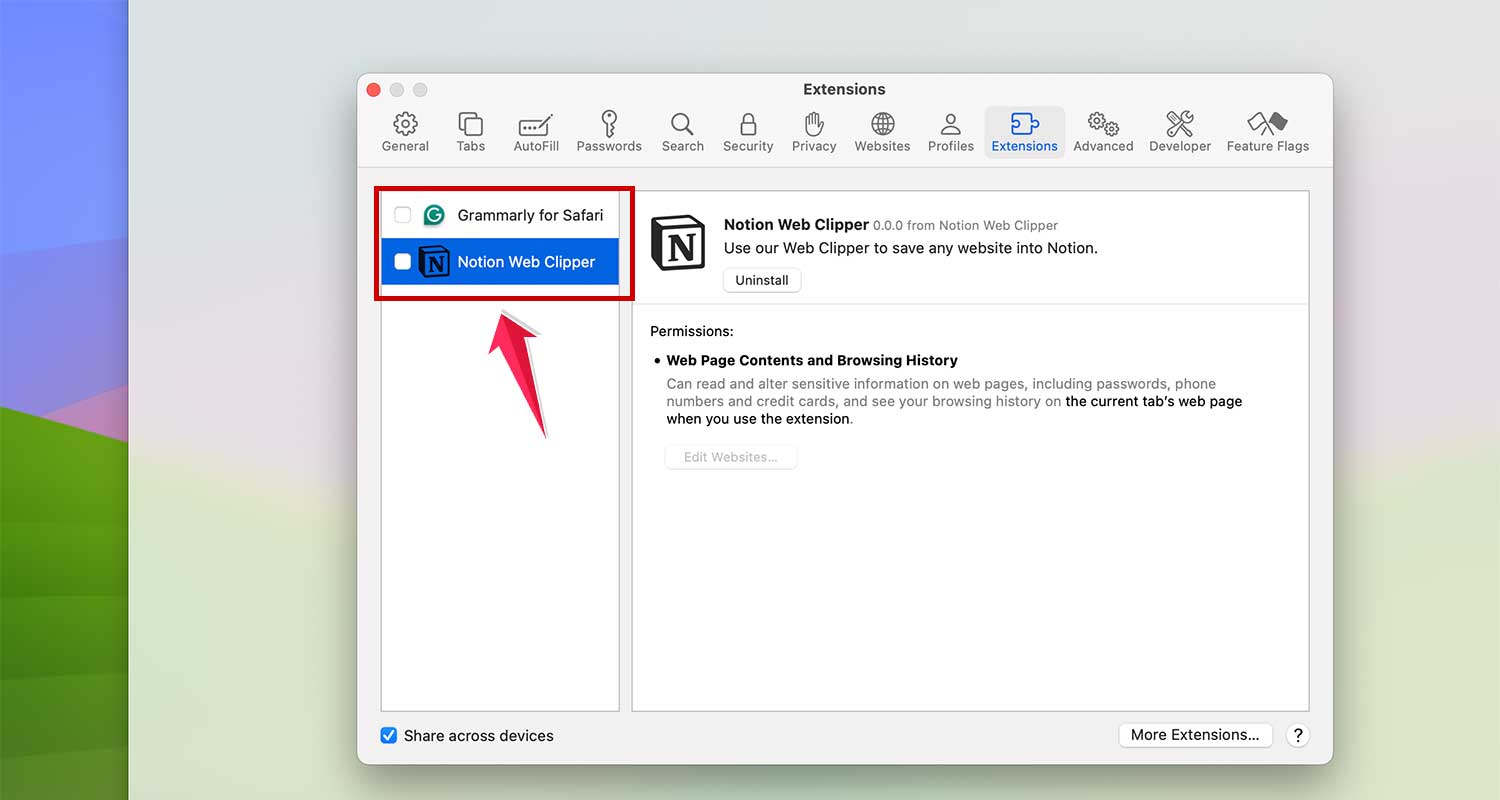
If syncing works better after that, one of those extensions might be the culprit.
4. Sign out and back into iCloud
Sometimes, giving iCloud a fresh start helps.
- Go to Settings > Your Name.
- Scroll down and tap Sign Out.

- Wait a moment, then sign back in with your Apple ID.
This refresh can fix lingering sync issues.
5. Check Apple’s system status
Still stuck? Maybe it’s not you. It could be Apple. Visit the Apple System Status page online.
If there’s a problem with iCloud or Safari services, it’ll show up there. If so, all you can do is wait it out.
The takeaway
So, what have we learned? If your Safari bookmarks aren’t syncing, it’s usually something small, like a setting, software update, or internet issue.
The fixes are simple, and now you know exactly what to do.
Start by checking your iCloud settings. Make sure Safari is turned on and you’re signed in with the same Apple ID on all devices.
Then, update your software, restart your devices, and check your internet connection.
If that doesn’t work, try resetting Safari sync or signing out and back into iCloud.
Most people think syncing issues mean something’s broken. But really, it’s just about getting everything lined up again.
You’ve got this. Follow the steps, take your time, and your bookmarks will be back in sync before you know it.
Still stuck or found another trick that worked? Drop a comment below and let’s talk!