Is your iPhone not recording sound when you’re trying to capture a video? Don’t worry, you’re not alone in this frustrating situation. Whether you have the latest iPhone 15 or an older model, this problem can pop up unexpectedly.
You might be wondering why this is happening. Sometimes, it’s as simple as accidentally hitting the mute switch.
Other times, a connected Bluetooth device might be causing interference. Or, there could be a small software hiccup that’s messing with your phone’s audio recording.
The good news is that you can usually fix this issue pretty easily. You don’t need to be a tech expert to get your iPhone’s sound recording back on track. In this guide, you’ll find some straightforward steps to solve the problem.
We’ll walk you through some quick troubleshooting methods that should get your iPhone recording audio again in no time. By the end of this article, you’ll be back to capturing those important moments with perfect sound.
So, let’s dive in and get your iPhone’s audio working again. With a few simple tricks, you’ll be recording videos with crisp, clear sound before you know it.
Why is there no sound when recording video on an iPhone?
When you’re trying to capture a special moment on video, it can be frustrating to discover there’s no sound. Don’t worry. This problem is more common than you might think. Here’s a comprehensive list of reasons why this might be happening:
1. Your iPhone’s microphone is blocked or damaged. The microphone on your iPhone is a sensitive piece of equipment. If you’ve dropped your phone or it’s been exposed to dust, the microphone opening might be blocked, or the microphone itself could be damaged. This prevents it from picking up sound when you’re recording videos.
2. Your iPhone has suffered physical damage to its audio components. If your phone has been through some rough handling, it might have internal damage that’s not immediately visible. Even small impacts can affect delicate audio components, leading to sound recording issues.
3. There’s debris in your iPhone’s headphone jack or Lightning port. Sometimes, lint or dust can accumulate in these ports. When this happens, your iPhone might mistakenly think headphones are plugged in, which can mute the microphone during video recording.
4. The camera app is experiencing a software glitch. Like any software, the camera app can sometimes malfunction due to bugs. These glitches can interfere with various functions, including sound recording.
5. A recent iOS update is causing unexpected issues. While iOS updates are meant to improve your iPhone’s performance, sometimes they can introduce new problems. If you’ve recently updated your iOS and are suddenly experiencing sound recording issues, the update might be the culprit.
6. Your iPhone’s cache is causing app malfunctions. Over time, apps build up cached data. If this cache becomes corrupted or too large, it can cause various issues, including problems with sound recording in the camera app.
7. The mute switch on your iPhone is turned on. It’s easy to accidentally flip the mute switch on the side of your iPhone, especially if it’s in a case. When this switch is on, it can prevent sound from being recorded in videos.
8. Do Not Disturb mode is interfering with sound recording. While Do Not Disturb is great for silencing notifications, it can sometimes interfere with other functions, including video sound recording.
9. Low Power Mode is affecting audio recording capabilities. When your iPhone is in Low Power Mode, it restricts some functions to save battery. In some cases, this can impact audio recording during video capture.
10. You’re using Slow Motion or Time-lapse recording mode. These special recording modes are designed to capture video without sound. If you’re using either of these modes, your iPhone is working as intended by not recording audio.
11. Your privacy settings are restricting microphone access. If you’ve previously denied the camera app access to your microphone in your privacy settings, it won’t be able to record sound during video capture.
12. A Bluetooth device is interfering with audio routing. Sometimes, your iPhone might try to route audio through a paired Bluetooth device, even if it’s not nearby. This can result in no sound being recorded in your videos.
13. Your iPhone’s storage is nearly full. When your iPhone is very low on storage space, it can struggle to perform various tasks, including recording audio in videos.
14. The background noise-cancellation feature is overactive. In some cases, your iPhone’s noise-cancellation feature might be too aggressive, mistakenly canceling out all audio during video recording.
How to fix iPhone no sound when recording video
1. Unmute your iPhone
Sometimes, your video might be fine, but the sound is playing hide and seek. Here’s how to find it:
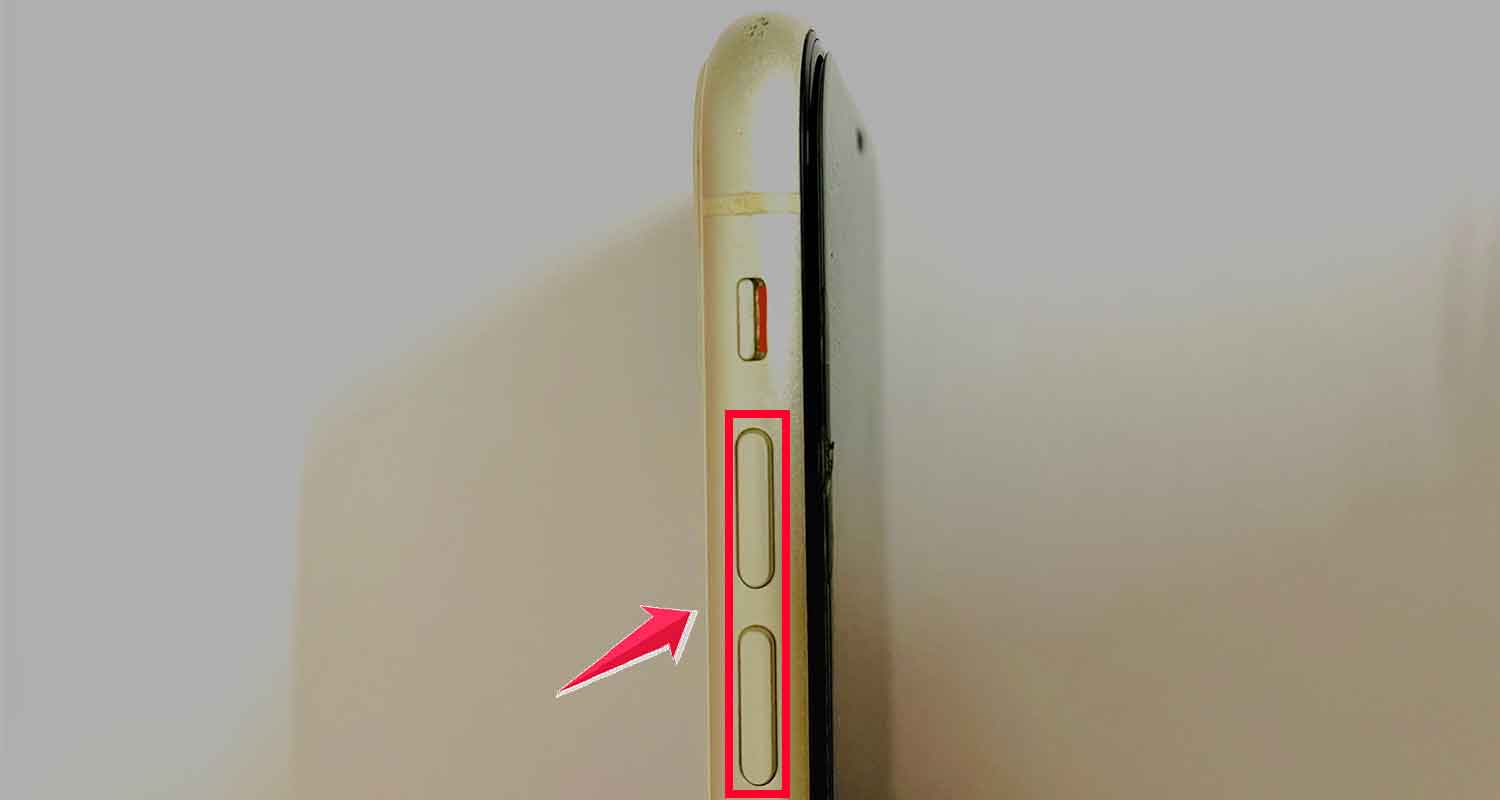
- Check the side switch on your iPhone. If it’s down, slide it up.

- Open the Photos app and look for the speaker icon under your video. If it’s crossed out, tap it to bring the sound back.

- Turn up the volume using the buttons on the side of your phone.
2. Clean mic and speakers
Just like our ears, your iPhone’s mic and speakers can get blocked. Let’s give them a clean-up:
- Gently use a toothpick to remove any dirt from the mic holes. If cleaning doesn’t help, there might be deeper microphone issues on your iPhone.
- Wipe the mic and speakers with a soft cloth or mobile cleaner.
3. Disconnect all Bluetooth devices
Sometimes, Bluetooth can confuse your iPhone. Here’s how to turn it off:
- Open Settings.
- Tap on Bluetooth.
- Toggle the switch to turn Bluetooth off.

4. Restart the camera app
Your camera app might need a quick break. Here’s how to give it one:
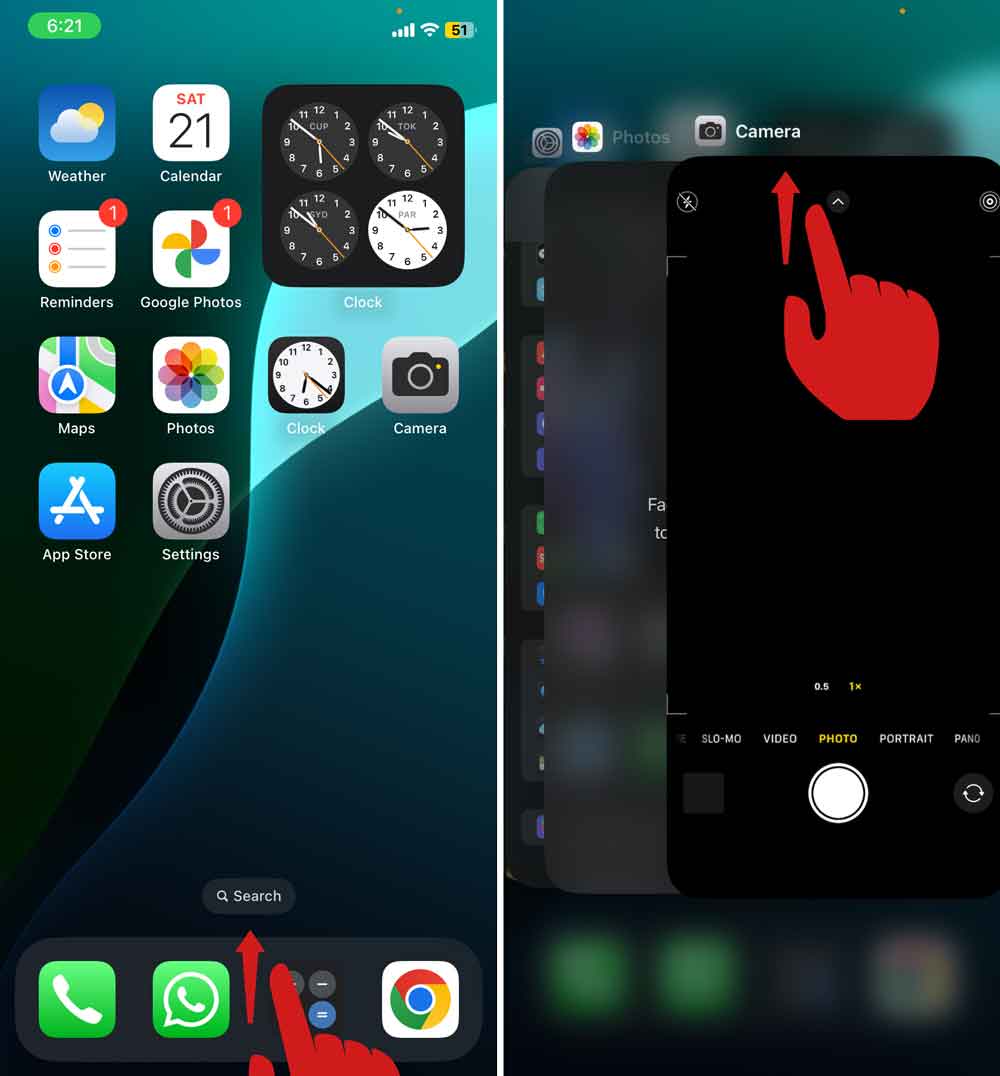
- Exit the Camera app.
- Swipe up from the bottom of your screen to see recent apps.
- Swipe up on the Camera app to close it.
- Reopen the Camera app. If issues persist, you can also reset the Camera app to fix glitches.
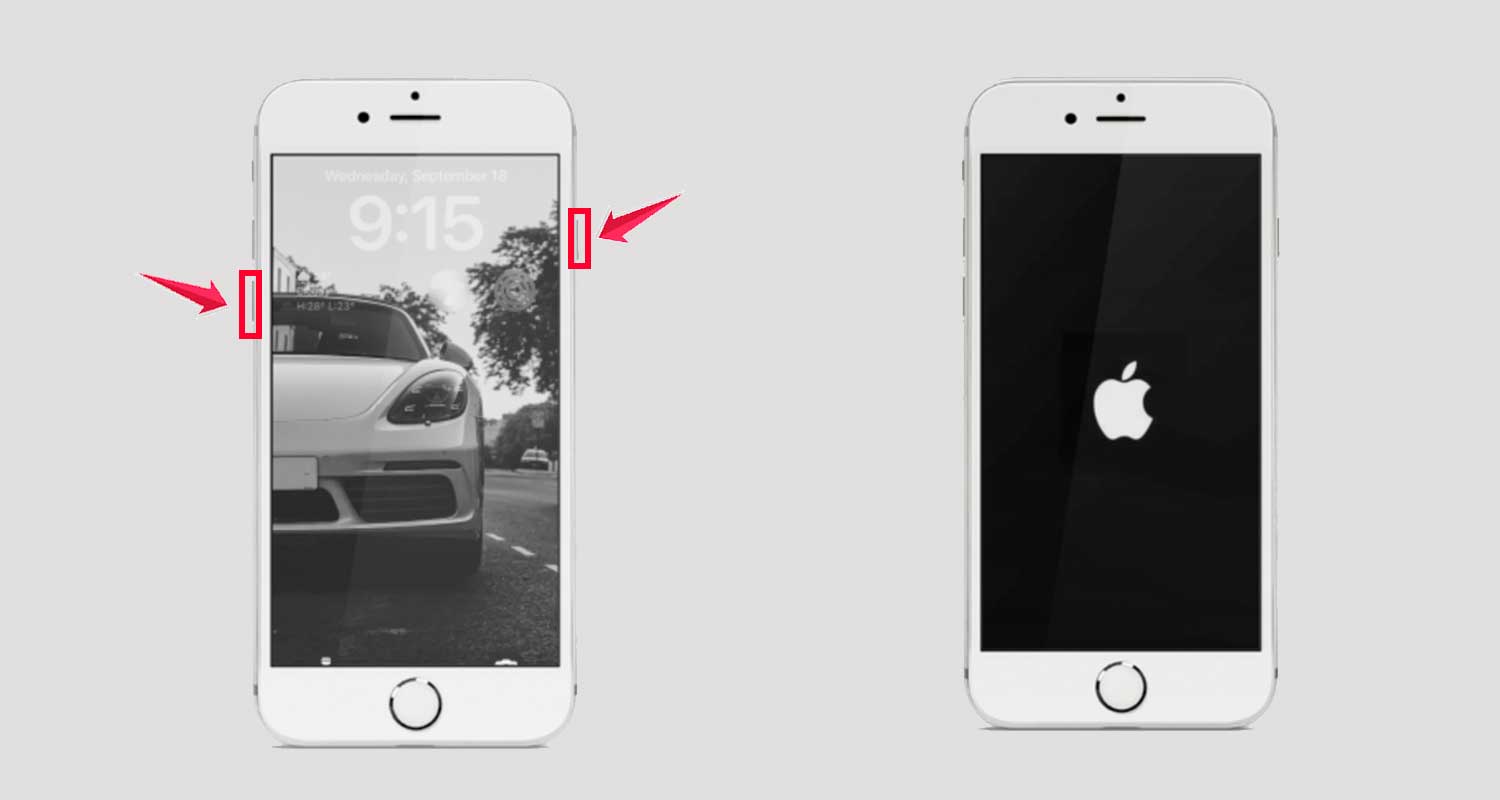
5. Force restart your iPhone
If nothing else works, let’s give your iPhone a fresh start:
- Quickly press and release the volume up button.
- Do the same with the volume down button.
- Press and hold the power button until you see the Apple logo.
6. Turn off the Do Not Disturb mode
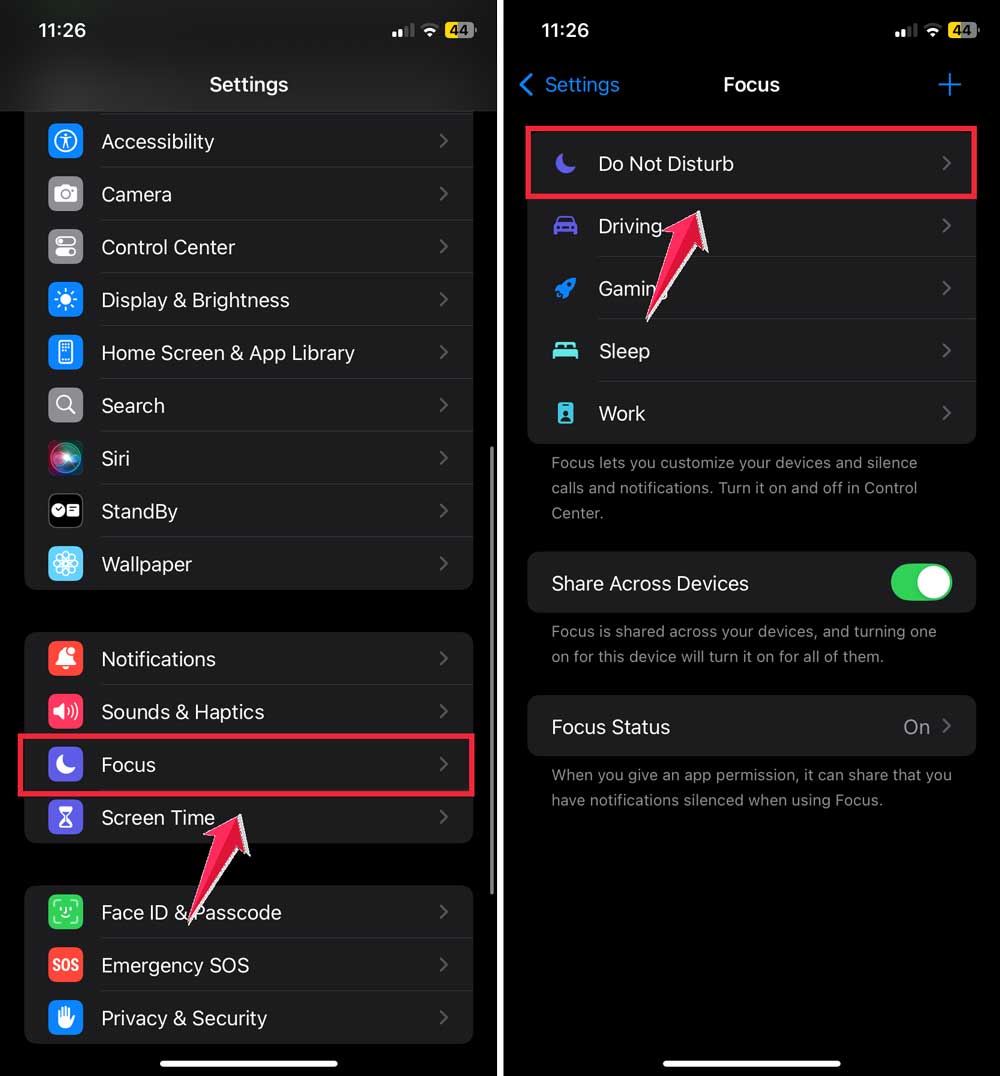
This sneaky little setting is all about peace and quiet. If it’s on, it could be messing with your sound.
- Tap on your Settings.
- Scroll down to Focus.
- Look for Do Not Disturb at the top.
- If the toggle is on, slide it off.
7. Replace the speaker and mic
If your iPhone’s mic and speaker are tired or dusty, they might not work well. Sometimes, they need a replacement.
- Clean the mic and speaker carefully first.
- If that doesn’t help, reach out to Apple Support and book a visit.

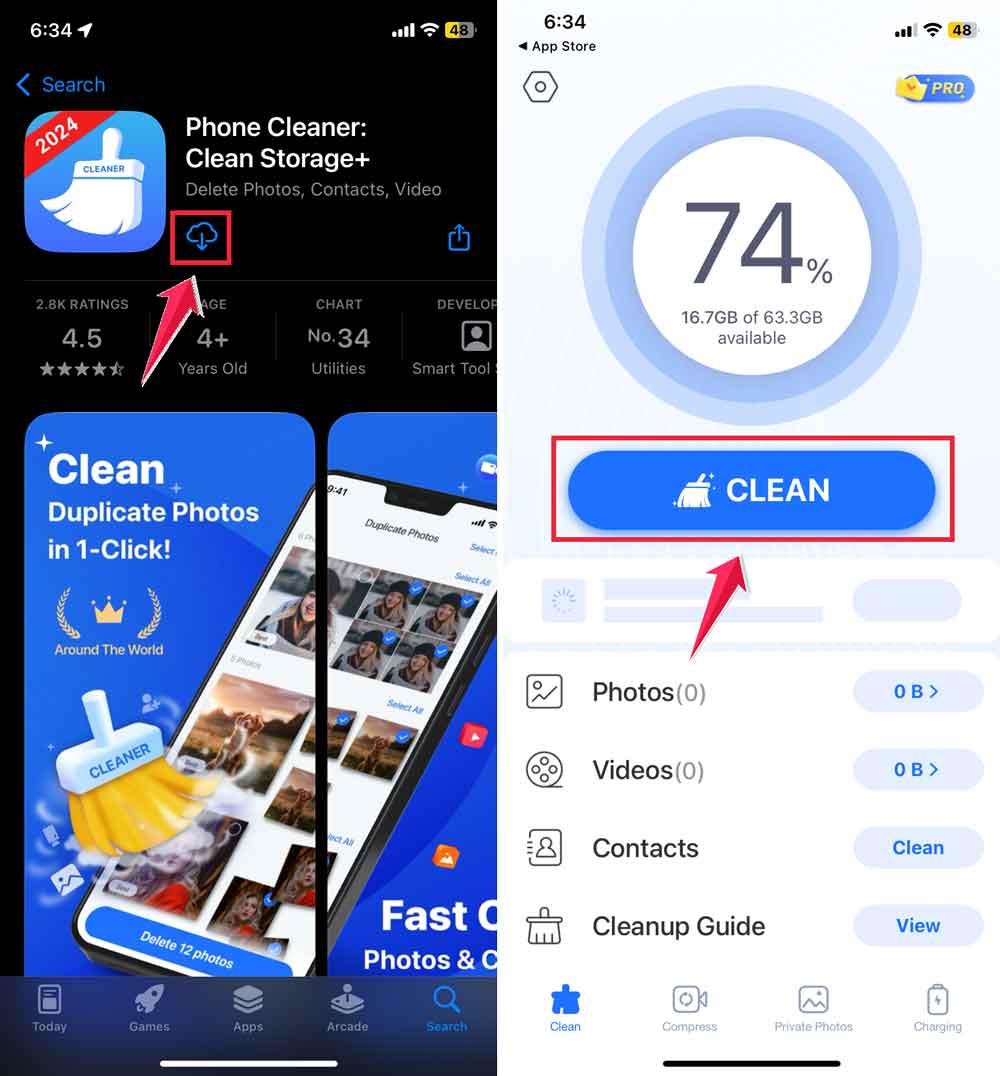
8. Use Cache cleaner
Your iPhone stores little bits of info called “cache” to work faster. But sometimes, this cache can pile up and cause issues.
- Download the Phone Cleaner app from the App Store.
- Use it to clear out the clutter.
9. Convert slow motion to regular video
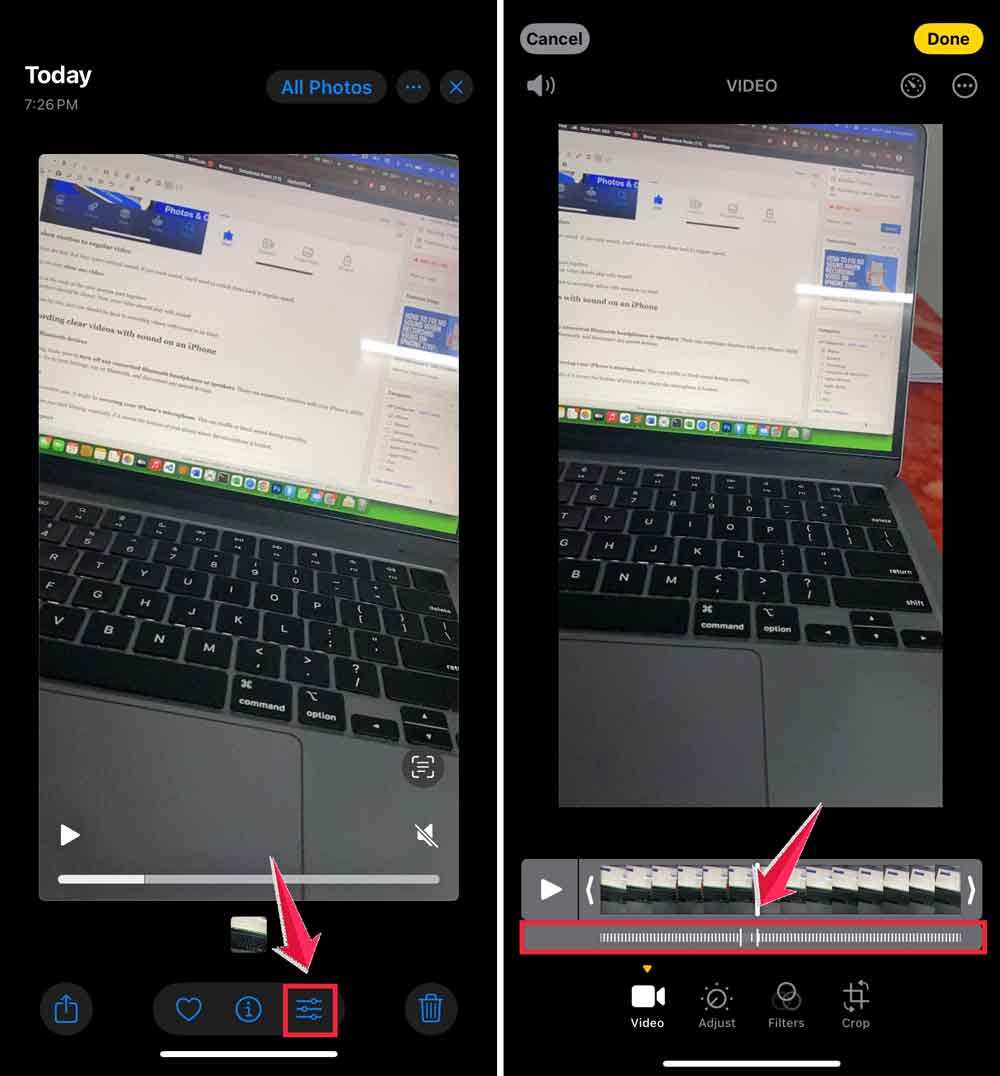
Slow-motion videos are fun! But they come without sound. If you want sound, you’ll need to switch them back to regular speed.
- Find and tap on your slow-mo video.
- Tap edit.
- Drag the bars at the ends of the slow-motion part together.
- All the tick markers should be closed. Now, your video should play with sound!
Try these methods one by one, and you should be back to recording videos with sound in no time!
Tips for recording clear videos with sound on an iPhone
1. Disconnect your Bluetooth devices
Before you start recording, make sure to turn off any connected Bluetooth headphones or speakers.
These can sometimes interfere with your iPhone’s ability to record sound properly. Go to your Settings, tap on Bluetooth, and disconnect any paired devices.
2. Remove bulky cases
If you’re using a thick or protective case, it might be covering your iPhone’s microphone. This can muffle or block sound during recording.
Try taking off your case before you start filming, especially if it covers the bottom of your phone where the microphone is located.
3. Free up some storage space
Your iPhone needs some breathing room to work efficiently. Free up storage space on your device if needed to maintain good performance.
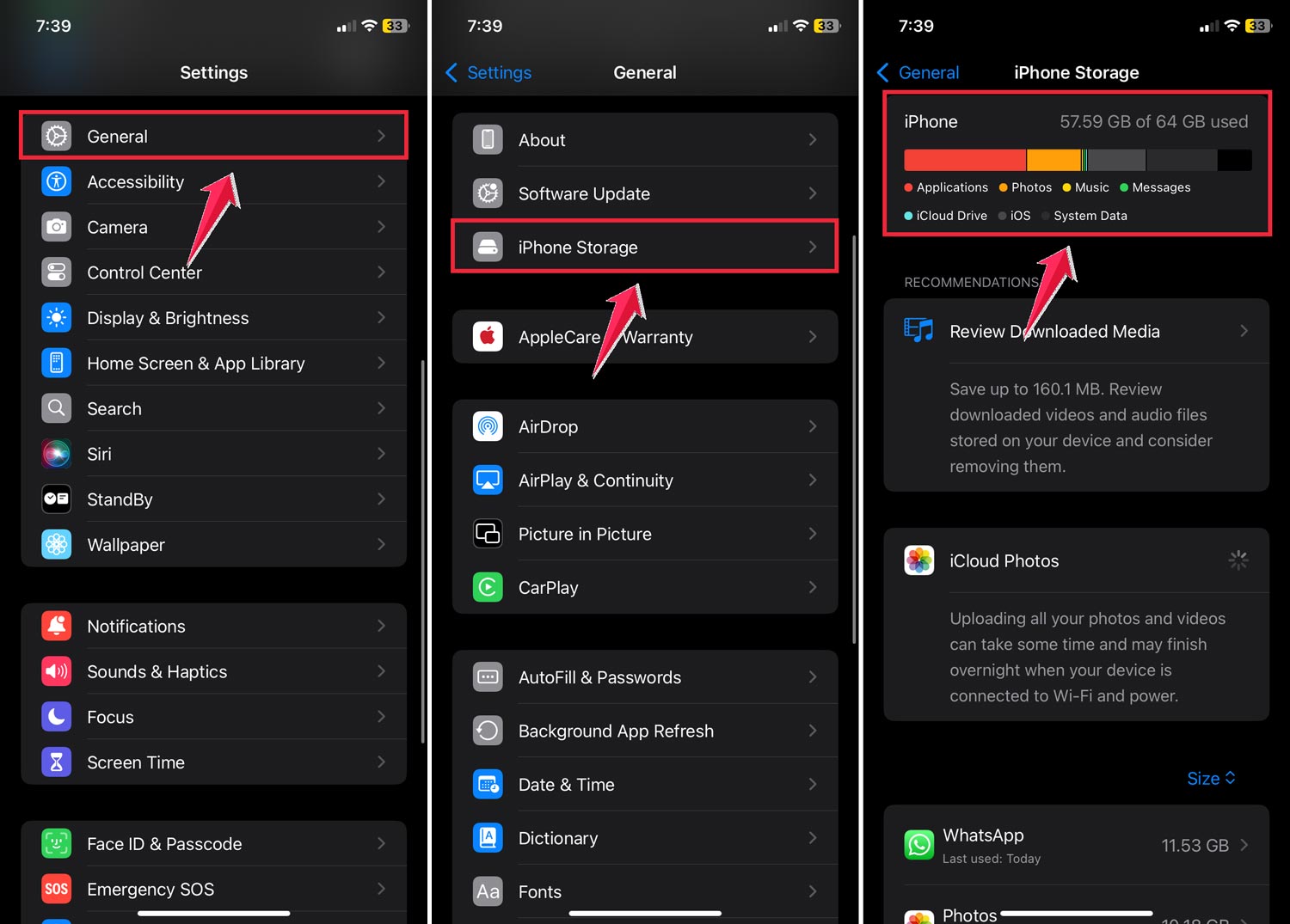
Check your available storage in Settings > General > iPhone Storage, and try to keep some free space.
4. Keep it dry
Moisture is not your iPhone’s friend. Try to keep your phone away from very humid areas when you’re recording to prevent overheating during video recording.
Excess moisture can potentially damage your microphone or other components.
5. Use microphone-friendly cases
If you’re concerned about dropping your phone, look for a case that protects your iPhone without blocking the microphone or speakers.
Many cases are designed with audio recording in mind, with special openings for the microphone.
6. Check your microphone permissions
Make sure your Camera app has permission to use your microphone. Go to Settings > Privacy & Security > Microphone and ensure the toggle next to Camera is turned on.
7. Clean your microphone gently
Over time, dust and debris can accumulate in your iPhone’s microphone opening. Use a soft, dry brush (like a clean toothbrush) to gently clean around the microphone area.
The takeaway
Recording videos without sound on your iPhone can be frustrating, but it’s often a fixable issue. We’ve explored several common causes, from accidental muting to software glitches and hardware problems.
Most sound issues can be resolved with simple steps like unmuting your phone, cleaning the microphone, or restarting the camera app.
Remember to check your Bluetooth connections and Do Not Disturb settings, too, as these can sometimes interfere with sound recording.
Contrary to what some might think, you don’t always need to rush to a repair shop. Many sound problems can be solved at home with a bit of troubleshooting.
The key takeaway is to stay calm and methodical when dealing with sound issues. Start with the simplest solutions and work your way up. With a little patience and these tips, you’ll likely be back to recording great videos with clear sound in no time.
We’d love to hear about your experience dealing with this issue. Have you found a solution that worked particularly well for you? Share your thoughts in a single-line comment below!