Wi-Fi has become a vital part of our daily lives. We use it for work, entertainment, and staying in touch with others.
So when your Mac shows it’s connected to Wi-Fi but can’t access the internet, it’s more than just annoying. It can really mess up your day.
If you’re facing this problem, don’t worry. We’re here to help! In this guide, we’ll walk you through some simple steps to get your internet working again.
Whether you’re a tech newbie or just need a refresher, we’ve got you covered. Let’s get your Mac back online and running smoothly!
Why Does My Mac Say It’s Connected To Wi-Fi But Can’t Access The Internet?
It’s easy to think that Wi-Fi and the internet are the same thing, but they’re actually different. Here’s what’s happening:
- Wi-Fi is like a bridge between your Mac and your router (the box that sends out the Wi-Fi signal).
- The internet is the big network that your router connects to.
So, your Mac might be connected to Wi-Fi, but if there’s a problem between your router and the internet, you won’t be able to get online.
How To Check If Your Mac Is Really Connected To Wi-Fi
- Look at the top right corner of your screen. You should see a Wi-Fi symbol that looks like a fan.
- If the symbol is white, it means you’re connected to a network.

- Click on the Wi-Fi symbol to double-check. If you see a blue highlight next to your network name, you’re definitely connected.

What If You’re Connected But Still Can’t Get Online?
Even if your Mac says it’s connected to Wi-Fi, you might still have issues. Here’s how to tell:
- When you click on the Wi-Fi symbol, you might see a message saying “No Internet Connection” under your network name.
- If you open a web browser and can’t load any pages, that’s a clear sign that something’s wrong. Sometimes, updating your browser can help resolve connectivity issues. But remember, browser problems can also affect your Mac if not addressed.
Remember, just because your Mac is connected to Wi-Fi doesn’t always mean you can get online. But don’t worry. We’ll help you figure out what’s going on and how to fix it!
Why Won’t My Mac Connect To The Internet?
If your Mac won’t connect to the internet, the reasons can vary widely, but don’t worry!
We’ll guide you through the most likely issues and their solutions, starting with the simplest fixes first.
1. Check other devices
Begin by checking if other devices (like smartphones or other computers) are also unable to connect.
If they can’t connect either, the issue likely lies with your network or service provider, not your Mac.
2. Restart your router
Take a look at your router’s status lights. If they’re not displaying the normal operation colors, it’s time to restart your router.
This can resolve many connectivity issues. Simply turn it off, wait a few minutes, and turn it back on.
After it boots up, try connecting your Mac again. If this doesn’t resolve the issue, you may need to contact your ISP for further assistance.
3. Move your Mac closer to your router
Sometimes, your internet issue might be due to poor Wi-Fi signal strength. Try moving your Mac closer to your router to see if the connection improves.
Conversely, if your Mac is very close to the router, move it slightly away to avoid signal overload.
4. Move your router
If it’s impractical to move your Mac, consider repositioning your router instead. Routers perform best in open spaces away from walls and obstructions.
Experiment with different placements to see if it enhances signal strength and connectivity. And freeing up RAM can sometimes improve network performance too.
5. Quit mDNSResponder
The mDNSResponder is a system process in macOS that manages network names and addresses.
Sometimes, it can cause connectivity issues, but restarting it is straightforward and safe, as it automatically restarts:
- Navigate to Applications > Utilities and open Activity Monitor.

- In the search box, type “mDNSResponder.”

- Select the process, then click Quit in the toolbar. This restarts the process and can help resolve DNS-related issues.

6. Clear DNS cache
Clearing the DNS cache on your Mac can resolve internet connection problems related to old or corrupted DNS entries:
- Open Terminal from Applications > Utilities.

- Enter the following command and press Return:
sudo killall -HUP mDNSResponder - This command will refresh your DNS by clearing out the old cache, potentially fixing connectivity issues.

7. Run Wireless Diagnostics
To troubleshoot potential Wi-Fi issues, Mac offers a handy tool called Wireless Diagnostics:
- Hold the Option (Alt) key and click the Wi-Fi icon in the menu bar.
- Select Open Wireless Diagnostics.
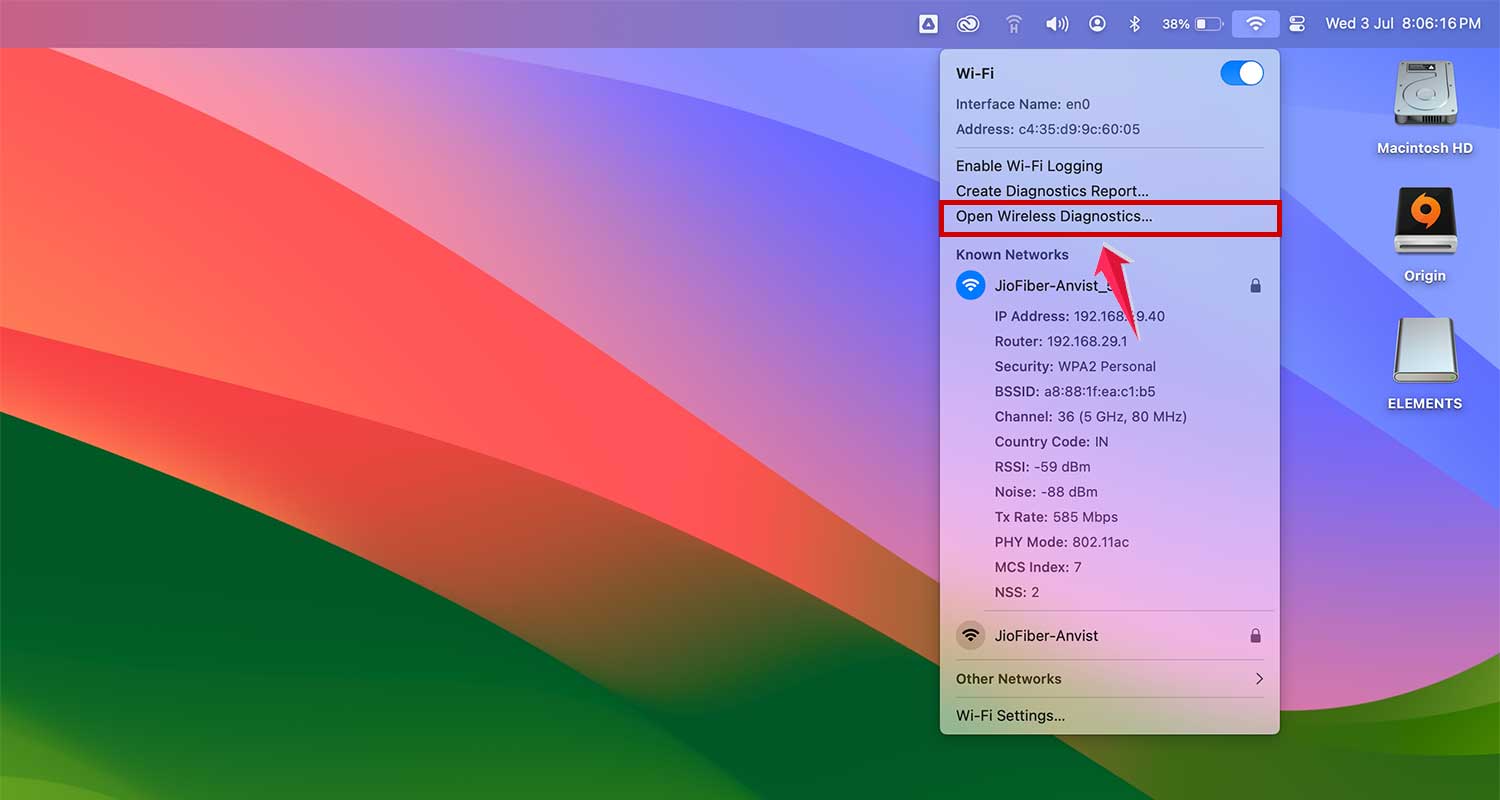
- Follow the on-screen instructions, reading carefully and clicking Continue to proceed through the test. This tool can help identify and suggest solutions for Wi-Fi connectivity problems.

8. Change DNS settings
If you’re experiencing slow or no internet, changing your DNS settings might help:
- Click the Apple menu and select System Settings.

- Navigate to Network, then click WiFi. It might be a good time to review your security settings as well.

- Now, click on the Details button next to the connected network.

- Go to the DNS tab. Here, you can adjust which DNS servers your Mac uses.
- To add a new DNS server, click the ‘+’ under the DNS servers list.
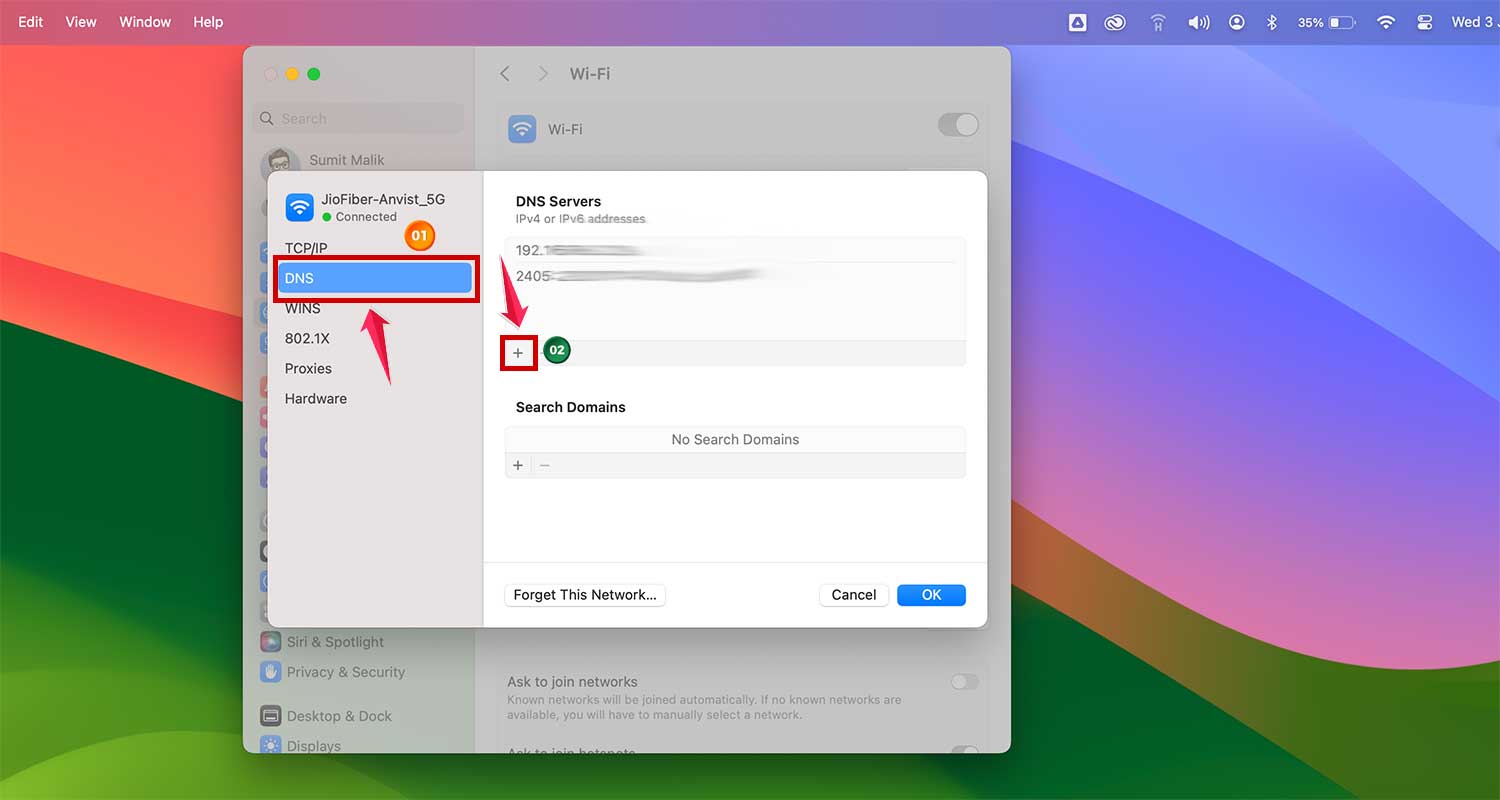
- Enter
8.8.8.8(Google’s public DNS). Add another by typing8.8.4.4in the same way. This is another server from Google. - Click OK to apply the changes.

Changing DNS servers can improve how quickly your computer accesses websites and might resolve issues preventing access to the internet.
Wrapping Up
We’ve covered a lot, so let’s sum it up. Wi-Fi and internet aren’t the same thing, which can be confusing.
When your Mac won’t connect, start with the basics: check other devices and restart your router.
If that doesn’t work, try more advanced steps like changing DNS settings or using your Mac’s Wireless Diagnostics tool.
Remember, take it step by step. Don’t rush to complex solutions right away. Often, a simple fix does the trick. By following these tips, you’ll not only solve your current issue but also be ready for future connection problems.
A good internet connection is key to getting the most out of your Mac. We hope this guide helps you stay connected and productive.
And if you’re looking to optimize your Mac further, don’t forget to check out our guide on how to speed up your Mac if it’s running slow.
And if you’re looking to optimize your Mac further, don’t forget to check out our guide on how to speed up your MacBook.