Ever tried to share your location through Messages on your iPhone, and it just won’t work? It’s frustrating, right?
Maybe you’re out with friends or waiting for someone to meet you, and you want to send your exact spot. But your phone just refuses to do it. Yeah, that’s annoying.
The truth is, there could be a few simple reasons why this is happening.
And the good news? Most of them are super easy to fix. You don’t need to be a tech expert. You just need to know where to look and what to check.
Sometimes, it’s just a setting that got turned off. Other times, your phone might be running old software.
Or maybe your privacy settings are blocking location sharing without you even knowing it.
But don’t worry. I’ve got you covered. In this guide, I’ll walk you through everything step by step.
We’ll check all the basics and even some extra tricks to make sure your iPhone can share your location again through the Messages app.
So, let’s fix it together. Ready? Let’s go.
What’s Causing the Location Sharing Problem?
Alright, before we jump into the fixes, let’s understand what might actually be going wrong.
If your iPhone isn’t sharing your location in the Messages app, there are a few usual suspects we need to check.
1. Check if Location Services Are Off
This is the most common one. If Location Services is turned off, your iPhone simply can’t share your spot.
It’s like trying to give directions without knowing where you are.
2. Update Your iPhone to the Latest iOS
Sometimes bugs in older versions of iOS can mess things up. If you haven’t updated your phone in a while, that could be the reason your location isn’t sending.
3. Restart Your iPhone
I know it sounds basic, but trust me. Restarting your iPhone can fix a lot of small issues. It clears out temporary glitches and gives your phone a fresh start.
4. Check Your Network Connection
If your Wi-Fi or cellular data is weak or not working, your phone might struggle to share your location. It needs a solid connection to send that info out.
5. Double-Check Your Privacy Settings
Even if Location Services is turned on, your Messages app needs permission to access your location. If that’s blocked, the feature won’t work.
Now that we know what might be causing the issue, let’s go through the fixes one by one. I’ll keep it simple and guide you through each step.
Your iPhone isn’t sharing location? Let’s fix it!
Let’s go step by step and get your iPhone back to sharing your location in Messages.
These fixes are easy to follow, and I’ll explain everything clearly.
#1: Make Sure Location Services Are On
First, we need to check if Location Services is even turned on. Without this, your iPhone can’t share your location at all.
Here’s how to check:
- Open the Settings app.
- Tap Privacy & Security.
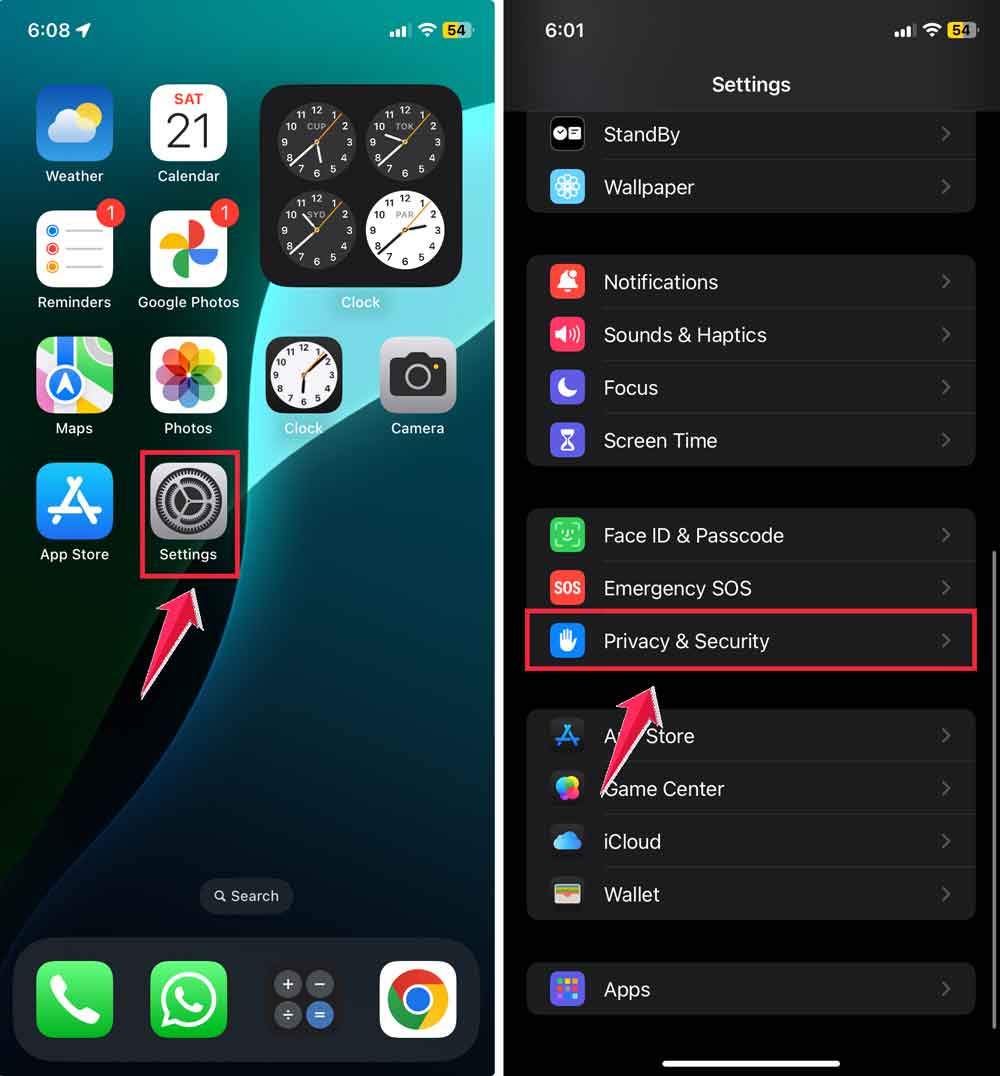
- Tap Location Services.
- Make sure the switch is turned ON.
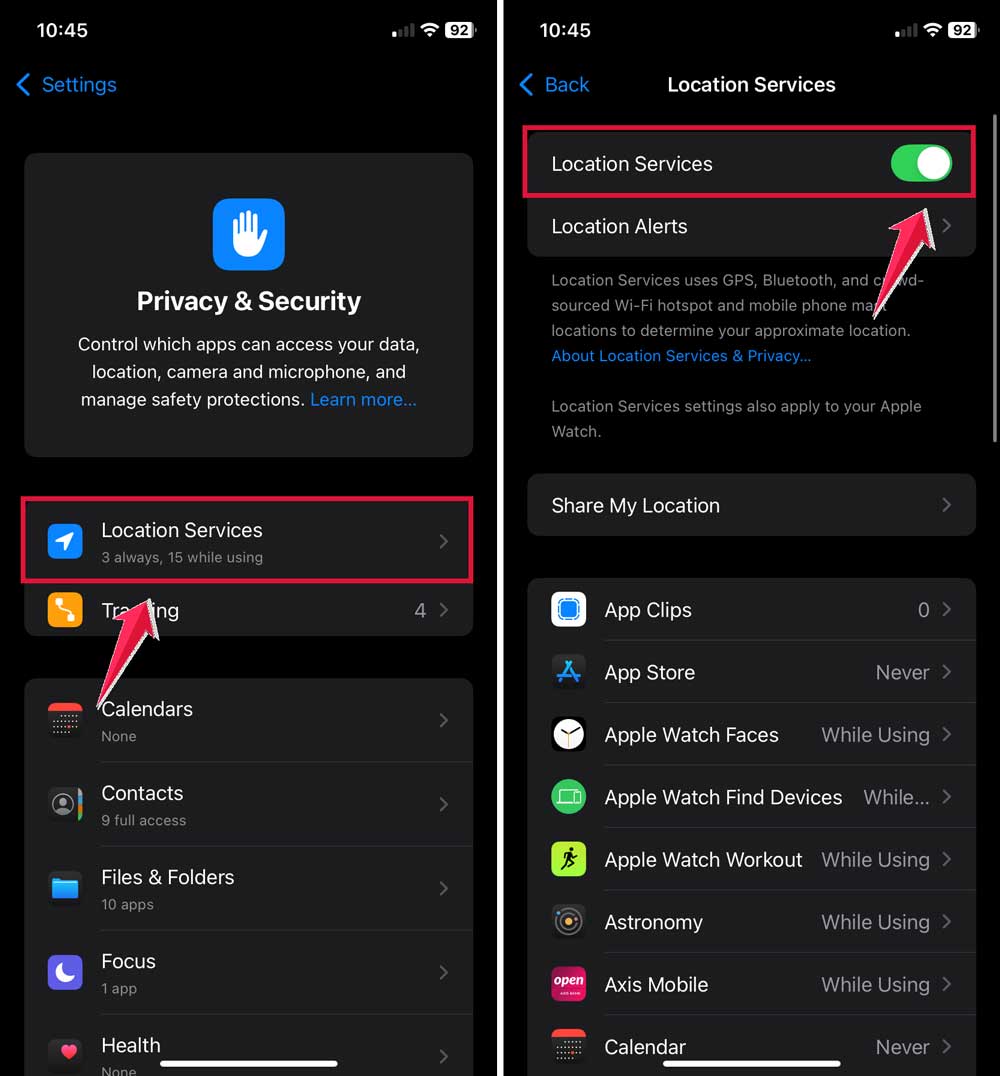
If it was off, turn it on and try sharing your location again in Messages. That might be all it takes!
#2: Update Your iOS
Still not working? Let’s make sure your iPhone’s software is up to date.
Updates often fix bugs that affect apps and features.
Do this:
- Go to Settings.
- Tap General.

- Select Software Update.
- If an update is available, tap Download and Install.

After updating, give the location sharing another try. It might just start working again.
#3: Give Your iPhone a Fresh Start
Sometimes your phone just needs a quick reboot.
It clears up little issues that might be blocking location sharing.
Here’s how to restart:
- Press and hold the Power button and volume up button until the slider appears.
- Drag the slider to turn off your iPhone.
- Wait a few seconds, then press and hold the Power button again to turn it back on.
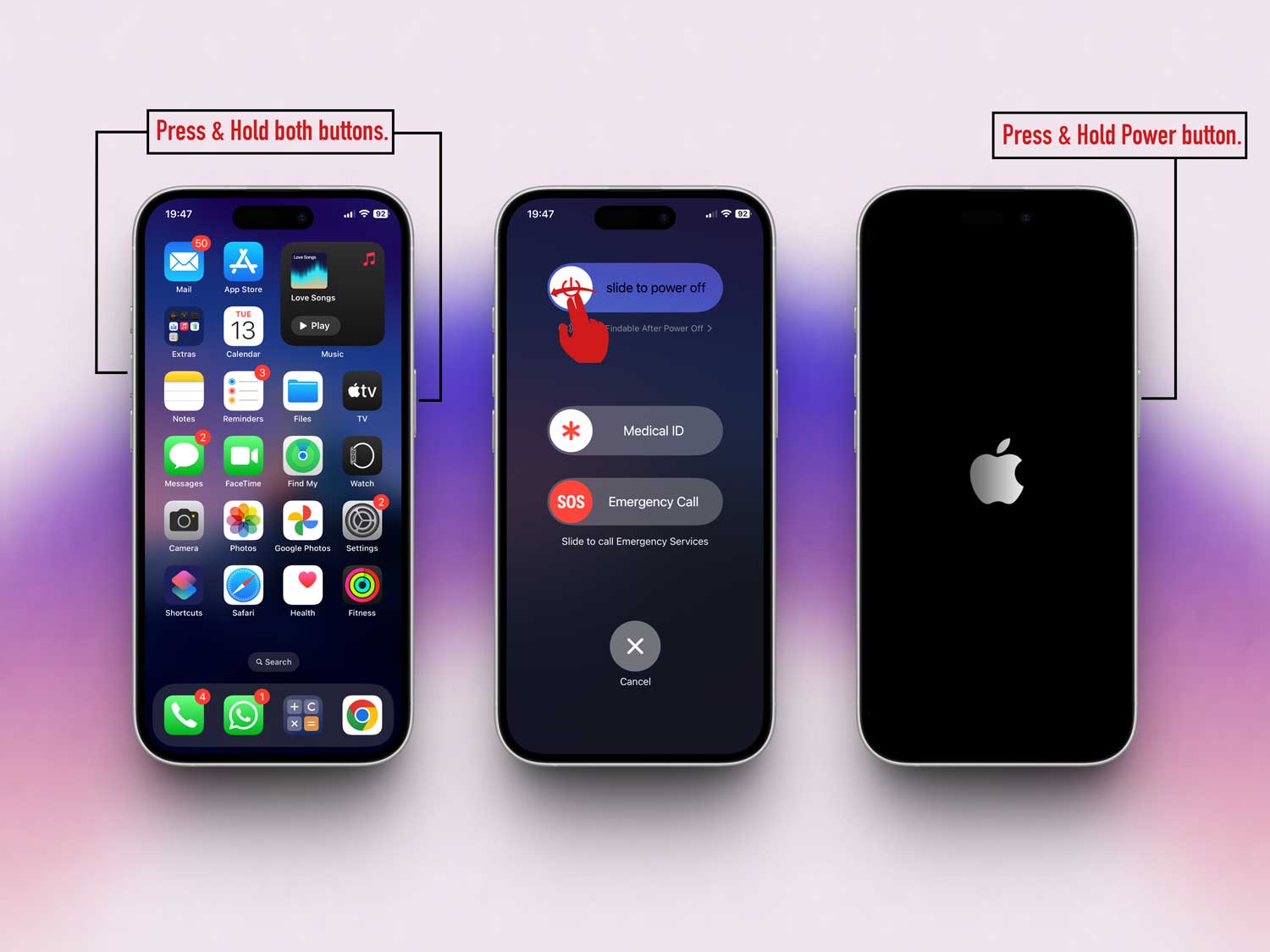
Once it’s fully restarted, open Messages and try sharing your location.
#4: Check Your Network Connection
Your phone needs a stable internet connection to share location info.
If your connection is weak or not working, that could be the issue.
Try this:
- Make sure you’re connected to Wi-Fi or have a strong cellular signal.
- If Wi-Fi is acting up, restart your router.
- You can also turn Wi-Fi off and on again on your iPhone to refresh the connection.
Then, give location sharing another shot.
#5: Reset Location & Privacy Settings
If something’s off in your privacy settings, this can reset everything without deleting your data.
Here’s what to do:
- Open Settings.
- Tap General.
- Scroll down and tap Transfer or Reset iPhone.

- Tap Reset.
- Choose Reset Location & Privacy.

This will reset all your location and privacy permissions, so you’ll need to allow them again when asked.
#6: Reinstall the Messages App
If nothing else works, let’s try reinstalling Messages. Sometimes apps just need a fresh install.
Here’s how:
- Find the Messages app on your home screen.
- Press and hold it until it starts to jiggle.
- Tap the X or Remove App.
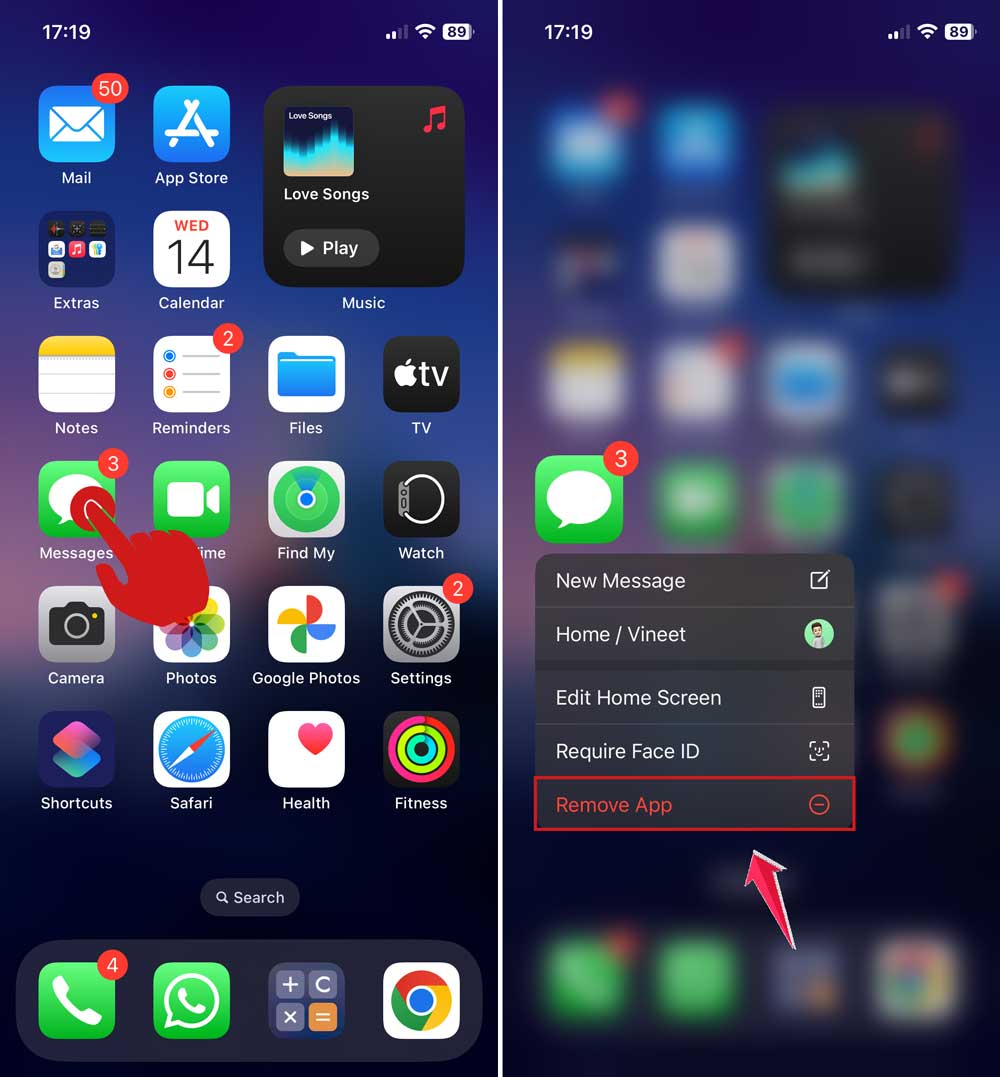
- Go to the App Store and search for Messages.
- Tap the download icon to reinstall it.

Once it’s back, try sharing your location again. Hopefully, this does the trick!
More Tips to Help You Share Location
If the main fixes didn’t work, don’t give up yet. These bonus tips can also make a difference.
1. Turn Off Low Power Mode. Low Power Mode can block background activities, including location sharing. Go to Settings > Battery and turn it off if it’s on.

2. Remove Unnecessary Restrictions. Screen Time settings might be blocking location sharing. Go to Settings > Screen Time > Content & Privacy Restrictions and review the settings.
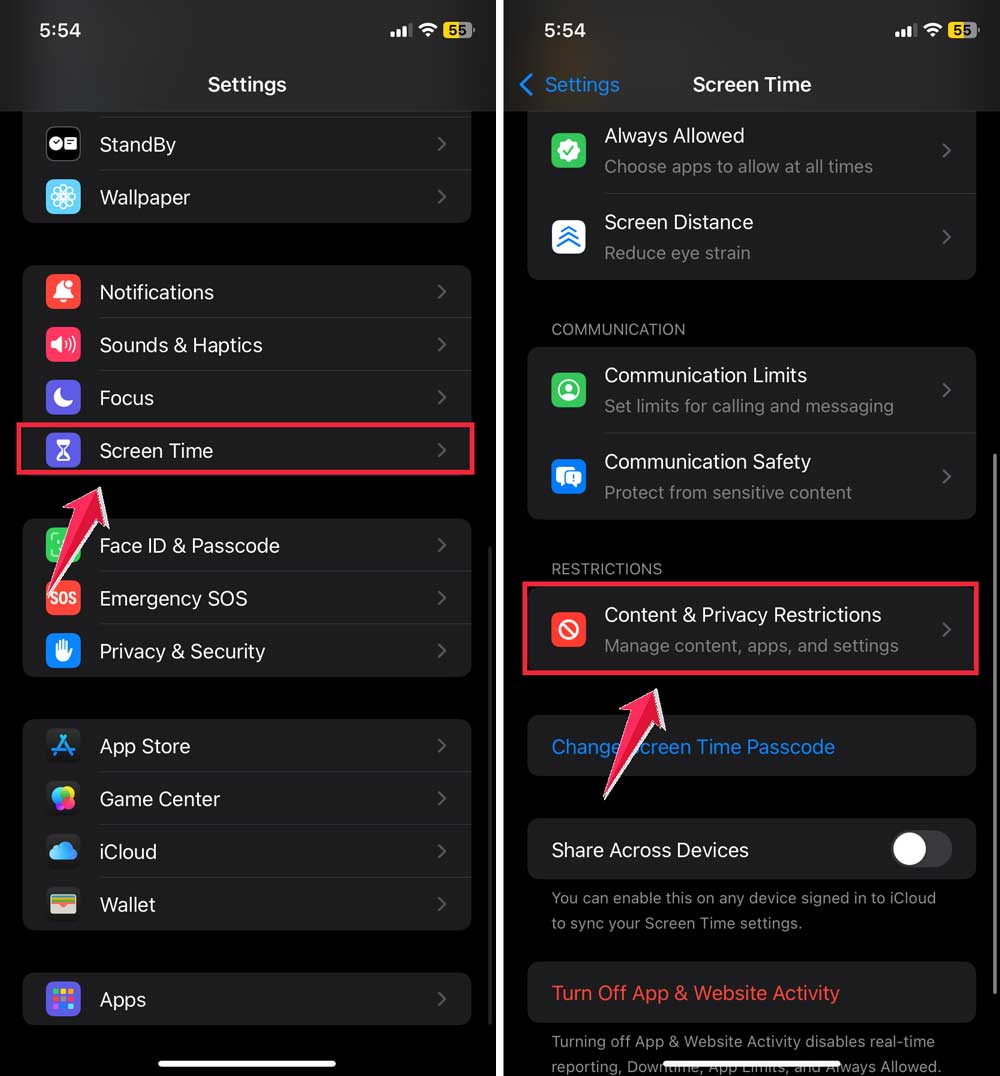
3. Check Time and Date Settings. Wrong time settings can mess things up. Go to Settings > General > Date & Time and turn on Set Automatically.

4. Switch to Airplane Mode and Back. This refreshes your network. Swipe into Control Center, tap Airplane Mode, wait a few seconds, and turn it off again.

5. Try a Different Apple ID. Still stuck? Try signing out and signing back in. Go to Settings, tap your name, scroll down, and choose Sign Out. Then sign back in.

Try these out and see if something clicks. Sometimes, one small change is all it takes.
The Takeaway
So, your iPhone isn’t sharing its location in Messages. And it’s been driving you nuts. But now, you’ve got everything you need to fix it.
Whether it was a simple setting like Location Services, or you needed to update your iOS, chances are the solution was easier than expected.
A lot of people think it’s a big technical issue, but really, it’s usually just a small switch or glitch.
The steps we covered today are easy to follow, and most of them take just a minute or two.
Go ahead and try each one. Don’t skip over the bonus tips. They can be just as helpful as the main fixes.
And remember, technology gets a little weird sometimes. But with a little patience and the right steps, you can get things working again.
Still having trouble? No worries. Drop a comment below and let me know what’s going on.
I’ll jump in and help out. Let’s get your iPhone back to sharing your location smoothly.