Oh no, your iPad won’t swipe up, right? It’s like you’re locked out and can’t get in. Super frustrating. But hey, don’t worry—you’re definitely not alone.
This annoying issue can pop up for a bunch of reasons.
When your iPad just refuses to respond, it can really mess up your day. You might miss important emails, updates from friends, or just your daily scroll through apps.
All because that little swipe isn’t working!
Why does this happen? Well, sometimes it’s a pesky software glitch. Other times, your screen could be dirty, or there might be something more serious going on like physical damage.
But you know what? It’s usually something simple, and it’s fixable.
Stick with me here. I’ll guide you through some super easy steps. We’ll get your iPad swiping up again in no time. Ready? Let’s dive right in!
Common reasons your iPad won’t swipe up
Alright, let’s break it down. Here are the usual suspects when your iPad refuses to swipe up.
1. Unresponsive Screen
Your iPad might just be having one of those days. Sometimes, the screen just acts up for no big reason. It happens more often than you’d think. A simple clean might just wake it up.
2. Software Glitches Are Sneaky
iPads are smart, but even they have their bad days. If your iPad has been acting a little weird lately, it might be a software glitch. Updates are made to fix these little bugs, so keeping your device updated is super important.
3. Have You Dropped It Recently?
Let’s be real. We all drop our devices sometimes. If your iPad took a tumble recently, there could be some hidden damage causing the problem. Even a tiny crack can mess with how the screen responds.
4. Dirty Screen Is a No-Go
Dirt and grime are no friends to touchscreens. If your screen’s dirty, it might not pick up your swipe properly. A quick, gentle clean can sometimes fix everything just like that.
Most of the time, it’s one of these things. Stick with me, and we’ll fix it together. You’ll be swiping like a pro soon!
iPad Won’t Respond to Swipe Up to Unlock – Fix It
Alright, now that you know what might be wrong, let’s jump into fixing it. These steps are easy, and I’ll walk you through each one.
#1: Clean the Screen
First thing’s first—clean that screen! Dust, fingerprints, or even a bit of grease can cause real trouble.
Here’s what you need to do:
- Grab a soft, lint-free cloth.
- Gently wipe your iPad screen in small circles.
- Make sure there’s no moisture left on the screen after cleaning.
This simple step often fixes the issue right away. Give it a shot!
#2: Force Restart Your iPad
If cleaning didn’t do the trick, let’s try a good old reboot. A force restart can clear out minor glitches that mess with your screen.
Here’s how:
- For iPads with a Home button: Press and hold both the Power button and the Home button until you see the Apple logo.
- For iPads without a Home button: Quickly press and release the Volume Up button, then quickly press and release the Volume Down button.
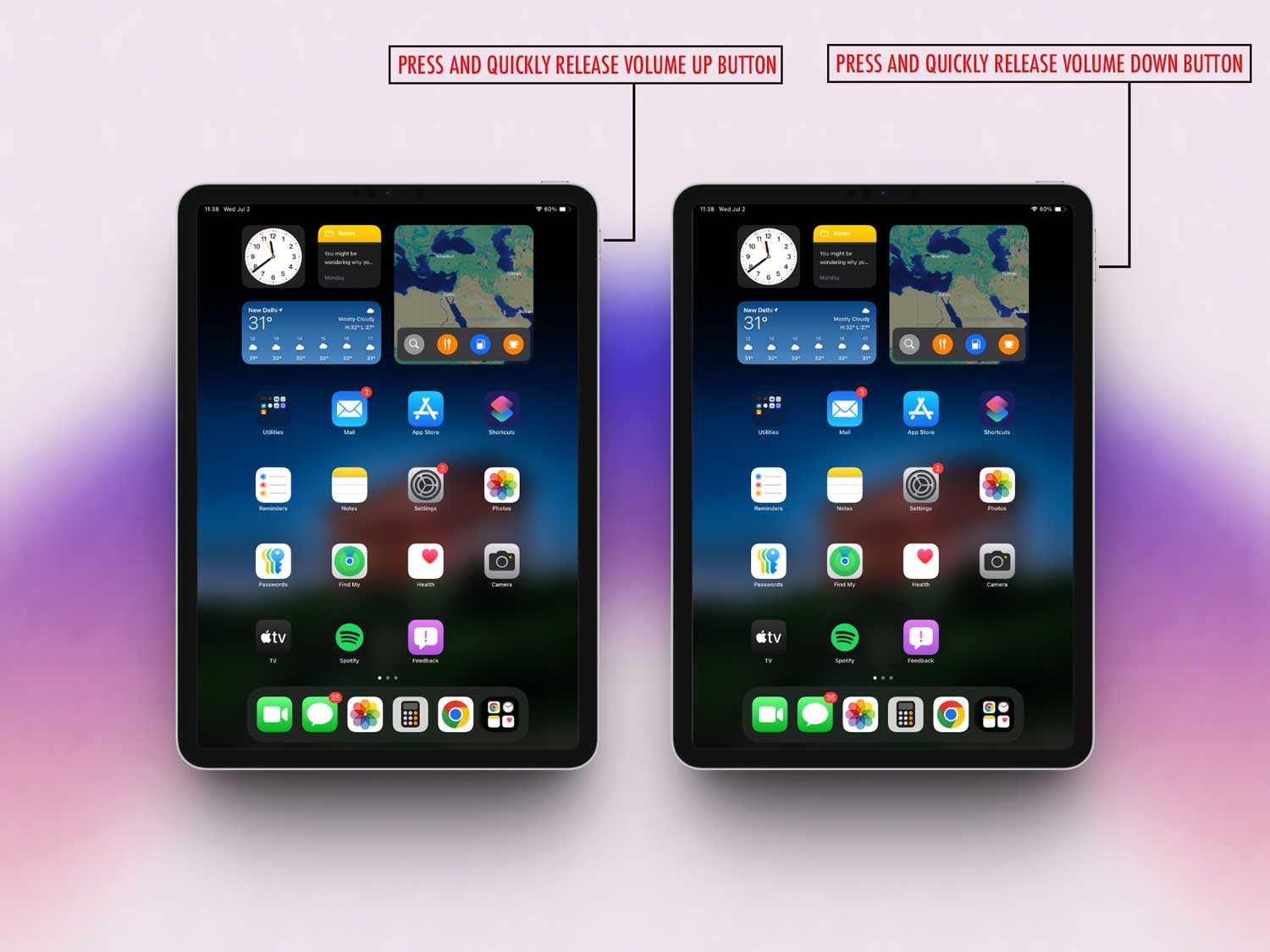
- Then press and hold the Power button until you see the Apple logo.

This can feel like a miracle fix sometimes!
#3: Update iOS
Maybe your iPad needs a little software love. Updating iOS can fix a lot of hidden bugs.
Here’s how you do it:
- Open the Settings app.

- Tap General.
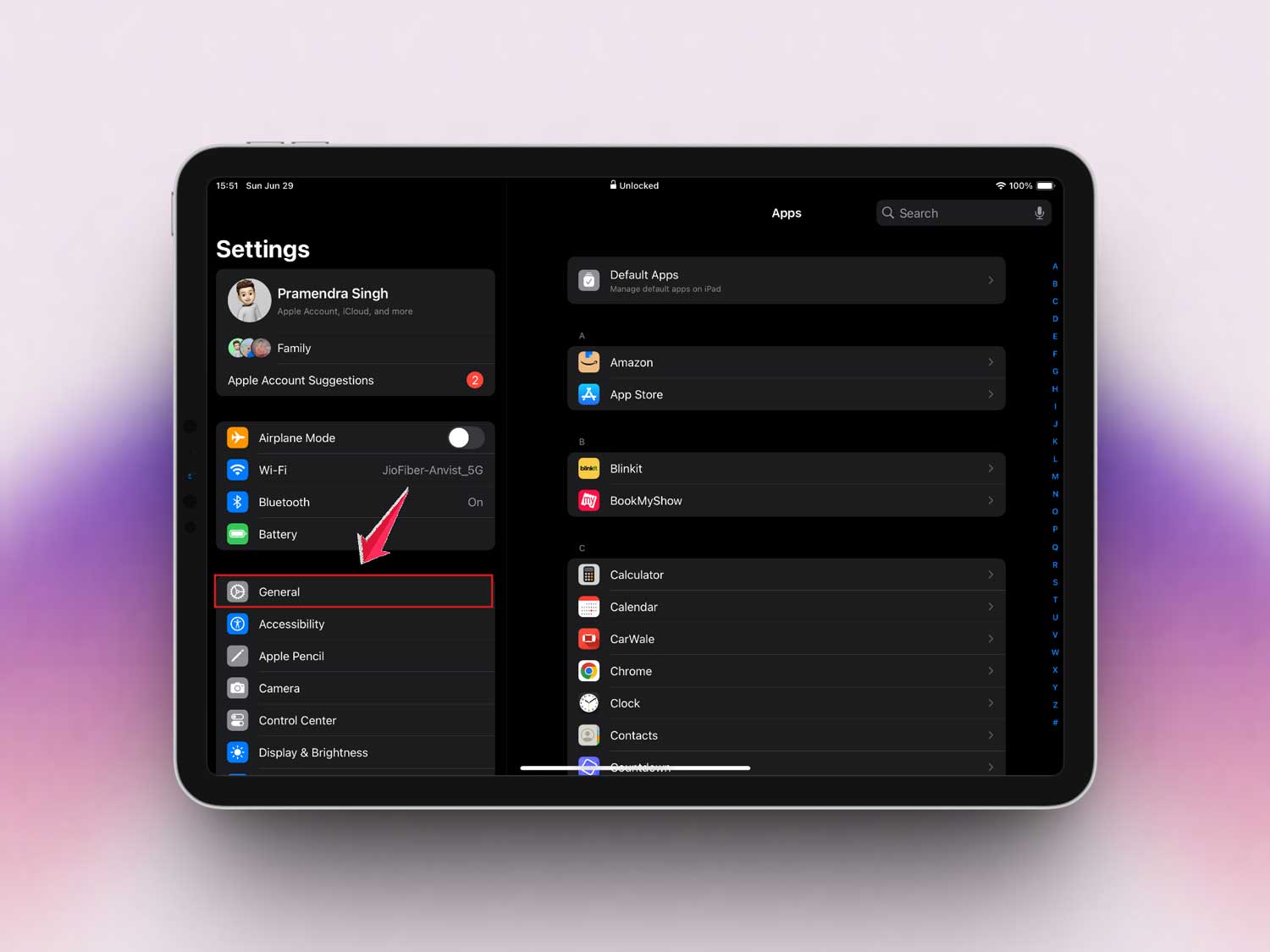
- Tap Software Update.

- If an update is available, tap Update Now.
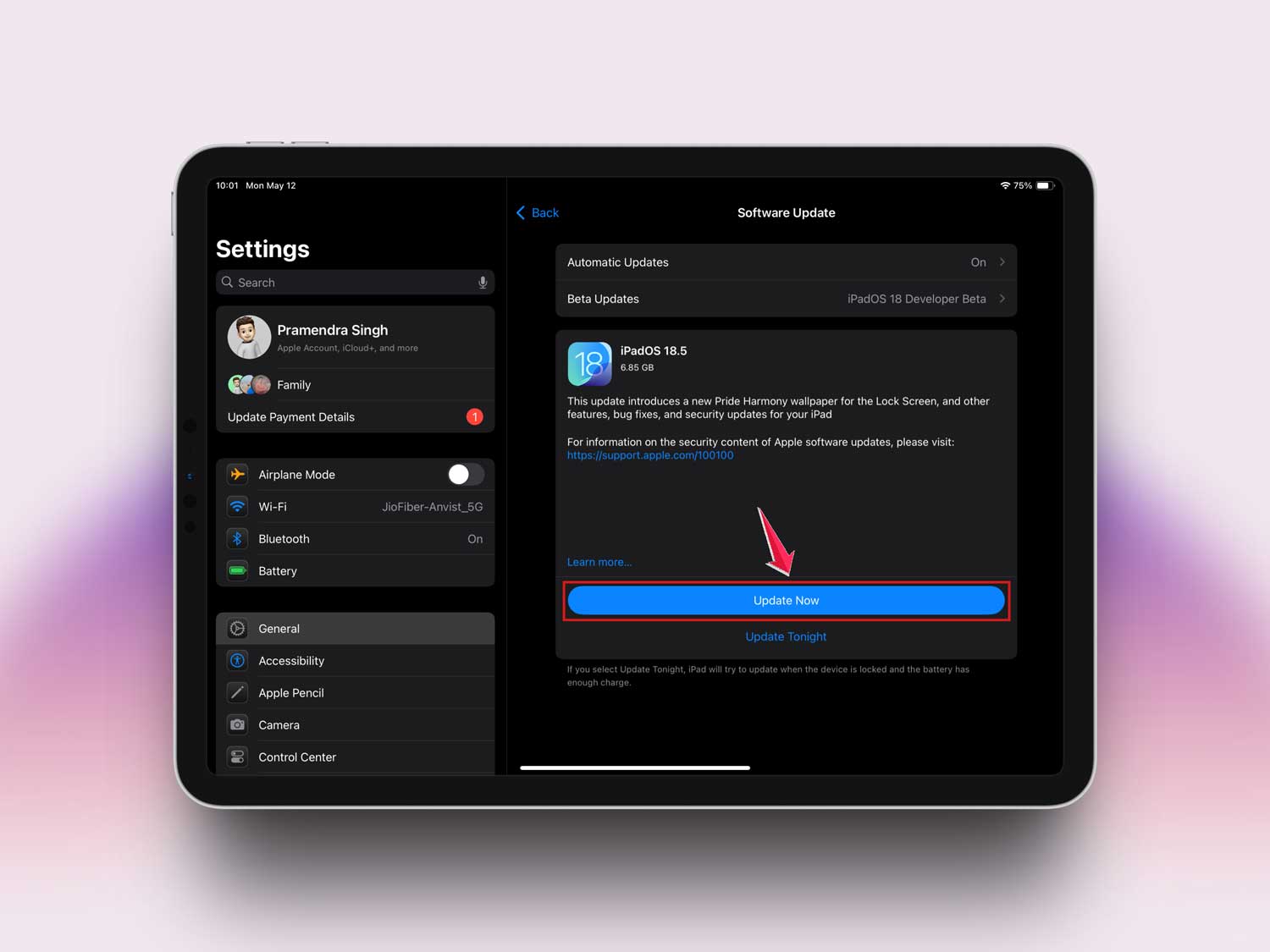
Keeping your iPad updated is one of the best ways to avoid weird issues like this.
#4: Check for Physical Damage
Now, take a good look at your iPad.
- Check for any cracks or deep scratches on the screen.
- Look around the corners and edges too.
- If you spot damage, you might need a professional repair.
Even if you don’t see anything obvious, a hidden issue could still be there. If you’re unsure, it’s okay to get it checked out.
#5: Reset All Settings
Still stuck? Let’s reset all settings. Don’t worry—your photos, apps, and data stay safe.
Here’s how to reset:
- Open Settings.
- Tap General.
- Scroll down and tap Transfer or Reset iPad.

- Tap Reset.

- Choose Reset All Settings.

This resets WiFi passwords, wallpapers, and settings without touching your data. It can fix stubborn glitches.
#6: Restore Through iTunes or Finder
Alright, if nothing else worked, it’s time for a deeper reset. This will wipe everything and reinstall iOS fresh. **Important**: Back up your data first!
Here’s what to do:
- Connect your iPad to a computer with iTunes or Finder.
- Open iTunes (or Finder if you’re using macOS Catalina or later).
- Select your iPad when it appears.
- Click Restore iPad.

- Follow the on-screen instructions.
Think of this as giving your iPad a brand-new start. If this doesn’t fix it, it’s time to visit an Apple Store.
More Tips if Your iPad Still Won’t Swipe Up
Alright, we’ve tackled the big fixes. But just in case you’re still stuck, here are some bonus tips you can try.
1. Calibrate Your Touch Screen
Sometimes, your iPad just needs a little calibration. You can use a calibration app to fine-tune the touch sensors. A little adjustment can go a long way.
2. Remove That Screen Protector
Screen protectors can sometimes mess with touch sensitivity. Try removing it carefully. If your iPad starts working better, you found the sneaky culprit.
3. Keep Your Fingers Clean and Dry
It might sound simple, but greasy or wet fingers can mess with swiping. Give your hands a quick wash and dry before trying again.
4. Limit Apps Running in the Background
Too many apps open? That can slow things down.
Here’s what you can do:
- Swipe up from the bottom of the screen and pause.
- Swipe through the open apps.
- Flick the apps you’re not using upwards to close them.
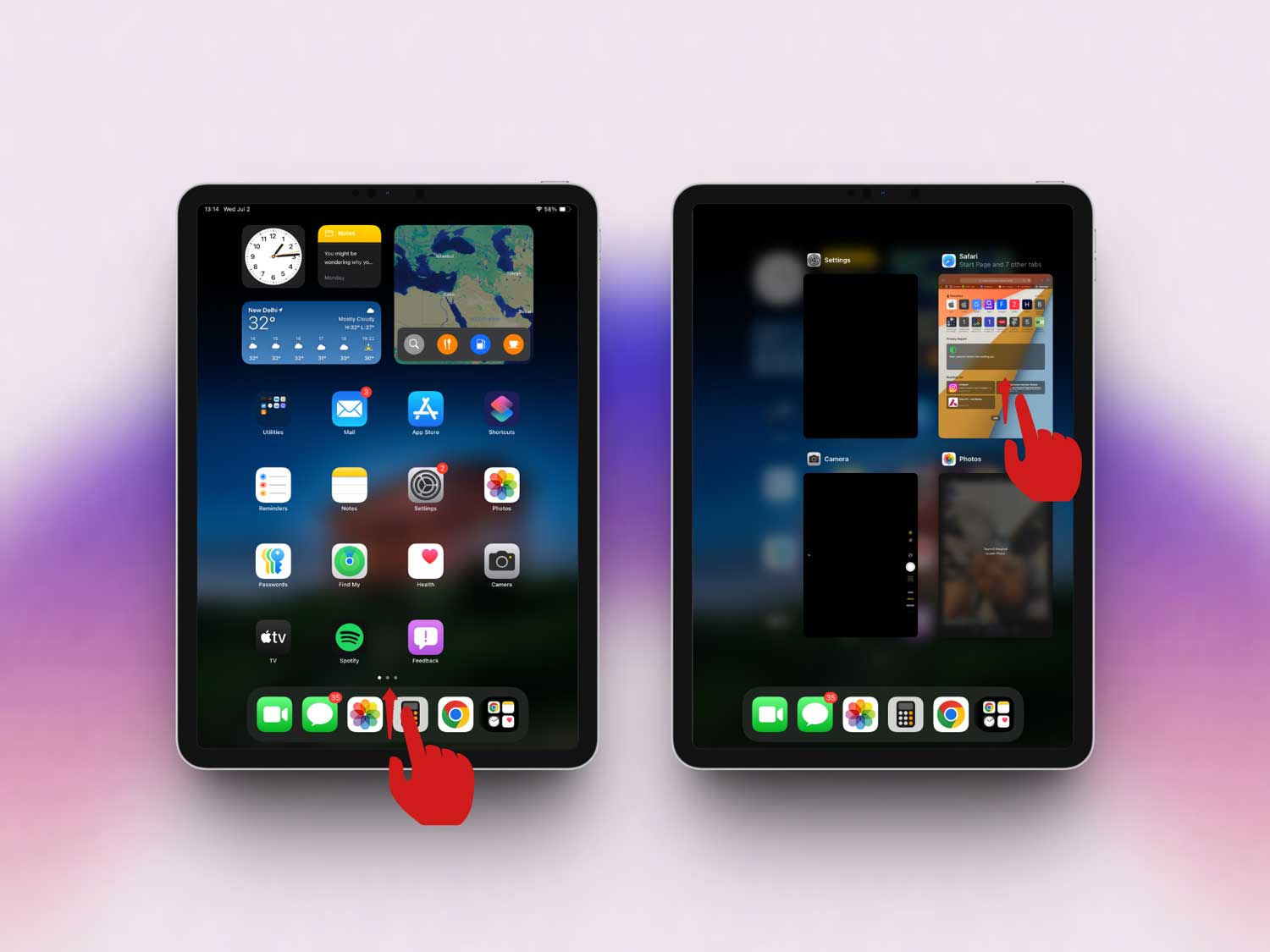
This frees up memory and can make everything feel snappier.
5. Turn Off Accessibility Features
Sometimes, Accessibility settings like AssistiveTouch can mess with normal gestures.
Here’s how to check:
- Go to Settings.
- Tap Accessibility.
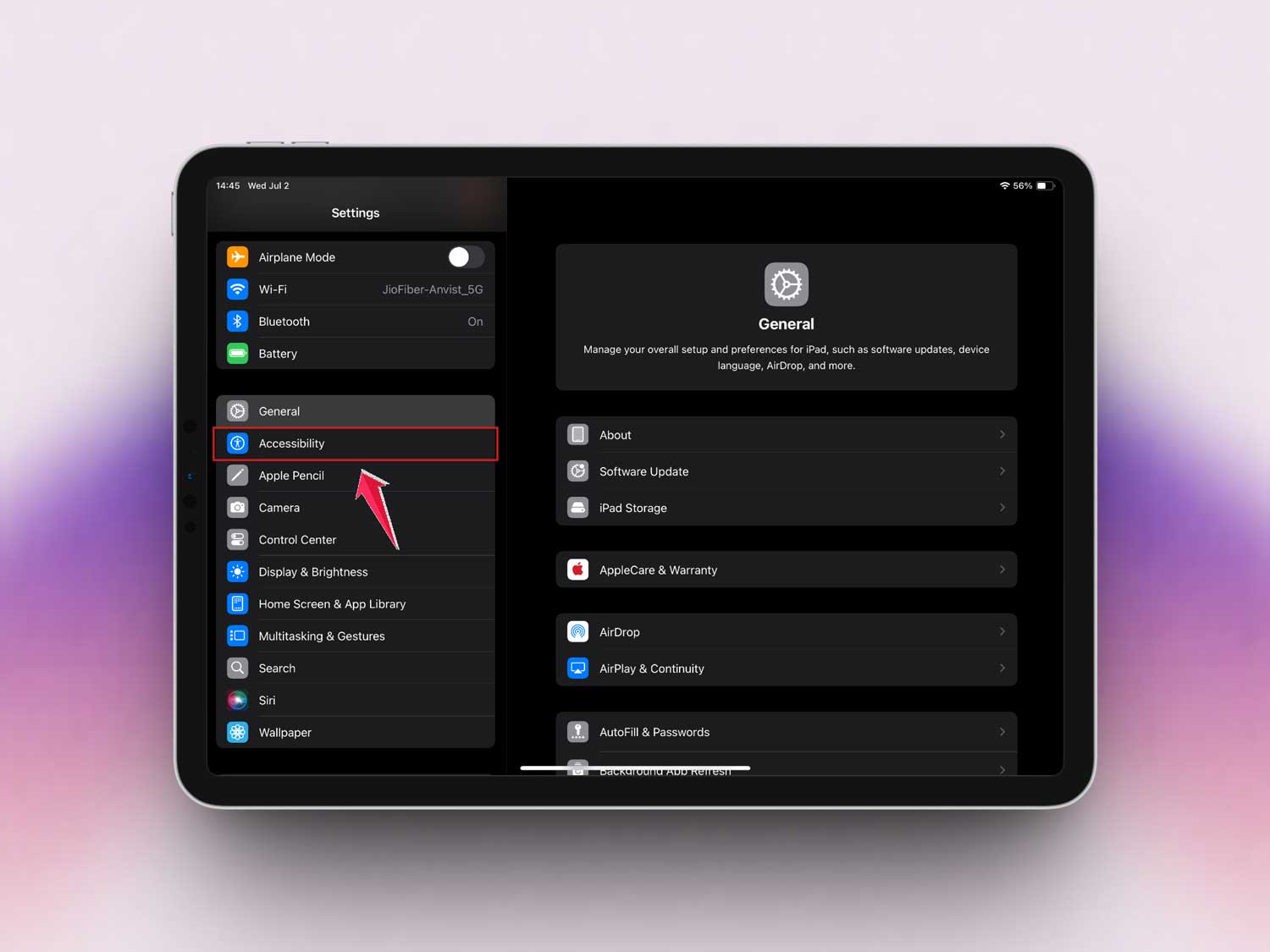
- Look through the settings and turn off anything you don’t recognize or remember turning on.
Turning off unnecessary features can bring your swipe back to life.
The Takeaway
So, your iPad’s swipe-up issue is a real headache, huh? But now, you’ve got a full toolbox of easy fixes to try.
From cleaning the screen to updating iOS, force restarting, and even restoring with iTunes, you’re fully prepared.
Remember, it’s usually something simple. A dirty screen, a small glitch, or a setting out of place.
And hey, if nothing works? Don’t worry. Apple support is always there to help.
Go ahead and try these tips. And when you fix your iPad (because you will!), drop a comment below and let me know how it went!