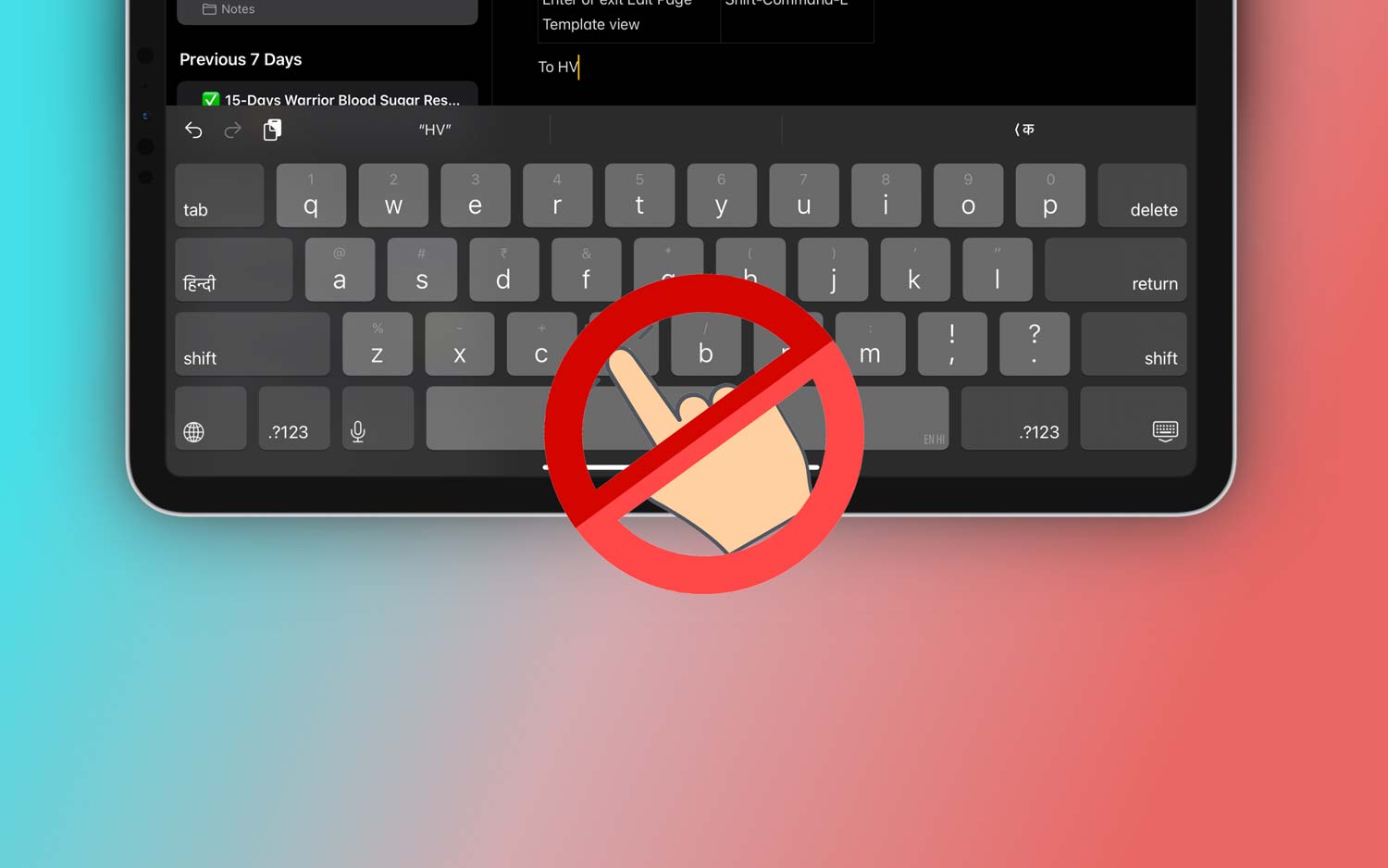
Let’s be real—when your iPad keyboard stops responding to touch, it’s more than just a small hiccup. It gets in the way.
You might be trying to send a quick reply, type a note, or finish up something important. But then… nothing happens. No letters. No response. Just silence from the screen.
It’s frustrating. And honestly, it can make you feel stuck. But here’s the good news—you’re not alone, and this issue is usually fixable without much stress.
There are a bunch of reasons why this might be happening. Maybe it’s a small software glitch.
Maybe your screen just needs a quick clean. Or maybe a setting got switched on without you realizing it. Whatever the case, we’re going to walk through it together.
So, take a breath. You’ve got this. Let’s go through the possible reasons and fixes, step by step, and get your iPad keyboard working again.
Why your iPad keyboard might not be responding
1. Your iPad might just need a quick refresh
Sometimes, your iPad just needs a little break. A simple restart can clear out small glitches that mess with touch functions. It doesn’t erase anything—it just gives the system a fresh start.
2. Smudges or dust can mess with the screen
You’d be surprised how much a dirty screen can affect touch. If there’s dust, fingerprints, or anything greasy, your iPad might not register your taps properly. A quick wipe with a soft cloth can make a big difference.
3. Software updates don’t always go smoothly
If your keyboard stopped working after an update, the update might not have installed properly. Or maybe a bug came with it. Either way, checking for another update or reinstalling might help.
4. There could be hardware damage
If your iPad has been dropped recently or got bumped hard, the screen’s touch sensors might be affected. Even if the screen looks fine, the inside might not be. If nothing else works, this is something to consider.
Alright, now that you’ve got an idea of what might be going on, let’s jump into the real fixes.
iPad keyboard doesn’t respond to touch – what to do
Let’s go through these one by one. Try them in order, and we’ll see what works for you.
#1 Restart your iPad
Let’s start with the easiest thing first. Restarting your iPad can fix small bugs that stop the keyboard from working.
Here’s how to do it:
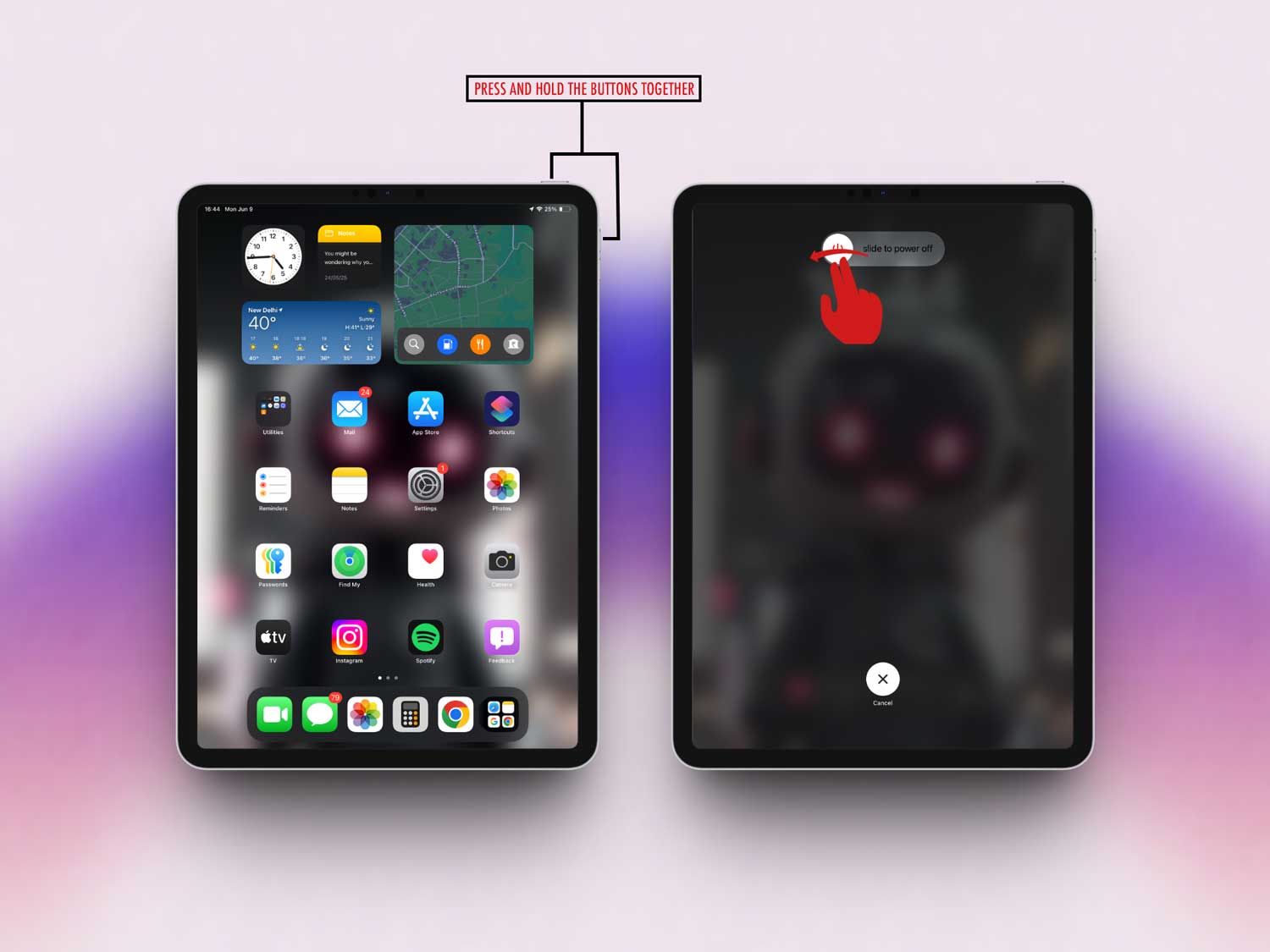
- Press and hold the power button until you see “slide to power off”.
- Swipe the slider to turn it off.
- Wait for about 30 seconds, then press the power button again to turn it back on.
Once it boots up, try the keyboard again. If it still doesn’t respond, let’s move to the next step.
#2 Check for a software update
Outdated software can cause weird issues, including keyboard problems. So let’s see if there’s an update waiting for you.
To check:
- Go to Settings on your iPad.

- Tap General.
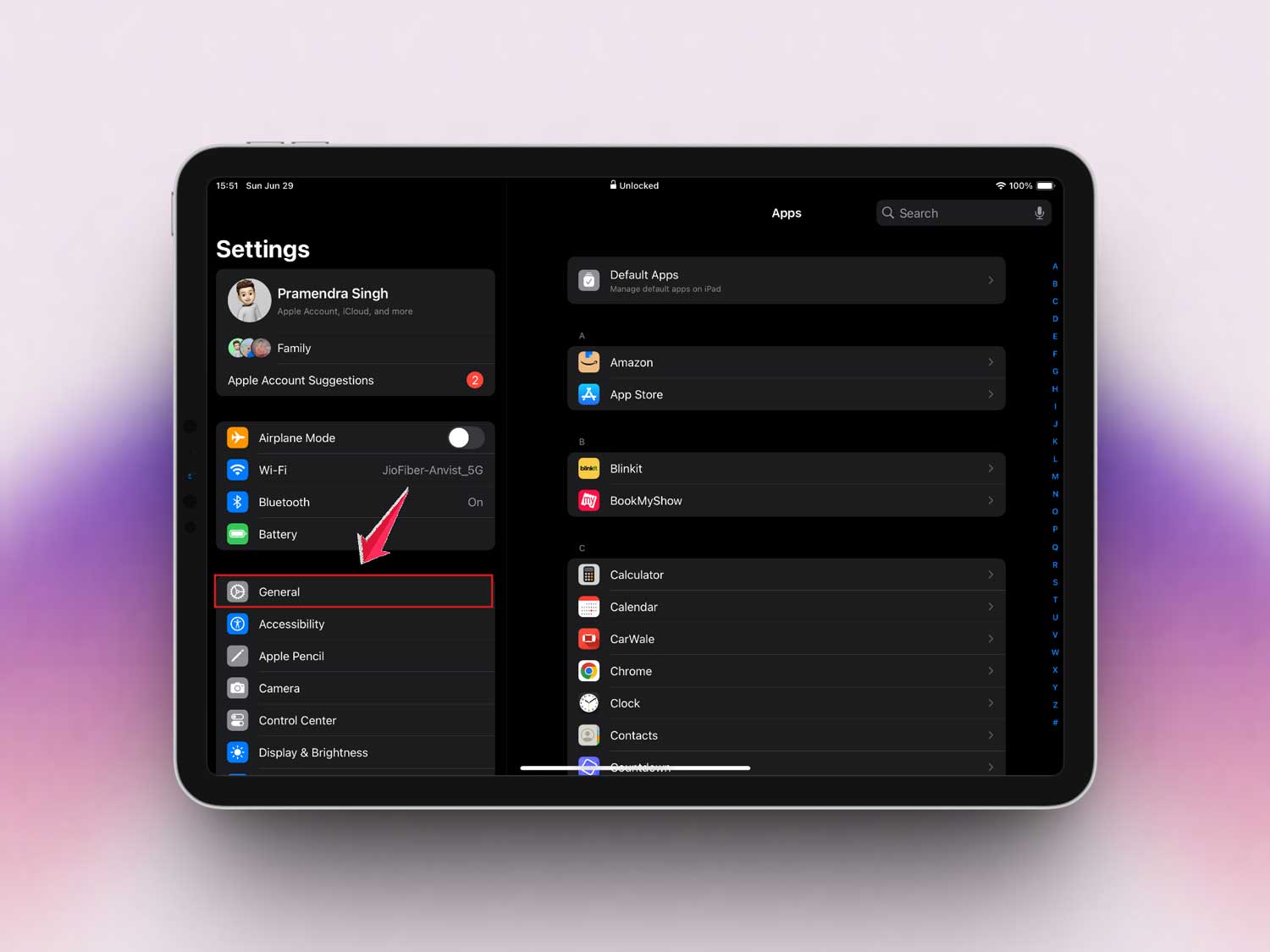
- Tap Software Update.

If there’s an update available, install it. This could fix bugs and improve your iPad’s performance.
#3 Clean the screen
Dust or fingerprints might be interfering with the touchscreen. Give it a quick clean.
Use a dry, soft microfiber cloth. Gently wipe the screen. No sprays or liquids—just the cloth. Then, test the keyboard again.
#4 Reset all settings
Still not working? Let’s try resetting your settings. Don’t worry—your photos and apps stay safe. This just resets preferences like Wi-Fi, wallpaper, and keyboard settings.
Here’s how:
- Go to Settings.
- Tap General.
- Scroll down and tap Transfer or Reset iPad.

- Tap Reset.

- Then choose Reset All Settings.

Give your iPad a moment to reset, then check the keyboard.
#5 Try a Bluetooth keyboard
This step helps you figure out if it’s a screen problem or something else.
If you have a Bluetooth keyboard, connect it to your iPad. If it works fine, then your screen might be the issue. If the Bluetooth keyboard doesn’t work either, it may be a deeper software issue.
#6 Turn off Bluetooth
Sometimes, your iPad might try to connect to another keyboard or device nearby. That can mess with the on-screen keyboard.
Do this:
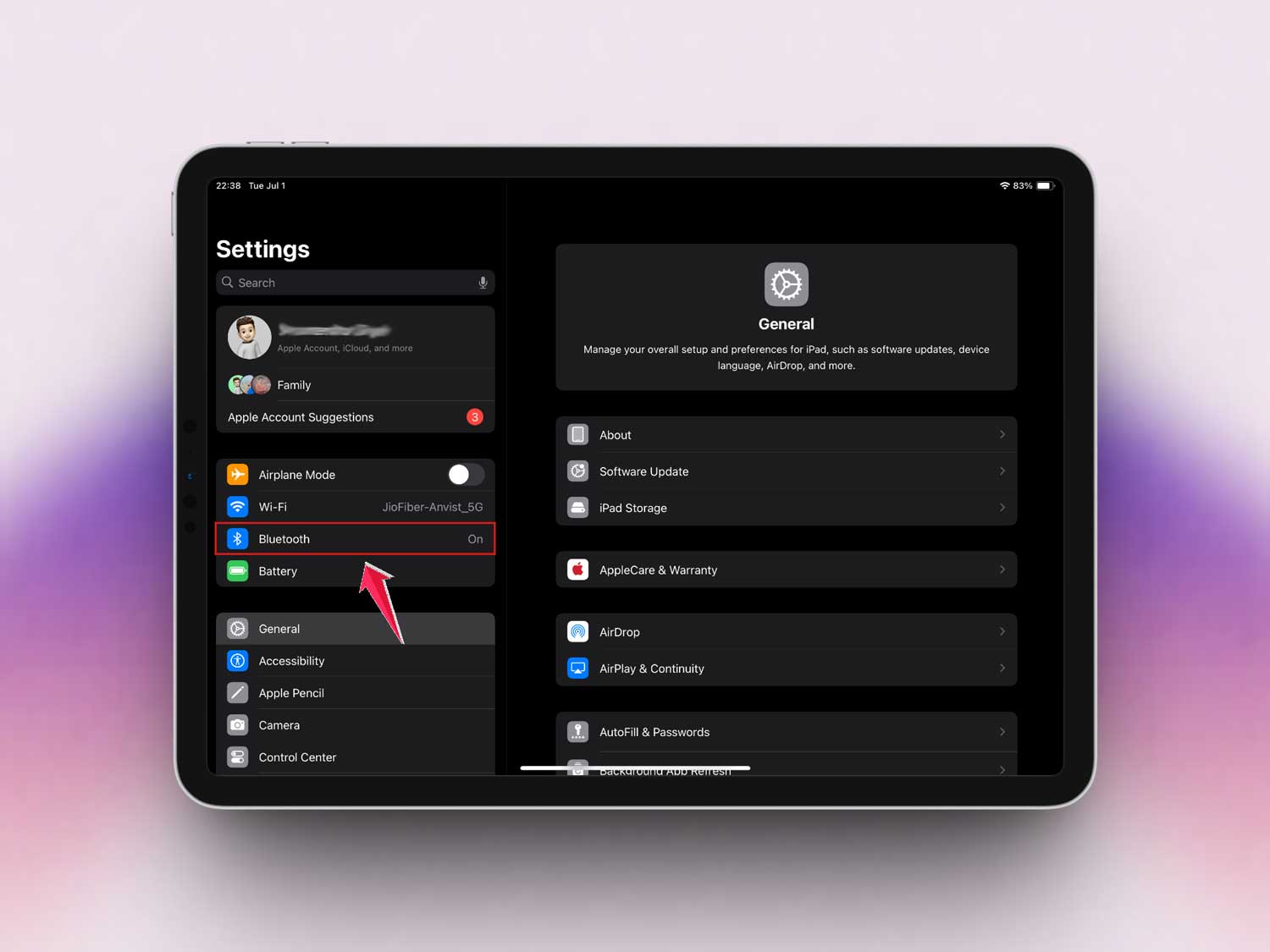
- Go to Settings.
- Tap Bluetooth.
- Toggle the switch off.
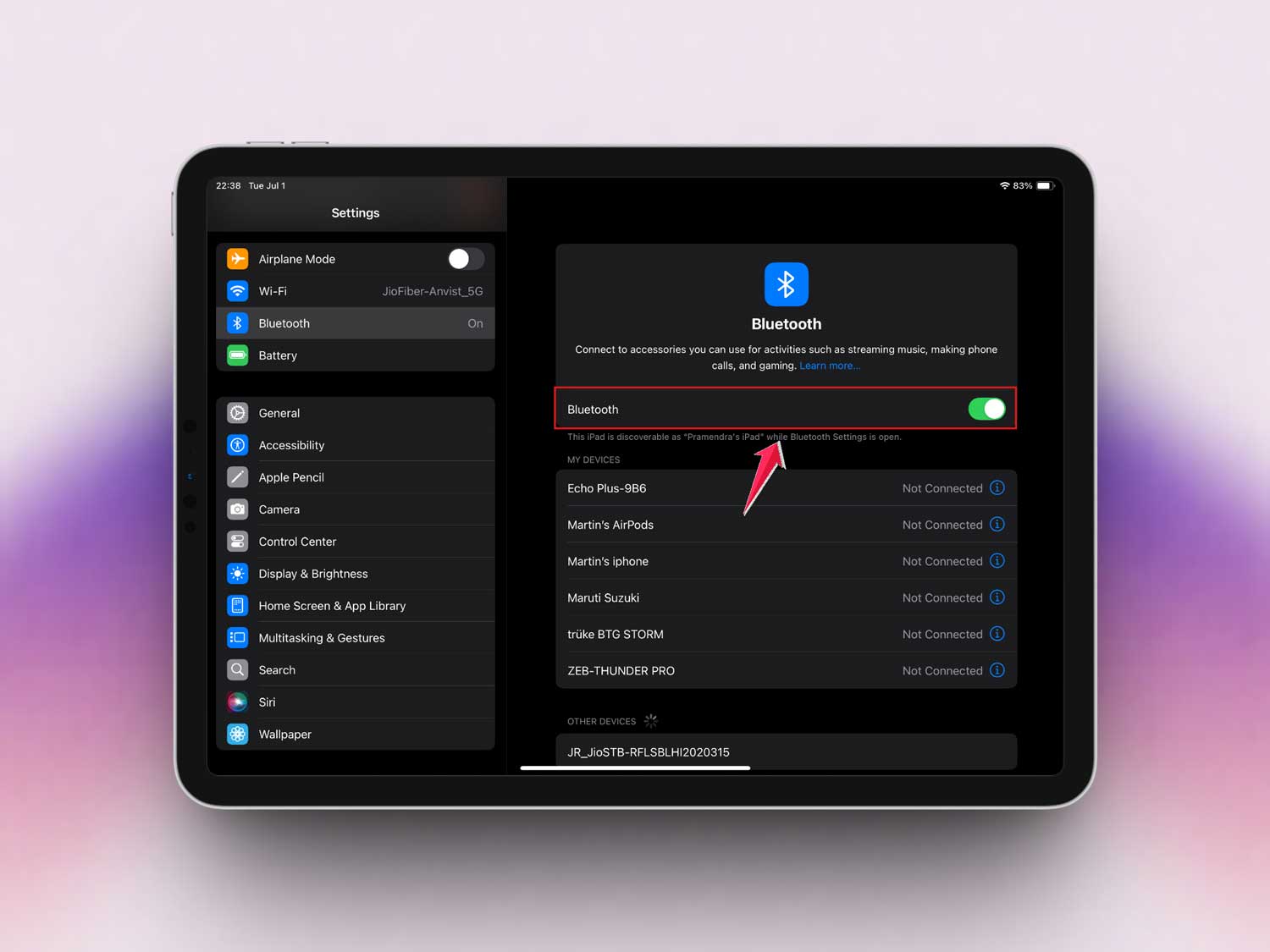
Now, go back and test the on-screen keyboard again.
#7 Adjust touch settings
If your iPad feels slow to respond or misses taps, adjusting touch settings might help.
Here’s how:
- Open Settings.
- Tap Accessibility.
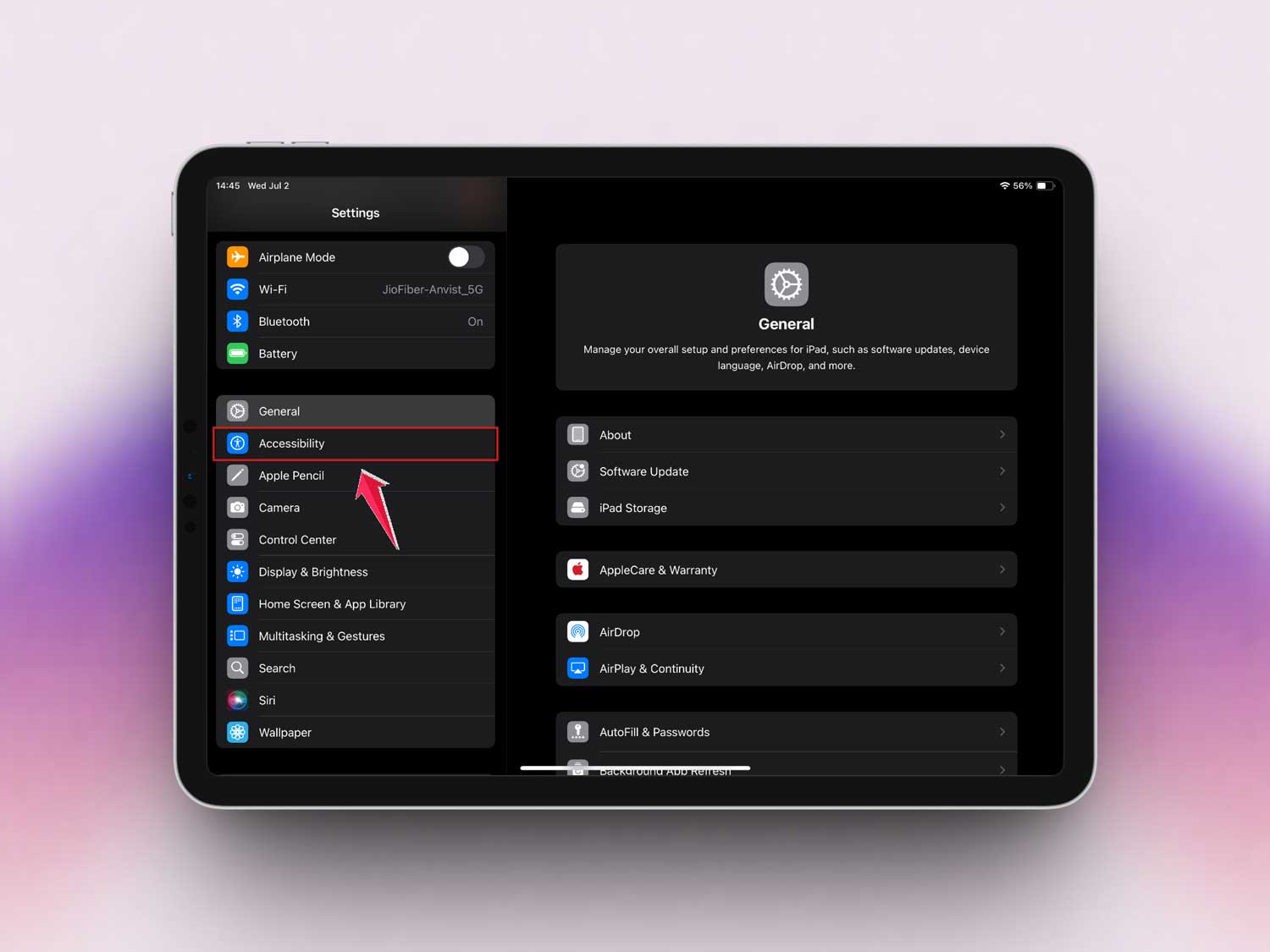
- Tap Touch.

- Then tap on Haptic Touch.
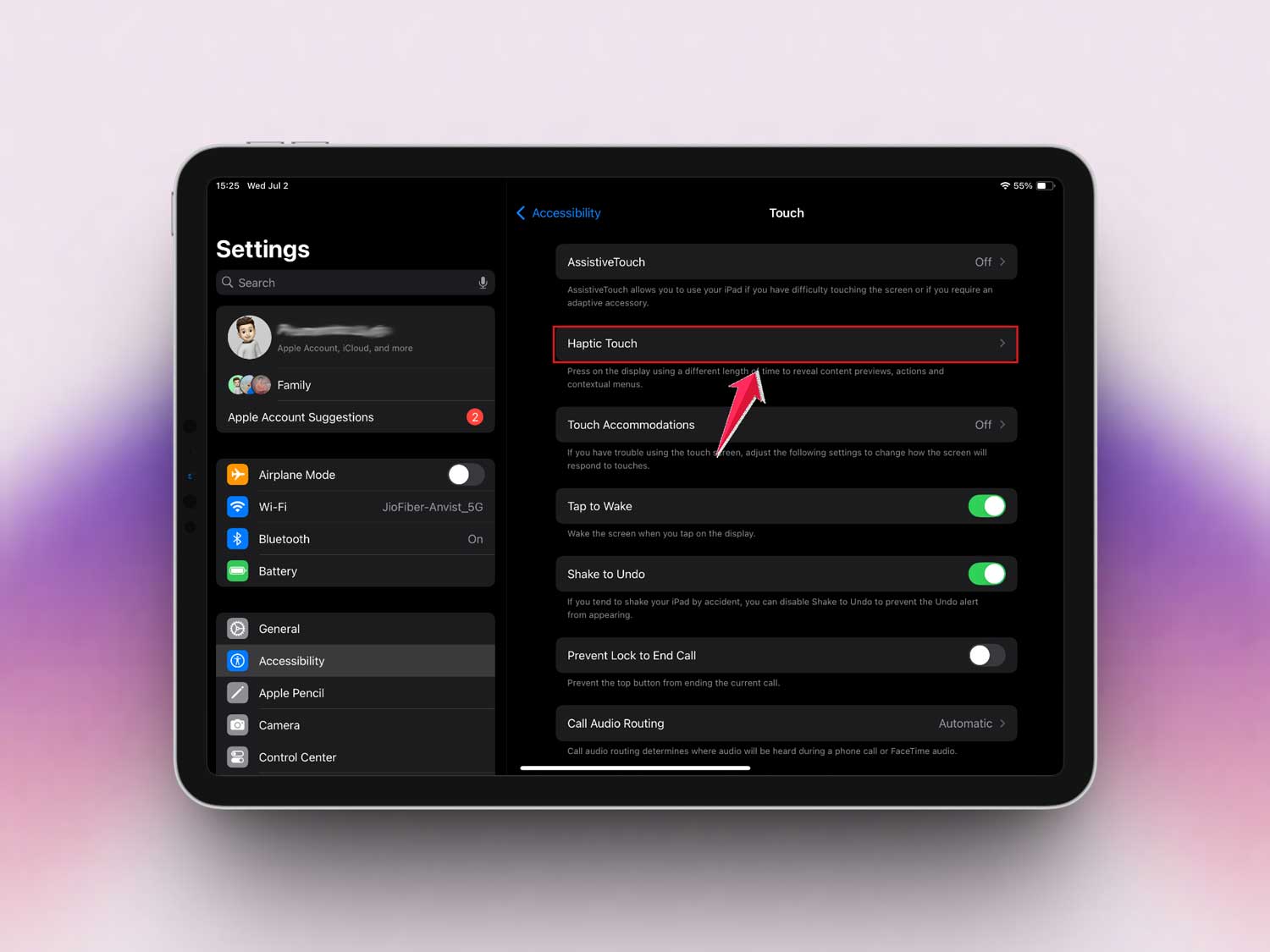
- Try changing the touch duration to Fast or Slow and test the keyboard again.

#8 Use a stylus as a temporary solution
If your fingers aren’t working, try using a stylus. It’s not a fix, but it can help you get through what you need to do while you try these solutions.
#9 Review accessibility settings
Some features in Accessibility can interfere with your regular touch input. Let’s check if anything’s turned on by mistake.
Steps:
- Go to Settings.
- Tap Accessibility.
- Look through Touch, Switch Control, and AssistiveTouch to make sure nothing is affecting your screen.

Alright, we’ve tried a lot of things here. Hopefully, your keyboard is back to normal now. But if it’s still not working, don’t worry—we’ve got a few more tips below.
Extra tips to get that keyboard tapping again
1. Take off your screen protector
Yep, sometimes even a screen protector can mess with touch. Try removing it and see if your keyboard starts working again.
2. Remove your iPad case
Cases are great for protection, but some press against the screen or block sensors. Try using your iPad without the case for a bit and test the keyboard.
3. Check your environment
Is your iPad in a super cold or hot place? Extreme temperatures can mess with the touchscreen. Move it to a normal room temp and give it a few minutes.
4. Inspect the charging port
Sometimes, a dirty lightning port can confuse your iPad and make it act like a keyboard is connected. Use a small burst of compressed air to clean it out gently.
5. Make sure Guided Access is off
Guided Access can limit parts of your screen from responding.
To check:
- Go to Settings.
- Tap Accessibility.
- Tap Guided Access.
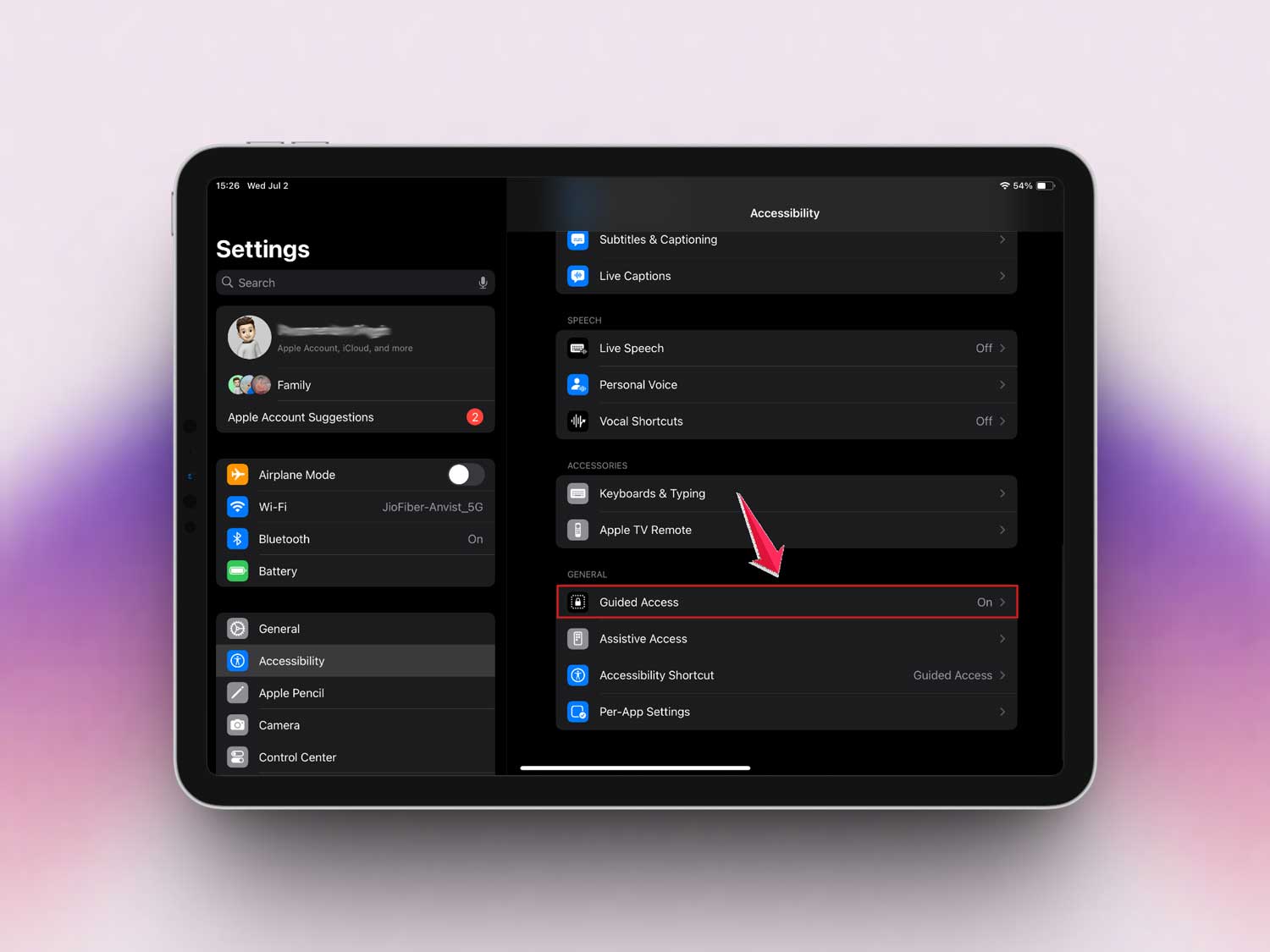
- Make sure it’s turned off.

You’ve made it this far—great job! You’ve done a full check of your iPad. If nothing worked, it might be time to reach out to Apple Support. But with all these steps, there’s a good chance you’ve already fixed it.
The takeaway
So yeah—when your iPad keyboard stops responding, it’s annoying. But now you know that the fix is usually simple. A quick restart, a screen clean, or even turning off Bluetooth might be all it takes.
It’s easy to think something’s broken right away, but most of the time, it’s just a small setting or glitch. You’ve tried a lot, and that means you’re already ahead of most people who just give up.
Still stuck? Don’t worry—Apple Support is there to help. But hey, if one of these tricks worked for you, that’s awesome! Your iPad keyboard is back and you’re good to go.
Let us know in the comments if any of these tips worked for you!