Let’s be honest — it’s super annoying when your AirPods don’t sync the way they should. You just want them to connect and work, right?
But sometimes, they seem to take their sweet time. You’re left wondering if something’s broken or if they’ve just decided to stop cooperating.
Here’s the deal: when your AirPods are slow to sync with iCloud, it’s usually something small causing the delay.
It could be a Bluetooth issue, outdated software, a weak Wi-Fi connection, or even iCloud acting up. These things mess with how fast your AirPods connect across your Apple devices.
This isn’t just a minor problem either. It affects how you move between your iPhone, Mac, iPad, and other Apple stuff. Like when you’re watching a video on your iPad and want to switch to your iPhone. But your AirPods don’t follow. Frustrating, right?
The good news? You don’t need to be a tech expert to fix this. Most of the time, a few small changes will get everything back on track. So, let’s walk through what might be causing the issue. And how can you fix it?
Why your AirPods might not be syncing properly
Alright, let’s break down the common reasons your AirPods aren’t syncing with iCloud quickly.
These are the usual troublemakers, and once you understand them, you’ll be one step closer to fixing things.
1. Bluetooth might be acting up
If your AirPods aren’t syncing fast, Bluetooth could be the reason. It’s what connects your AirPods to your devices. If Bluetooth is glitchy or keeps dropping, syncing will slow down or stop.
Sometimes, all it takes is a quick restart of Bluetooth to get things working again. It’s simple, but it works more often than you’d think.
2. Your software might be outdated
If your iPhone, iPad, or even your AirPods are using older software, that could be holding things back.
Apple updates their system to fix bugs and improve how devices work together. So if you’re not up to date, syncing might lag or fail completely.
3. Your Wi-Fi connection might be weak
If your Wi-Fi is slow or unstable, iCloud syncing can struggle. Think of it like trying to send a big file over a poor connection — it just drags.
Your AirPods rely on iCloud to sync across devices, and that needs a solid internet connection.
4. Too many devices might be causing confusion
Got a bunch of Apple devices hooked to the same iCloud account? That’s great, but it can also confuse your AirPods.
If iCloud is trying to juggle too many connections at once, syncing could slow down or get stuck.
When this happens, your AirPods might not know which device to connect to first. Cleaning up your device list can make a difference.
How to Fix iCloud Sync Delayed for AirPods
Now that you know what’s causing the problem, let’s fix it. Below are a few easy steps you can follow.
You don’t need to do them all at once — just go one by one and see what works for you.
#1 Restart your Bluetooth connection
Let’s start simple. If Bluetooth is the issue, resetting it might help right away.
Just do this:
- Open Settings on your iPhone or iPad.
- Tap Bluetooth.
- Toggle Bluetooth off, wait 5–10 seconds, then turn it back on.

- Make sure your AirPods are nearby and out of their case.
If your AirPods reconnect quickly, Bluetooth was likely the problem. Easy win!
#2 Update your iPhone and AirPods
Next up — software updates. These are important and often fix bugs you didn’t even know were there.
To update your iPhone:
- Go to Settings > General.

- Then tap on Software Update.
- If an update is available, tap Update Now.

To check if your AirPods are updated:
- Make sure your AirPods are connected to your iPhone.
- Keep them charging in their case.
- Connect your iPhone to Wi-Fi and leave it idle for a bit. AirPods update in the background.
If everything’s updated, syncing should start working better.
#3 Improve your Wi-Fi connection
A strong network helps iCloud sync faster. If your connection is weak, syncing can crawl.
Here’s what to try:
- Move closer to your Wi-Fi router for a better signal.
- Try switching to a different network if one is available.
- If things are still slow, restart your router or reset your network settings by going to:
- Settings > General > Transfer or Reset iPhone.

-
- Then go to Reset > Reset Network Settings.
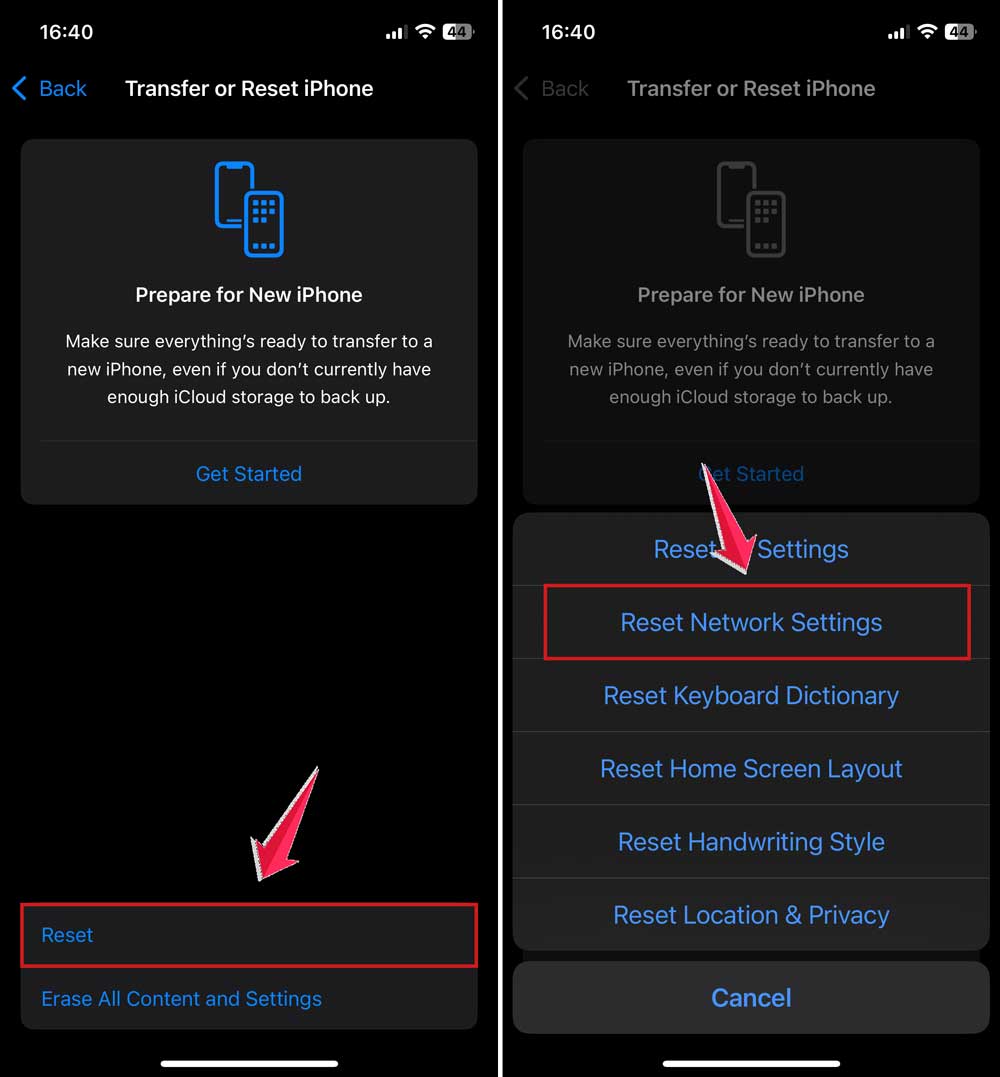
This might sound like a lot, but it only takes a minute — and it can fix a ton of weird issues.
#4 Make sure iCloud is set up correctly
Your iCloud settings need to be in order for syncing to work smoothly. Let’s double-check a few things.
Do this:
- Open Settings, then tap your name at the top.
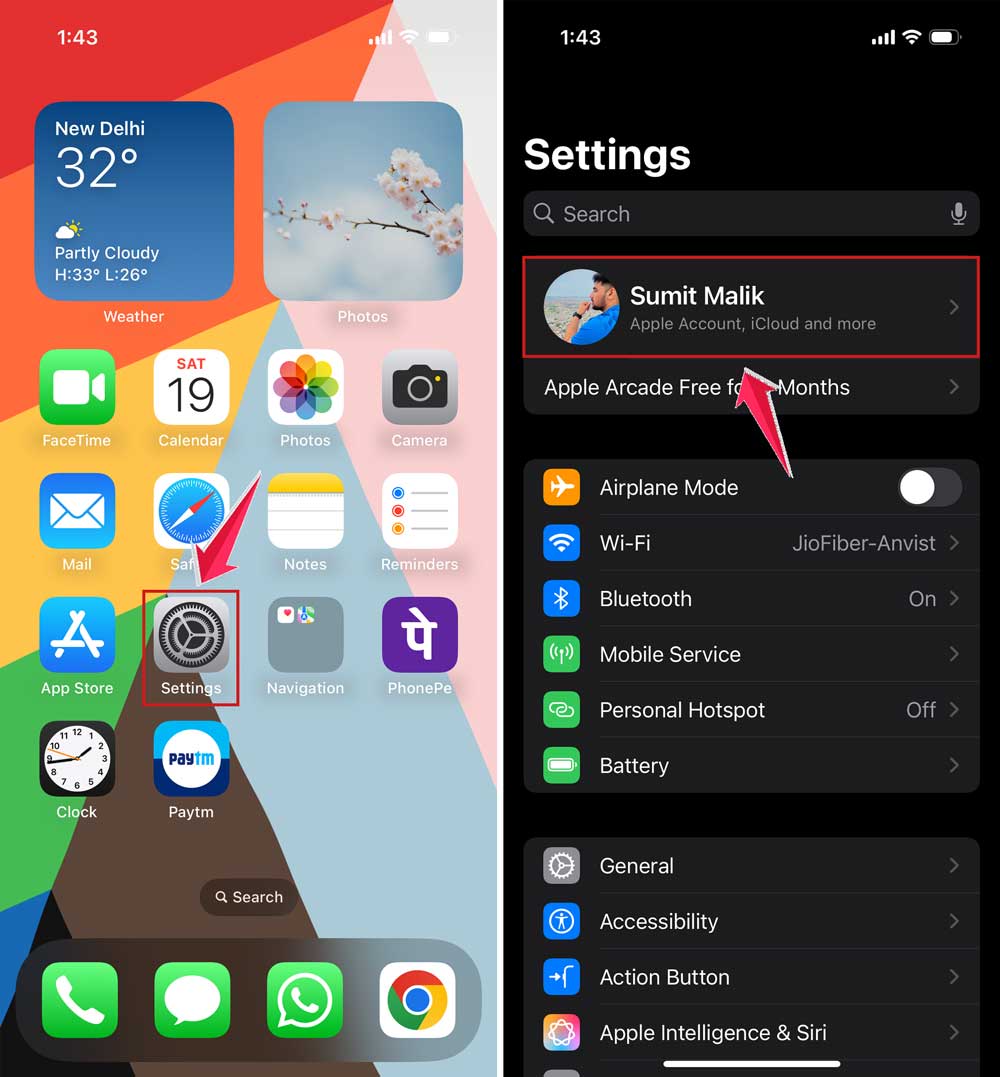
- Then tap Find My.
- Make sure Find My iPhone is turned on.
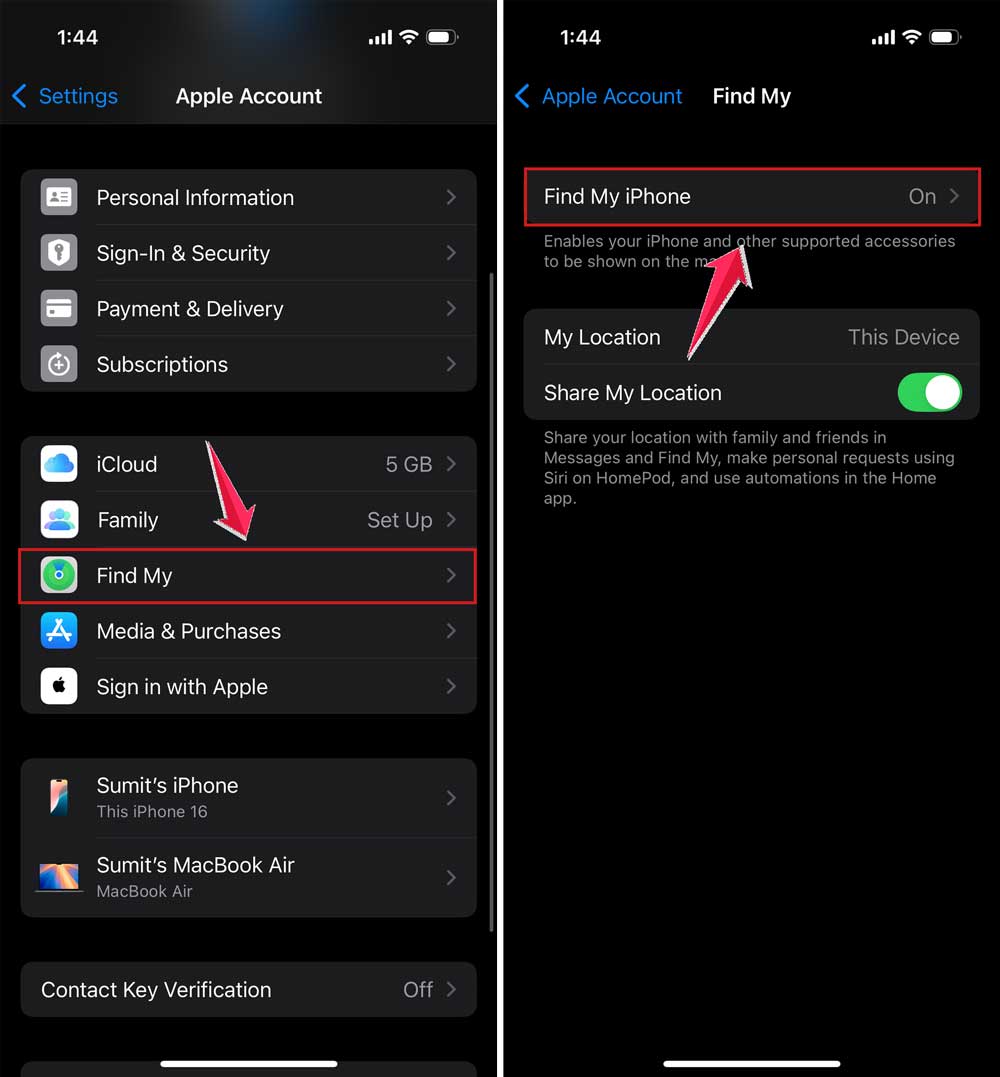
- Also, go to Settings > Bluetooth, tap the “i” next to your AirPods, and check if they are listed under your iCloud account.
If syncing still feels off, try this:
- Unpair your AirPods from your device.
- Restart your iPhone.
- Pair your AirPods again and check if syncing is faster now.
Sometimes, just doing this little reset can bring things back to normal.
#5 Reduce the number of connected devices
If you have a lot of Apple devices using the same iCloud account, try disconnecting a few. This helps reduce confusion and clears up syncing traffic.
You can manage your devices like this:
- Go to Settings and tap your name.
- Scroll down to see all devices connected to your Apple ID.
- Tap on any device you don’t use often and choose Remove from Account.

This helps your AirPods focus on the devices you actually use.
More quick tips to help AirPods sync better
You’ve done the main fixes — great job! But if syncing still feels off, don’t worry. Here are a few more tips that might help.
1. Check your AirPods battery
Low battery? That can affect syncing too. Make sure your AirPods and their case are charged before troubleshooting.
2. Restart your devices
Sometimes, a simple restart clears things up. Turn off your iPhone, wait a few seconds, and turn it back on. Do the same for your iPad or Mac if needed.
3. Clean your AirPods
Dust or gunk can mess with the sensors. Gently clean your AirPods with a dry cloth or cotton swab. Be careful not to damage anything.
4. Reset your AirPods
Still no luck? You can reset your AirPods:
- Put your AirPods in their case.
- Open the lid.
- Press and hold the setup button on the back of the case until the light flashes amber, then white.
- Re-pair them with your device.
This gives your AirPods a fresh start — and it often fixes stubborn syncing problems.
The Takeaway
So, what did we learn? When your AirPods aren’t syncing with iCloud, it’s usually something simple like Bluetooth, Wi-Fi, or software. These things can mess with how fast your devices talk to each other.
But here’s the good news — most of the fixes are easy. You just need to go through them one by one. Restart Bluetooth. Check for updates. Fix your Wi-Fi. Double-check your iCloud settings. And if needed, reset your AirPods.
You don’t need to jump straight to a full reset or take your AirPods in for repair. Start with the basics. Most of the time, that’s all it takes.
So, take a deep breath. Try out the steps above. And before you know it, your AirPods will be syncing just like they should.
Let me know in the comments if any of these tips worked for you — or if you found another trick that helped!