You know that feeling when you urgently need a file, but it just won’t show up in Safari or your go-to app?
It’s like the file is hiding on purpose. Super frustrating, right?
This usually happens because iCloud sometimes doesn’t sync properly with Safari or other apps.
The files you thought were right there suddenly seem to vanish. And when you’re on the clock, that’s the last thing you need.
Why does this matter so much? Well, iCloud stores your important stuff. Photos, documents, notes, and more.
When it doesn’t sync, it’s like being locked out of your own digital world. It can mess up your work, your schedule, and your peace of mind.
But don’t worry. You’re not alone. And you’re not stuck. I’ll walk you through some simple steps to fix this problem.
You don’t need to be a tech expert. Let’s tackle it together and get your files showing up where they should be.
Why is this happening in the first place?
Alright, before we jump into the fixes, let’s quickly talk about what might be causing this. These are the usual suspects:
1. Poor Internet Connection. If your Wi-Fi or data is weak, iCloud just won’t load your files. It needs a solid connection to sync. So first, check if you’re connected to a strong network.
2. iCloud Storage is Full or Almost Full. If your storage is packed, iCloud can’t sync new files. It’s like trying to cram more clothes into an already full suitcase. It just won’t work. Check your iCloud storage and clear out what you don’t need.
3. Outdated Software or Apps. If your iPhone or apps haven’t been updated in a while, that could be the problem. Glitches and bugs can sneak in when software is old. Keeping things updated helps avoid this.
4. Wrong Settings. Sometimes iCloud Drive isn’t even turned on. Or maybe it got switched off by mistake. It’s easy to overlook, but this small setting can cause big headaches.
Sound familiar? If yes, then great. You’re already halfway there. Let’s fix it step by step.
How to Fix iCloud Files Not Loading in Safari or Apps
Okay, let’s go through some solutions. I’ll keep it simple and walk you through each one.
We’ll start with the easiest and work our way down. Ready? Let’s do it.
#1. Check your internet connection
First things first. Make sure your internet is working properly. This is the most common reason iCloud files won’t show up.
- Go to Settings on your device and check if you’re connected to Wi-Fi or cellular data.
- If Wi-Fi is slow, toggle it off and on or try connecting to another network.
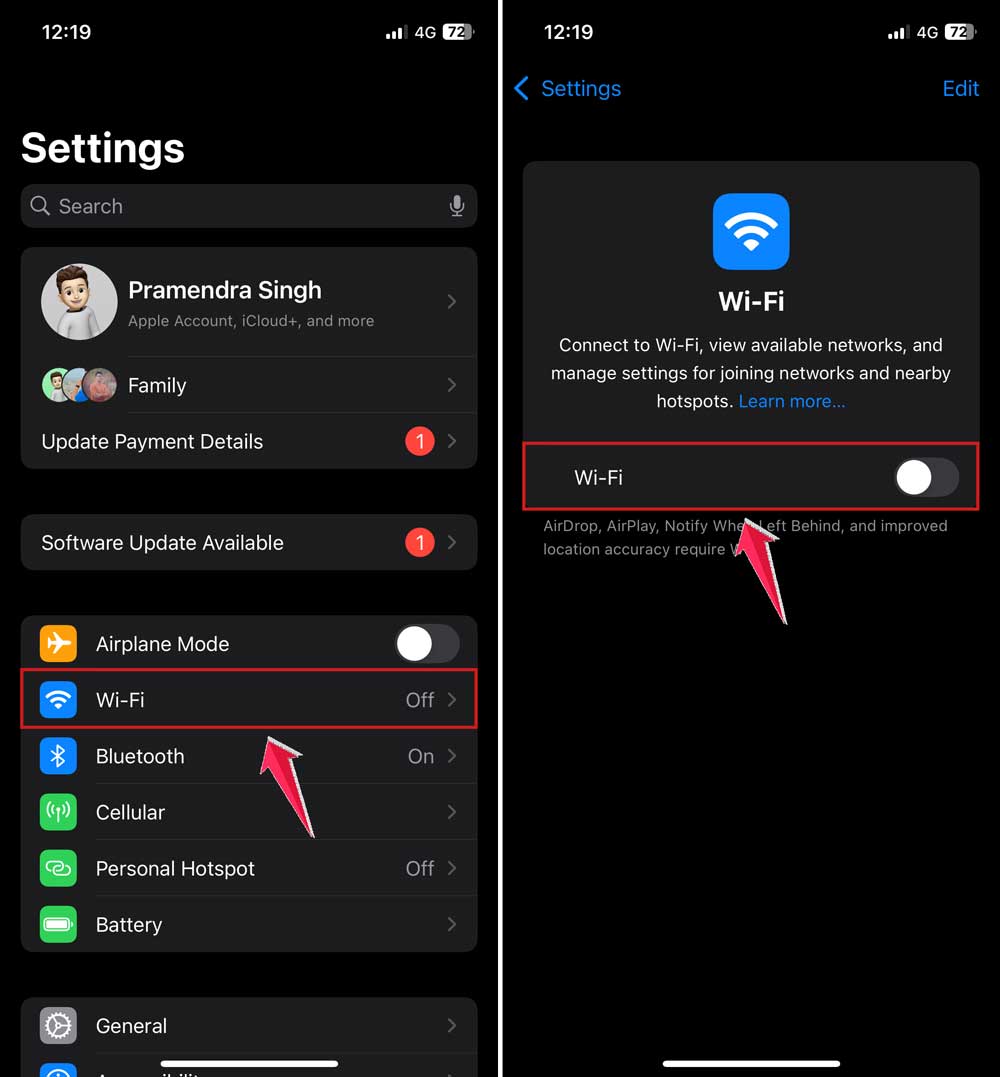
- You can also restart your router if you’re at home.
Once your connection is stable, try loading the file again.
#2. Check your iCloud storage
If your iCloud is nearly full, it won’t sync new files. Let’s check how much space you have left.
- Open Settings and tap your name at the top.
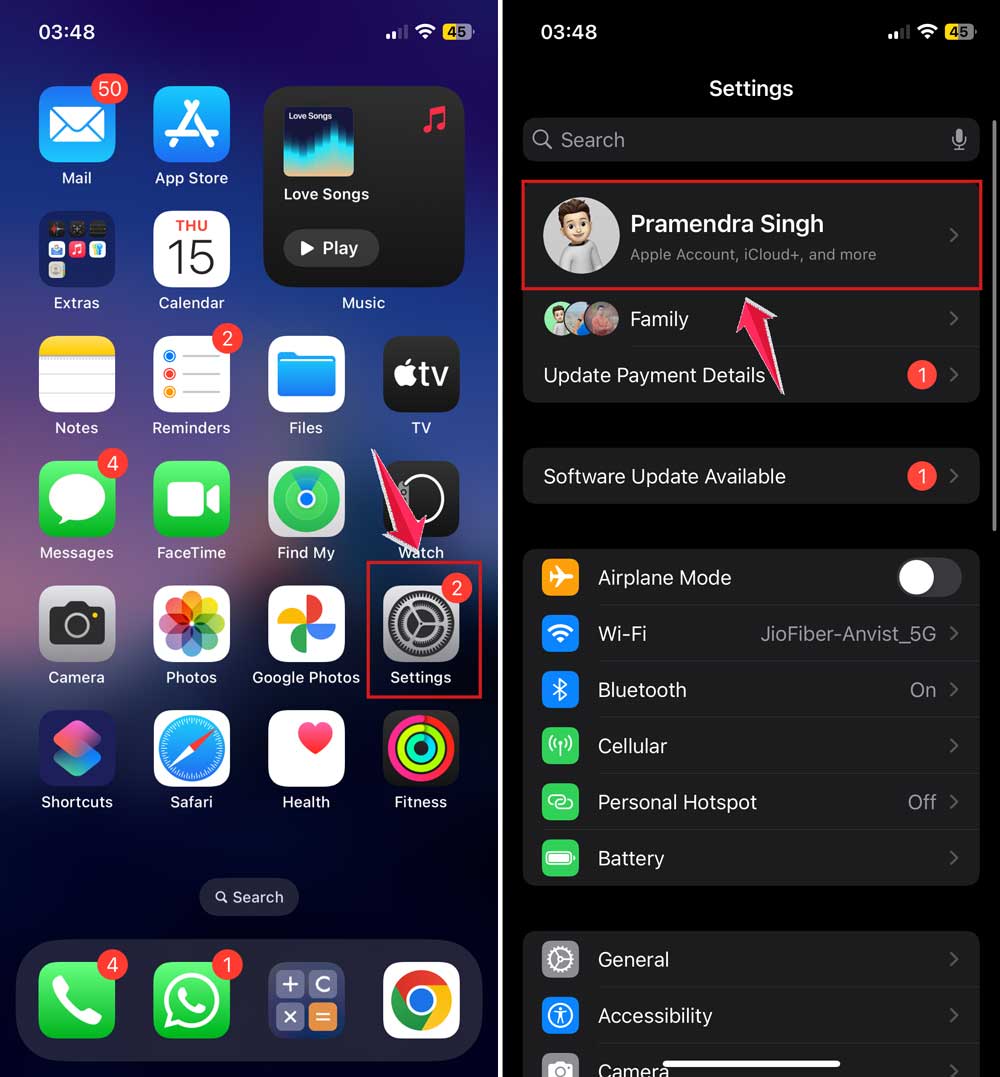
- Tap iCloud and look at the storage bar.
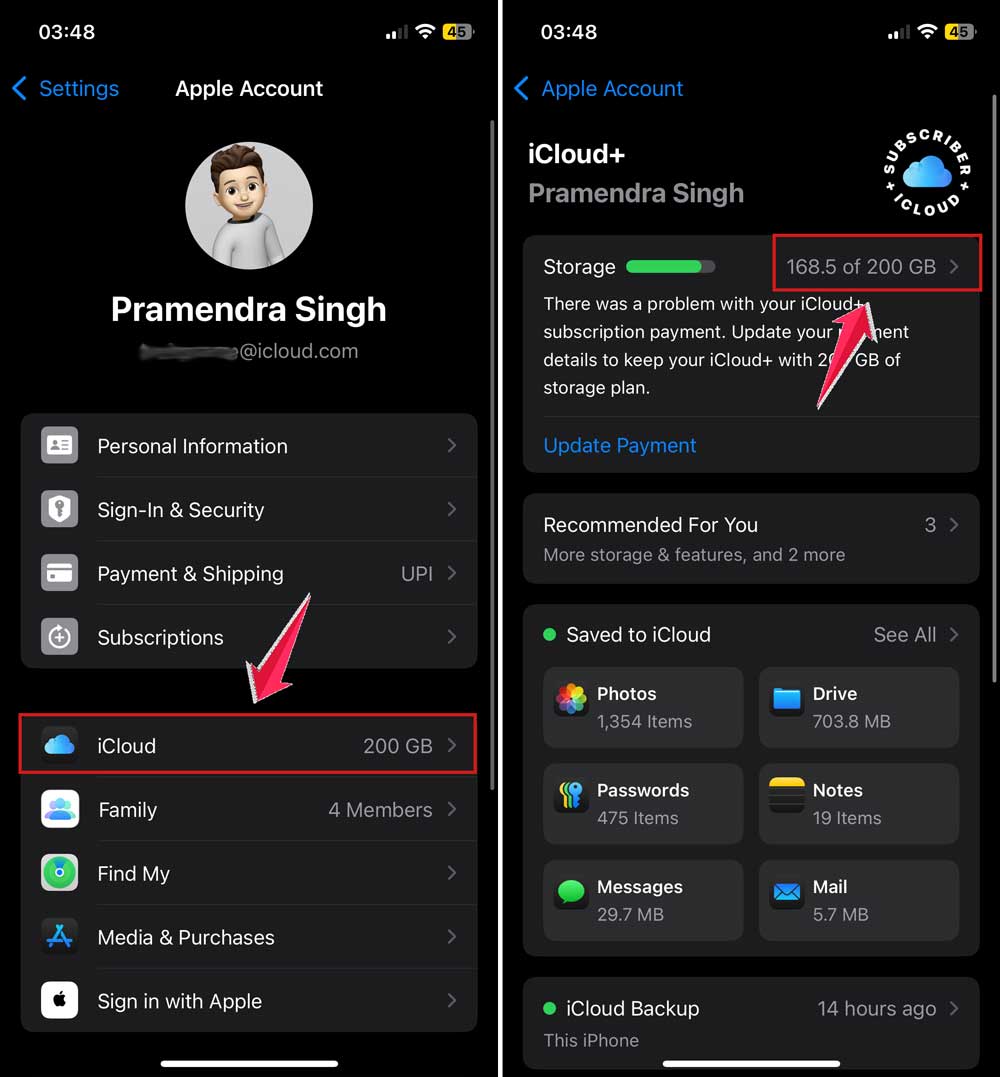
If you’re almost out of space, delete unused backups, old photos, or documents. Or you can upgrade to a bigger plan if needed.
#3. Update your software and apps
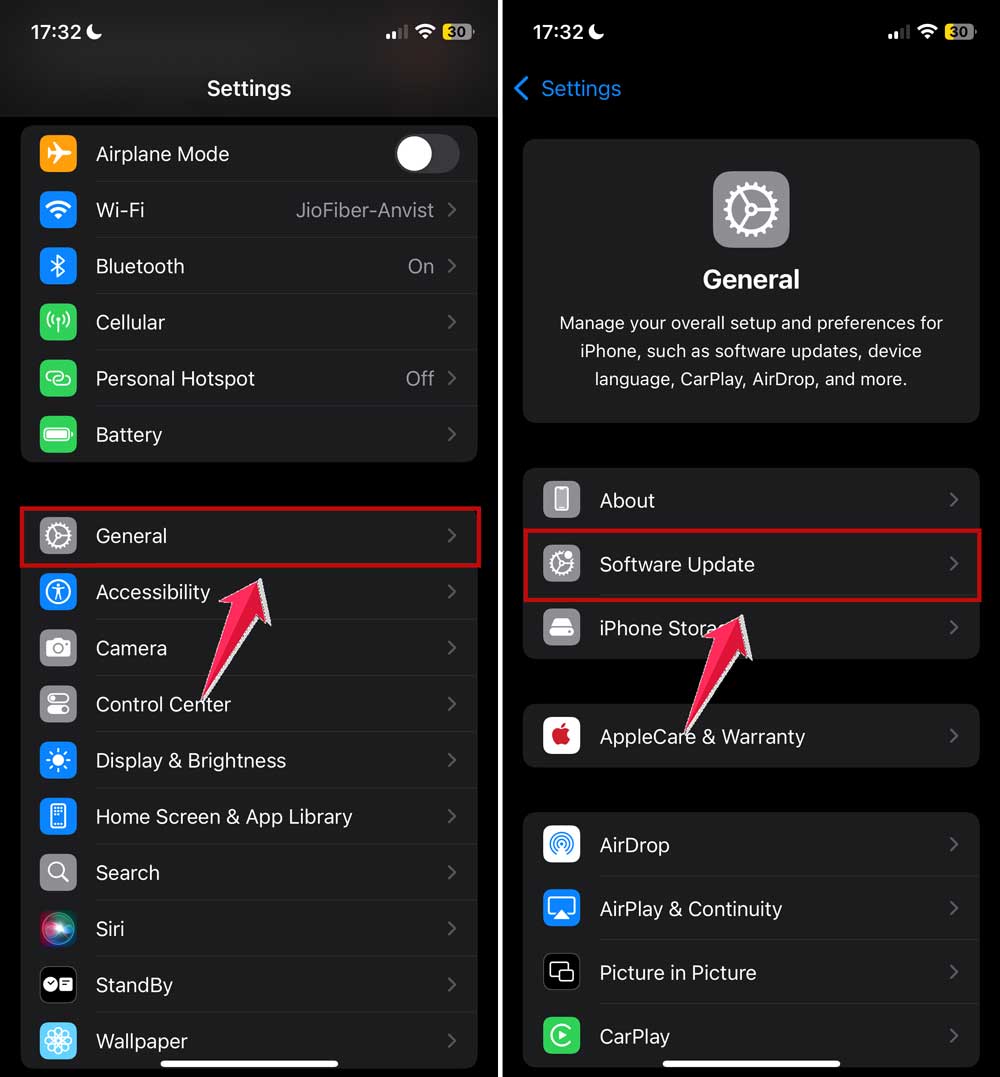
Outdated apps and system software can block syncing. Let’s make sure everything’s current.
- Go to Settings > General > Software Update. Install any available updates.
- Then open the App Store and update all your apps.
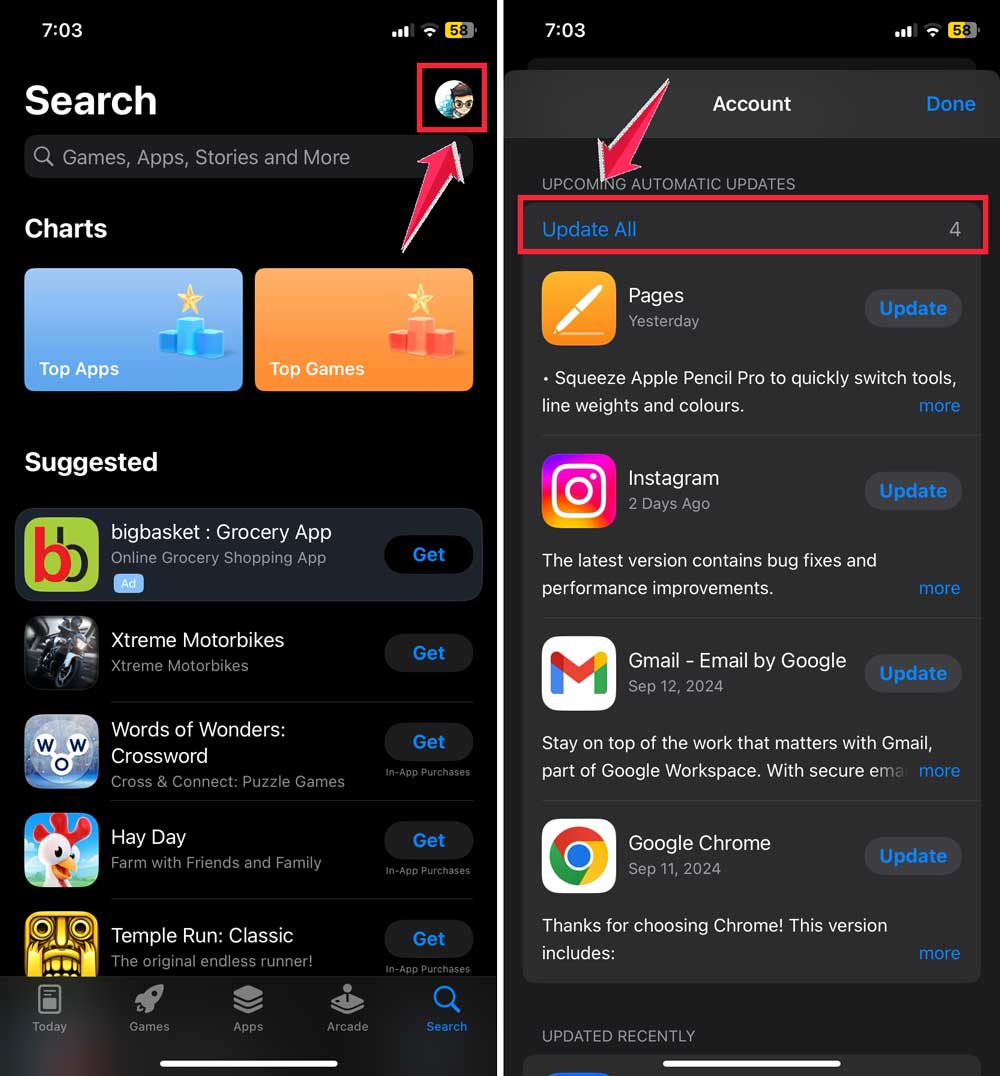
Once done, try accessing your files again. Updates often fix invisible bugs that cause issues like this.
#4. Make sure iCloud Drive is turned on
This is a simple setting, but it can make or break file syncing. Let’s double-check it.
- Go to Settings and tap your name at the top.
- Select iCloud.
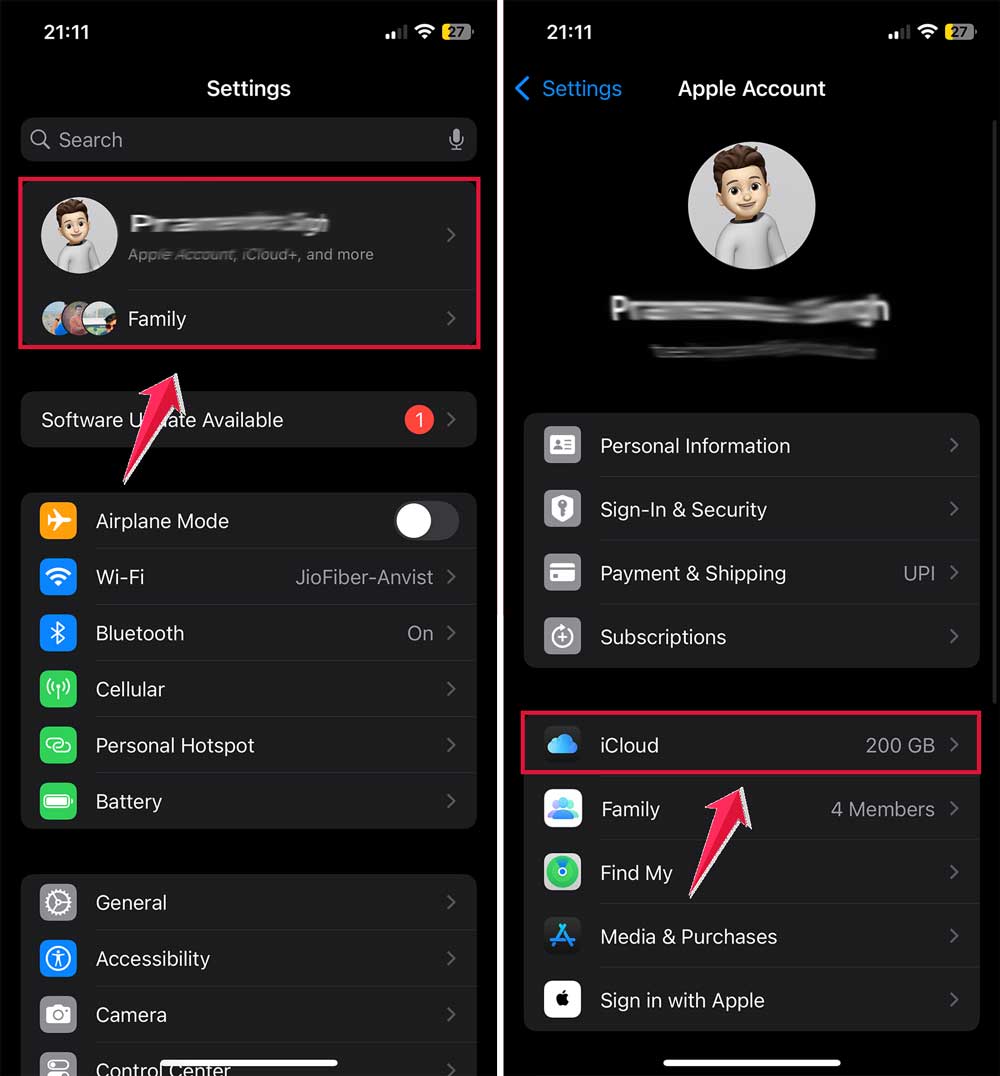
- Then iCloud Drive.
- Make sure the toggle is turned on.
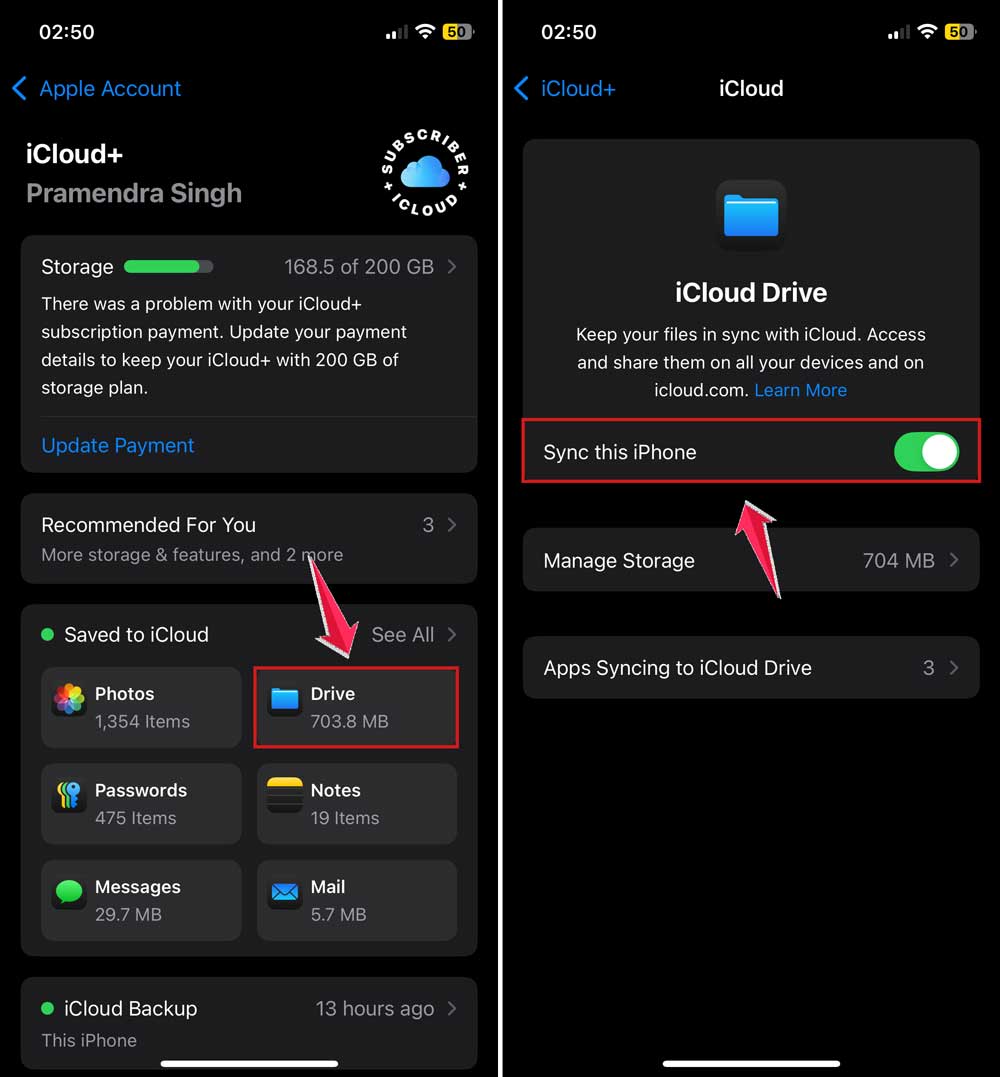
If it was already on, try turning it off and back on. This refresh might help files sync again.
#5. Sign out of iCloud and sign back in
This is like giving iCloud a fresh start. It can solve hidden syncing issues.
- Go to Settings and tap your name.
- Scroll down and tap Sign Out.

- After signing out, restart your device and sign back in with your Apple ID.
Give it a few minutes after signing back in. Then check if your files are loading.
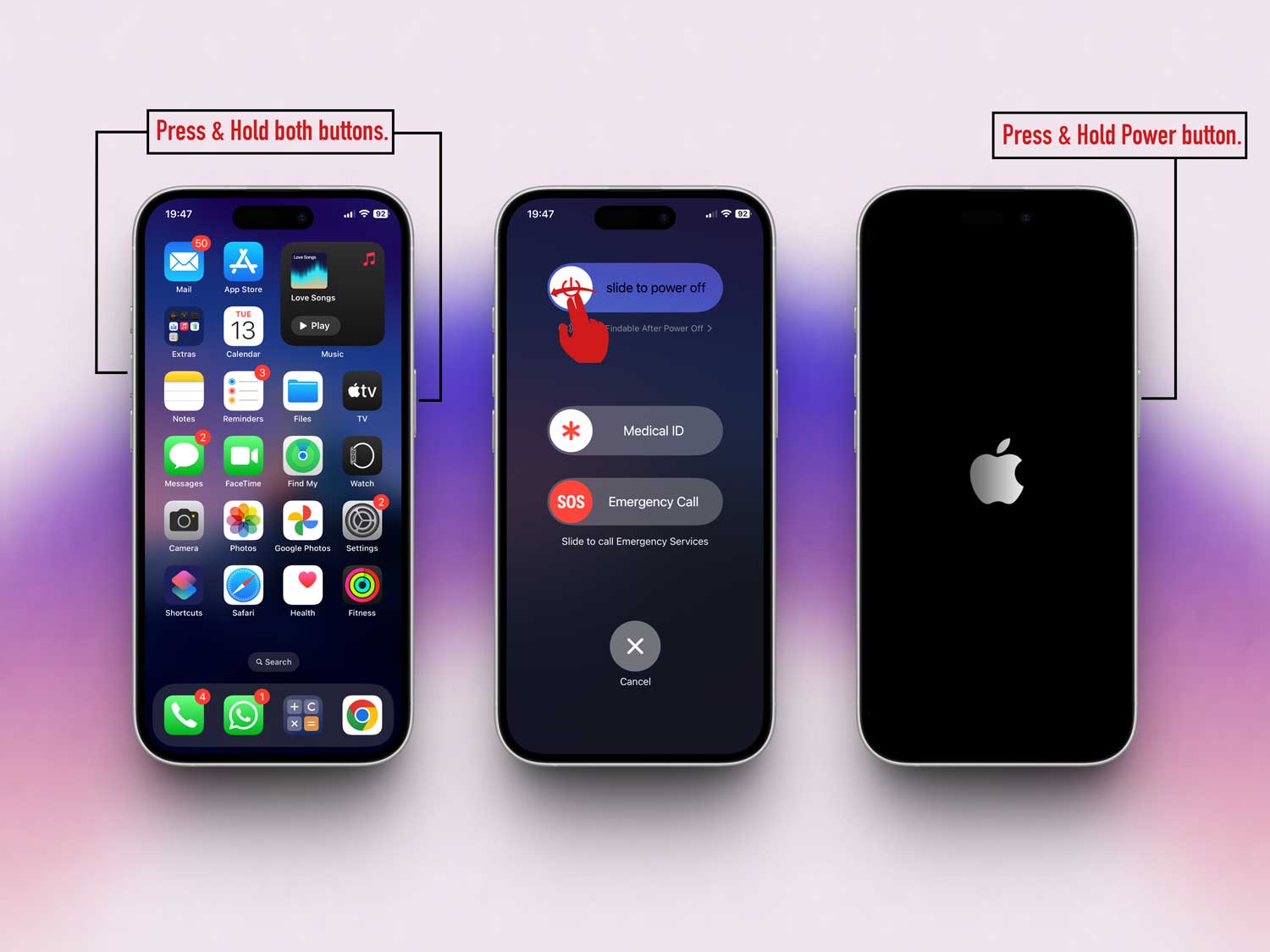
#6. Restart your device
Sometimes, your phone just needs a quick break. Restart it and see if that clears up the issue. It helps more than you’d think.
#7. Clear Safari cache
If you’re using Safari and files aren’t loading, the browser cache might be the problem.
- Go to Settings > Apps.
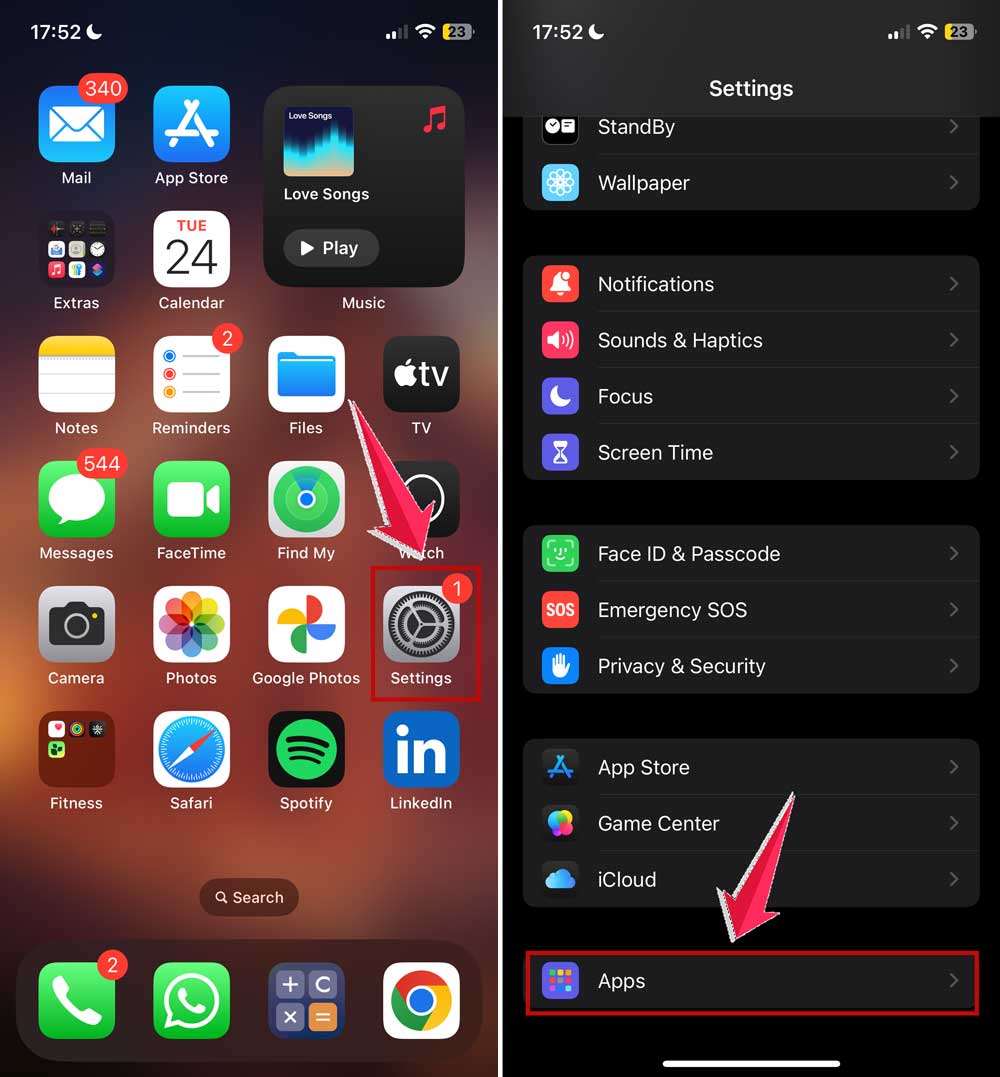
- Tap on Safari.
- Tap Clear History and Website Data.

This gives Safari a clean slate and might help files load properly.
#8. Try another browser or app
If Safari’s being stubborn, open the file in a different browser like Chrome.
Also, try opening the file in another app if possible. Sometimes, it’s not iCloud. It’s the app.
#9. Check for too many open tabs
Got a lot of Safari tabs open? That can slow things down. Close a few and refresh the page. Less clutter helps everything run smoother.
#10. Close apps running in the background
If too many apps are open, your phone might be overwhelmed. Swipe up and close apps you aren’t using. Then try loading your iCloud file again.
#11. Reset network settings
This one’s a little more advanced, but it can help. Just remember, it will erase saved Wi-Fi passwords.
- Go to Settings > General > Transfer or Reset iPhone.

- Tap Reset > Reset Network Settings.

After your phone restarts, reconnect to Wi-Fi and try again.
#12. Refresh iCloud Drive manually
Still no luck? Open the Files app, go to iCloud Drive, and swipe down to refresh. This can force a sync and bring your files back into view.
The Takeaway
Alright, let’s wrap this up. When iCloud files don’t show up in Safari or your apps, it can feel like a big problem.
But most of the time, it’s something small, like a weak internet connection, full storage, or a setting that needs a quick check.
We’ve gone over a bunch of ways to fix it. From checking your network to refreshing iCloud Drive, these steps are simple but powerful.
You don’t need to be a tech expert. You just need to know where to look.
So take a deep breath, try these fixes, and see which one works for you.
And hey, if you’ve got a tip that helped you. Or if something’s still bugging you. Drop a comment below. I’d love to hear how it went!