Let’s be real. Waking up to that “iCloud Backup Failed” message every morning isn’t just annoying, it’s stressful.
You expect your iPhone to quietly back up your stuff while you sleep, right?
But instead, it’s like your phone is saying, “Nope, not tonight.” And that’s frustrating.
So, why does this keep happening? Well, there are a few usual suspects. Maybe your internet connection isn’t strong enough.
Or maybe your iCloud storage is full.
Sometimes, it’s a software bug or just your iPhone needing a little reset. Whatever the reason, one thing’s clear. You want it fixed.
Backing up to iCloud is important. It saves your photos, messages, contacts, app data, and more.
If anything ever happens to your iPhone. For example, if it gets lost, breaks, or just stops working, you’ll be glad you had a backup.
That’s why this issue matters. No one wants to lose their memories or start all over from scratch.
But don’t stress. We’re going to walk through simple steps to fix this once and for all.
You don’t need to be a tech expert. Just follow along, and you’ll get your iCloud backups working again in no time.
What causes iCloud backups to keep failing?
Let’s figure out what’s stopping your iPhone from backing up. These are the most common reasons.
And the good news is, most of them are easy to fix.
#1: Your internet connection isn’t strong enough
Your iPhone needs a stable Wi-Fi connection to back up to iCloud. If your Wi-Fi keeps disconnecting or the signal is weak, the backup might not finish.
Your phone won’t use mobile data for backups. It sticks to Wi-Fi.
#2: Your iCloud storage is full
This one is super common. If you’ve used up your free 5GB or whatever plan you’re on, there’s no room for a new backup.
And when there’s no space, the backup fails. Simple as that.
#3: Your iPhone needs a software update
Running an outdated iOS version can cause weird issues, including backup problems. Apple regularly fixes bugs, so updating your phone might solve the problem right away.
#4: There’s a glitch or bug
Sometimes, your phone just acts up. A small glitch can stop the backup process. Maybe it needs a restart. Maybe it needs a little reset.
Either way, don’t worry. It’s not a big deal.
Alright, now that we know what might be going on, let’s fix it.
How to fix iCloud backup fails every night
Let’s go step by step. These fixes are easy, and I’ll guide you through each one.
#1: Get your internet connection in check
Your backup needs good Wi-Fi. If your connection is weak or keeps dropping, your iPhone won’t back up.
Here’s what you can do:
- Make sure your phone is connected to Wi-Fi, not mobile data.
- Restart your Wi-Fi router to refresh the connection.
- Try moving closer to the router while sleeping or backing up.
#2: Make space in iCloud
If your iCloud storage is full, backups won’t work. Let’s check your usage and clear what you don’t need.
Here’s how:
- Go to Settings > [Your Name] > iCloud.
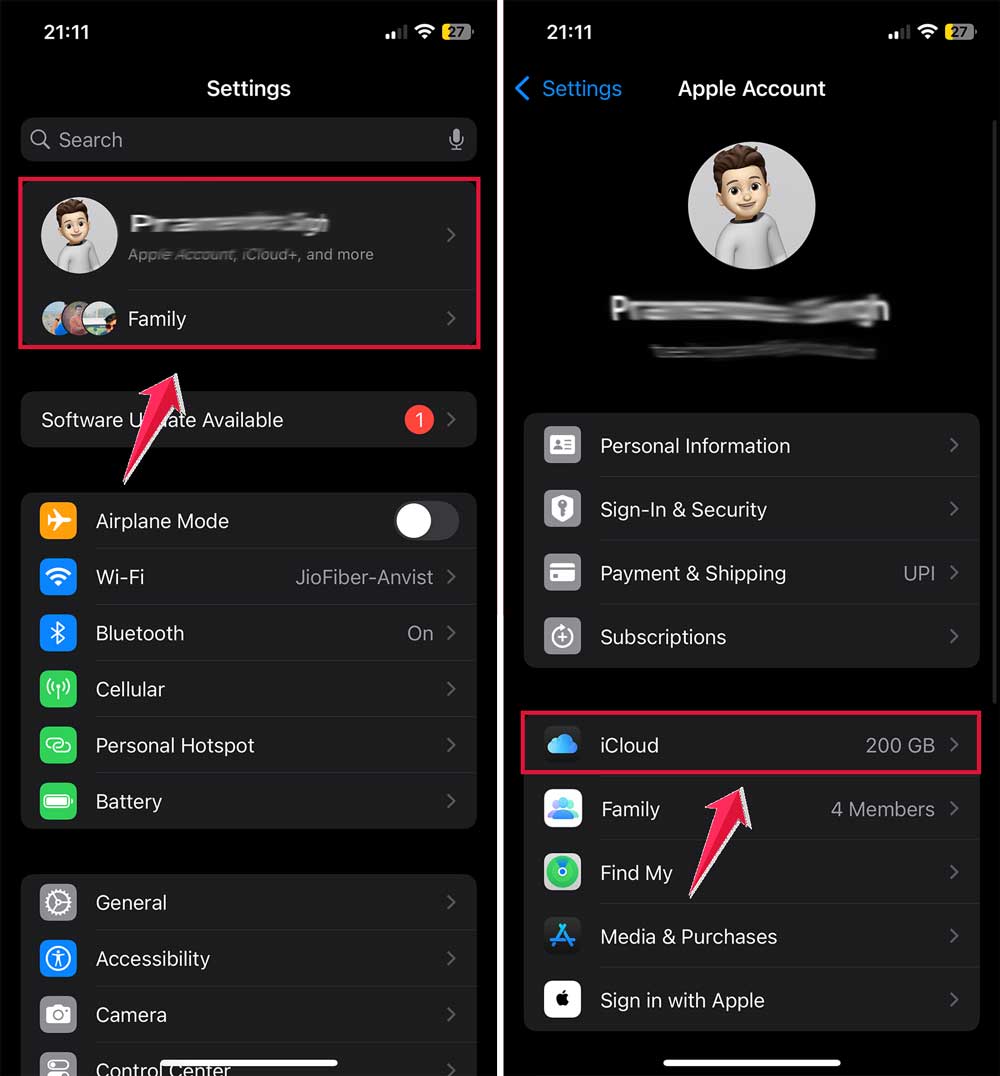
- Tap Manage Storage or iCloud Storage.
- See what’s taking up space. Old backups, photos, app data?
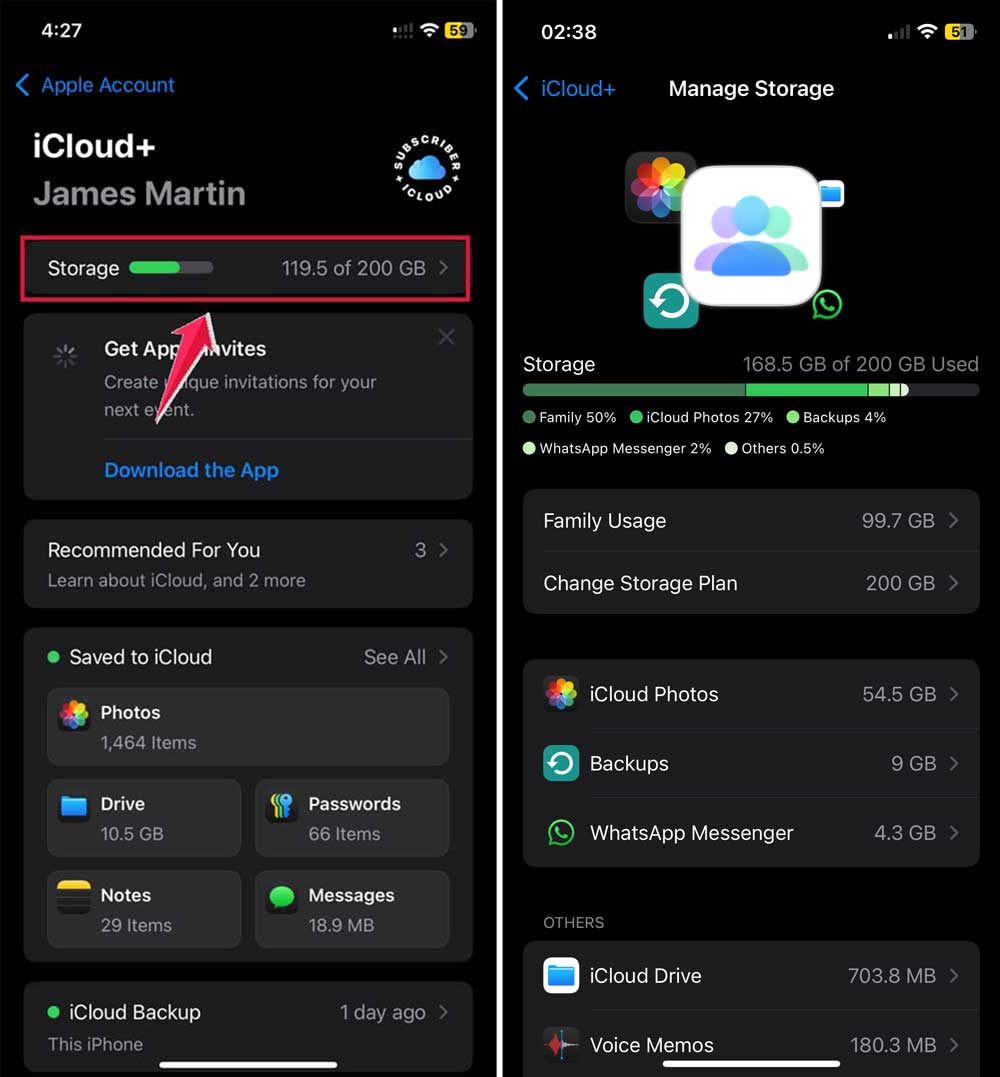
- Delete anything you don’t need.
- Or upgrade your iCloud storage plan for more space.
#3: Update your iOS
Updating your software can clear out bugs that stop backups.
To update:
- Go to Settings > General.

- Tap Software Update.
- If there’s an update available, tap Update Now.
- Keep your phone plugged in and on Wi-Fi during the update.

#4: Reset network settings
Still having Wi-Fi issues? This resets all your network connections.
Heads up. This will remove saved Wi-Fi passwords.
To reset:
- Go to Settings > General > Transfer or Reset iPhone.

- Tap on Reset.
- Tap Reset Network Settings.
- Reconnect to your Wi-Fi after the reset.

#5: Free up space on your iPhone
Low storage on your iPhone can also mess with backups.
Here’s how to check:
- Go to Settings > General > iPhone Storage.
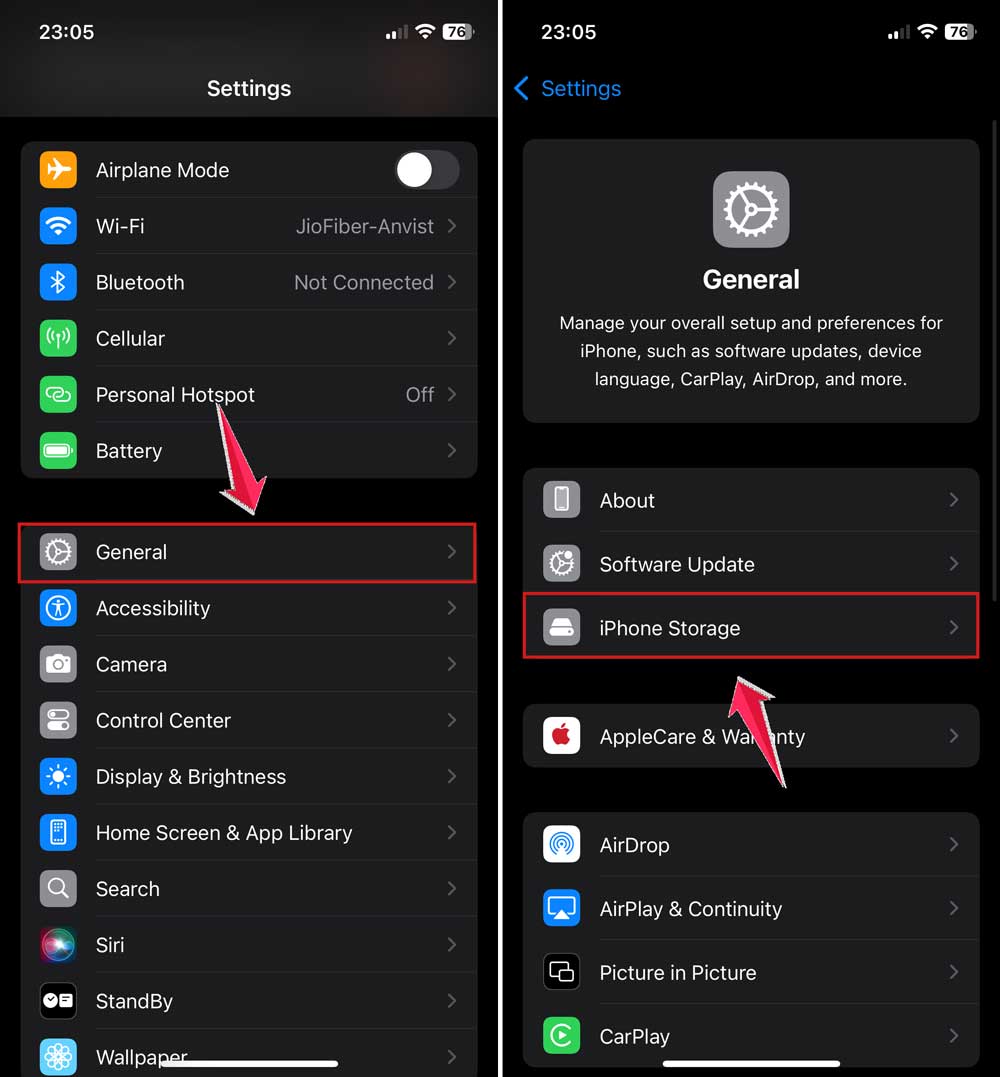
- Delete apps, photos, or files you don’t need.
- Offload unused apps if needed.
#6: Sign out and sign back into iCloud
Sometimes, logging out and back in gives your phone a fresh start.
To do this:
- Go to Settings > [Your Name].
- Scroll down and tap Sign Out.

- Sign back in using your Apple ID and password.
- Make sure iCloud Backup is turned back on after signing in.
Extra tips to make sure your iCloud backup works
Let’s go over a few extra things that help keep your iCloud backup smooth every night.
#1: Keep your iPhone plugged in overnight
Backups usually happen when your phone is charging, connected to Wi-Fi, and locked. So make sure you plug it in before bed.
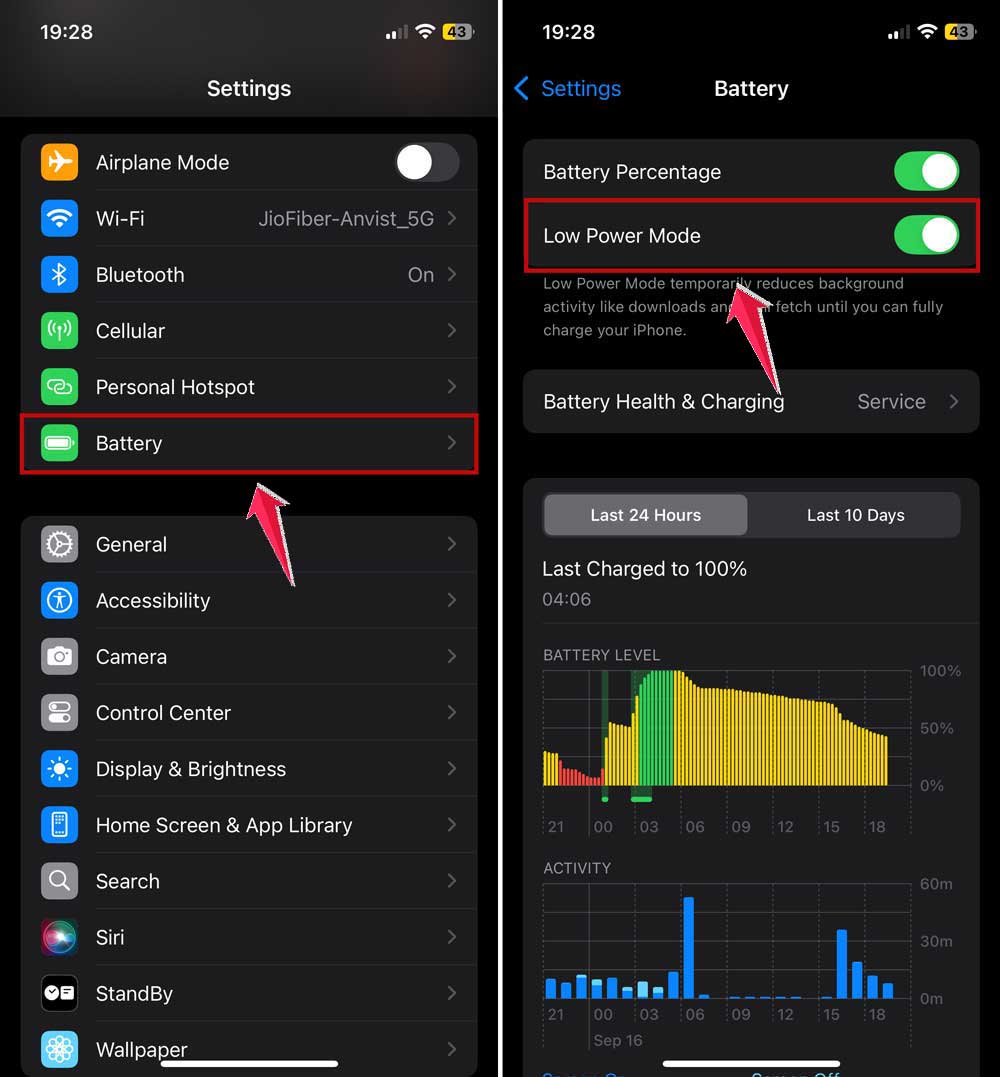
#2: Turn off Low Power Mode
Low Power Mode can pause background tasks, including backups.
To turn it off:
- Go to Settings > Battery.
- If Low Power Mode is on, tap the switch to turn it off.
#3: Make sure iCloud Backup is turned on
It sounds simple, but sometimes it’s turned off by accident.
To check:
- Go to Settings > [Your Name] > iCloud.
- Tap on iCloud Backup.
- Make sure it’s switched on.

#4: Don’t pause your backups
If you manually paused a backup, remember to turn it back on. Otherwise, your iPhone won’t try again.
#5: Keep your apps updated
Outdated apps can sometimes interfere with system processes like backups. Just open the App Store and update your apps when needed.
#6: Close apps before bed
Too many apps running in the background can slow down your phone. Close the ones you don’t need before going to sleep.
#7: Check your backup settings
You might be backing up too much stuff. Go into your iCloud settings and review what’s being backed up.
Turn off anything you don’t really need. Like old apps or large files, you don’t care about.
#8: Review your screen time or downtime settings
If you’ve set downtime schedules, make sure they aren’t blocking backups. Backups happen when your phone is idle, so let it stay that way.
The Takeaway
So, yeah. Those failed iCloud backups? They’re annoying. But now you know what’s causing them and, more importantly, how to fix them.
Whether it’s a Wi-Fi issue, full iCloud storage, or just a simple glitch, most of the time, you can fix it yourself in just a few minutes.
Start by checking your internet connection and iCloud storage.
Then move on to the other steps if needed, like updating your iOS or signing out of iCloud. These simple things can make a huge difference.
And don’t forget the little stuff. Keep your phone plugged in, turn off Low Power Mode, and make sure backups are even turned on.
These small habits can make sure your iPhone does its job while you sleep.
At the end of the day, your iCloud backup is your safety net. You don’t want to lose your photos, contacts, or important stuff just because of a setting or glitch.
So take a few minutes, follow these steps, and get your backup working again.
Got a question, or did one of these tips work for you? Drop a comment below. I’d love to hear how it goes!