Ever encountered the frustrating message, “Face ID not working, move iPhone lower“? Whether it’s while wearing a mask or not, this issue is pretty common.
Face ID is designed to safeguard our most treasured data, like photos, texts, and secret notes. It ensures that only you can access your device with just a glance.
It’s a crucial feature for protecting sensitive information on your iPhone.
Despite its innovation, Face ID isn’t without its quirks. Sometimes it can get a little confused, especially with masks or under tricky lighting conditions.
Ready to learn more about Face ID and how to troubleshoot this? Let’s uncover the secrets to making Face ID work seamlessly for you!
Why Your iPhone’s Face ID Might Not Work
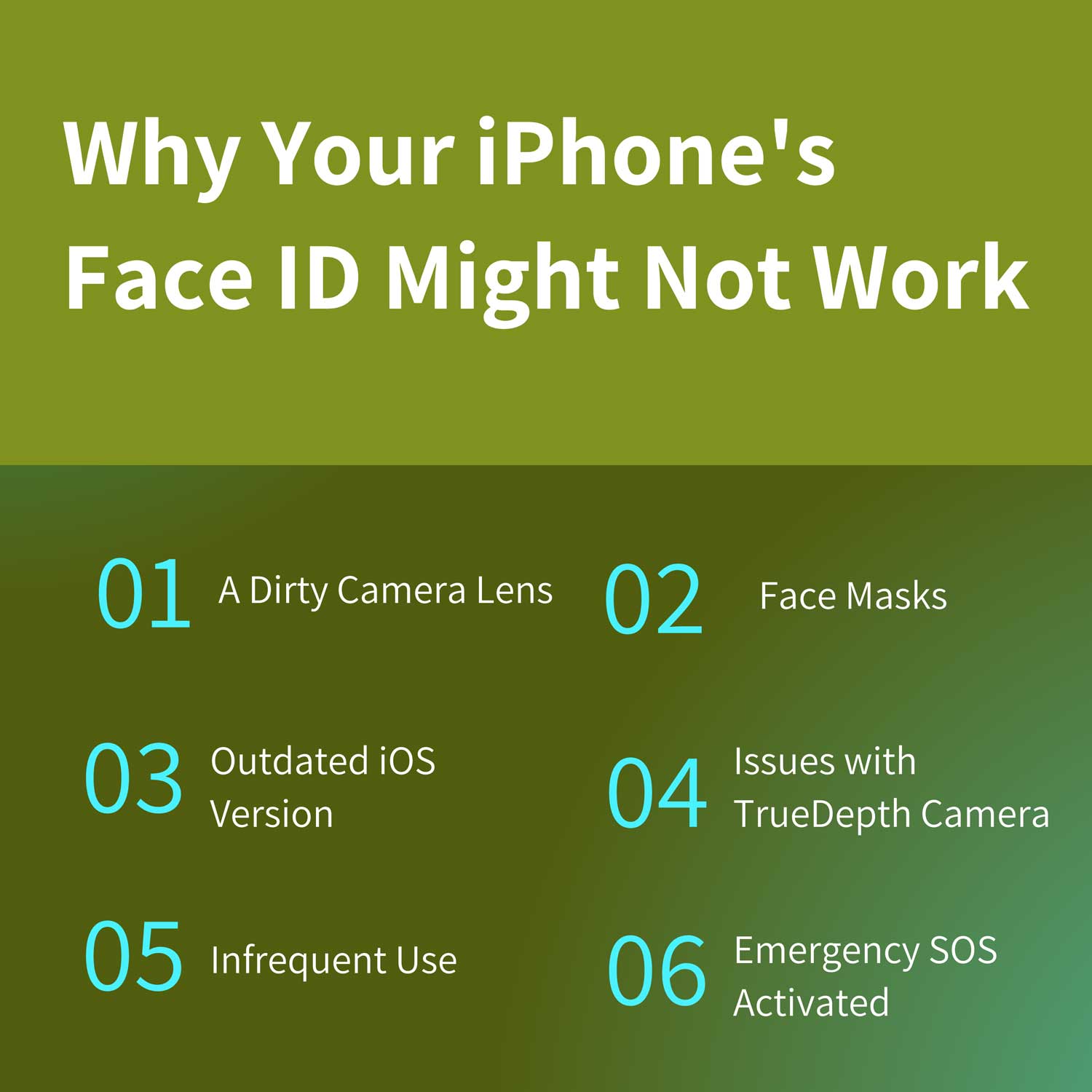
Ever wonder why sometimes your iPhone doesn’t recognize you? It’s all down to the harmony between iOS and the TrueDepth camera sensor.
But occasionally, things don’t line up perfectly, and Face ID can falter. Here’s a quick rundown of common issues that might disrupt Face ID:
- A Dirty Camera Lens: Just like a smudged window can obscure your view, a dirty camera lens can hinder your iPhone’s ability to see clearly. Keeping the lens clean is crucial for a functional Face ID.
- Face Masks: Masks can obscure part of your face, presenting a real challenge for Face ID, which relies on a full facial scan to verify your identity.
- Outdated iOS Version: Regular updates are essential. An outdated iOS might lack the latest fixes that keep Face ID running smoothly.
- Issues with TrueDepth Camera: The TrueDepth camera is key to Face ID’s functionality. If it’s damaged or malfunctioning, Face ID might not recognize you.
- Infrequent Use: Not using Face ID for an extended period might require a quick refresher for your device to recognize you again.
- Emergency SOS Activated: In an emergency, your iPhone prioritizes safety and disables Face ID to ensure quick access to emergency functions.
How to Fix Face ID Issues on Your iPhone?
Struggling with Face ID messages like “Move iPhone a little lower/higher”? No stress! Here’s how to troubleshoot and get things running smoothly:
1. Clean the Front-facing Sensors
First up, clean your iPhone’s front camera. It’s located in the notch at the top of your screen.
Just like cleaning foggy glasses, wiping away any grime or dust can do wonders. Try Face ID again after cleaning.
2. Reset Face ID
- Go to Settings.
- Select Face ID & Passcode.
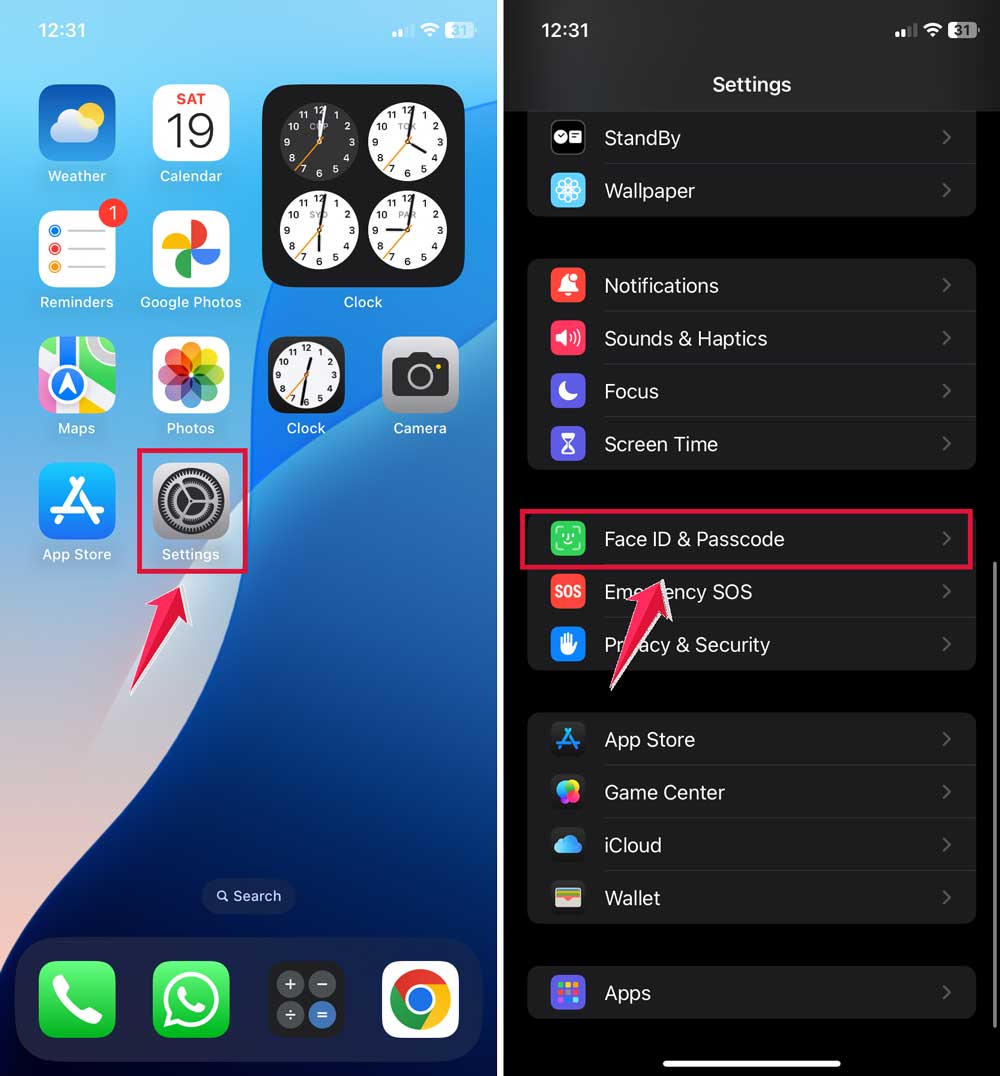
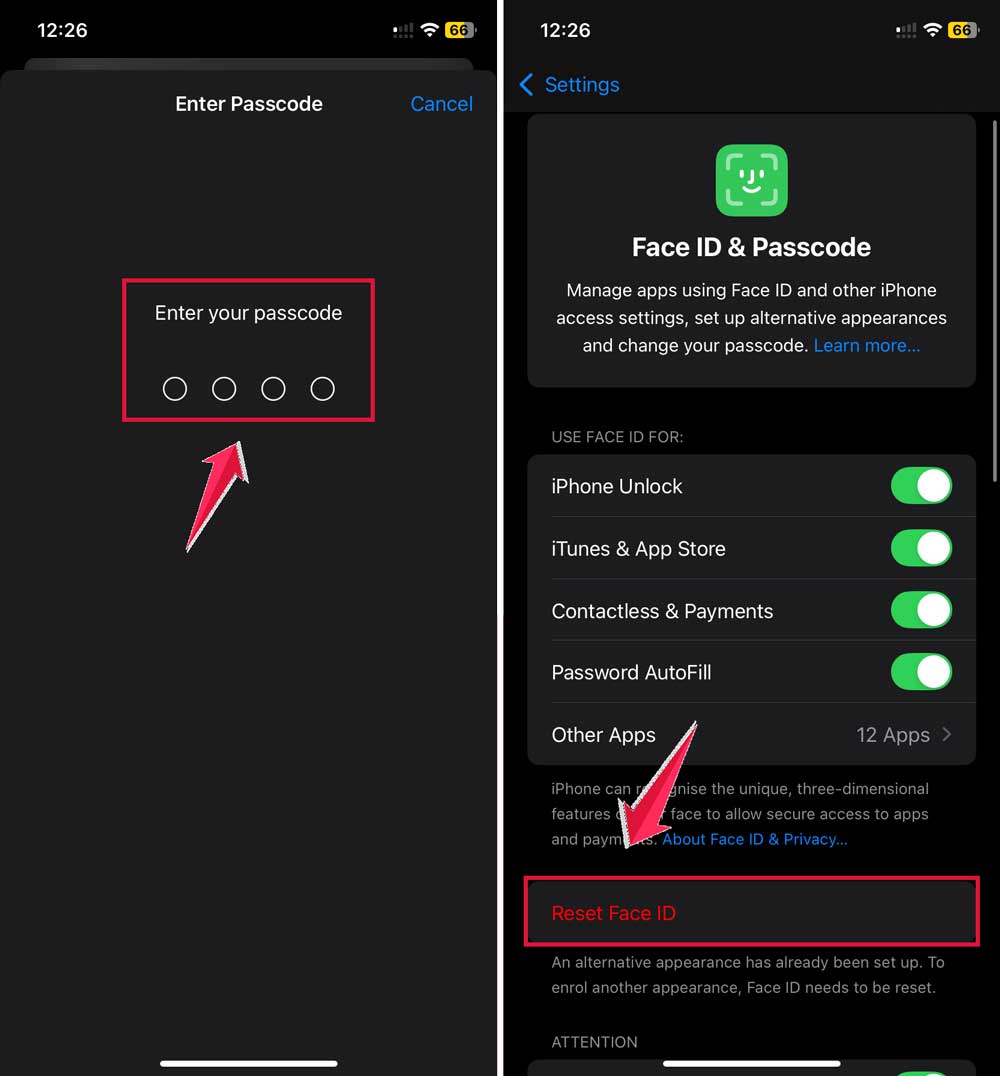
- Tap on Reset Face ID. This clears existing settings and allows you to set it up afresh.
- Restart your iPhone: Simply turn it off and then back on.
- Return to Face ID & Passcode and set up Face ID anew.
3. Update iOS
- Ensure your iPhone is connected to Wi-Fi and the battery is charged or plugged in.
- Navigate to Settings > General > Software Update.
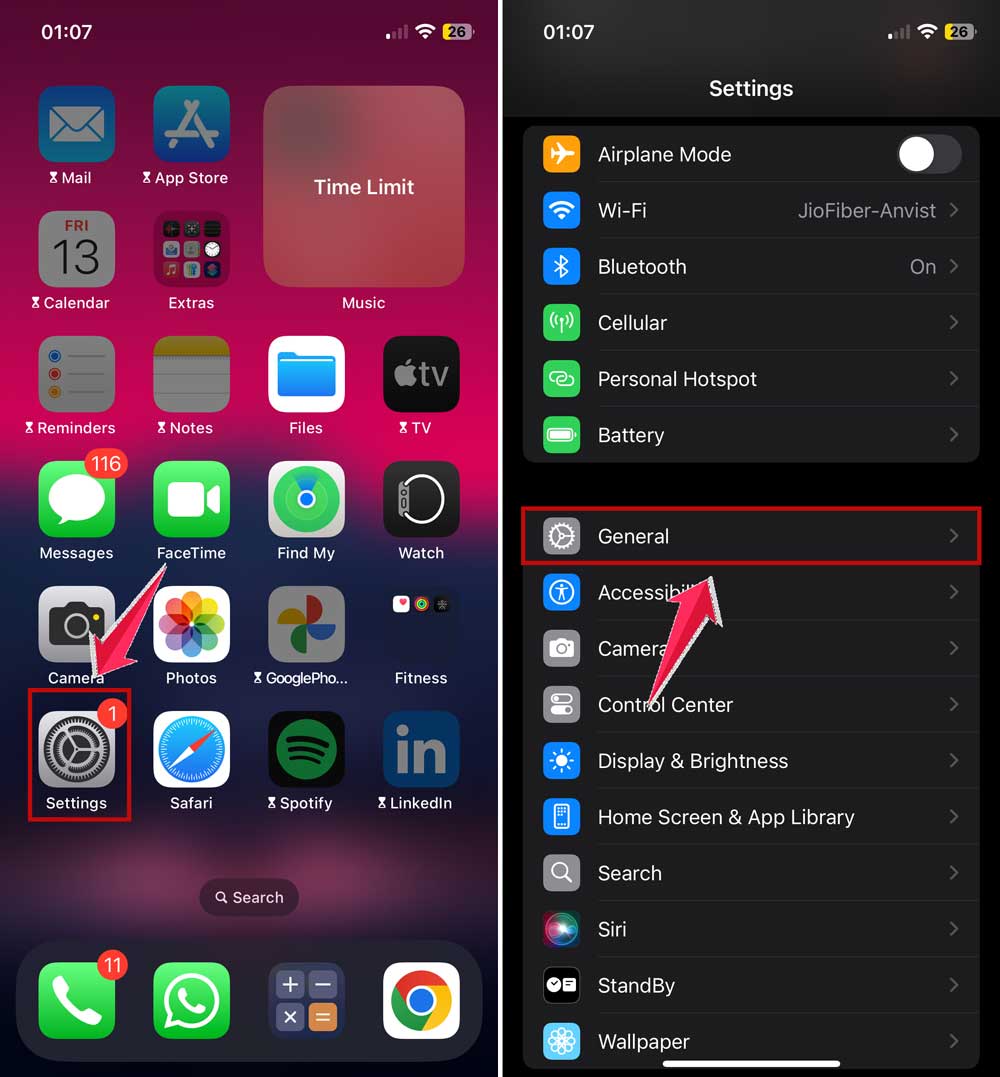
- If an update is available, select Download & Install. Updating your iOS can fix bugs affecting Face ID and potentially improve battery life.

4. Reset All iPhone Settings
For a comprehensive reset that might fix persistent Face ID issues, consider resetting all your iPhone settings.
This doesn’t delete your apps or data but restores settings to factory defaults, clearing any configurations that might be causing issues.
- Go to Settings > General.
- Scroll down and tap Transfer or Reset iPhone.

- Select Reset and choose Reset All Settings. Confirm your choice.

After the reset, you’ll need to set up Face ID again:
- Return to Settings.
- Navigate to Face ID & Passcode.
- Tap Set Up Face ID.
- Follow the prompts to re-register your face.

Try using Face ID after these steps to see if the issue has been resolved.
5. Factory Reset
If all else fails, a factory reset may be necessary. This will erase everything on your iPhone. Make sure to back up your data first!
- Open Settings and go to General.
- Scroll to Transfer or Reset iPhone.
- Tap Erase All Content and Settings and confirm.

Once your iPhone restarts, set it up as new, including Face ID:
- Open Settings.
- Go to Face ID & Passcode.
- Select Set Up Face ID.
- Follow the instructions to teach your iPhone to recognize you again.
This should ideally resolve any lingering Face ID issues. If you continue to experience problems, it may be time to contact Apple Support for further assistance.
Final Thoughts
While Face ID has become increasingly reliable, it’s not immune to occasional hiccups.
Fortunately, most issues with Face ID are minor and can be resolved with simple fixes.
If you’re still having trouble after trying these solutions, you might want to explore other security options, such as setting up a passcode or using Touch ID if available on your device.
Often, the problem is as straightforward as a dusty camera lens. So, the first step when you encounter Face ID troubles is to clean those front sensors thoroughly.
Also, ensure nothing is obscuring your face, such as a mask or scarf.
Did these tips help get your Face ID back in action? Or maybe you’ve discovered another effective solution?
Either way, we’d love to hear about it. Please share your experiences and tips in the comments below!