Ever tried opening a Google Doc on your iPad without Wi-Fi, and… nothing happens? Yeah, I know. That moment when you’re ready to get some work done on the go, but your doc just won’t load—it’s frustrating.
You tap, you wait, and still, nothing. So let’s talk about what’s going on and how you can fix it.
This usually happens for a few simple reasons. Maybe your Google Docs app or iPad software isn’t updated. Or maybe you didn’t turn on the offline feature in the app.
Sometimes, your iPad’s storage is full, or there’s a syncing issue with your Google account. Whatever the reason, one thing’s for sure—it’s not fun when you can’t access your files when you need them most.
Why does this even matter? Well, if you use your iPad for school or work, you probably rely on access to your documents at all times.
Whether you’re traveling, sitting in a waiting room, or just somewhere without Wi-Fi, you need your files to be ready. Waiting until you’re online again? That’s not always an option.
But don’t worry. I’ve got your back. We’re going to walk through this together—step by step—and get your iPad and Google Docs working offline like a charm. Let’s get started.
Why Google Docs Isn’t Working Offline on Your iPad
Alright, let’s break it down. If you’re stuck trying to open a doc offline and it’s just not working, here are the most common reasons why—and what you can do about them.
#1: Your App or iPad Software Might Be Outdated
Let’s be honest—tech likes to stay fresh. If your Google Docs app or your iPad’s software is outdated, things start to break.
Offline mode is one of those features that relies on everything being up to date.
So go ahead and check if there’s an update waiting. It only takes a few taps, and it could solve your issue right away.
Here’s how to update:
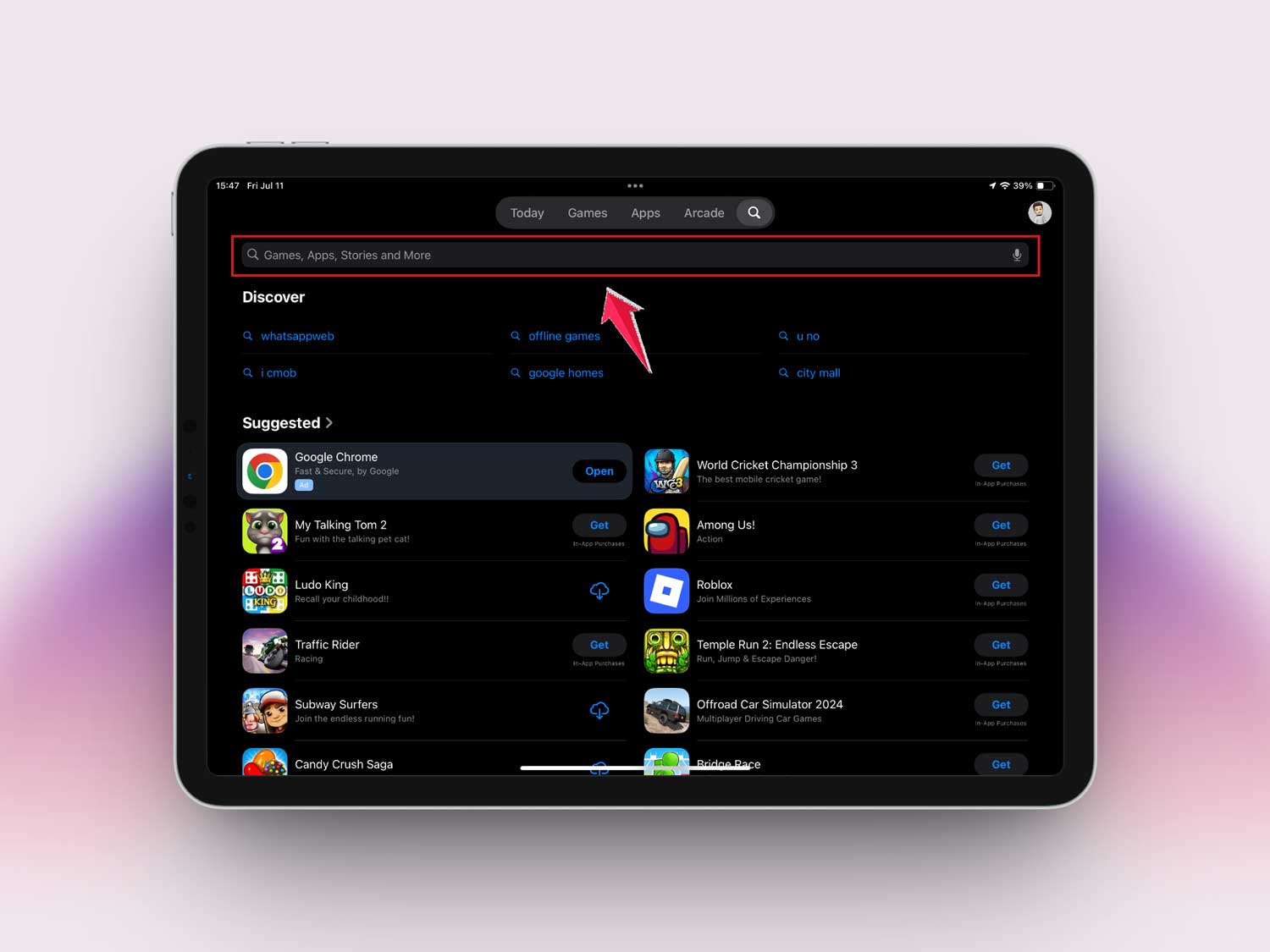
- Open the App Store on your iPad and search for Google Docs.
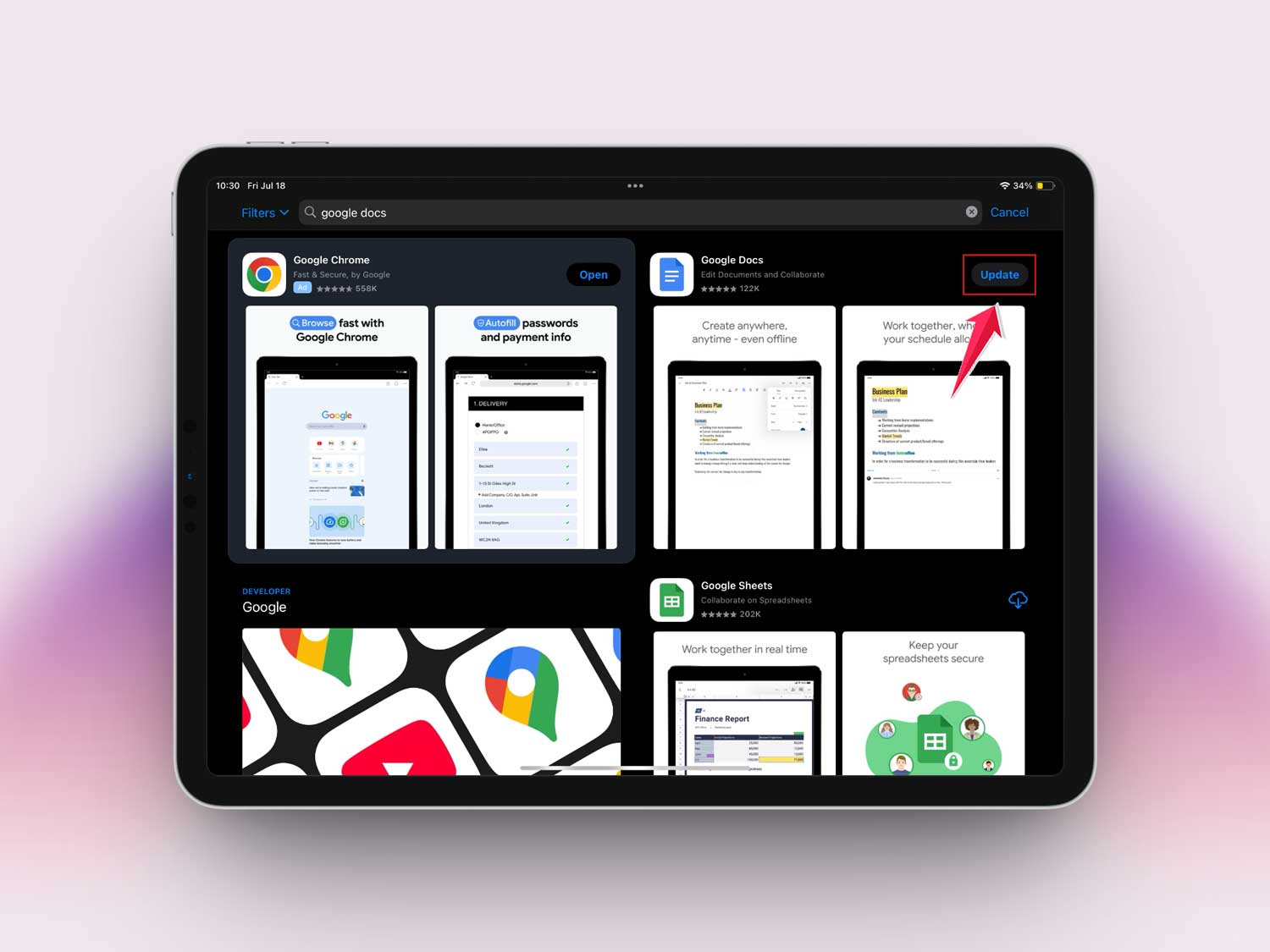
- Tap Update.
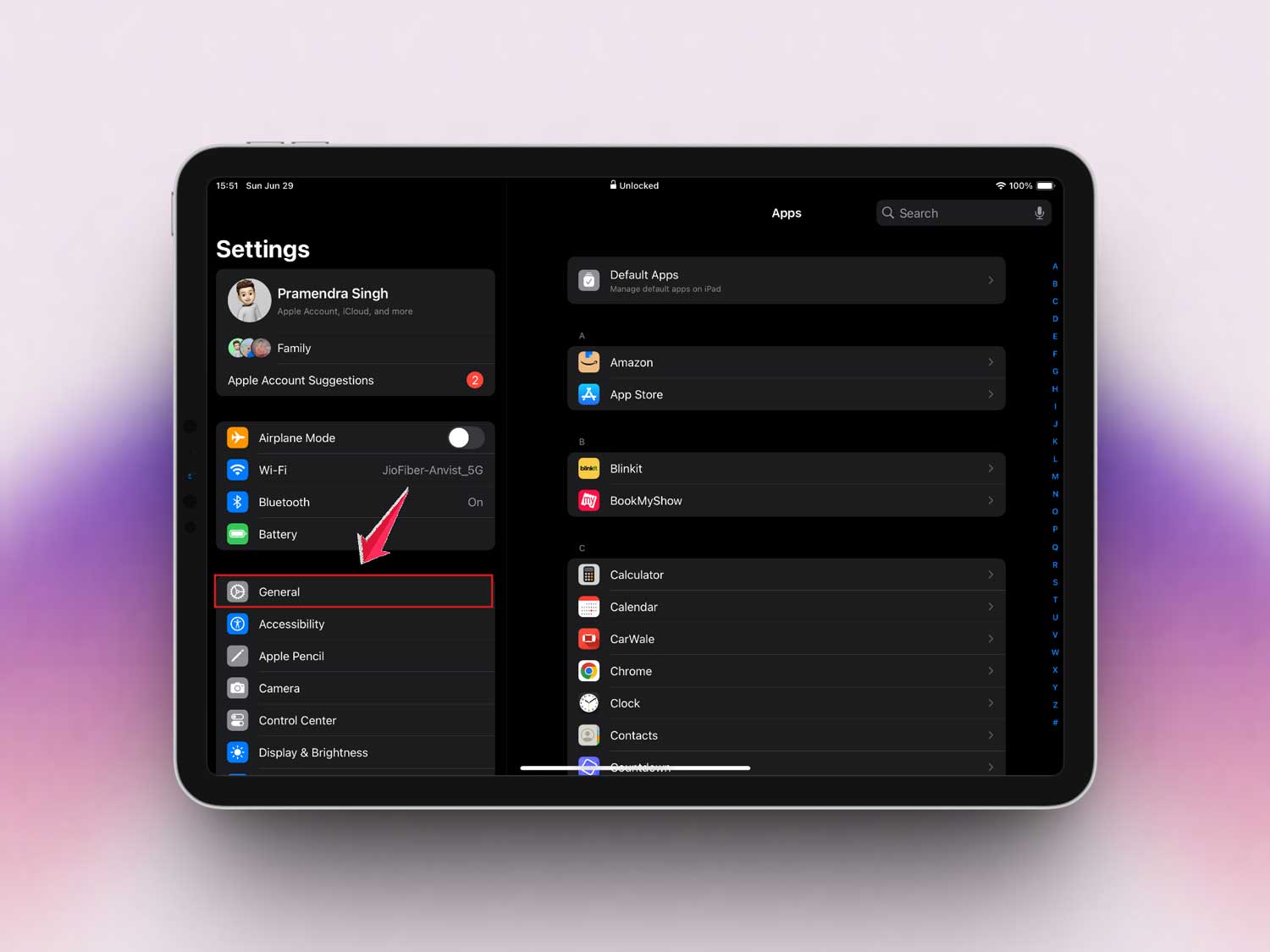
- Then go to Settings > General.
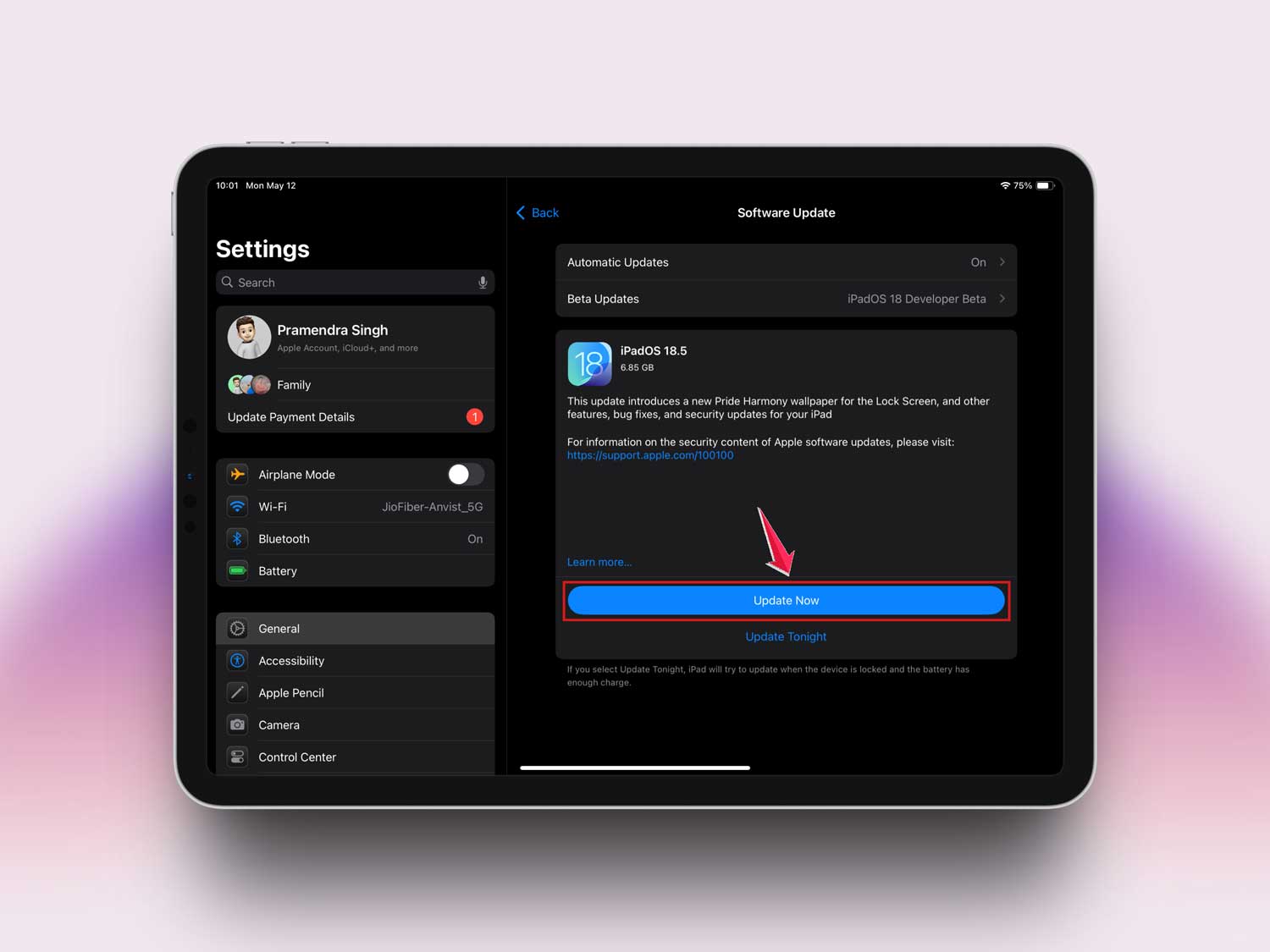
- Then tap on Software Update.

- If there’s a new iOS version, tap Update Now.
#2: You Haven’t Turned on Offline Access
This one’s easy to miss. Google Docs doesn’t automatically save your files for offline use. You have to flip the switch yourself.
If you haven’t done that yet, your docs just won’t show up when you’re not connected. Let’s fix that now.
To enable offline access:
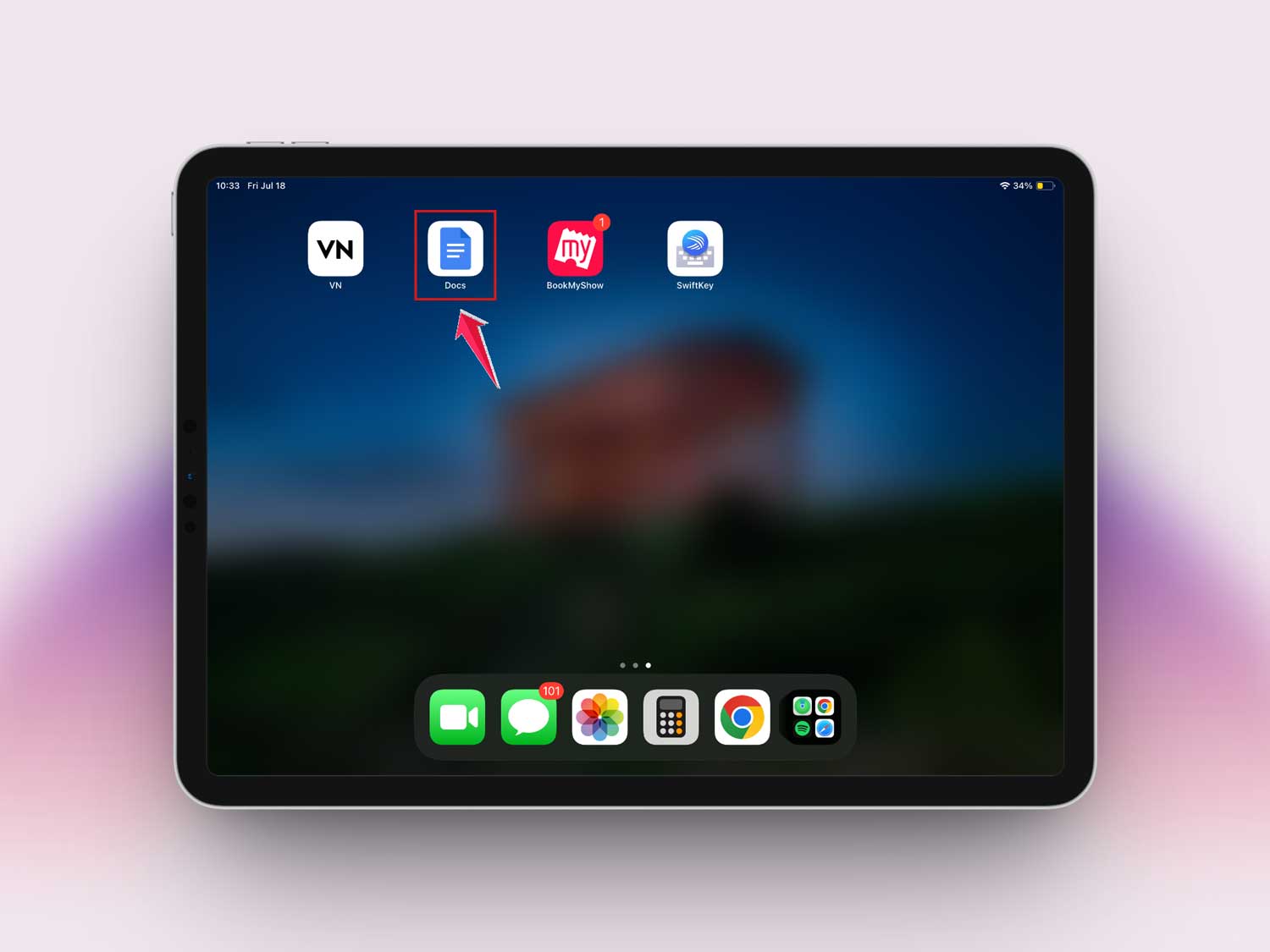
- Open the Google Docs app.
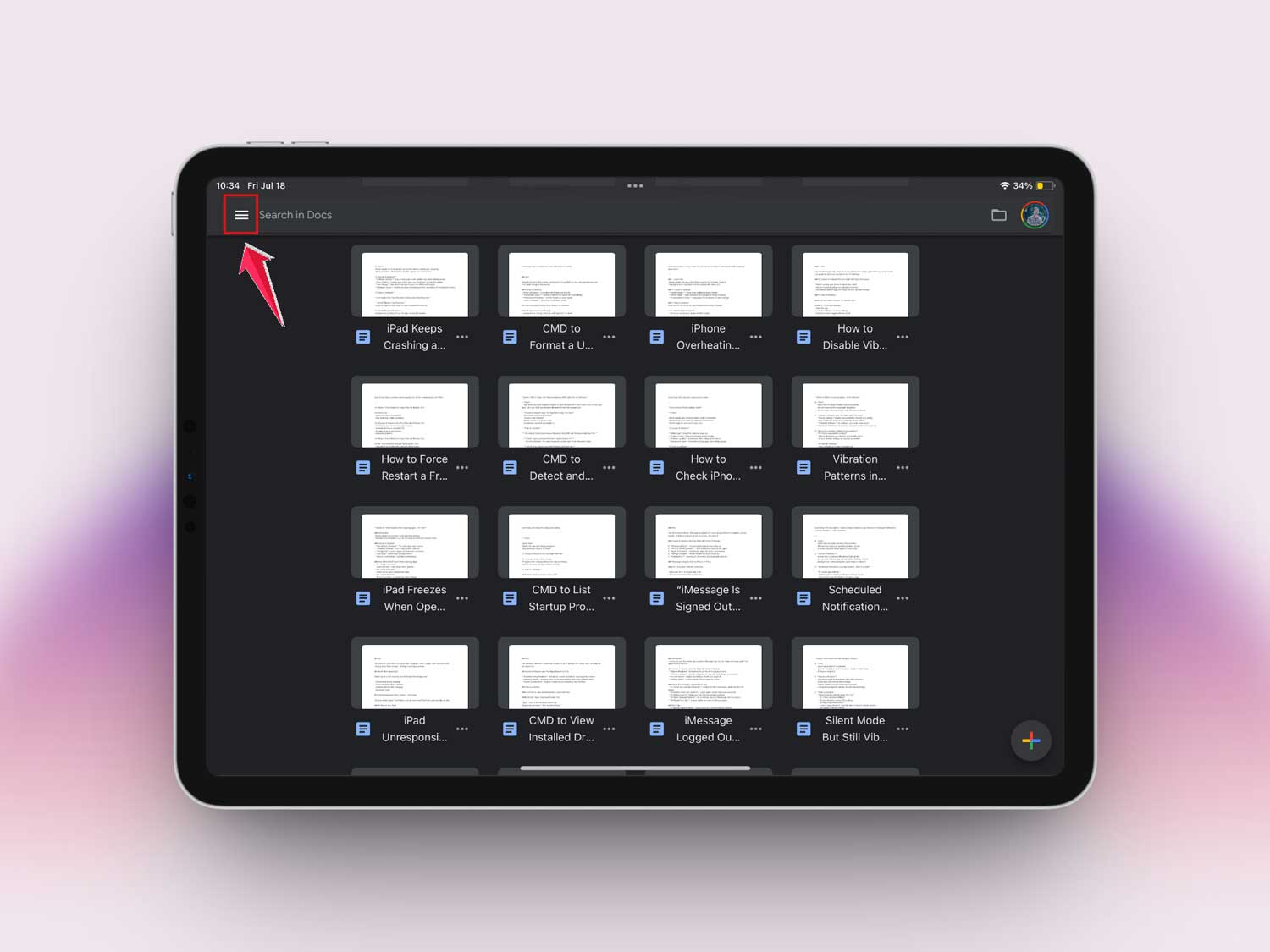
- Tap the three-line menu in the top-left corner.
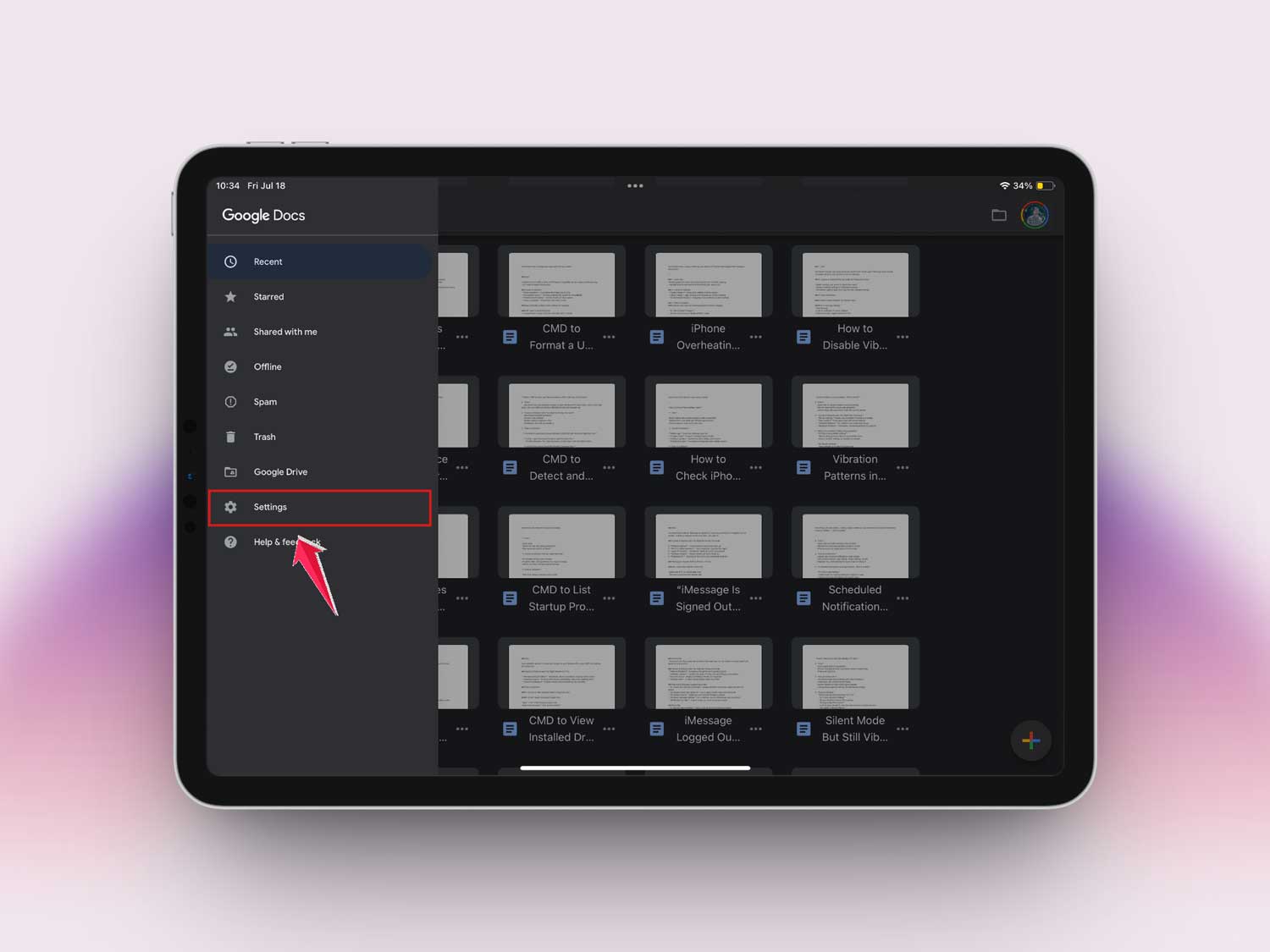
- Go to Settings.
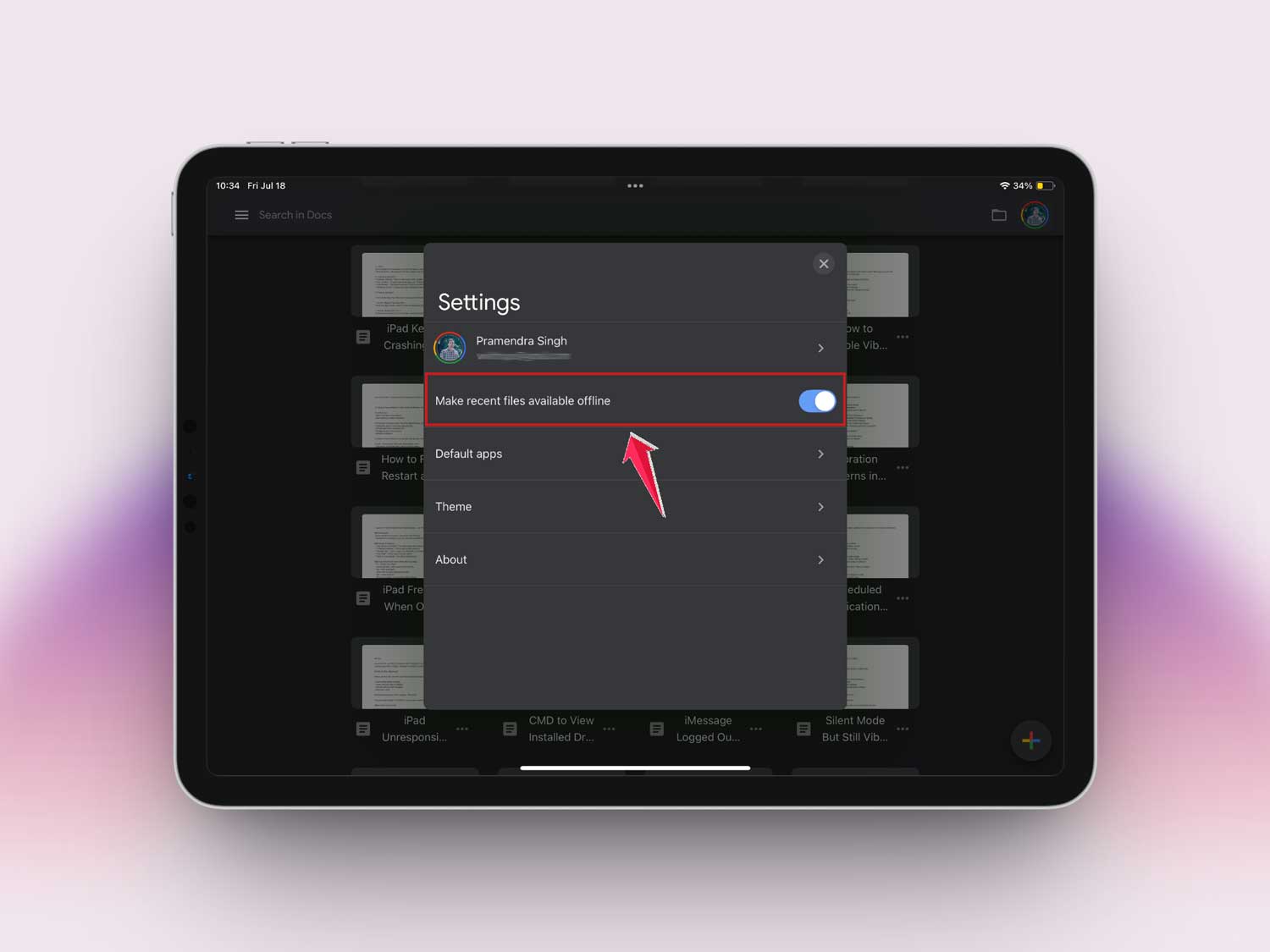
- Find Offline and make sure it’s turned on.
#3: Your iPad Might Be Out of Storage
You’d be surprised how fast storage fills up. And when your iPad is low on space, Google Docs can’t download or save files for offline use.
Let’s check what’s taking up space and clear out what you don’t need.
To check and free up storage:
- Go to Settings > General > iPad Storage.
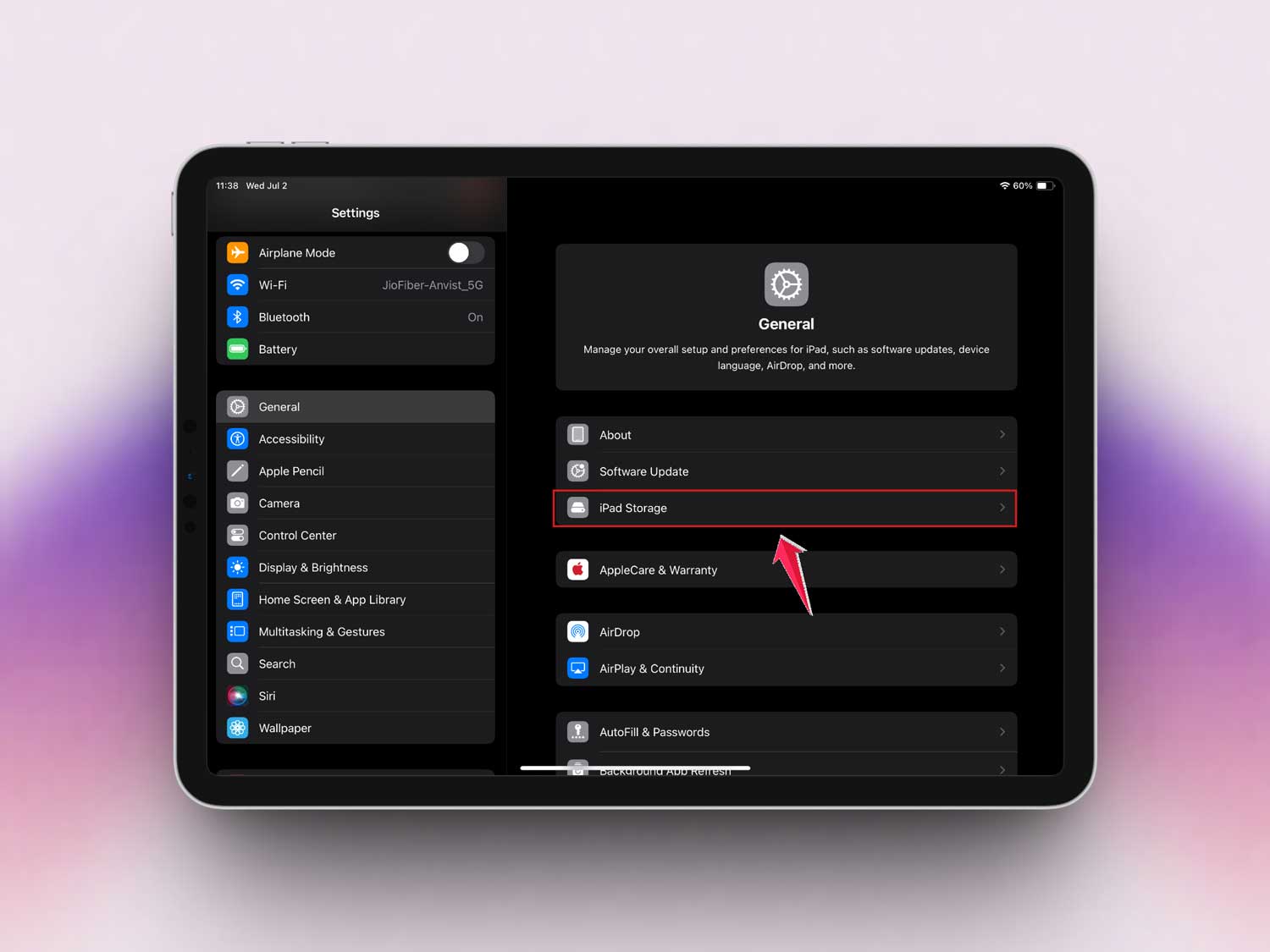
- See what’s using the most space.
- Delete apps or files you no longer need.
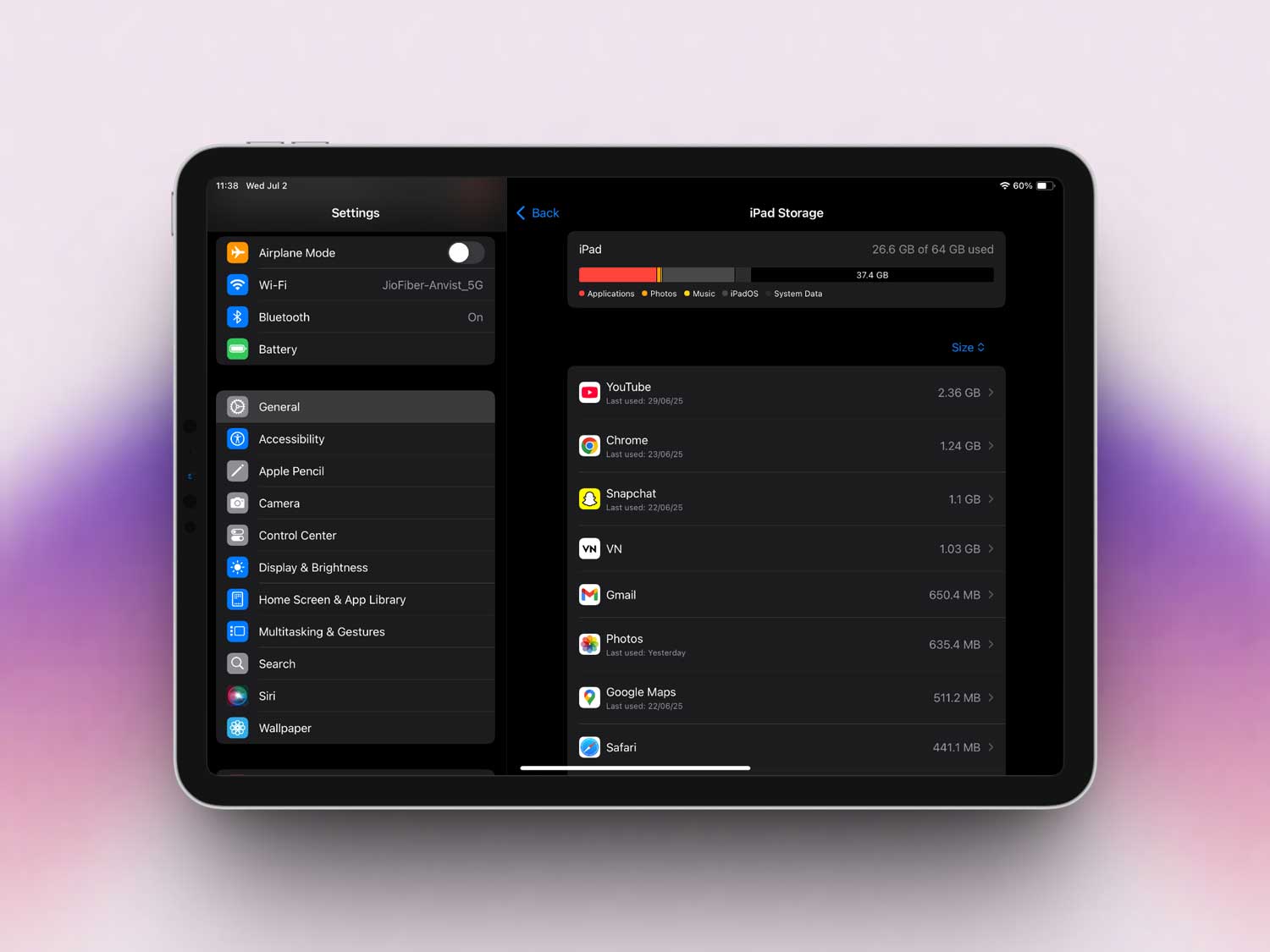
Cleaning up storage gives your iPad room to breathe—and helps Google Docs work offline properly.
#4: Your Google Account Might Not Be Syncing
Sometimes, things just stop syncing. Maybe you’ve been offline too long, or the app glitched. Either way, if your Google account isn’t syncing, your files won’t be available offline.
Let’s refresh everything.
Try this:
- Sign out of the Google Docs app.
- Close the app completely.
- Reopen the app and sign back in with your Google account.
- Wait a few moments and make sure your files start syncing again.
This step often clears up hidden issues and gets your files back in sync.
#5: You Didn’t Open the File While Online
Here’s a small but important tip—Google Docs only saves files offline if you’ve opened them recently while connected to the internet. If you haven’t opened it, it won’t be saved offline.
So next time you’re online, quickly open any doc you might need later. Let it sync, and it’ll be ready when you’re offline.
#6: Restart Your iPad
This one’s simple, but it works. Restarting your iPad clears minor glitches and helps everything work better. Think of it like giving your iPad a quick nap—it wakes up refreshed.
Here’s how:
- Press and hold the Top button and either Volume button.
- Drag the slider to turn off.
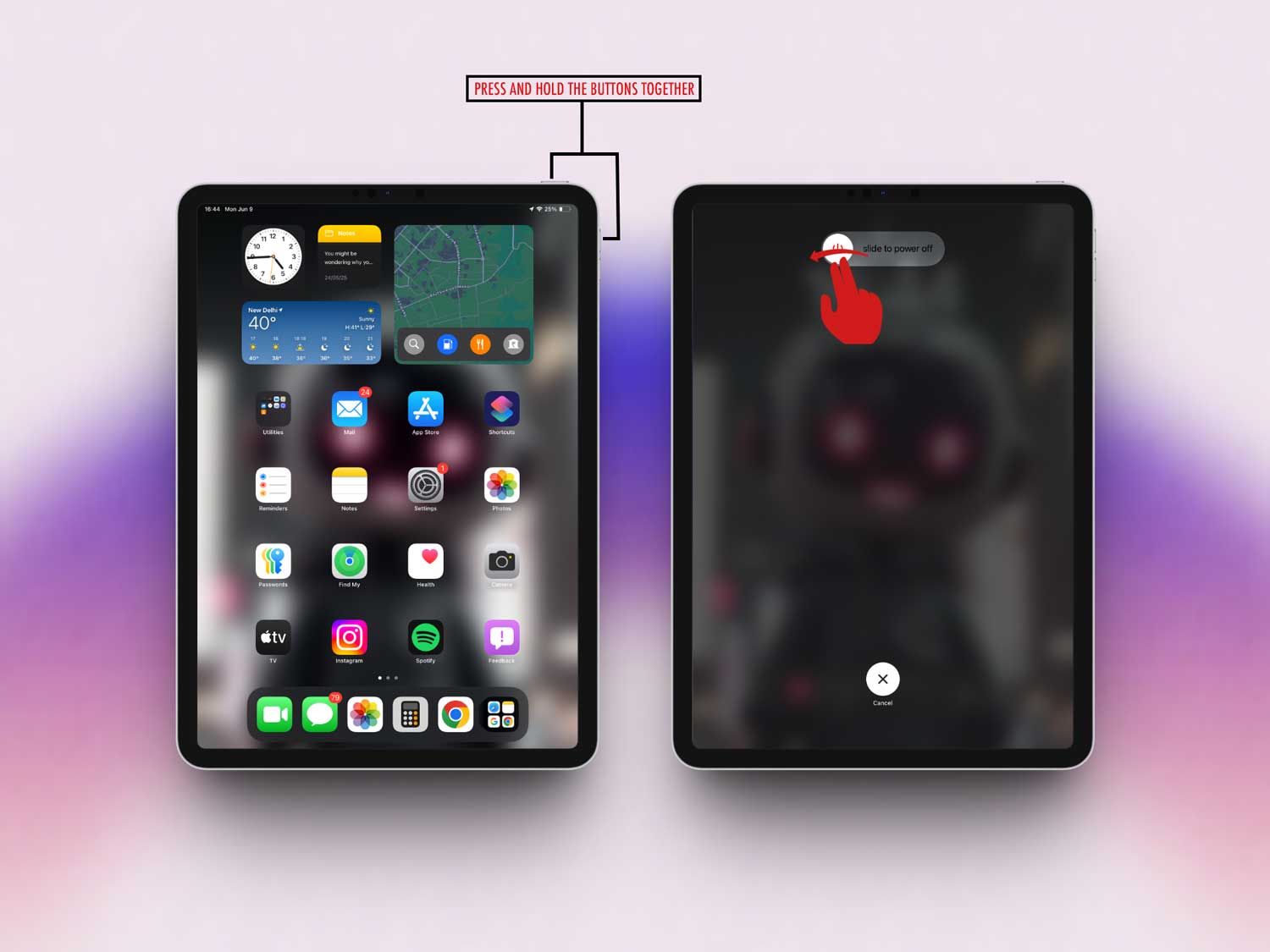
- Wait a few seconds, then press the Top button again to turn it back on.

#7: Still Not Working? Reinstall the App
If nothing else has worked, try this last trick—delete and reinstall the Google Docs app. It clears out bugs and resets everything.
To do this:
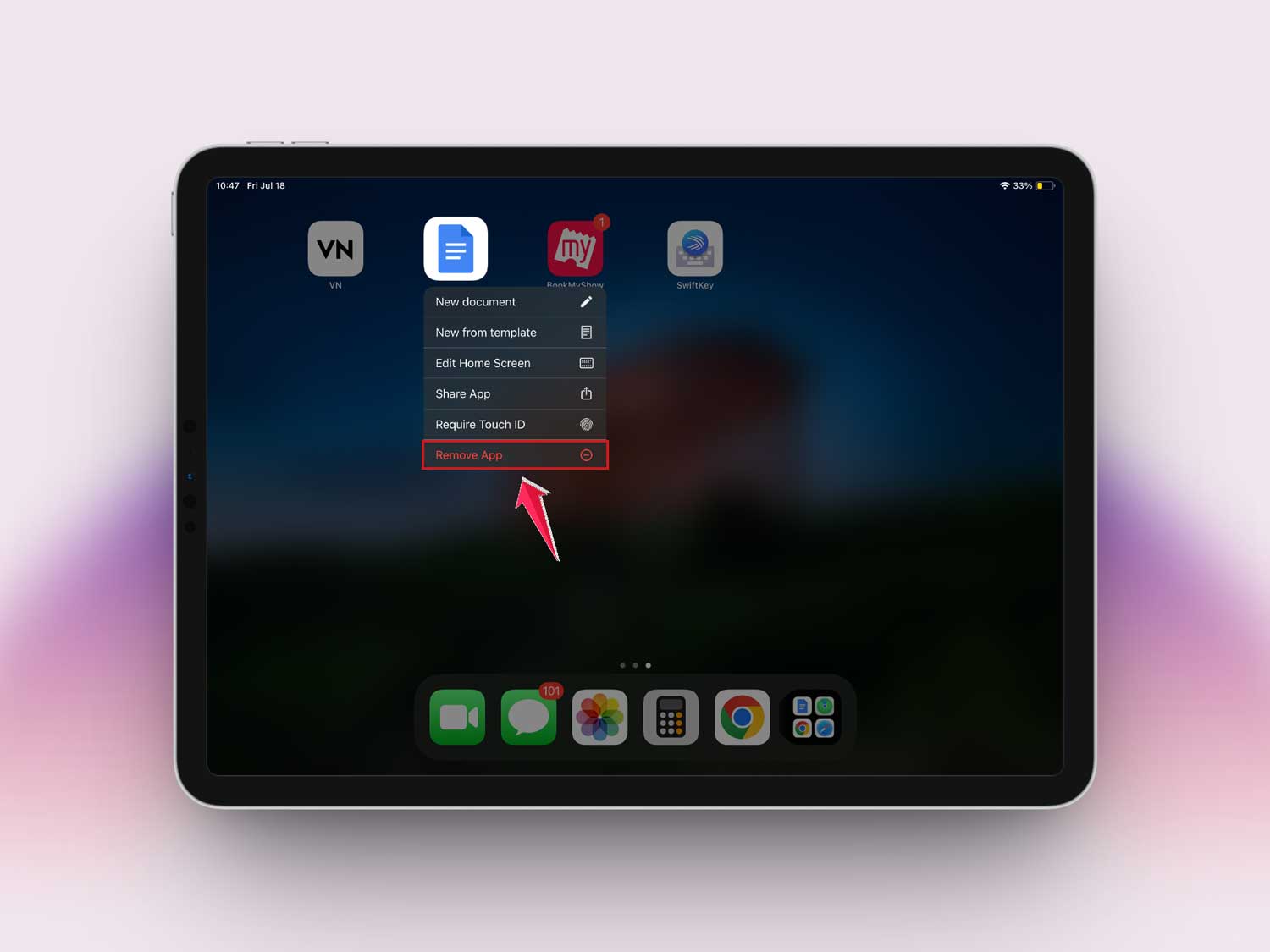
- Tap and hold the Google Docs app icon.
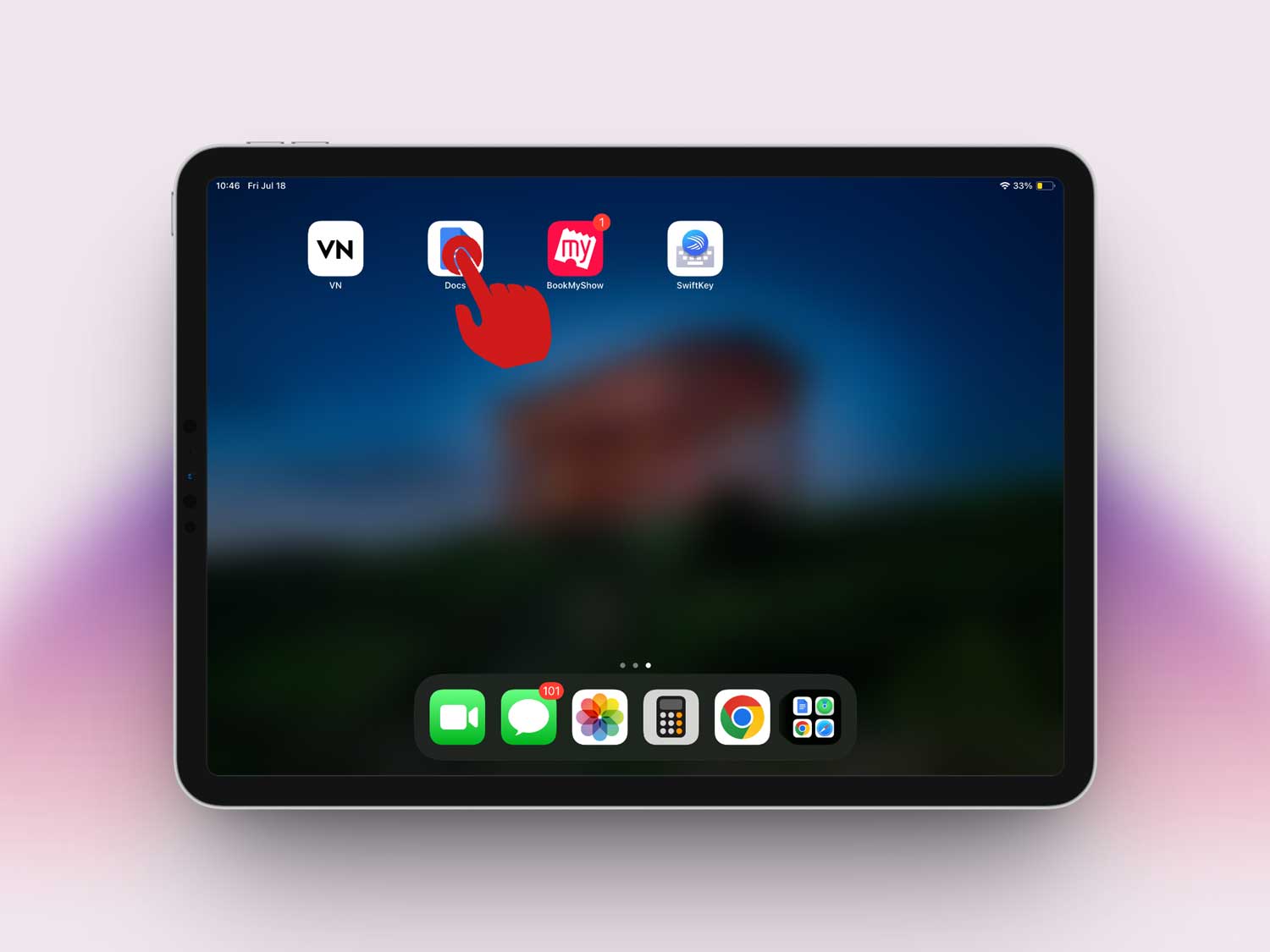
- Tap Remove App.
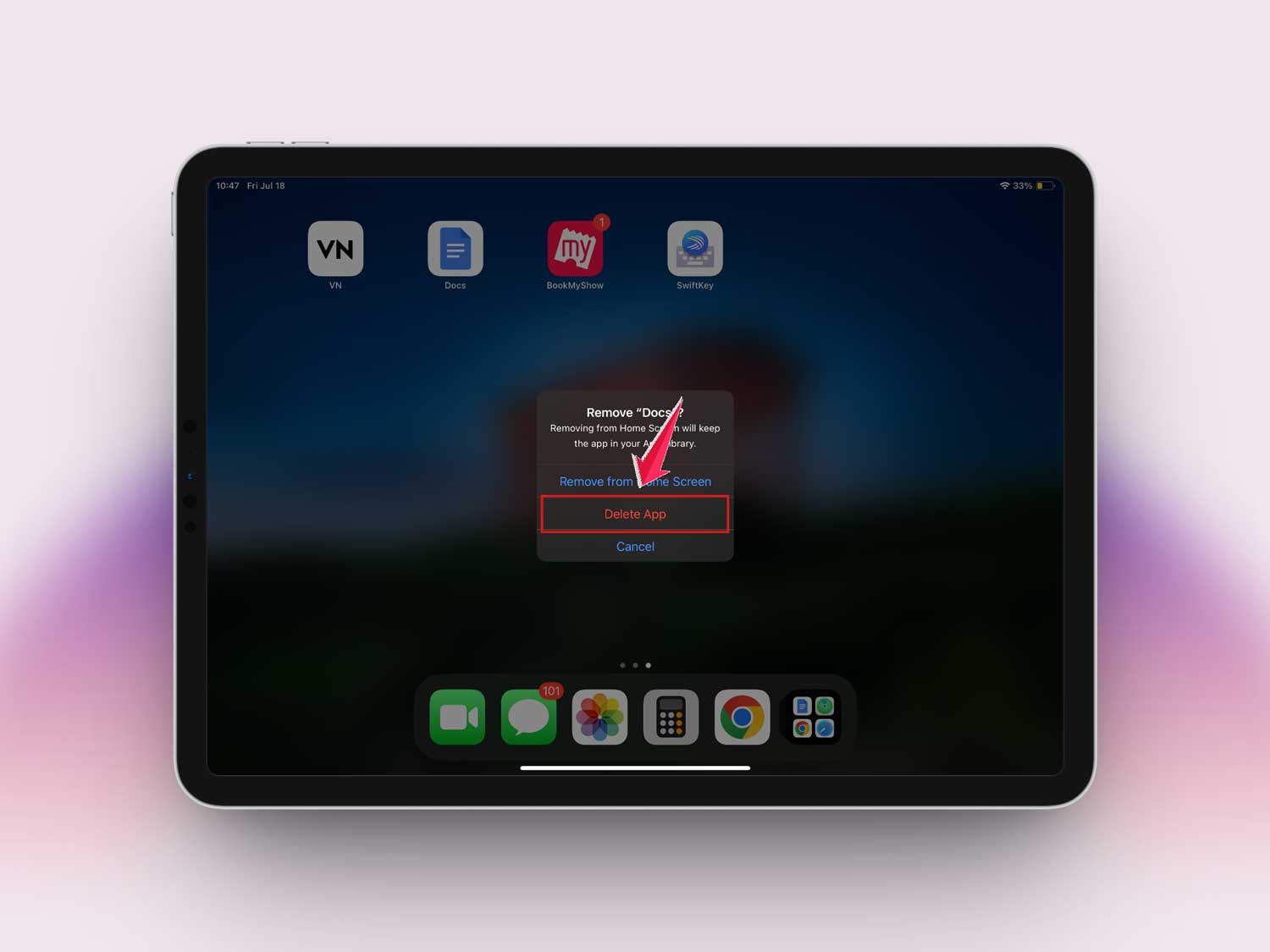
- Then tap on Delete App.
- Go to the App Store, search for Google Docs, and reinstall it.
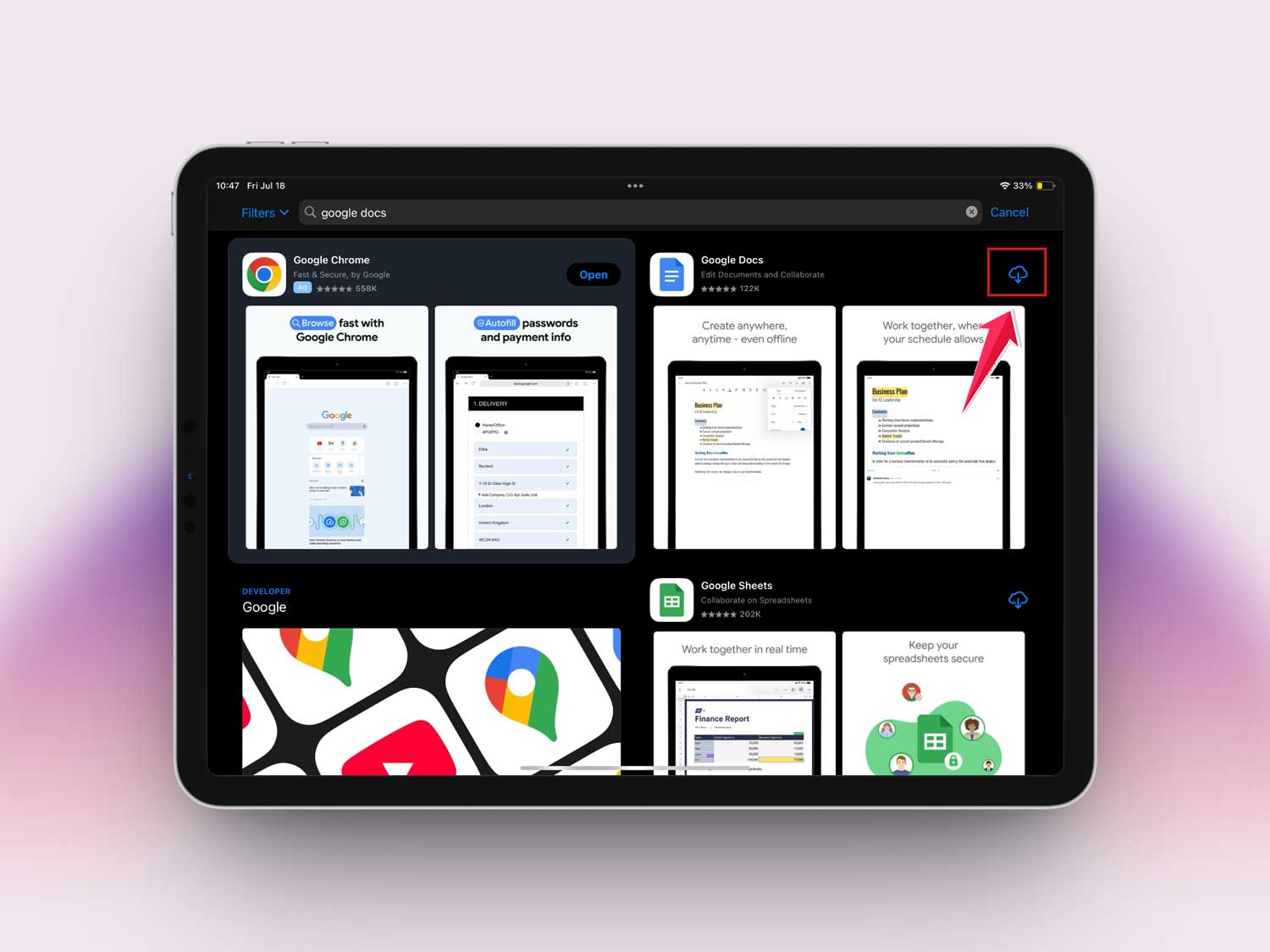
Once it’s back, sign in again and check if offline mode works now.
Extra Tips to Keep Things Running Smoothly
Let’s take it a step further. These extra tips aren’t must-dos, but they’ll keep your offline experience even smoother.
1. Use a Strong Wi-Fi Connection Before Going Offline
Before disconnecting from the internet, open each doc you want available offline. Let it fully load and sync. A weak connection might leave you with half-loaded files.
2. Clear Cache in Google Docs
Over time, the app builds up cache (temporary data), which can slow things down. If you notice things acting weird, it’s time to clear it.
There’s no direct button in the app, so the easiest way is to delete and reinstall the app. That clears the cache too.
3. Enable Auto-Sync on Wi-Fi Only
Want your files to always be fresh without burning through mobile data? Set Google Docs to auto-sync only on Wi-Fi. That way, it updates in the background when you’re connected, and you don’t even have to think about it.
The Takeaway
So there you have it. Your Google Docs weren’t opening offline on your iPad, but now you know why—and more importantly, how to fix it.
Whether it’s a simple update, turning on offline mode, or freeing up storage, most of these fixes are quick and easy.
One thing people often miss? That offline access setting. It’s easy to overlook, but without it, nothing works offline.
Now that you’ve got the steps, you’re ready to stay productive anytime, anywhere—Wi-Fi or not.
Give these tips a try and see how smoothly things run. And if you’ve got questions or your own tricks, drop them in the comments. Let’s help each other out!