Heard about the AirPlay Black Screen with Sound issues? Chances are, you’re experiencing it right now.
AirPlay 2 has been a game-changer, allowing you to stream content seamlessly from your Apple devices to various non-Apple gadgets and smart TVs. It’s pretty awesome. Until it’s not.
So, you’re all set for movie night, you hit play on your iPhone, iPad, or Mac, but instead of the video, you’re greeted with a totally black screen, though the sound is crystal clear. Frustrating, isn’t it?
But no worries! Let’s dive into some easy fixes to get your AirPlay up and running smoothly again.
Possible Cause for AirPlay Black Screen
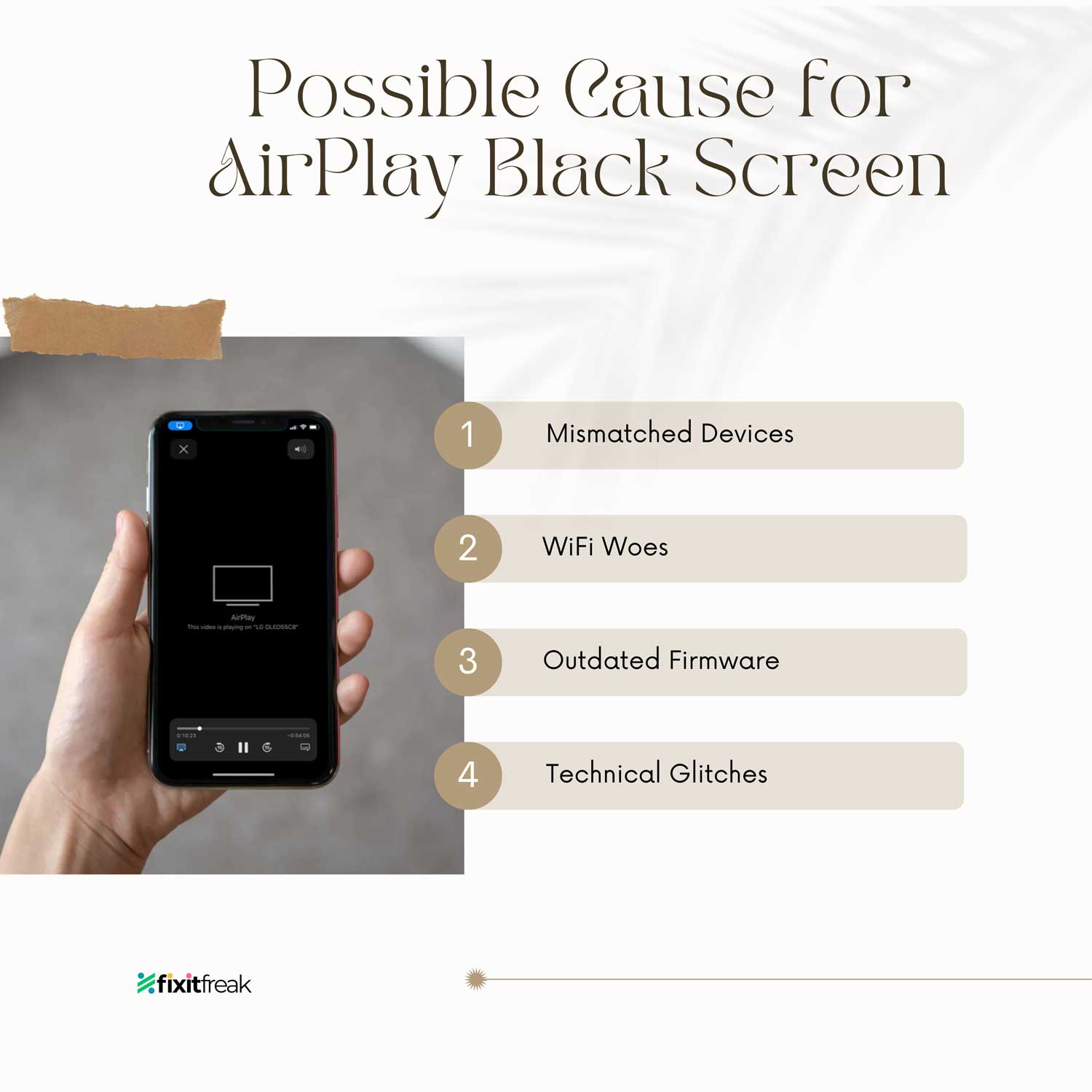
Here are some common culprits that might be leaving you staring at a black screen instead of enjoying your media:
#1 Mismatched Devices
Not all devices are AirPlay-compatible. If you’re trying to connect devices that don’t support AirPlay or aren’t properly set up, you’re likely to face the black screen issue.
#2 WiFi Woes
For AirPlay to work flawlessly, both the sending device (like your iPhone) and the receiving device (such as your smart TV) need to be on the same WiFi network.
A mismatch here can result in audio without video.
If you’re having trouble with your network, you might want to check out how to fix AirPlay when it keeps disconnecting.
#3 Outdated Firmware
Just like old gaming consoles struggle with new games, your devices can struggle with AirPlay if their firmware is outdated. Regular updates are crucial to keep everything running smoothly.
#4 Technical Glitches
Even the smartest gadgets have their off days. Occasional bugs or system glitches can also lead to this frustrating black screen problem.
How to Fix AirPlay Black Screen Issues
Alright, let’s roll up our sleeves and fix this pesky AirPlay black screen issue. Here are some easy steps you can try:
#1 Check the WiFi connection
Make sure both your devices (such as your iPhone and TV) are on the same WiFi network.
Think of it as keeping the team together. Everyone needs to be on the same page for things to run smoothly.
Also, minimize the number of devices connected to your WiFi during AirPlay usage.
Too many devices on the same network can lead to connection issues and degrade performance.
#2 Playing Incompatible Video
Your iPhone or Mac might be equipped to handle 4K videos, but is your TV ready for that?
If your AirPlay 2-compatible TV doesn’t support 4K, you might see nothing but a black screen.
The solution is simple: adjust the video quality on your streaming device to match your TV’s capabilities.
#3 Check for Server Outage
Sometimes, the issue isn’t your devices but the streaming service itself. If platforms like Netflix or Disney Plus are experiencing server outages, all you can do is wait.
Use websites like Downdetector to check for any ongoing issues. If everything’s clear and the servers are up, try restarting the app to see if that resolves the problem.
#4 Check the Distance
Distance matters when it comes to AirPlay. Ensure that your AirPlay receiver (like your TV) and your streaming device (iPhone or Mac) are within a good range.
Ideally, no more than 10 meters apart, with the best results often found within 7 meters.
#5 AirPlay to a Different Device
Sometimes the issue may lie with the device you’re attempting to use. If it’s older or not fully compatible with AirPlay, this could be the root of the problem.
Try AirPlaying to another AirPlay 2-compatible device, if available.
If the problem persists, test with another device to confirm if it’s a device-specific issue.
#6 Disable & Enable AirPlay
The classic tech support advice of turning it off and on again can be surprisingly effective:
- Turn off AirPlay on your iPhone and any other involved devices.
- Take a brief pause. Now’s a good time for a quick break.
- Turn AirPlay back on and check if the black screen issue has been resolved.
#7 Relaunch the App on iOS/Mac
Application glitches can also cause streaming problems. If the app seems unresponsive or buggy, try this:
- Force quit the app on your iOS or Mac device.
- Wait a few seconds, then relaunch the app.
- Attempt to use AirPlay again to see if the black screen issue persists.
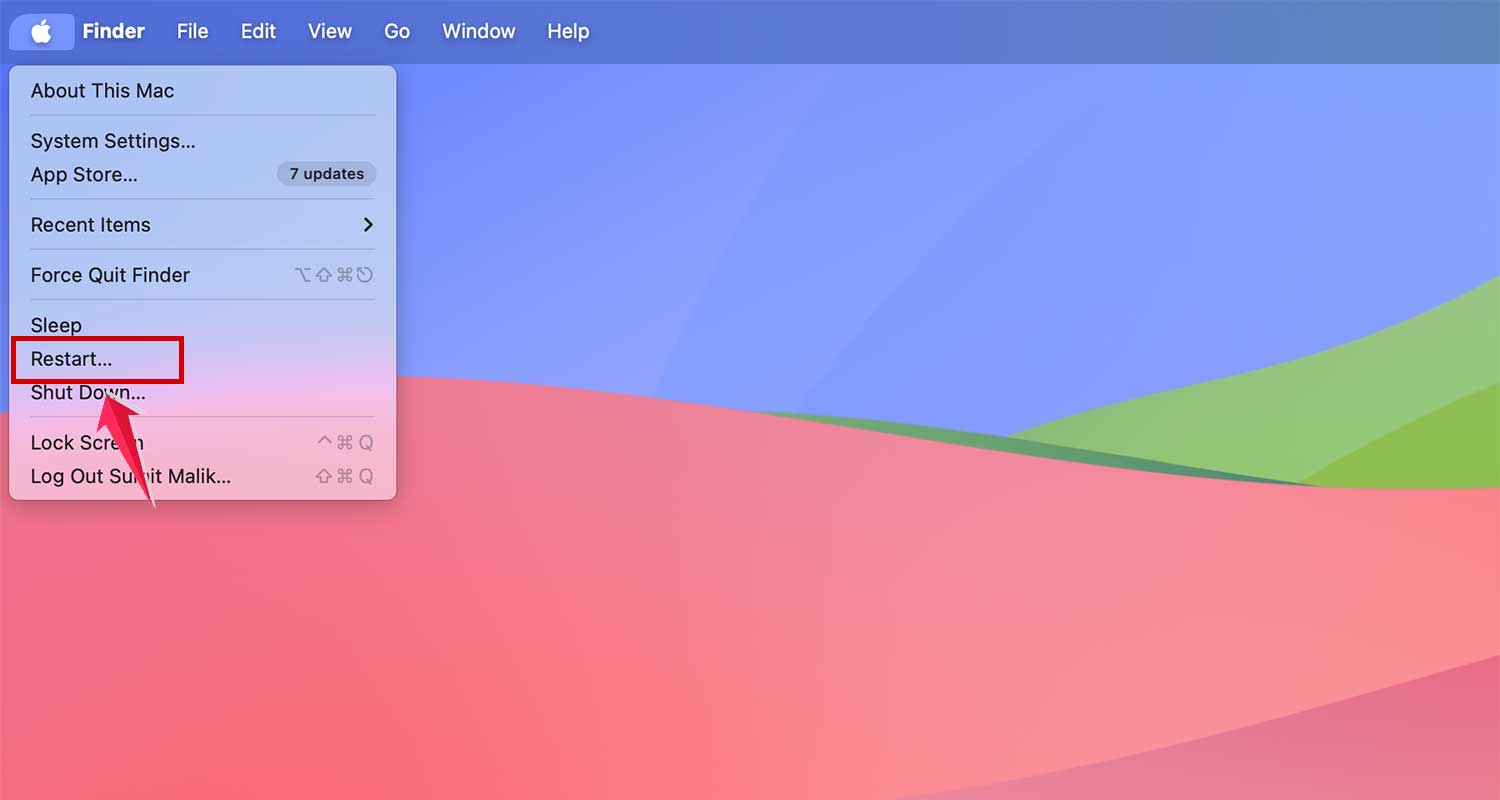
#8 Restart your Device
Restarting your devices can often be a quick and effective way to solve those annoying technical glitches, bugs, and errors.
It’s like giving your device a fresh start. Let’s go through how to restart different devices:
8.1 iPhone or iPad
For iPhone and iPad users, here’s a quick way to restart your device:
- Hold the Buttons: Press and hold the Volume button and the Side button together.
- Slide to Turn Off: A slider will appear. Drag it from left to right to turn off your iPhone.
- Wait and Restart: Wait for a minute, then press the Side button again to turn your device back on.
 i
i
8.2 Apple TV
If you’re using an Apple TV, follow these steps:
- Go to Settings: Navigate to the Settings menu.
- System Settings: Select System.
- Restart: Click on the Restart option. This should help with the black screen issue on your Apple TV.

8.3 Vizio TV
For Vizio Smart TV users:
- Press the Power Button: Hold it for more than five seconds.
- Turn Off and Disconnect: The TV will turn off. Then, unplug all connecting cables.
- Wait: Leave the TV alone for about five minutes.
- Reconnect and Restart: Plug everything back in and turn on your TV.
8.4 Samsung TV
Samsung TV owners, here’s your guide:
- Power Button on Remote: Hold the Power button on your remote. The TV will shut down.
- Idle Time: Leave your TV off for about 30 seconds.
- Turn It Back On: Press the Power button again to restart your Samsung TV.
8.5 Roku TV
If you’re using a Roku TV, here’s what you need to do:
- Home Button: On your Roku remote, press the Home button.
- Navigate to Settings: From the menu, select Settings.
- System Restart: Scroll down to find System, then choose System Restart.
- Confirm Restart: Select the Restart option to give your Roku TV a fresh start.
8.6 LG TV
For those with an LG TV, follow these steps:
- Unplug the TV: Disconnect the power cord of your LG TV from the socket and wait for a minute.
- Plug It Back In: Reconnect the power cord to both the TV and the socket.
- Power On: Press the Power button on your TV to turn it back on.
#9 Update the Device Firmware
Keeping your device’s firmware up-to-date is crucial for compatibility and performance.
- Check for Updates: Regularly check for the latest software updates for all your devices involved in AirPlay, whether it’s an Apple device, Smart TV, Roku, etc.
- Install Updates: Follow the on-screen instructions to update your device’s firmware. This process can vary depending on the device, so it’s important to follow the specific steps for each.
- Retry AirPlay: After updating, restart your devices and try AirPlaying again to see if the issue has been resolved.
#10 Contact Customer Support
If the AirPlay black screen issue persists despite all your efforts, it might be time to consult the experts.
If you suspect a hardware issue or a complex software problem, reaching out to Apple Customer Care is your best bet.
They offer support via email, phone, or live chat. Choose whatever fits your style.
Be clear and detailed about your issue when you contact them, explaining what you’ve tried so far.
They’ll guide you through further troubleshooting or suggest professional servicing if needed. Following their advice can help you resolve the issue efficiently.
In Conclusion To
Wrapping up, it’s clear that while the AirPlay black screen issue can be annoying, it’s often something you can tackle yourself with a bit of DIY spirit.
Technology does have its quirks, but with some patience and the right troubleshooting steps, you’re usually just a few tweaks away from getting everything back on track.
If you’re still having trouble, you might want to look into why AirPlay keeps disconnecting for more in-depth troubleshooting. Keep these steps in mind, and happy streaming!
More often than not, you’ll find yourself back to enjoying your shows and music in no time.
And hey, if all else fails, you can always screen record with sound on your iPhone and watch it later.
It’s not ideal, but it’s better than a black screen, right? Keep these steps in mind, and happy streaming!