Ever hesitated to hit “mute” on your iPhone’s notifications?
Like many, I avoided muting alerts. Not wanting to miss out or seem rude by ignoring friends. But last year, the constant buzz became too much!
So, I tried the ‘hide alerts‘ feature, and guess what? It’s totally discreet! There’s absolutely no sign that lets others know you’ve muted them.
Go ahead, give it a try. Keep your peace without the guilt. Your secret is safe, and your notifications, silent!
How Do Hide Alerts Work in iMessage?
Ever felt overwhelmed by the constant stream of notifications on your iPhone, especially from iMessage? Here’s how you can manage that barrage and find some digital peace:
Total Silence:
- Navigate to Settings > Notifications.
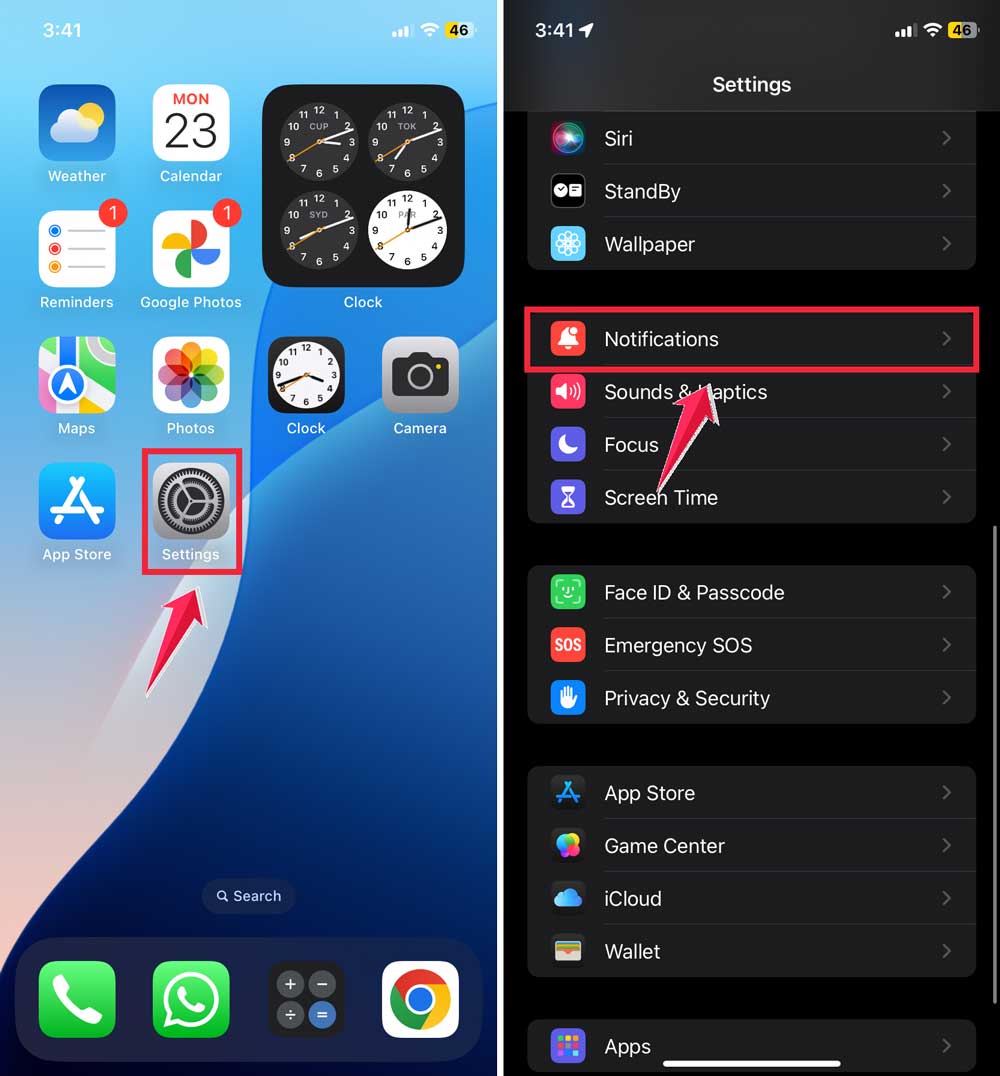
- Disable “Allow Notifications” for Messages. This stops all alerts but doesn’t block messages. You’ll still see new message counts on the iMessage icon, just without the disruptive alerts.

While you’re adjusting your notification settings, you might also want to explore how to block unknown calls on your iPhone automatically for even more control over your incoming notifications.
Mute Specific Chats:
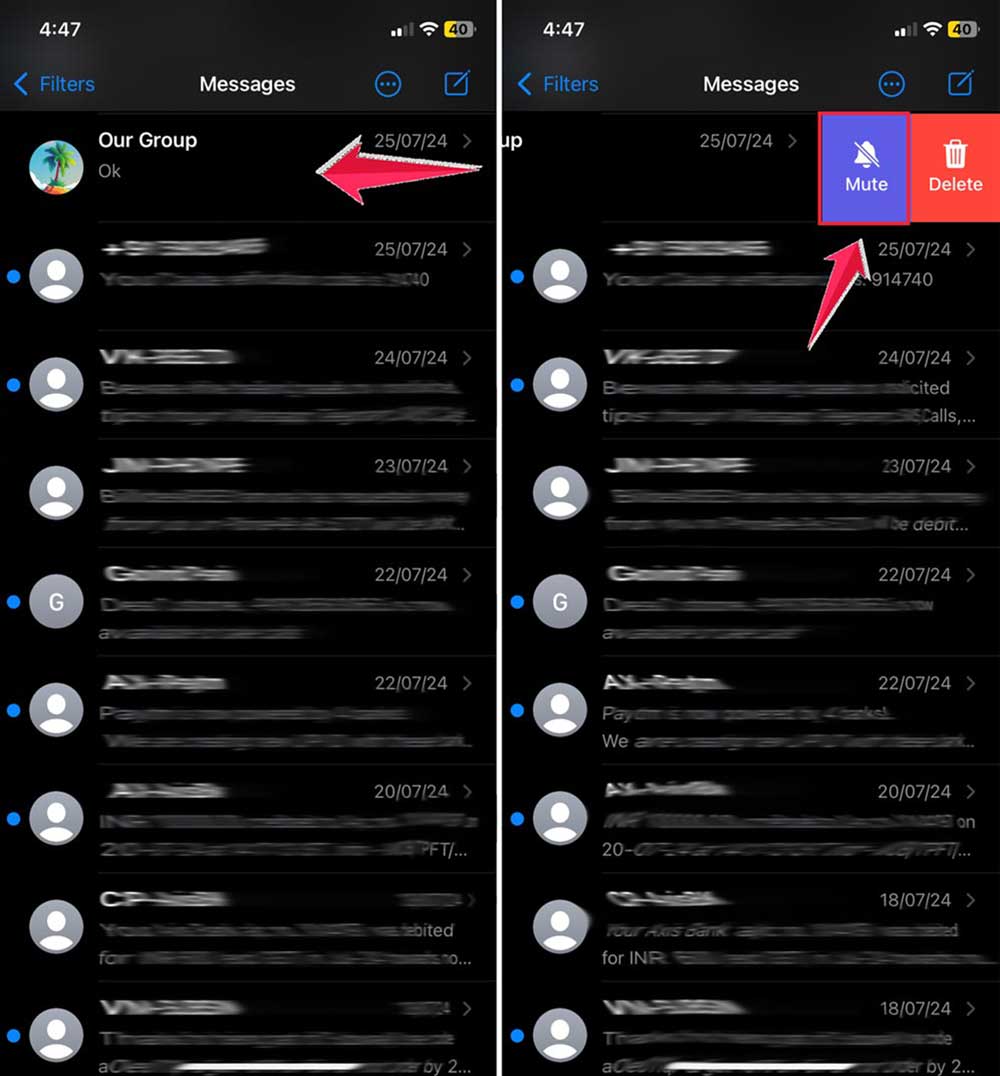
- Open iMessage.
- Swipe left on the chat you want to mute.
- Tap the bell icon that appears. This activates ‘Hide Alerts’ for that chat, silencing it without affecting others.
What Happens When You Put Someone On Hide Alerts On Your iPhone?
Activating ‘Hide Alerts’ means you’ve chosen to silence notifications from a specific conversation.
Your iPhone will not make any sound, vibrate, or show any pop-ups when new messages arrive from that chat.
Effects on Message Reception:
- Messages Still Arrive: The messages from the silenced conversation will continue to appear in your iMessage app. They’re just like any other message, visible when you open the app.
- Super Quiet Reception: Despite receiving messages, your phone remains silent about them. There’s no alert of any kind. Not a ding, not a buzz, not even a banner drop-down.
- Invisible Notifications: Normally, your Notification Center is a hub for missed notifications. However, with ‘Hide Alerts’ enabled, messages from the muted conversation won’t show up here at all. It’s as if they sneak into your phone silently, unseen and unheard.
- If you’re curious about other ways to manage your messages, you might want to check out how to find old messages on your iPhone.
Can Someone See If You Silence Them On iMessage?
When you hit that “Hide Alerts” button for a conversation or group chat in iMessage:
- Invisible to Them: They won’t receive any notification or indication that you’ve silenced them. To them, everything appears normal.
- Your Little Secret: iMessage does not alert the other person that their messages are being muted. Your decision to mute stays completely private.
Does It Tell You When Someone Hides Your Alerts?
Wondering if you can tell when someone has put your messages on “Hide Alerts” in iMessage?
Bad News! iMessage does not inform you if someone has muted your messages. There will be no alerts or special notifications to let you know.
From your perspective, everything seems normal. You send a message, it shows as “Sent,” and then “Received,” just like any other conversation.
How To Guess If Someone Hides Your Alerts
While there’s no direct way to know if you’ve been silenced, certain indirect signs might give you a hint:
- Delayed Responses: If someone typically replies quickly but suddenly starts responding more slowly, it could be because they are no longer receiving immediate notifications of your messages.
- Behavioral Patterns: If you notice changes in how or when someone replies compared to their usual habits, it might suggest they’ve muted notifications.
- Direct Inquiry: Sometimes, a straightforward question like, “Hey, are you getting my messages?” can clarify the situation more quickly than guessing.
How to Turn Off Hide Alerts in iMessage on iPhone
First off, you’re right! When you hide alerts for a chat, it doesn’t scream, “Hey, this chat is muted!”
Instead, you’ll need to do a bit of swiping to spot it. But once you get the hang of it, it’s super easy.
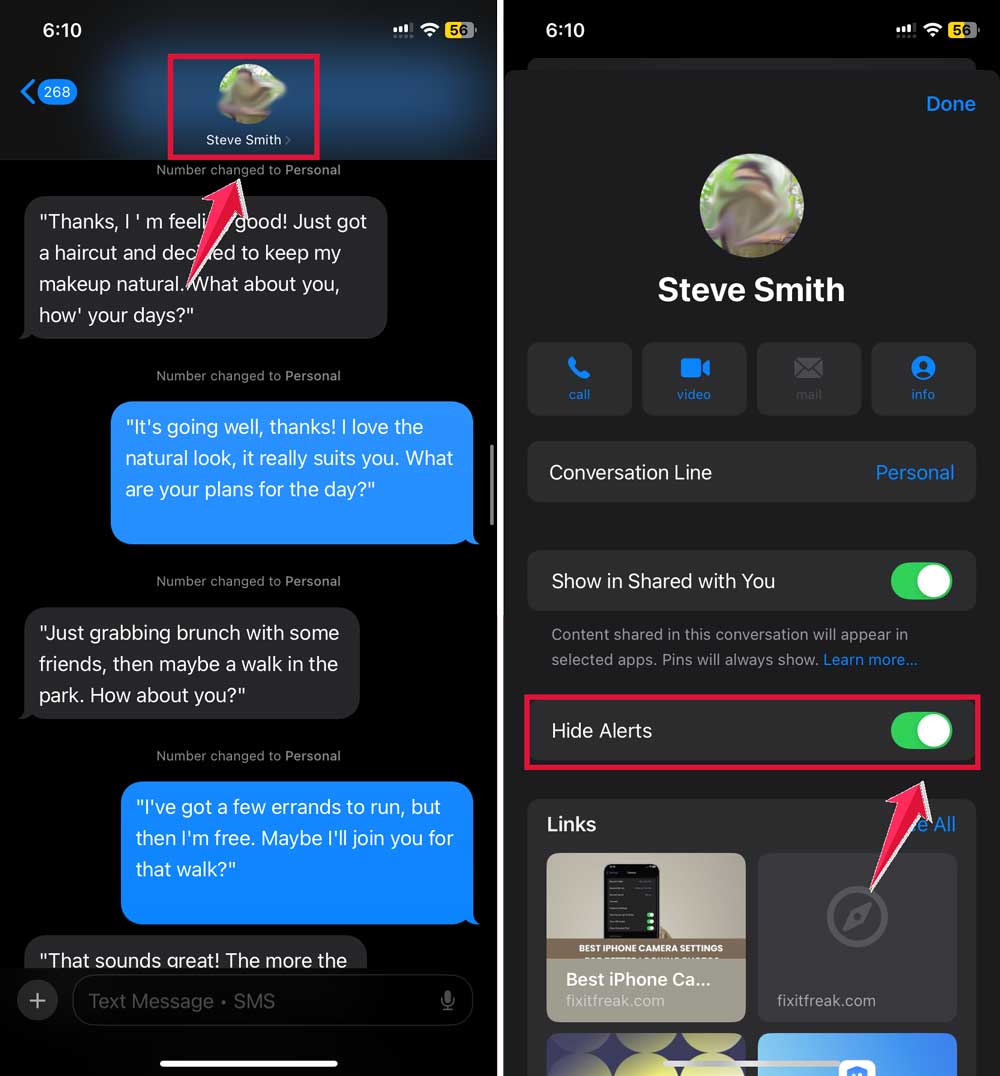
Method 1: Through Chat Details:
- Open iMessage and head over to the chat you think might be silenced.
- Tap on the chat photo at the top (this might be the person’s profile picture or an icon if it’s a group chat).
- Look for the “Hide Alerts” option. If it’s toggled on, that means the chat is muted.
- Switch off “Hide Alerts.” This will unmute the chat.
- Don’t forget to tap “Done” to save your changes.
Method 2: Quick Swipe Way:
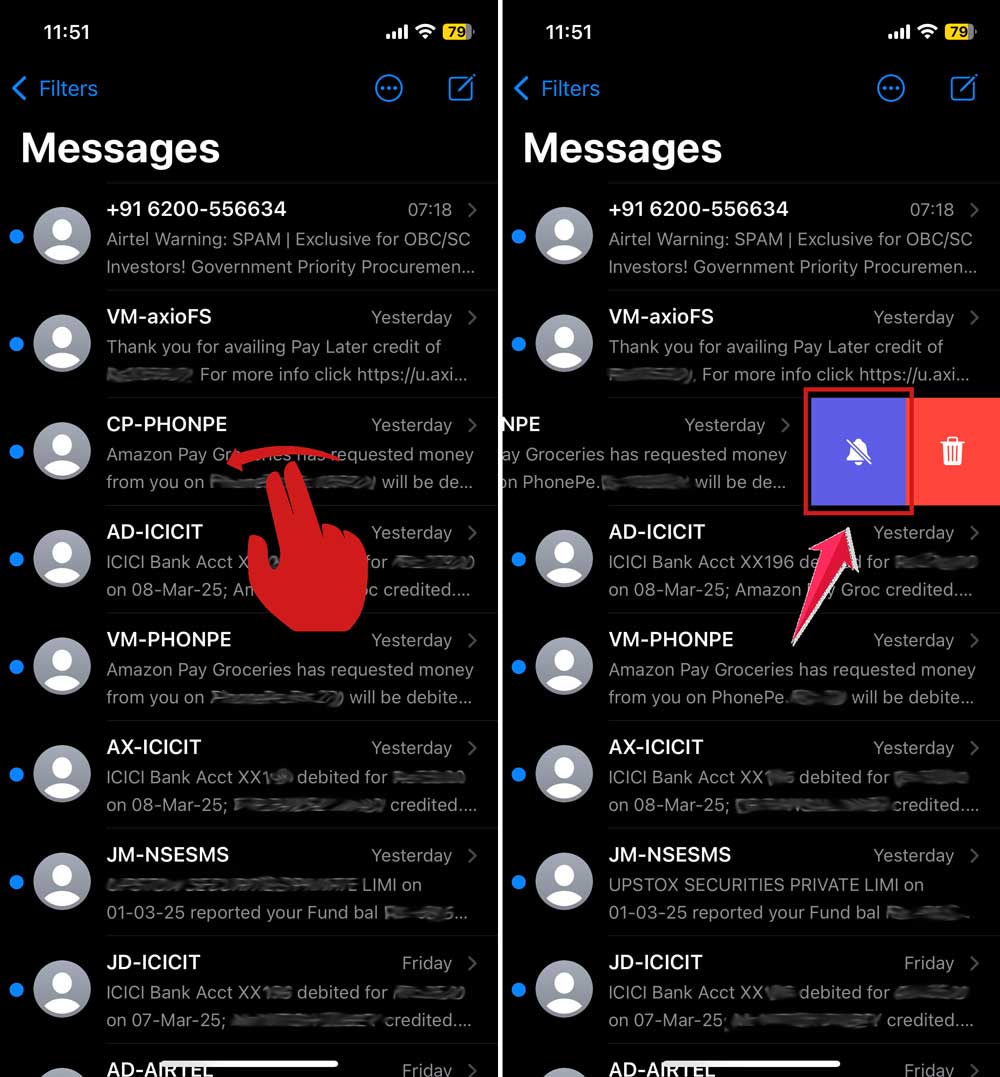
If you’re in a hurry or just want a quick method:
- On the main iMessage screen with all your conversations, find the chat you want to unmute.
- Swipe left on it. You’ll see a couple of buttons pop up: “Delete” (in red) and “Hide Alerts” (in blue).
- If you see a crossed-out bell next to “Hide Alerts”, that chat is muted. Tap on “Hide Alerts” to unmute.
- Voilà! The crossed-out bell will disappear, and you’ve successfully unmuted the chat.
Speaking of managing your messages, did you know you can also leave a group chat on your iPhone?
It’s another useful feature for managing your conversations.
Do Your Contacts Know When You Enable ‘Do Not Disturb’ on Your iPhone?
When you enable ‘Do Not Disturb,’ anyone who sends you a message may see a notification stating, “[Your name] has notifications silenced.”
This serves as a polite heads-up that you might not see their message immediately.
Similar to ‘Do Not Disturb,’ ‘Focus Status‘ allows you to specify which activities you are focusing on.
Contacts attempting to message you will see a notice that you’re in a particular focus mode, suggesting that your response might be delayed.
Comparison: Hide Alerts vs. Do Not Disturb/Focus Status:
- Stealth Mode with ‘Hide Alerts’: This setting is discreet. When you mute notifications from specific chats using ‘Hide Alerts,’ there is no indication to others. Your actions remain invisible, and no alerts appear on your device from those chats.
- Broadcast Mode with ‘Do Not Disturb’/’Focus Status’: These settings are more like putting up an “Out of Office” notice. They openly inform your contacts that you are taking a break or are busy, which can manage expectations regarding your availability.
In Conclusion To
There you have it. Your guide to mastering iPhone’s ‘Do Not Disturb,’ ‘Focus Status,‘ and ‘Hide Alerts.’
With these tools, you can tailor your device to better fit your lifestyle, ensuring you’re in control of your digital interactions, not the other way around.
Remember, these settings are more than just about silencing notifications; they’re about taking charge of your time and focus.
So customize how and when you receive alerts, and enjoy a more balanced, peaceful digital experience.
Got any tips or tricks for managing notifications that you’d love to share? Or maybe some questions about how to get the most out of your iPhone settings?
Drop a comment below. We’d love to hear from you! Stay connected, stay in control, and enjoy the peace of mind that comes with it!
And if you’re looking for more ways to customize your iPhone, why not learn how to block apps at certain times on your iPhone?