Want to enjoy Netflix on a bigger screen? You’re in the right place!
Netflix doesn’t work with AirPlay anymore, but don’t worry. There’s still a way to watch your favorite shows on your TV using your Apple devices.
It’s called screen mirroring, and it’s pretty easy to do.
In this guide, we’ll walk you through how to stream Netflix from your iPhone, iPad, or Mac to your TV.
We’ll keep things simple and straightforward, so you can start enjoying your shows on the big screen in no time.
Let’s get started with some background info, then we’ll dive into the step-by-step instructions. Ready? Let’s go!
How to AirPlay Netflix on Your TV from Your iPhone or Mac
Now that we’ve covered the basics, let’s dive into how you can actually watch Netflix on your big screen TV using your iPhone or Mac.
It’s easier than you might think!
#1 Using Your iPhone:
- Connect Your Devices: Make sure your iPhone and TV are on the same WiFi network.
- Get Netflix Ready: If you don’t have Netflix on your iPhone, download it from the App Store. Open the app and log in.
- Pick Your Show: Choose what you want to watch.

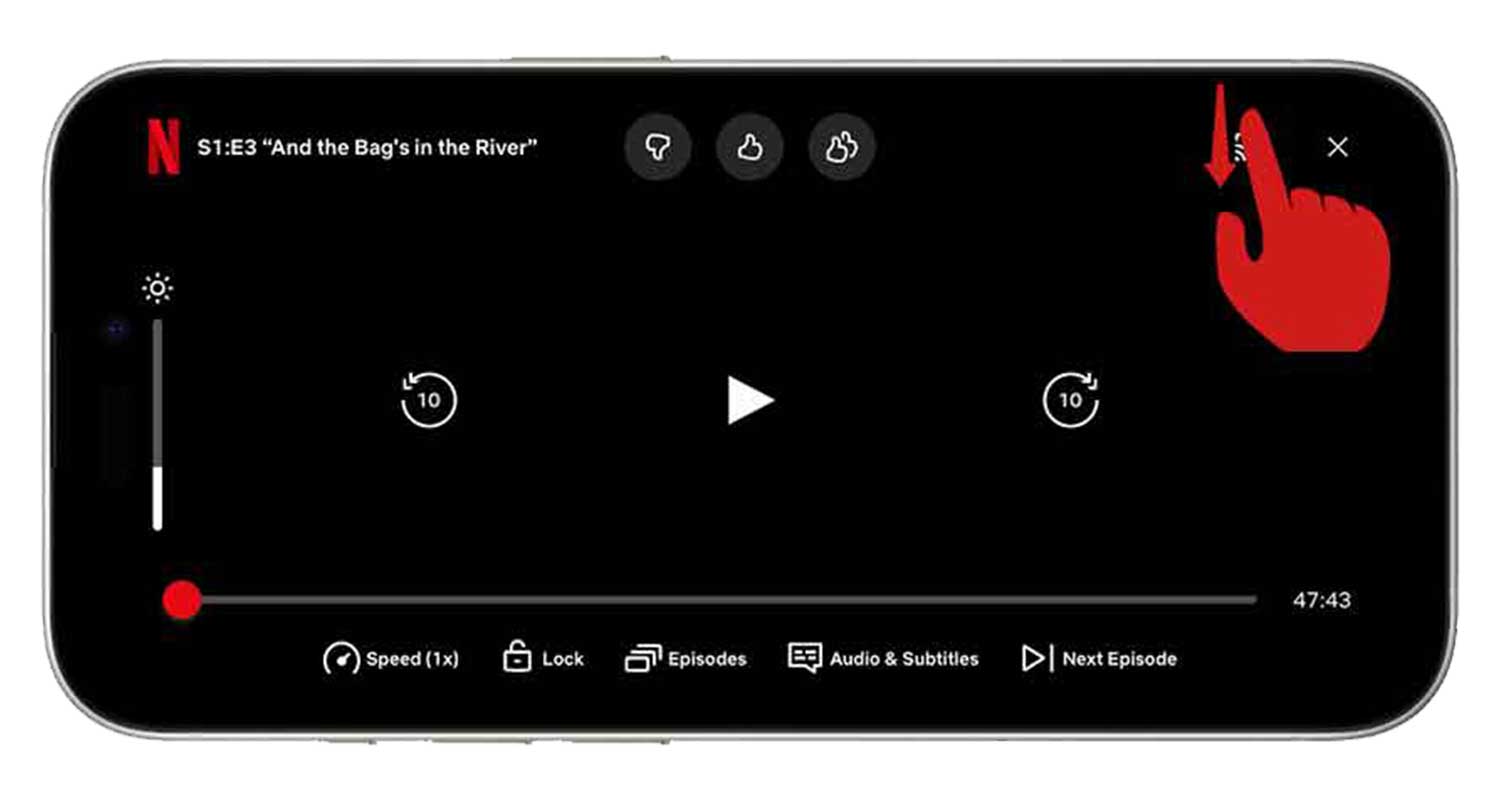
- Swipe down from the top-right of your screen to open Control Center.
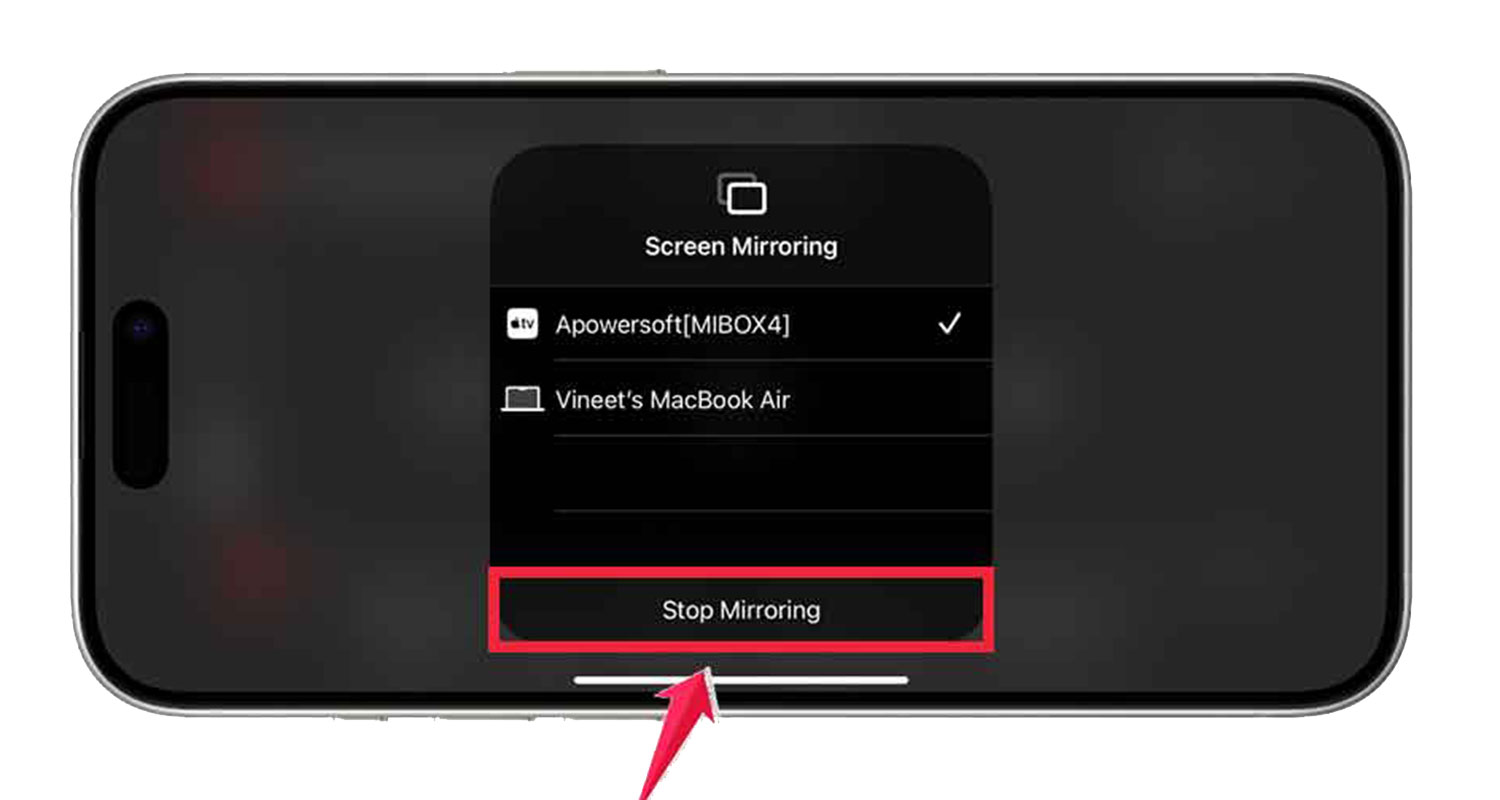
- Tap the Screen Mirroring button (it looks like two rectangles).
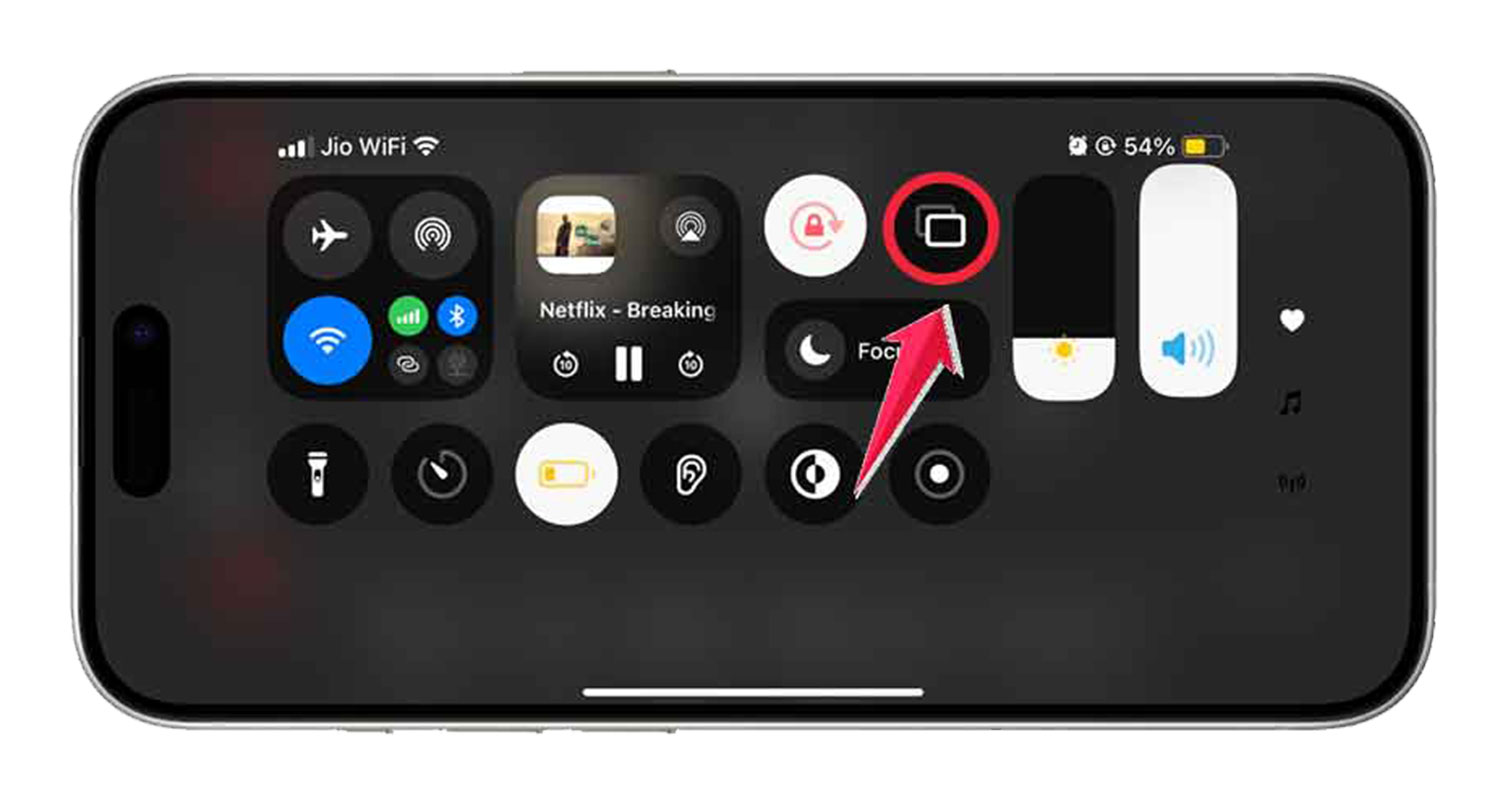
- Select your TV from the list.

- Enjoy the Show: Your Netflix should now be on your TV!
- When You’re Done: Go back to Control Center, tap Screen Mirroring, and choose “Stop Mirroring”.
#2 Using Your Mac:
- Set Up: Make sure your Mac and TV are on the same WiFi.
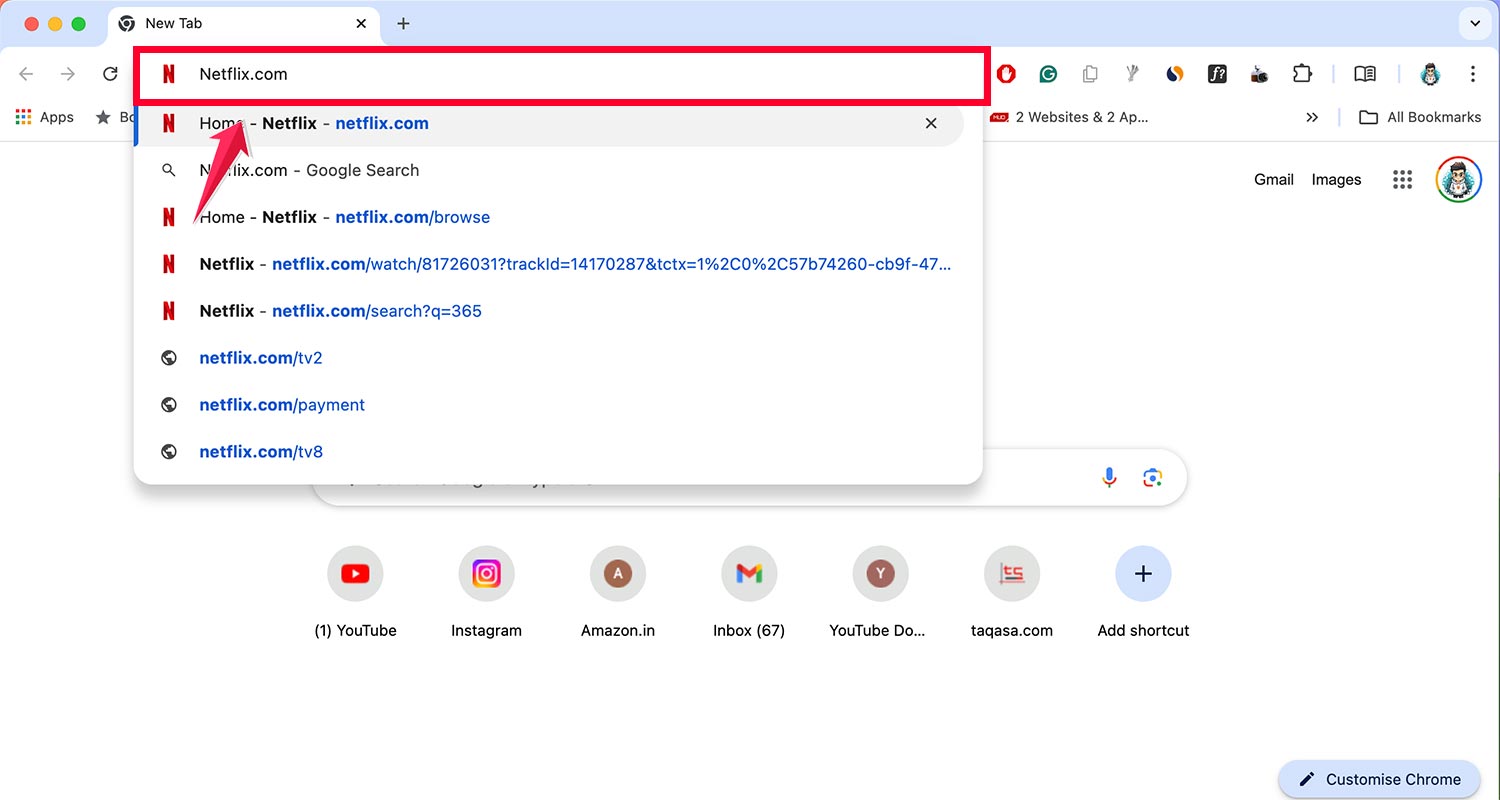
- Go to Netflix: Open your web browser, go to Netflix.com, and sign in.
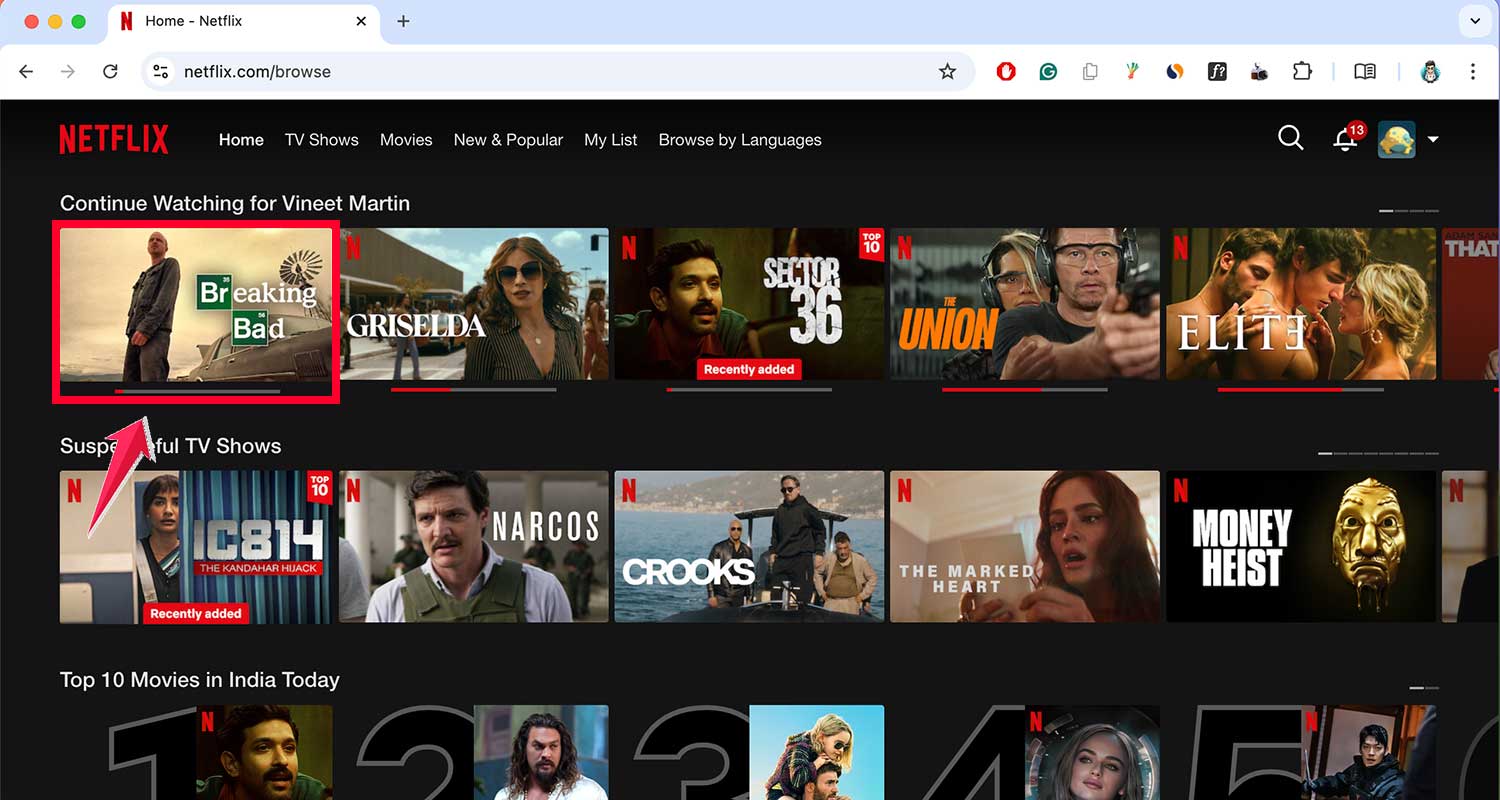
- Choose What to Watch: Pick your movie or show.
- Click the Control Center icon in the menu bar (it looks like two toggles).
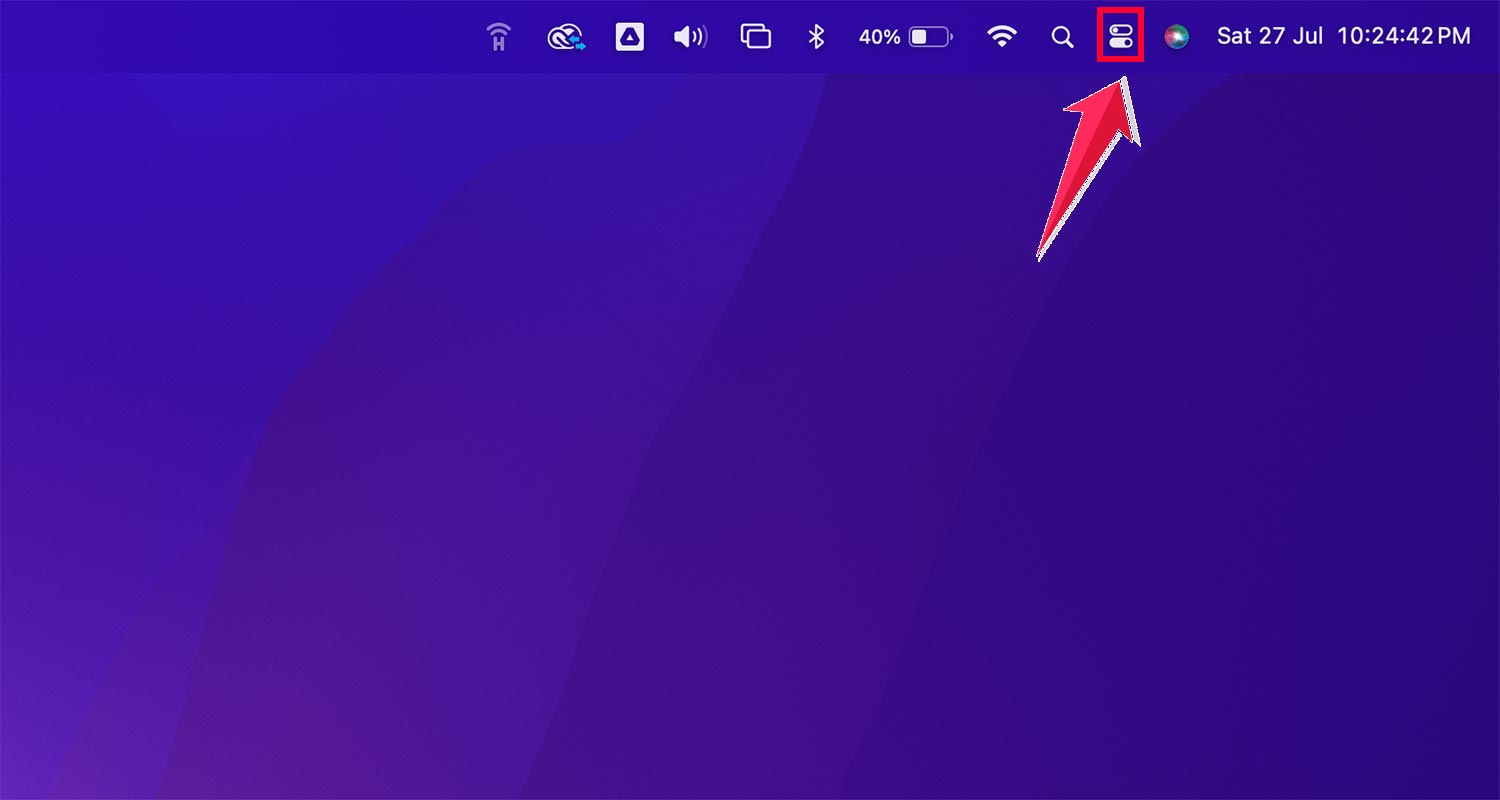
- Select “Screen Mirroring”.
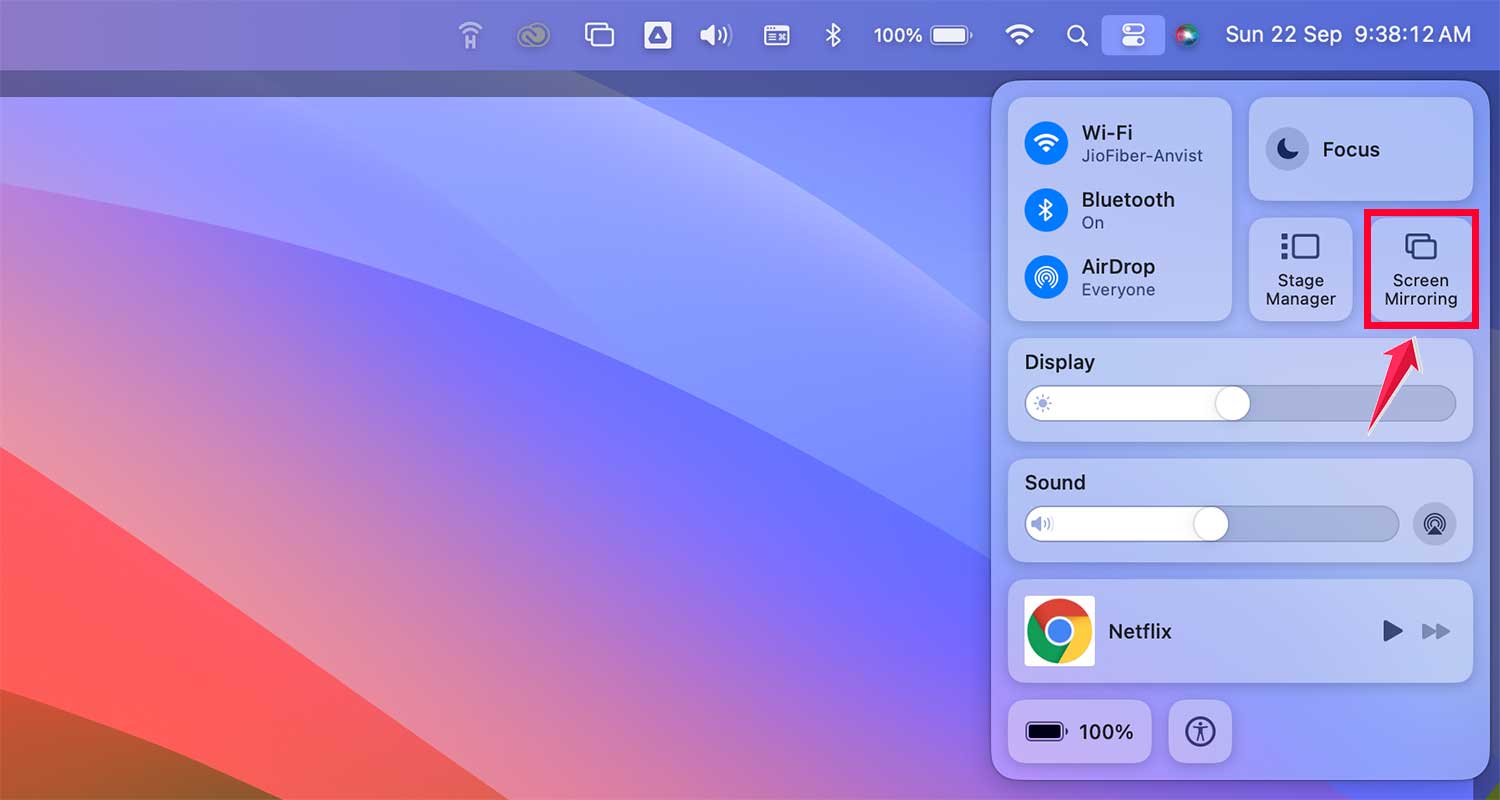
- Choose your TV from the list.

- Watch on the Big Screen: Your Netflix should now be playing on your TV.
- Turning It Off: When you’re done, go back to Control Center, click “Screen Mirroring”, and select “Stop Mirroring”.
How to AirPlay Netflix from iPhone to Mac
Want to enjoy Netflix from your iPhone on your bigger Mac screen? Here’s how you can do it:
#1 Setting Up Your Mac
First, let’s get your Mac ready:
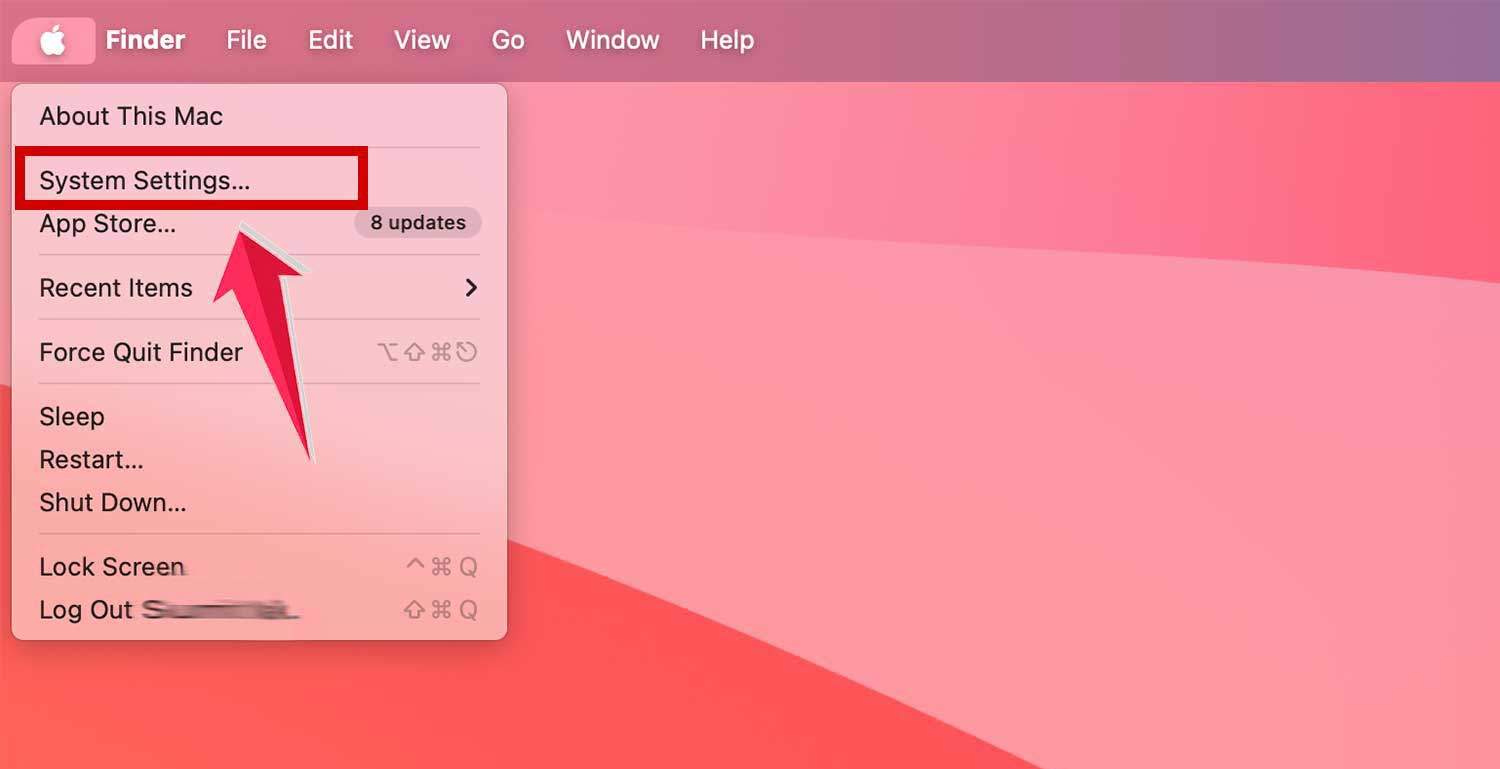
- Click the Apple menu and open System Settings.
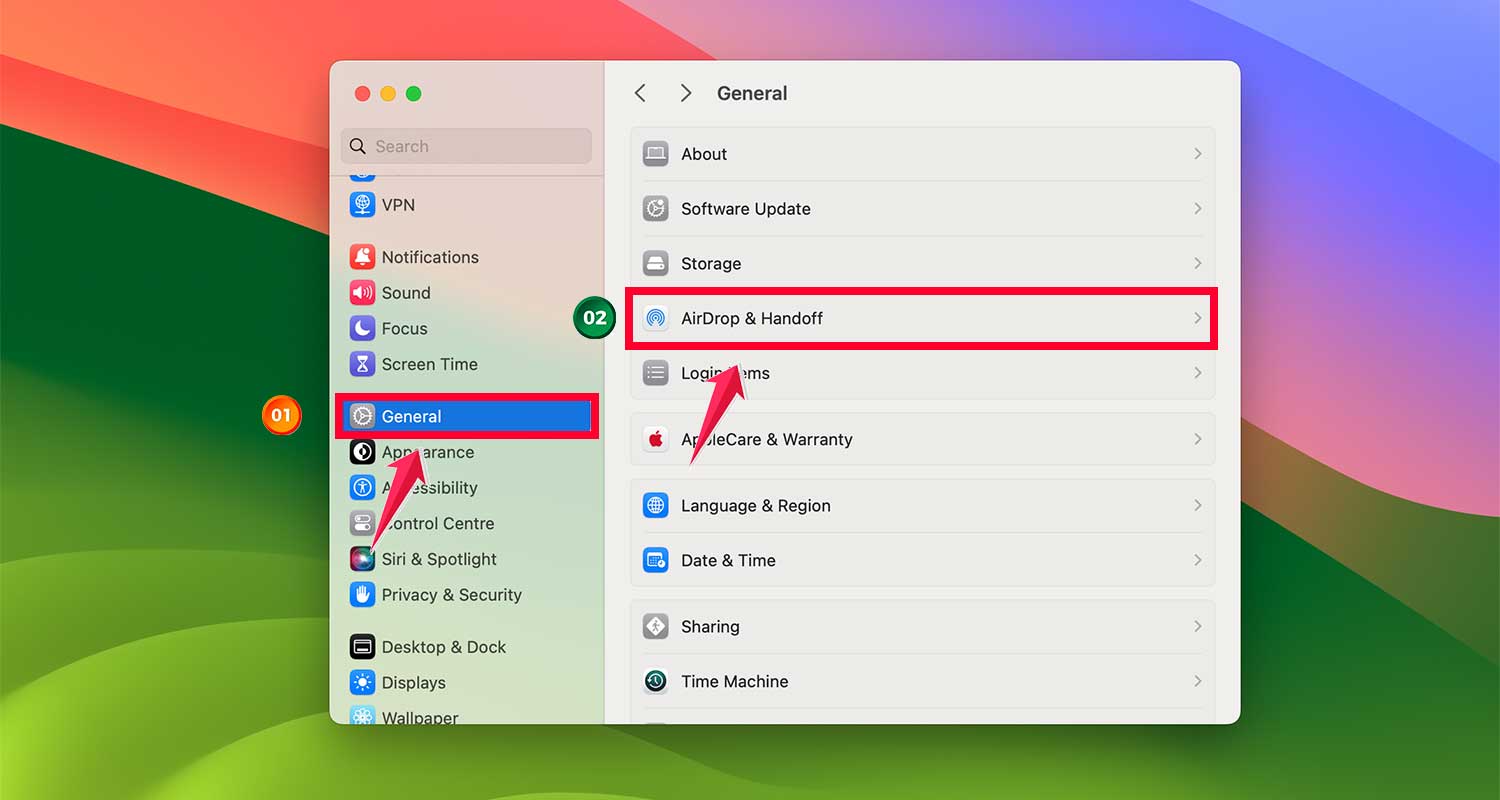
- Tap on the General.
- Find and click on “Airdrop & Handoff”.
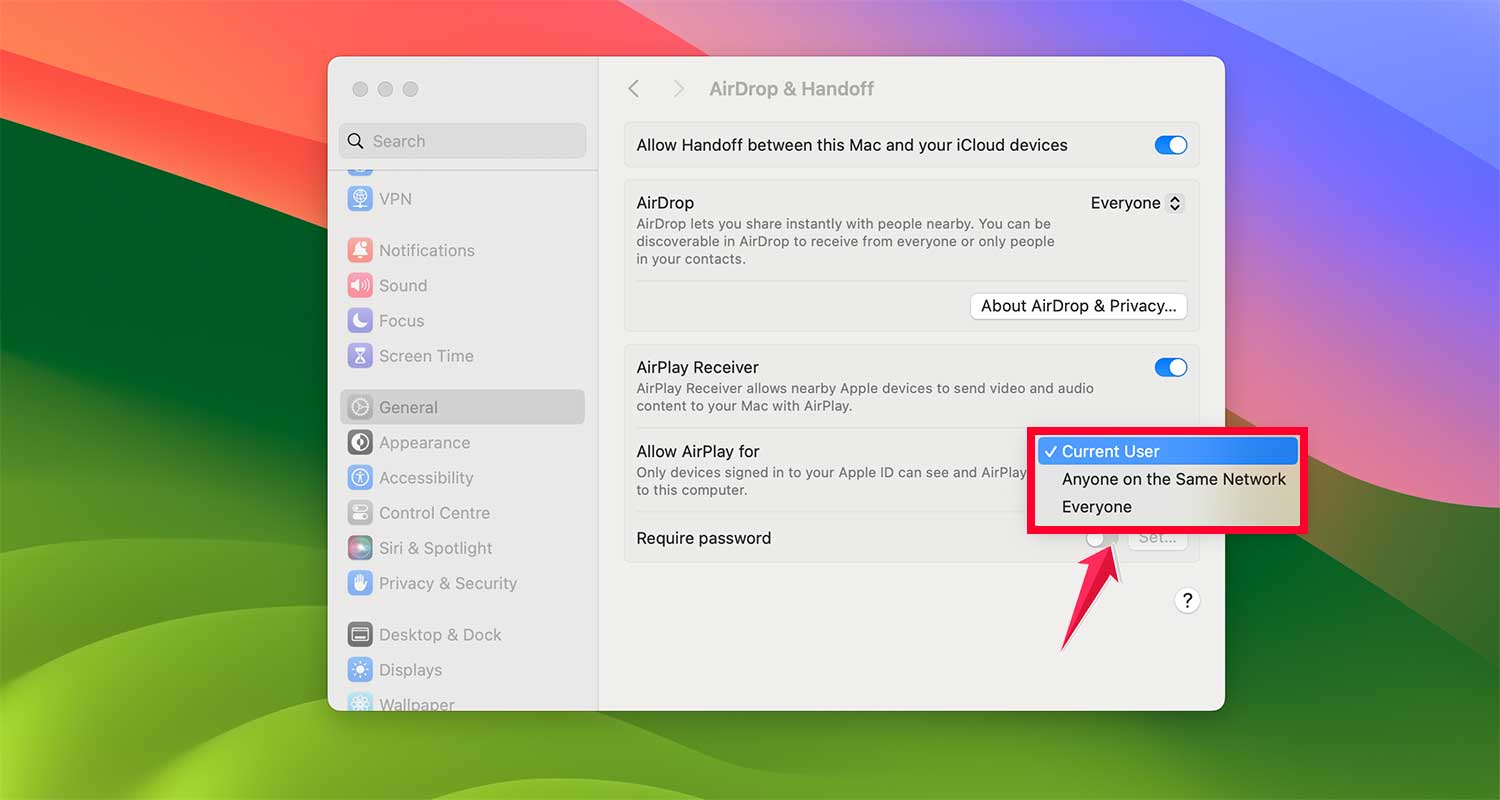
- Look for “Allow AirPlay for” and click it.

- Choose who can use AirPlay:
- “Current User” for just you
- “Anyone on the same network” or “Everyone” to let others connect
- If you want, set a password for extra security.
Make sure your iPhone and Mac are on the same WiFi network.
#2 Showing Netflix on Your Mac
Now, let’s get Netflix from your iPhone to your Mac:
- Open Netflix on your iPhone and pick what you want to watch.
- Swipe down from the top-right of your iPhone to open Control Center.
- Tap the Screen Mirroring button (it looks like two rectangles).
- Choose your Mac from the list.

- If asked, enter the passcode shown on your Mac.
- Your iPhone screen will now show on your Mac.
- Play your Netflix show, and it’ll appear on both screens.
Both methods let you watch Netflix from your iPhone on your Mac. Choose whichever works best for you.
Wrapping it up
Great! You’ve now learned different ways to watch Netflix on bigger screens using your Apple devices.
These techniques give you more options for enjoying your favorite shows and movies. Whether you want to watch on your TV or your Mac’s larger display, you now know how to do it.
Remember, the key is to have your devices on the same WiFi network. This lets them work together smoothly.
With these skills, you can make movie nights more fun or enjoy your shows more comfortably. It’s all about making the most of your Netflix subscription and your devices.
So, grab some popcorn, get comfy, and enjoy Netflix on the big screen! Whether you’re watching alone or with friends and family, you’re all set for a great viewing experience.