Ever tried making a FaceTime call only for something to go wrong? It’s frustrating, right? Things get glitchy, and you’re left wondering why your call isn’t going through.
FaceTime is awesome when it works, but let’s be real. It’s not always smooth sailing. One second you’re connected, and the next, the call drops, no video, or it just won’t start.
Maybe your device is too old, or there’s a small bug causing chaos behind the scenes. Don’t worry, though. You’re not alone. This stuff happens to a lot of us.
But here’s the good news. You can fix it. And it’s easier than you think. I’m going to walk you through everything step by step.
We’ll look at your device, your software, your Wi-Fi, and even your Apple ID. We’ll talk like normal people, and I’ll show you exactly what to do without any techy talk.
Stick around, and by the end of this guide, you’ll be back to making smooth, clear FaceTime calls without any hiccups. Let’s fix this together, one step at a time.
Why FaceTime Might Not Be Working for You
Alright, let’s start by looking at what could be going wrong. There are a few common reasons FaceTime acts up, and once you know them, it’s easier to fix the problem.
1. Your device might be too old
First up. Your device. This one’s simple. If your Mac or iPad is a bit old, FaceTime might not work like it should. Newer versions of FaceTime need newer software, and that software won’t run well on old devices.
So, here’s what you can do: go to Apple’s website and check if your device is listed under FaceTime-supported models. If it’s not, that could be your issue right there. If it is, great. We move on to the next step.
2. Software bugs can mess things up
Sometimes, your device is fine, but the software inside it is acting up. Bugs happen. A small glitch in iOS or macOS can mess with FaceTime. The fix? Just update your system. Apple rolls out updates all the time to fix bugs just like this.
We’ll walk through how to check for updates below, but just know this. Keeping your device updated is one of the easiest ways to avoid FaceTime problems.
3. Your internet might be the problem
This one’s a biggie. FaceTime needs a strong and stable internet connection. If you’ve got weak Wi-Fi or your network is acting weird, your calls will freeze, drop, or not even start. So before you blame your device, double-check your connection.
4. Your Apple ID might need attention
FaceTime needs your Apple ID to work. If you’re not signed in properly, or if there’s a hiccup with your account, it can stop you from making calls. Sometimes, just signing out and back in fixes everything.
So now that we’ve looked at the most common reasons, let’s dive into how to fix each one. Ready? Let’s go.
Make FaceTime Calls From Your Mac or iPad Seamlessly
Alright, now we’re getting to the good part. Let’s fix this. I’ll walk you through the most effective ways to get FaceTime working again.
These are easy, and I’ll explain everything in plain English.
#1 Make sure your device supports FaceTime
This is step one. If your device is too old, FaceTime might not work properly. Don’t worry. Checking this is easy.
Go to Apple’s official website and look up the list of supported devices.
If your Mac or iPad isn’t there, FaceTime might be limited or not work at all. If your device is supported, then you’re good to move on.
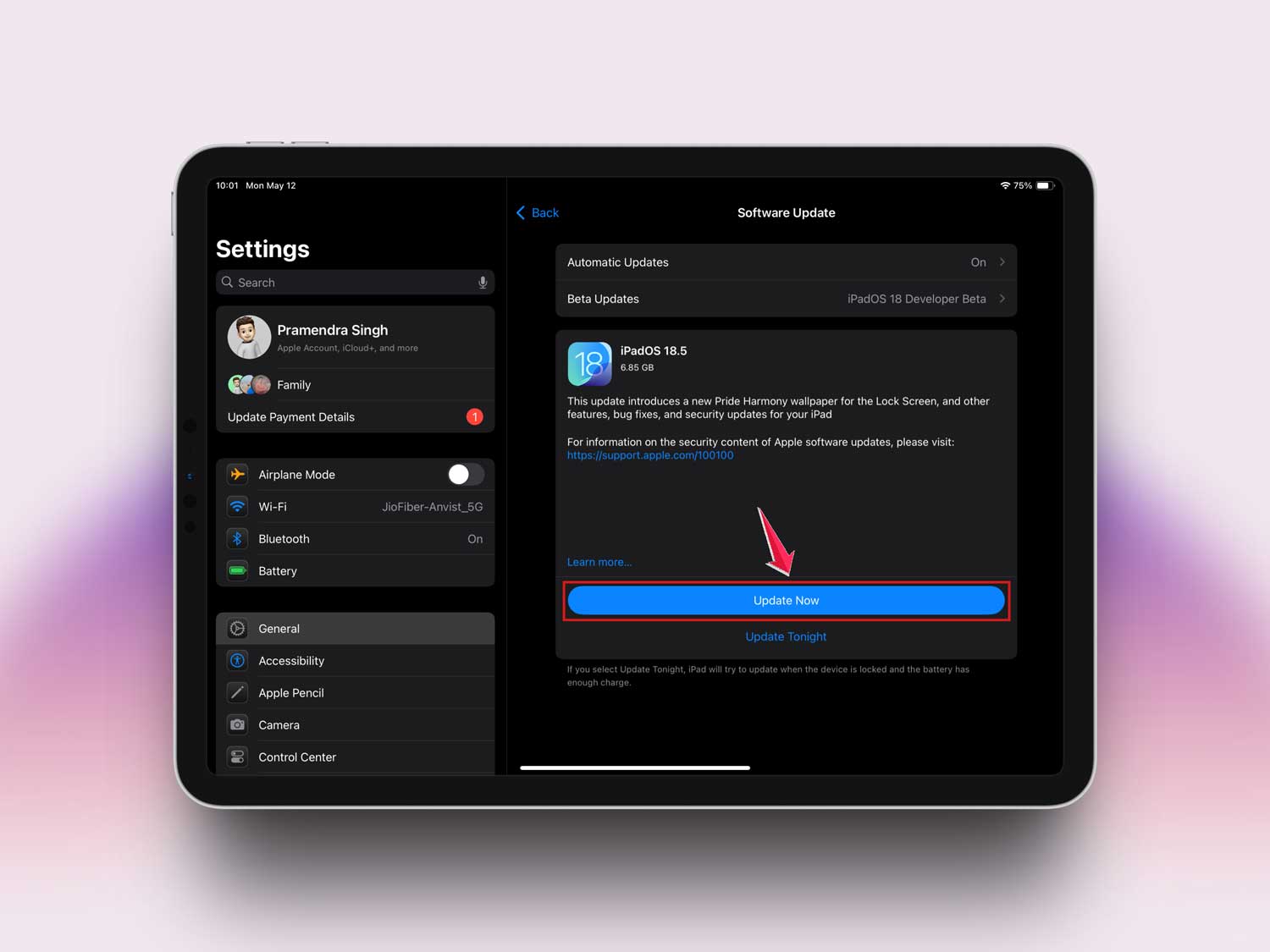
#2 Update your software
Outdated software is one of the biggest reasons why FaceTime stops working. Let’s get your device up to date.
For your iPad:
- Open Settings.

- Tap General.
- Select Software Update.

- Install any updates if available.
For your Mac:
- Click the Apple menu in the top-left corner.
- Select System Settings.

- Go to General > Software Update.

- Download and install any updates shown.

Once that’s done, restart your device and try FaceTime again.
#3 Check your Wi-Fi connection
Let’s make sure your internet isn’t the problem. A weak or slow connection can ruin FaceTime calls.
Here’s what you can do:
- Restart your Wi-Fi router.
- Move closer to the router if you’re far away.
- Switch networks if another Wi-Fi is available.
If things still feel slow, contact your internet provider. They might be able to help.
#4 Sign out and sign back into your Apple ID
Sometimes, your Apple ID just needs a quick refresh. Signing out and signing back in can fix account-related issues.
On your iPad:
- Go to Settings.
- Tap your name at the top.

- Scroll down and tap Sign Out.
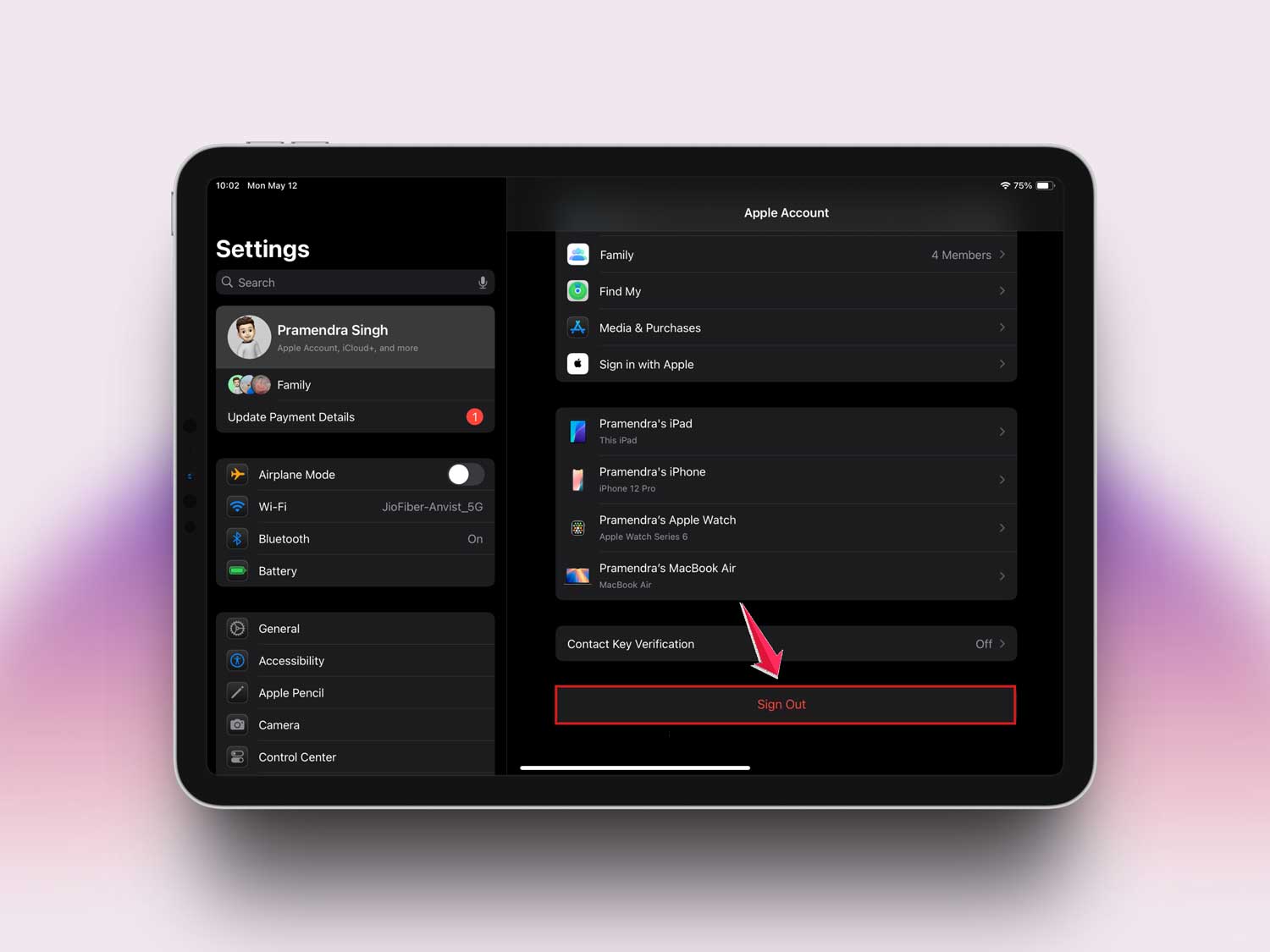
- Sign back in with your Apple ID.
On your Mac:
- Open the FaceTime app.
- Click FaceTime > Settings.

- Click Sign Out.
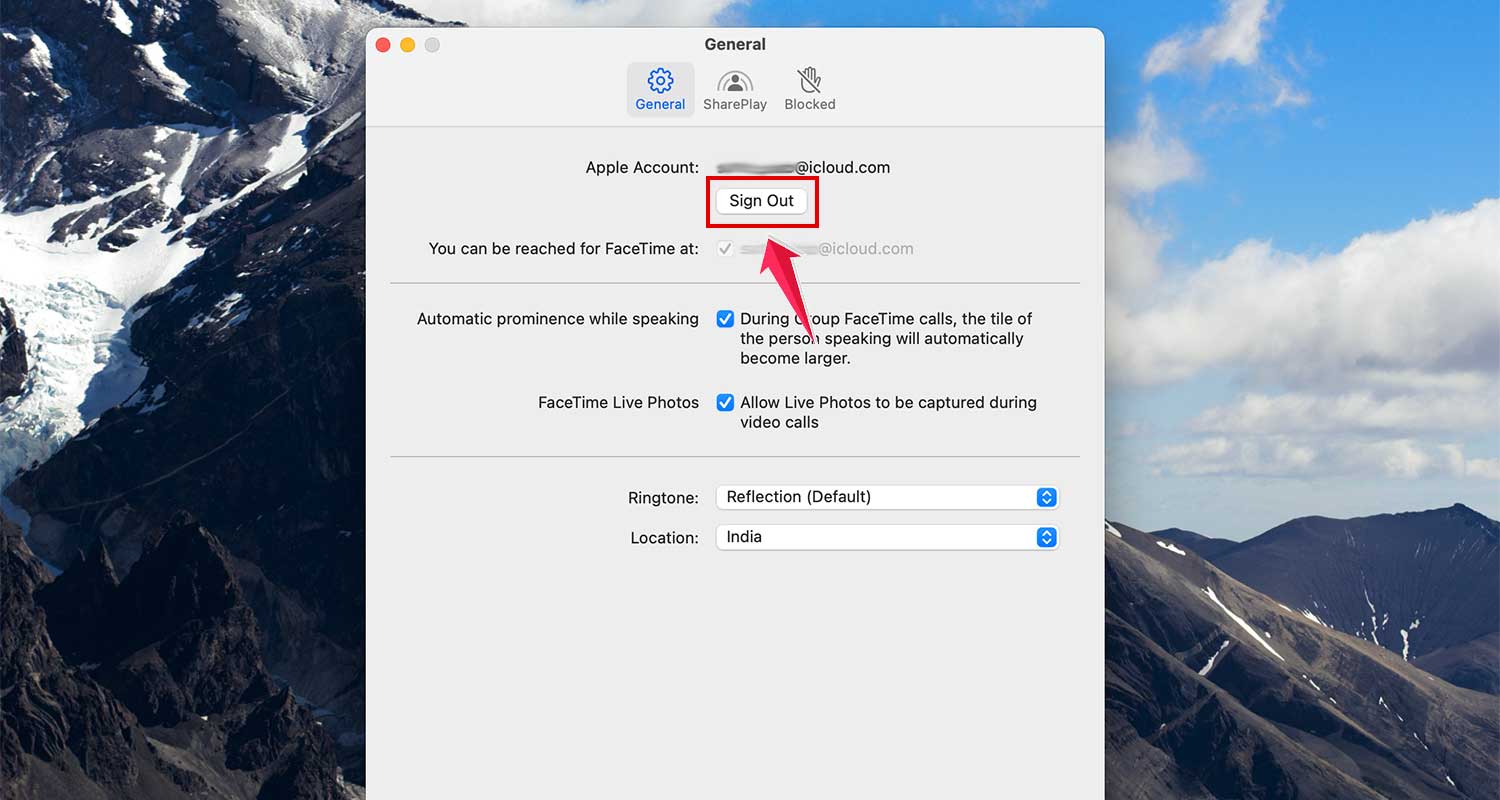
- Sign back in with your Apple ID.
Try FaceTime again once you’re signed back in.
#5 Restart your device
This one’s simple but powerful. A quick restart can clear up background bugs and refresh your system.
For your iPad:
- Hold the power button and volume down until you see the power slider.

- Slide to power off.
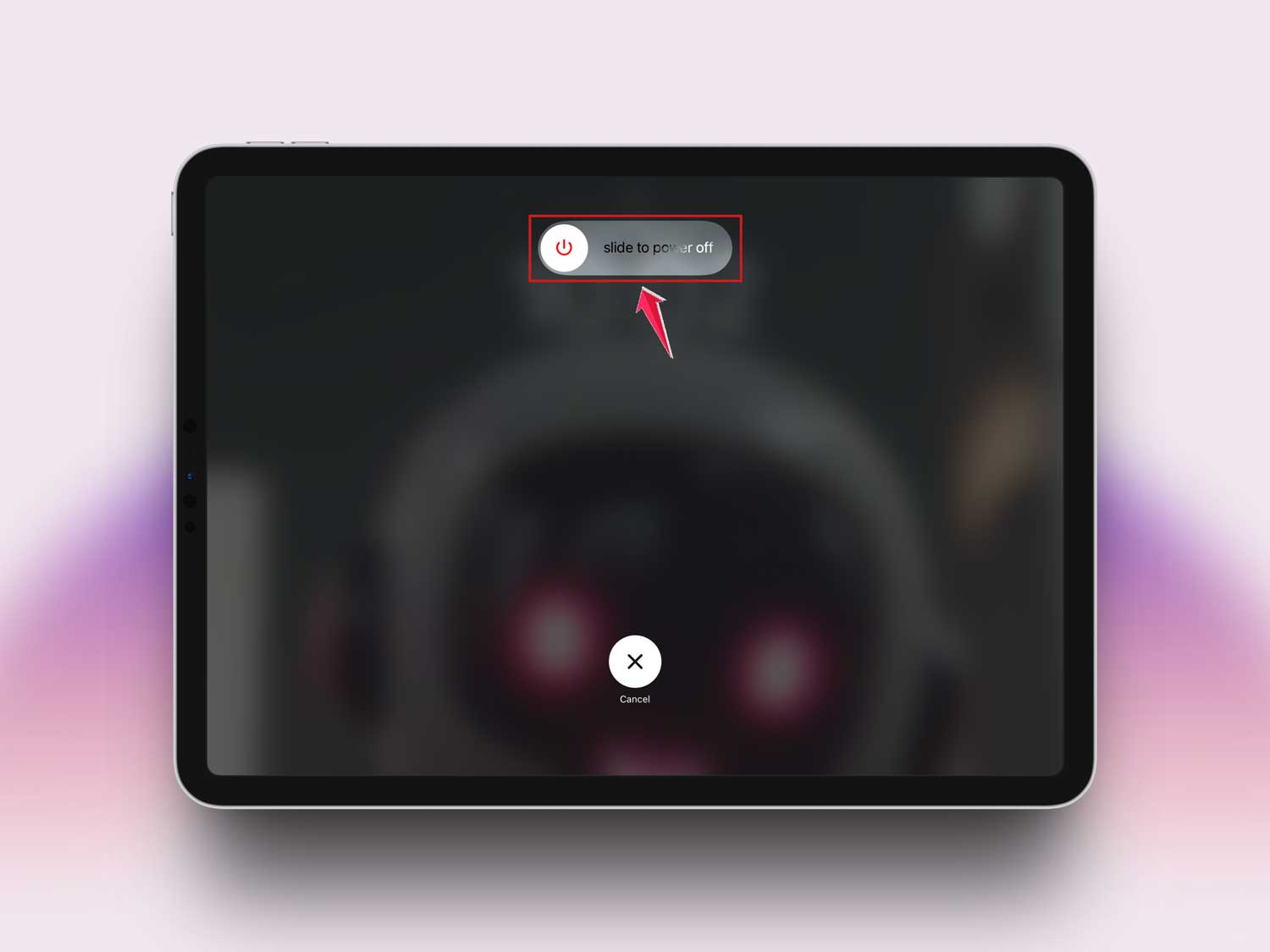
- Wait a few seconds, then press the top button again to turn it back on.
For your Mac:
- Click the Apple menu.
- Select Restart.

Once your device is back on, open FaceTime and see if it works.
Extra Tips to Make Your FaceTime Calls Even Better
1. Use a headset for better sound. Want your calls to sound clearer? Try using a headset. It cuts down on background noise and echo, making your voice sound better on the other end.
2. Turn on Do Not Disturb. Notifications can pop up and ruin the moment. Before a call, go to Settings and turn on Do Not Disturb. That way, you won’t get interrupted by random alerts.
3. Check camera and mic access. If your video or sound isn’t working, FaceTime might not have permission to use your camera or mic. Head to Settings > Privacy and make sure FaceTime has access.
4. Close apps using your camera. Other apps can sometimes take over your camera or mic. Close anything you’re not using so FaceTime can work smoothly.
The Takeaway
FaceTime problems can be annoying, but you’ve got all the tools now to fix them. Whether it’s your internet, your software, or your Apple ID, you know what to check and how to fix it.
Remember to keep your device updated, make sure you’re using a good Wi-Fi connection, and don’t underestimate the power of a restart. These simple steps fix most FaceTime issues.
Now go ahead. Make that call! You’ve got this. And hey, if you’ve got more questions or want to share your own tips, drop them in the comments below. I’d love to hear from you!