Let’s be honest. That little red heart app on your iPhone holds a lot of personal stuff. Your steps, your heart rate, your workouts, and even your sleep. It’s all there in the Health app, quietly collecting your data every day.
Now, maybe you’re trying to share it with your doctor before a checkup, or your trainer wants to see if you’re really hitting those goals.
Sometimes, you just want to send it to a family member who’s keeping an eye on your health. But then something doesn’t work. You tap “share,” and nothing happens. Or worse, you can’t even find where to start.
It’s frustrating, I get it. But don’t worry. You’re not the only one stuck here, and I’m going to help you fix it.
In this guide, I’ll walk you through how to export and share your health data from your iPhone in the easiest way possible. No tech jargon. Just simple steps and real help.
Ready? Let’s figure this out together.
What could be stopping you from sharing health data?
Okay, before we jump into the how-to part, let’s make sure nothing’s blocking the process. There are a few things that could be getting in the way, and fixing them now will save you time later.
1. Your iPhone settings might be off
Sometimes, your phone settings just aren’t set right. If something’s off in the background, you won’t be able to share anything.
Take a moment to go through your iPhone settings. Make sure everything related to Health and sharing is turned on. This small step can fix big problems.
2. The Health app might need an update
Yes, updates matter. If your Health app is outdated, it may not support the latest sharing features. It’s like trying to run a marathon in old shoes. It just doesn’t go well.
Head over to the App Store and check if there’s an update waiting for you. If there is, download it. This alone might solve your problem.
3. You may be missing permissions
Your iPhone isn’t going to share your private health info unless you give it permission. If you haven’t turned on the right settings, it simply won’t work.
Go to your Privacy settings and double-check that Health data access is allowed for the apps or people you want to share with.
4. Your health data might be too large to send
If you’ve had your iPhone for a while, your health data could be pretty big. Trying to send a huge file all at once might cause the process to fail.
You can try exporting a smaller portion of your data or compressing it before sharing. We’ll cover how to do that soon.
Okay, now that we’ve cleared the roadblocks, let’s walk through how to actually share your health data.
How to export or share health data from your iPhone
Let’s dive into the part you came here for. I’m going to show you how to export and share your iPhone health data in the easiest way possible.
We’ll take it step by step, and I’ll talk you through everything.
#1: Make sure your Health app is updated
Before anything else, make sure you’re using the latest version of the Health app. An outdated app can create all sorts of problems with sharing.
Here’s how to update it:
- Open the App Store on your iPhone.
- Search for the Apple Health app.
- If it says Update, tap it.
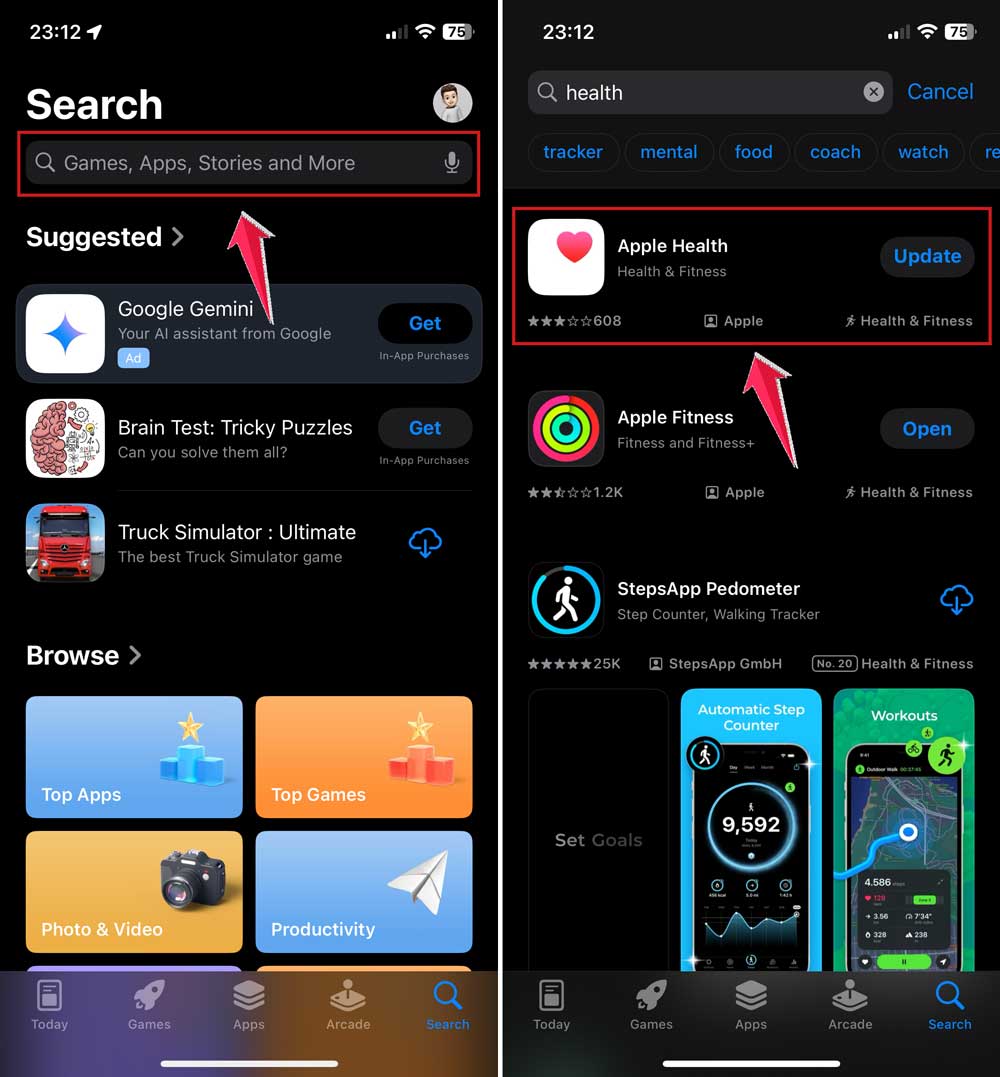
Once you’re updated, things should go a lot smoother.
#2: Check your Health permissions
If the app doesn’t have permission, it can’t share anything. Let’s fix that.
- Open your iPhone’s Settings.
- Tap Privacy & Security.
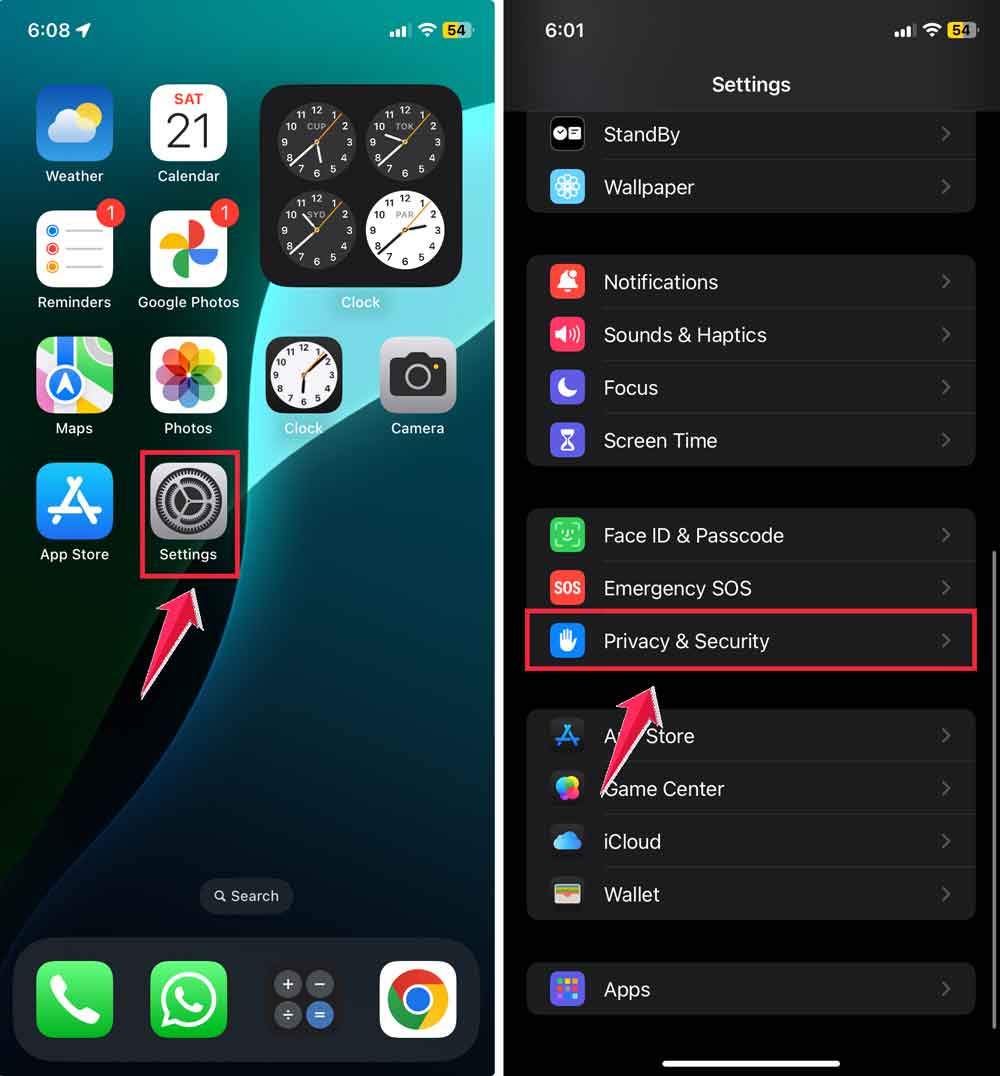
- Choose Health.
- Make sure the apps you want to use for sharing have the green toggle turned on.
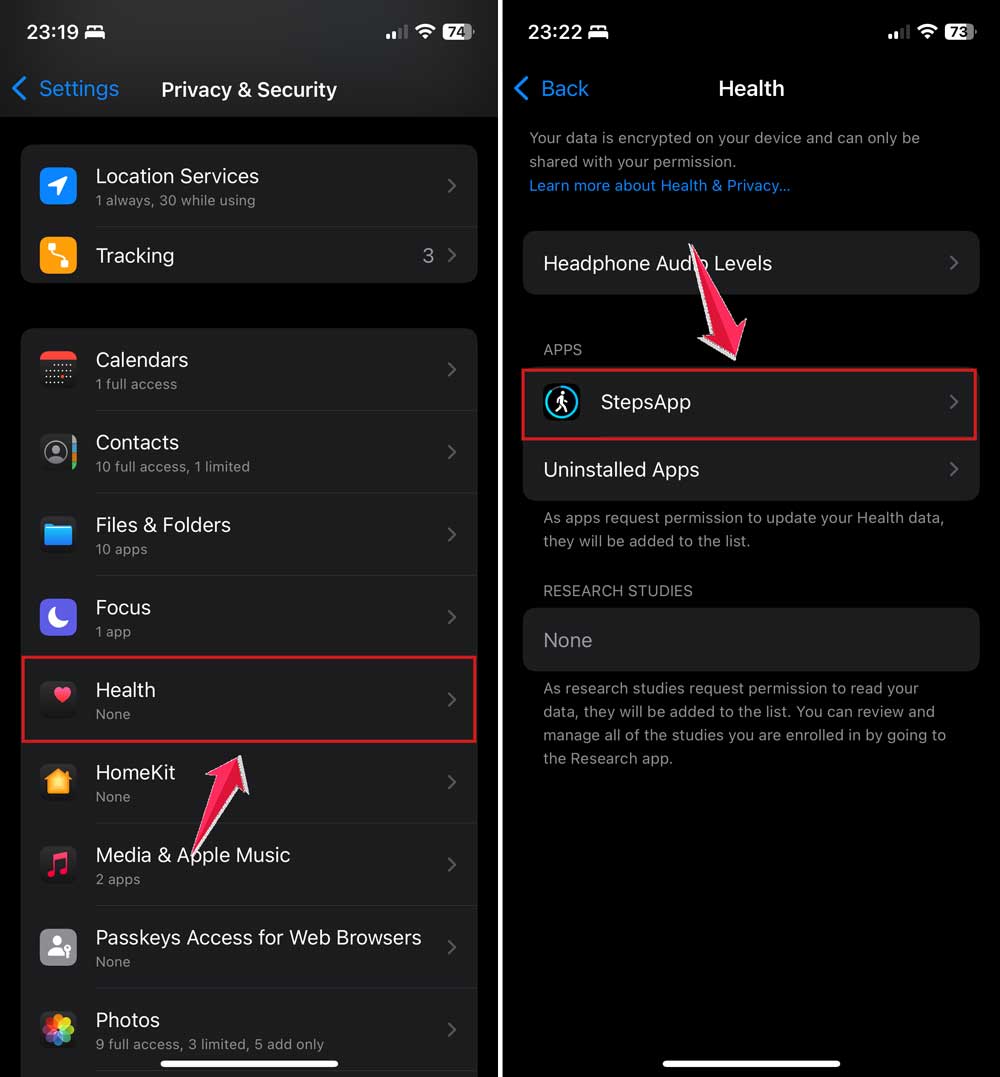
After this, your Health app should be ready to share data with apps or people you trust.
#3: Export your health data from the Health app
This is the main way to grab your health data and send it out.
- Open the Health app.
- Tap your profile picture in the top right corner.
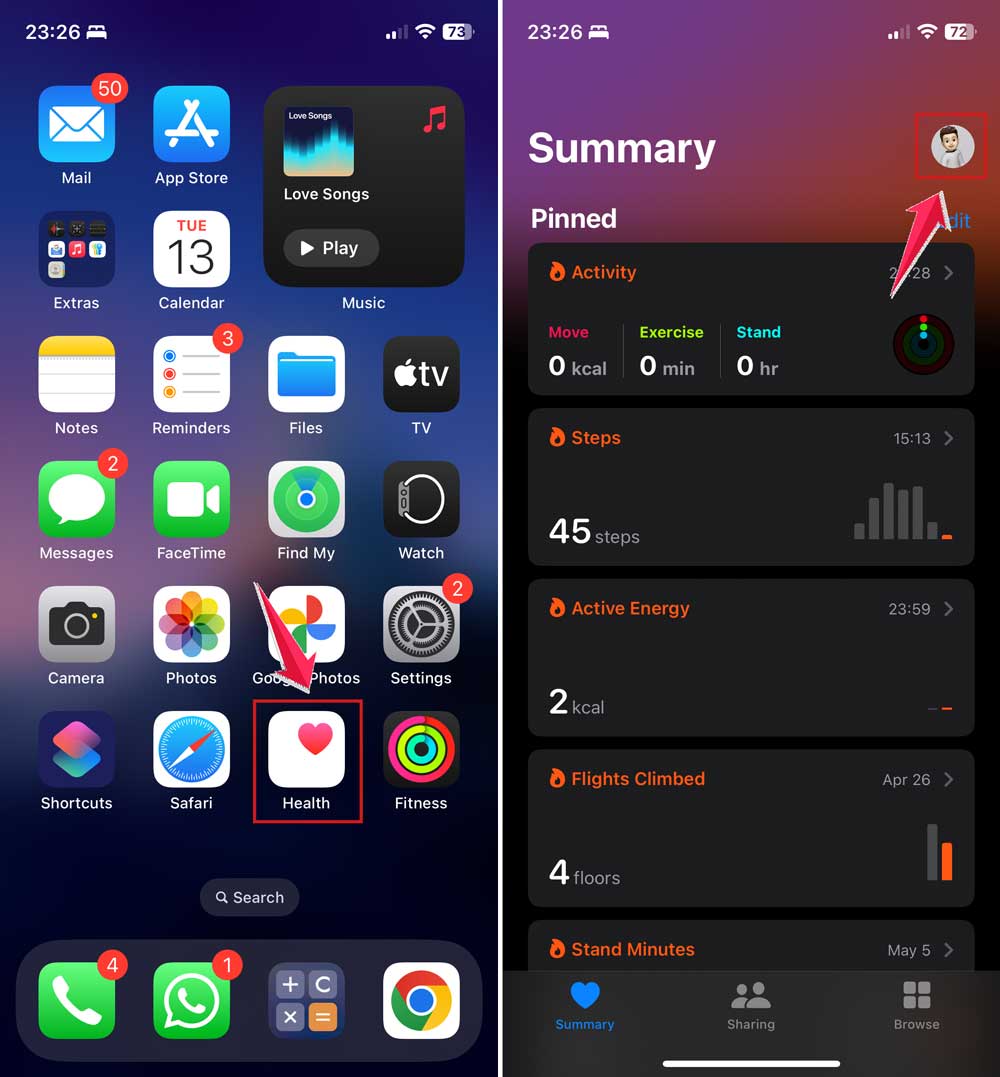
- Scroll to the bottom and tap Export All Health Data.
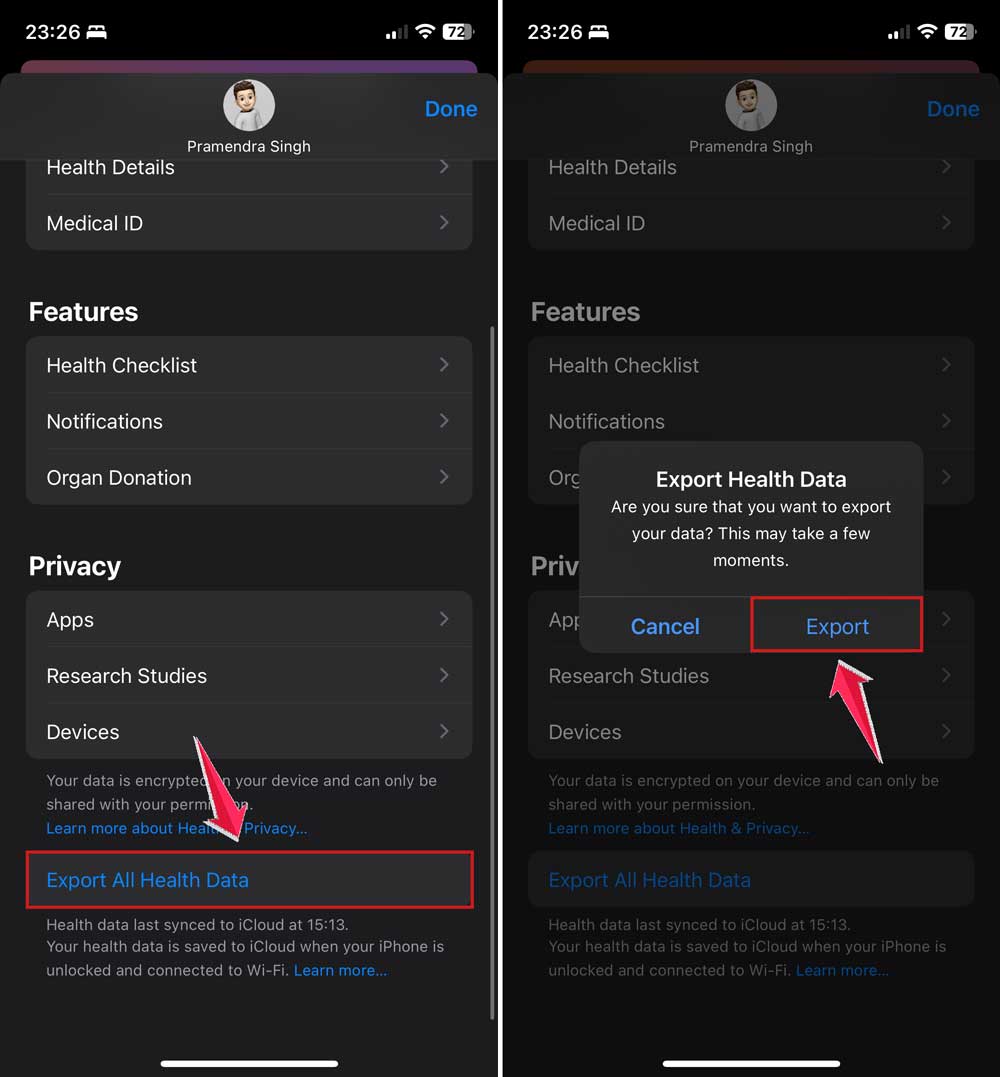
- Wait a few seconds. It’ll create a ZIP file.
- Use Mail, AirDrop, or any other method to share the ZIP file.

And that’s it! Your health data is now packed and ready to go.
#4: Use iCloud to sync and share health data
If you want your data to be backed up and synced across devices, iCloud is the way to go.
- Go to your Settings.
- Tap your Apple ID (your name at the top).
- Tap iCloud.
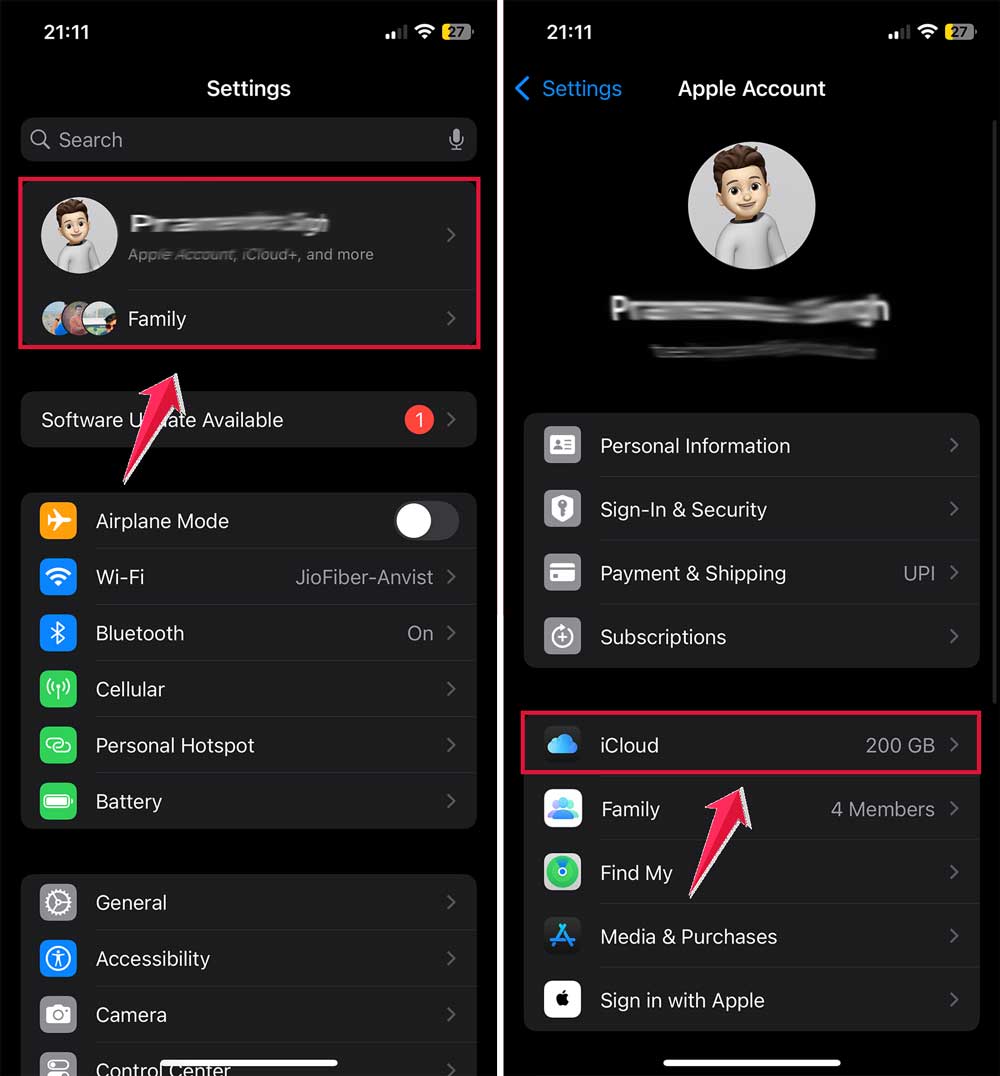
- Scroll down and make sure Health is turned ON.

This keeps your health data safe and makes sharing across devices much easier.
#5: Try trusted third-party apps
Some health-related apps offer better ways to share your data. Just make sure you’re using one that’s secure and well-reviewed.
Here’s what to do:
- Open the App Store.
- Search for apps that support HealthKit or say they work with Apple Health.
- Check the reviews and descriptions before downloading.
- Once installed, follow the app’s steps to link and share your health data.
These apps can often give you more control and flexibility when sharing.
Extra tips to make sharing easier and safer
1. Use secure methods when sharing. Always use apps or services that offer strong security. You don’t want your personal health details floating around where they shouldn’t be.
2. Back up your health data regularly. Don’t wait for something to go wrong. Back up your health data using iCloud or your computer. That way, even if something happens, your info is safe.
3. Check compatibility before sending. Before you hit send, make sure the person or app you’re sharing with can actually open or use the data. It avoids a lot of back-and-forth later.
4. Use a health data manager app. These apps help you manage, organize, and even visualize your health trends. Plus, they make sharing easier with built-in tools.
5. Stay updated with Apple releases. Apple often adds new features to the Health app. Keeping your iOS updated means you get better tools for sharing and managing your data.
The Takeaway
So, you tried to share your health data and hit a wall. It’s okay. It happens. The good news? Most of these issues are quick to fix.
Whether it’s updating your app, adjusting your permissions, or just exporting your data the right way, now you know what to do.
A lot of people think sharing health data is hard, but it’s not. You just need to know where to look and what buttons to tap. And now, you do.
Keep your data safe, stay updated, and use tools that make your life easier. You’ve got this.
Got any other questions or something that didn’t work as expected? Drop a comment below. I’m here to help!