PDFs are a staple when it comes to sharing important documents that you don’t want altered. But, what if you find yourself needing to upload a file and the platform only accepts images?
Or maybe you just prefer your document in a picture format for easier sharing?
No need to fret if you’re on a Mac! Converting your PDFs to JPGs is straightforward, whether it’s a single file or a whole slew of them.
Stick around! You’ll want to catch these practical steps I’m about to show you. Let’s dive into how you can turn your PDF into a JPG without any hassle.
How To Convert A PDF To A JPG?
#1 Use Preview
For occasional file conversions, Mac’s Preview app is incredibly user-friendly. Here’s how to use it:
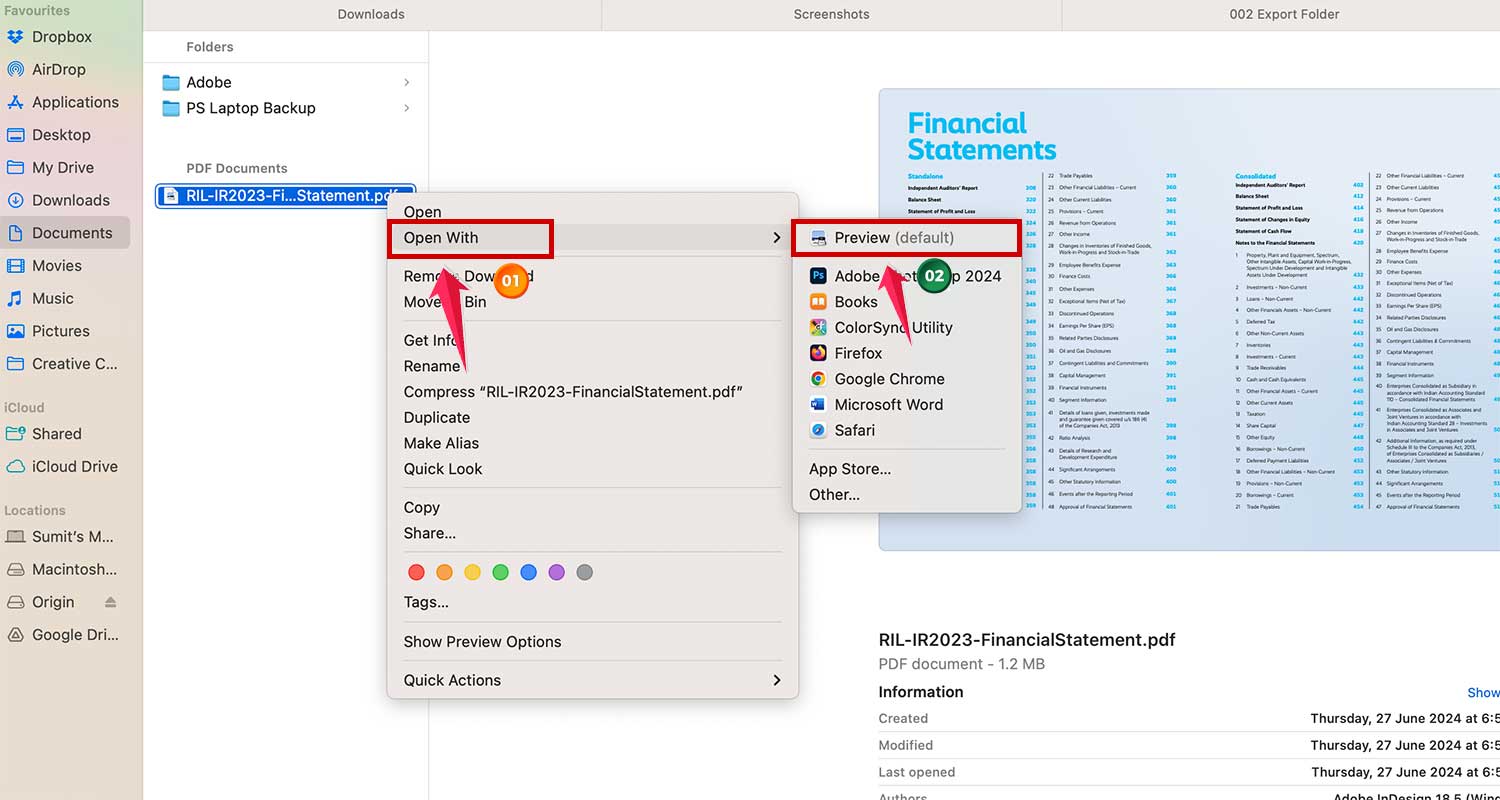
- Locate your PDF in Finder.
- Right-click on the PDF and select Open With > Preview.
- Go to File > Export.

- In the “Format” dropdown, choose JPEG.

- Name your file and choose where to save it.
- Click Save and you’re all set!

#2 Use Automator Quick Actions
For those who frequently convert PDFs or need to handle multiple files, Automator Quick Actions can simplify your workflow:
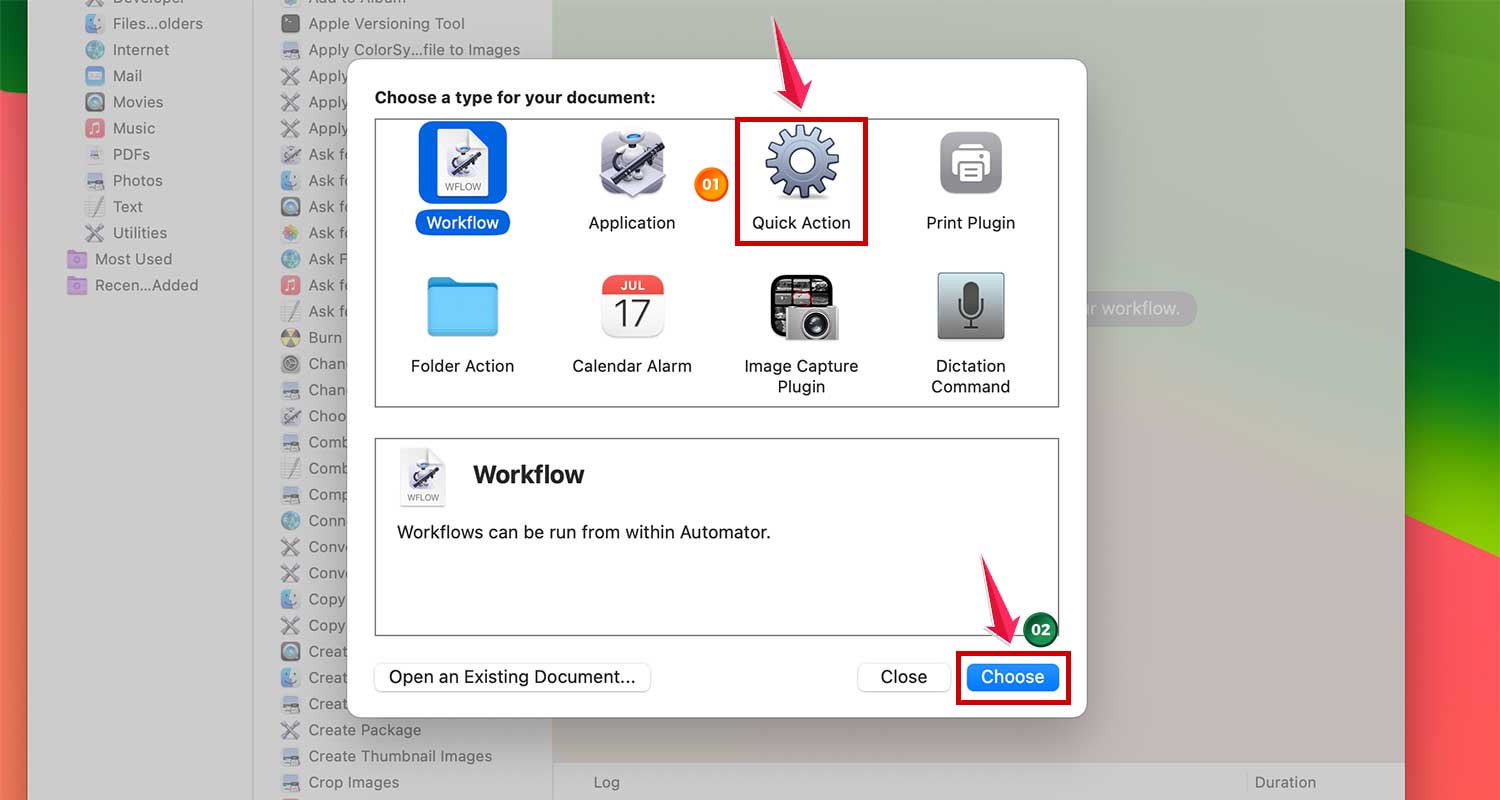
- Press Command+Space, search Automator and Press Return to Launch Automator

- Create a New document.

- Select Quick Action and click Choose.
- Search for and drag the Render PDF Pages as Images action to your workflow.

- Set the format to JPEG.

- Now search and drag the Move Finder Items action to specify the destination folder for your JPGs.

- Go to File in Menu Bar and Click on Save to save your Quick Action.

- Choose a relevant name like “Convert PDF to JPG” and click on “Save”.
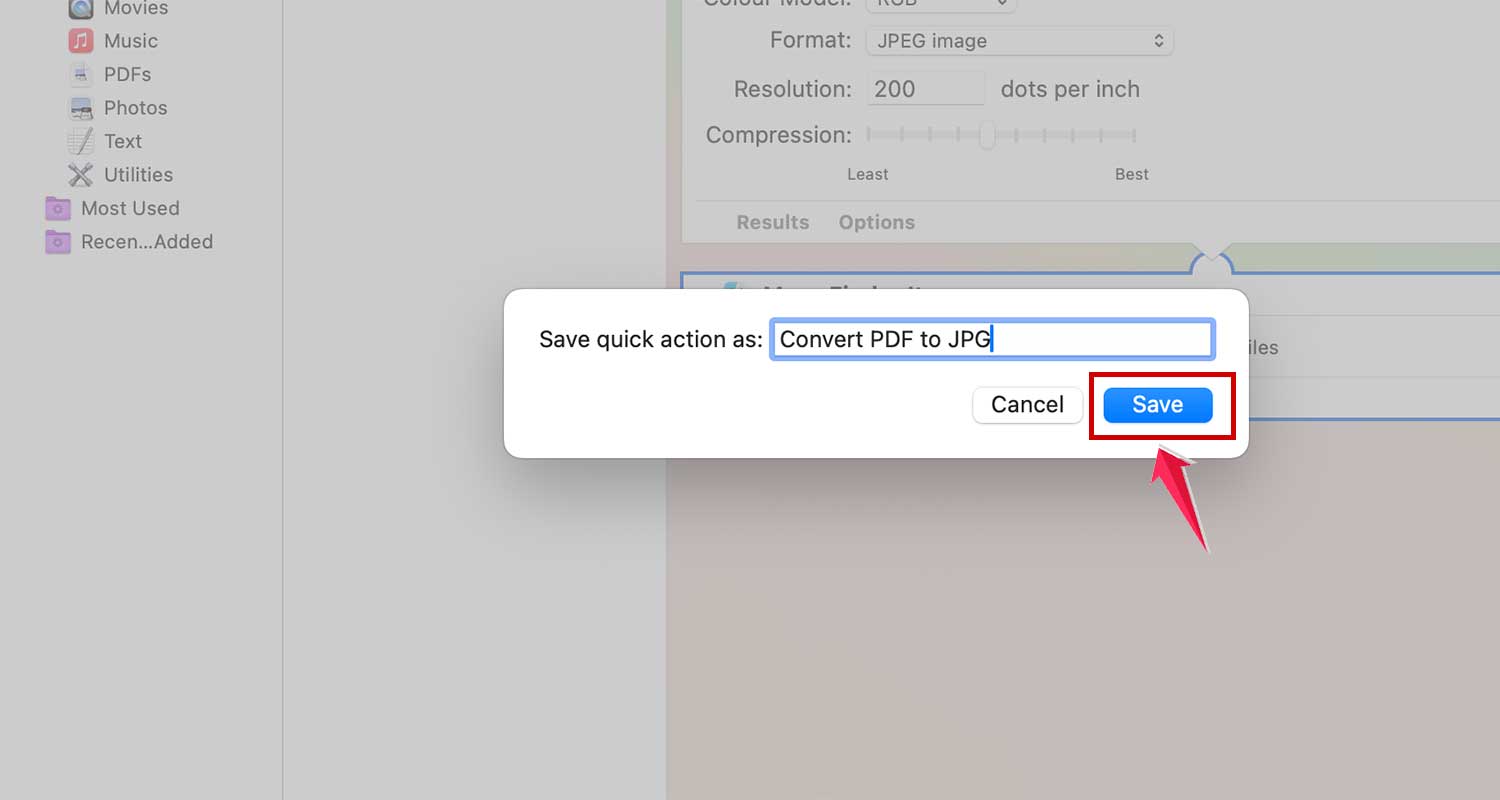
To use this Quick Action, right-click a PDF in Finder, navigate to Quick Actions > Convert PDF to JPG, and your file is converted!

You can think of it like using 3uTools for device management — smart tools make repetitive tasks much easier.
#3 Use Online Tools for More Flexibility
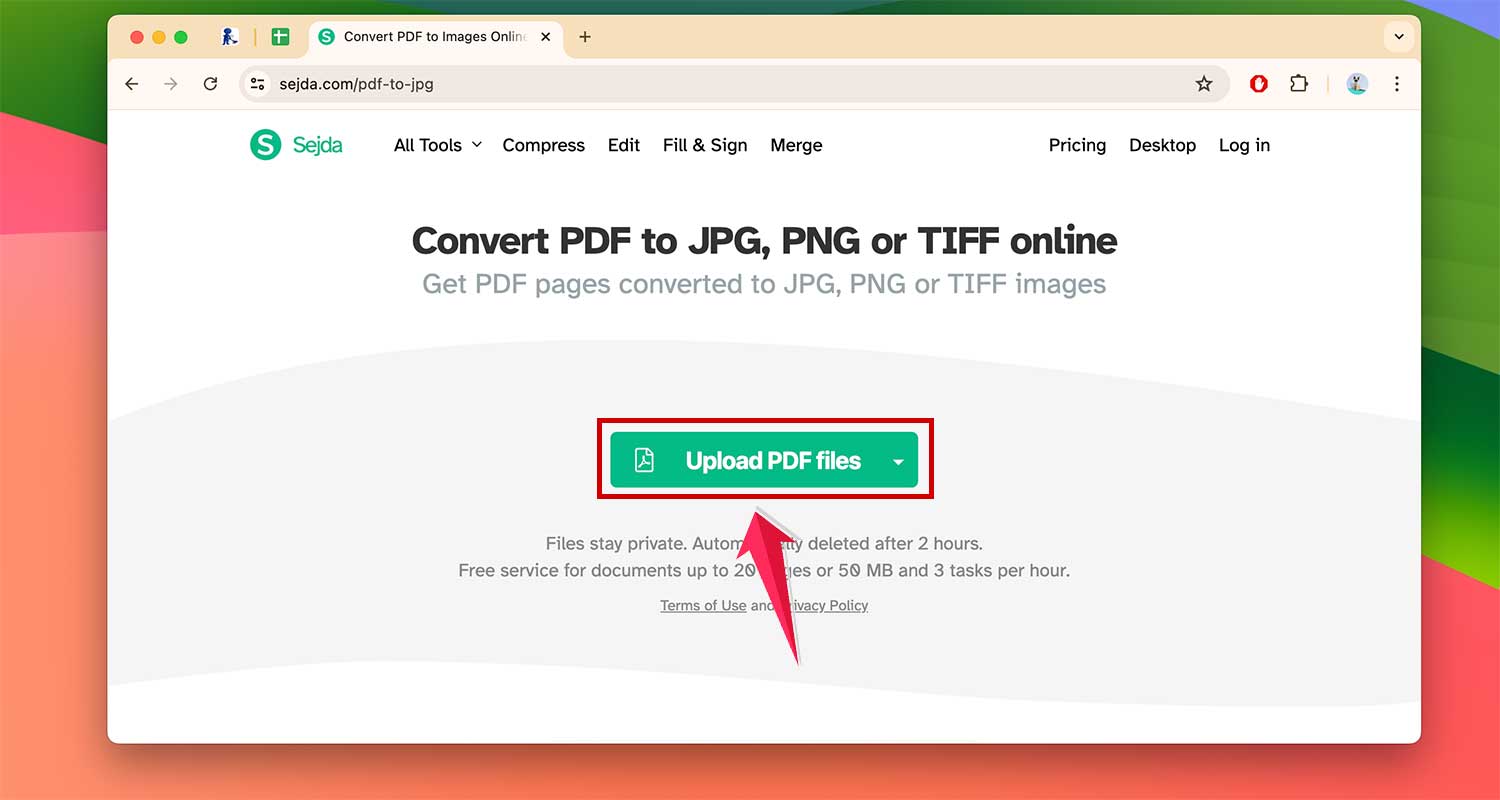
For additional features or ease, consider online tools like Sejda’s PDF to JPG converter.
This tool is straightforward and free, allowing you to convert files without needing to sign up or pay:
- Simply upload your PDF, convert it, and download the JPG.
Each method offers its own benefits, so choose the one that best fits your needs, and you’ll be converting PDFs to JPGs on your Mac with ease!
Don’t Forget To Delete The Duplicates
When converting PDFs to JPGs, especially if you’re doing batch conversions or frequently updating files, it’s easy to end up with duplicate files.
After you’ve converted your PDFs to JPGs using any of the methods above, take a moment to review the saved files. It’s a bit like carefully reviewing sensitive files — thoroughness matters.
Look for any duplicates that might have been created during the process. On a Mac, you can use Finder’s search function to help identify files with similar names or sizes, which could indicate duplicates.
- Open Finder and navigate to the folder containing your JPGs.
- Use the search bar to look for similar file names or sizes.
- Review the files and manually select any duplicates.
- Right-click on the duplicate files and choose Move to Bin.
Conclusion
Converting PDFs to JPGs on your Mac doesn’t have to be a hassle.
Whether you’re handling a one-time conversion using Preview or managing regular batch processes with Automator Quick Actions, macOS makes it straightforward.
With smart tools, keeping your digital space free from clutter and duplicates is just a few clicks away. Plus, if you’re serious about optimizing, here’s how you can make your MacBook faster and streamline everything even more.
Embrace these simple yet powerful tools to streamline your workflows and make file management a breeze. So go ahead, convert with confidence and keep your files organized and efficient!