Did you know the average iPhone user connects their device to accessories more than 1,000 times a year?
All that plugging and unplugging would lead to periodic “This accessory may not be supported” messages. It is frustrating, especially when people don’t really know what is wrong with their iPhone or accessory.
This error message appears when your iPhone fails to have effective communication with the accessory you are connected to.
It can be for charging cables, earphones, or car adapters.
The causes are as numerous as the possible accessories that trigger them; they may include the use of non-certified accessories, a dirty charging port, or running outdated iOS software.
That doesn’t necessarily mean that your iPhone is broken, nor that the accessory itself has a fault.
On the contrary, in fact, there are a number of relatively quick DIY fixes that you can make right in the comfort of your home, whether it’s just a simple restart or even more in-depth cleaning.
This article will guide you through why the problem is happening and what can be done to correct it. Don’t worry.
You are only a few steps away from easily troubleshooting and working through common issues with your troubleshooting tips to avoid in the future.
What is the “This accessory may not be supported” error?
When the message “This accessory may not be supported” appears, your iPhone is essentially saying that it will not identify or communicate properly with the accessory you just attached.
This means a charging cable, headphones, or any other device that you insert into the Lightning port of your iPhone.
It’s like your iPhone saying, “Hey, I am unsure if I will work with this thing you’ve just plugged in.”
1. Common reasons why it happens
This problem might occur in the following situations:
- Using third-party or non-MFi-certified accessories.
- Right after you plug headphones or the audio gadget into the iPhone.
- Connects the iPhone to the car stereo or any other external device.
- When iOS updates are installed.
- If the accessories are old, but you are using them with the latest models of iPhone.
The bug can appear seemingly out of the blue, even to otherwise reliable accessories. It’s not always a question of using non-Apple gear.
2. Why it’s important to address this issue
There are several reasons to solve this problem:
- You can’t charge your iPhone correctly, so you may find yourself running dry at the most inopportune times.
- Many accessories add important functions to your iPhone, like hands-free calling in your car or listening to music with headphones. The error prevents you from using these features.
- Bad or damaged accessories can probably break your iPhone’s Lightning port or other hardware.
- It is really frustrating and time-consuming to get this error message again and again with your accessories.
- Knowing the cause will help you avoid unnecessary replacement of accessories or even the iPhone itself.
Once this problem is solved, you assure yourself that your iPhone will be able to function well with other accessories, extend its life span in your gadget, and spare you the frustration resulting from repeated error messages.
In addition to that, you will understand how your device works, which helps you to analyze further matters in the future.
Reasons behind the “This accessory may not be supported” error message?
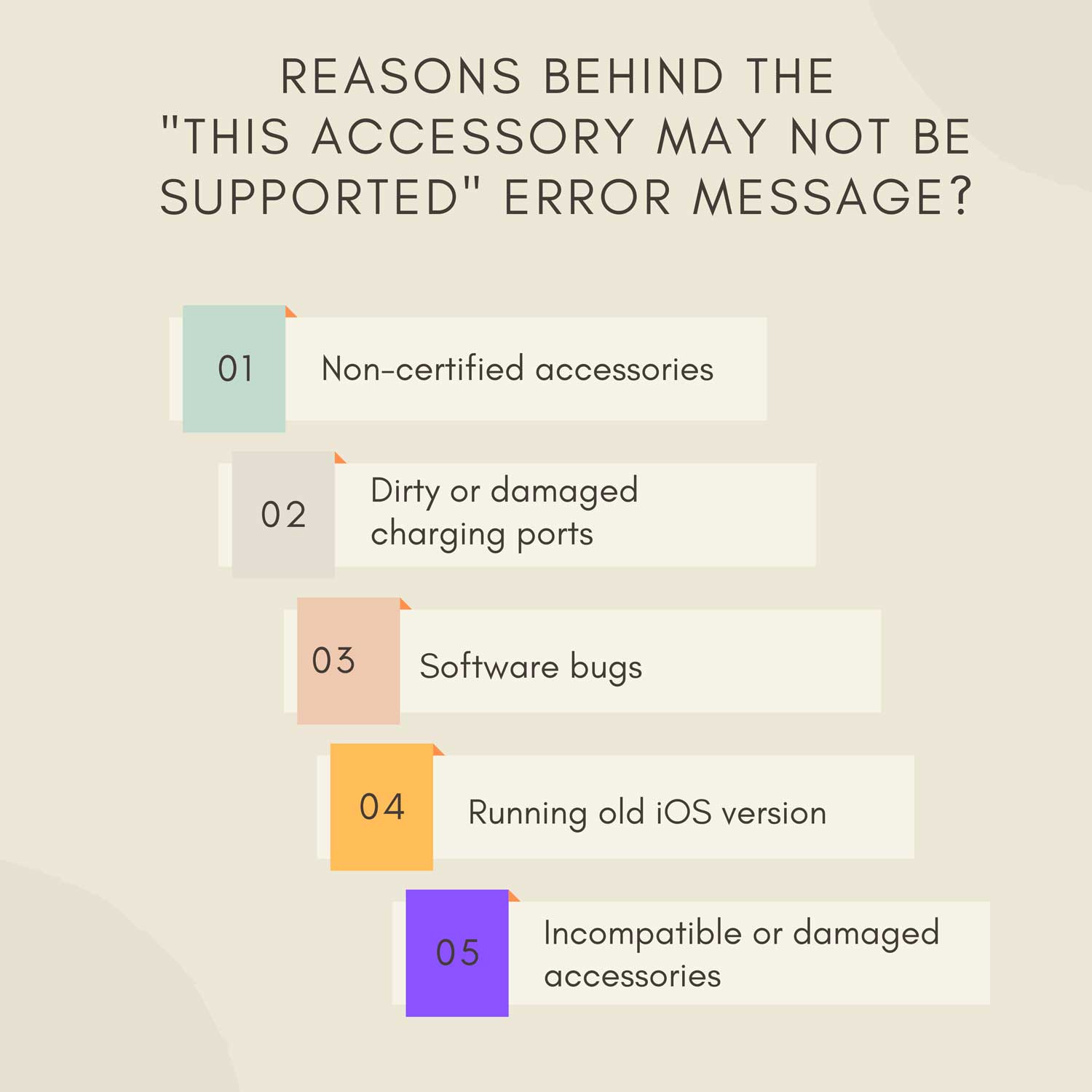
1. Non-certified accessories
When you use accessories that aren’t certified by Apple (known as MFi or Made for iPhone), your device might not recognize them.
Apple has specific standards for accessories, and non-certified ones may not meet these requirements.
This is often the case with cheaper, off-brand chargers or cables you might find at convenience stores or online marketplaces.
2. Dirty or damaged charging ports
Over time, your iPhone’s Lightning port can accumulate dust, lint, or other debris. This buildup can interfere with the connection between your iPhone and accessories.
In some cases, the port itself might be damaged, perhaps from rough handling or moisture exposure. A dirty or damaged port can cause your iPhone to misread the accessory or fail to recognize it altogether.
3. Software bugs
Sometimes the fault does not lie with the iPhone hardware but in its software. The transitory glitch may have been caused at the interface between the accessory and your iPhone.
They can be quite random, and more often than not, they will automatically correct themselves upon restarting your device.
4. Running old iOS version
Apple regularly updates iOS to improve compatibility with accessories, kill bugs, and introduce new features.
Any older version of iOS your iPhone might be running probably does not come loaded with the latest protocols that will recognize and act upon some accessories, especially new ones.
5. Incompatible or damaged accessories
Not all accessories work with all iPhone models. An accessory designed for an older iPhone might not be compatible with the latest models. Additionally, accessories can wear out or become damaged over time.
A frayed cable, a bent connector, or internal damage to an accessory can all lead to connection issues and trigger this error message.
Remember, the cause might be a combination of these factors, so it’s worth considering all possibilities when troubleshooting.
Quick Fixes to try first in resolving the “This accessory is not supported” error
The following are some quick fixes you can try first when encountering the “This accessory may not be supported” error:
1. Reconnect the accessory.
Sometimes the best solution is actually the simplest solution. Here’s what to do:
- Unplug the accessory from your iPhone.
- Wait for 10 seconds.
- Plug the accessory securely back in.
It will disconnect and reconnect your iPhone with the accessory. This time, make sure to plug it back in with a bit of force. Sometimes, the problem is a loose connection.
2. Restart your iPhone
Restarting clears temporary bugs. Don’t forget. If your iPhone won’t charge after restarting, you may need a deeper fix. These are the steps:
2.1 For iPhone X or later:
- Press and hold the side button and either volume button until the power off slider appears.
- Drag the slider to turn off your iPhone.
- Wait about 30 seconds, then press and hold the side button to turn your iPhone back on.

2.2 For iPhone SE (2nd generation) and earlier:
- Press and hold the side or top button until the power off slider appears.
- Drag the slider to turn off your iPhone.
- Wait for about 30 seconds, then turn your iPhone back on by holding down the side or top button.

After your iPhone has restarted, attempt to connect to it again with your accessory.
3. Toggle Airplane Mode
This trick will reset your iPhone’s connections. Here is how to do that:
- Swipe down from the top-right corner of your screen to open Control Center.
- Tap the airplane icon to enable Airplane mode.
- Wait for about 5 seconds.
- Tap the airplane icon again to toggle Airplane mode off.

Try to connect your accessory again after you’ve been restored to connections.
These easy troubleshooting steps should be relatively simple to try and can sometimes solve the problem without further resolution. If this is still persisting, however, you may need to take it a bit deeper.
Remember, these steps are safe to try and won’t hurt your iPhone or accessories. Always good to start with the simplest solutions before resorting to more complex ones.
How to troubleshoot “This accessory may not be supported” on iPhone?
Well, let’s go through these step-by-step solutions to help you fix the error “This accessory may not be supported“:
1. Cleaning your iPhone’s charging port
- Turn off your iPhone.
- Get a small, soft brush, like a clean toothbrush, or a can of compressed air.
- Brush out the charging port gently or use short compressed air.
- Flashlight to be shone to see if debris is eliminated.
- Be gentle with the brush to avoid denting the internal pins.
- Power on your iPhone and test with the accessory.
2 Inspect the damage on the accessory
- Inspect the cable as well as the accessory thoroughly, especially the connector.
- Look for fraying, bent, or discolored
- Inspect bent pins or debris in the connector
- Examine other accessories: If there is damage to any, swap with another accessory and see if the issue persists
3. Update your iPhone iOS to the latest version
- Connect your iPhone to Wi-Fi.
- Go to Settings > General > Software Update.
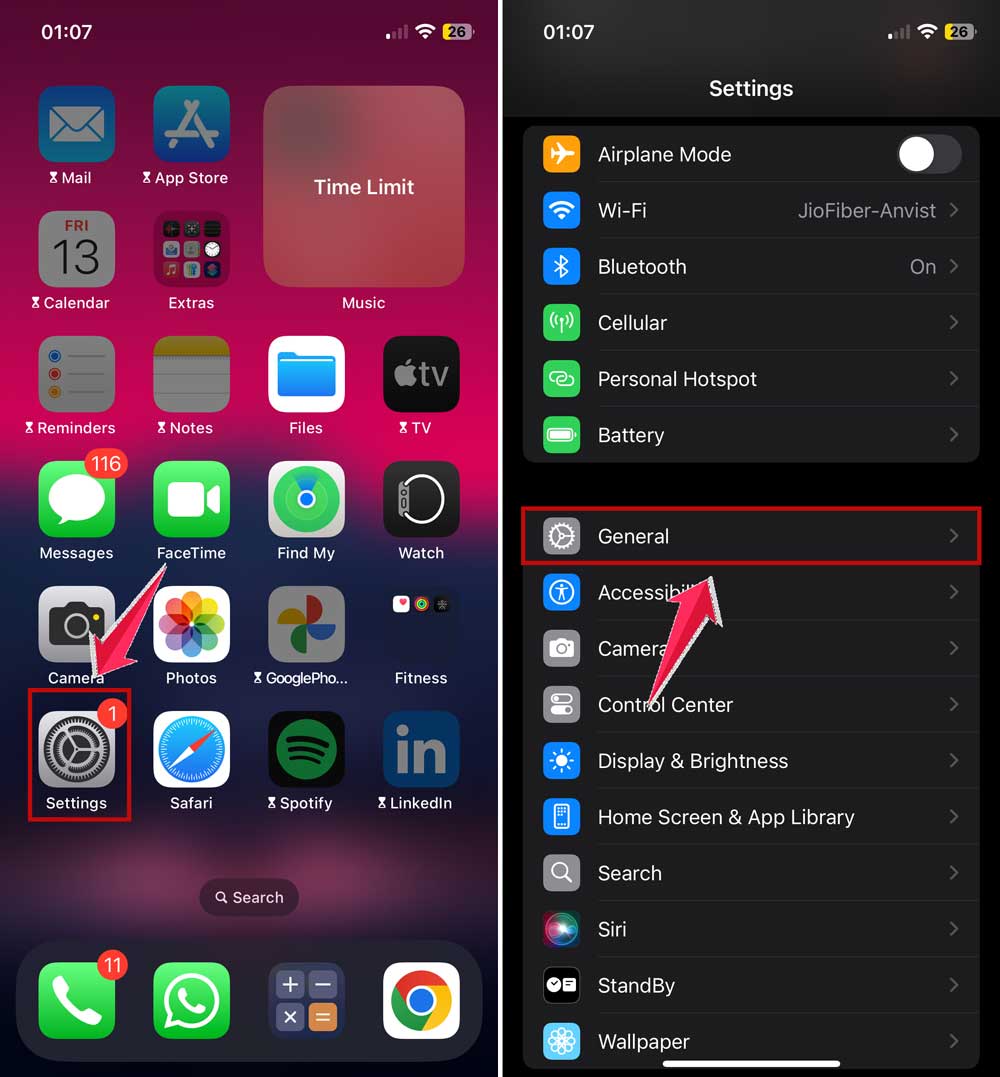
- If there is an update, tap “Download and Install“.
- Then input your passcode, agree to the terms, and sit back and watch the process complete.
- Try your accessory once the update has finished.

4. Make sure your charging cable is MFi-Certified
- Verify whether your accessory is MFi-certified (Its packaging must display “Made for iPhone“)
- If it’s not MFi-certified, ensure you purchase an MFi-certified product through a trusted retailer.
- At this point, when acquiring the new certified accessory, confirm that it works well with your iPhone model
- Test your new certified accessory with your iPhone.
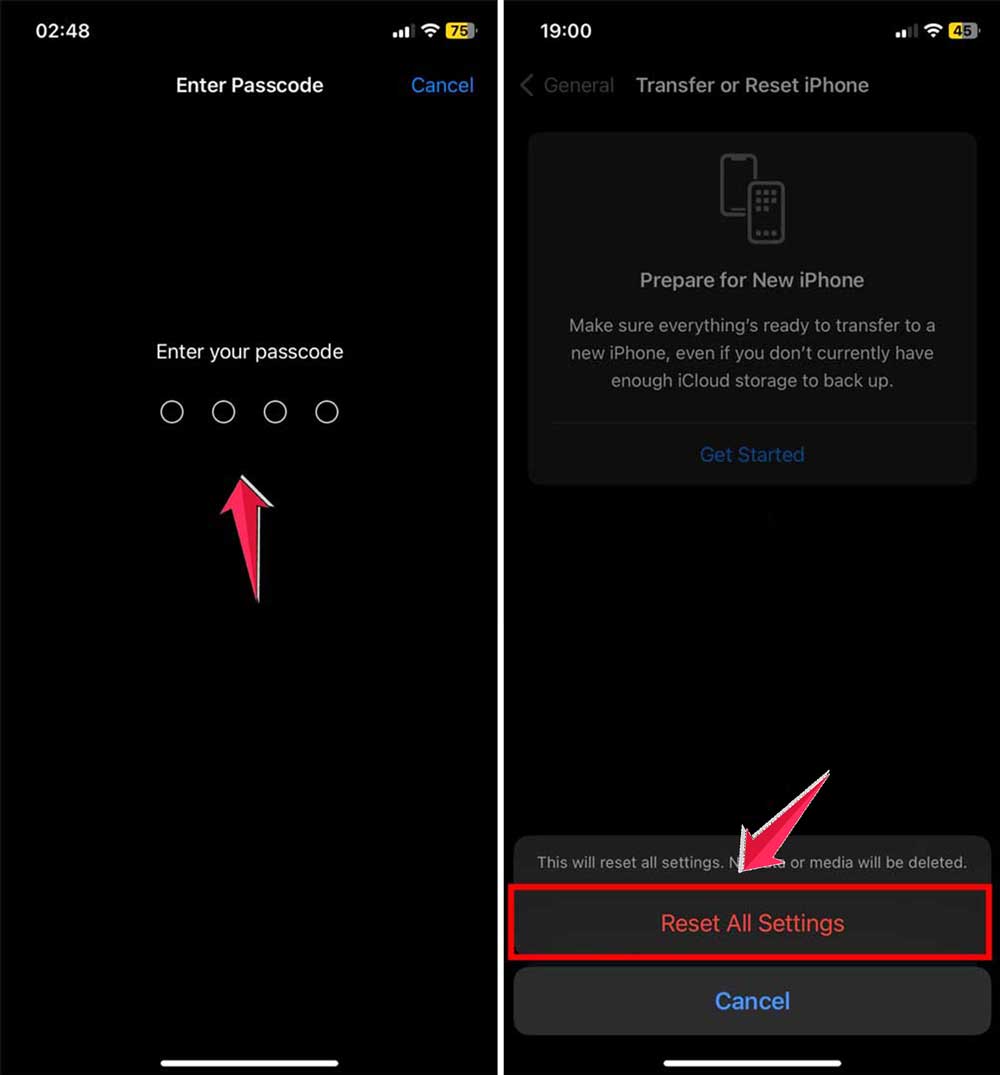
5. Restoring your iPhone settings
- Open Settings.
- Tap General.
- Scroll down and tap Transfer or Reset iPhone.

- Tap Reset.
- Select “Reset All Settings”.

- Enter your iPhone passcode.
- Confirm the reset.
Remember, these solutions are more involved than the quick fixes and will usually address persistent issues. If you feel uncomfortable with one or any of the steps, clean them in particular.
It’s okay to skip ahead to another solution, or you can also get help from an Apple Store or authorized service provider.
It’s always a good practice to back up your iPhone before making dramatic changes, such as resetting values or updating iOS.
Advanced Troubleshooting
Moving on to the deeper troubleshooting steps in case this “This accessory may not be supported” error persists:
1. Dry the Lightning port
If your iPhone recently got wet, dry it in a ventilated area for at least 30 minutes. Avoid hair dryers or microwaves. You can also try the rice trick for extra moisture removal (works for other accessories too!). How do you go about doing that?
- Immediately turn off your iPhone if you haven’t already.
- Tap your iPhone against your palm gently with the Lightning port facing downwards to induct extra water.
- Dry your iPhone by placing it in an open-air aired warm, ventilated area for a minimum of 30 minutes.
- Do not use a hair dryer since heat can damage your gadget.
- If possible,e let it dry for some hours or overnight.
- After drying, try to connect your accessory again.
2. Testing with other accessories
This will enable you to determine whether the problem is in your iPhone or in the accessory:
- Try connecting another accessory that you are sure that it’s working well.
- If you have another iPhone or iOS device, give your original accessory a try there.
- If you can’t do that, ask a friend to lend you an accessory and try it with your iPhone.
- Remember which ones work and which ones don’t.
- If none of them are able to connect, then the issue may be with your iPhone.
- If one of them is, though, it’s probably the problem.
3. The Cable May Not Be the Problem, But the Power Adapter
Sometimes, the cable is alright, but the power adapter has issues:
- Check your power adapter for any visual damage.
- Examine the USB port on the adapter for any dirt or pins bent.
- Try a different power adapter if possible.
- If it’s a wall outlet, try a different outlet. The fault may be coming from the power supply.
- If you are using a computer USB port, try a different port or a wall adapter.
- Third-party adapters should be checked against the Apple power requirements for your model iPhone.
Try using a different adapter or outlet. Power source problems are more common than people realize. Especially with third-party chargers that don’t meet Apple’s voltage standards.
When to seek professional help
At times, the “This accessory may not be supported” error message may refer to a deeper, more serious issue. This is when and how you’d like expert help:
1. Symptoms of Physical Damage
Look for these signs that tell you your iPhone should be taken to a pro:
- Visible damage on your iPhone’s Lightning Port.
- The error continues with good accessories.
- Your iPhone does not charge at all, even when using the official Apple accessories.
- You feel unusual heat coming from the charging port.
- You can see visible corrosion or discoloration in the Lightning port.
- Your iPhone has recently been wet or exposed to other liquids. Then you need professional help if you see some of these signs.
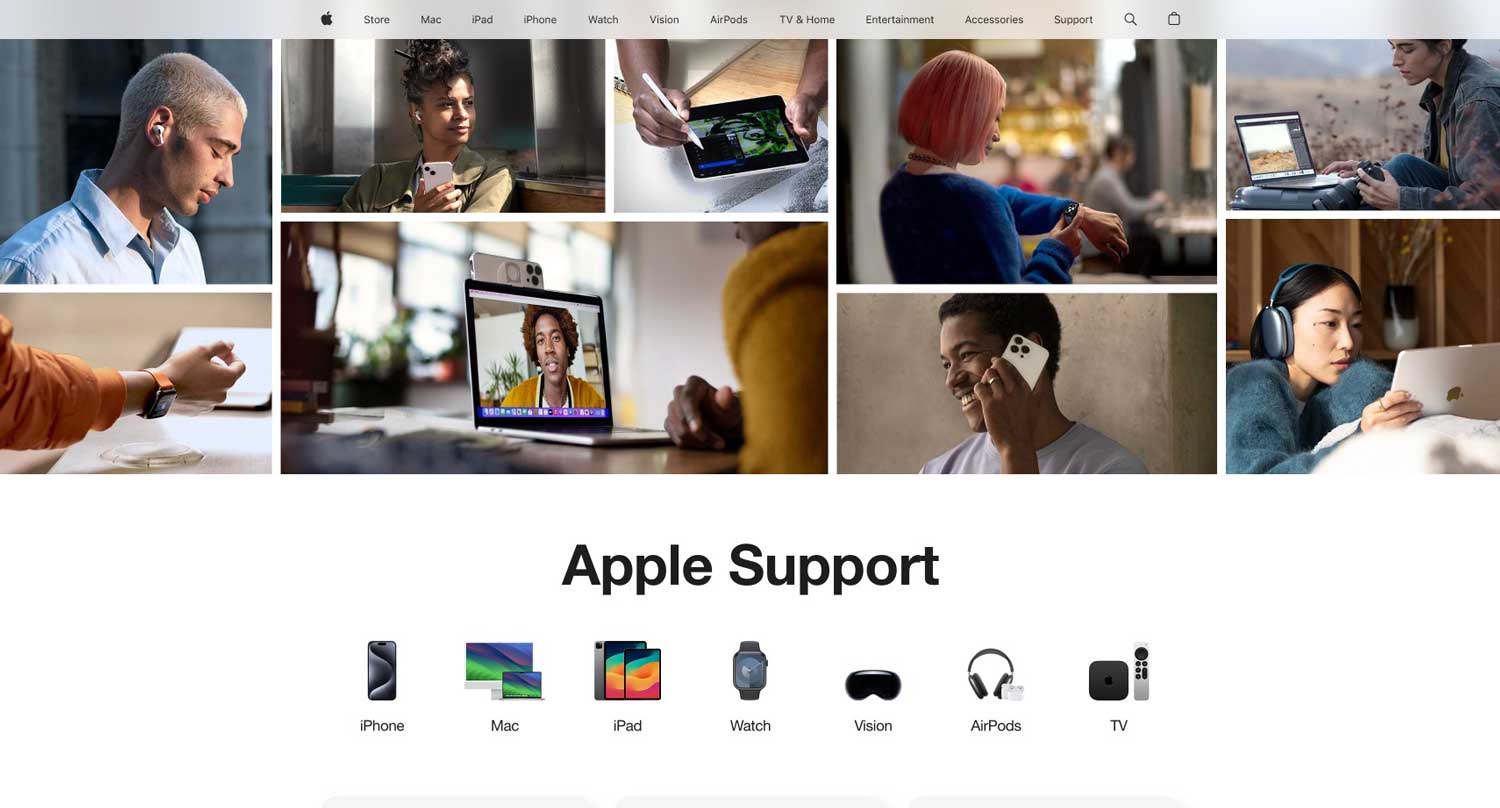
2. Support Team Apple
You might need the help of the Apple support team, which can provide you with certain solutions and manage to solve some issues remotely:
- Reach the website by visiting Apple’s support site at support.apple.com.
- Choose Your Device and Describe the Problem.
- Select one of the chat, phone, or email support options.
- Carefully follow their instructions.
- They can walk you through some additional troubleshooting steps.
- If that’s not enough, they can also assist in getting an in-person appointment.
3. Apple Store or Authorized Service Provider
For in-store help, visit an Apple Store or an authorized service provider:
- Use the site Apple.com to find a store near you, or an authorized service provider in your area.
- Make a Genius Bar appointment if you are visiting an Apple Store.
- Bring your iPhone, along with the malfunctioning accessory.
- Describe the problem, and how far you have gotten.
- They will run diagnostics on the device.
- Repair may be done and can be done on the same day.
Remember that if your iPhone is still under warranty or covered by AppleCare+, many repairs will be free or even at a reduced cost.
Even if your iPhone is no longer covered, calling a professional will help it avoid unnecessary damage and get it back to its usual operation.
If you have any questions at all or if the problem persists even after trying the solutions that we have discussed, do not hesitate to see a professional for assistance.
The employees at Apple have the tools and expertise required for the diagnosis and safe and effective solution of any particularly tricky problem.
The takeaway
To correct this, you first have to understand the error message. Usually, it does not mean that your accessory is faulty or incompatible. Often you will need some self-tough troubleshooting to fix this one.
We’ve walked through quick reconnects and restarts, all the way to cleaning Lightning ports and testing power adapters. These solutions are generally safe and easy to try.
So, if you have tried all of the above and cannot sort the problem out yet, fine. This is the time to phone Apple Support or visit an Apple Store. They’re there for a reason and know how to deal with complicated problems.
Take good care of your iPhone and accessories, and make the right purchases for prevention-contrary to treatment. You avoid many accessory-related issues in the long run.
Remember, technology is far from perfect and, thus, has the occasional hiccup like this one. Knowing how to address it should you experience it is what matters.
With the information you now have from this guide, you are good to go to handle this issue and keep your iPhone working optimally with all your favorite accessories.
Then, hold onto your hats and follow the instructions outlined, and before you know it, you’ll be back to your accessories without those pesky error messages. It may come as a shock in years to come just how well your iPhone performs.