So, you’ve stumbled upon an iPhone that seems to have been misplaced. What next?
Well, if there’s no nearby store or obvious place to drop it off, you might consider handing it over to the police.
But if you’re feeling proactive and want to personally ensure it gets back to its owner, then let’s explore how to make that happen.
Imagine you power on the iPhone and it’s not locked with a passcode. lucky you! Your first move should be to sift through the contacts to find a family member or a friend you can reach out to.
But let’s be real, finding an unlocked phone is quite rare. If it’s locked, don’t worry; there are still a few tricks you can use to connect with the owner.
In fact, there are even methods to find someone else’s iPhone remotely if they reach out to you for help.
Let’s dive into those methods below.
What to Do If You Find a Lost iPhone?
First things first. Make sure the iPhone has some charge. If it’s ready to go, great! If it’s running low, plug it into a charger if you can.
If the iPhone is completely dead and you can’t charge it, your best bet is to take it to the local police station.
They can handle it from there, and the owner might still be able to track the iPhone even if it’s dead or offline.
What to Do If the iPhone Is Locked?
Avoid Trying to Unlock It: Don’t guess the passcode. It could lock or erase the iPhone, making things more complicated.
Check for a Passcode
- Activate the Screen: Tap the screen, press the Home button if there’s one, or use the Side button.
- Test Unlock Methods: Press the Home button to see if it unlocks, or swipe up if there’s no Home button.
What to Do If You Find an iPhone That Is Unlocked?
Finding an unlocked iPhone certainly makes the task of returning it to its rightful owner a breeze.
Here’s a straightforward approach to help reunite the lost iPhone with its owner:
Step 1: Find the Owner Using Contacts
With access to the Home screen, your first destination is the Contacts app:
- Open the Contacts App: Simply tap to open it.
- Navigate the Contacts: If you land on a specific contact, hit ‘Contacts’ at the top left to see the full list.
- Identify the Owner’s Contact: Often, the owner’s contact will be at the very top, typically marked as “My Card.” Tap on it and note down any helpful details like an additional phone number or email address.

Pro Tip: If you see an email address, you might even check whether it’s linked to their Apple ID. That’s one way to find saved app passwords or login details if they’ve synced them.
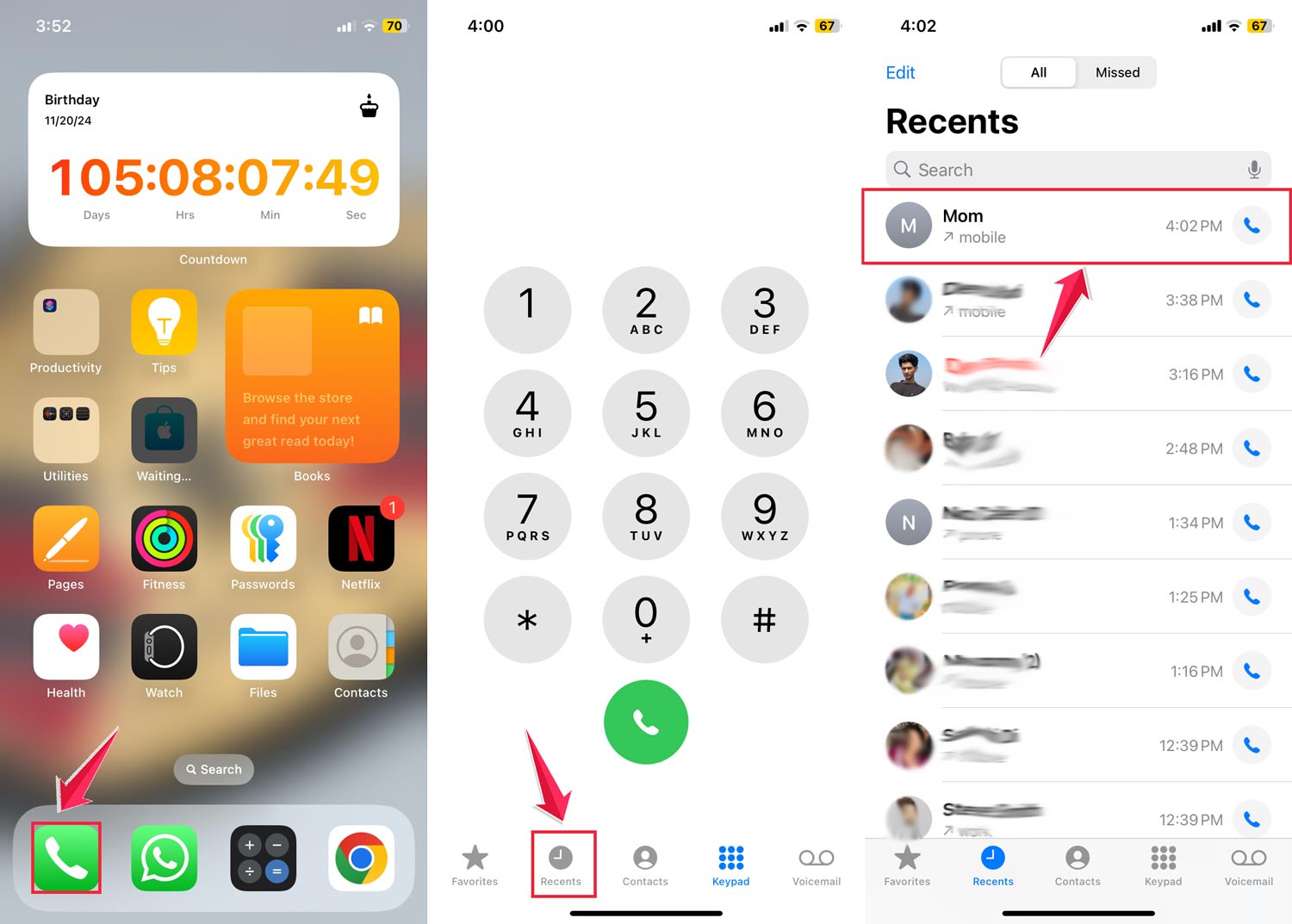
Step 2: Try Calling a Recent Contact
If you can’t get enough info from the owner’s card, your next stop is the Phone app:
- Open the Phone App: Just tap on it to start.
- Navigate to Recents: Hit the ‘Recents’ tab at the bottom.
- Identify a Promising Contact: Choose a recent call that was connected (shown in black) rather than missed (red). Opt for contacts labeled like “Mom” or “Dad” for a better chance of reaching someone close to the owner.
- Make the Call: Tap the entry to start the call.
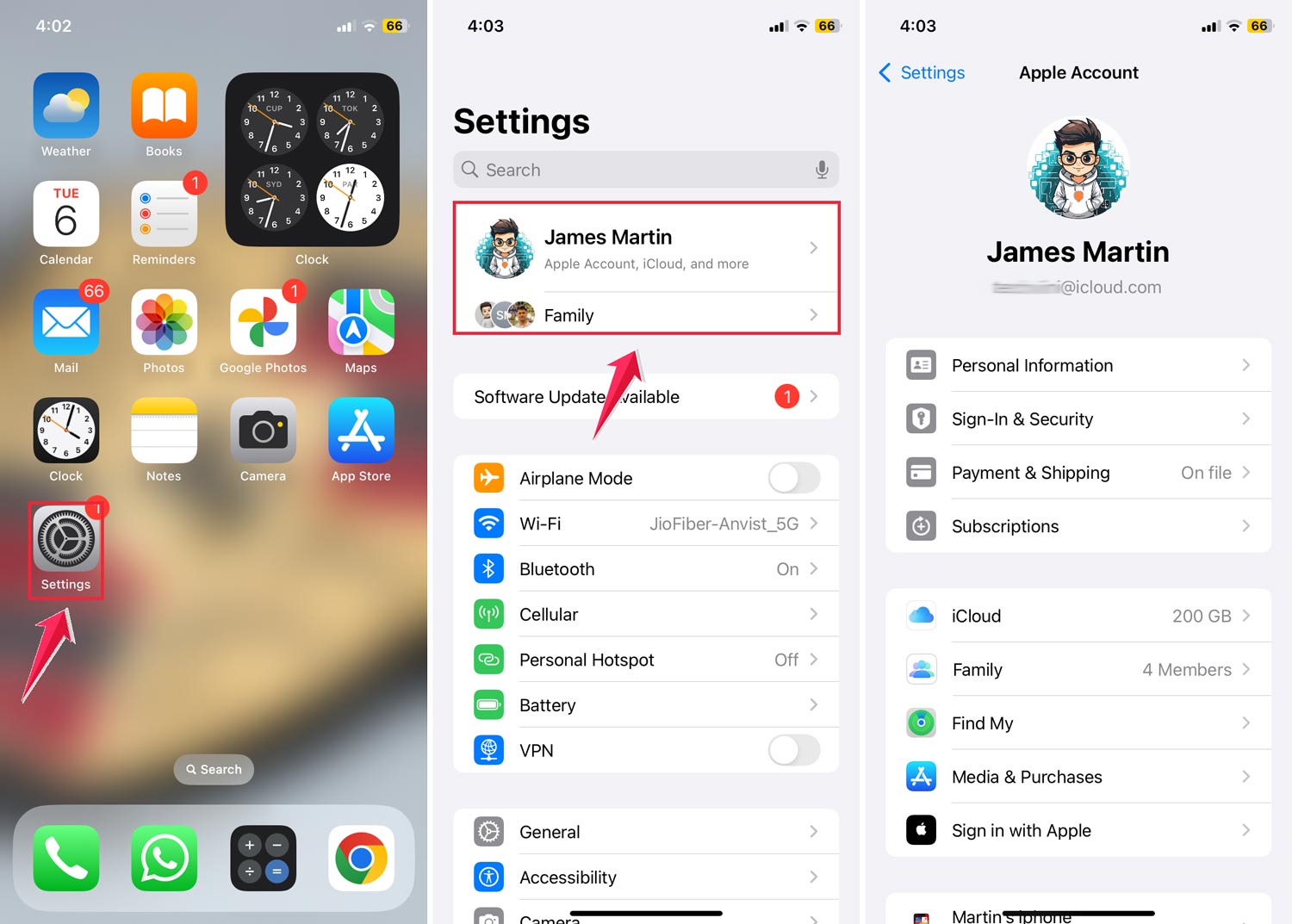
Step 3: Look Up the Owner’s Email in Settings
If the above steps don’t work, try looking up the owner’s Apple ID email:
- Open the Settings App: Tap the Settings icon.
- Access Apple ID: Tap on the Apple ID at the top of the menu.
- View the Profile Page: The owner’s Apple ID email is displayed under their name and profile image.
What to Do If You Find a Lost iPhone That Is Locked?
Finding a locked iPhone doesn’t mean you’re out of options. Here’s how you can help reunite it with its owner without needing to unlock it:
1. Wait for an Incoming Call
Sometimes, the simplest approach is just to wait. The owner, realizing their phone is missing, might call it.
When you answer, you can explain the situation and ask for details on how to return the phone.
2. Use the Medical ID
iPhones can display Medical ID info right from the lock screen, which often includes emergency contacts.
Here’s how to access it:
- Swipe up on the lock screen to reach the passcode screen.
- Tap on ‘Emergency’ at the bottom left.
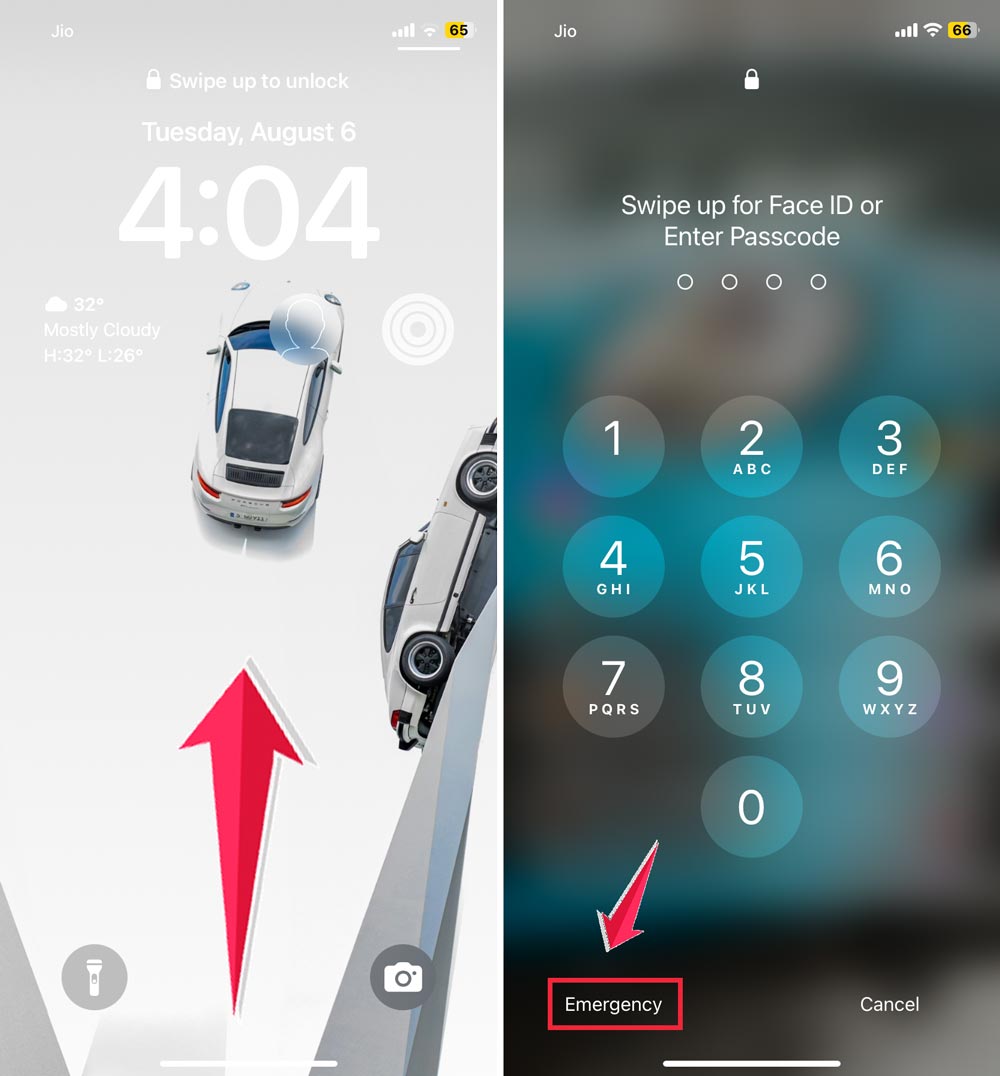
- Then select ‘Medical ID’ to see if the owner has set it up. This might give you emergency contacts you can call.
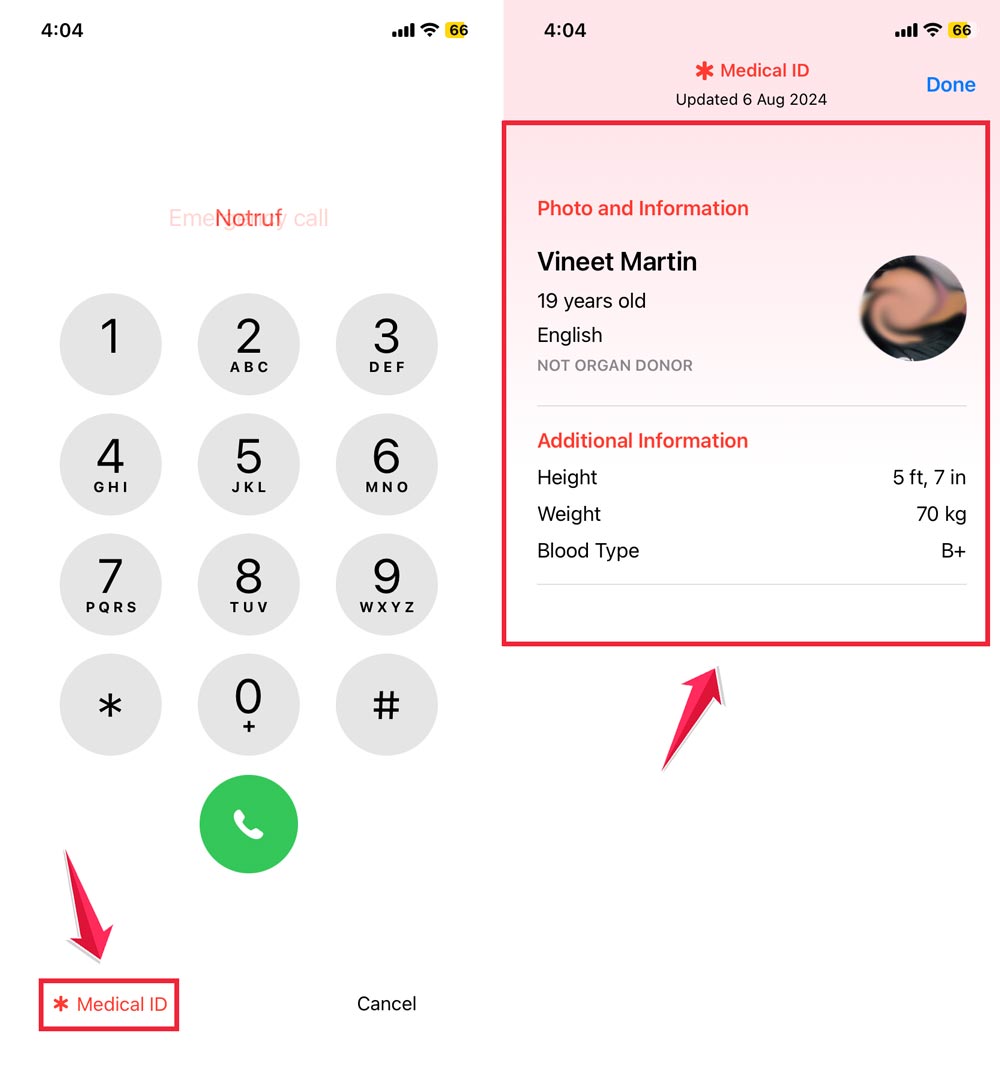
If set up, it often contains emergency contact details. Want to help someone protect their phone better in the future? Recommend they turn on Find My on all their Apple devices.
3. Ask Siri for Help
If Siri is enabled, it can be a handy way to try to contact someone who knows the owner:
- Activate Siri by holding the side or home button, or say, “Hey, Siri.”
- Try saying, “Call Mom,” “Call my wife,” or similar commands that might reach a close contact.
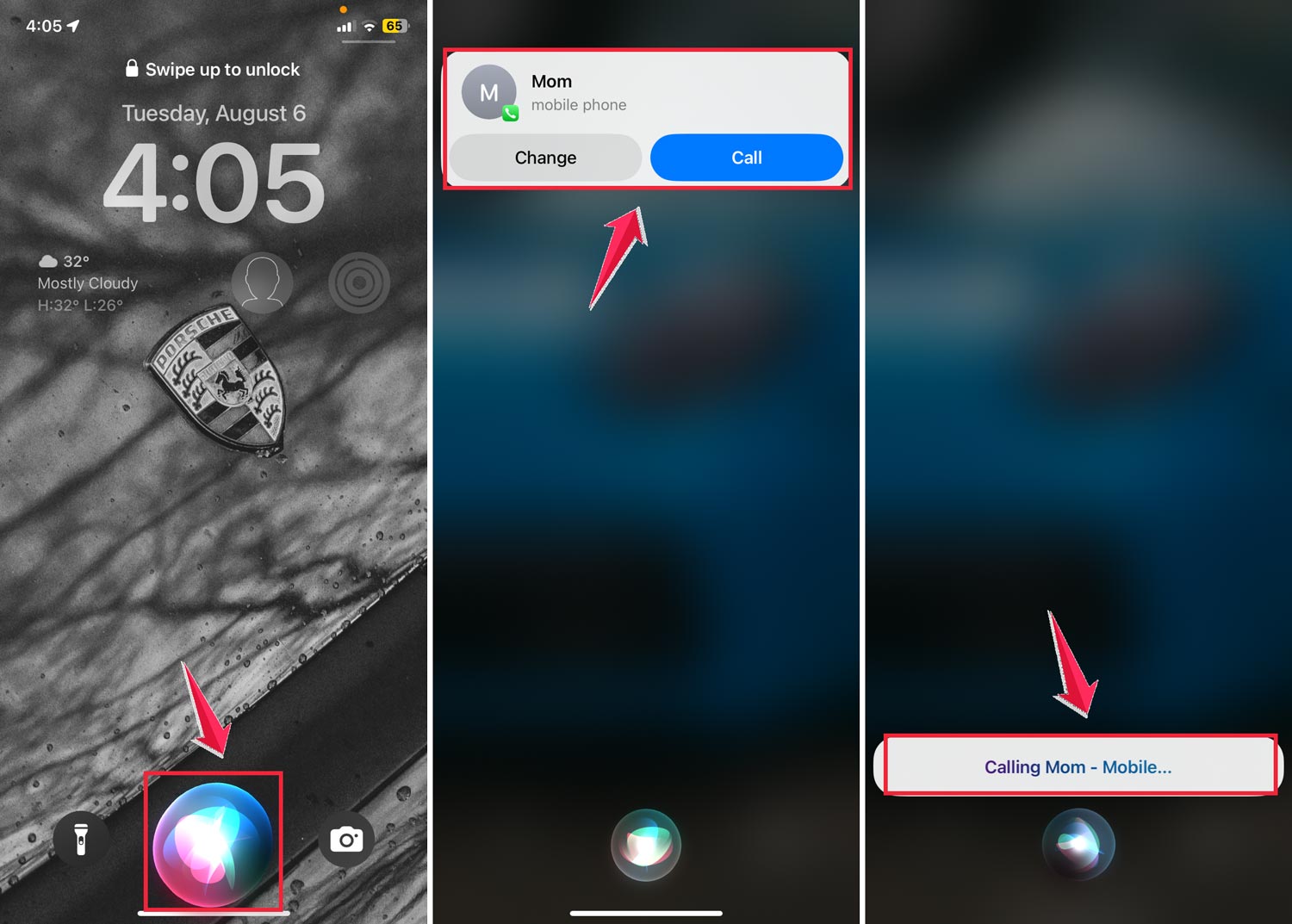
Siri might ask for a passcode after a few tries, so make the first few commands count!
4. Can Apple Support Help?
While Apple Support generally maintains privacy, here’s what they might suggest:
- Check if there’s a Lost Mode message displayed on the phone.
- They’ll likely recommend turning the iPhone into a local police station for safety and legal reasons.
5. When in Doubt, Turn It In at a Police Station
Still no luck? It’s best to leave the iPhone with your local police. They have protocols and tools for handling found items.
Plus, they might be able to help locate the owner via location history if the device was being tracked.
In Conclusion To
So there you have it! If you ever find an iPhone, you now know the steps to take to ensure it finds its way back to its owner.
The methods we’ve discussed are simple yet effective, and they can truly make a big difference in someone’s day.
Follow these steps, return the phone, and enjoy the good karma that comes from doing a good deed!
Got any extra tips or stories about returning lost items? Drop them in the comments below. We’d love to hear from you!