Did you know that your iPhone can display moving images as your background? It’s true! This feature, called live photo wallpaper, can make your device come to life every time you use it.
Many iPhone users aren’t aware of this fun option or don’t know how to set it up.
That’s a shame because live wallpapers can add a personal touch and make your phone more enjoyable to use. Maybe you’ve tried to set one up before but got stuck along the way.
Don’t worry. It’s actually pretty simple once you know the steps. In this article, you’ll learn how to turn your favorite live photos into dynamic wallpapers for your iPhone.
Whether you want to see waves crashing on a beach or your pet in motion, you’ll soon be able to bring your lock screen to life.
You can even set multiple pictures as wallpaper for a fresh look every time you check your phone.
Sure, I’ll rewrite the instructions in clear steps with important navigational terms in bold. Here’s the revised version:
How to set up a live wallpaper on your iPhone
Follow these steps to give your iPhone a dynamic new look:
- Open your Settings app.
- Scroll down and tap on Wallpaper.
- Tap the + sign or Add New Wallpaper button.

- On the next screen, tap Photos.
- Use the Live Photo filter to find your Live Photos more easily.
- Select the live photo you want to use.
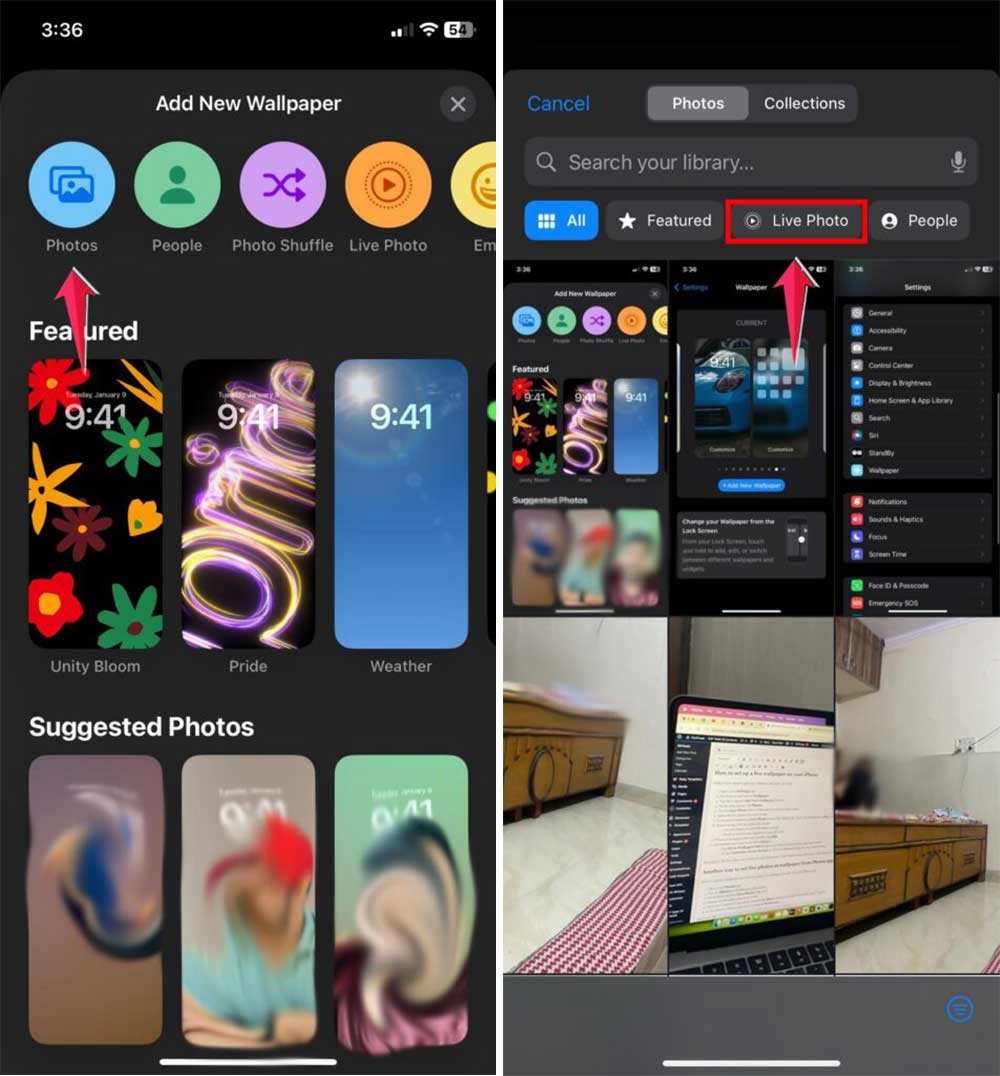
- If you see a crossed-out Live Photo icon at the bottom left, tap it. You should see a Play symbol appear.
- Before saving, you can adjust the image:
-
- Use two fingers to move the focus around
- Pinch or spread your fingers to zoom in or out
- When you’re happy with how it looks, tap Add.
- Choose how you want to use the wallpaper:
-
- Tap Set as Wallpaper Pair to use it on both your lock screen and home screen
- Or tap Customize Home Screen to choose a different image for your home screen
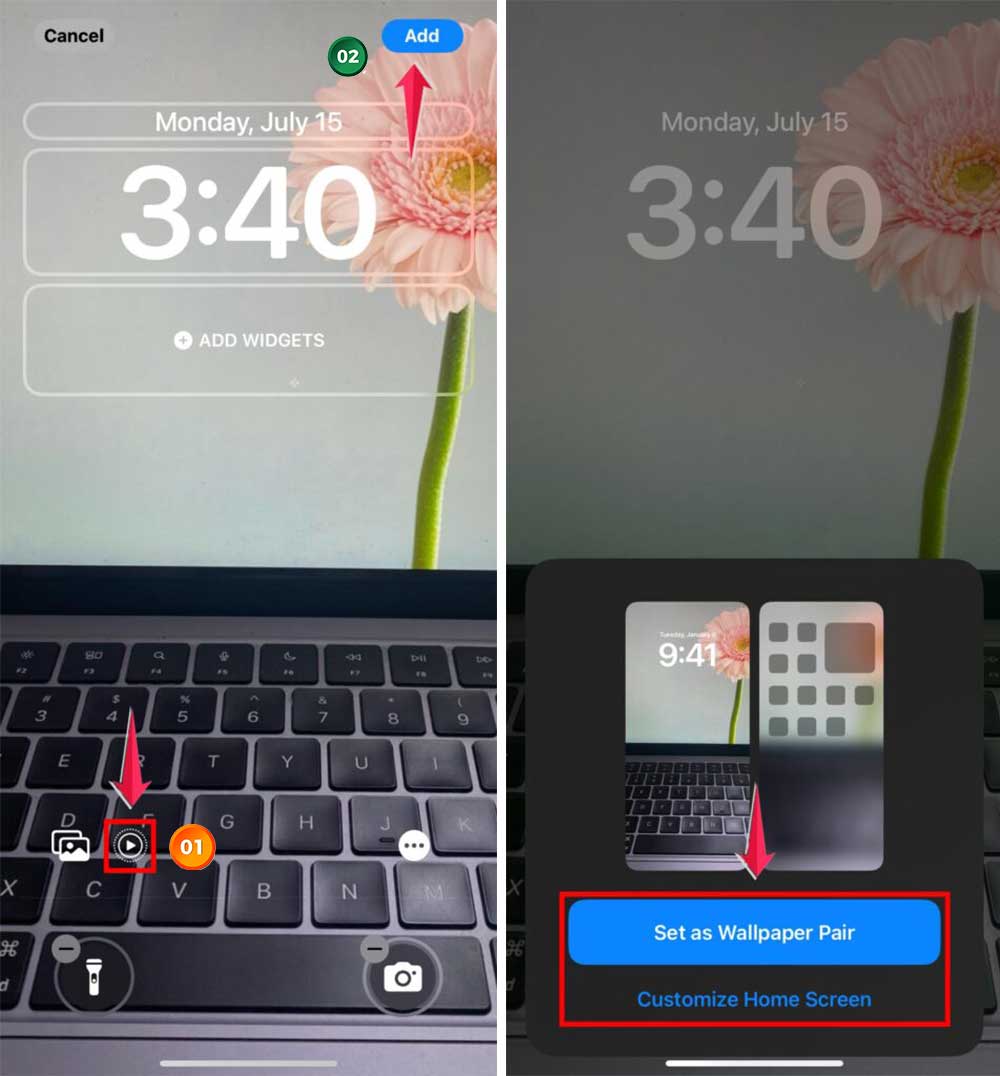
Remember, the live effect only works on your lock screen. Your home screen will show a still version of the image.
Another way to set live photos as wallpaper from the Photos app
Here’s a quicker method to set your live photos as wallpaper directly from your Photos app:
- Open your Photos app.
- Tap on Albums at the bottom of the screen.
- Scroll down and find Live Photos. Tap on it.
- Choose the live photo you want to use.

- Once you’ve selected your photo, look for the Share icon at the bottom left of the screen. Tap on it.
- In the sharing options, find and tap Use as Wallpaper.
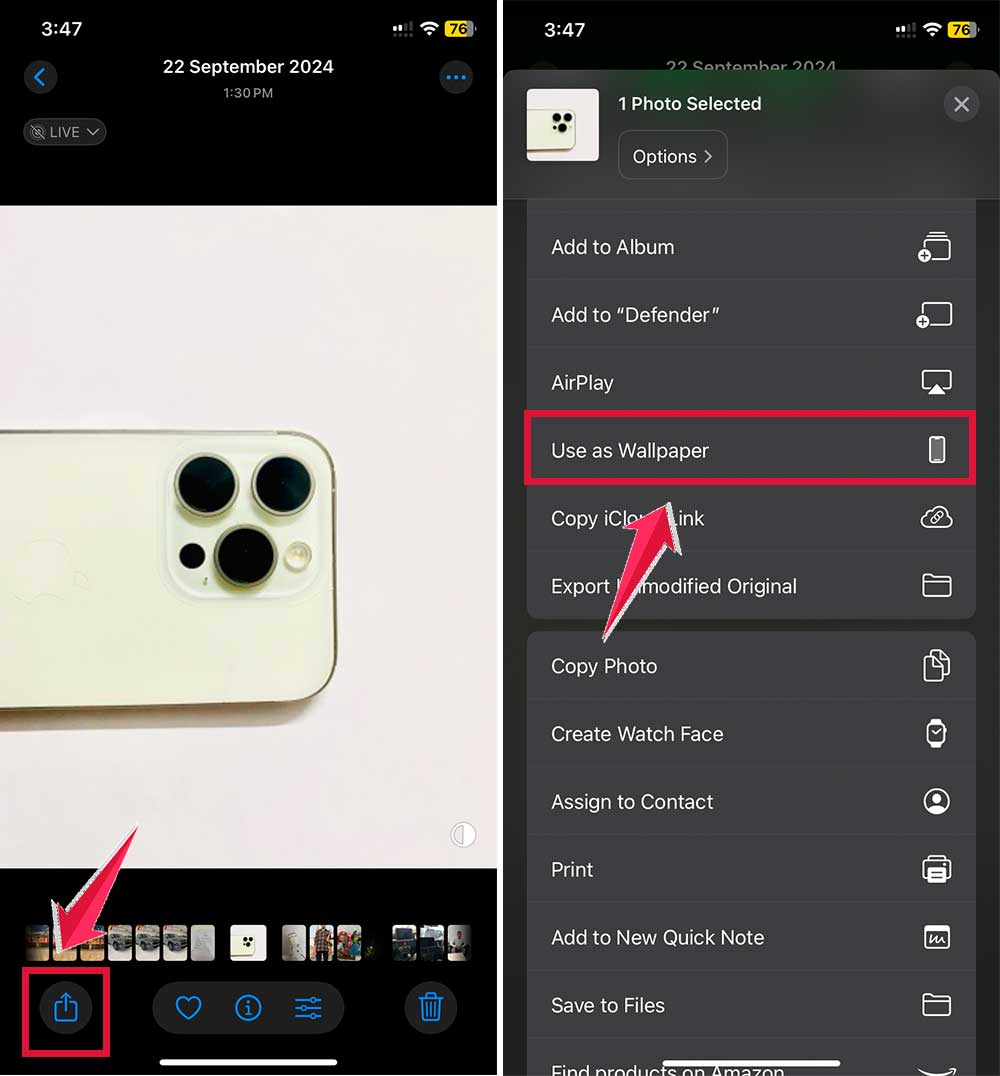
- You’ll see a preview of your wallpaper. If you’re happy with it, tap Add.
- Now, decide where you want to use this wallpaper:
-
- Tap Set as Wallpaper Pair to use it on both your lock screen and home screen
- Or choose Customize Home Screen if you want a different image there
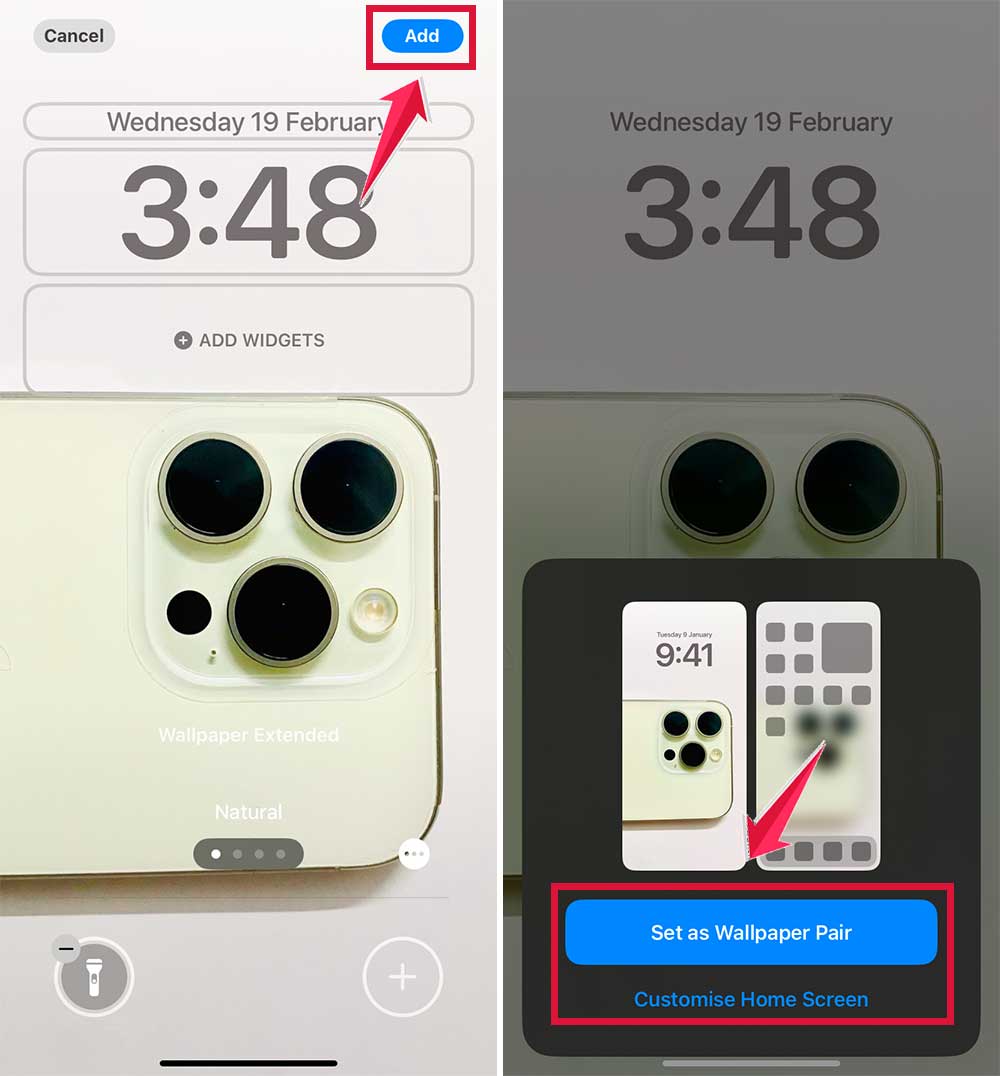
Remember, even though you’ve set the live photo for both screens, the animation will only work on your lock screen. Your home screen will show a still version of the image. Having trouble with wallpapers not working? It might be due to a glitch.
This method can save you a few taps compared to going through the Settings app. Give it a try next time you want to change up your wallpaper!
How to view your live wallpaper on iPhone
After setting up your live wallpaper, you’ll want to see it in action. Here’s how you can enjoy your new dynamic background:
- Lock your phone. Press the power button on the side or top of your iPhone, depending on which model you have.
- Wake up your screen. You have two easy options. Either by tapping the screen once or you can simply pick up your phone.
- See the magic happen. Your live wallpaper should now play automatically. You’ll see your chosen photo come to life right on your lock screen.
If the animation doesn’t play automatically, don’t worry. You can still view it manually:
- On your lock screen, press and hold your finger on the image.
- Keep holding, and you’ll see your wallpaper start to move.

That’s all there is to it! Your lock screen is now more dynamic and personalized. If the effect still won’t work, make sure Reduce Motion is off in Accessibility settings.
Where to find more live wallpapers for your iPhone
If you want to expand your live wallpaper collection beyond your own photos, you’ve got plenty of options:
1. Using search engines
Start with a simple online search. Try typing “iPhone live wallpapers” into Google or your preferred search engine.
You’ll find many websites offering free downloads. Just be cautious and stick to trustworthy sites to keep your phone safe.
2. Apps for live wallpapers
The App Store has numerous apps dedicated to live wallpapers. Here are some popular options:
- ZEDGE. This app offers a vast library of wallpapers, ringtones, and notification sounds. It’s free with optional in-app purchases.
- WallCraft. Known for its high-quality, artistic wallpapers. It’s free but offers a premium version for more options.

- Everpix. Offers a curated selection of high-quality wallpapers, including live options. It’s free with a premium tier.
- Black Lite. Focuses on dark and OLED-friendly live wallpapers. It’s free with some premium content.
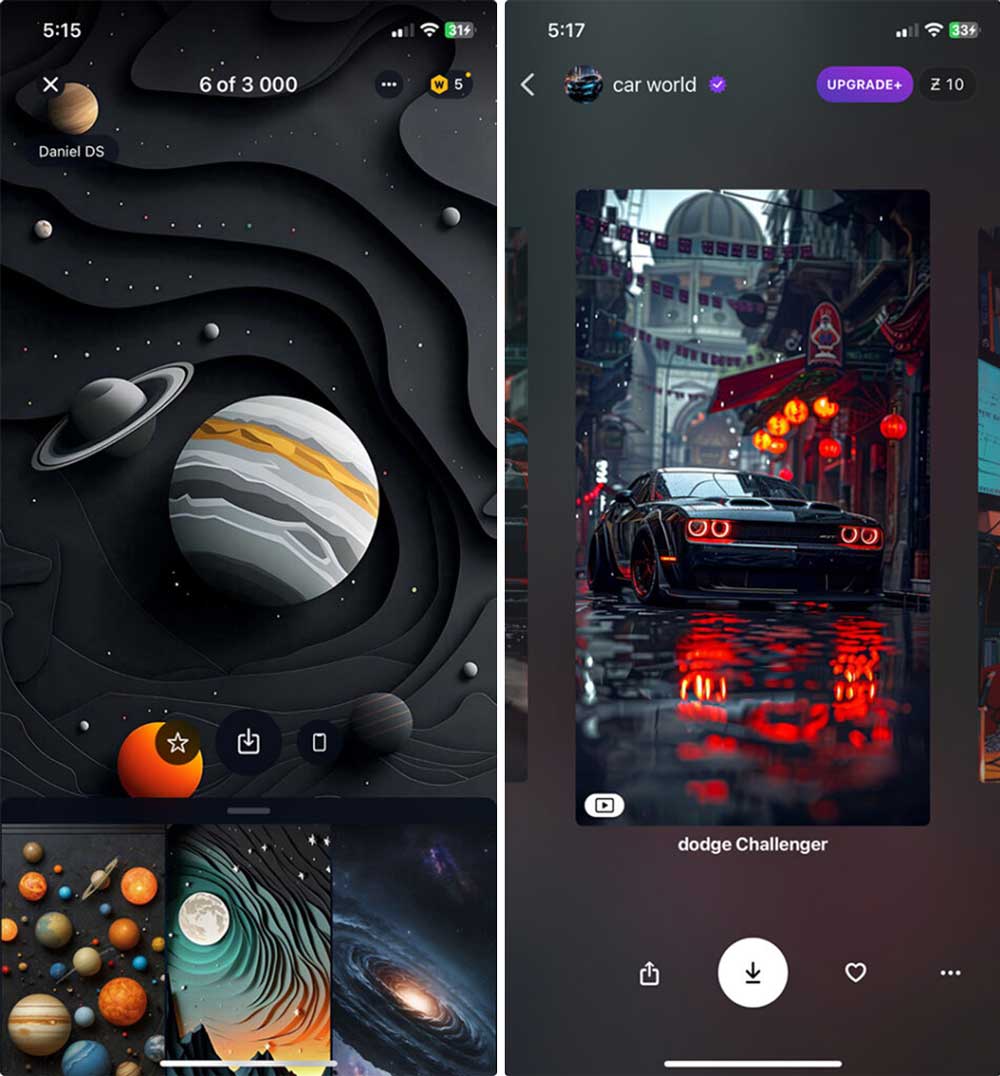
When you download these apps, you’ll find a wide range of live wallpapers to suit different tastes. From nature scenes to abstract designs, you’re sure to find something that catches your eye.
Before uploading your own live photos, check out some pro tips for editing your iPhone photos to make them look stunning!
Remember, while these apps are free to download, some may offer premium wallpapers for a small fee. Always read the app descriptions carefully so you know what you’re getting.
Will live wallpapers drain my battery?
Live wallpapers do use slightly more battery than static images, but the impact is minimal.
They only animate when you press and hold the screen, so they’re not constantly running. If you’re concerned about battery life, you can always switch back to a static wallpaper.
Why won’t my live wallpaper move?
If your live wallpaper isn’t animating, check a few things:
- Make sure you’re on the lock screen, not the home screen.
- Press and hold the screen. It won’t animate automatically.
- Ensure Reduce Motion is turned off in your Accessibility settings.
The takeaway
Live wallpapers can make your iPhone feel more personal and exciting.
You’ve learned how to set them up, whether you’re using your own photos or finding new ones online. It’s a simple way to refresh your phone’s look without any complicated steps.
Remember, live wallpapers only animate on your lock screen when you press and hold. They won’t drain your battery much, so don’t worry about that. If you have an iPhone 6s or newer, you can enjoy this feature fully.
Setting up a live wallpaper is all about making your phone feel like it’s truly yours. So go ahead and give it a try.
Pick a photo that makes you smile, set it as your wallpaper, and enjoy watching it come to life every time you check your phone.
What do you think about live wallpapers? Feel free to share your thoughts in a single-line comment below.