Have you ever been ready to buy something online using your iPhone, only to realize your saved credit card information is out of date? It’s frustrating, isn’t it? You’re not alone.
Many iPhone users struggle with keeping their payment details current. While you’re updating your card, you might also want to clear hidden purchases on your iPhone.
Your iPhone has a handy feature called AutoFill that can save you time and hassle. It stores your credit card information securely, so you don’t have to type it in every time you make a purchase.
But when your card expires or you get a new one, you need to know how to update this information.
Keeping your AutoFill details up to date is important. If you don’t, you might run into problems when trying to make online purchases. You could face declined transactions or delays in getting the items you want.
In this article, you’ll learn exactly how to update your credit card information on your iPhone. We’ll walk through the process step by step, making it easy for you to keep your payment details current.
Whether you need to edit existing information, add a new card, or remove an old one, we’ve got you covered.
How to update your credit card information for Safari on iPhone and iPad
Let’s walk through how to manage your credit card details for online shopping using Safari on your iPhone or iPad.
This process is called AutoFill, and it’s a handy feature that saves you time when making purchases. Here’s what you need to do:
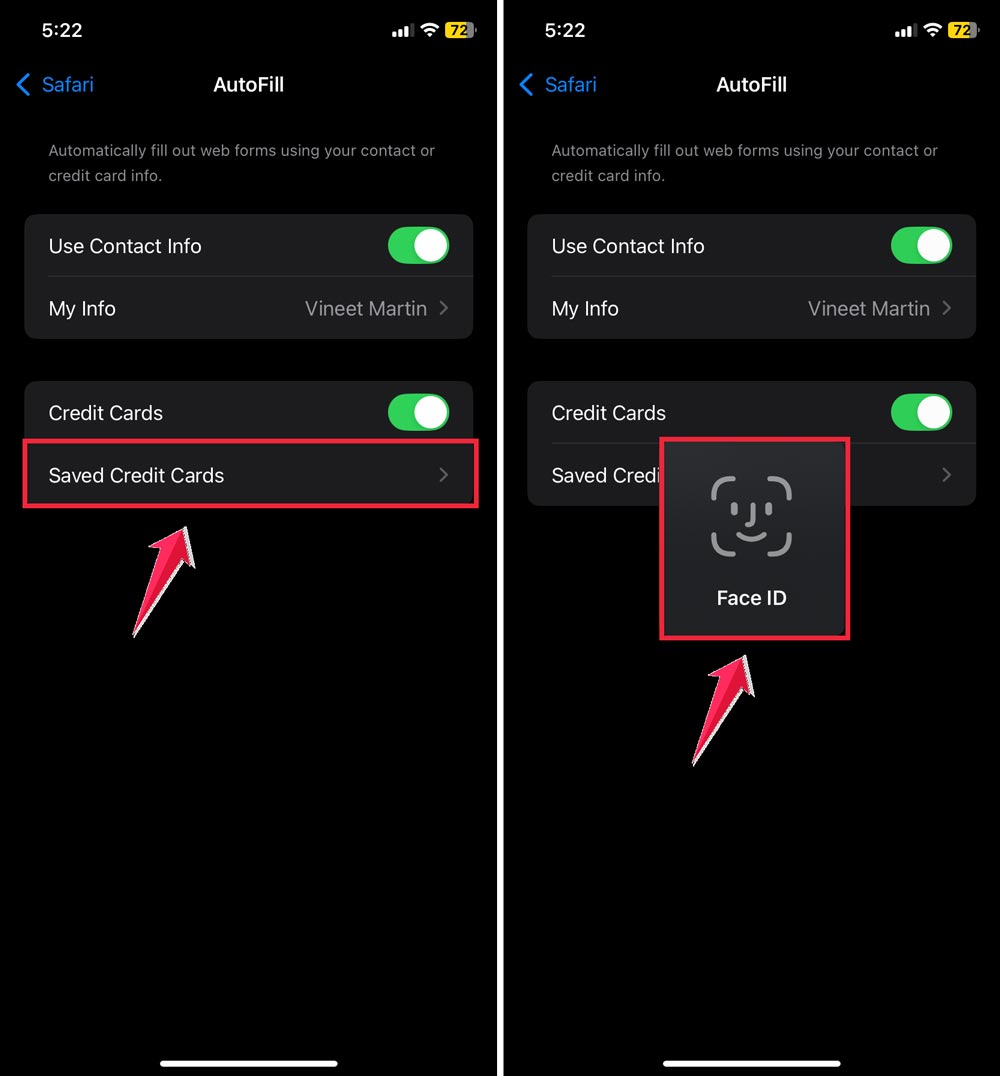
- Open the Settings app on your device.
- Scroll down and tap on Safari.
- Look for AutoFill and tap on it.
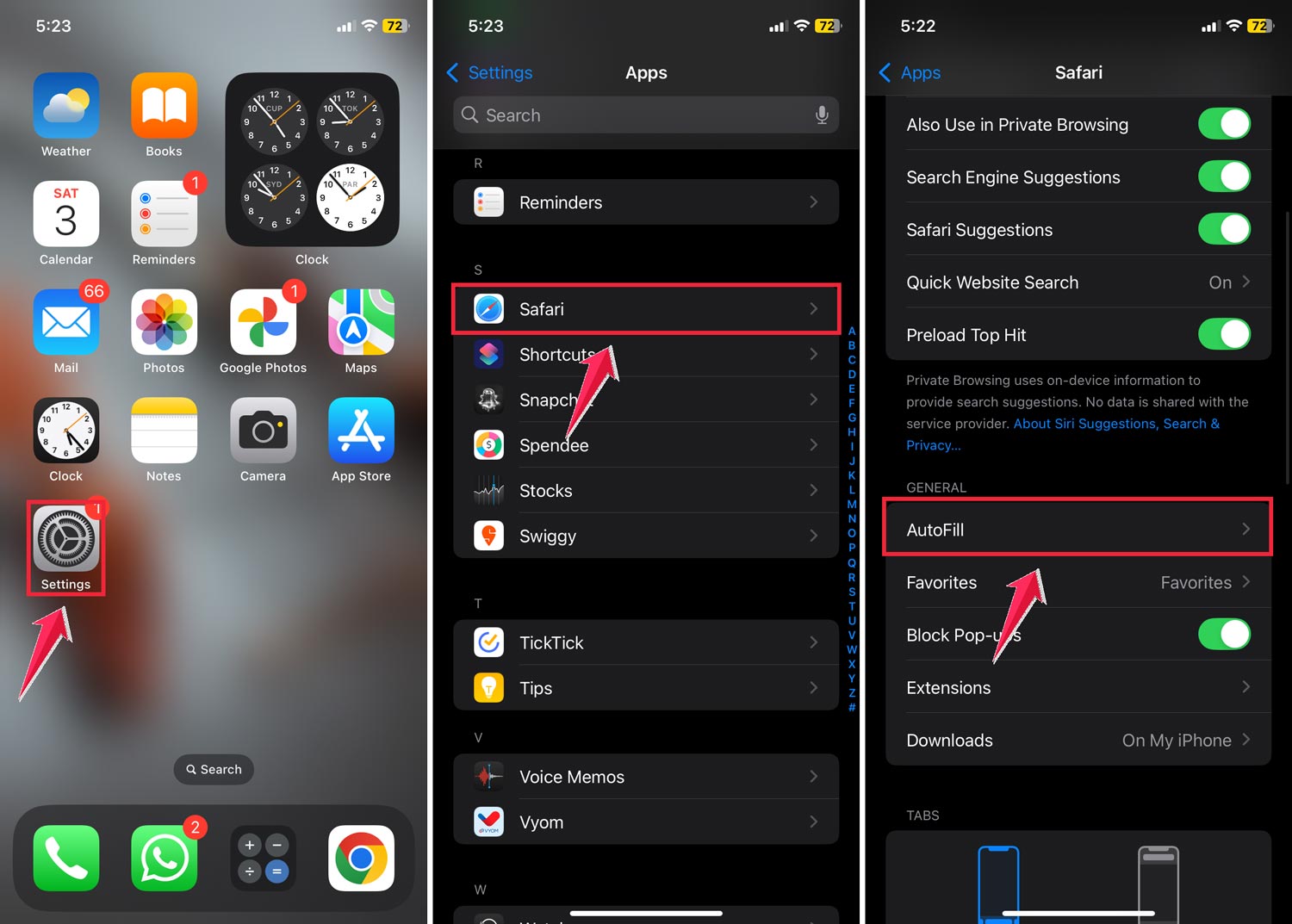
- Select Saved Credit Cards. You might need to use your passcode, Face ID, or Touch ID to access this.
How to add a new card
- Tap Add Credit Card.
- You can either scan your card with your camera or type in the details manually.
- When you’re done, tap Done to save it.

How to edit a card you’ve already saved
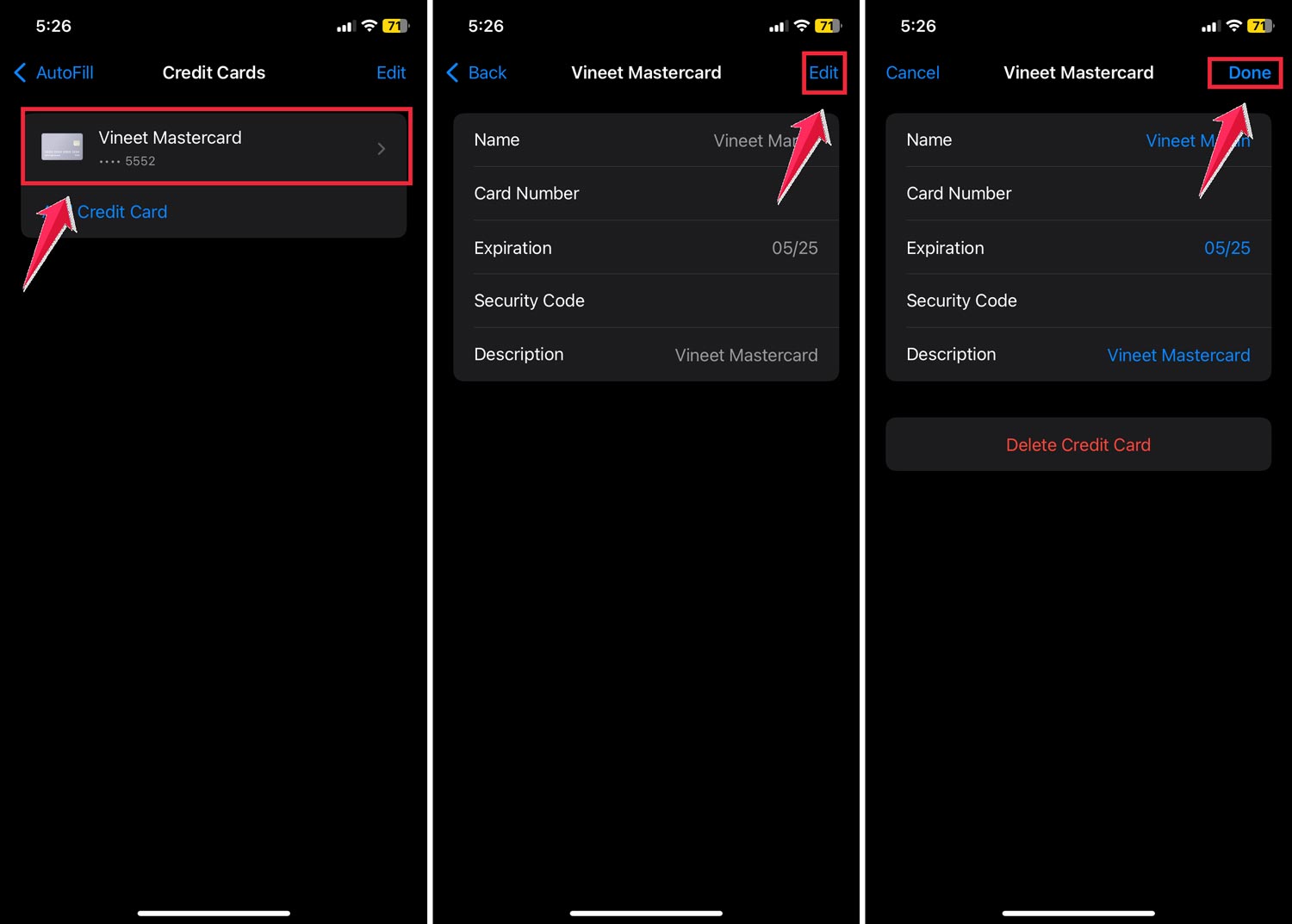
- Tap on the card you want to change.
- Hit Edit and make your updates.
- Tap Done to save your changes.
How to remove a card
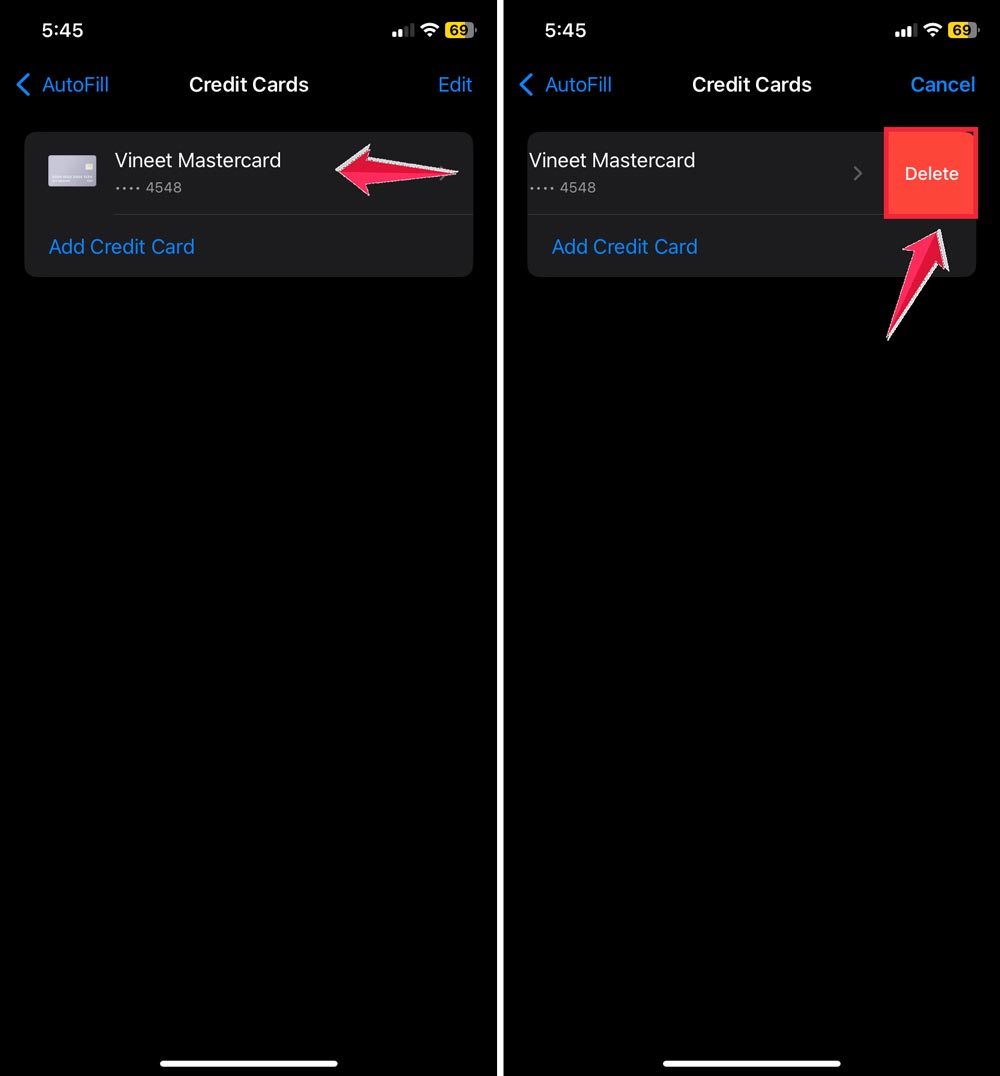
- Select the card you want to delete.
- Swipe left to Delete Credit Card.
By keeping your payment information up to date, you’ll have a smoother experience when shopping online.
Remember, if you use iCloud Keychain, these changes will sync across all your Apple devices, so you only need to do this once.
The takeaway
Updating your credit card information on your iPhone doesn’t have to be a hassle. With Safari’s AutoFill feature, you can easily manage your payment details right from your device. This means smoother online shopping experiences and fewer interruptions when you’re ready to make a purchase.
The process is straightforward: access your saved credit cards through the Safari settings, then add, edit, or delete card information as needed. By keeping this information current, you’re ensuring that your online transactions go through without a hitch.
And if you use iCloud Keychain, these updates will sync across all your Apple devices, saving you even more time.
Some people worry that storing credit card information on their phones isn’t safe. But Apple has built strong security measures into these features to protect your data.
Just remember to keep your device passcode secure and use Face ID to secure apps for an extra layer of protection. You can also hide apps on your iPhone to boost your privacy further.
Taking a few minutes to update your credit card information can save you a lot of frustration in the long run. So why not take care of it now?