Do you feel annoyed when switching between apps on your iPhone?
One moment you’re replying to a message, and the next, you’re flipping back to Safari or Notes. It disrupts your flow and wastes your time.
While Apple doesn’t provide a true side-by-side split screen like on iPad or Android, you can still multitask smartly. You won’t need to jailbreak or risk your phone.
Let’s break this down to explore how far you can go with multitasking on your iPhone.
First, let’s be real: iPhones don’t officially support split screen
You probably searched this hoping there was some secret setting to turn it on.
But if you’re on an iPhone, the real answer is no. Apple hasn’t added full split-screen multitasking yet. It’s only available on iPads and Macs.
That said, you still have a few good options. Let’s look at what you can actually do today on your iPhone.
1. Use picture-in-picture mode (PiP)
If you want to watch a video while doing something else, this feature is gold.
When you play a video in Safari, FaceTime, Apple TV, or apps like Netflix or Prime Video, it can shrink down into a floating box.
You can move it around your screen while checking messages, reading notes, or browsing.
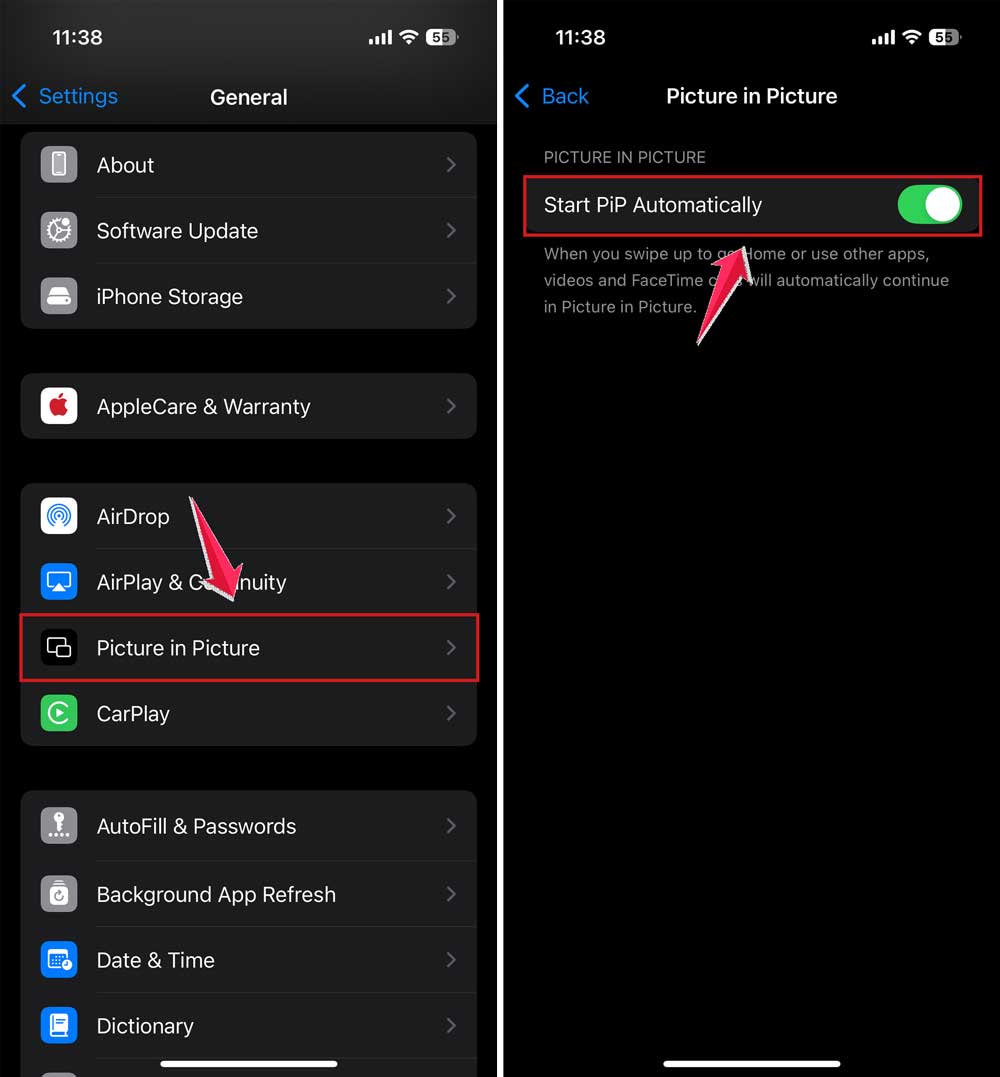
Here’s how to set it up:
- Open Settings.
- Tap “General.”

- Go to “Picture in Picture.”
- Turn on “Start PiP Automatically.”
Now go open a video app that supports PiP. like Safari, Apple TV, or Netflix.
Play something. Then tap the PiP icon or press the home bar to shrink the video.
Boom. It floats. Drag it to any corner. You’re now watching a show while using other apps. Easy.
2. You can swipe between apps like a multitasking ninja
You can’t see two full apps at once, but iPhone makes switching between apps super fast.
Swipe left or right on the bottom of your screen (where the home bar is). Keep swiping and you’ll cycle through all your recently used apps.
Want to copy something from one app to another?
- Open the first app.
- Copy the text or image.
- Now swipe up on the screen to open the next app.

- Tap on the next app using the bottom bar.
- Paste it. Done.

It’s not side by side, but it’s fast. And once you get used to it, it feels smooth.
3. Use third-party split-screen apps
Now, if you really want the feel of two things running side by side, you can use a split-screen browser app.
These don’t let you run two native apps like Messages and YouTube together. But they do let you browse two web pages or tools at the same time.
Search for “Split Screen Multitasking” in the App Store.
Some popular ones include Split Screen View, WebDuo Pro, and Split Screen – Dual Window.
Here’s how to use them:
- Download the app from the App Store.
- Open it.
- Enter two URLs. one on top, one on bottom (or side by side if in landscape mode).
- Now browse both at the same time.

You can use this to open Gmail on one side and Google Docs on the other. Or read a blog while researching in another tab. It’s basic, but helpful.
Just remember. These apps run web versions, not the full native apps. So, you might not get the full app experience, but it still works for many tasks.
Try using Siri and Spotlight smartly
This one’s often overlooked.
You’re typing an email and want to check the weather? Or calculate something?
Just swipe down on your home screen. That opens Spotlight.
Now type “weather,” “calculator,” or even a contact name. You get instant results without leaving your current app.
Or just say “Hey Siri, what’s 32 divided by 8?” She’ll give you the answer while you stay in your current app.
Feels like magic when you use it right.
Mirror your iPhone screen to an iPad or Mac
This is more of a workaround, but it works beautifully.
You can use Apple’s Sidecar or screen mirroring features to send your iPhone screen to another Apple device. like an iPad or Mac.
If you want more space or a split-view feel, try this:
- Swipe down from the top-right corner to open Control Center.
- Tap “Screen Mirroring.”
- Select your Mac or iPad.

Now your phone screen shows up there.
Use the second device to check other stuff while your phone stays focused on one task. It’s not exactly a split screen, but it gives you extra flexibility if you have another Apple device nearby.
Are you thinking of jailbreaking? Don’t.
You might find shady guides online that say, “You can unlock real split screen by jailbreaking your iPhone!”
Please don’t.
It voids your warranty, opens up your phone to malware, and can mess with system stability.
And most of the time, it’s not even worth the effort.
Stick to the safe options. There’s enough flexibility built in or available via apps.
What you can actually do, based on your iPhone model
If you have an iPhone Plus, Pro, or Pro Max. Try turning your phone sideways while in certain apps. Some apps like Mail, Notes, and Calendar will expand into a two-panel layout.
It’s not a real split screen. But it helps.
You get more info on the screen, especially useful for reading or writing.
Want to check if your phone does this?
Just open Mail or Notes. Turn your iPhone sideways (landscape mode). If it switches to a two-pane view, your model supports the wider layout.
The takeaway
You can’t officially split your iPhone screen to use two full apps side by side. But you can still multitask in smart ways.
Use Picture-in-Picture for videos. Swipe between apps like a pro. Try out dual-browser apps for side-by-side tasks. Or mirror your screen if you’ve got a second device.
There’s no perfect solution yet. But these tricks work. And they save time, reduce app switching, and help you stay focused.
Give them a try and see what fits your style.
And who knows? Maybe in a future iOS update, Apple will finally bring true split-screen multitasking to iPhones. Until then. You’ve got options.
Let me know how it goes. Did you try PiP? Or test a split-screen browser? Curious to hear what worked best for you.